navigation CHEVROLET SILVERADO 2011 2.G User Guide
[x] Cancel search | Manufacturer: CHEVROLET, Model Year: 2011, Model line: SILVERADO, Model: CHEVROLET SILVERADO 2011 2.GPages: 588, PDF Size: 7.99 MB
Page 256 of 588
Black plate (30,1)Chevrolet Silverado Owner Manual - 2011
7-30 Infotainment System
©SEEK:Press to return to the
start of the current track or chapter.
Press again to go to the previous
track or chapter. This button might
not work when the DVD is playing
the copyright information or the
previews.
¨SEEK: Press to go to the next
track or chapter. This button might
not work when the DVD is playing
the copyright information or the
previews.
sREV (Fast Reverse): Press
to quickly reverse the CD or DVD
at five times the normal speed.
To stop fast reversing, press again.
This button might not work when
the DVD is playing the copyright
information or the previews.
\FWD (Fast Forward): Press
to fast forward the CD or DVD
at five times the normal speed.
To stop fast forwarding, press again.
This button might not work when
the DVD is playing the copyright
information or the previews. Using Softkeys to Play a DVD-V
(Video)
Once a DVD-V is inserted, the radio
display menu shows several tab
options for playback. Press the
softkey located under any tab
option during DVD-V playback.
r/j(Play/Pause):
Press either
the Play or Pause tab displayed on
the radio, to toggle between pausing
or restarting playback of a DVD.
If the forward arrow is showing on
the display, the system is in pause
mode. If the Pause tab is showing
on the display, the system is in
playback mode. If the DVD screen
is off, press the play button to turn
the screen on.
Some DVDs begin playing after
the previews have finished,
although there could be a delay
of up to 30 seconds. If the DVD
does not begin playing the movie
automatically, press the softkey located under the play/pause
symbol tag displayed on the radio.
If the DVD still does not play,
refer to the on-screen instructions,
if available.
c(Stop):
Press to stop playing,
rewinding, or fast forwarding a DVD.
r(Enter): Press to select the
choices that are highlighted in
any menu.
y(Menu): Press to access
the DVD menu. The DVD menu
is different on every DVD. Use
the softkeys located under the
navigation arrows to navigate
the cursor through the DVD menu.
After making a selection press this
button. This button only operates
when using a DVD.
Nav (Navigate): Press to display
directional arrows for navigating
through the menus.
Page 267 of 588
Black plate (41,1)Chevrolet Silverado Owner Manual - 2011
Infotainment System 7-41
Changing the RSE Video Screen
Settings
The screen display mode (normal,
full, and zoom), screen brightness,
and setup menu language can be
changed from the on screen setup
menu. To change any feature:
1. Press the
z(display menu)
button on the remote control.
2. Use the remote control
n,q,
p,o(navigation) arrows and
the
r(enter) button to use the
setup menu.
3. Press the
zbutton again to
remove the setup menu from the
screen.
Audio Output
Audio from the DVD player or
auxiliary inputs can be heard
through the following possible
sources:
.Wireless headphones
.Vehicle speakers
.Vehicle‐wired headphone jacks
on the RSA system, if the
vehicle has this feature.
The RSE system always transmits
the audio signal to the wireless
headphones, if there is audio
available. See “Headphones” earlier
in this section for more information. The DVD player is capable of
outputting audio to the wired
headphone jacks on the RSA
system, if the vehicle has this
feature. The DVD player can be
selected as an audio source on the
RSA system. See
Rear Seat Audio
(RSA) System
on page 7‑47for
more information.
When a device is connected to the
A/V jacks, or the radio's auxiliary
input jack if the vehicle has this
feature, the rear seat passengers
are able to hear audio from the
auxiliary device through the wireless
or wired headphones. The front seat
passengers are able to listen to
playback from this device through
the vehicle speakers by selecting
AUX as the source on the radio.
Page 269 of 588
Black plate (43,1)Chevrolet Silverado Owner Manual - 2011
Infotainment System 7-43
Objects blocking the line of sight
could also affect the function of the
remote control.
If a CD or DVD is in the Radio DVD
slot, the remote control
O(power)
button can be used to turn on the
video screen display and start the
disc. The radio can also turn on the
video screen display. See Operation
on page 7‑2for more information.
Notice: Storing the remote
control in a hot area or in direct
sunlight can damage it, and the
repairs will not be covered by the
warranty. Storage in extreme cold
can weaken the batteries. Keep
the remote control stored in a
cool, dry place.
If the remote control becomes
lost or damaged, a new universal
remote control can be purchased.
If this happens, make sure the
universal remote control uses a
code set of Toshiba
®. Remote Control Buttons
O(Power):
Press this button to
turn the video screen on and off.
P(Illumination): Press this button
to turn the remote control backlight
on. The backlight automatically
times out after 7 to 10 seconds if
no other button is pressed while
the backlight is on.
v(Title): Press this button to
return the DVD to the main menu of
the DVD. This function could vary
for each disc.
y(Main Menu): Press this button
to access the DVD menu. The DVD
menu is different on every DVD.
Use the navigation arrows to move
the cursor around the DVD menu.
After making a selection press the
enter button. This button only
operates when using a DVD.
n,q,p,o(Menu Navigation
Arrows): Use the arrow buttons to
navigate through a menu.
r(Enter): Press this button to
select the choice that is highlighted
in any menu.
z(Display Menu): Press this
button to adjust the brightness,
screen display mode (normal,
full, or zoom), and display the
language menu.
q(Return): Press this button
to exit the current active menu
and return to the previous menu.
This button operates only when
the display menu or a DVD menu
is active.
c(Stop): Press this button to
stop playing, fast reversing, or fast
forwarding a DVD. Press this button
twice to return to the beginning of
the DVD.
s(Play/Pause): Press this
button to start playing a DVD. Press
this button while a DVD is playing to
pause it. Press it again to continue
playing the DVD.
Page 372 of 588
Black plate (78,1)Chevrolet Silverado Owner Manual - 2011
9-78 Driving and Operating
Rear Vision
Camera (RVC)
This vehicle may have a Rear
Vision Camera (RVC) system. Read
this entire section before using it.
{WARNING
The Rear Vision Camera (RVC)
system does not replace driver
vision. RVC does not:
.Detect objects that are
outside the camera's field of
view, below the bumper,
or underneath the vehicle.
.Detect children, pedestrians,
bicyclists, or pets.
Do not back the vehicle by only
looking at the RVC screen, or use
the screen during longer, higher
speed backing maneuvers or
where there could be cross-traffic. (Continued)
WARNING (Continued)
Your judged distances using the
screen will differ from actual
distances.
If you do not use proper care
before backing up, you could
hit a vehicle, child, pedestrian,
bicyclist, or pet, resulting in
vehicle damage, injury, or death.
Even though the vehicle has
the RVC system, always check
carefully before backing up by
checking behind and around the
vehicle.
Vehicles without Navigation
System
The Rear Vision Camera system is
designed to help the driver when
backing up by displaying a view
of the area behind the vehicle. When the key is in the ON/RUN
position and the driver shifts the
vehicle into R (Reverse), the video
image automatically appears on the
inside rearview mirror. Once the
driver shifts out of R (Reverse),
the video image automatically
disappears from the inside rearview
mirror.
Turning the Rear Vision Camera
System Off or On
To turn off the RVC system,
press and hold
z, located on the
inside rearview mirror, until the left
indicator light turns off. The RVC
display is now disabled.
To turn the RVC system on again,
press and hold
zuntil the left
indicator light illuminates. The RVC
system display is now enabled and
the display will appear in the mirror
normally.
Page 373 of 588
Black plate (79,1)Chevrolet Silverado Owner Manual - 2011
Driving and Operating 9-79
Vehicles with Navigation
System
The RVC system is designed to
help the driver when backing up by
displaying a view of the area behind
the vehicle. When the driver shifts
the vehicle into R (Reverse), the
video image automatically appears
on the navigation screen. Once the
driver shifts out of R (Reverse), the
navigation screen will go back to the
last screen that had been displayed,
after a delay.
Turning the Rear Vision Camera
System On or Off
To turn the RVC system on or off:
1. Shift into P (Park).
2. Press the MENU button to enterthe configure menu options,
then press the MENU hard key
to select Display or touch the
Display screen button.
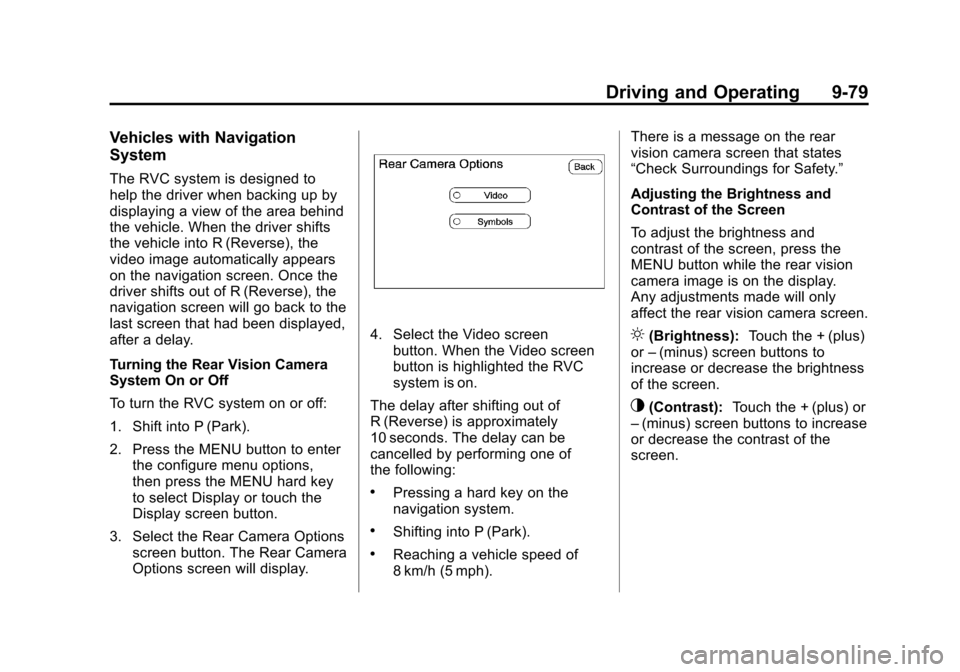
3. Select the Rear Camera Options screen button. The Rear Camera
Options screen will display.
4. Select the Video screenbutton. When the Video screen
button is highlighted the RVC
system is on.
The delay after shifting out of
R (Reverse) is approximately
10 seconds. The delay can be
cancelled by performing one of
the following:
.Pressing a hard key on the
navigation system.
.Shifting into P (Park).
.Reaching a vehicle speed of
8 km/h (5 mph). There is a message on the rear
vision camera screen that states
“Check Surroundings for Safety.”
Adjusting the Brightness and
Contrast of the Screen
To adjust the brightness and
contrast of the screen, press the
MENU button while the rear vision
camera image is on the display.
Any adjustments made will only
affect the rear vision camera screen.
](Brightness):
Touch the + (plus)
or –(minus) screen buttons to
increase or decrease the brightness
of the screen.
_(Contrast): Touch the + (plus) or
– (minus) screen buttons to increase
or decrease the contrast of the
screen.
Page 374 of 588
Black plate (80,1)Chevrolet Silverado Owner Manual - 2011
9-80 Driving and Operating
Symbols
The navigation system may have
a feature that lets the driver view
symbols on the navigation screen
while using the RVC. The Ultrasonic
Rear Park Assist (URPA) system
must not be disabled to use the
caution symbols. If URPA has
been disabled and the symbols
have been turned on, the Rear
Parking Assist Symbols Unavailable
error message may display.
SeeUltrasonic Parking Assist
on
page 9‑76.
The symbols appear when an object
has been detected by the URPA
system. The symbol may cover the
object when viewing the navigation
screen.
To turn the symbols on or off:
1. Make sure that URPA has not been disabled.
2. Shift into P (Park). 3. Press the MENU hard key
to enter the configure menu
options, then press the MENU
hard key repeatedly until Display
is selected or touch the Display
screen button.
4. Select the Rear Camera Options screen button. The Rear Camera
Options screen will display.
5. Touch the Symbols screen button. The screen button will
be highlighted when on.Rear Vision Camera Error
Messages
Service Rear Vision Camera
System: This message can display
when the system is not receiving
information it requires from other
vehicle systems.
If any other problem occurs or if a
problem persists, see your dealer.
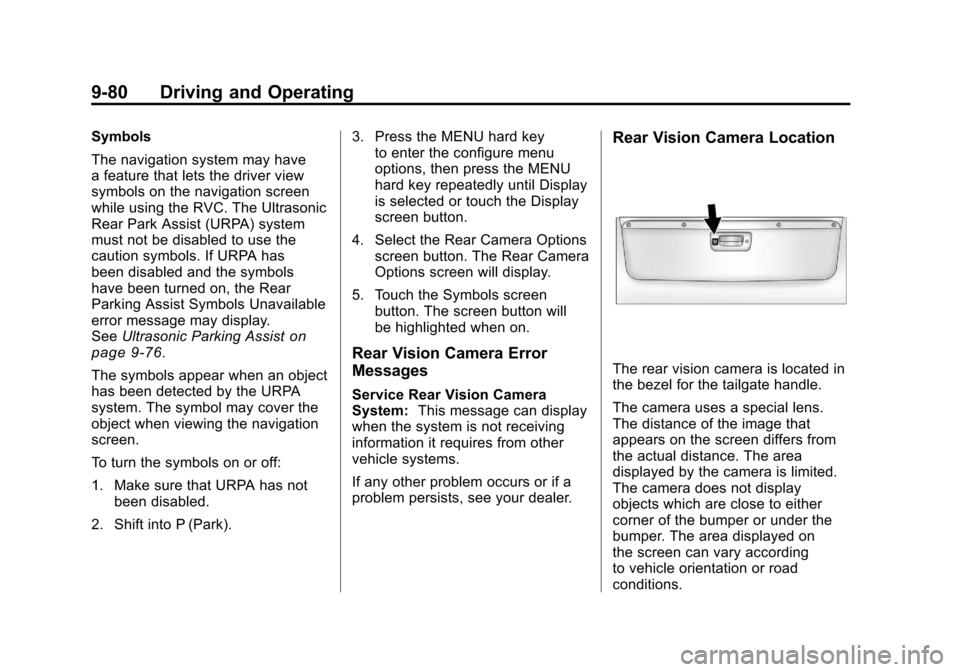
Rear Vision Camera Location
The rear vision camera is located in
the bezel for the tailgate handle.
The camera uses a special lens.
The distance of the image that
appears on the screen differs from
the actual distance. The area
displayed by the camera is limited.
The camera does not display
objects which are close to either
corner of the bumper or under the
bumper. The area displayed on
the screen can vary according
to vehicle orientation or road
conditions.
Page 557 of 588
Black plate (1,1)Chevrolet Silverado Owner Manual - 2011
Customer Information 13-1
Customer
Information
Customer Information
Customer SatisfactionProcedure (United States
and Canada) . . . . . . . . . . . . . . . 13-1
Customer Satisfaction Procedure (Mexico) . . . . . . . . 13-3
Customer Assistance Offices (United States and
Canada) . . . . . . . . . . . . . . . . . . . . 13-4
Customer Assistance Offices (Mexico) . . . . . . . . . . . . . . . . . . . . 13-5
Customer Assistance for Text Telephone (TTY) Users . . . . . 13-6
Online Owner Center . . . . . . . . 13-6
GM Mobility Reimbursement Program . . . . . . . . . . . . . . . . . . . . 13-7
Roadside Assistance Program (United States and
Canada) . . . . . . . . . . . . . . . . . . . . 13-7
Roadside Assistance Program (Mexico) . . . . . . . . . . . . . . . . . . . . 13-9
Scheduling Service Appointments . . . . . . . . . . . . . . 13-9 Courtesy Transportation
Program . . . . . . . . . . . . . . . . . . 13-10
Collision Damage Repair . . . 13-11
Service Publications Ordering Information . . . . . . 13-14Reporting Safety Defects
Reporting Safety Defects to
the United States
Government . . . . . . . . . . . . . . . 13-15
Reporting Safety Defects to the Canadian
Government . . . . . . . . . . . . . . . 13-16
Reporting Safety Defects to General Motors . . . . . . . . . . . 13-16
Vehicle Data Recording and
Privacy
Vehicle Data Recording andPrivacy . . . . . . . . . . . . . . . . . . . . 13-16
Event Data Recorders . . . . . . 13-17
OnStar
®. . . . . . . . . . . . . . . . . . . . 13-18
Navigation System . . . . . . . . . 13-18
Radio Frequency Identification (RFID) . . . . . . . 13-18
Radio Frequency Statement . . . . . . . . . . . . . . . . . 13-18
Customer Information
Customer Satisfaction
Procedure (United States
and Canada)
Your satisfaction and goodwill are
important to your dealer and to
Chevrolet. Normally, any concerns
with the sales transaction or the
operation of the vehicle will be
resolved by the dealer's sales or
service departments. Sometimes,
however, despite the best intentions
of all concerned, misunderstandings
can occur. If your concern has not
been resolved to your satisfaction,
the following steps should be taken:
STEP ONE: Discuss your
concern with a member of
dealership management. Normally,
concerns can be quickly resolved
at that level. If the matter has
already been reviewed with the
sales, service, or parts manager,
contact the owner of the dealership
or the general manager.
Page 574 of 588
Black plate (18,1)Chevrolet Silverado Owner Manual - 2011
13-18 Customer Information
OnStar®
If your vehicle is equipped with
an active OnStar system, that
system may also record data in
crash or near crash‐like situations.
The OnStar Terms and Conditions
provides information on data
collection and use and is available
in the OnStar glove box kit,
at www.onstar.com (U.S.) or
www.onstar.ca (Canada), or
by pressing the
Qbutton and
speaking to an advisor.
Navigation System
If the vehicle has a navigation
system, use of the system may
result in the storage of destinations,
addresses, telephone numbers, and
other trip information. Refer to the
navigation system operating manual
for information on stored data and
for deletion instructions.
Radio Frequency
Identification (RFID)
RFID technology is used in some
vehicles for functions such as tire
pressure monitoring and ignition
system security, as well as in
connection with conveniences
such as key fobs for remote door
locking/unlocking and starting, and
in-vehicle transmitters for garage
door openers. RFID technology in
GM vehicles does not use or record
personal information or link with
any other GM system containing
personal information.
Radio Frequency
Statement
This vehicle has systems that
operate on a radio frequency that
comply with Part 15 of the Federal
Communications Commission (FCC)
rules and with Industry Canada
Standards RSS‐210/220/310.
Operation is subject to the following
two conditions:
1. The device may not cause interference.
2. The device must accept any interference received, including
interference that may cause
undesired operation of the
device.
Changes or modifications to any of
these systems by other than an
authorized service facility could void
authorization to use this equipment.
Page 583 of 588

Black plate (9,1)Chevrolet Silverado Owner Manual - 2011
INDEX i-9
MirrorsAutomatic Dimming
Rearview . . . . . . . . . . . . . . . . . . . . 2-19
Convex . . . . . . . . . . . . . . . . . . . . . . . 2-15
Folding . . . . . . . . . . . . . . . . . . . . . . . 2-17
Heated . . . . . . . . . . . . . . . . . . . . . . . 2-18
Manual . . . . . . . . . . . . . . . . . . . . . . . 2-16
Manual Rearview . . . . . . . . . . . . . 2-19
Park Tilt . . . . . . . . . . . . . . . . . . . . . . 2-19
Power . . . . . . . . . . . . . . . . . . . . . . . . 2-16
Trailer Tow . . . . . . . . . . . . . . . . . . . . 2-16
Monitor System, Tire Pressure . . . . . . . . . . . . . . . . . . . . 10-65
N
Navigation SystemVehicle Data Recordingand Privacy . . . . . . . . . . . . . . . 13-18
New Vehicle Break-In . . . . . . . . . . 9-32
Noise Control System . . . . . . . . 10-36
O
Object Detection System Messages . . . . . . . . . . . . . . . . . . . . 5-48
Odometer . . . . . . . . . . . . . . . . . . . . . . 5-16 Trip . . . . . . . . . . . . . . . . . . . . . . . . . . . 5-16
Off-Road . . . . . . . . . . . . . . . . . . . . . . . 9-7 Driving . . . . . . . . . . . . . . . . . . . . . . . . . 9-7
Recovery . . . . . . . . . . . . . . . . . . . . . . 9-5
Oil Engine . . . . . . . . . . . . . . . . . . . . . . . . 10-7
Engine Oil Life System . . . . . . . 10-9
Engine Oil PressureGauge . . . . . . . . . . . . . . . . . . . . . . 5-18
Messages . . . . . . . . . . . . . . . . . . . . 5-47
Pressure Light . . . . . . . . . . . . . . . . 5-32
Older Children, Restraints . . . . . 3-51
Online Owner Center . . . . . . . . . . 13-6
OnStar
®System . . . . . . . . . . . . . . . 1-35
Operation, Infotainment System . . . . . . . . . . . . . . . . . . . . . . . . 7-2
Outlets Power . . . . . . . . . . . . . . . . . . . . . . . . 5-10 Overheated Engine
Protection
Operating Mode . . . . . . . . . . . . . 10-26
Overheating, Engine . . . . . . . . . . 10-24
P
Park Shifting Into . . . . . . . . . . . . . . . . . . . 9-38
Shifting Out of . . . . . . . . . . . . . . . . 9-40
Park Tilt Mirrors . . . . . . . . . . . . . . . . 2-19
Parking . . . . . . . . . . . . . . . . . . . . . . . . 9-41 Assist, Ultrasonic . . . . . . . . . . . . . 9-76
Brake . . . . . . . . . . . . . . . . . . . . . . . . . 9-68
Brake and P (Park)Mechanism Check . . . . . . . . 10-39
Over Things That Burn . . . . . . . 9-41
Passenger Airbag Status Indicator . . . . . . . . . . . . . . . . . . . . . 5-25
Passenger Sensing System . . . . . . . . . . . . . . . . . . . . . . . 3-42
Perchlorate Materials Requirements, California . . . . . 10-3
Phone
Bluetooth . . . . . . . . . . . . . . . . . . . . . 7-49