stop start CHEVROLET SILVERADO 2012 2.G Owner's Manual
[x] Cancel search | Manufacturer: CHEVROLET, Model Year: 2012, Model line: SILVERADO, Model: CHEVROLET SILVERADO 2012 2.GPages: 584, PDF Size: 8.03 MB
Page 231 of 584
Black plate (17,1)Chevrolet Silverado Owner Manual - 2012
Infotainment System 7-17
Inserting a CD(s)
(Six-Disc CD Player)
LOAD^:Press to load CDs into
the CD player. This CD player holds
up to six CDs.
To insert one CD:
1. Press and release the LOAD button.
2. Wait for the message to insert the disc.
3. Load a CD. Insert the CD partway into the slot, label side
up. The player pulls the CD in.
To insert multiple CDs:
1. Press and hold the LOAD button for two seconds. A beep sounds
and Load All Discs displays.
2. Wait for the message on when to insert the discs. The CD player
takes up to six CDs.
3. Press the LOAD button again to cancel loading more CDs.
Ejecting a CD
(Single CD Player)
ZEJECT: Press and release to
eject the disc. Remove the CD
when Remove Disc displays. If the
disc is not removed, after several
seconds the disc is automatically
pulled back into the player.
Ejecting a CD
(Six-Disc CD Player)
ZEJECT : Press and release
to eject the disc that is currently
playing. Remove the CD when
Remove Disc displays. If the disc is
not removed, after several seconds
the disc is automatically pulled back
into the player.
To eject all CDs, press and hold
the
ZEJECT button for
two seconds.
Playing a CD
If the ignition or radio is turned off
with a CD in the player, it stays in
the player. When the ignition or
radio is turned on, the CD starts
playing where it stopped, if it was
the last selected audio source.
The CD is controlled by the buttons
on the radio faceplate or by the RSA
unit. See Rear Seat Audio (RSA)
System on page 7‑50 for more
information.
When a CD is inserted, the CD
symbol displays on the left side of
the radio display. As each new track
starts to play, the track number
displays.
The CD player can play the smaller
8 cm (3 in) single CDs with an
adapter ring. Full-size CDs and the
smaller CDs are loaded in the same
manner.
Page 239 of 584
Black plate (25,1)Chevrolet Silverado Owner Manual - 2012
Infotainment System 7-25
Playing a CD (in Either the
DVD or CD Slot)
If the ignition or radio is turned off
with a CD in the player, it stays in
the player. When the ignition or
radio is turned on, the CD starts
playing where it stopped, if it was
the last selected audio source.
The CD is controlled by the buttons
on the radio faceplate or by the RSA
unit. SeeRear Seat Audio (RSA)
System on page 7‑50 for more
information. The DVD/CD decks
(the upper slot is the DVD deck and
the lower slot is the CD deck) of the
radio are compatible with most
audio CDs, CD-Rs, CD-RWs,
and MP3s.
When a CD is inserted, the text tab
DVD or CD symbol displays on
the left side of the radio display.
As each new track starts to play,
the track number displays. The CD player can play the smaller
8 cm (3 in) single CDs with an
adapter ring. Full-size CDs and the
smaller CDs are loaded in the same
manner.
DVD/CD AUX (Auxiliary):
Press to cycle through DVD, CD,
or Auxiliary when listening to the
radio. The DVD/CD text tab and a
message showing the track or
chapter number will display when
a disc is in either slot. Press the
DVD/CD AUX button again and the
system automatically searches for
an auxiliary input device; see
Auxiliary Devices on page 7‑34
for
more information. If a portable audio
player is not connected, “No Aux
Input Device” displays. If a disc is in
both the DVD slot and the CD slot,
the DVD/CD AUX button cycles
between the two sources and does
not indicate “No Aux Input Device.” If a front auxiliary device is
connected, the DVD/CD AUX
button cycles through all available
options, such as: DVD slot, CD slot,
Front Auxiliary, and Rear Auxiliary
(if available). See
“Using the
Auxiliary Input Jack” inAuxiliary
Devices on page 7‑34 or“Audio/
Video (A/V) Jacks” underRear Seat
Entertainment (RSE) System on
page 7‑40 for more information.
If a disc is inserted into the top DVD
slot, the rear seat operator can turn
on the video screen and use the
remote control to navigate the CD
(tracks only) through the remote
control.
Page 245 of 584

Black plate (31,1)Chevrolet Silverado Owner Manual - 2012
Infotainment System 7-31
If a front auxiliary device is
connected, the DVD/CD AUX button
cycles through all available options,
such as: DVD slot, CD slot, front
auxiliary, and rear auxiliary
(if available). See“Using the
Auxiliary Input Jack” inAuxiliary
Devices on page 7‑34 or“Audio/
Video (A/V) Jacks” underRear Seat
Entertainment (RSE) System on
page 7‑40 for more information.
If a disc is inserted into the top DVD
slot, the rear seat operator can turn
on the video screen and use the
remote control to navigate the CD
(tracks only) through the remote
control.
O(Power): Press to turn the
radio on or off. Turn clockwise or
counterclockwise to increase or
decrease the volume. Press and
hold for more than two seconds to
turn off the entire radio and Rear Seat Entertainment (RSE) system
and to start the Parental Control
feature. Parental Control prevents
the rear seat occupant from
operating the Rear Seat Audio
(RSA) system or remote control.
A lock symbol displays next to the
clock display. The Parental Control
feature remains on until the knob is
pressed and held for more than
two seconds again, or until the
driver turns the ignition off and exits
the vehicle.
f(Tune):
Turn to select tracks on
a CD or DVD.
©SEEK: Press to return to the
start of the current track or chapter.
Press again to go to the previous
track or chapter. This button might
not work when the DVD is playing
the copyright information or the
previews.
¨SEEK: Press to go to the next
track or chapter. This button might
not work when the DVD is playing
the copyright information or the
previews.
sREV (Fast Reverse): Press to
quickly reverse the CD or DVD at
five times the normal speed.
To stop fast reversing, press again.
This button might not work when
the DVD is playing the copyright
information or the previews.
\FWD (Fast Forward): Press to
fast forward the CD or DVD at
five times the normal speed.
To stop fast forwarding, press
again. This button might not work
when the DVD is playing the
copyright information or the
previews.
Page 246 of 584
Black plate (32,1)Chevrolet Silverado Owner Manual - 2012
7-32 Infotainment System
Using Softkeys to Play a DVD-V
(Video)
Once a DVD-V is inserted, the radio
display menu shows several tab
options for playback. Press the
softkey located under any tab option
during DVD-V playback.
r/j(Play/Pause):Press either
the Play or Pause tab displayed on
the radio, to toggle between pausing
or restarting playback of a DVD.
If the forward arrow is showing on
the display, the system is in pause
mode. If the Pause tab is showing
on the display, the system is in
playback mode. If the DVD screen
is off, press the play button to turn
the screen on.
Some DVDs begin playing after the
previews have finished, although
there could be a delay of up to
30 seconds. If the DVD does
not begin playing the movie automatically, press the softkey
located under the play/pause
symbol tag displayed on the radio.
If the DVD still does not play, refer
to the on-screen instructions,
if available.
c(Stop):
Press to stop playing,
rewinding, or fast forwarding a DVD.
r(Enter): Press to select the
choices that are highlighted in
any menu.
y(Menu): Press to access the
DVD menu. The DVD menu is
different on every DVD. Use the
softkeys located under the
navigation arrows to navigate the
cursor through the DVD menu.
After making a selection press this
button. This button only operates
when using a DVD.
Nav (Navigate): Press to display
directional arrows for navigating
through the menus.
q(Return): Press to exit the
current active menu and return to
the previous menu. This button
operates only when a DVD is
playing and a menu is active.
The rear seat passenger can
navigate the DVD-V and DVD-A
menus and controls through the
remote control. See “Remote
Control” underRear Seat
Entertainment (RSE) System on
page 7‑40 for more information.
The video screen automatically
turns on when the DVD-V is
inserted into the DVD slot, and does
not automatically power on when
the DVD-A is inserted into the DVD
slot. It must be manually turned on
by the rear seat occupant through
the remote control power button.
Page 247 of 584
Black plate (33,1)Chevrolet Silverado Owner Manual - 2012
Infotainment System 7-33
Using Softkeys to Play a DVD-A
(Audio)
Once a DVD-A is inserted, the radio
display menu shows several tab
options for playback. Press the
softkey located under any tab option
during DVD-A playback.
r/j(Play/Pause):Press either
the play or pause icon displayed on
the radio, to toggle between pausing
or restarting playback of a DVD.
If the forward arrow is showing on
the display, the system is in pause
mode. If the pause tab is showing
on the display, the system is in
playback mode.
qGroupr: Press to cycle
through musical groupings on the
DVD-A disc.
Nav (Navigate): Press to display
directional arrows for navigating
through the menus.
e(Audio Stream): Press to
cycle through audio stream
formats located on the DVD-A disc.
The video screen shows the audio
stream changing.
The rear seat passenger can
navigate the DVD-V and DVD-A
menus and controls through the
remote control. See “Remote
Control” underRear Seat
Entertainment (RSE) System on
page 7‑40 for more information.
The video screen automatically
turns on when the DVD-V is
inserted into the DVD slot, and does
not automatically power on when
the DVD-A is inserted into the DVD
slot. It must be manually turned on
by the rear seat occupant through
the remote control power button.Stopping and Resuming
Playback
To stop playing a DVD without
turning off the system, press
the
cbutton on the remote control,
or press the softkey located under
the
cor ther/jtabs displayed
on the radio. If the radio is sourced
to something other than DVD-V,
press the DVD/CD AUX button to
make DVD-V the active source.
To resume DVD playback, press the
r/jbutton on the remote control,
or press the softkey located under
the
r/jtab on the radio. The DVD
should resume play from where it
last stopped if the disc has not been
ejected and the stop button has not
been pressed twice on the remote
control. If the disc has been ejected
or the stop button has been pressed
twice on the remote control, the disc
resumes playing at the beginning of
the disc.
Page 254 of 584
Black plate (40,1)Chevrolet Silverado Owner Manual - 2012
7-40 Infotainment System
Rear Seat
Infotainment
Rear Seat Entertainment
(RSE) System
The vehicle may have a DVD Rear
Seat Entertainment (RSE) system.
The RSE system works with the
vehicle's audio system. The DVD
player is part of the front radio.
The RSE system includes a radio
with a DVD player, a video display
screen, audio/video jacks, two
wireless headphones, and a remote
control. SeeCD/DVD Player on
page 7‑23 for more information on
the vehicle's CD/DVD player.
Before Driving
The RSE is designed for rear seat
passengers only. The driver cannot
safely view the video screen while
driving and should not try to do so. In severe or extreme weather
conditions, the RSE system might
not work until the temperature is
within the operating range. The
operating range for the RSE system
is above
−20°C (−4°F) or below
60°C (140°F). If the temperature of
the vehicle is outside this range,
heat or cool the vehicle until the
temperature is within the operating
range of the RSE system.
Parental Control
The RSE system may have a
Parental Control feature, depending
on which radio the vehicle has.
To start Parental Control, press and
hold the radio power button for more
than two seconds to stop all system
features such as: radio, video
screen, Rear Seat Audio (RSA),
DVD, and/or CD. While Parental
Control is on, a padlock icon
displays. The radio can be turned back on
with a single press of the power
button, but the RSE system will
remain under Parental Control.
To turn Parental Control off, press
and hold the radio power button for
more than two seconds. The RSE
returns from where it was previously
left and the padlock icon disappears
from the radio display.
Parental Control can also be turned
off by inserting or ejecting any disc,
pressing the play icon on the radio
DVD display menu, or changing an
ignition position.
Page 260 of 584

Black plate (46,1)Chevrolet Silverado Owner Manual - 2012
7-46 Infotainment System
n,q,p,o(Menu Navigation
Arrows): Use the arrow buttons to
navigate through a menu.
r(Enter): Press this button to
select the choice that is highlighted
in any menu.
z(Display Menu): Press this
button to adjust the brightness,
screen display mode (normal,
full, or zoom), and display the
language menu.
q(Return): Press this button to
exit the current active menu and
return to the previous menu.
This button operates only when
the display menu or a DVD menu
is active.
c(Stop): Press this button to stop
playing, fast reversing, or fast
forwarding a DVD. Press this button
twice to return to the beginning of
the DVD.
s(Play/Pause): Press this
button to start playing a DVD.
Press this button while a DVD is
playing to pause it. Press it again
to continue playing the DVD.
While the DVD is playing, the DVD
can be played slowly by pressing
the play/pause button then pressing
the fast forward button. The DVD
continues playing in a slow play
mode. Also, reverse can be played
slowly by pressing the play/pause
button and then pressing the fast
reverse button. To cancel slow play
mode, press the play/pause button.
t(Previous Track/Chapter):
Press this button to return to the
start of the current track or chapter.
Press this button again to go to
the previous track or chapter.
This button might not work when
the DVD is playing the copyright
information or the previews.
u(Next Track/Chapter): Press
this button to go to the beginning of
the next chapter or track. This
button might not work while the
DVD is playing the copyright
information or the previews.
r(Fast Reverse): Press this
button to quickly reverse the DVD or
CD. To stop fast reversing a DVD
video, press the play/pause button.
To stop fast reversing a DVD audio
or CD, release the fast reverse
button. This button might not work
when the DVD is playing the
copyright information or the
previews.
[(Fast Forward): Press this
button to fast forward the DVD or
CD. To stop fast forwarding a DVD
video, press the play/pause button.
To stop fast forwarding a DVD audio
or CD, release the fast forward
button. This button might not work
while the DVD is playing the
copyright information or the
previews.
Page 262 of 584
Black plate (48,1)Chevrolet Silverado Owner Manual - 2012
7-48 Infotainment System
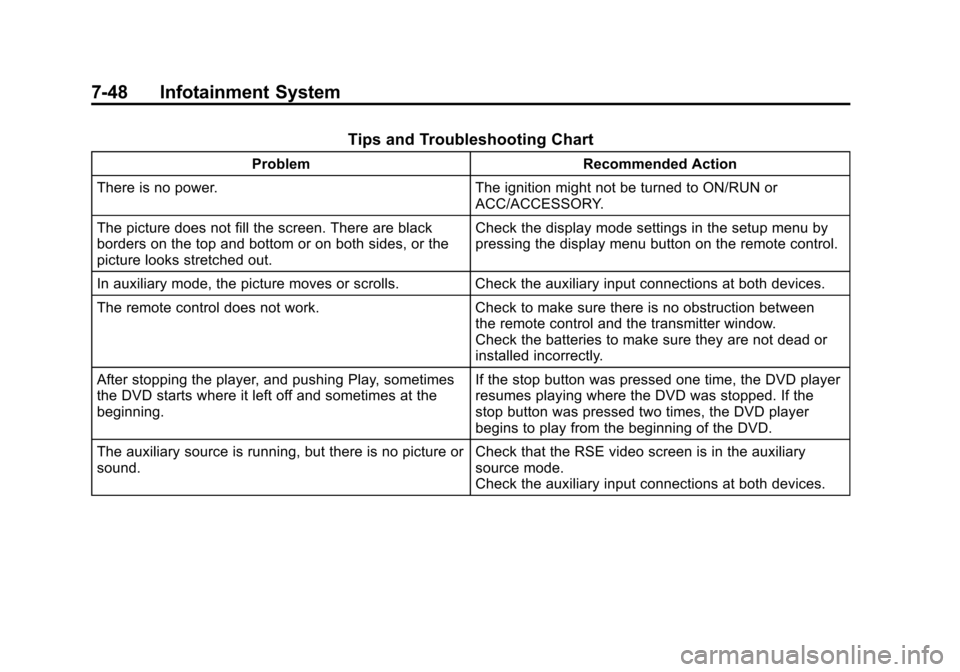
Tips and Troubleshooting Chart
ProblemRecommended Action
There is no power. The ignition might not be turned to ON/RUN or
ACC/ACCESSORY.
The picture does not fill the screen. There are black
borders on the top and bottom or on both sides, or the
picture looks stretched out. Check the display mode settings in the setup menu by
pressing the display menu button on the remote control.
In auxiliary mode, the picture moves or scrolls. Check the auxiliary input connections at both devices.
The remote control does not work. Check to make sure there is no obstruction between
the remote control and the transmitter window.
Check the batteries to make sure they are not dead or
installed incorrectly.
After stopping the player, and pushing Play, sometimes
the DVD starts where it left off and sometimes at the
beginning. If the stop button was pressed one time, the DVD player
resumes playing where the DVD was stopped. If the
stop button was pressed two times, the DVD player
begins to play from the beginning of the DVD.
The auxiliary source is running, but there is no picture or
sound. Check that the RSE video screen is in the auxiliary
source mode.
Check the auxiliary input connections at both devices.
Page 265 of 584

Black plate (51,1)Chevrolet Silverado Owner Manual - 2012
Infotainment System 7-51
buttons. The left knob controls the
left headphones and the right knob
controls the right headphones.
SRCE (Source):Press this
button to switch between the radio
(AM‐FM), XM™ (if equipped),
CD, and if the vehicle has these
features, DVD, front auxiliary, and
rear auxiliary.
© ¨(Seek): When listening to FM,
AM, or XM™ (if equipped), press
the seek arrows to go to the
previous or to the next station or
channels and stay there. This
function is inactive, with some
radios, if the front seat passengers
are listening to the radio.
Press and hold either seek arrow
until the display flashes, to tune to
an individual station. The display
stops flashing after the buttons
have not been pushed for more than
two seconds. This function is
inactive, with some radios, if the
front seat passengers are listening
to the radio. While listening to a disc, press the
left seek arrow to go back to the
start of the current track or chapter
(if more than 10 seconds have
played). Press the right seek arrow
to go the next track or chapter on
the disc. This function is inactive,
with some radios, if the front seat
passengers are listening to the disc.
While a DVD video menu is being
displayed, press either seek arrow
to perform a cursor up or down on
the menu. Hold either seek arrow to
perform a cursor left or right on
the menu.
PROG (Program):
Press this
button to go to the next preset radio
station or channel set on the main
radio. This function is inactive,
with some radios, if the front seat
passengers are listening to the
radio. While a CD or DVD‐A disc is
playing, press this button to go to
the beginning of the CD or DVD‐A.
This function is inactive, with some
radios, if the front seat passengers
are listening to the CD or DVD‐A.
While a disc is playing in the CD or
DVD changer, press this button to
select the next disc, if multiple discs
are loaded. This function is inactive,
with some radios, if the front seat
passengers are listening to the disc.
While a DVD video menu is being
displayed, press the PROG button
to perform the menu function, Enter.
Page 292 of 584
Black plate (6,1)Chevrolet Silverado Owner Manual - 2012
9-6 Driving and Operating
Defensive drivers avoid most skids
by taking reasonable care suited to
existing conditions, and by not
overdriving those conditions.
But skids are always possible.
If the vehicle starts to slide, follow
these suggestions:
.Ease your foot off the
accelerator pedal and quickly
steer the way you want the
vehicle to go. The vehicle may
straighten out. Be ready for a
second skid if it occurs.
.Slow down and adjust your
driving according to weather
conditions. Stopping distance
can be longer and vehicle
control can be affected when
traction is reduced by water,
snow, ice, gravel, or other
material on the road. Learn to
recognize warning clues—such
as enough water, ice, or packed
snow on the road to make a
mirrored surface —and slow
down when you have any doubt.
.Try to avoid sudden steering,
acceleration, or braking,
including reducing vehicle
speed by shifting to a lower
gear. Any sudden changes
could cause the tires to slide.
Remember: Antilock brakes help
avoid only the braking skid.
Off-Road Driving
Four-wheel-drive vehicles can be
used for off-road driving. Vehicles
without four-wheel drive and
vehicles not equipped with All
Terrain (AT) or On-Off Road (OOR)
tires must not be driven off-road
except on a level, solid surface.
To contact the tire manufacturer for
more information about the original
equipment tires, see the Limited
Warranty and Owner Assistance
Information manual. Controlling the vehicle is the key to
successful off-road driving. One of
the best ways to control the vehicle
is to control the speed.
{WARNING
When driving off-road, bouncing
and quick changes in direction
can easily throw you out of
position. This could cause you to
lose control and crash. You and
your passengers should always
wear safety belts.
Before Driving Off-Road
.Have all necessary maintenance
and service work completed.
.Fuel the vehicle, fill fluid levels,
and check inflation pressure in
all tires, including the spare,
if equipped.