change time CHEVROLET SILVERADO 2015 3.G User Guide
[x] Cancel search | Manufacturer: CHEVROLET, Model Year: 2015, Model line: SILVERADO, Model: CHEVROLET SILVERADO 2015 3.GPages: 543, PDF Size: 7.01 MB
Page 195 of 543
Black plate (2,1)Chevrolet 2015i Silverado Owner Manual (GMNA-Localizing-U.S./Canada/
Mexico-8425172) - 2015 - crc - 2/6/15
6-2 Lighting
AUTO (Automatic):Automatically
turns on the headlamps, parking
lamps, taillamps, instrument panel
lights, roof marker lamps (if
equipped), front/rear sidemarker
lamps, and license plate lamps.
When the vehicle is turned off and
the headlamps are in AUTO, the
headlamps turn off. When the key is
removed, they automatically turn on
for a set time. The time of the delay
can be changed using the DIC. See
Driver Information Center (DIC)
(Base Level) on page 5-29 orDriver
Information Center (DIC) (Uplevel)
on page 5-31.
;(Parking Lamps): Turns on the
parking lamps including all lamps,
except the headlamps.
2(Headlamps): Turns on the
headlamps together with the parking
lamps and instrument panel lights.
When the headlamps are turned on
while the vehicle is on, the
headlamps turn off automatically
10 minutes after the ignition is
turned off. When the headlamps are turned on while the vehicle is off,
the headlamps will stay on for
10 minutes before turning off to
prevent the battery from being
drained. Turn the headlamp control
off and then back to the headlamp
on position to make the headlamps
stay on for an additional 10 minutes.
To keep the lamps on for more than
10 minutes, the ignition must be in
the ACC/ACCESSORY or ON/RUN
position.
#(Fog Lamps) (If Equipped):
Turns on the fog lamps. See Fog
Lamps on page 6-5.
Exterior Lamps Off
Reminder
A reminder chime sounds when the
headlamps or parking lamps are
manually turned on, the ignition is
off, and a door is open. To disable
the chime, turn the lamps off.
Headlamp High/
Low-Beam Changer
$
(Headlamp High/Low-Beam
Changer): Push the turn signal
lever toward the instrument panel to
change the headlamps from low to
high beam.
Pull the turn signal lever toward you
and release it to return to low-beam
headlamps.
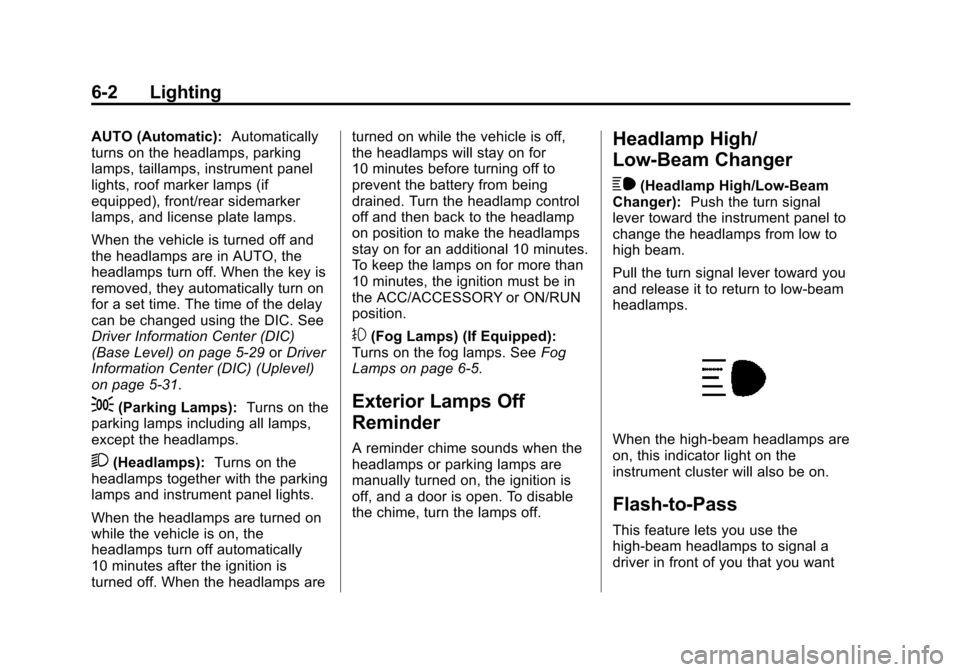
When the high-beam headlamps are
on, this indicator light on the
instrument cluster will also be on.
Flash-to-Pass
This feature lets you use the
high-beam headlamps to signal a
driver in front of you that you want
Page 197 of 543
Black plate (4,1)Chevrolet 2015i Silverado Owner Manual (GMNA-Localizing-U.S./Canada/
Mexico-8425172) - 2015 - crc - 2/6/15
6-4 Lighting
If the vehicle is started in a dark
garage, the automatic headlamp
system comes on immediately. If it
is light outside when the vehicle
leaves the garage, there is a slight
delay before the automatic
headlamp system changes to the
DRL. During that delay, the
instrument cluster may not be as
bright as usual. Make sure the
instrument panel brightness control
is in the full bright position. See
Instrument Panel Illumination
Control on page 6-6.
When it is bright enough outside,
the headlamps will turn off or may
change to Daytime Running
Lamps (DRL).
The automatic headlamp system
turns off when the exterior lamp
control is turned to
Oor the ignition
is off.
Lights On with Wipers
If the windshield wipers are
activated in daylight with the engine
on, and the exterior lamp control is in AUTO, the headlamps, parking
lamps, and other exterior lamps
come on. The transition time for the
lamps coming on varies based on
wiper speed. When the wipers are
not operating, these lamps turn off.
Move the exterior lamp control to
O
or;to disable this feature.
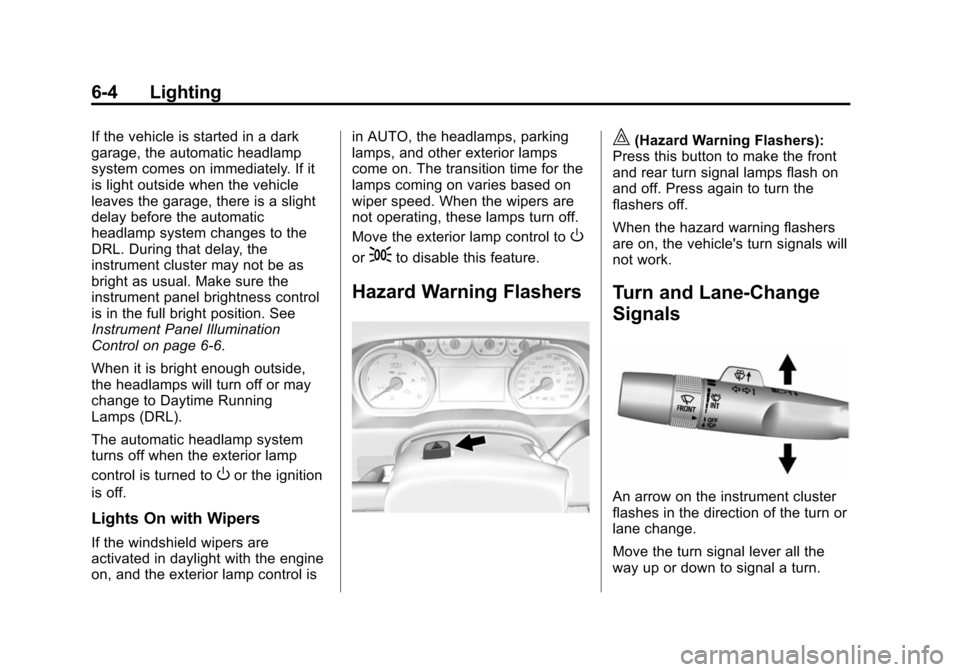
Hazard Warning Flashers
|(Hazard Warning Flashers):
Press this button to make the front
and rear turn signal lamps flash on
and off. Press again to turn the
flashers off.
When the hazard warning flashers
are on, the vehicle's turn signals will
not work.
Turn and Lane-Change
Signals
An arrow on the instrument cluster
flashes in the direction of the turn or
lane change.
Move the turn signal lever all the
way up or down to signal a turn.
Page 198 of 543
Black plate (5,1)Chevrolet 2015i Silverado Owner Manual (GMNA-Localizing-U.S./Canada/
Mexico-8425172) - 2015 - crc - 2/6/15
Lighting 6-5
Raise or lower the lever for less
than one second until the arrow
starts to flash to signal a lane
change. This causes the turn
signals to automatically flash three
times. It will flash six times if Tow/
Haul Mode is active. Holding the
turn signal lever for more than
one second will cause the turn
signals to flash until the lever is
released.
The lever returns to its starting
position whenever it is released.
If after signaling a turn or a lane
change the arrows flash rapidly or
do not come on, a signal bulb could
be burned out.
Replace any burned out bulbs. If a
bulb is not burned out, check the
fuse. SeeFuses on page 10-44.
Turn Signal On Chime
If the turn signal is left on for more
than 1.2 km (0.75 mi), a chime
sounds at each flash of the turn
signal. The message TURN
SIGNAL ON will also appear in the Driver Information Center (DIC). To
turn the chime and message off,
move the turn signal lever to the off
position.
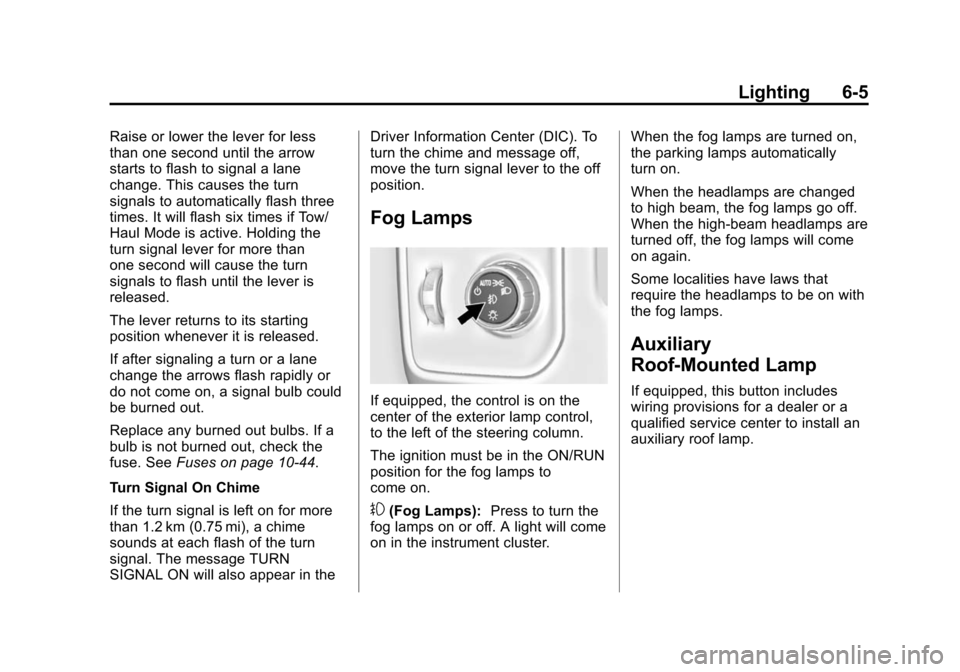
Fog Lamps
If equipped, the control is on the
center of the exterior lamp control,
to the left of the steering column.
The ignition must be in the ON/RUN
position for the fog lamps to
come on.
#(Fog Lamps):
Press to turn the
fog lamps on or off. A light will come
on in the instrument cluster. When the fog lamps are turned on,
the parking lamps automatically
turn on.
When the headlamps are changed
to high beam, the fog lamps go off.
When the high-beam headlamps are
turned off, the fog lamps will come
on again.
Some localities have laws that
require the headlamps to be on with
the fog lamps.
Auxiliary
Roof-Mounted Lamp
If equipped, this button includes
wiring provisions for a dealer or a
qualified service center to install an
auxiliary roof lamp.
Page 201 of 543
Black plate (8,1)Chevrolet 2015i Silverado Owner Manual (GMNA-Localizing-U.S./Canada/
Mexico-8425172) - 2015 - crc - 2/6/15
6-8 Lighting
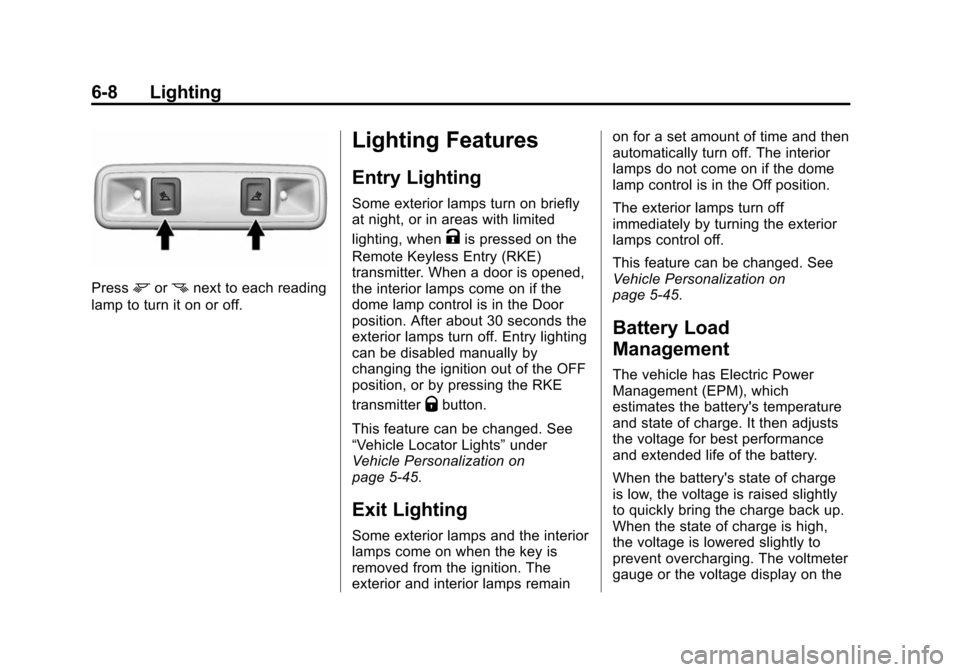
Pressmornnext to each reading
lamp to turn it on or off.
Lighting Features
Entry Lighting
Some exterior lamps turn on briefly
at night, or in areas with limited
lighting, when
Kis pressed on the
Remote Keyless Entry (RKE)
transmitter. When a door is opened,
the interior lamps come on if the
dome lamp control is in the Door
position. After about 30 seconds the
exterior lamps turn off. Entry lighting
can be disabled manually by
changing the ignition out of the OFF
position, or by pressing the RKE
transmitter
Qbutton.
This feature can be changed. See
“Vehicle Locator Lights” under
Vehicle Personalization on
page 5-45.
Exit Lighting
Some exterior lamps and the interior
lamps come on when the key is
removed from the ignition. The
exterior and interior lamps remain on for a set amount of time and then
automatically turn off. The interior
lamps do not come on if the dome
lamp control is in the Off position.
The exterior lamps turn off
immediately by turning the exterior
lamps control off.
This feature can be changed. See
Vehicle Personalization on
page 5-45.
Battery Load
Management
The vehicle has Electric Power
Management (EPM), which
estimates the battery's temperature
and state of charge. It then adjusts
the voltage for best performance
and extended life of the battery.
When the battery's state of charge
is low, the voltage is raised slightly
to quickly bring the charge back up.
When the state of charge is high,
the voltage is lowered slightly to
prevent overcharging. The voltmeter
gauge or the voltage display on the
Page 215 of 543
Black plate (12,1)Chevrolet 2015i Silverado Owner Manual (GMNA-Localizing-U.S./Canada/
Mexico-8425172) - 2015 - crc - 2/6/15
7-12 Infotainment System
the stations before connecting to the
vehicle. The Pandora icon will be
available on the Home Page.
When Pandora is chosen, the
Pandora logo will populate on the
screen and the system will display
“Acquiring Pandora Radio Station.”
Launch times can be significant.
Using the iPhone
1. Plug the device into the USBport. The phone screen must be
unlocked.
2. Launch Pandora from the Home Page by selecting the
Pandora icon.
If nothing happens when the
available Pandora screen button is
pressed, download the latest
Pandora application and retry.
The login screen may display on the
device.
Using an Android or BlackBerry
Phone
The BlackBerry phone must be
unlocked to launch Pandora service. 1. Pair the phone using Bluetooth.
2. Launch Pandora by selecting
Pandora on the Home Page.
If nothing happens when the
available Pandora screen button is
selected, download the latest
Pandora application and retry.
The login screen may display on the
device.
Pandora Menus
Press the MENU knob.
Pandora has a menu with the
following:
Tone Settings: Select to adjust the
tone settings. See AM-FM Radio on
page 7-8.
Bookmark Artist: Select to
bookmark the artist.
Bookmark Song: Select to
bookmark the song.
Auto Volume: This feature sets the
auto volume based on the speed of
the vehicle and noise in the vehicle.
See AM-FM Radio on page 7-8. Pandora Features
Pandora service has features to rate
tracks, skip tracks, or change
stations.
}(Bookmarks):
When selected
during a track, a choice displays to
bookmark the artist or track. This
sends the bookmark to the Pandora
account.
,(Thumbs Down): When
selected, Pandora stores this
information, changes to the next
track, and does not play this track
on this station again. This helps
Pandora choose which tracks
should not play on this station. This
feature is only available on user
created stations.
-(Thumbs Up): When selected,
Pandora stores this information and
-is highlighted for the remainder
of the track. This helps Pandora
choose which tracks should play on
this station.
d(Next Track): When selected,
Pandora changes to the next track.
Page 232 of 543
Black plate (29,1)Chevrolet 2015i Silverado Owner Manual (GMNA-Localizing-U.S./Canada/
Mexico-8425172) - 2015 - crc - 2/6/15
Infotainment System 7-29
system may limit the options of
voice recognition by not allowing
selection of song titles by voice at
the highest level if the number of
songs exceeds the maximum limit.
Voice command option changes
through media content limits are:
.Song files including other
individual files of all media types
such as audiobook chapters,
podcast episodes, and videos.
.Album type folders including
types such as albums and
audiobooks.
There are no restrictions if the
number of song files and albums is
less than 4,000. When the number
of song files connected to the
system is between 4,000 and 8,000,
the content cannot be accessed
directly with one command like
“Play
“Play Song”
must be spoken first;
the system will then ask for the song
name. The reply command would be
to say the name of the song to play.
Similar limits exist for album
content. If there are more than
4,000 albums, but less than 8,000,
the content cannot be accessed
directly with one command like,
“Play
command “Play Album” must first be
spoken; the system will then ask for
the album name. The reply would
be to say the name of the album
to play.
Once the number of songs has
exceeded approximately 8,000,
there is no support for accessing the
songs directly through voice
commands. There will still be
access to the media content by
using commands for playlists,
artists, and genres. The access commands for playlists,
artists, and genres are prohibited
after the number of this type of
media exceeds 4,000.
The system will provide feedback
the first time voice recognition is
initiated if it has become apparent
that any of these limits are reached
during a device initializing process.
Voice Recognition for the
Phone
“Call
Initiate a
call to an entered contact. The
command may include location if
the contact has location numbers
stored.
“Call
“At Work,” “On Mobile,” or“On
Other”: Initiate a call to an entered
contact and location at home, at
work, on mobile device, or on
another phone.
“Call
call to a standard phone number
seven or 10 digits in length, and
also 911, 411, or 611.
Page 236 of 543
Black plate (33,1)Chevrolet 2015i Silverado Owner Manual (GMNA-Localizing-U.S./Canada/
Mexico-8425172) - 2015 - crc - 2/6/15
Infotainment System 7-33
the cell phone changes or the
cell phone is deleted from the
system.
.Only one paired cell phone can
be connected to the Bluetooth
system at a time.
.If multiple paired cell phones are
within range of the system, the
system connects to the first
available paired cell phone in the
order that they were newly
paired to the system. To connect
to a different paired phone, see
“Connecting to a Different
Phone”later in this section.
Pairing a Phone or Device
1. From the Home Page, turn the MENU knob to access the
PHONE screen button, then
press the MENU knob to select
the PHONE screen button. If a
device has been previously
paired, the main Phone menu
will be shown. If no devices
have been paired, Step 2 can be
skipped. 2. Turn the MENU knob and press
to select Manage Phones.
3. Press the button just below the PAIR screen button. A four-digit
Personal Identification Number
(PIN) appears on the display.
The PIN is used in Step 5.
4. Start the pairing process on the cell phone to be paired to the
vehicle. See your cell phone
manufacturer's user guide for
information on this process.
5. Locate the device named “Your
Vehicle” in the list on the cell
phone. Follow the instructions
on the cell phone to enter the
PIN provided in Step 3. If a six
digit code is shown on the phone
and the vehicle screen, confirm
the codes are the same. The
system recognizes the new
connected phone after the
pairing process is complete. 6. If the phone prompts to accept
connection or allow phone book
download, select Always Accept
and Allow. The phone book may
not be available if not accepted.
7. Repeat Steps 1–6 to pair additional phones or devices.
Listing All Paired and Connected
Phones
1. To list all paired devices, from the Home Page turn the MENU
knob, then press to select the
PHONE screen button.
2. Turn the MENU knob and press to select Manage Phones.
Deleting a Paired Phone
1. From the Home Page, turn the MENU knob, then press to
select the PHONE screen
button.
2. Turn the MENU knob and press to select Manage Phones.
3. Turn the MENU knob to highlight the phone to be deleted.
Page 242 of 543
Black plate (39,1)Chevrolet 2015i Silverado Owner Manual (GMNA-Localizing-U.S./Canada/
Mexico-8425172) - 2015 - crc - 2/6/15
Infotainment System 7-39
2. Say“Directory.”
3. Say “Hands-Free Calling.”
4. Say “List.”
Making a Call
Calls can be made using the
following commands.
Dial or Call: The dial or call
command can be used
interchangeably to dial a phone
number or a stored name tag.
Digit Dial: This command allows a
phone number to be dialed by
entering the digits one at a time.
Re-dial: This command is used to
dial the last number used on the cell
phone.
Using the “Dial”or“Call”
Command
1. Press
g. The system responds
“Ready,” followed by a tone.
2. Say “Dial”or“Call.”
3. Say the entire number without pausing or say the name tag. Once connected, the person called
will be heard through the audio
speakers.
Calling 911 Emergency (U.S. and
Canada)
1. Press
g. The system responds
“Ready,” followed by a tone.
2. Say “Dial”or“Call.”
3. Say “911.”
4. Say “Dial”or“Call.”
Calling 066 Emergency (Mexico)
1. Press
g. The system responds
“Ready,” followed by a tone.
2. Say “Dial”or“Call.”
3. Say “066.”
4. Say “Dial”or“Call.”
Using the “Digit Dial” Command
The digit dial command allows a
phone number to be dialed by
entering the digits one at a time. After each digit is entered, the
system repeats back the digit it
heard followed by a tone.
If an unwanted number is
recognized by the system, say
“Correction”
at any time to clear the
last number.
To hear all of the numbers
recognized by the system, say
“Verify” at any time.
1. Press
g. The system responds
“Ready,” followed by a tone.
2. Say “Digit Dial.”
3. Say each digit, one at a time. After each digit is entered, the
system repeats back the digit it
heard followed by a tone. After
the last digit has been entered,
say “Dial.”
Once connected, the person called
will be heard through the audio
speakers.
Page 245 of 543
Black plate (42,1)Chevrolet 2015i Silverado Owner Manual (GMNA-Localizing-U.S./Canada/
Mexico-8425172) - 2015 - crc - 2/6/15
7-42 Infotainment System
.While the active call is handset,
select the Hands-Free screen
button to switch to the
hands-free mode. The screen
button changes to Handset once
the Bluetooth device confirms it
is operating as hands-free.
Pairing
A Bluetooth-enabled cell phone
must be paired to the Bluetooth
system and then connected to the
vehicle before it can be used. See
your cell phone manufacturer's user
guide for Bluetooth functions before
pairing the cell phone. If a Bluetooth
phone is not connected, calls can
be made using OnStar Hands-Free
Calling, if available. SeeOnStar
Overview on page 14-1.
Pairing Information
.Up to 10 cell phones can be
paired to the Bluetooth system.
.The pairing process is disabled
when the vehicle is moving.
.Pairing only needs to be
completed once per phone,
unless the pairing information on
the cell phone changes or the
cell phone is deleted from the
system.
.Only one paired cell phone can
be connected to the Bluetooth
system at a time.
.If multiple paired cell phones are
within range of the system, the
system connects to the most
recently connected device. To
connect to a different paired
phone, see “Connecting to a
Different Phone” after in this
section.
Pairing a Phone or Device
1. From the Home Page, turn the MENU knob to access the
PHONE screen button, then
press the MENU knob to select
the PHONE screen button. If a
device has been previously
paired, the main Phone menu will be shown. If no devices
have been paired, Step 2 can be
skipped.
2. Turn the MENU knob and press to select Manage Phones.
3. Press the button just below the PAIR/screen button. A four-digit
Personal Identification Number
(PIN) appears on the display.
The PIN may be used in Step 5.
4. Start the pairing process on the cell phone to be paired to the
vehicle. See the cell phone
manufacturer's user guide for
information on this process.
5. Locate “Chevrolet MyLink” on
the display. Follow the
instructions on the cell phone to
enter the PIN provided in Step 3
or confirm the six-digit code
shown on the display. After the
PIN is successfully entered or
the code is confirmed, the
system responds with “
paired” when the pairing process
is complete.
Page 253 of 543
Black plate (50,1)Chevrolet 2015i Silverado Owner Manual (GMNA-Localizing-U.S./Canada/
Mexico-8425172) - 2015 - crc - 2/6/15
7-50 Infotainment System
iPod shuffle®, and iPod touch®are
trademarks of Apple Inc., registered
in the U.S. and other countries.
Fees and Taxes: Subscription fee,
taxes, one time activation fee, and
other fees may apply. Subscription
fee is consumer only. All fees and
programming subject to change.
Subscriptions subject to Customer
Agreement available at
www.siriusxm.com. SiriusXM
®
service only available in the
48 contiguous United States and
Canada.
In Canada: Some deterioration of
service may occur in extreme
northern latitudes. This is beyond
the control of SiriusXM
®Satellite
Radio. Explicit Language Notice: Channels
with frequent explicit language are
indicated with an
“XL”preceding the
channel name. Channel blocking is
available for SiriusXM Satellite
Radio receivers by notifying
SiriusXM:
.USA Customers —See
www.siriusxm.com or call
1-866-635–2349.
.Canadian Customers —See
www.xmradio.ca or call
1-877-209-0079.
It is prohibited to copy, decompile,
disassemble, reverse engineer,
hack, manipulate, or otherwise
make available any technology or
software incorporated in receivers
compatible with the SiriusXM
®
Satellite Radio System or that
support the SiriusXM website, the
Online Service or any of its content.
Furthermore, the AMBER voice
compression software included in
this product is protected by
intellectual property rights including patent rights, copyrights, and trade
secrets of Digital Voice
Systems, Inc.
General Requirements:
1. A License Agreement from
SiriusXM
®is required for any
product that incorporates
SiriusXM Technology and/or for
use of any of the SiriusXM
marks to be manufactured,
distributed, or marketed in the
SiriusXM Service Area.
2. For products to be distributed, marketed, and/or sold in
Canada, a separate agreement
is required with Canadian
Satellite Radio Inc. (operating as
SiriusXM Canada).
Other Information
The Bluetooth®word mark and
logos are owned by the Bluetooth®
SIG, Inc. and any use of such marks
by General Motors is under license.
Other trademarks and trade names
are those of their respective owners.