light CHEVROLET SILVERADO 2016 3.G Owners Manual
[x] Cancel search | Manufacturer: CHEVROLET, Model Year: 2016, Model line: SILVERADO, Model: CHEVROLET SILVERADO 2016 3.GPages: 533, PDF Size: 8.17 MB
Page 206 of 533
Chevrolet Silverado Owner Manual (GMNA-Localizing-U.S./Canada/Mexico-
9159338) - 2016 - crc - 10/21/15
Infotainment System 205
Pandora Menus
Press MENU.
Pandora has a menu with the
following:
Tone Settings :Select to adjust the
tone settings. See AM-FM Radio
(Base Radio with Touchscreen)
0 199 orAM-FM Radio (Base
Radio) 0197.
Bookmark Artist : Select to
bookmark the artist.
Bookmark Song : Select to
bookmark the song.
Auto Volume : This feature sets the
auto volume based on the speed of
the vehicle and noise in the vehicle.
See AM-FM Radio (Base Radio with
Touchscreen) 0199 orAM-FM
Radio (Base Radio) 0197.
Pandora Features
Pandora service has features to rate
tracks, skip tracks, or change
stations.
}: When selected during a track, a
choice displays to bookmark the
artist or track. This sends the
bookmark to the Pandora account.
,: When selected, Pandora stores
this information, changes to the next
track, and does not play this track
on this station again. This helps
Pandora choose which tracks
should not play on this station. This
feature is only available on user
created stations.
-: When selected, Pandora stores
this information and
-is
highlighted for the remainder of the
track. This helps Pandora choose
which tracks should play on this
station.
d: When selected, Pandora
changes to the next track.
rorj: Select to play or pause
playback.
Pandora Skip Limit
Pandora limits the number of skips
allowed on their service. When the
skip limit is reached,
,or next
arrow will not skip the currently
playing track, but the
,feedback
will be recorded. Advertisement on Pandora
Pandora may display
advertisements. The artist name
and track title will not be displayed
and the skip track button will not be
available.
Pandora Troubleshooting
Unable to Connect Device to
Vehicle
If the device is unable to connect to
the USB or Bluetooth:
1. Turn the vehicle off.
2. Take the Remote Keyless Entry (RKE) transmitter at least 6 m
(20 ft) away from the vehicle.
3. Wait about 30 seconds, and try to connect the device again.
See Bluetooth (Voice
Recognition - Base Radio)
0 227 orBluetooth
(Infotainment Controls - Base
Radio) 0223 orBluetooth
(Overview) 0222 orBluetooth
(Infotainment Controls - Base
Radio with
Touchscreen) 0232.
Page 212 of 533
Chevrolet Silverado Owner Manual (GMNA-Localizing-U.S./Canada/Mexico-
9159338) - 2016 - crc - 10/21/15
Infotainment System 211
To connect and control a device:1. Connect one end of the standard USB cable to the
device's dock connector.
2. Connect the other end to a USB port in the center console.
See Center Console
Storage 0120.
3. Press MEDIA to select the source.
The music information displays on
the radio’s display and begins
playing through the vehicle’s audio
system.
The device battery recharges
automatically while the vehicle is on.
When the vehicle is off while a
device is connected using the USB
cable, the device battery stops
charging and the device will
automatically turn off.
If the device is an unsupported
model, it can still be listened to in
the vehicle by connecting to the
auxiliary input jack using a standard
3.5 mm (1/8 in) stereo cable. Menu
Press MENU to display the device
Menu and the following may display:
Browse :
Select to display the files
or songs on the device. See
“Browse Device Media” later in this
section.
Tone Settings : Select to adjust
Bass, Midrange, Treble, Balance,
Fade, and EQ (Equalizer). See
“Tone Settings” under“Playing an
Audio CD” inCD Player 0207.
Auto Volume : If equipped, see
“Playing an Audio CD” inCD
Player 0207.
EQ (Equalizer) : If equipped, this
feature adjusts the Equalizer
settings. See “EQ (Equalizer)” in
AM-FM Radio (Base Radio with
Touchscreen) 0199 orAM-FM
Radio (Base Radio) 0197.
Browse Device Media
Use the following to browse:
Playlists: 1. Turn MENU to highlight and press to view the playlists
stored on the device. 2. Turn MENU to highlight and
press to select a playlist name
to view a list of all songs in the
playlist.
3. Turn MENU to highlight and press to select the song from
the list to begin playback.
Artists: 1. Turn MENU to highlight and press to view the artists stored
on the device.
2. Turn MENU to highlight and press to select an artist name
to view a list of all albums by
the artist.
3. Turn MENU to highlight and press to select an album name
to view a list of all songs on the
album.
4. Turn MENU to highlight and press to select the song from
the list to begin playback.
Albums: 1. Turn MENU to highlight and press to view the albums
stored on the device.
Page 213 of 533
Chevrolet Silverado Owner Manual (GMNA-Localizing-U.S./Canada/Mexico-
9159338) - 2016 - crc - 10/21/15
212 Infotainment System
2. Turn MENU to highlight andpress to select an album name
to view a list of all songs on the
album.
3. Turn MENU to highlight and press to select the song from
the list to begin playback.
Genres: 1. Turn MENU to highlight and press to view the genres stored
on the device.
2. Turn MENU to highlight and press to select a genre name
to view a list of artists of that
genre.
3. Turn MENU to highlight and press to select to view albums
by that artist.
4. Turn MENU to highlight and press to select an album to
view songs.
5. Turn MENU to highlight and press to select the song from
the list to begin playback. Songs:
1. Turn MENU to highlight and press to view a list of all songs
stored on the device.
2. Turn MENU to highlight and press to select the song from
the list to begin playback.
USB Port (Base Radio
with Touchscreen)
Using the USB Port
The infotainment system can play
music or movies by connecting an
auxiliary device to the USB port.
USB Support
If equipped, the USB connector is in
the center stack below the climate
controls, and uses the USB 2.0
standard.
USB Supported Devices
.USB Flash Drives
. Portable USB Hard Drives
Not all iPods and USB drives are
compatible with the USB port. Make sure the iPod has the latest
firmware from Apple
®for proper
operation. iPod firmware can be
updated using the latest iTunes
®
application. See www.apple.com/
itunes.
For help with identifying your iPod,
go to www.apple.com/support.
The USB port can play both lower
and upper case .mp3, .wma, .ogg,
and .wav files stored on a USB
storage device.
Supported Apple
®Devices
To view supported devices in U.S.,
see my.chevrolet.com\learned.
To view supported devices in
Canada, see chevroletowner.ca.
To view supported devices in
Mexico, see your dealer for details.
USB Supported File and Folder
Structure
The infotainment system supports:
. FAT16.
. FAT32.
. exFAT.
Page 224 of 533
Chevrolet Silverado Owner Manual (GMNA-Localizing-U.S./Canada/Mexico-
9159338) - 2016 - crc - 10/21/15
Infotainment System 223
i:Press to end a call, reject a
call, or cancel an operation. Press
to mute or unmute the infotainment
system.
Infotainment System Controls
For information about how to
navigate the menu system using the
infotainment controls, see Overview
(Base Radio) 0189 orOverview
(Base Radio with
Touchscreen) 0193.
MENU : Turn to scroll through a list.
Press to select the highlighted list
option.
{: Press to go to the Home Page.
See Home Page (Base Radio)
0 194 orHome Page (Base Radio
with Touchscreen) 0196.
PHONE or
#: Select to enter the
phone main menu. See Bluetooth
(Voice Recognition - Base Radio)
0 227 orBluetooth (Infotainment
Controls - Base Radio) 0223 or
Bluetooth (Overview) 0222 or
Bluetooth (Infotainment Controls -
Base Radio with
Touchscreen) 0232.
Voice Recognition
If equipped, the voice recognition
system uses commands to control
the system and dial phone numbers.
Noise : The system may not
recognize voice commands if there
is too much background noise, such
as noise from open windows or loud
talking inside the vehicle.
When to Speak : A tone sounds to
indicate that the system is ready for
a voice command. Wait for the tone
and then speak.
How to Speak : Speak clearly in a
calm and natural voice.
Audio System
When using the Bluetooth system,
sound comes through the vehicle's
front audio system speakers and
overrides the audio system. Use the
Oknob during a call to change the
volume level. The system maintains
a minimum volume level.
Bluetooth Audio Quality
Turn off the Echo and Noise
cancellation feature on your phone,
if supported, for the best hands-free
performance.
See www.gm.com/bluetooth.
Bluetooth (Infotainment
Controls - Base Radio)
For information about how to
navigate the menu system using the
infotainment controls, see Overview
(Base Radio) 0189 orOverview
(Base Radio with
Touchscreen) 0193.
Switching to Handset or
Hands-Free Mode
To switch between handset mode
and hands-free mode, use the
OnStar command, “transfer call.”
Pairing
A Bluetooth-enabled cell phone
must be paired to the Bluetooth
system and then connected to the
vehicle before it can be used. See
your cell phone manufacturer's user
Page 226 of 533
Chevrolet Silverado Owner Manual (GMNA-Localizing-U.S./Canada/Mexico-
9159338) - 2016 - crc - 10/21/15
Infotainment System 225
2. Turn the MENU knob andpress to select Manage
Phones.
Deleting a Paired Phone 1. From the Home Page, turn the MENU knob, then press to
select the PHONE screen
button.
2. Turn the MENU knob and press to select Manage
Phones.
3. Turn the MENU knob to highlight the phone to be
deleted.
4. Press the button below the DELETE screen button to
delete the highlighted device.
5. A confirmation screen is displayed. Press the button just
below the DELETE screen
button to confirm deletion.
Connecting to a Different Phone 1. From the Home Page, turn the MENU knob, then press to
select the PHONE screen
button. 2. Turn the MENU knob and
press to select Manage
Phones.
3. Turn the MENU knob to highlight the phone to be
connected.
4. Press the button just below the CONNECT screen button to
connect to the highlighted
device.
Phone Menu
Once a phone is connected and
selected, the following may display:
Recent Calls : Turn the MENU
knob to highlight Recent Calls and
press to select.
Contacts : Turn the MENU knob to
highlight Contacts and press to
select.
Keypad : Turn the MENU knob to
highlight Keypad and press to
select.
Active Call : Turn the MENU knob
to highlight Active Call and press to
select and display the active call
screen. Manage Phones :
Turn the MENU
knob to highlight Manage Phones
and press to select.
Making a Call Using Contacts
and Recent Calls
For cell phones that support the
Contacts and Recent Calls feature,
the Bluetooth system can use the
contacts stored on your cell phone
to make calls. See your cell phone
manufacturer ’s user guide or
contact your wireless provider to
find out if this feature is supported
by your phone.
If the phone prompts to allow phone
book download during the pairing
process, select Always Accept and
Allow. The phone book may not be
available if not accepted.
When a cell phone supports the
phone book feature, the Contacts
and Recent Calls menus are
automatically available.
The Contacts menu allows you to
access the phone book stored in the
cell phone to make a call.
Page 227 of 533
Chevrolet Silverado Owner Manual (GMNA-Localizing-U.S./Canada/Mexico-
9159338) - 2016 - crc - 10/21/15
226 Infotainment System
The Recent Calls menu allows you
to access the phone numbers from
the Incoming Calls, Outgoing Calls,
and Missed Calls menus on the cell
phone to make a call.
To make a call using the
Contacts menu:1. From the Home Page, turn the MENU knob, then press to
select the PHONE screen
button.
2. Turn the MENU knob to highlight Contacts and press to
select.
3. Turn the MENU knob to highlight the letter group and
press to select.
4. Turn the MENU knob to highlight the contact and press
to select.
5. Turn the MENU knob to highlight the desired number,
then press the MENU knob to
call the contact. To make a call using the Recent
Calls menu:
1. From the Home Page, turn the MENU knob, then press to
select the PHONE screen
button.
2. Turn the MENU knob to highlight Recent Calls and
press to select.
If necessary, select between
Missed, Recent, and Sent calls
by pressing the button below
the appropriate screen button.
3. Turn the MENU knob to highlight the contact or the
phone number.
4. Press the MENU knob to call the contact.
Making a Call Using the
Keypad
To make a call:
1. From the Home Page, turn the MENU knob, then press to
select the PHONE screen
button. 2. Turn the MENU knob and
press to select Keypad.
3. Turn the MENU knob to highlight the first digit and
press to select. Continue this
process through the number.
To call, press the button just
below the CALL screen button.
Accepting or Declining a Call
When an incoming call is received,
the infotainment system mutes and
a ring tone is heard in the vehicle.
Accepting a Call
To accept a call, do one of the
following:
.Press the button just below the
ANSWER screen button.
. Press
gon the steering wheel
controls.
Declining a Call
To decline a call, do one of the
following:
. Press the button just below the
IGNORE screen button.
Page 228 of 533
Chevrolet Silverado Owner Manual (GMNA-Localizing-U.S./Canada/Mexico-
9159338) - 2016 - crc - 10/21/15
Infotainment System 227
.Pression the steering wheel
controls.
. Do nothing.
Call Waiting
Call waiting must be supported on
the Bluetooth phone and enabled by
the wireless service carrier to work.
Accepting a Call Waiting Call
To accept a call waiting call, do one
of the following:
.Press the button just below the
SWITCH screen button.
. Press
gon the steering wheel
controls.
Declining a Call Waiting Call
To decline a call waiting call, do one
of the following:
. Press the button just below the
IGNORE screen button.
. Press
ion the steering wheel
controls.
. Do nothing.
Ending a Call
To end a call, do one of the
following:
.Press the button just below the
END screen button.
. Press
ion the steering wheel
controls.
Dual Tone Multi-Frequency
(DTMF) Tones
The in-vehicle Bluetooth system can
send numbers during a call. This is
used when calling a menu-driven
phone system.
1. When a call is active, press the button just below the KEYPAD
screen button.
2. Turn the MENU knob to highlight the first digit and
press to select.
If not initially in the phone
application, from the Home Page,
turn the MENU knob, then press to
select the PHONE screen button.
From the PHONE main menu, turn
the MENU knob to highlight Active
Call and press to select.
Bluetooth (Voice
Recognition - Base
Radio)
Using Voice Recognition
To use voice recognition, pressg
on the steering wheel. Use the
commands below for the various
voice features. For additional
information, say “Help”while you
are in a voice recognition menu.
Pairing
Pairing a Phone
1. Press
g. The system responds
“Ready,” followed by a tone.
2. Say “Bluetooth.”
3. Say “Pair.”The system
responds with instructions and
a four-digit Personal
Identification Number (PIN).
The PIN is used in Step 5.
4. Start the pairing process on the cell phone that you want to
pair. For help with this process,
see your cell phone
manufacturer's user guide.
Page 234 of 533
Chevrolet Silverado Owner Manual (GMNA-Localizing-U.S./Canada/Mexico-
9159338) - 2016 - crc - 10/21/15
Infotainment System 233
available paired cell phone in the
order that they were first paired
to the system.
When the Bluetooth device and
infotainment system are
successfully paired, the phone book
is downloaded automatically. This is
dependent on the type of the phone
paired. If the automatic download
does not occur, proceed with the
phone book download on the
phone.
Pairing a Phone - SSP and No
Paired Device
When there is no paired device on
the infotainment system and Simple
Secure Pairing (SSP) is supported:
1. Press
{.
2. Touch PHONE, press
#on the
faceplate, or press
gon the
steering wheel without OnStar.
3. Touch Search Device.
4. Touch the desired device to pair on the searched list
screen. 5. Touch Yes on the pop-up
screen of the Bluetooth device
and infotainment system.
6. When the Bluetooth device and infotainment system are
successfully paired, the phone
screen is displayed on the
infotainment system.
Pairing a Phone - SSP and Paired
Device
When a paired device is on the
infotainment system and SSP is
supported:
1. Press
{.
2. Touch Settings.
3. Touch Bluetooth, then Device Management.
4. Touch the desired device to pair. When the Bluetooth
device and infotainment system
are successfully paired,
Z/5
is displayed on the pair device
screen. If no desired device is
available go to Step 5.
5. Touch Search Device to search for the desired device. 6. Touch the desired device to
pair on the searched list
screen.
7. Touch Yes on the pop-up screen of the Bluetooth device
and infotainment system.
. The connected phone is
highlighted by
5.
.
Z/5indicates the hands-free
and phone music functions are
enabled.
.
5indicates only the hands-free
function is enabled.
.
Zindicates only Bluetooth
music is enabled.
Pairing a Phone - No SSP and No
Paired Device
When there is no paired device on
the infotainment system and SSP is
not supported:
1. Press
{.
2. Touch PHONE, press
#on the
faceplate, or press
gon the
steering wheel without OnStar.
Page 235 of 533
Chevrolet Silverado Owner Manual (GMNA-Localizing-U.S./Canada/Mexico-
9159338) - 2016 - crc - 10/21/15
234 Infotainment System
3. Touch Search Device.
4. Touch the desired device topair on the searched list
screen.
5. Input the Personal Identification Number (PIN)
code (default: 1234) to the
Bluetooth device. When the
Bluetooth device and
infotainment system are
successfully paired, the
PHONE screen is displayed on
the infotainment system.
When the connection fails, a failure
message is displayed on the
infotainment system.
If a Bluetooth device was previously
connected, the infotainment system
executes the auto connection.
However, if the Bluetooth setting on
the Bluetooth device is turned off, a
failure message is displayed on the
infotainment system.
Pairing a Phone - No SSP and
Paired Device
When a paired device is on the
infotainment system and SSP is not
supported: 1. Press{.
2. Touch Settings.
3. Touch Bluetooth, then Device Management.
4. Touch the desired device to pair. When the Bluetooth
device and infotainment system
are successfully paired,
Z/5
is displayed on the pair device
screen. If no desired device is
available go to Step 5.
5. Touch Search Device to search for the desired device.
6. Touch the desired device to pair on the searched list
screen.
7. Input the Personal Identification Number (PIN)
code (default: 1234) to the
Bluetooth device. When the
Bluetooth device and
infotainment system are
successfully paired,
Z/5is
displayed on the pair device
screen. .
The connected phone is
highlighted by
5.
.
Z/5indicates the hands-free
and phone music functions are
enabled.
.
5indicates only the hands-free
function is enabled.
.
Zindicates only Bluetooth
music is enabled.
Connecting a Paired Bluetooth
Device
1. Press
{.
2. Touch Settings.
3. Touch Bluetooth, then Device Management.
4. Touch the device to be connected.
Checking the Bluetooth
Connection
1. Press
{.
2. Touch Settings.
3. Touch Bluetooth, then Device Management.
Page 251 of 533
Chevrolet Silverado Owner Manual (GMNA-Localizing-U.S./Canada/Mexico-
9159338) - 2016 - crc - 10/21/15
250 Climate Controls
Climate Controls
Climate Control Systems
Climate Control Systems (withHeater Only) . . . . . . . . . . . . . . . . 250
Climate Control Systems (with Air Conditioning) . . . . . . . . . . . . 252
Dual Automatic Climate Control System . . . . . . . . . . . . . 253
Air Vents
Air Vents . . . . . . . . . . . . . . . . . . . . . 257
Maintenance
Passenger Compartment AirFilter . . . . . . . . . . . . . . . . . . . . . . . . 257
Service . . . . . . . . . . . . . . . . . . . . . . . 258
Climate Control Systems
Climate Control Systems (with Heater Only)
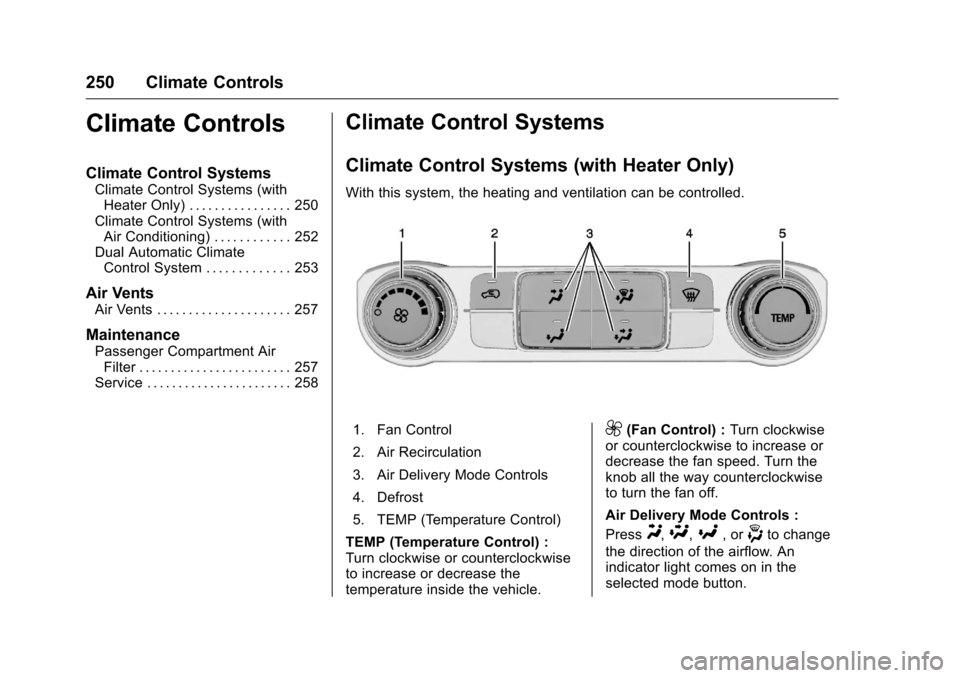
With this system, the heating and ventilation can be controlled.
1. Fan Control
2. Air Recirculation
3. Air Delivery Mode Controls
4. Defrost
5. TEMP (Temperature Control)
TEMP (Temperature Control) :
Turn clockwise or counterclockwise
to increase or decrease the
temperature inside the vehicle.9(Fan Control) : Turn clockwise
or counterclockwise to increase or
decrease the fan speed. Turn the
knob all the way counterclockwise
to turn the fan off.
Air Delivery Mode Controls :
Press
Y,\,[, or-to change
the direction of the airflow. An
indicator light comes on in the
selected mode button.