change time CHEVROLET SILVERADO 2016 3.G Owner's Manual
[x] Cancel search | Manufacturer: CHEVROLET, Model Year: 2016, Model line: SILVERADO, Model: CHEVROLET SILVERADO 2016 3.GPages: 533, PDF Size: 8.17 MB
Page 238 of 533
Chevrolet Silverado Owner Manual (GMNA-Localizing-U.S./Canada/Mexico-
9159338) - 2016 - crc - 10/21/15
Infotainment System 237
The PROJECTION icon on the
Home Page will change to Android
Auto or Apple CarPlay depending
on the phone. Android Auto and/or
Apple CarPlay may automatically
launch upon USB connection. If not,
press the ANDROID AUTO and/or
APPLE CARPLAY icon on the
Home Page to launch.
For further information on how to set
up Android Auto and Apple CarPlay
in the vehicle, see my.
chevrolet.com orCustomer
Assistance Offices 0485
or Customer Assistance
Offices 0485.
Android Auto is provided by Google
and is subject to Google’s terms
and privacy policy. CarPlay is
provided by Apple and is subject to
Apple’ s terms and privacy policy.
For Android Auto support see
https://support.google.com/
androidauto or Apple CarPlay
support at https://www.apple.com/
ios/carplay/. Apple or Google may
change or suspend availability at
any time. Android Auto is a
trademark of Google Inc.; Apple
CarPlay is a trademark of Apple Inc.Bluetooth Phone/
Devices
Pictures and Movies
(Audio System with
Touchscreen)
The infotainment system can play
the music files contained in the USB
storage device or iPod/iPhone
products.
Audio System Information
Using MP3/WMA/OGG/WAV Files
. Music files with .mp3, .wma,
.ogg, and .wav file name
extensions can be played.
. MP3 files that can be played are:
Bit rate: 8 kbps to 320 kbps -
Sampling frequency: 48 kHz,
44.1 kHz, 32 kHz, 24 kHz, 22.05
kHz, and 16 kHz.
. Files with a bit rate above
128 kbps will result in higher
quality sound.
. ID3 Tag information for MP3
files, such as the album name
and the artist, can be played. .
To display album title, track title,
and artist information, the file
should be compatible with the
ID3 Tag V1 and V2 formats.
Using USB Storage Devices and
iPod/iPhone
. Use a USB or flash memory type
storage device. Do not connect
using a USB adaptor.
. Do not connect and reconnect
the USB device repeatedly in a
short time, as this may cause
static electricity and problems
using the device.
. Use a USB device with a metal
connecting terminal.
. Connection with i-Stick Type
USB storage devices may be
faulty due to vehicle vibration.
. Do not touch the USB
connecting terminal.
. Only USB storage devices
formatted in FAT16/32 or exFAT
file system are recognized.
NTFS and other file systems are
not recognized.
Page 240 of 533
Chevrolet Silverado Owner Manual (GMNA-Localizing-U.S./Canada/Mexico-
9159338) - 2016 - crc - 10/21/15
Infotainment System 239
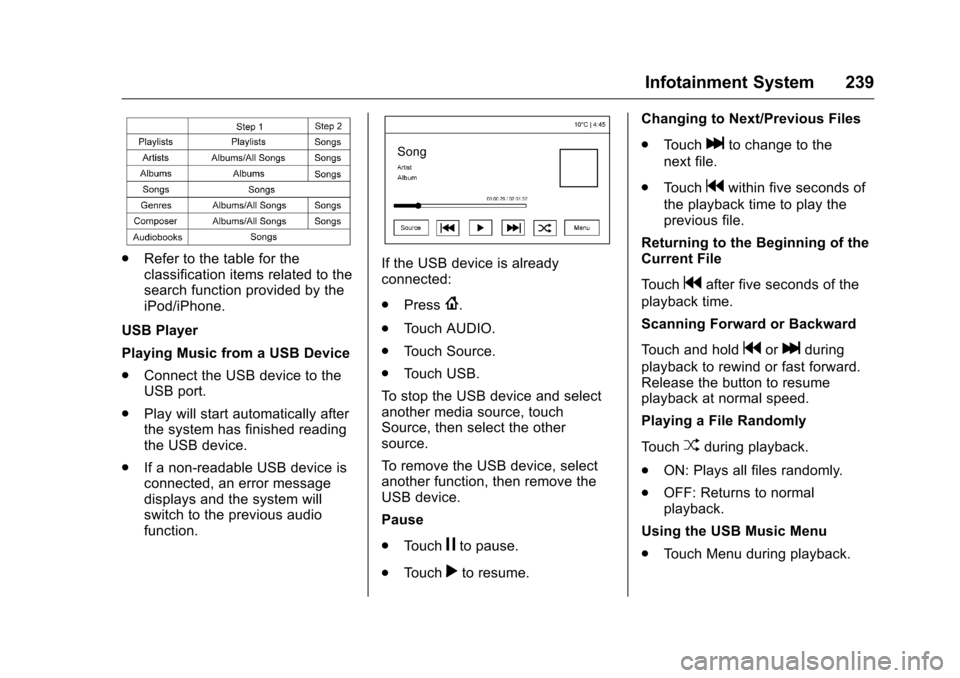
.Refer to the table for the
classification items related to the
search function provided by the
iPod/iPhone.
USB Player
Playing Music from a USB Device
. Connect the USB device to the
USB port.
. Play will start automatically after
the system has finished reading
the USB device.
. If a non-readable USB device is
connected, an error message
displays and the system will
switch to the previous audio
function.If the USB device is already
connected:
.Press
{.
. Touch AUDIO.
. Touch Source.
. Touch USB.
To stop the USB device and select
another media source, touch
Source, then select the other
source.
To remove the USB device, select
another function, then remove the
USB device.
Pause
. Touch
jto pause.
. Touch
rto resume. Changing to Next/Previous Files
.
Touch
lto change to the
next file.
. Touch
gwithin five seconds of
the playback time to play the
previous file.
Returning to the Beginning of the
Current File
Touch
gafter five seconds of the
playback time.
Scanning Forward or Backward
Touch and hold
gorlduring
playback to rewind or fast forward.
Release the button to resume
playback at normal speed.
Playing a File Randomly
Touch
Zduring playback.
. ON: Plays all files randomly.
. OFF: Returns to normal
playback.
Using the USB Music Menu
. Touch Menu during playback.
Page 242 of 533
Chevrolet Silverado Owner Manual (GMNA-Localizing-U.S./Canada/Mexico-
9159338) - 2016 - crc - 10/21/15
Infotainment System 241
Pause
.Touch
jto pause.
. Touch
rto resume.
Changing to Next/Previous Song
. Touch
lto change to the
next song.
. Touch
gwithin three seconds
of the playback time to play the
previous file.
Returning to the Beginning of the
Current File
Touch
gafter three seconds of the
playback time.
Scanning Forward or Backward
Touch and hold
gorlduring
playback to rewind or fast forward.
Release the button to resume
playback at normal speed.
Playing a File Randomly
Touch
Zduring playback.
. ON: Plays all files randomly.
. OFF: Returns to normal
playback. Using the iPod Menu
.
Touch Menu during playback.
. Touch the appropriate
play mode.
Browse Music 1. Touch Browse Music.
2. Touch the desired music.
Tone Settings
. Touch Tone Settings. The Tone
Settings menu is displayed. See
“Tone Settings” under“System
Settings” inAM-FM Radio (Base
Radio with Touchscreen) 0199
or AM-FM Radio (Base
Radio) 0197.
Auto Volume
. Touch Auto Volume. The Auto
Volume menu is displayed. See
“Auto Volume” under“System
Settings” inAM-FM Radio (Base
Radio with Touchscreen) 0199
or AM-FM Radio (Base
Radio) 0197.
Pictures and Movies
(Picture System with
Touchscreen)
The infotainment system can view
picture files stored on a USB
storage device and devices that
support Media Transfer
Protocol (MTP).
Picture System Information
.
Supported file extensions: .jpg,
.bmp, .png, .gif.
. Animated GIF files are not
supported.
. Some files may not operate due
to a different recording format or
the condition of the file.
Viewing Pictures 1. Connect the USB device to the USB port.
2. Touch the screen to open to full screen. Touch the screen again
to return to the previous
screen.
Page 244 of 533
Chevrolet Silverado Owner Manual (GMNA-Localizing-U.S./Canada/Mexico-
9159338) - 2016 - crc - 10/21/15
Infotainment System 243
Playing a Movie File1. Connect the USB device to the USB port.
2. Touch the screen to open to full screen. Touch the screen again
to return to the previous
screen.
If the USB device is already
connected:
1. Press
{.
2. Touch GALLERY.
3. Touch
z.
Movie is not available while driving.
Pause
. Touch
jto pause.
. Touch
rto resume.
Changing to Next/Previous Movie
. Touch
uto change to the
next file.
. Touch
twithin five seconds of
the playback time to play the
previous file. Returning to the Beginning of the
Current Movie
Touch
tafter five seconds of the
playback time.
Scanning Forward or Backward
Touch and hold
toruduring
playback to rewind or fast forward.
Release the button to resume
playback at normal speed.
Viewing Full Screen
Touch
tfrom the movie screen.
Touch
tagain to return to the
previous screen.
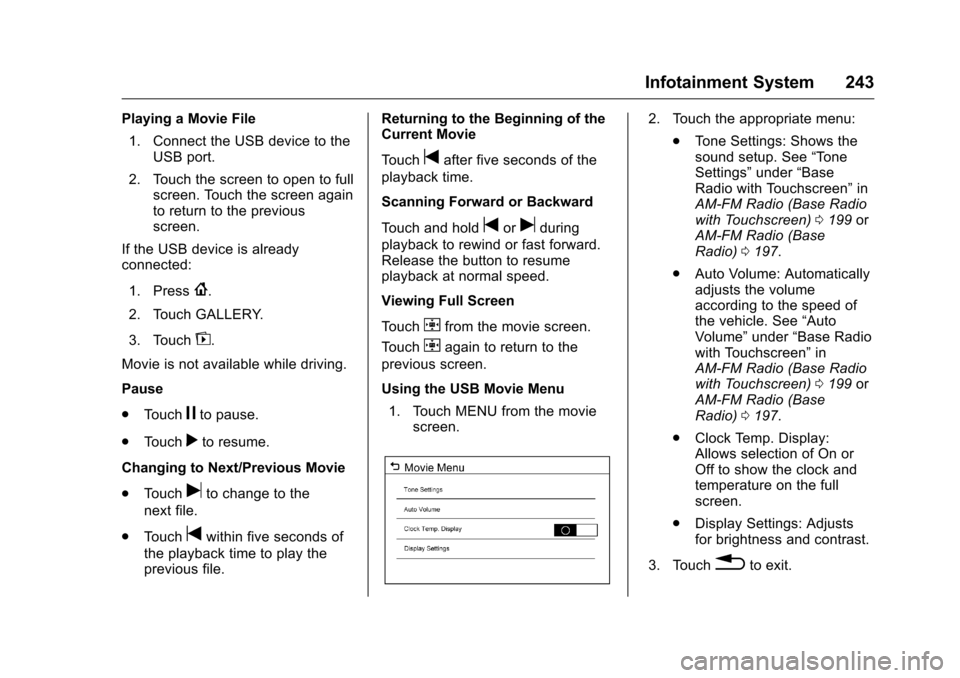
Using the USB Movie Menu
1. Touch MENU from the movie screen.
2. Touch the appropriate menu:
.Tone Settings: Shows the
sound setup. See “Tone
Settings” under“Base
Radio with Touchscreen” in
AM-FM Radio (Base Radio
with Touchscreen) 0199 or
AM-FM Radio (Base
Radio) 0197.
. Auto Volume: Automatically
adjusts the volume
according to the speed of
the vehicle. See “Auto
Volume” under“Base Radio
with Touchscreen” in
AM-FM Radio (Base Radio
with Touchscreen) 0199 or
AM-FM Radio (Base
Radio) 0197.
. Clock Temp. Display:
Allows selection of On or
Off to show the clock and
temperature on the full
screen.
. Display Settings: Adjusts
for brightness and contrast.
3. Touch
0to exit.
Page 245 of 533
Chevrolet Silverado Owner Manual (GMNA-Localizing-U.S./Canada/Mexico-
9159338) - 2016 - crc - 10/21/15
244 Infotainment System
Trademarks and
License Agreements
FCC Information
SeeRadio Frequency Statement
0 496 orRadio Frequency
Statement 0496.
"Made for iPod" and "Made for
iPhone" mean that an electronic
accessory has been designed to
connect specifically to iPod or
iPhone and has been certified by
the developer to meet Apple
performance standards. Apple is not
responsible for the operation of this
device or its compliance with safety
and regulatory standards. Please
note that the use of this accessory
with iPod or iPhone may affect
wireless performance. iPhone
®,
iPod®, iPod classic®, iPod nano®, iPod shuffle
®, and iPod touch®are
trademarks of Apple Inc., registered
in the U.S. and other countries.
Fees and Taxes: Subscription fee,
taxes, one time activation fee, and
other fees may apply. Subscription
fee is consumer only. All fees and
programming subject to change.
Subscriptions subject to Customer
Agreement available at
www.siriusxm.com. SiriusXM
®
service only available in the
48 contiguous United States and
Canada.
In Canada: Some deterioration of
service may occur in extreme
northern latitudes. This is beyond
the control of SiriusXM
®Satellite
Radio.
Explicit Language Notice: Channels
with frequent explicit language are
indicated with an “XL”preceding the channel name. Channel blocking is
available for SiriusXM Satellite
Radio receivers by notifying
SiriusXM:
.
USA Customers —See
www.siriusxm.com or call
1-866-635–2349.
. Canadian Customers —See
www.xmradio.ca or call
1-877-209-0079.
It is prohibited to copy, decompile,
disassemble, reverse engineer,
hack, manipulate, or otherwise
make available any technology or
software incorporated in receivers
compatible with the SiriusXM
®
Satellite Radio System or that
support the SiriusXM website, the
Online Service or any of its content.
Furthermore, the AMBER voice
compression software included in
this product is protected by
intellectual property rights including
patent rights, copyrights, and trade
secrets of Digital Voice
Systems, Inc.
Page 247 of 533
Chevrolet Silverado Owner Manual (GMNA-Localizing-U.S./Canada/Mexico-
9159338) - 2016 - crc - 10/21/15
246 Infotainment System
all of the benefits and protections
set forth herein that are available to
Gracenote.
You agree that you will use
Gracenote Data, the Gracenote
Software, and Gracenote Servers
for your own personal
non-commercial use only. You agree
not to assign, copy, transfer or
transmit the Gracenote Software or
any Gracenote Data to any third
party. YOU AGREE NOT TO USE
OR EXPLOIT GRACENOTE DATA,
THE GRACENOTE SOFTWARE,
OR GRACENOTE SERVERS,
EXCEPT AS EXPRESSLY
PERMITTED HEREIN.
You agree that your non-exclusive
license to use the Gracenote Data,
the Gracenote Software, and
Gracenote Servers will terminate if
you violate these restrictions. If your
license terminates, you agree to
cease any and all use of the
Gracenote Data, the Gracenote
Software, and Gracenote Servers.
Gracenote reserves all rights in
Gracenote Data, the Gracenote
Software, and the Gracenote
Servers, including all ownershiprights. Under no circumstances will
Gracenote become liable for any
payment to you for any information
that you provide. You agree that
Gracenote may enforce its rights
under this Agreement against you
directly in its own name.
The Gracenote service uses a
unique identifier to track queries for
statistical purposes. The purpose of
a randomly assigned numeric
identifier is to allow the Gracenote
service to count queries without
knowing anything about who you
are. For more information, see the
web page for the Gracenote Privacy
Policy for the Gracenote service.
The Gracenote Software and each
item of Gracenote Data are licensed
to you "AS IS." Gracenote makes no
representations or warranties,
express or implied, regarding the
accuracy of any Gracenote Data.
Gracenote reserves the right to
delete data from the Gracenote
Servers or to change data
categories for any cause that
Gracenote deems sufficient. No
warranty is made that the Gracenote
Software or Gracenote Servers areerror-free or that functioning of
Gracenote Software or Gracenote
Servers will be uninterrupted.
Gracenote is not obligated to
provide you with new enhanced or
additional data types or categories
that Gracenote may provide in the
future and is free to discontinue its
services at any time.
GRACENOTE DISCLAIMS ALL
WARRANTIES EXPRESS OR
IMPLIED, INCLUDING, BUT NOT
LIMITED TO, IMPLIED
WARRANTIES OF
MERCHANTABILITY, FITNESS
FOR A PARTICULAR PURPOSE,
TITLE, AND NON-INFRINGEMENT.
GRACENOTE DOES NOT
WARRANT THE RESULTS THAT
WILL BE OBTAINED BY YOUR
USE OF THE GRACENOTE
SOFTWARE OR ANY
GRACENOTE SERVER. IN NO
CASE WILL GRACENOTE BE
LIABLE FOR ANY
CONSEQUENTIAL OR
INCIDENTAL DAMAGES OR FOR
ANY LOST PROFITS OR LOST
REVENUES.
Page 281 of 533
Chevrolet Silverado Owner Manual (GMNA-Localizing-U.S./Canada/Mexico-
9159338) - 2016 - crc - 10/27/15
280 Driving and Operating
Starting and
Operating
New Vehicle Break-In
Caution
The vehicle does not need an
elaborate break-in. But it will
perform better in the long run if
you follow these guidelines:. Keep the vehicle speed at
88 km/h (55 mph) or less for
the first 805 km (500 mi).
. Do not drive at any one
constant speed, fast or slow,
for the first 805 km (500 mi).
Do not make full-throttle
starts. Avoid downshifting to
brake or slow the vehicle.
. Avoid making hard stops for
the first 322 km (200 mi) or
so. During this time the new
brake linings are not yet
broken in. Hard stops with
new linings can mean
(Continued)
Caution (Continued)
premature wear and earlier
replacement. Follow this
breaking-in guideline every
time you get new brake
linings.
. Do not tow a trailer during
break-in. See Trailer Towing
0 330 for the trailer towing
capabilities of the vehicle
and more information.
Following break-in, engine speed
and load can be gradually
increased.
Adjustable Throttle and
Brake Pedal
If equipped, the position of the
throttle and brake pedals can be
changed.
The pedals can only be adjusted
when the vehicle is in P (Park).
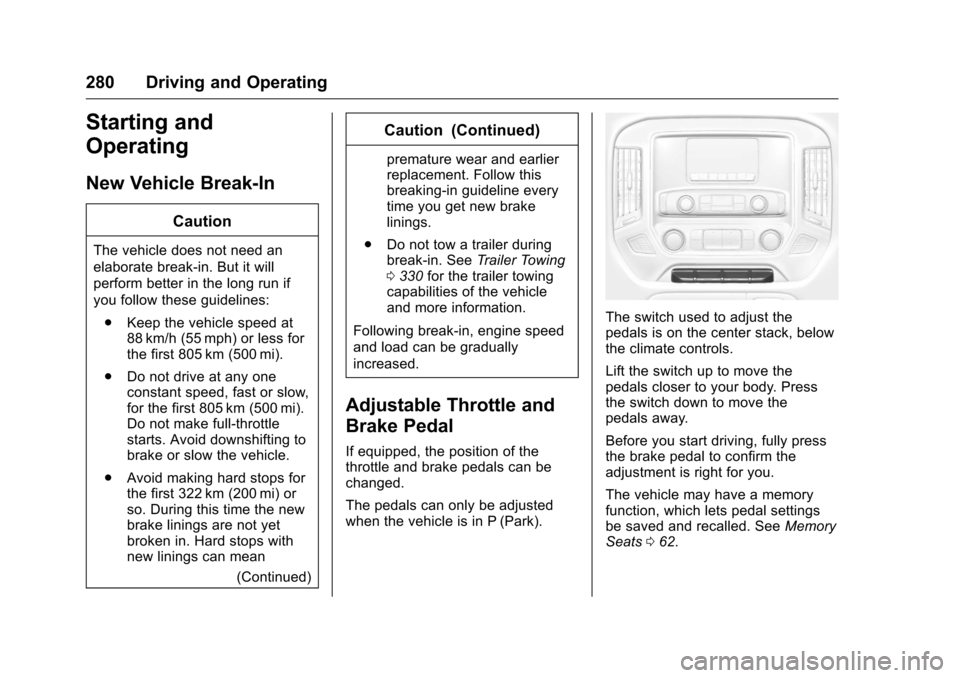
The switch used to adjust the
pedals is on the center stack, below
the climate controls.
Lift the switch up to move the
pedals closer to your body. Press
the switch down to move the
pedals away.
Before you start driving, fully press
the brake pedal to confirm the
adjustment is right for you.
The vehicle may have a memory
function, which lets pedal settings
be saved and recalled. See Memory
Seats 062.
Page 283 of 533
Chevrolet Silverado Owner Manual (GMNA-Localizing-U.S./Canada/Mexico-
9159338) - 2016 - crc - 10/27/15
282 Driving and Operating
Caution
Using a tool to force the key to
turn in the ignition could cause
damage to the switch or break the
key. Use the correct key, make
sure it is all the way in, and turn it
only with your hand. If the key
cannot be turned by hand, see
your dealer.
1 (ACC/ACCESSORY) : This
position lets things like the radio
and the windshield wipers operate
while the engine is off. It also
unlocks the steering wheel. Use this
position if the vehicle must be
pushed or towed.
2 (ON/RUN) : This position can be
used to operate the electrical
accessories and to display some
instrument cluster warning and
indicator lights. This position can
also be used for service and
diagnostics, and to verify the proper
operation of the malfunction
indicator lamp as may be required
for emission inspection purposes.
The switch stays in this position when the engine is running. The
transmission is also unlocked in this
position on automatic transmission
vehicles.
If the key is left in the ACC/
ACCESSORY or ON/RUN position
with the engine off, the battery could
be drained. The vehicle may not
start if the battery is allowed to drain
for an extended period of time.
3 (START) :
This is the position that
starts the engine. When the engine
starts, release the key. The ignition
switch returns to ON/RUN for
driving.
A warning tone will sound when the
driver door is opened, the ignition is
in ACC/ACCESSORY or LOCK/
OFF, and the key is in the ignition.
Starting the Engine
If the vehicle has a diesel engine,
see the Duramax diesel
supplement.
For an eAssist vehicle, see the
Silverado/Sierra eAssist
supplement.
Caution
If you add electrical parts or
accessories, you could change
the way the engine operates. Any
resulting damage would not be
covered by the vehicle warranty.
See Add-On Electrical
Equipment 0355.
Caution
If the steering wheel is turned
until it reaches the end of its
travel, and is held in that position
while starting the vehicle, damage
may occur to the hydraulic power
steering system and there may be
loss of power steering assist.
Place the transmission in the
proper gear.
Automatic Transmission
Move the shift lever to P (Park) or
N (Neutral). To restart the engine
when the vehicle is already moving,
use N (Neutral) only.
Page 293 of 533
Chevrolet Silverado Owner Manual (GMNA-Localizing-U.S./Canada/Mexico-
9159338) - 2016 - crc - 10/27/15
292 Driving and Operating
Caution
Spinning the tires or holding the
vehicle in one place on a hill
using only the accelerator pedal
may damage the transmission.
The repair will not be covered by
the vehicle warranty. If you are
stuck, do not spin the tires. When
stopping on a hill, use the brakes
to hold the vehicle in place.
Normal Mode Grade Braking
If equipped with a gasoline engine
and an automatic transmission,
Normal Mode Grade Braking is
enabled when the vehicle is started,
but is not enabled in Range
Selection Mode. It assists in
maintaining desired vehicle speeds
when driving on downhill grades by
using the engine and transmission
to slow the vehicle. The first time
the system engages for each
ignition key cycle, a DIC message
will be displayed. SeeTransmission
Messages 0162. To disable or enable Normal Mode
Grade Braking within the current
ignition key cycle, press and hold
the Tow/Haul button for
five seconds. When the button is
released, the requested mode
change is made. A DIC message
displays. See
Transmission
Messages 0162.
For other forms of grade braking,
see Tow/Haul Mode 0295 and
Cruise Control 0311.
Kickdown Mode
The accelerator pedal provides an
additional downshift after pressing
through the kickdown feature.
It requires extra pedal pressure near
the end of its travel to engage.
Manual Mode
Range Selection Mode
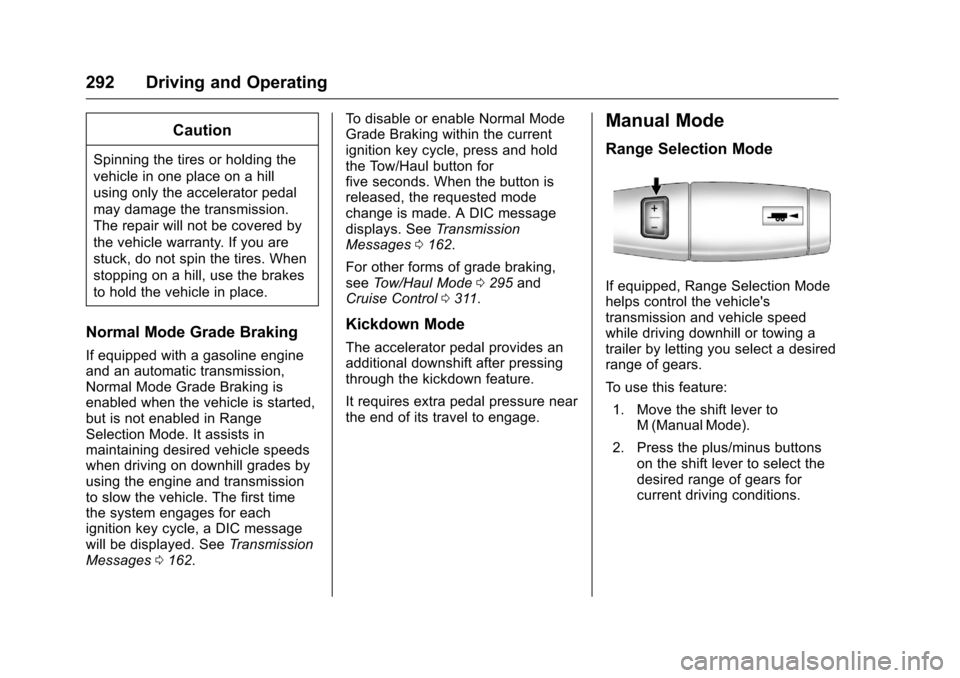
If equipped, Range Selection Mode
helps control the vehicle's
transmission and vehicle speed
while driving downhill or towing a
trailer by letting you select a desired
range of gears.
To use this feature:
1. Move the shift lever to M (Manual Mode).
2. Press the plus/minus buttons on the shift lever to select the
desired range of gears for
current driving conditions.
Page 306 of 533
Chevrolet Silverado Owner Manual (GMNA-Localizing-U.S./Canada/Mexico-
9159338) - 2016 - crc - 10/27/15
Driving and Operating 305
4. Turn the transfer case knob tothe desired setting.
After the transfer case has
shifted out of N (Neutral), the
N (Neutral) light will go out.
5. Release the parking brake.
6. Start the engine and shift the transmission to the
desired gear.Brakes
Antilock Brake
System (ABS)
This vehicle has ABS, an advanced
electronic braking system that helps
prevent a braking skid.
When the vehicle begins to drive
away, ABS checks itself.
A momentary motor or clicking noise
might be heard while this test is
going on, and it might even be
noticed that the brake pedal moves
a little. This is normal.
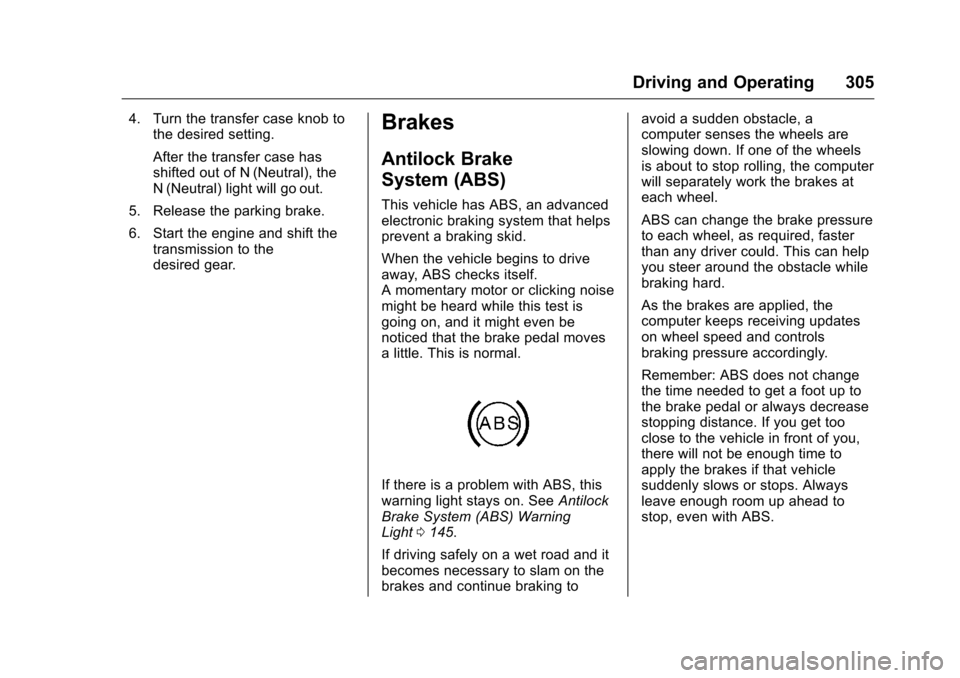
If there is a problem with ABS, this
warning light stays on. See Antilock
Brake System (ABS) Warning
Light 0145.
If driving safely on a wet road and it
becomes necessary to slam on the
brakes and continue braking to avoid a sudden obstacle, a
computer senses the wheels are
slowing down. If one of the wheels
is about to stop rolling, the computer
will separately work the brakes at
each wheel.
ABS can change the brake pressure
to each wheel, as required, faster
than any driver could. This can help
you steer around the obstacle while
braking hard.
As the brakes are applied, the
computer keeps receiving updates
on wheel speed and controls
braking pressure accordingly.
Remember: ABS does not change
the time needed to get a foot up to
the brake pedal or always decrease
stopping distance. If you get too
close to the vehicle in front of you,
there will not be enough time to
apply the brakes if that vehicle
suddenly slows or stops. Always
leave enough room up ahead to
stop, even with ABS.