manual radio set CHEVROLET SILVERADO 2016 3.G Owner's Manual
[x] Cancel search | Manufacturer: CHEVROLET, Model Year: 2016, Model line: SILVERADO, Model: CHEVROLET SILVERADO 2016 3.GPages: 533, PDF Size: 8.17 MB
Page 207 of 533
Chevrolet Silverado Owner Manual (GMNA-Localizing-U.S./Canada/Mexico-
9159338) - 2016 - crc - 10/21/15
206 Infotainment System
Unable to Start Pandora
If the device is unable to launch
Pandora:
.Check that the latest version of
Pandora is installed.
. Check that there is an active
account logged into Pandora.
. Have at least one station
created.
. For Android and BlackBerry
devices, check that the device is
paired with the vehicle, and
whether the device displays in
the Connected phone sources
list under the Phone icon from
the Home Page.
. For an iPhone, check that the
USB cable is connected to the
USB port and the screen is
unlocked.
. Close Pandora on the device
and launch again. Devices that
allow multitasking may require
an extra step to quit the Pandora
application. See the cell phone
manufacturer's user guide. Thumbs Up or Thumbs Down
Error
If there is an error trying to rate a
track with the
,or-, the message
“Thumbs Down Error” or“Thumbs
Up Error” will display. Press OK to
dismiss.
Loss of Audio
Loss of Pandora audio can happen
in different ways:
. Weak or lost data connection.
. Device needs to be charged.
. Application needs to be
relaunched.
. Connection between phone and
radio lost.
. An iPhone is connected to both
Bluetooth and the USB port.
Playback can be resumed from
a loss of audio by double
tapping on the iPhone home
button then scrolling through the
icons to find an icon that allows
a change of flow between
Bluetooth and USB cable. Volume and song selection may
be controlled using the
Infotainment controls or on the
phone/device. If Pandora is
selected and nothing is heard,
check the volume setting on
both phone/device and the
Infotainment system.
Common Pandora Messages
Pandora Error/Please Check
Device : Not signed in or Pandora
is down for maintenance.
No Stations Available : No stations
are available on the Pandora server
through the connected device.
Action Unavailable. Please Check
Device Connection : A few
conditions for loss of Internet
connection are:
. The connected device loses its
cellular connection.
. The device does not support
Internet connectivity.
. The device is not in the vehicle.
. The Bluetooth signal is lost.
Page 209 of 533
Chevrolet Silverado Owner Manual (GMNA-Localizing-U.S./Canada/Mexico-
9159338) - 2016 - crc - 10/21/15
208 Infotainment System
is damaged or improperly
loaded, there is an error and
the disc ejects.
Playing an Audio CD
Press the MEDIA button on the
faceplate until CD is selected.
On the CD main page, either a track
number displays at the beginning of
each track, or Song, Artist, and
Album information displays when
available.
Use the following screen controls to
play the disc:
t:While on the CD main page:
. Press to seek to the beginning of
the current or previous track.
If the track has been playing for
less than five seconds, it seeks
to the previous track. If longer
than five seconds, the current
track starts from the beginning.
. Press and hold to fast reverse
through a track. Release the
button to return to playing
speed. Elapsed time displays.
u:While on the CD main page:
. Press to seek to the next track.
. Press and hold to fast forward
through a track. Release the
button to return to playing
speed. Elapsed time displays.
j/r:While on the CD main page,
press to pause. Press again to
resume.
Z: PressZto play the songs in
random order. Press again to
turn off.
If a Blu-ray Disc
®or DVD disc is
loaded into the disc player and the
CD screen button is selected, a
message comes on the screen to
use the Video application. The
Video application is only available
on vehicles with Rear Seat
Entertainment (RSE).
CD Menu
While on the CD main page, press
the MENU knob to display the CD
menu and the following may display:
Browse : Select to display the files
or songs on the CD. Tone Settings :
Select to adjust
Bass, Midrange, Treble, Balance,
Fade, and EQ (Equalizer). See
“Tone Settings” underAM-FM Radio
(Base Radio with Touchscreen)
0 199 orAM-FM Radio (Base
Radio) 0197.
Auto Volume : If equipped, this
feature adjusts the volume based on
the vehicle speed. Select the level
between Off, Low, Medium-Low,
Medium, Medium-High, and High.
Press BACK to go to the
previous menu.
DSP : If equipped, this feature
adjusts the pre-defined settings.
See “DSP” inAM-FM Radio (Base
Radio with Touchscreen) 0199 or
AM-FM Radio (Base Radio) 0197.
EQ (Equalizer) : If equipped, this
feature adjusts the equalizer
settings. See “EQ (Equalizer)” in
AM-FM Radio (Base Radio with
Touchscreen) 0199 orAM-FM
Radio (Base Radio) 0197.
Page 211 of 533
Chevrolet Silverado Owner Manual (GMNA-Localizing-U.S./Canada/Mexico-
9159338) - 2016 - crc - 10/21/15
210 Infotainment System
The vehicle may have USB ports in
the front of the center console,
armrest, or one in the upper glove
box. SeeCenter Console Storage
0 120 andGlove Box 0119.
USB MP3 Player and USB Drives
. The USB MP3 players and USB
drives connected must comply
with the USB Mass Storage
Class specification (USB MSC).
. Hard disk drives are not
supported.
. Supported file system is FAT32.
To play a USB device:
. Connect the USB.
. Press MEDIA on the faceplate
until the connected device is
shown.
While the USB source is active,
press the corresponding faceplate
button for the icons on the screen to
operate USB function:
.
t
.u
.j/r
.Z
For information on how to use the
screen icons, see “Playing an
Audio CD.”
USB Menu
Press MENU to display the USB
menu and the following may display:
Browse : Select to display the files
and folders on the USB device.
Tone Settings : Select to adjust
Bass, Midrange, Treble, Balance,
Fade, and EQ (Equalizer). See
“Tone Settings” under“Playing an
Audio CD” inCD Player 0207.
Auto Volume : If equipped, see
“Playing an Audio CD” inCD
Player 0207.
EQ (Equalizer) : If equipped, this
feature adjusts the equalizer
settings. See “EQ (Equalizer)
Settings” inAM-FM Radio (Base
Radio with Touchscreen) 0199 or
AM-FM Radio (Base Radio) 0197.
Playing from an iPod®/iPad®/
iPhone®
This feature supports the following
devices:
. iPod nano
®(1st, 2nd, 3rd, and
4th generation)
. iPod with video (5.0 and 5.5
generation)
. iPod classic
®(6th generation)
. iPod touch
®(1st and 2nd
generation)
. iPad
. iPhone 3G, iPhone 3GS,
iPhone 4
There may be problems with
operation and function in the
following situations:
. When connecting a device with
a more recent version of the
firmware installed than is
supported by the infotainment
system.
. When connecting a device on
which firmware from other
providers is installed.
Page 212 of 533
Chevrolet Silverado Owner Manual (GMNA-Localizing-U.S./Canada/Mexico-
9159338) - 2016 - crc - 10/21/15
Infotainment System 211
To connect and control a device:1. Connect one end of the standard USB cable to the
device's dock connector.
2. Connect the other end to a USB port in the center console.
See Center Console
Storage 0120.
3. Press MEDIA to select the source.
The music information displays on
the radio’s display and begins
playing through the vehicle’s audio
system.
The device battery recharges
automatically while the vehicle is on.
When the vehicle is off while a
device is connected using the USB
cable, the device battery stops
charging and the device will
automatically turn off.
If the device is an unsupported
model, it can still be listened to in
the vehicle by connecting to the
auxiliary input jack using a standard
3.5 mm (1/8 in) stereo cable. Menu
Press MENU to display the device
Menu and the following may display:
Browse :
Select to display the files
or songs on the device. See
“Browse Device Media” later in this
section.
Tone Settings : Select to adjust
Bass, Midrange, Treble, Balance,
Fade, and EQ (Equalizer). See
“Tone Settings” under“Playing an
Audio CD” inCD Player 0207.
Auto Volume : If equipped, see
“Playing an Audio CD” inCD
Player 0207.
EQ (Equalizer) : If equipped, this
feature adjusts the Equalizer
settings. See “EQ (Equalizer)” in
AM-FM Radio (Base Radio with
Touchscreen) 0199 orAM-FM
Radio (Base Radio) 0197.
Browse Device Media
Use the following to browse:
Playlists: 1. Turn MENU to highlight and press to view the playlists
stored on the device. 2. Turn MENU to highlight and
press to select a playlist name
to view a list of all songs in the
playlist.
3. Turn MENU to highlight and press to select the song from
the list to begin playback.
Artists: 1. Turn MENU to highlight and press to view the artists stored
on the device.
2. Turn MENU to highlight and press to select an artist name
to view a list of all albums by
the artist.
3. Turn MENU to highlight and press to select an album name
to view a list of all songs on the
album.
4. Turn MENU to highlight and press to select the song from
the list to begin playback.
Albums: 1. Turn MENU to highlight and press to view the albums
stored on the device.
Page 214 of 533
Chevrolet Silverado Owner Manual (GMNA-Localizing-U.S./Canada/Mexico-
9159338) - 2016 - crc - 10/21/15
Infotainment System 213
Connecting a USB Storage
Device or iPod/iPhone
To connect a USB storage device,
connect the device to the USB port.
To connect an iPod/iPhone, connect
one end of the device’s cable to the
iPod/iPhone and the other end to
the USB port.
The iPod/iPhone charges while it is
connected to the vehicle if the
vehicle is in ACC/ACCESSORY or
ON/RUN. See Ignition Positions
0 281. When the vehicle is turned
off, the iPod/iPhone automatically
powers off and will not charge or
draw power from the vehicle's
battery.
For more information on USB
usage, see “Audio System
Information” underPictures and
Movies (Picture System with
Touchscreen) 0241 orPictures and
Movies (Movie System with
Touchscreen) 0242 orPictures and
Movies (Audio System with
Touchscreen) 0237. Playing Movies
Movies are not available while
driving.
If the USB storage device is already
connected:
1. Press
{.
2. Touch GALLERY.
3. Touch
s.
4. Touch the desired Movie.
Viewing Pictures
Pictures are not available while
driving.
If the USB storage device is already
connected:
1. Press
{.
2. Touch GALLERY.
3. Touch
\.
Auxiliary Jack
This vehicle may have an AUX jack
in the center console or armrest.
See Center Console Storage 0120. Possible auxiliary audio sources
include:
.
Laptop computer
. Audio music player
This jack is not an audio output. Do
not plug headphones into the
auxiliary input jack. Auxiliary
devices should be set up while the
vehicle is in P (Park).
Connect a 3.5 mm (1/8 in) cable
from the auxiliary device to the
auxiliary input jack.
If an auxiliary device has already
been connected, but a different
source is currently active, press the
MEDIA faceplate button repeatedly
to scroll through all of the available
audio source screens, until the AUX
source screen is shown.
Base Radio
Playing from the AUX Jack
An auxiliary device is played
through the audio system and
controlled through the device itself.
Page 215 of 533
Chevrolet Silverado Owner Manual (GMNA-Localizing-U.S./Canada/Mexico-
9159338) - 2016 - crc - 10/21/15
214 Infotainment System
AUX Menu
Press the MENU knob to display the
AUX menu and the following may
display:
Tone Settings :Select to adjust
Bass, Midrange, Treble, Balance,
Fade, and EQ (Equalizer). See
“Tone Settings” inAM-FM Radio
(Base Radio with Touchscreen)
0 199 orAM-FM Radio (Base
Radio) 0197.
Auto Volume : If equipped, see
“Playing an Audio CD.”
DSP : If equipped, this feature
adjusts the pre-defined settings.
See “DSP” inAM-FM Radio (Base
Radio with Touchscreen) 0199 or
AM-FM Radio (Base Radio) 0197.
EQ (Equalizer) : If equipped, this
feature adjusts the pre-defined
equalizer settings. See “EQ
(Equalizer)” inAM-FM Radio (Base
Radio with Touchscreen) 0199 or
AM-FM Radio (Base Radio) 0197.Base Radio with Touchscreen
Play will begin when the system has
finished reading the information on
the device.
Playing Music
To play the music from the device,
if the device is already connected:
1. Press
{.
2. Touch AUDIO.
3. Touch Source.
4. Touch AUX.
To adjust the tone settings. See
“Audio Settings” in“System
Settings” underAM-FM Radio (Base
Radio with Touchscreen) 0199 or
AM-FM Radio (Base Radio) 0197.
Playing Movies
Movies are not available while
driving.
If the device is already connected:
1. Press
{.
2. Touch Movie.
3. Touch the desired Movie. For iPod/iPhone, connect the iPod/
iPhone to the AUX input terminal by
using the AUX cable for iPod/
iPhone to play movie files.
iPhone 5 cell phones have a
connector which no longer supports
AUX connections to the radio. This
feature is limited to older versions of
iPhone.
Using the AUX Movie Menu
1. Touch MENU from the AUX movie screen. The AUX menu
is displayed.
2. Touch the desired menu. .Audio: Adjust the sound
setup. See “Audio Settings”
in “System Settings” under
AM-FM Radio (Base Radio
with Touchscreen) 0199 or
AM-FM Radio (Base
Radio) 0197.
3. Touch
0.
Page 216 of 533
Chevrolet Silverado Owner Manual (GMNA-Localizing-U.S./Canada/Mexico-
9159338) - 2016 - crc - 10/21/15
Infotainment System 215
Bluetooth Audio
If equipped, music may be played
from a paired Bluetooth device. See
“Pairing”under“Information
Controls” inBluetooth (Voice
Recognition - Base Radio) 0227 or
Bluetooth (Infotainment Controls -
Base Radio) 0223 orBluetooth
(Overview) 0222 orBluetooth
(Infotainment Controls - Base Radio
with Touchscreen) 0232 for help
pairing a device.
Volume and song selection may be
controlled by using the infotainment
controls or the phone/device.
If Bluetooth Audio is selected and
nothing is heard, check the volume
setting on both the phone/device
and the infotainment system.
Launch music by pressing the
MEDIA screen button on the
Home Page.
To play music via Bluetooth:
1. Power on the device, and pair to connect the device. 2. Once paired, go into the audio
application from the Home
Page or via the application tray.
Select MEDIA until Bluetooth
displays.
Bluetooth Audio Menu
Press the MENU screen button to
display the Bluetooth Audio menu.
The following may be available:
Tone: Turn the MENU knob to
adjust the tone settings.
Press
oBACK to go back to the
previous menu.
Manage Bluetooth Devices: Select
to go to the Bluetooth page to add
or delete devices.
When selecting Bluetooth Audio, the
radio may not be able to launch the
audio player on the connected
device to start playing. When the
vehicle is not moving, use the
phone to begin playback.
All devices launch audio differently.
When selecting Bluetooth Audio as
a source, the radio may show as paused on the screen. Press play
on the device or press
rto begin
playback.
Some phones support sending
Bluetooth music information to
display on the radio. When the radio
receives this information, it will
check to see if any is available and
display it. For more information
about supported Bluetooth features,
see www.gm.com/bluetooth.
Page 224 of 533
Chevrolet Silverado Owner Manual (GMNA-Localizing-U.S./Canada/Mexico-
9159338) - 2016 - crc - 10/21/15
Infotainment System 223
i:Press to end a call, reject a
call, or cancel an operation. Press
to mute or unmute the infotainment
system.
Infotainment System Controls
For information about how to
navigate the menu system using the
infotainment controls, see Overview
(Base Radio) 0189 orOverview
(Base Radio with
Touchscreen) 0193.
MENU : Turn to scroll through a list.
Press to select the highlighted list
option.
{: Press to go to the Home Page.
See Home Page (Base Radio)
0 194 orHome Page (Base Radio
with Touchscreen) 0196.
PHONE or
#: Select to enter the
phone main menu. See Bluetooth
(Voice Recognition - Base Radio)
0 227 orBluetooth (Infotainment
Controls - Base Radio) 0223 or
Bluetooth (Overview) 0222 or
Bluetooth (Infotainment Controls -
Base Radio with
Touchscreen) 0232.
Voice Recognition
If equipped, the voice recognition
system uses commands to control
the system and dial phone numbers.
Noise : The system may not
recognize voice commands if there
is too much background noise, such
as noise from open windows or loud
talking inside the vehicle.
When to Speak : A tone sounds to
indicate that the system is ready for
a voice command. Wait for the tone
and then speak.
How to Speak : Speak clearly in a
calm and natural voice.
Audio System
When using the Bluetooth system,
sound comes through the vehicle's
front audio system speakers and
overrides the audio system. Use the
Oknob during a call to change the
volume level. The system maintains
a minimum volume level.
Bluetooth Audio Quality
Turn off the Echo and Noise
cancellation feature on your phone,
if supported, for the best hands-free
performance.
See www.gm.com/bluetooth.
Bluetooth (Infotainment
Controls - Base Radio)
For information about how to
navigate the menu system using the
infotainment controls, see Overview
(Base Radio) 0189 orOverview
(Base Radio with
Touchscreen) 0193.
Switching to Handset or
Hands-Free Mode
To switch between handset mode
and hands-free mode, use the
OnStar command, “transfer call.”
Pairing
A Bluetooth-enabled cell phone
must be paired to the Bluetooth
system and then connected to the
vehicle before it can be used. See
your cell phone manufacturer's user
Page 241 of 533
Chevrolet Silverado Owner Manual (GMNA-Localizing-U.S./Canada/Mexico-
9159338) - 2016 - crc - 10/21/15
240 Infotainment System
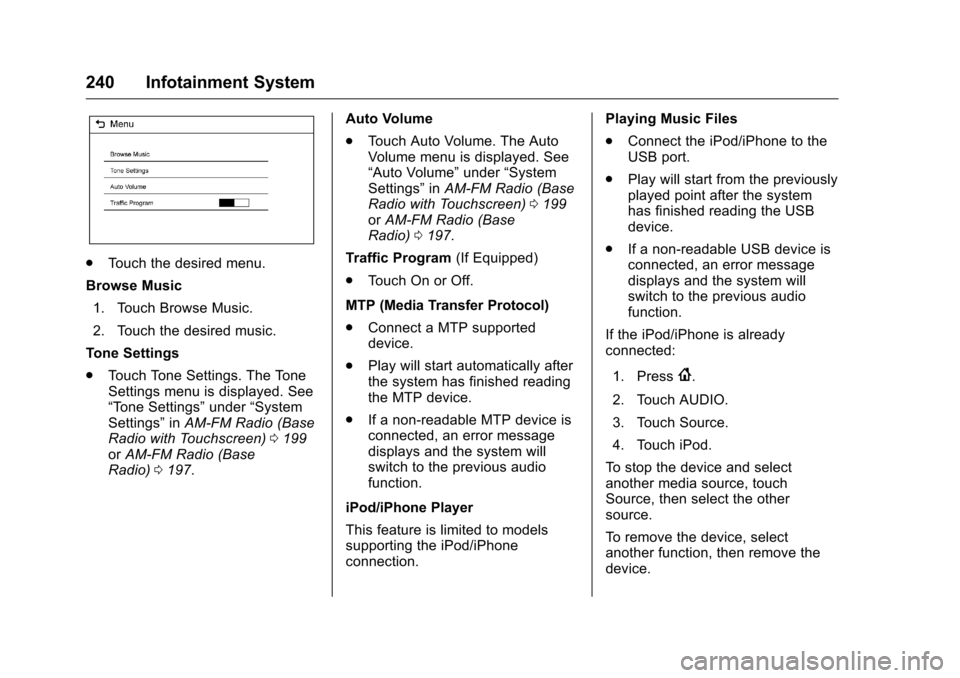
.Touch the desired menu.
Browse Music 1. Touch Browse Music.
2. Touch the desired music.
Tone Settings
. Touch Tone Settings. The Tone
Settings menu is displayed. See
“Tone Settings” under“System
Settings” inAM-FM Radio (Base
Radio with Touchscreen) 0199
or AM-FM Radio (Base
Radio) 0197. Auto Volume
.
Touch Auto Volume. The Auto
Volume menu is displayed. See
“Auto Volume” under“System
Settings” inAM-FM Radio (Base
Radio with Touchscreen) 0199
or AM-FM Radio (Base
Radio) 0197.
Traffic Program (If Equipped)
. Touch On or Off.
MTP (Media Transfer Protocol)
. Connect a MTP supported
device.
. Play will start automatically after
the system has finished reading
the MTP device.
. If a non-readable MTP device is
connected, an error message
displays and the system will
switch to the previous audio
function.
iPod/iPhone Player
This feature is limited to models
supporting the iPod/iPhone
connection. Playing Music Files
.
Connect the iPod/iPhone to the
USB port.
. Play will start from the previously
played point after the system
has finished reading the USB
device.
. If a non-readable USB device is
connected, an error message
displays and the system will
switch to the previous audio
function.
If the iPod/iPhone is already
connected:
1. Press
{.
2. Touch AUDIO.
3. Touch Source.
4. Touch iPod.
To stop the device and select
another media source, touch
Source, then select the other
source.
To remove the device, select
another function, then remove the
device.
Page 242 of 533
Chevrolet Silverado Owner Manual (GMNA-Localizing-U.S./Canada/Mexico-
9159338) - 2016 - crc - 10/21/15
Infotainment System 241
Pause
.Touch
jto pause.
. Touch
rto resume.
Changing to Next/Previous Song
. Touch
lto change to the
next song.
. Touch
gwithin three seconds
of the playback time to play the
previous file.
Returning to the Beginning of the
Current File
Touch
gafter three seconds of the
playback time.
Scanning Forward or Backward
Touch and hold
gorlduring
playback to rewind or fast forward.
Release the button to resume
playback at normal speed.
Playing a File Randomly
Touch
Zduring playback.
. ON: Plays all files randomly.
. OFF: Returns to normal
playback. Using the iPod Menu
.
Touch Menu during playback.
. Touch the appropriate
play mode.
Browse Music 1. Touch Browse Music.
2. Touch the desired music.
Tone Settings
. Touch Tone Settings. The Tone
Settings menu is displayed. See
“Tone Settings” under“System
Settings” inAM-FM Radio (Base
Radio with Touchscreen) 0199
or AM-FM Radio (Base
Radio) 0197.
Auto Volume
. Touch Auto Volume. The Auto
Volume menu is displayed. See
“Auto Volume” under“System
Settings” inAM-FM Radio (Base
Radio with Touchscreen) 0199
or AM-FM Radio (Base
Radio) 0197.
Pictures and Movies
(Picture System with
Touchscreen)
The infotainment system can view
picture files stored on a USB
storage device and devices that
support Media Transfer
Protocol (MTP).
Picture System Information
.
Supported file extensions: .jpg,
.bmp, .png, .gif.
. Animated GIF files are not
supported.
. Some files may not operate due
to a different recording format or
the condition of the file.
Viewing Pictures 1. Connect the USB device to the USB port.
2. Touch the screen to open to full screen. Touch the screen again
to return to the previous
screen.