change wheel CHEVROLET SILVERADO 2019 User Guide
[x] Cancel search | Manufacturer: CHEVROLET, Model Year: 2019, Model line: SILVERADO, Model: CHEVROLET SILVERADO 2019Pages: 474, PDF Size: 7.28 MB
Page 162 of 474
Chevrolet Silverado Owner Manual (GMNA-Localizing-U.S./Canada/Mexico-
1500-11698642) - 2019 - CRC - 2/20/19
Instruments and Controls 161
system monitoring the oil life,
additional maintenance is
recommended. SeeMaintenance
Schedule 0417.
The Oil Life display must be reset
after each oil change. It will not
reset itself. Do not reset the Oil Life
display at any time other than when
the oil has just been changed.
It cannot be reset accurately until
the next oil change. To reset the
engine oil life system, see Engine
Oil Life System 0324.
Air Filter Life
Turn the trip odometer reset stem
until AIR FILTER LIFE displays.
This displays an estimate of the
engine air filter ’s remaining useful
life and the state of the system.
Engine Air Filter Life 95% means
95% of the current air filter life
remains. Messages will display
based on the engine air filter life and
the state of the system.
When the REPLACE AT NEXT OIL
CHANGE message displays, the
engine air filter should be replaced
at the time of the next oil change. When the REPLACE SOON
message displays, the engine air
filter should be replaced at the
earliest convenience.
The Air Filter Life display must be
reset after the engine air filter
replacement. To reset, see
Engine
Air Filter Life System 0326.
Brake Pad Life
This displays an estimate of the
remaining life of the front and rear
brake pads. Messages will display
based on brake pad wear and the
state of the system. Reset the Brake
Pad Life display after replacing the
brake pads. See Brake Pad Life
System 0336.
Driver Information Center
(DIC) (Midlevel and
Uplevel)
The DIC displays are shown in the
center of the instrument cluster in
the Info app. See Instrument Cluster
0 139. The displays show the status
of many vehicle systems. If the vehicle has a diesel engine,
see the Duramax diesel
supplement.
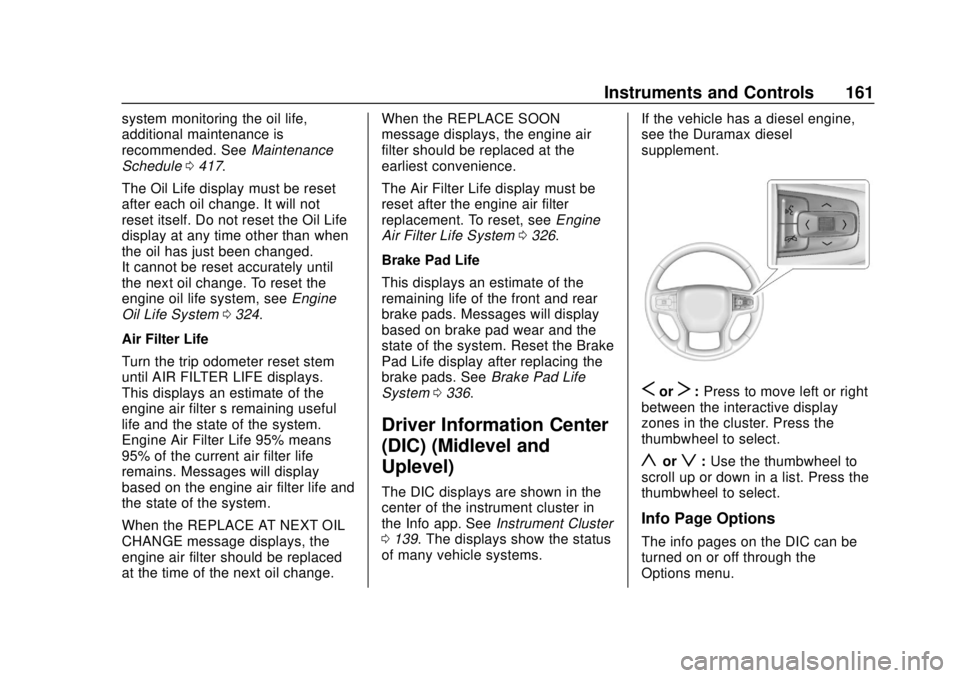
SorT:
Press to move left or right
between the interactive display
zones in the cluster. Press the
thumbwheel to select.
yorz: Use the thumbwheel to
scroll up or down in a list. Press the
thumbwheel to select.
Info Page Options
The info pages on the DIC can be
turned on or off through the
Options menu.
Page 163 of 474
Chevrolet Silverado Owner Manual (GMNA-Localizing-U.S./Canada/Mexico-
1500-11698642) - 2019 - CRC - 2/20/19
162 Instruments and Controls
1. PressTto scroll to the
Options application.
2. Scroll
yorzto choose Info
pages and press the
thumbwheel.
3. Scroll
yorzto move
through the list of possible
information displays.
4. Press the thumbwheel while an item is highlighted to select or
deselect that item.
The info pages can also be turned
on or off through the DIC page Info
Page Options.
Info Pages
The following is the list of all
possible DIC info page displays.
Some may not be available for your
particular vehicle. Some items may
not be turned on by default but can
be turned on through the Options
app. See “Info Page Options” earlier
in this section.
Speed : Shows the vehicle speed in
either kilometers per hour (km/h) or
miles per hour (mph). The vehicle odometer is also shown on this
page. If equipped, press the
thumbwheel to open the menu and
select to display speed limit signs.
Trip 1 or Trip 2, and Average Fuel
Economy :
Shows the current
distance traveled, in either
kilometers (km) or miles (mi), since
the trip odometer was last reset.
The Average Fuel Economy display
shows the approximate average
liters per 100 kilometers (L/100 km)
or miles per gallon (mpg). This
number is calculated based on the
number of L/100 km (mpg) recorded
since the last time this menu item
was reset. This number reflects only
the approximate average fuel
economy that the vehicle has right
now, and will change as driving
conditions change.
Press the thumbwheel while this
display is active to reset the trip
odometer and the average fuel
economy.
Fuel Range : Shows the
approximate distance the vehicle
can be driven without refueling. LOW will be displayed when the
vehicle is low on fuel. The fuel
range estimate is based on an
average of the vehicle's fuel
economy over recent driving history
and the amount of fuel remaining in
the fuel tank.
Timer :
This display can be used as
a timer. To start the timer, press the
thumbwheel while this display is
active. The display will show the
amount of time that has passed
since the timer was last reset. To
stop the timer, press the
thumbwheel briefly while this display
is active and the timer is running.
Press the thumbwheel while this
display is active to reset the timer.
Oil Life : Shows an estimate of the
oil's remaining useful life.
If REMAINING OIL LIFE 99% is
displayed, that means 99% of the
current oil life remains.
When the remaining oil life is low,
the CHANGE ENGINE OIL SOON
message will appear on the display.
The oil should be changed as soon
as possible. See Engine Oil0322.
Page 164 of 474
Chevrolet Silverado Owner Manual (GMNA-Localizing-U.S./Canada/Mexico-
1500-11698642) - 2019 - CRC - 2/20/19
Instruments and Controls 163
In addition to the engine oil life
system monitoring the oil life,
additional maintenance is
recommended. SeeMaintenance
Schedule 0417.
The Oil Life display must be reset
after each oil change. It will not
reset itself. Do not reset the Oil Life
display at any time other than when
the oil has just been changed.
It cannot be reset accurately until
the next oil change. To reset the
engine oil life system, press the
thumbwheel while the Oil Life
display is active. See Engine Oil
Life System 0324.
Tire Pressure : Shows the
approximate pressures of all four
tires. Tire pressure is displayed in
either kilopascal (kPa) or in pounds
per square inch (psi). If the pressure
is low, the value for that tire is
shown in amber. See Tire Pressure
Monitor System 0370 and
Tire Pressure Monitor Operation
0 371.
Air Filter Life : Shows an estimate
of the engine air filter ’s remaining
useful life and the state of the system. Engine Air Filter Life 95%
means 95% of the current air filter
life remains. Messages will display
based on the engine air filter life and
the state of the system. When the
REPLACE SOON message
displays, the engine air filter should
be replaced at the earliest
convenience.
The Air Filter Life display must be
reset after the engine air filter
replacement. To reset, see
Engine
Air Filter Life System 0326.
Brake Pad Life : This displays an
estimate of the remaining life of the
front and rear brake pads.
Messages will display based on
brake pad wear and the state of the
system. Reset the Brake Pad Life
display after replacing the brake
pads. See Brake Pad Life System
0 336.
Fuel Economy : Displays average
fuel economy, the best fuel
economy over the selected
distance, and a bar graph showing
instantaneous fuel economy. Press the thumbwheel to change
the selected distance. Press and
hold the thumbwheel while this
display is active to reset the best
fuel economy and average fuel
economy. This display can also be
reset by selecting reset in the menu.
Engine Hours (Hourmeter) :
Shows the total number of hours the
engine has run. This display also
shows the engine idle hours.
Transmission Fluid
Temperature :
Shows the
temperature of the automatic
transmission fluid in either degrees
Celsius (°C) or degrees
Fahrenheit (°F).
Trailer Brake : On vehicles with the
Integrated Trailer Brake Control
(ITBC) system, the trailer brake
display appears in the DIC.
TRAILER GAIN shows the trailer
gain setting. This setting can be
adjusted from 0.0 to 10.0 with either
a trailer connected or disconnected.
OUTPUT shows the power output to
the trailer any time a trailer with
electric brakes is connected. Output
Page 165 of 474
Chevrolet Silverado Owner Manual (GMNA-Localizing-U.S./Canada/Mexico-
1500-11698642) - 2019 - CRC - 2/20/19
164 Instruments and Controls
is displayed as a bar graph. Dotted
lines may appear in the OUTPUT
display if a trailer is not connected.
Off Road :Displays vehicle pitch
and roll information, road wheel
angle, and four-wheel drive (4WD)
status.
Follow Distance : If equipped, the
current follow time to the vehicle
ahead is displayed as a time value
on this page.
Driver Assistance : If equipped,
shows information for Lane Keep
Assist (LKA) and Forward Collision
Alert (FCA).
Info Page Options : Scroll to
choose which info pages appear on
the DIC. Press the thumbwheel to
select or deselect.
Blank Page : Shows no
information.Head-Up Display (HUD)
{Warning
If the HUD image is too bright or
too high in your field of view, it
may take you more time to see
things you need to see when it is
dark outside. Be sure to keep the
HUD image dim and placed low in
your field of view.
If equipped with HUD, some
information about the operation of
the vehicle is projected onto the
windshield. The image is projected
through the HUD lens on top of the
instrument panel. The information
appears as an image focused out
toward the front of the vehicle.
Caution
If you try to use the HUD image
as a parking aid, you may
misjudge the distance and
damage your vehicle. Do not use
the HUD image as a parking aid.
The HUD information can be
displayed in various languages. The
speedometer reading and other
numerical values can be displayed
in either English or metric units.
The language selection is changed
through the radio, and the units of
measurement is changed through
the instrument cluster. See
“Settings” in the infotainment
manual and “Options”under
Instrument Cluster 0139.
Page 166 of 474
Chevrolet Silverado Owner Manual (GMNA-Localizing-U.S./Canada/Mexico-
1500-11698642) - 2019 - CRC - 2/20/19
Instruments and Controls 165
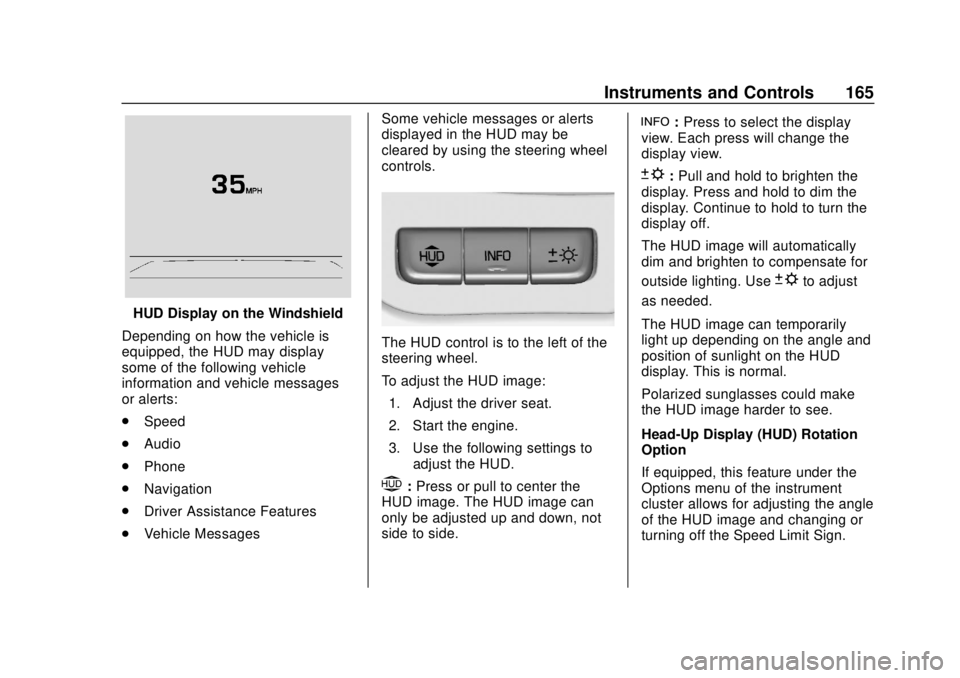
HUD Display on the Windshield
Depending on how the vehicle is
equipped, the HUD may display
some of the following vehicle
information and vehicle messages
or alerts:
. Speed
. Audio
. Phone
. Navigation
. Driver Assistance Features
. Vehicle Messages Some vehicle messages or alerts
displayed in the HUD may be
cleared by using the steering wheel
controls.
The HUD control is to the left of the
steering wheel.
To adjust the HUD image:
1. Adjust the driver seat.
2. Start the engine.
3. Use the following settings to adjust the HUD.
$:Press or pull to center the
HUD image. The HUD image can
only be adjusted up and down, not
side to side.
!: Press to select the display
view. Each press will change the
display view.
D: Pull and hold to brighten the
display. Press and hold to dim the
display. Continue to hold to turn the
display off.
The HUD image will automatically
dim and brighten to compensate for
outside lighting. Use
Dto adjust
as needed.
The HUD image can temporarily
light up depending on the angle and
position of sunlight on the HUD
display. This is normal.
Polarized sunglasses could make
the HUD image harder to see.
Head-Up Display (HUD) Rotation
Option
If equipped, this feature under the
Options menu of the instrument
cluster allows for adjusting the angle
of the HUD image and changing or
turning off the Speed Limit Sign.
Page 167 of 474
Chevrolet Silverado Owner Manual (GMNA-Localizing-U.S./Canada/Mexico-
1500-11698642) - 2019 - CRC - 2/20/19
166 Instruments and Controls
HUD Rotation: Press the
thumbwheel while Adjust Rotation is
highlighted to enter Adjust Mode.
Scroll to adjust the angle of the
HUD display. Press the thumbwheel
to confirm and save the setting. This
feature may only be available in
P (Park).
Speed Limit Style Adjustment
If equipped, the speed limit style
can be changed to a speed limit bar
or speed limit sign from the Options
menu in the instrument cluster.
Press the thumbwheel while Speed
Limit Style is highlighted to change
the speed sign style or to turn it off.
HUD Views
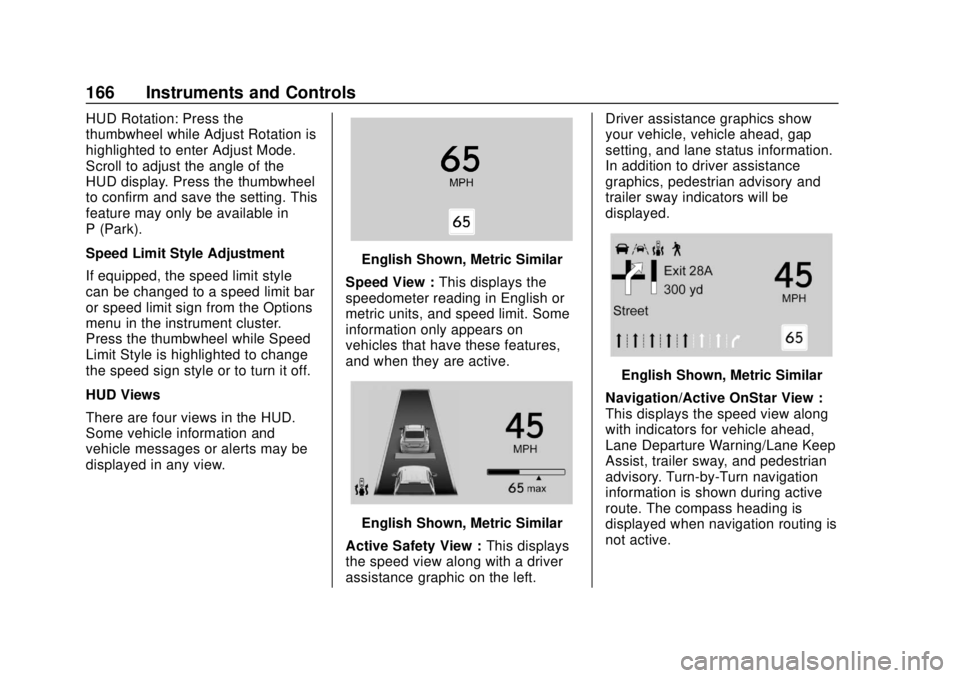
There are four views in the HUD.
Some vehicle information and
vehicle messages or alerts may be
displayed in any view.
English Shown, Metric Similar
Speed View : This displays the
speedometer reading in English or
metric units, and speed limit. Some
information only appears on
vehicles that have these features,
and when they are active.
English Shown, Metric Similar
Active Safety View : This displays
the speed view along with a driver
assistance graphic on the left. Driver assistance graphics show
your vehicle, vehicle ahead, gap
setting, and lane status information.
In addition to driver assistance
graphics, pedestrian advisory and
trailer sway indicators will be
displayed.
English Shown, Metric Similar
Navigation/Active OnStar View :
This displays the speed view along
with indicators for vehicle ahead,
Lane Departure Warning/Lane Keep
Assist, trailer sway, and pedestrian
advisory. Turn-by-Turn navigation
information is shown during active
route. The compass heading is
displayed when navigation routing is
not active.
Page 173 of 474
Chevrolet Silverado Owner Manual (GMNA-Localizing-U.S./Canada/Mexico-
1500-11698642) - 2019 - CRC - 2/20/19
172 Instruments and Controls
Remote Window Operation
If equipped, this feature enables
remote operation of the windows
with the RKE transmitter. See
Remote Keyless Entry (RKE)
System Operation (Keyless Access)
034 or
Remote Keyless Entry (RKE)
System Operation (Key Access)
0 42.
Touch Off or On.
Passive Door Unlock
This allows the selection of what
doors will unlock when using the
button on the driver door to unlock
the vehicle.
Touch All Doors or Driver Door Only.
Passive Door Lock
This allows passive locking to be
turned on or off and selects
feedback. See Remote Keyless
Entry (RKE) System Operation
(Keyless Access) 034 or
Remote Keyless Entry (RKE)
System Operation (Key Access)
0 42. Touch Off, On with Horn
Chirp, or On.
Remote Left in Vehicle Alert
This feature sounds an alert when
the RKE transmitter is left in the
vehicle. This menu also enables
Remote No Longer In Vehicle Alert.
Touch Off or On.
Seating Position
Touch and the following may
display:
.
Seat Entry Memory
. Seat Exit Memory
Seat Entry Memory
This feature automatically recalls
the previously stored 1 or 2 button
positions when the ignition is
changed from off to on or ACC/
ACCESSORY. See Memory Seats
0 73.
Touch Off or On. Seat Exit Memory
This feature automatically recalls
the previously stored exit button
position when the ignition is
changed from on or ACC/
ACCESSORY to off and the driver
door is open. See
Memory Seats
0 73.
Touch Off or On.
Teen Driver
See “Teen Driver” under“Settings”
in the infotainment manual.
Valet Mode
This will lock the infotainment
system and steering wheel controls.
It may also limit access to vehicle
storage locations, if equipped.
To enable valet mode:
1. Enter a four-digit code on the keypad.
2. Select Enter to go to the confirmation screen.
3. Re-enter the four-digit code.
Page 178 of 474
Chevrolet Silverado Owner Manual (GMNA-Localizing-U.S./Canada/Mexico-
1500-11698642) - 2019 - CRC - 2/20/19
Lighting 177
Lighting
Exterior Lighting
Exterior Lamp Controls . . . . . . . 177
Exterior Lamps OffReminder . . . . . . . . . . . . . . . . . . . 179
Headlamp High/Low-Beam Changer . . . . . . . . . . . . . . . . . . . . 179
Flash-to-Pass . . . . . . . . . . . . . . . . 180
Daytime Running Lamps (DRL) . . . . . . . . . . . . . . . 180
Automatic Headlamp System . . . . . . . . . . . . . . . . . . . . . . 180
Hazard Warning Flashers . . . . . 181
Turn and Lane-Change Signals . . . . . . . . . . . . . . . . . . . . . . 182
Fog Lamps . . . . . . . . . . . . . . . . . . . 182
Task Lighting . . . . . . . . . . . . . . . . . 183
Exterior Cargo Lamps . . . . . . . . 183
Interior Lighting
Instrument Panel Illumination Control . . . . . . . . . . . . . . . . . . . . . . 184
Dome Lamps . . . . . . . . . . . . . . . . . 184
Reading Lamps . . . . . . . . . . . . . . 185
Lighting Features
Entry Lighting . . . . . . . . . . . . . . . . 185
Exit Lighting . . . . . . . . . . . . . . . . . . 185 Battery Load Management . . . 186
Battery Power Protection . . . . . 186
Exterior Lighting Battery
Saver . . . . . . . . . . . . . . . . . . . . . . . 187
Exterior Lighting
Exterior Lamp Controls
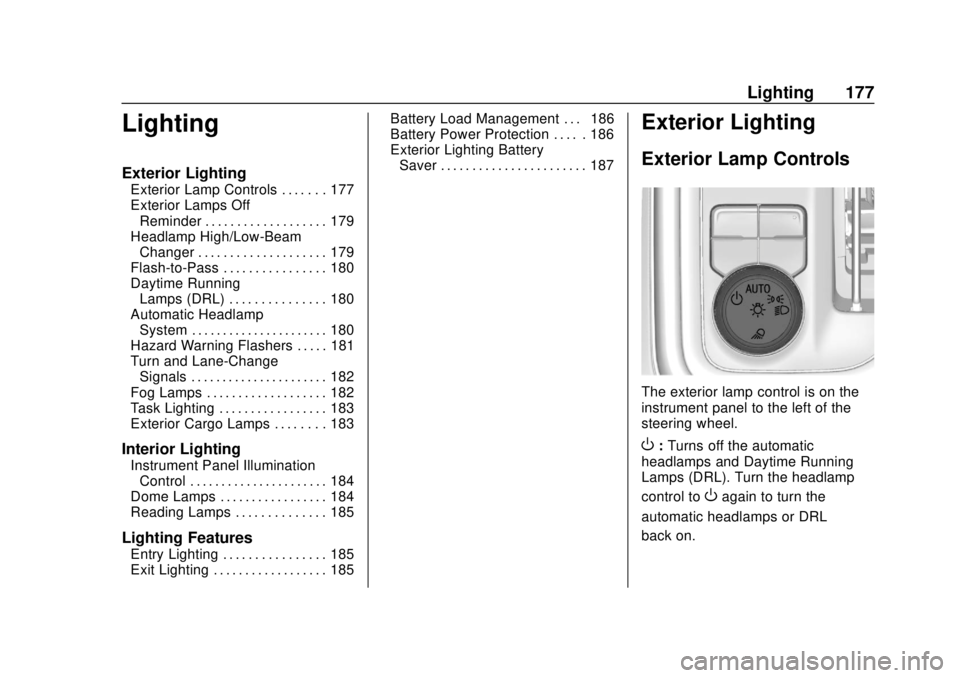
The exterior lamp control is on the
instrument panel to the left of the
steering wheel.
O: Turns off the automatic
headlamps and Daytime Running
Lamps (DRL). Turn the headlamp
control to
Oagain to turn the
automatic headlamps or DRL
back on.
Page 198 of 474
Chevrolet Silverado Owner Manual (GMNA-Localizing-U.S./Canada/Mexico-
1500-11698642) - 2019 - CRC - 2/20/19
Driving and Operating 197
Driving and
Operating
Driving Information
Distracted Driving . . . . . . . . . . . . 198
Defensive Driving . . . . . . . . . . . . . 199
Drunk Driving . . . . . . . . . . . . . . . . . 199
Control of a Vehicle . . . . . . . . . . . 199
Braking . . . . . . . . . . . . . . . . . . . . . . . 199
Steering . . . . . . . . . . . . . . . . . . . . . . 200
Off-Road Recovery . . . . . . . . . . . 200
Loss of Control . . . . . . . . . . . . . . . 201
Off-Road Driving . . . . . . . . . . . . . 201
Driving on Wet Roads . . . . . . . . 206
Hill and Mountain Roads . . . . . 207
Winter Driving . . . . . . . . . . . . . . . . 207
If the Vehicle Is Stuck . . . . . . . . 209
Vehicle Load Limits . . . . . . . . . . . 210
Truck-Camper LoadingInformation . . . . . . . . . . . . . . . . . . 215
Starting and Operating
New Vehicle Break-In . . . . . . . . . 217
Ignition Positions (KeyAccess) . . . . . . . . . . . . . . . . . . . . . 218
Ignition Positions (Keyless Access) . . . . . . . . . . . . . . . . . . . . . 220
Starting the Engine . . . . . . . . . . . 222 Stop/Start System . . . . . . . . . . . . 223
Engine Heater . . . . . . . . . . . . . . . . 224
Retained Accessory
Power (RAP) . . . . . . . . . . . . . . . . 226
Shifting Into Park . . . . . . . . . . . . . 226
Shifting out of Park . . . . . . . . . . . 227
Parking over Things
That Burn . . . . . . . . . . . . . . . . . . . 228
Active Fuel Management . . . . . 228
Extended Parking . . . . . . . . . . . . 228
Engine Exhaust
Engine Exhaust . . . . . . . . . . . . . . 229
Running the Vehicle While Parked . . . . . . . . . . . . . . . . . . . . . . 229
Automatic Transmission
Automatic Transmission . . . . . . 230
Manual Mode . . . . . . . . . . . . . . . . . 233
Tow/Haul Mode . . . . . . . . . . . . . . . 235
Drive Systems
Four-Wheel Drive . . . . . . . . . . . . . 236
Brakes
Antilock BrakeSystem (ABS) . . . . . . . . . . . . . . . 241
Electric Parking Brake . . . . . . . . 242
Brake Assist . . . . . . . . . . . . . . . . . . 243
Hill Start Assist (HSA) . . . . . . . . 244
Ride Control Systems
Traction Control/Electronic Stability Control . . . . . . . . . . . . . 244
Hill Descent Control (HDC) . . . 246
Driver Mode Control . . . . . . . . . . 247
Limited-Slip Differential . . . . . . . 251
Locking Rear Axle . . . . . . . . . . . . 251
Cruise Control
Cruise Control . . . . . . . . . . . . . . . . 251
Driver Assistance Systems
Driver Assistance Systems . . . 254
Assistance Systems for Parking or Backing . . . . . . . . . . 255
Assistance Systems for Driving . . . . . . . . . . . . . . . . . . . . . . 261
Forward Collision Alert (FCA) System . . . . . . . . . . . . . . . . . . . . . . 261
Forward Automatic Braking (FAB) . . . . . . . . . . . . . . . 264
Front Pedestrian Braking (FPB) System . . . . . . . . . . . . . . . 265
Side Blind Zone Alert (SBZA) . . . . . . . . . . . . . . . . 267
Lane Change Alert (LCA) . . . . . 268
Lane Departure Warning (LDW) . . . . . . . . . . . . . 270
Lane Keep Assist (LKA) . . . . . . 270
Page 202 of 474
Chevrolet Silverado Owner Manual (GMNA-Localizing-U.S./Canada/Mexico-
1500-11698642) - 2019 - CRC - 2/20/19
Driving and Operating 201
3. Turn the steering wheel to gostraight down the roadway.
Loss of Control
Skidding
There are three types of skids that
correspond to the vehicle's three
control systems:
.Braking Skid —wheels are not
rolling.
. Steering or Cornering Skid —
too much speed or steering in a
curve causes tires to slip and
lose cornering force.
. Acceleration Skid —too much
throttle causes the driving
wheels to spin.
Defensive drivers avoid most skids
by taking reasonable care suited to
existing conditions, and by not
overdriving those conditions. But
skids are always possible.
If the vehicle starts to slide, follow
these suggestions: .
Ease your foot off the
accelerator pedal and steer the
way you want the vehicle to go.
The vehicle may straighten out.
Be ready for a second skid if it
occurs.
. Slow down and adjust your
driving according to weather
conditions. Stopping distance
can be longer and vehicle
control can be affected when
traction is reduced by water,
snow, ice, gravel, or other
material on the road. Learn to
recognize warning clues —such
as enough water, ice, or packed
snow on the road to make a
mirrored surface —and slow
down when you have any doubt.
. Try to avoid sudden steering,
acceleration, or braking,
including reducing vehicle speed
by shifting to a lower gear. Any
sudden changes could cause
the tires to slide.
Remember: Antilock brakes help
avoid only the braking skid.
Off-Road Driving
Four-wheel-drive vehicles can be
used for off-road driving. Vehicles
without four-wheel drive and
vehicles not equipped with All
Terrain (AT) or On-Off Road (OOR)
tires must not be driven off-road
except on a level, solid surface. For
contact information about the
original equipment tires, see the
warranty manual.
One of the best ways for successful
off-road driving is to control the
speed.
{Warning
When driving off-road, bouncing
and quick changes in direction
can easily throw you out of
position. This could cause you to
lose control and crash. You and
your passengers should always
wear seat belts.