pairing phone CHEVROLET SILVERADO 2020 Get To Know Guide
[x] Cancel search | Manufacturer: CHEVROLET, Model Year: 2020, Model line: SILVERADO, Model: CHEVROLET SILVERADO 2020Pages: 24, PDF Size: 4.67 MB
Page 12 of 24
12F Optional equipment
INFOTAINMENT SYSTEM
STORING FAVORITES
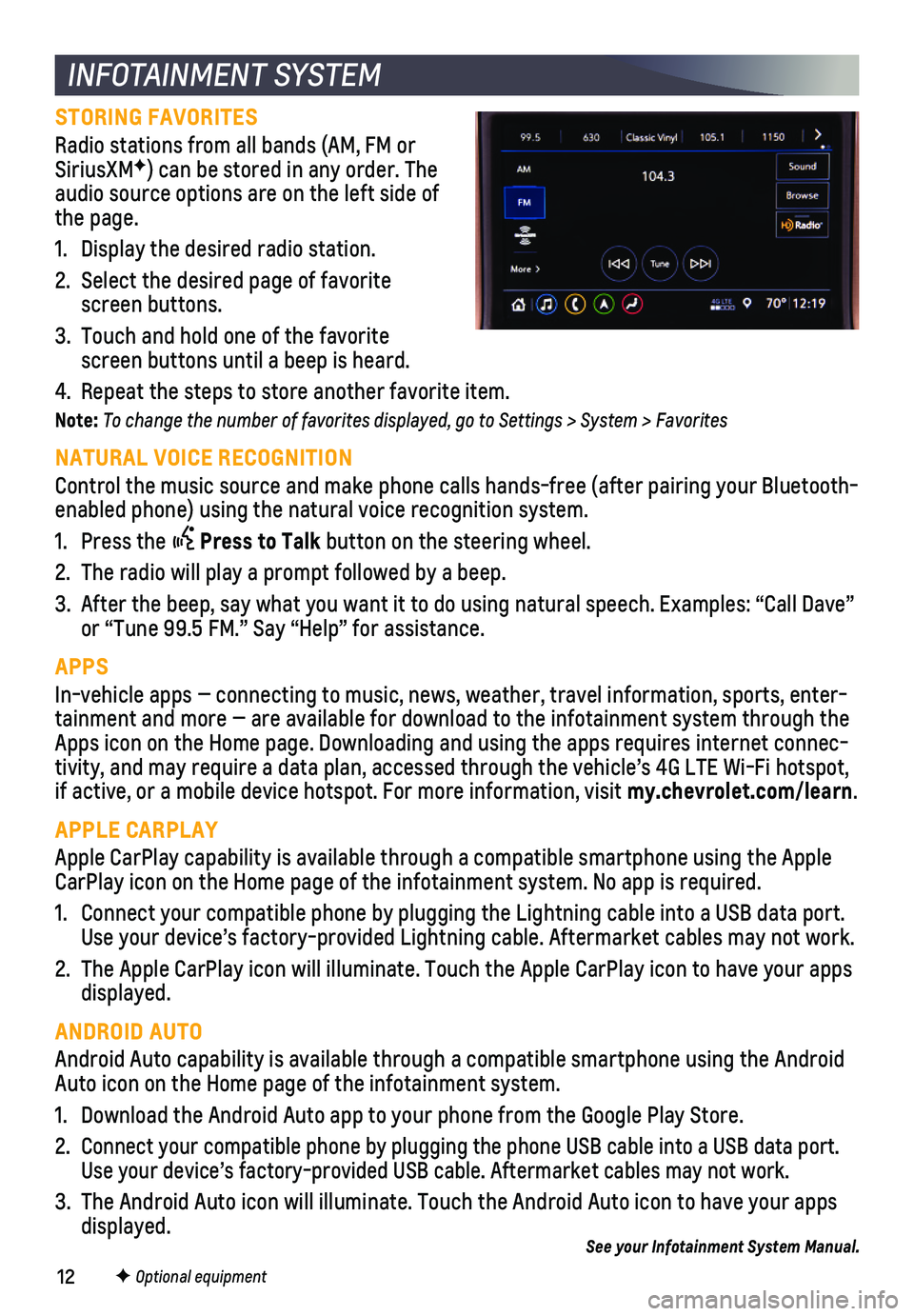
Radio stations from all bands (AM, FM or SiriusXMF) can be stored in any order. The audio source options are on the left side of the page.
1. Display the desired radio station.
2. Select the desired page of favorite screen buttons.
3. Touch and hold one of the favorite screen buttons until a beep is heard.
4. Repeat the steps to store another favorite item.
Note: To change the number of favorites displayed, go to Settings > System > Favorites
NATURAL VOICE RECOGNITION
Control the music source and make phone calls hands-free (after pairing\
your Bluetooth-enabled phone) using the natural voice recognition system.
1. Press the Press to Talk button on the steering wheel.
2. The radio will play a prompt followed by a beep.
3. After the beep, say what you want it to do using natural speech. Example\
s: “Call Dave” or “Tune 99.5 FM.” Say “Help” for assistance.
APPS
In-vehicle apps — connecting to music, news, weather, travel informat\
ion, sports, enter-tainment and more — are available for download to the infotainment sy\
stem through the Apps icon on the Home page. Downloading and using the apps requires inte\
rnet connec-tivity, and may require a data plan, accessed through the vehicle’s 4\
G LTE Wi-Fi hotspot, if active, or a mobile device hotspot. For more information, visit my.chevrolet.com/learn.
APPLE CARPLAY
Apple CarPlay capability is available through a compatible smartphone us\
ing the Apple CarPlay icon on the Home page of the infotainment system. No app is requ\
ired.
1. Connect your compatible phone by plugging the Lightning cable into a USB\
data port. Use your device’s factory-provided Lightning cable. Aftermarket cable\
s may not work.
2. The Apple CarPlay icon will illuminate. Touch the Apple CarPlay icon to \
have your apps displayed.
ANDROID AUTO
Android Auto capability is available through a compatible smartphone usi\
ng the Android Auto icon on the Home page of the infotainment system.
1. Download the Android Auto app to your phone from the Google Play Store.
2. Connect your compatible phone by plugging the phone USB cable into a USB\
data port. Use your device’s factory-provided USB cable. Aftermarket cables may \
not work.
3. The Android Auto icon will illuminate. Touch the Android Auto icon to ha\
ve your apps displayed.See your Infotainment System Manual.
Page 13 of 24
13
BLUETOOTH® SYSTEMF
INFOTAINMENT SYSTEM
F Optional equipment
Refer to your Owner’s Manual for important information about using the Bluetooth system while driving.
Before using a Bluetooth-enabled device in the vehicle, it must be paire\
d with the in-vehicle Bluetooth system. The pairing process is disabled when the vehic\
le is moving. Not all devices will support all functions. Visit my.chevrolet.com/learn for more information.
PAIR A PHONE
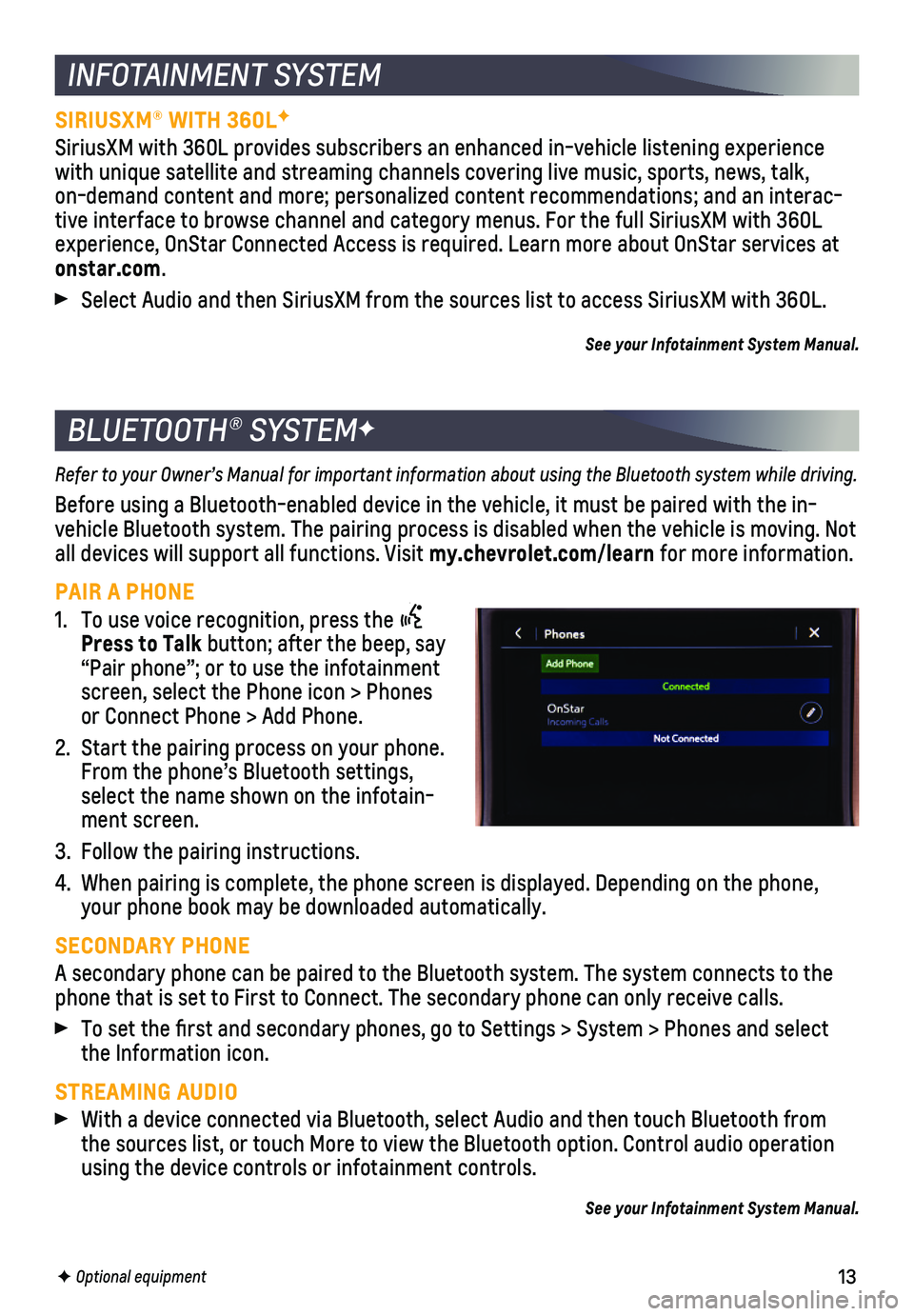
1. To use voice recognition, press the Press to Talk button; after the beep, say “Pair phone”; or to use the infotainment screen, select the Phone icon > Phones or Connect Phone > Add Phone.
2. Start the pairing process on your phone. From the phone’s Bluetooth settings, select the name shown on the infotain-ment screen.
3. Follow the pairing instructions.
4. When pairing is complete, the phone screen is displayed. Depending on th\
e phone, your phone book may be downloaded automatically.
SECONDARY PHONE
A secondary phone can be paired to the Bluetooth system. The system conn\
ects to the phone that is set to First to Connect. The secondary phone can only rece\
ive calls.
To set the first and secondary phones, go to Settings > System > Phone\
s and select the Information icon.
STREAMING AUDIO With a device connected via Bluetooth, select Audio and then touch Bluet\
ooth from the sources list, or touch More to view the Bluetooth option. Control au\
dio operation using the device controls or infotainment controls.
See your Infotainment System Manual.
SIRIUSXM® WITH 360LF
SiriusXM with 360L provides subscribers an enhanced in-vehicle listening\
experience with unique satellite and streaming channels covering live music, sports\
, news, talk, on-demand content and more; personalized content recommendations; and an\
interac-tive interface to browse channel and category menus. For the full Sirius\
XM with 360L experience, OnStar Connected Access is required. Learn more about OnStar\
services at onstar.com.
Select Audio and then SiriusXM from the sources list to access SiriusXM \
with 360L.
See your Infotainment System Manual.