change wheel CHEVROLET SILVERADO 2024 User Guide
[x] Cancel search | Manufacturer: CHEVROLET, Model Year: 2024, Model line: SILVERADO, Model: CHEVROLET SILVERADO 2024Pages: 433, PDF Size: 14.15 MB
Page 131 of 433
Chevrolet Silverado 2500 HD/3500 HD Owner Manual (GMNA-Localizing-U.
S./Canada/Mexico-16908339) - 2024 - CRC - 12/15/22
Instruments and Controls 129
Trip 1 or Trip 2, Average Fuel Economy, and
Average Speed :Shows the current distance
traveled, in either kilometers (km) or
miles (mi), since the trip odometer was last
reset.
The Average Fuel Economy display shows
the approximate average liters per
100 kilometers (L/100 km), kilometers per
liter (km/L), or miles per gallon (mpg). This
number is calculated based on the value
recorded since the last time this menu item
was reset. This number reflects only the
approximate average fuel economy that the
vehicle has at that moment, and changes as
driving conditions change.
Average Speed shows the average speed of
the vehicle in kilometers per hour (km/h) or
miles per hour (mph). This average is
calculated based on various vehicle speeds
recorded since the last reset of this value.
Press the thumbwheel while this display is
active to reset the values.
Timer : To start the timer, press the
thumbwheel while this display is active. The
display will show the amount of time that
has passed since the timer was last reset. To
stop the timer, press the thumbwheel
briefly while this display is active and the
timer is running. Press the thumbwheel while this display is
active to reset the timer.
Tire Pressure :
Shows the approximate
pressures of all four tires. Tire pressure is
displayed in either kilopascal (kPa) or in
pounds per square inch (psi). If the pressure
is low, the value for that tire is shown in
amber. See Tire Pressure Monitor System
0 345 and Tire Pressure Monitor Operation
0 346.
Fuel Economy : Displays average fuel
economy, the best fuel economy over the
selected distance, and a bar graph showing
instantaneous fuel economy.
Press the thumbwheel to change the
selected distance. This display can be reset
by selecting Reset in the menu.
Driver Assistance : If equipped, shows
information for Adaptive Cruise Control
(ACC), Lane Departure Warning (LDW),
Forward Collision Alert (FCA), and Follow
Distance Indicator(FDI).
Oil Life : Shows an estimate of the
remaining oil life. If REMAINING OIL LIFE
99% is displayed, that means 99% of the
current oil life remains. When the remaining oil life is low, the
CHANGE ENGINE OIL SOON message will
appear on the display. The oil should be
changed as soon as possible. See
Engine Oil
0 308. In addition to the engine oil life
system monitoring the oil life, additional
maintenance is recommended. See
Maintenance Schedule 0388.
The Oil Life display must be reset after each
oil change. It will not reset itself. Do not
reset the Oil Life display at any time other
than when the oil has just been changed.
It cannot be reset accurately until the next
oil change. To reset, see Engine Oil Life
System 0310.
Brake Pad Life : Displays an estimate of the
remaining life of the front and rear brake
pads. Messages will display based on brake
pad wear and the state of the system. Reset
the Brake Pad Life display after replacing the
brake pads. See Brake Pad Life System
0 319.
Air Filter Life : Shows an estimate of the
remaining engine air filter’s life and the
state of the system. Engine Air Filter Life
95% means 95% of the current air filter life
remains. Messages will display based on the
engine air filter life and the state of the
Page 132 of 433

Chevrolet Silverado 2500 HD/3500 HD Owner Manual (GMNA-Localizing-U.
S./Canada/Mexico-16908339) - 2024 - CRC - 12/15/22
130 Instruments and Controls
system. When the REPLACE SOON message
displays, the engine air filter should be
replaced at the earliest convenience.
The Air Filter Life display must be reset after
the engine air filter replacement. To reset,
seeEngine Air Filter Life System 0311.
Trailer Brake : On vehicles with the
Integrated Trailer Brake Control (ITBC)
system, the trailer brake display appears in
the DIC.
TRAILER GAIN shows the trailer gain setting.
This setting can be adjusted from 0.0 to 10.0
with either a trailer connected or
disconnected.
OUTPUT shows the power output to the
trailer any time a trailer with electric brakes
is connected. Output is displayed as a bar
graph. Dotted lines may appear in the
OUTPUT display if a trailer is not connected.
Off Road : If equipped, displays vehicle pitch
and roll information, road wheel angle, and
four-wheel drive (4WD) status. If the vehicle
has low traction, a low traction indicator
and the wheels affected will display amber
in the Off-Road page.
Engine Hours (Hourmeter) : Shows the total
number of hours the engine has run. This
display also shows the engine idle hours. Transmission Fluid Temperature :
Shows the
temperature of the automatic transmission
fluid in either degrees Celsius (°C) or degrees
Fahrenheit (°F).
Info Page Options : Scroll to choose which
info pages appear on the DIC. Press the
thumbwheel to select or deselect.
Blank Page : Shows no information.
Head-Up Display (HUD)
{Warning
If the HUD image is too bright or too
high in your field of view, it may take
you more time to see things you need to
see when it is dark outside. Be sure to
keep the HUD image dim and placed low
in your field of view.
If equipped with HUD, some information
about the operation of the vehicle is
projected onto the windshield. The image is
projected through the HUD lens on top of
the instrument panel. The information
appears as an image focused out toward the
front of the vehicle.
Caution
If you try to use the HUD image as a
parking aid, you may misjudge the
distance and damage your vehicle. Do not
use the HUD image as a parking aid.
The HUD information can be displayed in
various languages. The speedometer reading
and other numerical values can be displayed
in either English or metric units.
The language selection is changed through
the radio, and the units of measurement are
changed through the instrument cluster. See
Settings (Uplevel Radio) 0177 or
Settings (Base Radio) 0175 and “Options”
under Instrument Cluster (Base Level) 0107
or Instrument Cluster (Uplevel) 0108.
Page 133 of 433
Chevrolet Silverado 2500 HD/3500 HD Owner Manual (GMNA-Localizing-U.
S./Canada/Mexico-16908339) - 2024 - CRC - 12/15/22
Instruments and Controls 131
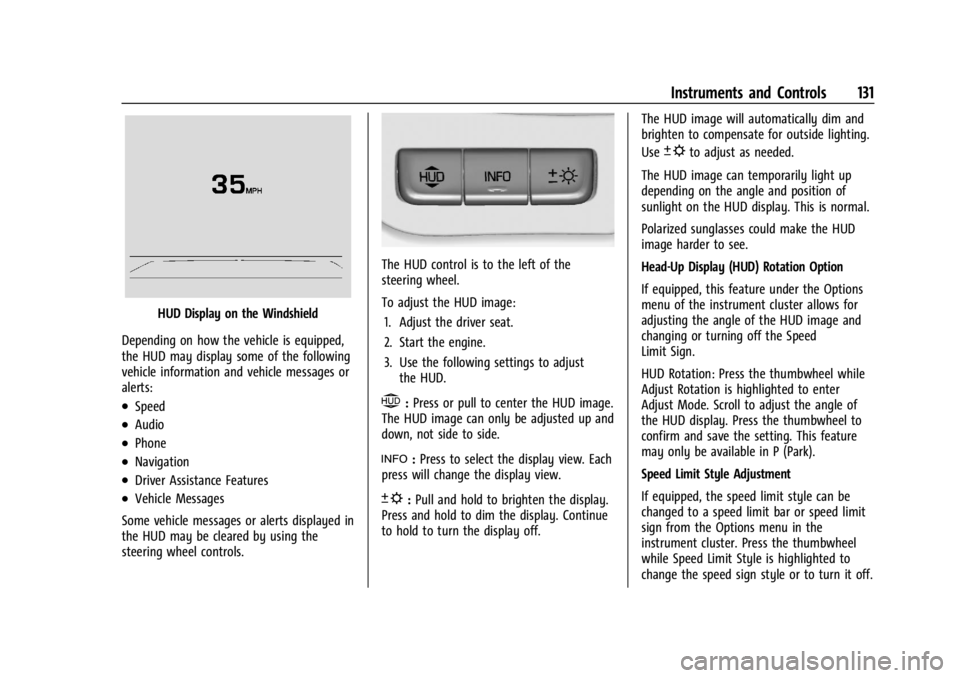
HUD Display on the Windshield
Depending on how the vehicle is equipped,
the HUD may display some of the following
vehicle information and vehicle messages or
alerts:
.Speed
.Audio
.Phone
.Navigation
.Driver Assistance Features
.Vehicle Messages
Some vehicle messages or alerts displayed in
the HUD may be cleared by using the
steering wheel controls.
The HUD control is to the left of the
steering wheel.
To adjust the HUD image: 1. Adjust the driver seat.
2. Start the engine.
3. Use the following settings to adjust the HUD.
$:Press or pull to center the HUD image.
The HUD image can only be adjusted up and
down, not side to side.
!: Press to select the display view. Each
press will change the display view.
D: Pull and hold to brighten the display.
Press and hold to dim the display. Continue
to hold to turn the display off. The HUD image will automatically dim and
brighten to compensate for outside lighting.
Use
Dto adjust as needed.
The HUD image can temporarily light up
depending on the angle and position of
sunlight on the HUD display. This is normal.
Polarized sunglasses could make the HUD
image harder to see.
Head-Up Display (HUD) Rotation Option
If equipped, this feature under the Options
menu of the instrument cluster allows for
adjusting the angle of the HUD image and
changing or turning off the Speed
Limit Sign.
HUD Rotation: Press the thumbwheel while
Adjust Rotation is highlighted to enter
Adjust Mode. Scroll to adjust the angle of
the HUD display. Press the thumbwheel to
confirm and save the setting. This feature
may only be available in P (Park).
Speed Limit Style Adjustment
If equipped, the speed limit style can be
changed to a speed limit bar or speed limit
sign from the Options menu in the
instrument cluster. Press the thumbwheel
while Speed Limit Style is highlighted to
change the speed sign style or to turn it off.
Page 140 of 433
Chevrolet Silverado 2500 HD/3500 HD Owner Manual (GMNA-Localizing-U.
S./Canada/Mexico-16908339) - 2024 - CRC - 12/5/22
138 Lighting
Lighting
Exterior Lighting
Exterior Lamp Controls . . . . . . . . . . . . . . . . 138
Exterior Lamps Off Reminder . . . . . . . . . . 140
Headlamp High/Low-Beam Changer . . . 140
Flash-to-Pass . . . . . . . . . . . . . . . . . . . . . . . . . . . 140
Daytime Running Lamps (DRL) . . . . . . . . 140
Automatic Headlamp System . . . . . . . . . . 140
Hazard Warning Flashers . . . . . . . . . . . . . . . 141
Turn and Lane-Change Signals . . . . . . . . . 142
Fog Lamps . . . . . . . . . . . . . . . . . . . . . . . . . . . . . 142
Task Lighting . . . . . . . . . . . . . . . . . . . . . . . . . . 143
Auxiliary Roof-Mounted Lamp . . . . . . . . . 143
Exterior Cargo Lamps . . . . . . . . . . . . . . . . . . 144
Interior Lighting
Instrument Panel IlluminationControl . . . . . . . . . . . . . . . . . . . . . . . . . . . . . . 144
Dome Lamps . . . . . . . . . . . . . . . . . . . . . . . . . . 145
Reading Lamps . . . . . . . . . . . . . . . . . . . . . . . . 145
Lighting Features
Entry Lighting . . . . . . . . . . . . . . . . . . . . . . . . . 146
Exit Lighting . . . . . . . . . . . . . . . . . . . . . . . . . . . 146
Battery Load Management . . . . . . . . . . . . 146
Battery Power Protection . . . . . . . . . . . . . . 147
Exterior Lighting Battery Saver . . . . . . . . 147
Exterior Lighting
Exterior Lamp Controls
The exterior lamp controls are on the
instrument panel to the left of the steering
wheel.
O: Turns off the automatic headlamps and
Daytime Running Lamps (DRL). Turn the
headlamp control to
Oagain to turn the
automatic headlamps or DRL back on.
For vehicles first sold in Canada, off will only
work when the vehicle is in P (Park). AUTO :
Automatically turns on the
headlamps, parking lamps, taillamps,
instrument panel lights, roof marker lamps
(if equipped), front/rear sidemarker lamps,
and license plate lamps.
;: Turns on all lamps, except the
headlamps and fog lamps, if equipped.
For some trim levels and trucks first sold in
Canada, the headlamps may turn on with
the parking lamps.
2: Turns on the headlamps, the parking
lamps, taillamps, instrument panel lights,
roof marker lamps (if equipped), front/rear
sidemarker lamps, and license plate lamps.
#: If equipped, turns on the fog lamps.
See Fog Lamps 0142.
IntelliBeam System
If equipped, this system turns the vehicle
high-beam headlamps on and off according
to surrounding traffic conditions.
The system turns the high-beam headlamps
on when it is dark enough and there is no
other traffic present.
Page 165 of 433
Chevrolet Silverado 2500 HD/3500 HD Owner Manual (GMNA-Localizing-U.
S./Canada/Mexico-16908339) - 2024 - CRC - 12/5/22
Infotainment System 163
Problems with Route Guidance
Inappropriate route guidance can occur
under one or more of the following
conditions:
.The turn was not made on the road
indicated.
.Route guidance might not be available
when using automatic rerouting for the
next right or left turn.
.The route might not be changed when
using automatic rerouting.
.There is no route guidance when turning
at an intersection.
.Automatic rerouting might display a route
returning to the set waypoint if heading
for a destination without passing through
a set waypoint.
.The route prohibits the entry of a vehicle
due to a regulation by time or season or
any other regulation which may be given.
.Some routes might not be searched.
.The route to the destination might not be
shown if there are new roads, if roads
have recently changed, or if certain roads
are not listed in Maps.To recalibrate the vehicle's position on the
map, park with the vehicle running for two
to five minutes, until the vehicle position
updates. Make sure the vehicle is parked in
a location that is safe and has a clear view
of the sky and away from large
obstructions.
Voice Recognition
If equipped, Google Assistant allows for
hands-free use of media and messaging,
navigation and climate control functionality
in the vehicle. This feature can be started by
pressing
gon the steering wheel, touching
Google Assistant on the Home screen, or by
using the wake up words “Hey Google”or
“OK Google.”
However, not all features within these areas
are supported by voice commands and
requires the user to have a valid data
subscription plan in order to use some of
the Google Assistant features.
Using Voice Recognition
Voice recognition becomes available once
the system is initialized. This begins when
the vehicle is turned on. Initialization may
take a few moments. 1. Press
gon the steering wheel controls,
touch Google Assistant on the Home
screen, or use the wake up words “Hey
Google” or“OK Google” to activate voice
recognition. Google Assistant must be set
as the Default Assistant for the
gand
the wake word options to work.
2. Clearly speak one of the commands described later in this section.
Canceling Google Assistant
.Presscon the steering wheel controls
to cancel the Google Assistant request.
Helpful Hints for Speaking Commands
Voice recognition identifies commands that
are naturally stated in sentence form,
or direct commands that state the
application and the task.
For best results:
.Speak the command naturally, not too
fast, not too slow.
.Use direct commands without a lot of
extra words. For example, “Call
at work,” “Play” followed by the artist or
song name, or “Play”followed by the
radio station number.
Page 171 of 433
Chevrolet Silverado 2500 HD/3500 HD Owner Manual (GMNA-Localizing-U.
S./Canada/Mexico-16908339) - 2024 - CRC - 12/5/22
Infotainment System 169
.Touch Answer on the infotainment
display.
Declining a Call
There are two ways to decline a call:
.Presscon the steering wheel controls.
.Touch Decline on the infotainment
display.
Call Waiting
Call waiting must be supported on the
Bluetooth cell phone and enabled by the
wireless service carrier to work.
Accepting a Call
Press
gto answer, then touch Switch on
the infotainment display.
Declining a Call
Press
cto decline, then touch Decline on
the infotainment display.
Switching Between Calls (Call Waiting
Calls Only)
To switch between calls, touch Phone on the
Home Page to display Call View. While in
Call View, touch the call information of the
call on hold to change calls.
Ending a Call
.Presscon the steering wheel controls.
.Touch#on the infotainment display,
next to a call, to end only that call.
Dual Tone Multi-Frequency (DTMF) Tones
The in-vehicle Bluetooth system can send
numbers during a call. This is used when
calling a menu-driven phone system. Use the
Keypad to enter the number.
Bluetooth (Pairing and Using a
Phone for Base Radio)
Pairing
A Bluetooth-enabled cell phone must be
paired to the Bluetooth system and then
connected to the vehicle before it can be
used. See the cell phone manufacturer's user
guide for Bluetooth functions before pairing
the cell phone.
Pairing Information
.A Bluetooth phone with music capability
can be paired to the vehicle as a phone
and a music player at the same time.
.Up to 10 devices can be paired to the
Bluetooth system.
.The pairing process is disabled when the
vehicle is moving.
.Pairing only needs to be completed once,
unless the pairing information on the cell
phone changes or the cell phone is
deleted from the system.
.If multiple paired cell phones are within
range of the system, the system connects
to the paired cell phone that is set to
First to Connect. If there is no phone set
to First to Connect, it will link to the
device which was used last. To link to a
different paired phone, see “Linking to a
Different Phone” later in this section.
Pairing a Phone 1. Make sure Bluetooth has been enabled on the cell phone before starting pairing.
2. Touch the PHONE icon on the Home Page or the phone shortcut on the
applications tray at the bottom of the
screen.
3. Touch Phone at the top of the infotainment display. There may also be
an Add option in the middle of the
Phone screen. Touching this Add Phone
option will shortcut to the Phone
List menu.
4. Touch Add Phone.
Page 174 of 433
Chevrolet Silverado 2500 HD/3500 HD Owner Manual (GMNA-Localizing-U.
S./Canada/Mexico-16908339) - 2024 - CRC - 12/5/22
172 Infotainment System
Call Waiting
Call waiting must be supported on the
Bluetooth cell phone and enabled by the
wireless service carrier to work.
Accepting a Call
There are three ways to accept a
call-waiting call:
.Pressgon the steering wheel controls.
.Touch Switch on the infotainment display.
.Select Switch on the instrument cluster
using the select control.
Declining a Call
There are three ways to decline a
call-waiting call:
.Pression the steering wheel controls.
.Touch Ignore on the infotainment display.
.Select Ignore on the instrument cluster
using the select control.
Switching Between Calls (Call Waiting
Calls Only)
To switch between calls, press the phone
icon on the Home Page to display the Call
View. While in Call View, touch the call
information of the call on hold to change
calls.
Three-Way Calling
Three-way calling must be supported on the
Bluetooth phone and enabled by the
wireless service carrier to work.
To start a three-way call while in a
current call: 1. In the Call View, select Add Call to add another call.
2. Initiate the second call by selecting from Recents, Contacts, or Keypad.
3. When the second call is active, press the merge icon to conference the three-way
call together.
Ending a Call
.Pression the steering wheel controls.
.Touchbnext to a call to end only
that call.
.Select End on the instrument cluster using
the select control.
Dual Tone Multi-Frequency (DTMF) Tones
The in-vehicle Bluetooth system can send
numbers during a call. This is used when
calling a menu-driven phone system. Use the
Keypad to enter the number.
Apple CarPlay and Android Auto
(Base Radio)
If equipped, Android Auto and/or Apple
CarPlay capability may be available through
a compatible smartphone. If available, the
Android Auto and Apple CarPlay icons will
change from gray to color on the Home
Page of the infotainment display.
To use Android Auto and/or Apple CarPlay:
For Wired Phone Projection
1. Download the Android Auto app to your smartphone from the Google Play store
for phones running Android 9 and below.
There is no app required for Apple
CarPlay.
2. Connect your Android phone or Apple iPhone by using the factory-provided
phone USB cable and plugging into a
USB data port. For best performance, it is
highly recommended to use the device’s
factory-provided USB cable, which should
be replaced after significant wear to
maintain connection quality. Aftermarket
or third-party cables may not work.
Page 194 of 433
Chevrolet Silverado 2500 HD/3500 HD Owner Manual (GMNA-Localizing-U.
S./Canada/Mexico-16908339) - 2024 - CRC - 12/12/22
192 Driving and Operating
Driving and Operating
Driving Information
Driving for Better Fuel Economy . . . . . . . 193
Distracted Driving . . . . . . . . . . . . . . . . . . . . . 193
Defensive Driving . . . . . . . . . . . . . . . . . . . . . . 194
Impaired Driving . . . . . . . . . . . . . . . . . . . . . . 194
Control of a Vehicle . . . . . . . . . . . . . . . . . . . 194
Braking . . . . . . . . . . . . . . . . . . . . . . . . . . . . . . . . 194
Steering . . . . . . . . . . . . . . . . . . . . . . . . . . . . . . . 195
Off-Road Recovery . . . . . . . . . . . . . . . . . . . . . 196
Loss of Control . . . . . . . . . . . . . . . . . . . . . . . . 196
Off-Road Driving . . . . . . . . . . . . . . . . . . . . . . . 197
Driving on Wet Roads . . . . . . . . . . . . . . . . . 201
Hill and Mountain Roads . . . . . . . . . . . . . . 201
Winter Driving . . . . . . . . . . . . . . . . . . . . . . . . 202
If the Vehicle Is Stuck . . . . . . . . . . . . . . . . . 203
Vehicle Load Limits . . . . . . . . . . . . . . . . . . . . 204
Truck-Camper Loading Information . . . . 209
Starting and Operating
New Vehicle Break-In . . . . . . . . . . . . . . . . . . 210
Ignition Positions . . . . . . . . . . . . . . . . . . . . . . 211
Starting the Engine . . . . . . . . . . . . . . . . . . . . 213
Engine Heater . . . . . . . . . . . . . . . . . . . . . . . . . 213
Retained Accessory Power (RAP) . . . . . . . 214
Vehicle Shutdown . . . . . . . . . . . . . . . . . . . . . . 215
Shifting Into Park . . . . . . . . . . . . . . . . . . . . . . 215
Shifting out of Park . . . . . . . . . . . . . . . . . . . 216
Parking over Things That Burn . . . . . . . . . 216Extended Parking . . . . . . . . . . . . . . . . . . . . . . 217
Engine Exhaust
Engine Exhaust . . . . . . . . . . . . . . . . . . . . . . . . 217
Running the Vehicle While Parked . . . . . 217
Automatic Transmission
Automatic Transmission . . . . . . . . . . . . . . . 218
Manual Mode . . . . . . . . . . . . . . . . . . . . . . . . . 220
Tow/Haul Mode . . . . . . . . . . . . . . . . . . . . . . . 221
Drive Systems
Four-Wheel Drive . . . . . . . . . . . . . . . . . . . . . . 221
Brakes
Antilock Brake System (ABS) . . . . . . . . . . . 227
Electric Parking Brake . . . . . . . . . . . . . . . . . . 228
Brake Assist . . . . . . . . . . . . . . . . . . . . . . . . . . . 229
Hill Start Assist (HSA) . . . . . . . . . . . . . . . . . 229
Ride Control Systems
Traction Control/Electronic Stability
Control . . . . . . . . . . . . . . . . . . . . . . . . . . . . . . 230
Hill Descent Control (HDC) . . . . . . . . . . . . . 231
Driver Mode Control . . . . . . . . . . . . . . . . . . . 232
Locking Rear Axle . . . . . . . . . . . . . . . . . . . . . . 233
Cruise Control
Cruise Control . . . . . . . . . . . . . . . . . . . . . . . . . 233
Adaptive Cruise Control (Camera) . . . . . . 235
Advanced Driver Assistance Systems
Advanced Driver Assistance Systems . . . . . . . . . . . . . . . . . . . . . . . . . . . . . 246
Assistance Systems for Parking or Backing . . . . . . . . . . . . . . . . . . . . . . . . . . . . . . 247
Rear Vision Camera (RVC) . . . . . . . . . . . . . 247
Surround Vision System . . . . . . . . . . . . . . . 248
Park Assist . . . . . . . . . . . . . . . . . . . . . . . . . . . . 256
Rear Cross Traffic Alert (RCTA)
System . . . . . . . . . . . . . . . . . . . . . . . . . . . . . . 257
Assistance Systems for Driving . . . . . . . . 257
Forward Collision Alert (FCA) System . . . . . . . . . . . . . . . . . . . . . . . . . . . . . . 257
Automatic Emergency Braking (AEB) . . . . . . . . . . . . . . . . . . . . . . . . 259
Front Pedestrian Braking (FPB) System . . . . . . . . . . . . . . . . . . . . . . . . . . . . . . 260
Lane Change Alert (LCA) . . . . . . . . . . . . . . . 262
Lane Departure Warning (LDW) . . . . . . . 264
Fuel
Top Tier Fuel . . . . . . . . . . . . . . . . . . . . . . . . . . 265
Recommended Fuel . . . . . . . . . . . . . . . . . . . 266
Prohibited Fuels . . . . . . . . . . . . . . . . . . . . . . . 266
Fuels in Foreign Countries . . . . . . . . . . . . . 266
Fuel Additives . . . . . . . . . . . . . . . . . . . . . . . . . 266
E85 or FlexFuel . . . . . . . . . . . . . . . . . . . . . . . . 266
Filling the Tank (Pickup Models) . . . . . . . 267
Filling the Tank (Chassis Cab and Box Delete Models) . . . . . . . . . . . . . . . . . . . . . . 269
Page 199 of 433
Chevrolet Silverado 2500 HD/3500 HD Owner Manual (GMNA-Localizing-U.
S./Canada/Mexico-16908339) - 2024 - CRC - 12/12/22
Driving and Operating 197
.Slow down and adjust your driving
according to weather conditions. Stopping
distance can be longer and vehicle control
can be affected when traction is reduced
by water, snow, ice, gravel, or other
material on the road. Learn to recognize
warning clues—such as enough water,
ice, or packed snow on the road to make
a mirrored surface —and slow down
when you have any doubt.
.Try to avoid sudden steering, acceleration,
or braking, including reducing vehicle
speed by shifting to a lower gear. Any
sudden changes could cause the tires to
slide.
Remember: Antilock brakes help avoid only
the braking skid.
Off-Road Driving
Four-wheel-drive vehicles can be used for
off-road driving. Vehicles without four-wheel
drive and vehicles not equipped with All
Terrain (AT) or On-Off Road (OOR) tires must
not be driven off-road except on a level,
solid surface. For contact information about
the original equipment tires, see the
warranty manual. One of the best ways for successful off-road
driving is to control the speed.
{Warning
When driving off-road, bouncing and
quick changes in direction can easily
throw you out of position. This could
cause you to lose control and crash. You
and your passengers should always wear
seat belts.
Before Driving Off-Road
.Have all necessary maintenance and
service work completed.
.Fuel the vehicle, fill fluid levels, and check
inflation pressure in all tires, including the
spare, if equipped.
.Read all the information about
four-wheel-drive vehicles in this manual.
.Remove any underbody air deflector,
if equipped. Re-attach the air deflector
after off-road driving.
.Know the local laws that apply to off-road
driving.
To gain more ground clearance if needed, it
may be necessary to remove the front fascia
lower air dam, if equipped. However, driving
without the air dam reduces fuel economy.
Caution
Operating the vehicle for extended
periods without the front fascia lower air
dam installed can cause improper airflow
to the engine. Reattach the front fascia
air dam after off-road driving.
Loading the Vehicle for Off-Road Driving
{Warning
.Unsecured cargo on the load floor can
be tossed about when driving over
rough terrain. You or your passengers
can be struck by flying objects. Secure
the cargo properly.
.Keep cargo in the cargo area as far
forward and as low as possible. The
heaviest things should be on the floor,
forward of the rear axle.
(Continued)
Page 202 of 433
Chevrolet Silverado 2500 HD/3500 HD Owner Manual (GMNA-Localizing-U.
S./Canada/Mexico-16908339) - 2024 - CRC - 12/12/22
200 Driving and Operating
{Warning
Getting out of the vehicle on the
downhill side when stopped across an
incline is dangerous. If the vehicle rolls
over, you could be crushed or killed.
Always get out on the uphill side of the
vehicle and stay well clear of the
rollover path.
Driving in Mud, Sand, Snow, or Ice
Use a low gear when driving in mud—the
deeper the mud, the lower the gear. Keep
the vehicle moving to avoid getting stuck.
Traction changes when driving on sand. On
loose sand, such as on beaches or sand
dunes, the tires tend to sink into the sand.
This affects steering, accelerating, and
braking. Drive at a reduced speed and avoid
sharp turns or abrupt maneuvers.
Traction is reduced on hard packed snow
and ice and it is easy to lose control. Reduce
vehicle speed when driving on hard packed
snow and ice.
{Warning
Driving on frozen lakes, ponds, or rivers
can be dangerous. Ice conditions vary
greatly and the vehicle could fall through
the ice; you and your passengers could
drown. Drive your vehicle on safe
surfaces only.
Driving in Water
{Warning
Driving through rushing water can be
dangerous. Deep water can sweep your
vehicle downstream and you and your
passengers could drown. If it is only
shallow water, it can still wash away the
ground from under your tires. Traction
could be lost, and the vehicle could roll
over. Do not drive through rushing water.
Caution
Do not drive through standing water if it
is deep enough to cover the wheel hubs,
axles, or exhaust pipe. Deep water can
damage the axle and other vehicle parts. If the standing water is not too deep, drive
through it slowly. At faster speeds, water
can get into the engine and cause it to stall.
Stalling can occur if the exhaust pipe is
under water. Do not turn off the ignition
when driving through water. If the exhaust
pipe is under water, the engine will not
start. When going through water, the brakes
get wet and it may take longer to stop. See
“Driving on Wet Roads”
later in this section.
After Off-Road Driving
Remove any brush or debris that has
collected on the underbody or chassis,
or under the hood. These accumulations can
be a fire hazard. Reinstall underbody air
deflector and air dam if removed.
After operation in mud or sand, have the
brake linings cleaned and checked. These
substances can cause glazing and uneven
braking. Check the body structure, driveline,
steering, suspension, wheels, tires, and
exhaust system for damage and check the
fuel lines and cooling system for any
leakage.
More frequent maintenance service is
required. See theMaintenance Schedule
0 388.