screen light CHEVROLET SILVERADO 2024 User Guide
[x] Cancel search | Manufacturer: CHEVROLET, Model Year: 2024, Model line: SILVERADO, Model: CHEVROLET SILVERADO 2024Pages: 433, PDF Size: 14.15 MB
Page 259 of 433
Chevrolet Silverado 2500 HD/3500 HD Owner Manual (GMNA-Localizing-U.
S./Canada/Mexico-16908339) - 2024 - CRC - 12/12/22
Driving and Operating 257
Assist on again, select On in vehicle
personalization. The On with Towbar setting
allows Park Assist to work properly with a
trailer hitch. Some larger trailer hitches may
not be compatible.
Turn off Park Assist when towing a trailer.
To turn the RPA symbols on or off, from the
infotainment screen, touch Settings >
Vehicle > Comfort and Convenience > Rear
Park Assist Symbols.
Rear Cross Traffic Alert (RCTA)
System
If equipped, when the vehicle is shifted into
R (Reverse), RCTA shows a red warning
triangle with a left or right pointing arrow
on the infotainment display to warn of
traffic coming from the left or right. This
system detects objects coming from up to
20 m (65 ft) from the left or right side of
the vehicle. When an object is detected,
either three beeps sound from the left or
right or three Safety Alert Seat pulses occur
on the left or right side, depending on the
direction of the detected vehicle.Use caution while backing up when towing
a trailer, as the RCTA detection zones that
extend out from the back of the vehicle do
not move further back when a trailer is
towed.
RCTA is disabled when the trailer connection
status is displayed.
RCTA can be turned off. To view available
settings from the infotainment screen, touch
Settings > Vehicle > Collision/Detection
Systems.
Assistance Systems for Driving
If equipped, when driving the vehicle in a
forward gear, Forward Collision Alert (FCA),
Front Pedestrian Braking, (FPB), Lane
Departure Warning (LDW), Side Blind Zone
Alert (SBZA), Lane Change Alert (LCA), and/or
the Automatic Emergency Braking (AEB) can
help to avoid a crash or reduce crash
damage.
Forward Collision Alert (FCA)
System
If equipped, the FCA system may help to
avoid or reduce the harm caused by
front-end crashes. When approaching a
vehicle ahead too quickly, FCA provides ared flashing alert on the windshield and
rapidly beeps or pulses the drivers seat (if
equipped). FCA also lights an amber visual
alert if following another vehicle much too
closely.
FCA detects vehicles within a distance of
approximately 60 m (197 ft) and operates at
speeds above 8 km/h (5 mph).
{Warning
FCA is a warning system and does not
apply the brakes. When approaching a
slower-moving or stopped vehicle ahead
too rapidly, or when following a vehicle
too closely, FCA may not provide a
warning with enough time to help avoid
a crash. It also may not provide any
warning at all. FCA does not warn of
pedestrians, animals, signs, guardrails,
bridges, construction barrels, or other
objects. Be ready to take action and
apply the brakes. See
Defensive Driving
0 194.
FCA can be disabled. To view available
settings from the infotainment screen, touch
Settings > Vehicle > Collision/Detection
Systems.
Page 264 of 433
Chevrolet Silverado 2500 HD/3500 HD Owner Manual (GMNA-Localizing-U.
S./Canada/Mexico-16908339) - 2024 - CRC - 12/12/22
262 Driving and Operating
8 km/h (5 mph) and 80 km/h (50 mph).
Automatic braking levels may be reduced
under certain conditions, such as higher
speeds.
FPB may slow the vehicle to a complete
stop to try and avoid a potential collision
with a pedestrian. If this happens, Automatic
Braking may hold the vehicle at a stop
momentarily. Firmly press the accelerator
pedal to release Automatic Braking.
{Warning
FPB may alert or automatically brake the
vehicle suddenly in situations where it is
unexpected and undesired. It could falsely
alert or brake for objects similar in shape
or size to pedestrians, including shadows.
This is normal operation and the vehicle
does not need service. To override
Automatic Braking, firmly press the
accelerator pedal, if it is safe to do so.
Automatic Braking can be disabled through
vehicle settings. To view available settings
from the infotainment screen, touch Settings
> Vehicle > Collision/Detection Systems >
Front Pedestrian Detection.
Cleaning the System
If FPB does not seem to operate properly,
cleaning the outside of the windshield in
front of the rearview mirror may correct the
issue.
Lane Change Alert (LCA)
If equipped, the Lane Change Alert (LCA)
system is a lane-changing aid that can assist
drivers with avoiding lane change crashes
with moving vehicles in the side blind zone,
or blind spot areas or with vehicles rapidly
approaching these areas from behind. When
a vehicle is detected in the blind zone, the
LCA warning display will light up in the
corresponding side mirror and will flash if
the turn signal is on. The Side Blind Zone
Alert (SBZA) system is included as part of
the LCA system.
{Warning
LCA does not alert the driver to vehicles
outside of the system detection zones,
pedestrians, bicyclists, or animals. It may
not provide alerts when changing lanes
under all driving conditions. Failure to use
proper care when changing lanes may (Continued)
Warning (Continued)
result in injury, death, or vehicle damage.
Before making a lane change, always
check mirrors, glance over your shoulder,
and use the turn signals.
LCA Detection Zones
1. SBZA Detection Zone
2. LCA Detection Zone
When towing a trailer, LCA feature is
disabled. When not towing a trailer, the LCA
sensor covers a zone of approximately one
lane over from both sides of the vehicle,
or 3.5 m (11 ft). The height of the zone is
approximately between 0.5 m (1.5 ft) and
2 m (6 ft) off the ground. Drivers are also
Page 266 of 433
Chevrolet Silverado 2500 HD/3500 HD Owner Manual (GMNA-Localizing-U.
S./Canada/Mexico-16908339) - 2024 - CRC - 12/12/22
264 Driving and Operating
LCA/TSBZA displays may not come on when
passing a vehicle quickly, or when passing a
stopped vehicle. LCA/TSBZA may alert to
objects attached to the vehicle, such as a
bicycle, or object extending out to either
side of the vehicle or trailer. This is normal
system operation; the vehicle does not need
service.
LCA/TSBZA can be disabled through vehicle
settings. To view available settings from the
infotainment screen, touch Settings >
Vehicle > Collision/Detection Systems.
If SBZA is disabled by the driver, the TSBZA
mirror displays will not light up.
When the System Does Not Seem to
Work Properly
LCA/TSBZA displays may not come on when
passing a vehicle quickly, or when passing a
stopped vehicle. The LCA/TSBZA detection
zones that extend back from the side of the
vehicle do not move further back when a
trailer is towed. Use caution while changing
lanes when towing a trailer. LCA/TSBZA may
alert to objects attached to the vehicle, such
as a trailer, bicycle, or object extending out
to either side of the vehicle or trailer. This is
normal system operation; the vehicle does
not need service.LCA/TSBZA may not always alert the driver
to vehicles in the side blind zone, especially
in wet conditions. The system does not need
to be serviced. The system may light up due
to guardrails, signs, trees, shrubs, and other
non-moving objects. This is normal system
operation; the vehicle does not need service.
LCA/TSBZA may not operate when the LCA/
TSBZA sensors in the left or right corners of
the rear bumper are covered with mud, dirt,
snow, ice, or slush, or in heavy rainstorms.
For cleaning instructions, see "Washing the
Vehicle" under
Exterior Care0377. If the DIC
displays the system unavailable message
after cleaning both sides of the vehicle
toward the rear corners of the vehicle, see
your dealer.
If the DIC displays the system unavailable
message after cleaning both sides of the
vehicle toward the rear corners of the
vehicle, see your dealer
If the LCA/TSBZA displays do not light up
when vehicles are in the blind zone and the
system is clean, the system may need
service. Take the vehicle to your dealer. When TSBZA is disabled for any reason
other than the driver turning it off, the
Trailer Side Blind Zone Alert On option will
not be available on the
personalization menu.
Driving with a Trailer
Although this system is intended to help
drivers avoid lane change crashes, it does
not replace driver vision and therefore
should be considered a lane change aid.
Even with the TSBZA system, the driver
must check carefully for objects outside of
the reporting zone (e.g., a fast approaching
vehicle) or vehicle along the side of the
trailer before changing lanes.
Use caution while changing lanes when
towing a trailer.
Lane Departure Warning (LDW)
If equipped, LDW may help avoid crashes
due to unintentional lane departures. LDW
uses a camera sensor to detect the lane
markings at speeds of 56 km/h (35 mph) or
greater. It may provide an alert if the
vehicle is crossing a lane without using a
turn signal in that direction. LDW light will
not alert if the turn signal is active in the
Page 292 of 433
Chevrolet Silverado 2500 HD/3500 HD Owner Manual (GMNA-Localizing-U.
S./Canada/Mexico-16908339) - 2024 - CRC - 12/12/22
290 Driving and Operating
Warning (Continued)
.If the trailer brakes are not operating
properly at any time, or if a DIC
message indicates problems with the
trailer connections or trailer brakes,
carefully pull the vehicle over to the
side of the road when traffic
conditions allow.
Trailer Tires
Special Trailer (ST) tires differ from vehicle
tires. Trailer tires are designed with stiff
sidewalls to help prevent sway and to
support heavy loads. These features can
make it difficult to determine if the trailer
tire pressures are low only based on a visual
inspection.
Always check all trailer tire pressures before
each trip when the tires are cool. Low trailer
tire pressure is a leading cause of trailer tire
blow-outs.
If the vehicle is equipped with a trailer tire
pressure monitoring system, see the trailer
tire pressure monitoring system description
and the trailering app.Trailer tires deteriorate over time. The trailer
tire sidewall will show the week and year
the tire was manufactured. Many trailer tire
manufacturers recommend replacing tires
more than six years old.
Overloading is another leading cause of
trailer tire blow-outs. Never load your trailer
with more weight than the tires are
designed to support. The load rating is
located on the trailer tire sidewall.
Always know the maximum speed rating for
the trailer tires before driving. This may be
significantly lower than the vehicle tire
speed rating. The speed rating may be on
the trailer tire sidewall. If the speed rating is
not shown, the default trailer tire speed
rating is 105 km/h (65 mph).
Trailering App
Trailer Lights App
If equipped, the Trailer Lights App is on the
infotainment home screen.
Touch Start to cycle the trailer lamps on and
off to determine if they are working. The
test follows this sequence:
1. The running lights turn on first and remain on throughout the sequence. 2. The brake lights turn on for about
two seconds.
3. The left turn signal light flashes three times.
4. The right turn signal light flashes three times.
5. The reverse lights turn on for about two seconds.
6. Steps 2–5 repeat for approximately one minute and 45 seconds, or until the
test deactivates.
Touch Stop to stop the test. The test
automatically ends after one minute and
45 seconds.
The sequence also deactivates when any of
the following occur:
.The vehicle is turned off.
.The transmission is shifted out of P (Park).
.The brake pedal is pressed.
.The turn signal is activated.
.The hazard warning lights are activated.
Trailering App
If equipped, the Trailering App is on the
infotainment home screen.
Page 293 of 433
Chevrolet Silverado 2500 HD/3500 HD Owner Manual (GMNA-Localizing-U.
S./Canada/Mexico-16908339) - 2024 - CRC - 12/12/22
Driving and Operating 291
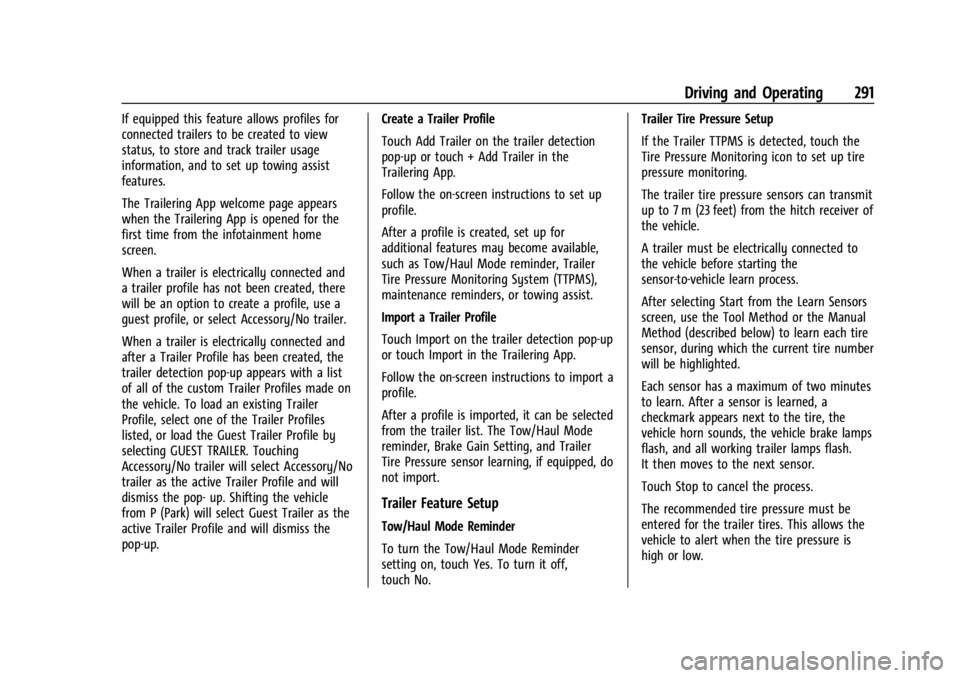
If equipped this feature allows profiles for
connected trailers to be created to view
status, to store and track trailer usage
information, and to set up towing assist
features.
The Trailering App welcome page appears
when the Trailering App is opened for the
first time from the infotainment home
screen.
When a trailer is electrically connected and
a trailer profile has not been created, there
will be an option to create a profile, use a
guest profile, or select Accessory/No trailer.
When a trailer is electrically connected and
after a Trailer Profile has been created, the
trailer detection pop-up appears with a list
of all of the custom Trailer Profiles made on
the vehicle. To load an existing Trailer
Profile, select one of the Trailer Profiles
listed, or load the Guest Trailer Profile by
selecting GUEST TRAILER. Touching
Accessory/No trailer will select Accessory/No
trailer as the active Trailer Profile and will
dismiss the pop- up. Shifting the vehicle
from P (Park) will select Guest Trailer as the
active Trailer Profile and will dismiss the
pop-up.Create a Trailer Profile
Touch Add Trailer on the trailer detection
pop-up or touch + Add Trailer in the
Trailering App.
Follow the on-screen instructions to set up
profile.
After a profile is created, set up for
additional features may become available,
such as Tow/Haul Mode reminder, Trailer
Tire Pressure Monitoring System (TTPMS),
maintenance reminders, or towing assist.
Import a Trailer Profile
Touch Import on the trailer detection pop-up
or touch Import in the Trailering App.
Follow the on-screen instructions to import a
profile.
After a profile is imported, it can be selected
from the trailer list. The Tow/Haul Mode
reminder, Brake Gain Setting, and Trailer
Tire Pressure sensor learning, if equipped, do
not import.
Trailer Feature Setup
Tow/Haul Mode Reminder
To turn the Tow/Haul Mode Reminder
setting on, touch Yes. To turn it off,
touch No.Trailer Tire Pressure Setup
If the Trailer TTPMS is detected, touch the
Tire Pressure Monitoring icon to set up tire
pressure monitoring.
The trailer tire pressure sensors can transmit
up to 7 m (23 feet) from the hitch receiver of
the vehicle.
A trailer must be electrically connected to
the vehicle before starting the
sensor-to-vehicle learn process.
After selecting Start from the Learn Sensors
screen, use the Tool Method or the Manual
Method (described below) to learn each tire
sensor, during which the current tire number
will be highlighted.
Each sensor has a maximum of two minutes
to learn. After a sensor is learned, a
checkmark appears next to the tire, the
vehicle horn sounds, the vehicle brake lamps
flash, and all working trailer lamps flash.
It then moves to the next sensor.
Touch Stop to cancel the process.
The recommended tire pressure must be
entered for the trailer tires. This allows the
vehicle to alert when the tire pressure is
high or low.
Page 294 of 433
Chevrolet Silverado 2500 HD/3500 HD Owner Manual (GMNA-Localizing-U.
S./Canada/Mexico-16908339) - 2024 - CRC - 12/12/22
292 Driving and Operating
TTPMS must learn the location of the
installed tire sensors to show correct air
pressure and temperature for each tire. To
set up, use one of the following options or
see a tire or trailer dealer for service. The
learning process must be repeated when the
trailer tires are rotated or replaced.
Tool Method: A TTPMS activation tool can
be purchased separately to learn the sensor
locations.
Manual Method: Without the tool, the air
pressure can be increased or decreased in
each tire for 10 seconds. Do not exceed the
maximum inflation pressure found on the
tire sidewalls. Make sure to readjust tire
pressure to the recommended level when
the process is complete.
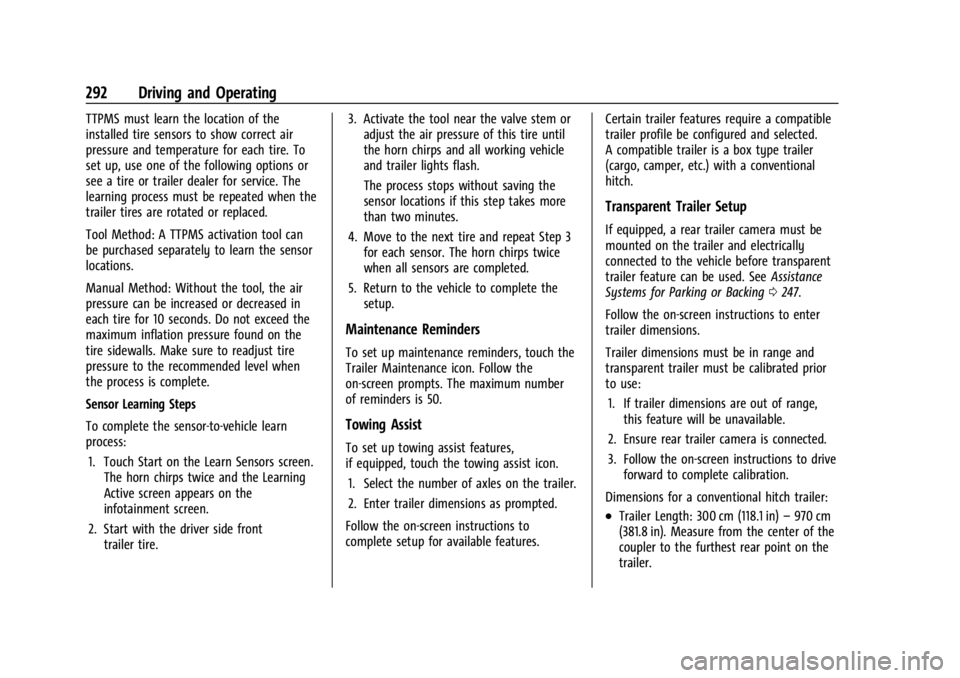
Sensor Learning Steps
To complete the sensor-to-vehicle learn
process:1. Touch Start on the Learn Sensors screen. The horn chirps twice and the Learning
Active screen appears on the
infotainment screen.
2. Start with the driver side front trailer tire. 3. Activate the tool near the valve stem or
adjust the air pressure of this tire until
the horn chirps and all working vehicle
and trailer lights flash.
The process stops without saving the
sensor locations if this step takes more
than two minutes.
4. Move to the next tire and repeat Step 3 for each sensor. The horn chirps twice
when all sensors are completed.
5. Return to the vehicle to complete the setup.
Maintenance Reminders
To set up maintenance reminders, touch the
Trailer Maintenance icon. Follow the
on-screen prompts. The maximum number
of reminders is 50.
Towing Assist
To set up towing assist features,
if equipped, touch the towing assist icon.
1. Select the number of axles on the trailer.
2. Enter trailer dimensions as prompted.
Follow the on-screen instructions to
complete setup for available features. Certain trailer features require a compatible
trailer profile be configured and selected.
A compatible trailer is a box type trailer
(cargo, camper, etc.) with a conventional
hitch.
Transparent Trailer Setup
If equipped, a rear trailer camera must be
mounted on the trailer and electrically
connected to the vehicle before transparent
trailer feature can be used. See
Assistance
Systems for Parking or Backing 0247.
Follow the on-screen instructions to enter
trailer dimensions.
Trailer dimensions must be in range and
transparent trailer must be calibrated prior
to use: 1. If trailer dimensions are out of range, this feature will be unavailable.
2. Ensure rear trailer camera is connected.
3. Follow the on-screen instructions to drive forward to complete calibration.
Dimensions for a conventional hitch trailer:
.Trailer Length: 300 cm (118.1 in) –970 cm
(381.8 in). Measure from the center of the
coupler to the furthest rear point on the
trailer.
Page 296 of 433
Chevrolet Silverado 2500 HD/3500 HD Owner Manual (GMNA-Localizing-U.
S./Canada/Mexico-16908339) - 2024 - CRC - 12/12/22
294 Driving and Operating
If trailer dimensions are out of range, this
feature will be unavailable.
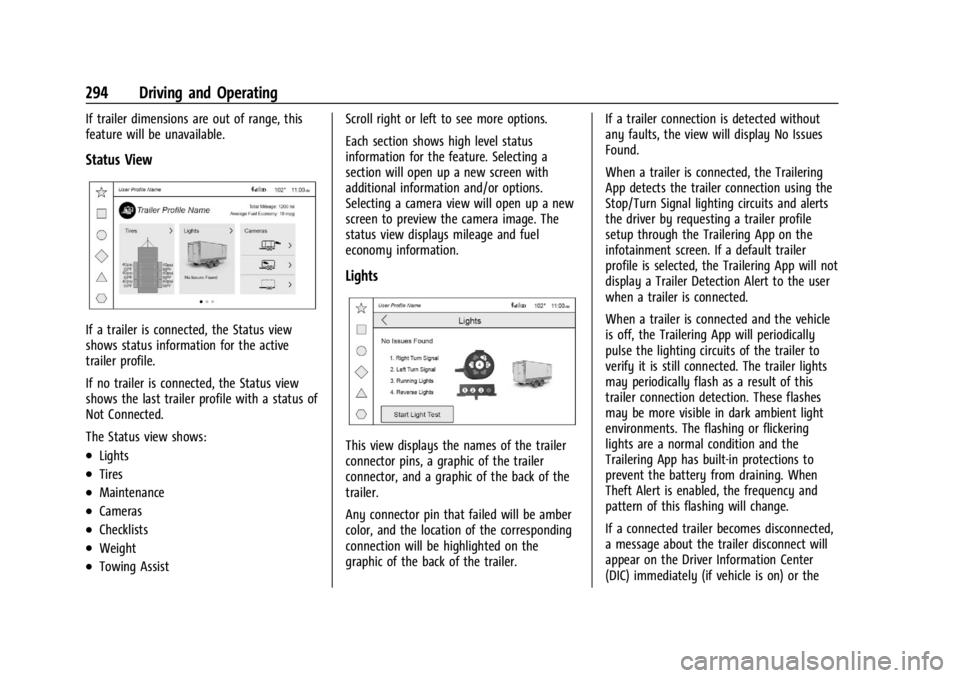
Status View
If a trailer is connected, the Status view
shows status information for the active
trailer profile.
If no trailer is connected, the Status view
shows the last trailer profile with a status of
Not Connected.
The Status view shows:
.Lights
.Tires
.Maintenance
.Cameras
.Checklists
.Weight
.Towing AssistScroll right or left to see more options.
Each section shows high level status
information for the feature. Selecting a
section will open up a new screen with
additional information and/or options.
Selecting a camera view will open up a new
screen to preview the camera image. The
status view displays mileage and fuel
economy information.
Lights
This view displays the names of the trailer
connector pins, a graphic of the trailer
connector, and a graphic of the back of the
trailer.
Any connector pin that failed will be amber
color, and the location of the corresponding
connection will be highlighted on the
graphic of the back of the trailer.
If a trailer connection is detected without
any faults, the view will display No Issues
Found.
When a trailer is connected, the Trailering
App detects the trailer connection using the
Stop/Turn Signal lighting circuits and alerts
the driver by requesting a trailer profile
setup through the Trailering App on the
infotainment screen. If a default trailer
profile is selected, the Trailering App will not
display a Trailer Detection Alert to the user
when a trailer is connected.
When a trailer is connected and the vehicle
is off, the Trailering App will periodically
pulse the lighting circuits of the trailer to
verify it is still connected. The trailer lights
may periodically flash as a result of this
trailer connection detection. These flashes
may be more visible in dark ambient light
environments. The flashing or flickering
lights are a normal condition and the
Trailering App has built-in protections to
prevent the battery from draining. When
Theft Alert is enabled, the frequency and
pattern of this flashing will change.
If a connected trailer becomes disconnected,
a message about the trailer disconnect will
appear on the Driver Information Center
(DIC) immediately (if vehicle is on) or the
Page 297 of 433
Chevrolet Silverado 2500 HD/3500 HD Owner Manual (GMNA-Localizing-U.
S./Canada/Mexico-16908339) - 2024 - CRC - 12/12/22
Driving and Operating 295
next time the vehicle is turned on (if trailer
was disconnected while vehicle is off). Check
your trailer connection if needed.
Connection Problem
If any of the trailer connections are lost, a
message about the connection issue appears
on the DIC. The infotainment screen will also
show the connection issue in the Lights
Status view.
Connection Trailer Lighting Faults Detected
The Trailering App monitors for electrical
faults on the trailer lights. A message about
the lighting issue appears on the DIC. The
infotainment screen will also show the
lighting issue in the Lights Status view.
Repair your trailer lights if needed. A trailer
lighting issue is not covered by your GM
warranty.
The Running Lights connection may not
detect partial outages. Activate the light test
to check all trailer lamps. See“Light Test”
following.
Light Test
Touch Start Light Test to cycle the trailer
lights on and off to determine if they are
working. The test follows this sequence: 1. The running lights turn on first and
remain on throughout the sequence.
2. The brake lights turn on for about two seconds.
3. The left turn signal light flashes three times.
4. The right turn signal light flashes three times.
5. The reverse lights turn on for about two seconds.
6. Steps 2-5 repeat for approximately one minute and 45 seconds, or until the
test deactivates.
Touch Stop to stop the test. The test will
automatically end after one minute and
45 seconds.
The sequence also deactivates when any of
the following occur:
.The vehicle is turned off.
.The transmission is shifted out of
P (Park).
.The brake pedal is pressed.
.The turn signal is activated.
.The hazard warning lights are activated.
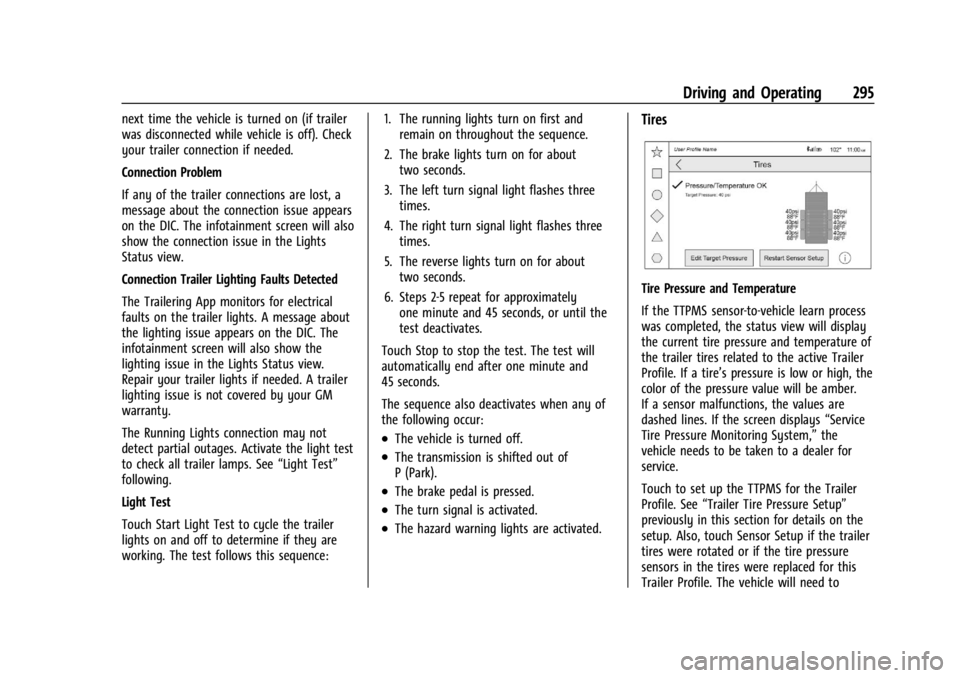
Tires
Tire Pressure and Temperature
If the TTPMS sensor-to-vehicle learn process
was completed, the status view will display
the current tire pressure and temperature of
the trailer tires related to the active Trailer
Profile. If a tire’s pressure is low or high, the
color of the pressure value will be amber.
If a sensor malfunctions, the values are
dashed lines. If the screen displays “Service
Tire Pressure Monitoring System,” the
vehicle needs to be taken to a dealer for
service.
Touch to set up the TTPMS for the Trailer
Profile. See “Trailer Tire Pressure Setup”
previously in this section for details on the
setup. Also, touch Sensor Setup if the trailer
tires were rotated or if the tire pressure
sensors in the tires were replaced for this
Trailer Profile. The vehicle will need to
Page 385 of 433
Chevrolet Silverado 2500 HD/3500 HD Owner Manual (GMNA-Localizing-U.
S./Canada/Mexico-16908339) - 2024 - CRC - 12/5/22
Vehicle Care 383
Caution
Immediately remove cleaners, hand
lotions, sunscreen, and insect repellent
from all interior surfaces or permanent
damage may result.
Caution
Use cleaners specifically designed for the
surfaces being cleaned to prevent
permanent damage to the vehicle. Apply
all cleaners directly to a cleaning cloth.
Do not spray cleaners on any switches or
controls.
When using liquid soap cleaners, follow the
directions on the specific cleaner or soap
solution for dilution instructions.
Caution
To prevent damage:
.Never use a razor or any other sharp
object to remove soil from any interior
surface
.Never use a brush with stiff bristles.(Continued)
Caution (Continued)
.Never rub any surface aggressively or
with too much pressure.
.Do not get any exposed electrical
components wet.
.Do not use laundry detergents or
dishwashing soaps with degreasers. Do
not use solutions that contain strong
or caustic soap.
.Do not heavily saturate the upholstery
when cleaning.
.Do not use solvents or cleaners
containing solvents.
.Do not use disinfecting wipes that are
scented or contain bleach. Do not use
wipes or cleaners that show a color
transfer to the wipe or change the
appearance of the interior surface
when used.
.Do not use scented or gel-type hand
sanitizers. If hand sanitizer comes in
contact with interior surfaces of the
vehicle, blot immediately and clean
with a soft cloth dampened with a
mild soap and water solution.
Interior Glass
To clean, use a microfiber cloth fabric
dampened with water. Wipe droplets left
behind with a clean dry cloth. If necessary,
use a commercial glass cleaner after
cleaning with plain water.
Caution
To prevent scratching, never use abrasive
cleaners on automotive glass. Abrasive
cleaners or aggressive cleaning may
damage the rear window defogger.
Cleaning the windshield with water during
the first three to six months of ownership
will reduce tendency to fog.
Speaker Covers
Vacuum around a speaker cover gently, so
that the speaker will not be damaged. Clean
spots with water and mild soap.
Coated Moldings
Coated moldings should be cleaned.
.When lightly soiled, wipe with a sponge
or soft, lint-free cloth dampened with
water.
.When heavily soiled, use warm soapy
water.