ECO mode CHEVROLET SILVERADO 2500HD 2021 User Guide
[x] Cancel search | Manufacturer: CHEVROLET, Model Year: 2021, Model line: SILVERADO 2500HD, Model: CHEVROLET SILVERADO 2500HD 2021Pages: 433, PDF Size: 9.1 MB
Page 106 of 433
Chevrolet Silverado 2500 HD/3500 HD Owner Manual (GMNA-Localizing-U.
S./Canada/Mexico-14632154) - 2021 - CRC - 11/20/20
Instruments and Controls 105
.Navigation
.Phone
.Options
Home
Information displayed here can be
customized from the Options menu.
Speedometer : Displays how fast the vehicle
is moving in either kilometers per hour
(km/h) or miles per hour (mph).
Speed Sign : Shows sign information, which
comes from a roadway database in the
onboard navigation, if equipped.
Time : Displays the current time.
Fuel Range : Displays the approximate
distance the vehicle can be driven without
refueling. The fuel range estimate is based
on an average of the vehicle’s fuel economy
over recent driving history and the amount
of fuel remaining in the fuel tank. Fuel
range cannot be reset.
Audio
In the Audio menu, use the thumbwheel to
scroll through options, browse for music,
select from favorites, or change the audio
source. In the main view, scroll to change
the station or go to the next or previous
track. Navigation
In the Navigation menu, if there is no active
route, a compass will be displayed. If there
is an active route, press the thumbwheel to
cancel or resume route guidance, mute or
unmute voice guidance, or access Recents or
Favorites.
Phone
In the Phone menu, if there is no active
phone call, view recent calls, scroll through
contacts, select from the favorites, or change
the phone source. If there is an active call,
mute the phone or switch to handset
operation.
Options
Use the thumbwheel to scroll through items
in the Options menu.
Head-up Display (HUD) :
If equipped, this
feature allows for adjusting the angle of the
HUD image and changing or turning off the
Speed Limit Sign.
HUD Rotation: Press the thumbwheel while
Adjust Rotation is highlighted to enter
Adjust Mode. Scroll to adjust the angle of
the HUD display. Press the thumbwheel to
confirm and save the setting. This feature
may only be available in P (Park). Speed Limit Style: Press the thumbwheel
while Speed Limit Style is highlighted to
change the speed sign style or to turn it off.
Units :
Press the thumbwheel while Units is
displayed to enter the Units menu. Choose
US or metric units by pressing the
thumbwheel while the desired item is
highlighted. A selected mark will be
displayed next to the selected item.
Info Page Options : Press the thumbwheel
while Info Page Options is displayed to
enter and select the items to be displayed
in the Info app. A selected mark will be
displayed next to the selected item.
Home : Press the thumbwheel to select the
available elements to display. Not all
elements will be available on all vehicles:
Speedometer, Speed Sign, Time, and Fuel
Range.
Display (Uplevel) : Press the thumbwheel to
enter the Display menu. Select to turn on or
off the compass or speed sign.
Speed Warning : The Speed Warning display
allows the driver to set a speed that they
do not want to exceed. To set the Speed
Warning, press the thumbwheel when Speed
Warning is displayed, or press the
thumbwheel on the main view to set the
Page 108 of 433
Chevrolet Silverado 2500 HD/3500 HD Owner Manual (GMNA-Localizing-U.
S./Canada/Mexico-14632154) - 2021 - CRC - 11/20/20
Instruments and Controls 107
Here are four things that some owners ask
about. None of these show a problem with
the fuel gauge:
.At the service station, the fuel pump
shuts off before the gauge reads full.
.It takes a little more or less fuel to fill up
than the gauge indicated. For example,
the gauge may have indicated the tank
was half full, but it actually took a little
more or less than half the tank's capacity
to fill the tank.
.The gauge moves a little while turning a
corner or speeding up.
.The gauge takes a few seconds to
stabilize after the ignition is turned on,
and goes back to empty when the
ignition is turned off.
Engine Oil Pressure Gauge
Uplevel Metric Shown, Base Level andMidlevel Similar
Uplevel English Shown, Base Level and Midlevel Similar
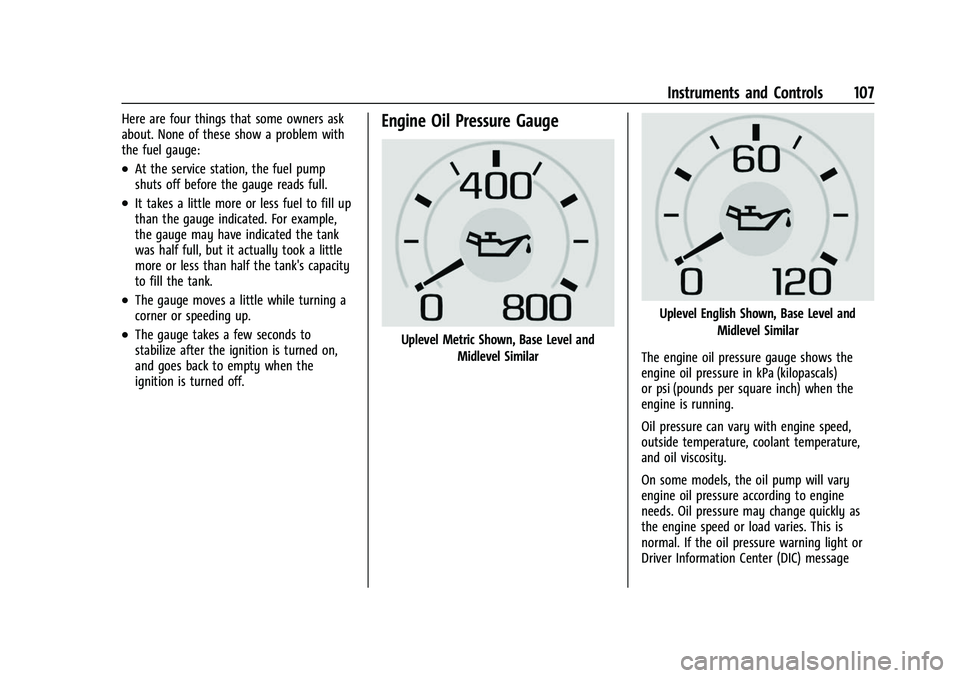
The engine oil pressure gauge shows the
engine oil pressure in kPa (kilopascals)
or psi (pounds per square inch) when the
engine is running.
Oil pressure can vary with engine speed,
outside temperature, coolant temperature,
and oil viscosity.
On some models, the oil pump will vary
engine oil pressure according to engine
needs. Oil pressure may change quickly as
the engine speed or load varies. This is
normal. If the oil pressure warning light or
Driver Information Center (DIC) message
Page 110 of 433
Chevrolet Silverado 2500 HD/3500 HD Owner Manual (GMNA-Localizing-U.
S./Canada/Mexico-14632154) - 2021 - CRC - 11/20/20
Instruments and Controls 109
Voltmeter Gauge
Uplevel Shown, Base Level and MidlevelSimilar
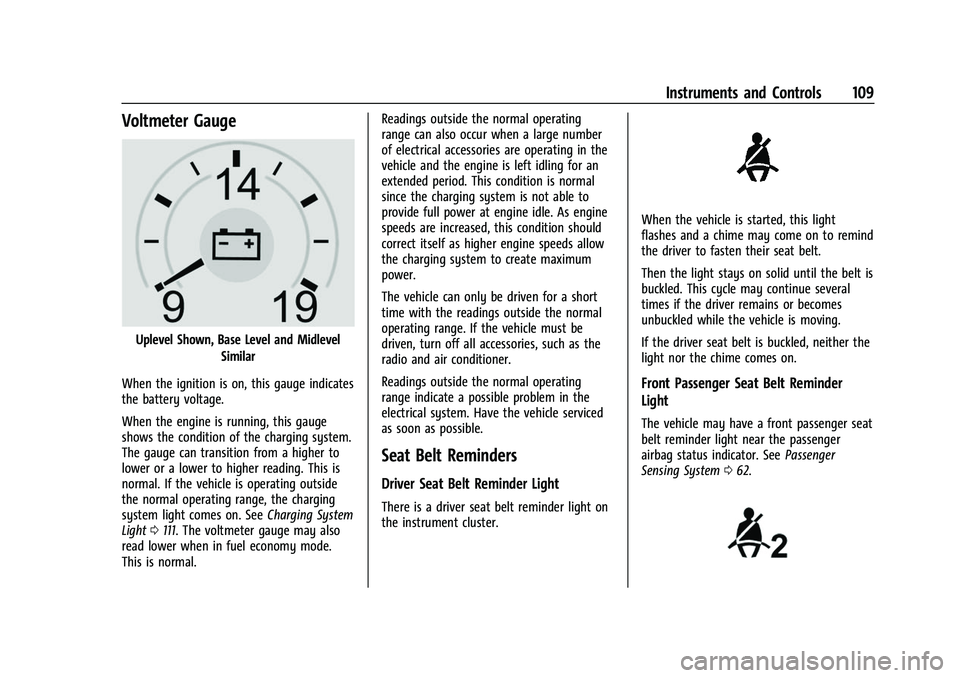
When the ignition is on, this gauge indicates
the battery voltage.
When the engine is running, this gauge
shows the condition of the charging system.
The gauge can transition from a higher to
lower or a lower to higher reading. This is
normal. If the vehicle is operating outside
the normal operating range, the charging
system light comes on. See Charging System
Light 0111. The voltmeter gauge may also
read lower when in fuel economy mode.
This is normal. Readings outside the normal operating
range can also occur when a large number
of electrical accessories are operating in the
vehicle and the engine is left idling for an
extended period. This condition is normal
since the charging system is not able to
provide full power at engine idle. As engine
speeds are increased, this condition should
correct itself as higher engine speeds allow
the charging system to create maximum
power.
The vehicle can only be driven for a short
time with the readings outside the normal
operating range. If the vehicle must be
driven, turn off all accessories, such as the
radio and air conditioner.
Readings outside the normal operating
range indicate a possible problem in the
electrical system. Have the vehicle serviced
as soon as possible.
Seat Belt Reminders
Driver Seat Belt Reminder Light
There is a driver seat belt reminder light on
the instrument cluster.
When the vehicle is started, this light
flashes and a chime may come on to remind
the driver to fasten their seat belt.
Then the light stays on solid until the belt is
buckled. This cycle may continue several
times if the driver remains or becomes
unbuckled while the vehicle is moving.
If the driver seat belt is buckled, neither the
light nor the chime comes on.
Front Passenger Seat Belt Reminder
Light
The vehicle may have a front passenger seat
belt reminder light near the passenger
airbag status indicator. See
Passenger
Sensing System 062.
Page 113 of 433
Chevrolet Silverado 2500 HD/3500 HD Owner Manual (GMNA-Localizing-U.
S./Canada/Mexico-14632154) - 2021 - CRC - 11/20/20
112 Instruments and Controls
Caution
If the vehicle is driven continually with
this light on, the emission control system
may not work as well, the fuel economy
may be lower, and the vehicle may not
run smoothly. This could lead to costly
repairs that might not be covered by the
vehicle warranty.
Caution
Modifications to the engine, transmission,
exhaust, intake, or fuel system, or the
use of replacement tires that do not
meet the original tire specifications, can
cause this light to come on. This could
lead to costly repairs not covered by the
vehicle warranty. This could also affect
the vehicle’s ability to pass an Emissions
Inspection/Maintenance test. See
Accessories and Modifications0302.
If the light is flashing : A malfunction has
been detected that could damage the
emission control system and increase vehicle
emissions. Diagnosis and service may be
required. To help prevent damage, reduce vehicle
speed and avoid hard accelerations and
uphill grades. If towing a trailer, reduce the
amount of cargo being hauled as soon as
possible.
If the light continues to flash, find a safe
place to park. Turn the vehicle off and wait
at least 10 seconds before restarting the
engine. If the light is still flashing, follow
the previous guidelines and see your dealer
for service as soon as possible.
If the light is on steady :
A malfunction has
been detected. Diagnosis and service may be
required.
Check the following:
.If fuel has been added to the vehicle
using the capless funnel adapter, make
sure that it has been removed. See
“Filling the Tank with a Portable Gas Can”
under Filling the Tank (Pickup Model)
0 265 or
Filling the Tank (Chassis Cab and Box
Delete Models) 0266. The diagnostic
system can detect if the adapter has been
left installed in the vehicle, allowing fuel
to evaporate into the atmosphere. A few
driving trips with the adapter removed
may turn off the light.
.Poor fuel quality can cause inefficient
engine operation and poor driveability,
which may go away once the engine is
warmed up. If this occurs, change the fuel
brand. It may require at least one full
tank of the proper fuel to turn the light
off. See Recommended Fuel 0263.
If the light remains on, see your dealer.
Emissions Inspection and Maintenance
Programs
If the vehicle requires an Emissions
Inspection/Maintenance test, the test
equipment will likely connect to the
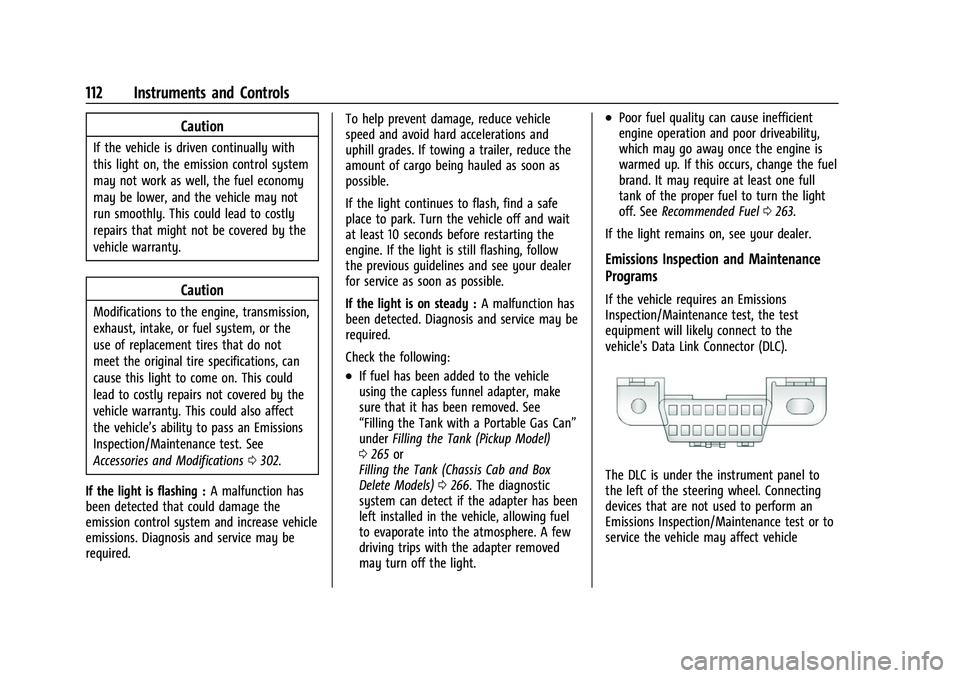
vehicle's Data Link Connector (DLC).
The DLC is under the instrument panel to
the left of the steering wheel. Connecting
devices that are not used to perform an
Emissions Inspection/Maintenance test or to
service the vehicle may affect vehicle
Page 139 of 433
Chevrolet Silverado 2500 HD/3500 HD Owner Manual (GMNA-Localizing-U.
S./Canada/Mexico-14632154) - 2021 - CRC - 11/20/20
138 Lighting
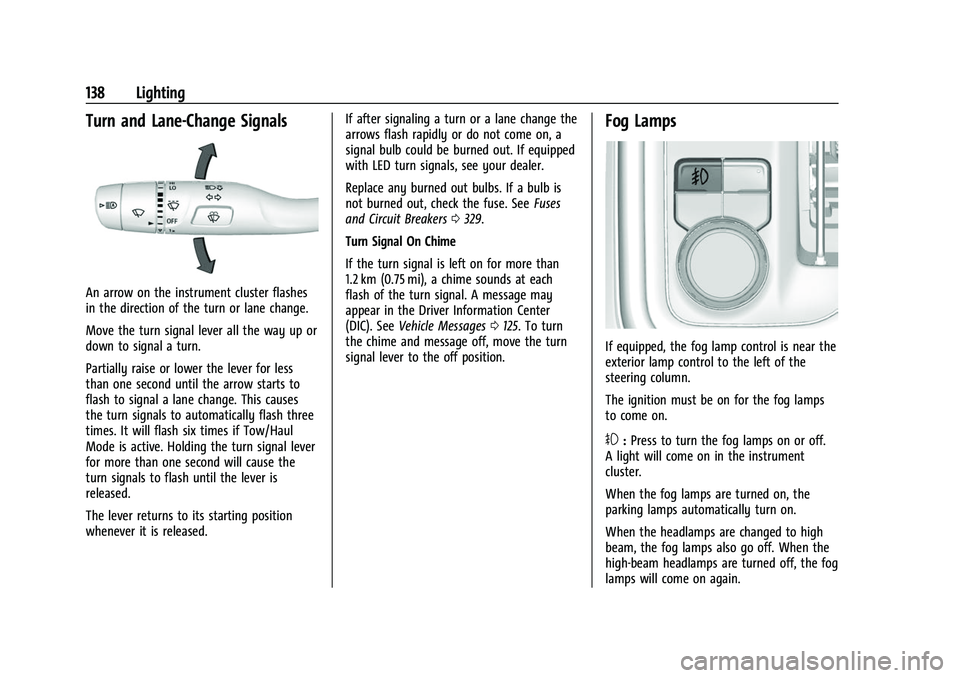
Turn and Lane-Change Signals
An arrow on the instrument cluster flashes
in the direction of the turn or lane change.
Move the turn signal lever all the way up or
down to signal a turn.
Partially raise or lower the lever for less
than one second until the arrow starts to
flash to signal a lane change. This causes
the turn signals to automatically flash three
times. It will flash six times if Tow/Haul
Mode is active. Holding the turn signal lever
for more than one second will cause the
turn signals to flash until the lever is
released.
The lever returns to its starting position
whenever it is released.If after signaling a turn or a lane change the
arrows flash rapidly or do not come on, a
signal bulb could be burned out. If equipped
with LED turn signals, see your dealer.
Replace any burned out bulbs. If a bulb is
not burned out, check the fuse. See
Fuses
and Circuit Breakers 0329.
Turn Signal On Chime
If the turn signal is left on for more than
1.2 km (0.75 mi), a chime sounds at each
flash of the turn signal. A message may
appear in the Driver Information Center
(DIC). See Vehicle Messages 0125. To turn
the chime and message off, move the turn
signal lever to the off position.
Fog Lamps
If equipped, the fog lamp control is near the
exterior lamp control to the left of the
steering column.
The ignition must be on for the fog lamps
to come on.
#: Press to turn the fog lamps on or off.
A light will come on in the instrument
cluster.
When the fog lamps are turned on, the
parking lamps automatically turn on.
When the headlamps are changed to high
beam, the fog lamps also go off. When the
high-beam headlamps are turned off, the fog
lamps will come on again.
Page 147 of 433
Chevrolet Silverado 2500 HD/3500 HD Owner Manual (GMNA-Localizing-U.
S./Canada/Mexico-14632154) - 2021 - CRC - 11/20/20
146 Infotainment System
pressed. PressingOwill mute the
system and trigger this pane to
show a long press is required to
actually power down the system.
.Turn to decrease or increase the
volume.
4.6
.Radio: Press and release to go to
the next station or channel. Press
and hold to fast seek the next
strongest station or channel.
.USB/Bluetooth: Press to seek the
next track. Press and hold to fast
forward through a track. Release to
return to playing speed. See USB
Port 0153 or
Bluetooth Audio 0157.
5.v
.Press and release to access the
phone display or answer an
incoming call. Home Page
The Home Page is where vehicle application
icons are accessed. Some applications are
disabled when the vehicle is moving.
The Home Page can be set up to have up to
four pages with eight icons per page.
Swipe left or right across the display to
access the pages of icons.
Managing Home Page Icons
1. Touch and hold any of the Home Page icons to enter edit mode.
2. Continue holding the icon and drag it to the desired position.
3. Release your finger to drop the icon in the desired position.
4. To move an application to another page, drag the icon to the edge of the display
toward the desired page.
5. Continue dragging and dropping application icons as desired.
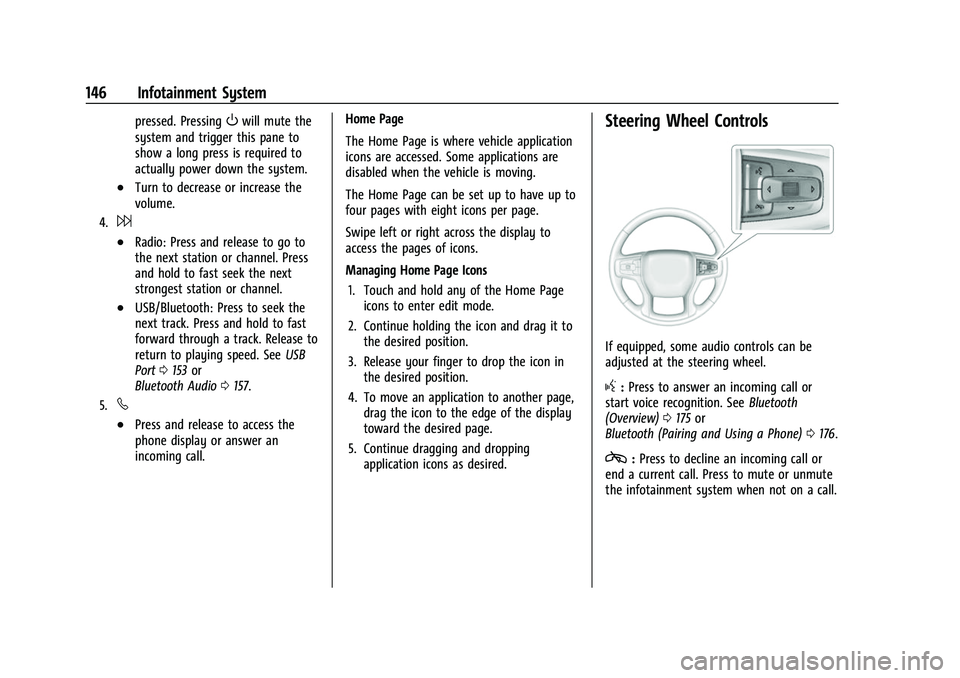
Steering Wheel Controls
If equipped, some audio controls can be
adjusted at the steering wheel.
g:Press to answer an incoming call or
start voice recognition. See Bluetooth
(Overview) 0175 or
Bluetooth (Pairing and Using a Phone) 0176.
c:Press to decline an incoming call or
end a current call. Press to mute or unmute
the infotainment system when not on a call.
Page 154 of 433
Chevrolet Silverado 2500 HD/3500 HD Owner Manual (GMNA-Localizing-U.
S./Canada/Mexico-14632154) - 2021 - CRC - 11/20/20
Infotainment System 153
by model and require a complete working
electrical system, cell reception, and GPS
signal. An active connected plan is required.
Reference the SiriusXM user guide for use
and subscription information.
Radio Reception
Unplug electronic devices from the accessory
power outlets if there is interference or
static in the radio.
FM
FM signals only reach about 16 to 65 km (10
to 40 mi). Although the radio has a built-in
electronic circuit that automatically works to
reduce interference, some static can occur,
especially around tall buildings or hills,
causing the sound to fade in and out.
AM
The range for most AM stations is greater
than for FM, especially at night. The longer
range can cause station frequencies to
interfere with each other. Static can also
occur when things like storms and power
lines interfere with radio reception. When
this happens, try reducing the treble on the
radio.
SiriusXM Satellite Radio Service
If equipped, SiriusXM Satellite Radio Service
provides digital radio reception. Tall
buildings or hills can interfere with satellite
radio signals, causing the sound to fade in
and out. In addition, traveling or standing
under heavy foliage, bridges, garages,
or tunnels may cause loss of the SiriusXM
signal for a period of time. Some cellular
services may interfere with SXM reception
causing loss of signal.
Mobile Device Usage
Mobile device usage, such as making or
receiving calls, charging, or just having the
mobile device on may cause static
interference in the radio. Unplug the mobile
device or turn it off if this happens.
Fixed Mast Antenna
The fixed mast antenna will go through
most car washes as long as it is securely
attached. If the antenna becomes slightly
bent, straighten it out by hand. If it is badly
bent, replace it.
Occasionally check that the antenna is tight
at the base. If tightening is required, protect
the paint from damage.
Multi-Band Antenna
The roof antenna is for SiriusXM Satellite
Radio, OnStar, and GPS (Global Positioning
System), depending on the equipped
options. Keep clear of obstructions for clear
reception. If the vehicle has a sunroof, and it
is open, reception can also be affected.
Audio Players
Avoiding Untrusted Media Devices
When using media devices such as SD cards,
USB devices, and mobile devices, consider
the source. Untrusted media devices could
contain files that affect system operation or
performance. Avoid use if the content or
origin cannot be trusted.
USB Port
This vehicle is equipped with two USB ports
in the center console under the armrest and
another two in the center stack. These ports
are for data and charging.
There may also be two USB ports for
charging only at the rear of the center
console.
Page 161 of 433
Chevrolet Silverado 2500 HD/3500 HD Owner Manual (GMNA-Localizing-U.
S./Canada/Mexico-14632154) - 2021 - CRC - 11/20/20
160 Infotainment System
.About
To exit a list, touch
zin the top right
corner to return to the main map view.
Make sure to set up preferences before
setting a destination and starting active
guidance.
Map Preferences
Touch to choose between basic map feature
configurations:
Map Colors
.Auto –Touch to automatically change
modes based on lighting conditions.
.Day (Light)
.Night (Dark)
3D Landmark (Default is On) : Touch On or
Off. When turned on, the system will
display all 3D Landmarks on the map
depending on the zoom level.
3D Building (Default is Off) : Touch On or
Off. When turned on, the system will
display all of the possible 3D building shapes
on the map depending on the zoom level.
Show Terrain in 3D (Default is Off) :
If equipped, touch On or Off. When turned
on, the system will display terrain
information on the map in 3D view. Auto-Zoom (Default is On) :
Touch On or
Off. When turned on, the system will
automatically adjust the zoom level when
the vehicle is approaching a turn. After the
turn is completed, the system automatically
brings the zoom back to the originally set
level. If the vehicle is approaching a turn
with the next turn occurring shortly after,
the Auto-Zoom will remain on until both
turns are completed.
Route Preferences
Touch to access the Route Preferences. The
choices are:
.Preferred Route –Choose from two
different route options: Fastest or
Eco-Friendly.
‐ Fastest would be the route with the
shortest drive time.
‐ Eco-Friendly would be the most
fuel-efficient route.
.Avoid on Current Route –Choose any of
the road features to avoid while on route:
‐ Highways
‐ Unpaved Roads
‐ Ferries
‐ Carpool Lanes
‐ Toll Roads ‐
Tunnels
‐ Country Borders
Navigation Voice Control
Touch to access the voice control setting
display.
.Navigation Volume –To adjust the
volume level, touch the up and down
arrows. If the voice guidance prompt is
being heard, volume can also be adjusted
using the knob on the center stack or the
volume switch on the steering wheel.
.Navigation Voice Prompt Level during a
Call. Options available are:
‐ Full Prompt (Selected by default)
‐ Tone Only
‐ None
Traffic Events (If Equipped)
This feature provides a list of events that
are on the route or nearby. Touch
Aand
then select Traffic Events. An OnStar
connected Navigation service plan is
required.
Traffic Preferences (If Equipped)
While in Map View, touch
A, then Settings
and then Map and Navigation Settings to
access Traffic Preferences. When Show
Page 172 of 433
Chevrolet Silverado 2500 HD/3500 HD Owner Manual (GMNA-Localizing-U.
S./Canada/Mexico-14632154) - 2021 - CRC - 11/20/20
Infotainment System 171
Using Voice Recognition
Voice recognition becomes available once
the system has been initialized. This begins
when the ignition is turned on. Initialization
may take a few moments.1. Press
gon the steering wheel controls
to activate voice recognition.
2. The audio system mutes and the system plays a prompt.
3. Clearly speak one of the commands described in this section.
A voice recognition system prompt can
be interrupted while it is playing by
pressing
gagain.
Once voice recognition is started, both the
infotainment display and instrument cluster
show the selections and visual dialog
content. These displays can be turned on or
off in the Tutorial Mode under Settings
0 181.
There are three voice prompt modes
supported:
.Informative verbal prompts: This type of
prompt will provide more information
regarding the supported actions.
.Short prompts: This type of prompt will
provide simple instructions about what
can be stated.
.Auto informative prompts: This type of
prompt plays during the first few speech
sessions, then automatically switches to
the short prompt after some experience
has been gained through using the
system.
If a command is not spoken, the voice
recognition system says a help prompt.
Prompts and Infotainment Displays
While a voice recognition session is active,
there may be corresponding options
showing on the displays. A selection can be
made by manually touching the option,
or by speaking the number for the option to
select. Manual interaction in the voice
recognition session is permitted. Interaction
during a voice session may be completed
entirely using voice commands while some
manual commands may expedite a task. If a
selection is made using a manual control,
the voice recognition dialog will progress in
the same way as if the selection were made
using a voice command. Once the system
completes the task, or the session is
terminated, the voice recognition dialog
stops. An example of this type of manual
intervention is touching an entry of a
displayed number list instead of speaking
the number associated with the entry
desired.
Canceling Voice Recognition
.Touch or say
“Cancel”or“Exit” to
terminate the voice recognition session
and show the display where voice
recognition was initiated.
.Pression the steering wheel controls
to terminate the voice recognition session
and show the display where voice
recognition was initiated.
Natural Language Commands
Most languages do not support natural
language commands in sentence form. For
those languages, use direct commands like
the examples shown on the display.
Helpful Hints for Speaking Commands
Voice recognition can understand commands
that are naturally stated in sentence form or
direct commands that state the application
and the task.
Page 176 of 433
Chevrolet Silverado 2500 HD/3500 HD Owner Manual (GMNA-Localizing-U.
S./Canada/Mexico-14632154) - 2021 - CRC - 11/20/20
Infotainment System 175
The name must be precisely spoken.
Nicknames or short names for the
businesses will not likely be found. Lesser
known businesses might have to be located
by category, such as fast food, hotels,
or banks.
“Navigate to Contact”:Begin a dialog to
enter a specific destination contact name.
“Cancel Route” :End route guidance.
“Take Me Home” :Create a route to a
stored home location.
Voice Recognition for the Phone
“Call
stored contact. The command may include
location if the contact has location numbers
stored.
“Call
Mobile,” or“On Other” :Initiate a call to a
stored contact and location at home, at
work, on mobile device, or on another
phone.
“Call
to a cell phone number of seven digits, 10
digits, or three digit emergency numbers.
“Pair Phone” :Begin the Bluetooth pairing
process. Follow the instructions on the
infotainment display. “Redial”
:Initiate a call to the last dialed
number.
“Switch Phone” :Select a different
connected cell phone for outgoing calls.
“Voice Keypad” :Begin a dialog to enter
special numbers like international numbers.
The numbers can be entered in groups of
digits with each group of digits being
repeated back by the system. If the group
of digits is not correct, the command
“Delete” will remove the last group of digits
and allow them to be re-entered. Once the
entire number has been entered, the
command “Call”will start dialing the
number.
Phone Assistant Voice Recognition
Press and holdgon the steering wheel
controls to pass through and launch Google
phone assistant or Siri.
For the low radio, whether connected by
Bluetooth or phone projection, the only
available voice recognition is either Siri
(iPhone) or the Google Assistant (Android).
Phone
Bluetooth (Overview)
The Bluetooth-capable system can interact
with many mobile devices, allowing:
.Placement and receipt of calls in a
hands-free mode.
.Sharing of the device’s address book or
contact list with the vehicle.
To minimize driver distraction, before
driving, and with the vehicle parked:
.Become familiar with the features of the
mobile device. Organize the phone book
and contact lists clearly and delete
duplicate or rarely used entries.
If possible, program speed dial or other
shortcuts.
.Review the controls and operation of the
infotainment system.
.Pair mobile device(s) to the vehicle. The
system may not work with all mobile
devices. See “Pairing”later in this section.
Vehicles with a Bluetooth system can use a
Bluetooth-capable mobile device with a
Hands-Free Profile to make and receive
phone calls. The infotainment system and
voice recognition are used to control the
system. The system can be used while the