display CHEVROLET SILVERADO EV 2024 Owners Manual
[x] Cancel search | Manufacturer: CHEVROLET, Model Year: 2024, Model line: SILVERADO EV, Model: CHEVROLET SILVERADO EV 2024Pages: 429, PDF Size: 8.98 MB
Page 314 of 429
Chevrolet Silverado EV Owner Manual (GMNA-Localizing-U.S./Canada-
16702912) - 2024 - CRC - 1/17/23
Driving and Operating 313
a maximum of two minutes to detect and
label each TTPMS sensor. After each sensor
is learned, a check mark appears next to the
tire, the vehicle horn sounds, the vehicle
brake lamps flash, and all working trailer
lamps flash.
The recommended tire pressure must be
entered for the trailer tires. An alert appears
when a trailer tire's pressure is high or low.
Tool Method: A TTPMS activation tool can
be purchased separately to learn the trailer
TTPMS sensor locations.
Manual Method: Without the TTPMS
activation tool, the air pressure can be
increased or decreased in each tire for
10 seconds. Do not exceed the maximum
inflation pressure found on the tire
sidewalls. Make sure to readjust tire
pressure to the recommended level when
the process is complete.
Sensor Learning Steps
To complete the sensor-to-vehicle learn
process:1. Touch Start on the Learn Sensors screen. The horn chirps twice and the Learning
Active screen appears on the
infotainment display. 2. Start with the driver side front
trailer tire.
3. Activate the tool near the valve stem or adjust the air pressure of this tire until
the horn chirps and all working vehicle
and trailer lights flash.
The process stops without saving the
sensor locations if this step takes more
than two minutes.
4. Move to the next tire and repeat Step 3 for each sensor. The horn chirps twice
when all sensors are completed.
5. Return to the vehicle to complete the setup.
Maintenance Reminders
To set up maintenance reminders, touch the
Trailer Maintenance icon. Follow the
on-screen prompts. The maximum number
of reminders is 50.
Camera Views and Guides
To set up the trailer camera and guideline
features, if equipped, touch the Camera
Views and Guides icon.
1. Select the number of axles on the trailer.
2. Select the wheel location on the trailer (inboard or outboard). 3. Enter the trailer dimensions as prompted.
Follow the on-screen instructions to
complete setup for available features.
Certain trailer features require a compatible
trailer profile be configured and selected.
A compatible trailer is a box-type trailer
(cargo, camper, etc.) with a conventional
hitch.
Transparent Trailer Setup
If equipped, the rear trailer camera must be
mounted on the trailer and electrically
connected to the vehicle before transparent
trailer feature can be used. See Assistance
Systems for Parking or Backing 0246.
Follow the on-screen instructions to enter
the trailer dimensions.
Trailer dimensions must be in range and
transparent trailer must be calibrated
before use.
.Trailer Length: Measure from center of
coupler to furthest rear point on the
trailer.
.Trailer Total Width: Measure from the left
most edge of trailer, including the wheels,
to the right most edge.
Page 316 of 429
Chevrolet Silverado EV Owner Manual (GMNA-Localizing-U.S./Canada-
16702912) - 2024 - CRC - 1/17/23
Driving and Operating 315
.Maintenance
.Checklist
.Weight
.Brakes (if equipped)
Each section shows high level status
information for the feature. Selecting a
section opens up a new screen with
additional information and/or options.
Selecting the checklist, camera,
or maintenance icon opens up the
corresponding screen.
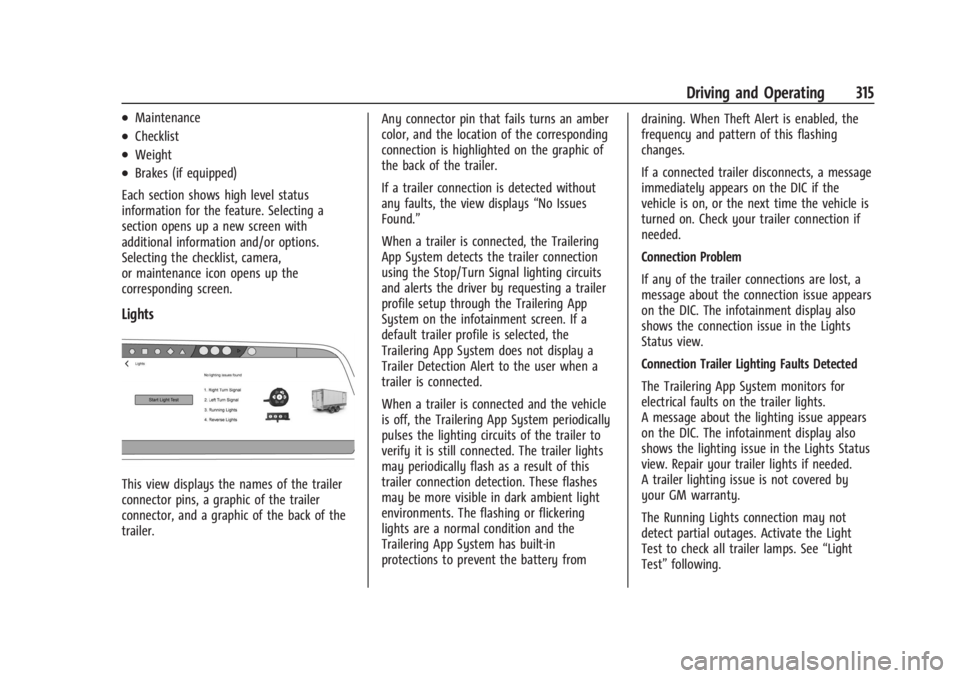
Lights
This view displays the names of the trailer
connector pins, a graphic of the trailer
connector, and a graphic of the back of the
trailer. Any connector pin that fails turns an amber
color, and the location of the corresponding
connection is highlighted on the graphic of
the back of the trailer.
If a trailer connection is detected without
any faults, the view displays
“No Issues
Found.”
When a trailer is connected, the Trailering
App System detects the trailer connection
using the Stop/Turn Signal lighting circuits
and alerts the driver by requesting a trailer
profile setup through the Trailering App
System on the infotainment screen. If a
default trailer profile is selected, the
Trailering App System does not display a
Trailer Detection Alert to the user when a
trailer is connected.
When a trailer is connected and the vehicle
is off, the Trailering App System periodically
pulses the lighting circuits of the trailer to
verify it is still connected. The trailer lights
may periodically flash as a result of this
trailer connection detection. These flashes
may be more visible in dark ambient light
environments. The flashing or flickering
lights are a normal condition and the
Trailering App System has built-in
protections to prevent the battery from draining. When Theft Alert is enabled, the
frequency and pattern of this flashing
changes.
If a connected trailer disconnects, a message
immediately appears on the DIC if the
vehicle is on, or the next time the vehicle is
turned on. Check your trailer connection if
needed.
Connection Problem
If any of the trailer connections are lost, a
message about the connection issue appears
on the DIC. The infotainment display also
shows the connection issue in the Lights
Status view.
Connection Trailer Lighting Faults Detected
The Trailering App System monitors for
electrical faults on the trailer lights.
A message about the lighting issue appears
on the DIC. The infotainment display also
shows the lighting issue in the Lights Status
view. Repair your trailer lights if needed.
A trailer lighting issue is not covered by
your GM warranty.
The Running Lights connection may not
detect partial outages. Activate the Light
Test to check all trailer lamps. See
“Light
Test” following.
Page 317 of 429
Chevrolet Silverado EV Owner Manual (GMNA-Localizing-U.S./Canada-
16702912) - 2024 - CRC - 1/17/23
316 Driving and Operating
Light Test
Touch Start Light Test to cycle the trailer
lights on and off to determine if they are
working. The test follows this sequence:1. The running lights turn on first and remain on throughout the sequence.
2. The brake lights turn on for about two seconds.
3. The left turn signal light flashes three times.
4. The right turn signal light flashes three times.
5. The reverse lights turn on for about two seconds.
6. Steps 2–5 repeat for approximately one minute and 45 seconds, or until the
test deactivates.
Touch Stop to manually stop the test. The
test automatically ends after one minute
and 45 seconds.
The Light Test also deactivates when any of
the following occur:
.The vehicle is turned off.
.The vehicle is shifted out of P (Park).
.The brake pedal is pressed.
.The turn signal is activated.
.The hazard warning flashers are activated.
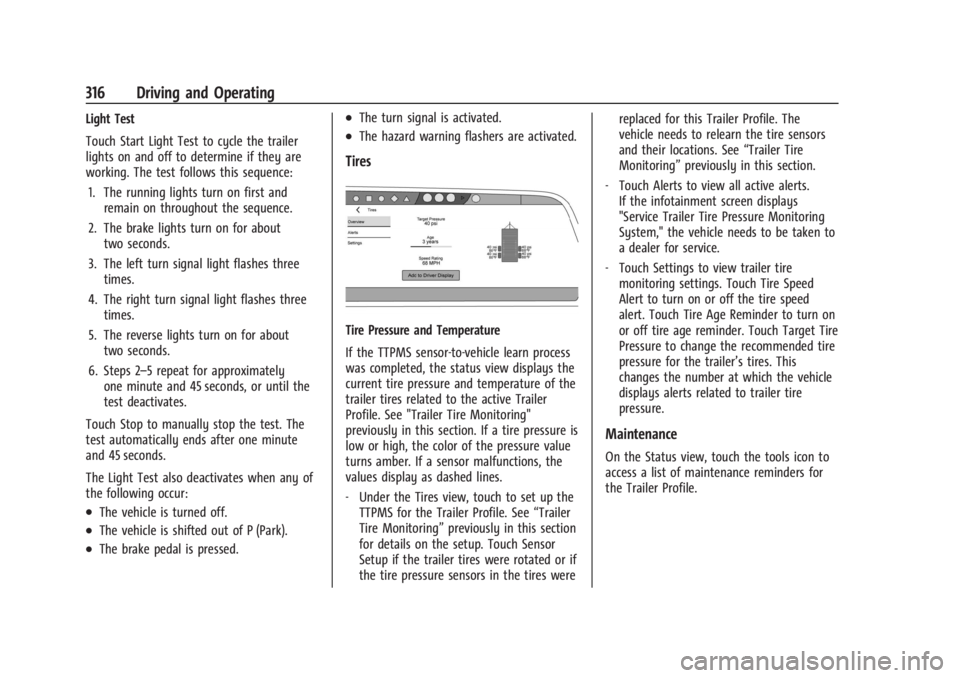
Tires
Tire Pressure and Temperature
If the TTPMS sensor-to-vehicle learn process
was completed, the status view displays the
current tire pressure and temperature of the
trailer tires related to the active Trailer
Profile. See "Trailer Tire Monitoring"
previously in this section. If a tire pressure is
low or high, the color of the pressure value
turns amber. If a sensor malfunctions, the
values display as dashed lines.
‐ Under the Tires view, touch to set up the
TTPMS for the Trailer Profile. See “Trailer
Tire Monitoring” previously in this section
for details on the setup. Touch Sensor
Setup if the trailer tires were rotated or if
the tire pressure sensors in the tires were replaced for this Trailer Profile. The
vehicle needs to relearn the tire sensors
and their locations. See
“Trailer Tire
Monitoring” previously in this section.
‐ Touch Alerts to view all active alerts.
If the infotainment screen displays
"Service Trailer Tire Pressure Monitoring
System," the vehicle needs to be taken to
a dealer for service.
‐ Touch Settings to view trailer tire
monitoring settings. Touch Tire Speed
Alert to turn on or off the tire speed
alert. Touch Tire Age Reminder to turn on
or off tire age reminder. Touch Target Tire
Pressure to change the recommended tire
pressure for the trailer’s tires. This
changes the number at which the vehicle
displays alerts related to trailer tire
pressure.
Maintenance
On the Status view, touch the tools icon to
access a list of maintenance reminders for
the Trailer Profile.
Page 318 of 429
Chevrolet Silverado EV Owner Manual (GMNA-Localizing-U.S./Canada-
16702912) - 2024 - CRC - 1/17/23
Driving and Operating 317
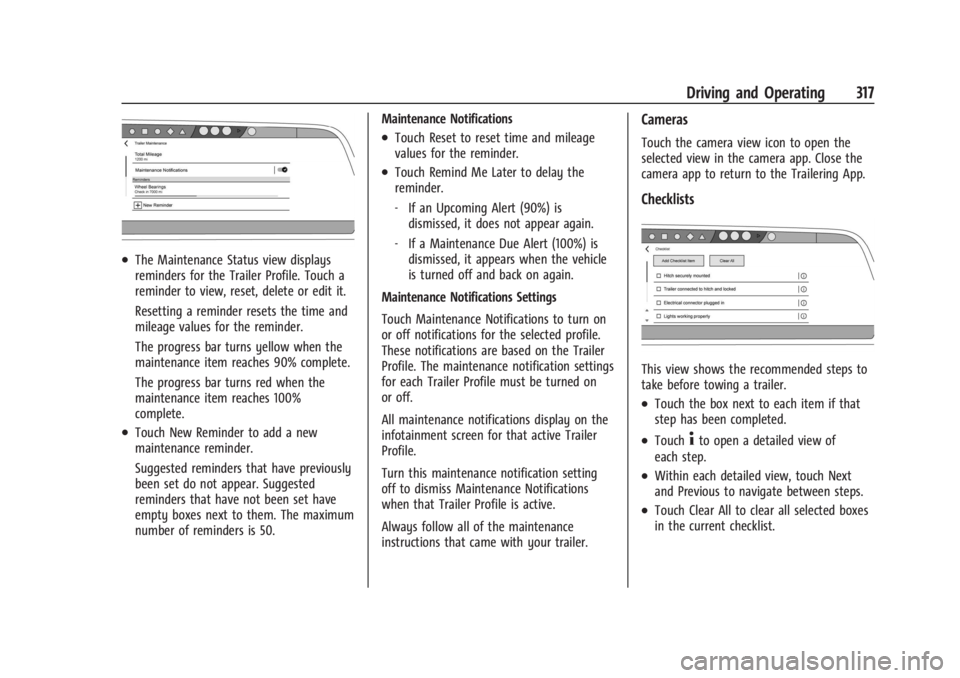
.The Maintenance Status view displays
reminders for the Trailer Profile. Touch a
reminder to view, reset, delete or edit it.
Resetting a reminder resets the time and
mileage values for the reminder.
The progress bar turns yellow when the
maintenance item reaches 90% complete.
The progress bar turns red when the
maintenance item reaches 100%
complete.
.Touch New Reminder to add a new
maintenance reminder.
Suggested reminders that have previously
been set do not appear. Suggested
reminders that have not been set have
empty boxes next to them. The maximum
number of reminders is 50.Maintenance Notifications
.Touch Reset to reset time and mileage
values for the reminder.
.Touch Remind Me Later to delay the
reminder.
‐
If an Upcoming Alert (90%) is
dismissed, it does not appear again.
‐ If a Maintenance Due Alert (100%) is
dismissed, it appears when the vehicle
is turned off and back on again.
Maintenance Notifications Settings
Touch Maintenance Notifications to turn on
or off notifications for the selected profile.
These notifications are based on the Trailer
Profile. The maintenance notification settings
for each Trailer Profile must be turned on
or off.
All maintenance notifications display on the
infotainment screen for that active Trailer
Profile.
Turn this maintenance notification setting
off to dismiss Maintenance Notifications
when that Trailer Profile is active.
Always follow all of the maintenance
instructions that came with your trailer.
Cameras
Touch the camera view icon to open the
selected view in the camera app. Close the
camera app to return to the Trailering App.
Checklists
This view shows the recommended steps to
take before towing a trailer.
.Touch the box next to each item if that
step has been completed.
.Touch4to open a detailed view of
each step.
.Within each detailed view, touch Next
and Previous to navigate between steps.
.Touch Clear All to clear all selected boxes
in the current checklist.
Page 319 of 429
Chevrolet Silverado EV Owner Manual (GMNA-Localizing-U.S./Canada-
16702912) - 2024 - CRC - 1/17/23
318 Driving and Operating
Custom Checklist Items
For each of the Trailer Profile checklists,
there is an option to create custom items to
view in the checklist. Custom checklist items
are displayed at the end of the default
checklist items.
Guest Trailer and No Trailer Connected
If a Guest Trailer Profile is active, or if no
trailer is connected, this view shows the
default checklist.
Weight
.Touch to turn on or off the GCW Alert.
.When on, an alert displays in the DIC
when the combined weight of the vehicle
and trailer exceed the vehicle's Gross
Combined Weight Raring (GCWR). For
more information on the Gross Combined
Weight (GCW) Alert, seeTrailer Towing
0 297.
Brakes
If equipped with Integrated Trailer Brake
Controller (ITBC) system and if the
connected trailer is equipped with electric
brakes or electric over hydraulic brakes, this
view displays the current state of the brakes
including brake gain setting and output.
If no electric brakes are detected or if no trailer is connected, this view displays the
last known brake gain setting and the
output shows dashed lines.
‐
Touch Add to Driver Display to show
trailer brake gain and output in the DIC.
‐ Touch How To Set Brake Gain to access
detailed steps to set trailer brake gain.
The Trailering App System shows any brake
issues reported by the trailer brake
controller in the Brakes view. Trailer
diagnosis and service may be required.
Repair your trailer brakes, if needed. Trailer
brake repairs are not covered by your GM
warranty.
See “Integrated Trailer Brake Control
System” section under Towing Equipment
0 301.
Guest Trailer Status View
If the Guest Trailer Profile is active, the
Status view shows:
.Lights
.Cameras
.Checklist
.Weight
.Brakes (if equipped) The Trailer Status view displays mileage
information. The mileage value resets when
the trailer is disconnected from the vehicle.
Accessory/No Trailer Status View
If the Accessory/No Trailer profile is active,
trailer status information is not available.
Trailers View
Touch the trailer profile icon in the Status
view to view, activate, create, edit, or delete
trailer profiles.
If a trailer is connected, touch the Trailer
Profile name to activate a Trailer Profile.
The Trailering App can save a maximum of
five trailer profiles
The Custom Trailer Profiles and Guest Trailer
are in order of the most frequently used.
The Accessory/No Trailer profile is shown
below the Custom Trailer Profiles and Guest
Trailer Profile.
Guest Trailer
If the Guest Trailer Profile is the active
Trailer Profile, trailer detection, lights/
connections status, theft, and the Tow/Haul
reminder alerts can be sent. The system
does not track total mileage, but the system
tracks trip mileage if the Guest Trailer
Page 321 of 429
Chevrolet Silverado EV Owner Manual (GMNA-Localizing-U.S./Canada-
16702912) - 2024 - CRC - 1/17/23
320 Driving and Operating
Delete/Remove Trailer
Touch to remove the Trailer Profile and all
of its settings.
On the pop-up, touch Remove to delete the
Trailer Profile. Touch Cancel to dismiss the
pop-up and return to the previous view.
When selecting Remove, it will display if
there is a connected OnStar plan active with
the vehicle. Removing a trailer profile
deletes the profile from the vehicle but the
profile still associates with the user account.
However, if there is not a connected OnStar
plan and Remove is selected, DELETE
displays and the profile deletes
permanently.
Set as Default Trailer
Touch Set as Default Trailer to select the
current profile as the default trailer profile.
The default trailer profile automatically is
selected each time a new connection is
detected. The Trailer Detection Alert will no
longer appear on the infotainment screen.
If this setting is turned off, the current
trailer profile is not the default trailer.GCW Alerts
Touch GCW Alert to enable/disable the GCW
Alert for the selected profile. These alerts
are based on the Trailer Profile, so the
settings for each Trailer Profile must be
turned on or off.
Turn this setting off to stop receiving GCW
Alerts when that Trailer Profile is active.
Theft Alert
If Theft Alerts are enabled, an alarm will
sound anytime the trailer is disconnected
from the vehicle while the vehicle is off.
Touch Theft Alert to enable/disable Theft
Alerts for the selected profile. These alerts
are based on the Trailer Profile, so the
settings for each Trailer Profile must be
turned on or off.
This setting defaults for each Trailer Profile,
including the Guest Trailer Profile.
A smartphone receives a notification that
the trailer related to the selected Trailer
Profile is disconnected from the vehicle,
if the setting is on for the active Trailer
Profile, the vehicle has an OnStar or
connected service plan and the smartphone
number has been added to the account for
this notification.If the setting is turned off for a given Trailer
Profile, the smartphone will not receive this
security notification even if the Trailer
Profile is active.
Tow/Haul Mode Reminder
When the vehicle detects a new trailer
connection, and if the Tow/Haul Mode
Reminder setting is enabled, a courtesy
message displays reminding you to turn on
Tow/Haul mode if appropriate. See
Driver
Mode Control 0209.
Touch Tow/Haul Mode Reminder to turn on/
off for the selected profile. The status of
Tow/Haul Mode Reminder Alerts are specific
to each trailer profile. You must specify
whether you want to enable theft alerts for
each trailer profile.
If Tow/Haul mode is off and Tow/Haul
Mode Reminder is on for a Trailer Profile,
each time the vehicle is turned on, a
reminder appears to turn on Tow/Haul
Mode when the Trailer Profile is active.
If Tow/Haul mode is on and Tow/Haul Mode
Reminder is on for a Trailer Profile, the
reminder does not appear when the Trailer
Profile is active.
Page 322 of 429
Chevrolet Silverado EV Owner Manual (GMNA-Localizing-U.S./Canada-
16702912) - 2024 - CRC - 1/17/23
Driving and Operating 321
Conversions and Add-Ons
Add-On Electrical Equipment
{Warning
The Data Link Connector (DLC) is used for
vehicle service and Emission Inspection/
Maintenance testing. SeeService Vehicle
Soon Light (Propulsion System Failure)
0 115. A device connected to the DLC —
such as an aftermarket fleet or
driver-behavior tracking device —may
interfere with vehicle systems. This could
affect vehicle operation and cause a
crash. Such devices may also access
information stored in the vehicle’s
systems.
Caution
Some electrical equipment can damage
the vehicle or cause components to not
work and would not be covered by the
vehicle warranty. Always check with your
dealer before adding electrical equipment. Add-on equipment can drain the vehicle's
12-volt battery, even if the vehicle is not
operating.
When adding electrical equipment, it should
only be connected using the accessory
power outlets. The maximum power that
can be supplied by one accessory power
outlet or spread across all three is 200 watts
or 15 amps. Exceeding 200 watts or 15 amps
may cause erratic vehicle operation.
The vehicle has an airbag system. Before
attempting to add anything electrical to the
vehicle, see
Servicing the Airbag-Equipped
Vehicle 068 and
Adding Equipment to the Airbag-Equipped
Vehicle 068.
Auxiliary Switches
On-screen auxiliary switches, if equipped, are
quick-touch icons that appear within the
infotainment system, giving you easy access
to some of the features of certain
aftermarket accessories installed on the
vehicle (off-road lighting, light bars, etc.). To access the on-screen auxiliary switches,
select Controls > Aux Switches. Six on-screen
auxiliary switches are available.
Use of the on-screen switches requires
installation of an auxiliary switch interface
module, which is mounted under the hood.
See your dealer for purchase and installation
of the necessary components. When an
aftermarket accessory is installed onto the
vehicle, it should be hard-wired to the
auxiliary switch interface module to the
numbered connection that corresponds with
the numbered on-screen auxiliary switch.
See
Accessories and Modifications 0324.
If you touch an on-screen auxiliary switch
but the auxiliary switch interface module is
not installed or has no accessory wired at
that connection, a message “No accessory
connected to this switch” displays.
Customizing the On-Screen Auxiliary
Switches
After a purchased accessory is installed,
create a text label for the corresponding
on-screen auxiliary switch and choose an
icon to represent the installed accessory.
1. While the vehicle is in P (Park), touch the Controls icon on the infotainment
home page.
Page 332 of 429
Chevrolet Silverado EV Owner Manual (GMNA-Localizing-U.S./Canada-
16702912) - 2024 - CRC - 1/13/23
Vehicle Care 331
Warning (Continued)
structure or anything that can burn.
Ventilate the vehicle by opening a
window or a door.
Contact Customer Assistance as soon as
possible to determine whether an
inspection is needed. SeeCustomer
Assistance Offices 0398.
If the vehicle is in a crash, the sensing
system may shut down the high voltage
system. When this occurs, the high voltage
battery is disconnected and the vehicle will
not start. The SERVICE VEHICLE SOON
message in the Driver Information Center
(DIC) will display. Before the vehicle can
operate again, it must be serviced at your
dealer. If a crash occurs or an airbag(s)
inflates, see “If a Crash Occurs” under
Collision Damage Repair 0402 and
What Will You See after an Airbag Inflates?
0 64 for additional information.
Keep the vehicle plugged in, even when fully
charged, to keep the high voltage battery
temperature ready for the next drive. This is
important when outside temperatures are
extremely hot or cold. Propulsion power may be reduced in
extremely cold temperatures, or if the high
voltage battery is too cold. The message
BATTERY TOO COLD, PLUG IN TO WARM will
display. If the message displays, a level 2
charger is required to heat the battery to a
minimum temperature to enable propulsion
or charging.
A vehicle cover, which can reduce sun
loading on the vehicle and improve high
voltage battery life, is available from your
dealer.
See
Radio Frequency Statement 0404.
Federal Communications Commission (FCC)
Radiation Exposure Statement
This equipment has been evaluated to be
installed and operated at a minimum
distance of 5.7 cm (2.2 in) between the
device and your body. The vehicle design
ensures this distance is maintained during
normal use. Changes or modifications to any
of these systems by other than an
authorized service facility could void
authorization to use this equipment. Innovation, Science, and Economic
Development (ISED) Radiation Exposure
Statement
This equipment complies with RSS-102
radiation exposure limits set forth for an
uncontrolled environment. This equipment
should be installed and operated with a
minimum distance of 5.7 cm (2.2 in) between
the radiator and any part of your body. The
vehicle design ensures this distance is
maintained during normal use. Changes or
modifications to any of these systems by
other than an authorized service facility
could void authorization to use this
equipment.
Vehicle Storage
The best way to store the vehicle for any
length of time is to plug in the charge cord
and leave it plugged in. The vehicle
monitors and maintains the 12-volt battery
daily. It is okay to leave the vehicle plugged
in for extended periods of time. Once
charged to full, very little energy is required
to maintain the 12-volt battery and high
voltage battery.
If it is not possible to charge the vehicle
with the charge cord left plugged in, be sure
to fully charge the high voltage battery
Page 335 of 429
Chevrolet Silverado EV Owner Manual (GMNA-Localizing-U.S./Canada-
16702912) - 2024 - CRC - 1/13/23
334 Vehicle Care
Windshield Replacement
Driver Assistance Systems
If the windshield needs to be replaced and
the vehicle is equipped with a front camera
sensor for the Driver Assistance Systems, a
GM replacement windshield is
recommended. The replacement windshield
must be installed according to GM
specifications for proper alignment. If it is
not, these systems may not work properly,
they may display messages, or they may
not work at all. See your dealer for proper
windshield replacement.
Gas Strut(s)
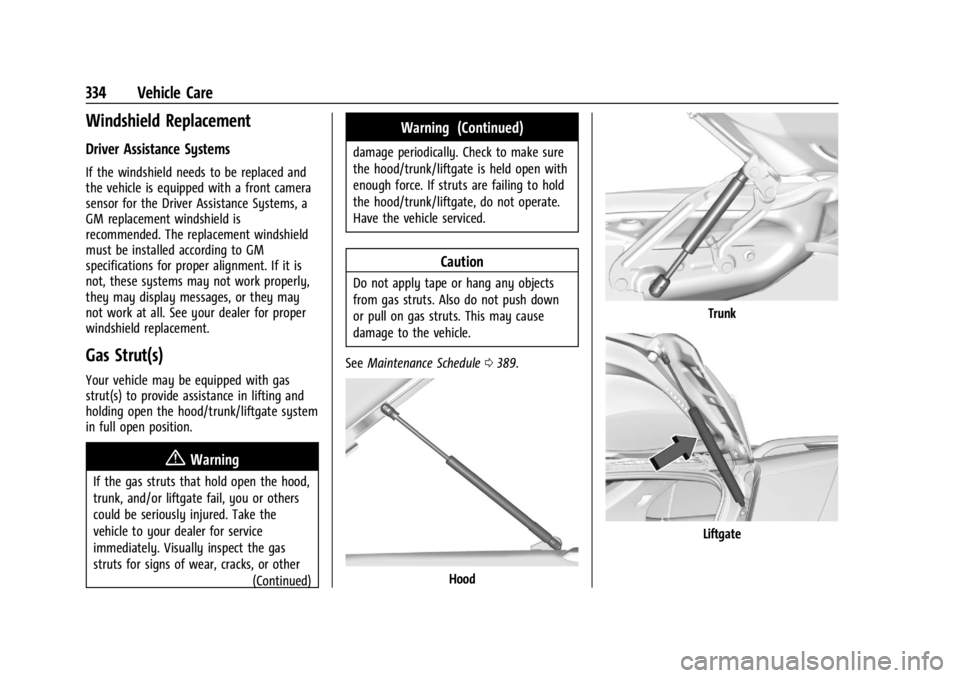
Your vehicle may be equipped with gas
strut(s) to provide assistance in lifting and
holding open the hood/trunk/liftgate system
in full open position.
{Warning
If the gas struts that hold open the hood,
trunk, and/or liftgate fail, you or others
could be seriously injured. Take the
vehicle to your dealer for service
immediately. Visually inspect the gas
struts for signs of wear, cracks, or other(Continued)
Warning (Continued)
damage periodically. Check to make sure
the hood/trunk/liftgate is held open with
enough force. If struts are failing to hold
the hood/trunk/liftgate, do not operate.
Have the vehicle serviced.
Caution
Do not apply tape or hang any objects
from gas struts. Also do not push down
or pull on gas struts. This may cause
damage to the vehicle.
See Maintenance Schedule 0389.
Hood
Trunk
Liftgate
Page 345 of 429
Chevrolet Silverado EV Owner Manual (GMNA-Localizing-U.S./Canada-
16702912) - 2024 - CRC - 1/13/23
344 Vehicle Care
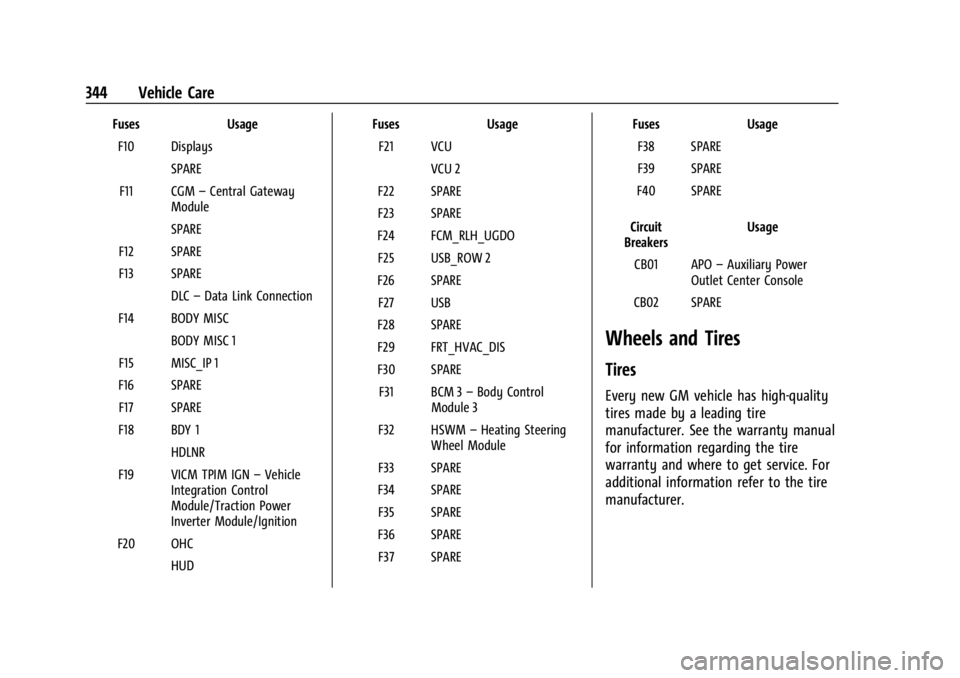
FusesUsage
F10 Displays SPARE
F11 CGM –Central Gateway
Module
SPARE
F12 SPARE
F13 SPARE DLC–Data Link Connection
F14 BODY MISC BODY MISC 1
F15 MISC_IP 1
F16 SPARE F17 SPARE
F18 BDY 1 HDLNR
F19 VICM TPIM IGN –Vehicle
Integration Control
Module/Traction Power
Inverter Module/Ignition
F20 OHC HUD Fuses
Usage
F21 VCU VCU 2
F22 SPARE
F23 SPARE
F24 FCM_RLH_UGDO F25 USB_ROW 2
F26 SPARE F27 USB
F28 SPARE
F29 FRT_HVAC_DIS
F30 SPARE F31 BCM 3 –Body Control
Module 3
F32 HSWM –Heating Steering
Wheel Module
F33 SPARE
F34 SPARE F35 SPARE
F36 SPARE F37 SPARE Fuses
Usage
F38 SPARE
F39 SPARE
F40 SPARE
Circuit
Breakers Usage
CB01 APO –Auxiliary Power
Outlet Center Console
CB02 SPARE
Wheels and Tires
Tires
Every new GM vehicle has high-quality
tires made by a leading tire
manufacturer. See the warranty manual
for information regarding the tire
warranty and where to get service. For
additional information refer to the tire
manufacturer.