mirror CHEVROLET SILVERADO EV 2024 User Guide
[x] Cancel search | Manufacturer: CHEVROLET, Model Year: 2024, Model line: SILVERADO EV, Model: CHEVROLET SILVERADO EV 2024Pages: 429, PDF Size: 8.98 MB
Page 175 of 429
Chevrolet Silverado EV Owner Manual (GMNA-Localizing-U.S./Canada-
16702912) - 2024 - CRC - 1/13/23
174 Climate Controls
Climate Controls
Climate Control Systems
Dual Automatic Climate ControlSystem . . . . . . . . . . . . . . . . . . . . . . . . . . . . . . 174
Air Vents
Air Vents . . . . . . . . . . . . . . . . . . . . . . . . . . . . . . 177
Maintenance
Passenger Compartment Air Filter . . . . . 178
Service . . . . . . . . . . . . . . . . . . . . . . . . . . . . . . . . . 179
Climate Control Systems
Dual Automatic Climate Control System
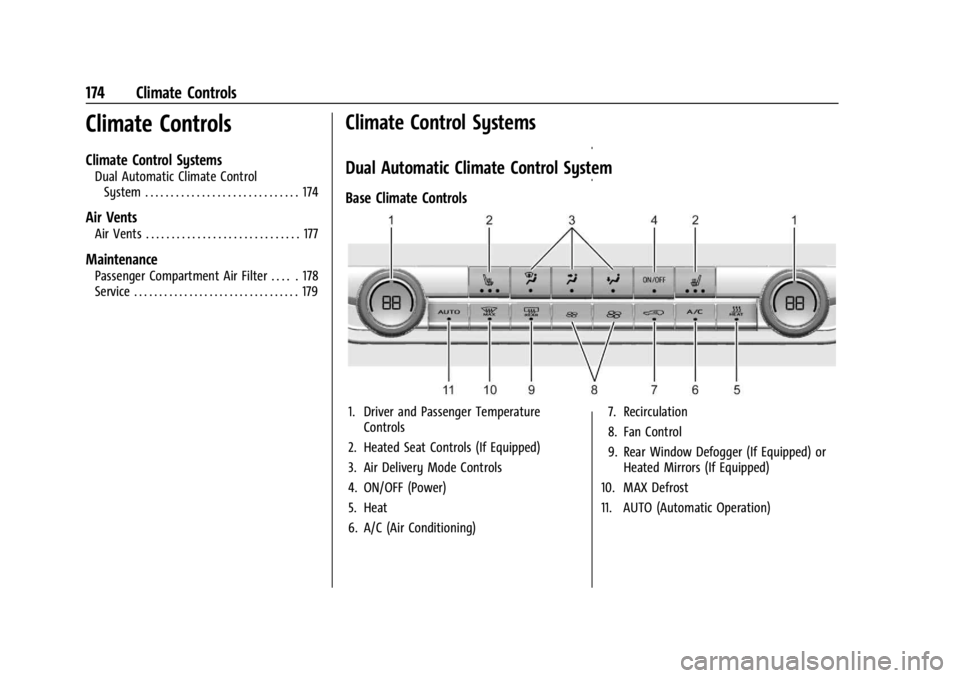
Base Climate Controls
1. Driver and Passenger Temperature Controls
2. Heated Seat Controls (If Equipped)
3. Air Delivery Mode Controls
4. ON/OFF (Power)
5. Heat
6. A/C (Air Conditioning) 7. Recirculation
8. Fan Control
9. Rear Window Defogger (If Equipped) or
Heated Mirrors (If Equipped)
10. MAX Defrost
11. AUTO (Automatic Operation)
Page 176 of 429
Chevrolet Silverado EV Owner Manual (GMNA-Localizing-U.S./Canada-
16702912) - 2024 - CRC - 1/13/23
Climate Controls 175
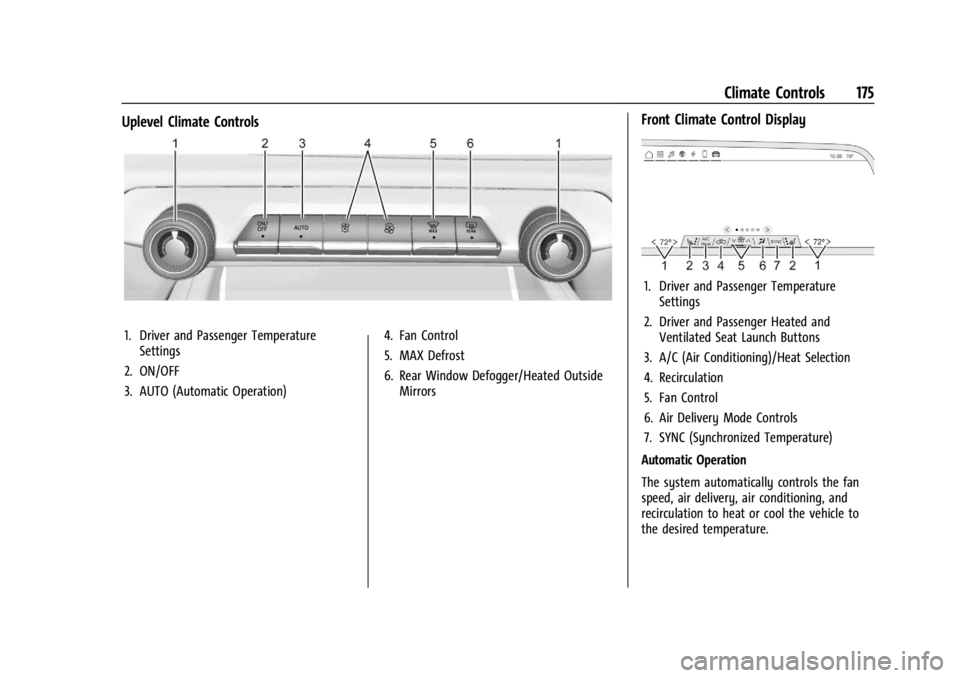
Uplevel Climate Controls
1. Driver and Passenger TemperatureSettings
2. ON/OFF
3. AUTO (Automatic Operation) 4. Fan Control
5. MAX Defrost
6. Rear Window Defogger/Heated Outside
Mirrors
Front Climate Control Display
1. Driver and Passenger TemperatureSettings
2. Driver and Passenger Heated and Ventilated Seat Launch Buttons
3. A/C (Air Conditioning)/Heat Selection
4. Recirculation
5. Fan Control
6. Air Delivery Mode Controls
7. SYNC (Synchronized Temperature)
Automatic Operation
The system automatically controls the fan
speed, air delivery, air conditioning, and
recirculation to heat or cool the vehicle to
the desired temperature.
Page 178 of 429
Chevrolet Silverado EV Owner Manual (GMNA-Localizing-U.S./Canada-
16702912) - 2024 - CRC - 1/13/23
Climate Controls 177
Rear Window Defogger
1REAR :If equipped, press to turn the
rear window defogger on or off. An indicator
light on the button comes on to show that
the rear window defogger is on.
The rear window defogger only works when
the vehicle is on. The defogger turns off if
the vehicle is turned off.
If the vehicle is equipped with heated
outside mirrors, they turn on when the rear
window defogger button is on and help to
clear fog or frost from the surface of the
mirror. See Heated Mirrors 036.
Caution
Using a razor blade or sharp object to
clear the inside rear window can damage
the rear window defogger. Repairs would
not be covered by the vehicle warranty.
Do not clear the inside rear window with
sharp objects.
Remote Start Climate Control Operation :
If equipped with remote start, the climate
control system may run when the vehicle is
started remotely. If equipped with heated or ventilated seats or a heated steering wheel,
these features may come on during a
remote start. See
Remote Vehicle Start 014,
Heated and Ventilated Front Seats 047, and
Heated Steering Wheel 097.
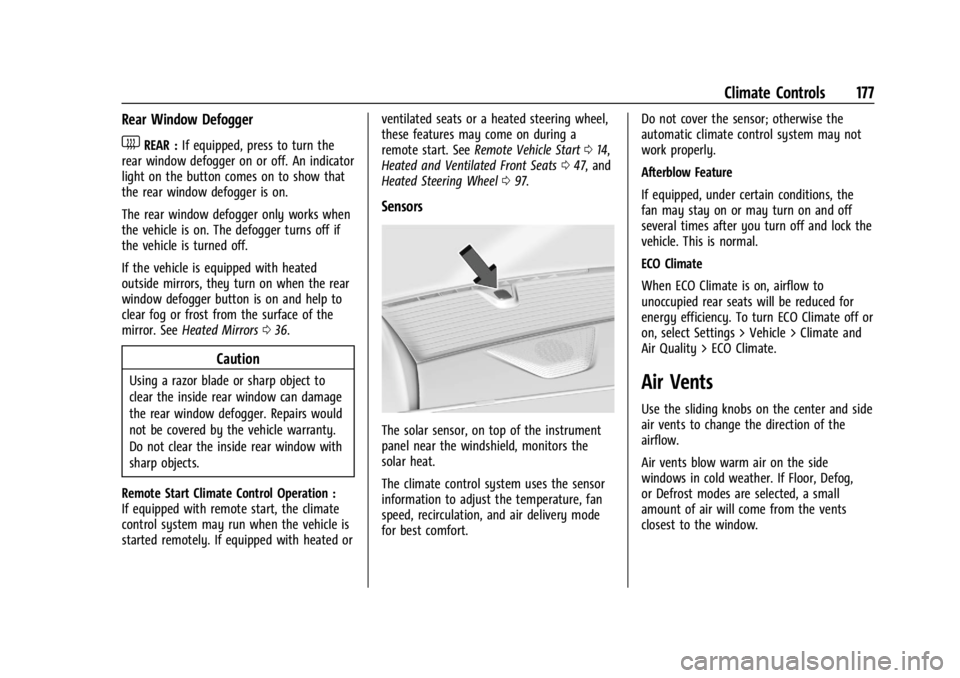
Sensors
The solar sensor, on top of the instrument
panel near the windshield, monitors the
solar heat.
The climate control system uses the sensor
information to adjust the temperature, fan
speed, recirculation, and air delivery mode
for best comfort. Do not cover the sensor; otherwise the
automatic climate control system may not
work properly.
Afterblow Feature
If equipped, under certain conditions, the
fan may stay on or may turn on and off
several times after you turn off and lock the
vehicle. This is normal.
ECO Climate
When ECO Climate is on, airflow to
unoccupied rear seats will be reduced for
energy efficiency. To turn ECO Climate off or
on, select Settings > Vehicle > Climate and
Air Quality > ECO Climate.
Air Vents
Use the sliding knobs on the center and side
air vents to change the direction of the
airflow.
Air vents blow warm air on the side
windows in cold weather. If Floor, Defog,
or Defrost modes are selected, a small
amount of air will come from the vents
closest to the window.
Page 186 of 429
Chevrolet Silverado EV Owner Manual (GMNA-Localizing-U.S./Canada-
16702912) - 2024 - CRC - 1/17/23
Driving and Operating 185
The vehicle's right wheels can drop off the
edge of a road onto the shoulder while
driving. Follow these tips:1. Ease off the accelerator and then, if there is nothing in the way, steer the
vehicle so that it straddles the edge of
the pavement.
2. Turn the steering wheel about one-eighth of a turn, until the right front
tire contacts the pavement edge.
3. Turn the steering wheel to go straight down the roadway.
Loss of Control
Skidding
There are three types of skids that
correspond to the vehicle's three control
systems:
.Braking Skid —wheels are not rolling.
.Steering or Cornering Skid —too much
speed or steering in a curve causes tires
to slip and lose cornering force.
.Acceleration Skid —too much throttle
causes the driving wheels to spin.
Antilock brakes help to avoid only the
braking skid. Defensive drivers avoid most skids by taking
reasonable care suited to existing conditions,
and by not exceeding those conditions. But
skids are always possible.
If the vehicle starts to skid, follow these
suggestions:
.Ease your foot off the accelerator pedal
and steer the way you want the vehicle
to go. The vehicle may straighten out,
but if it skids again from oversteer, be
ready to correct another skid if it occurs.
.Slow down and adjust your driving
according to weather conditions. Stopping
distance may be longer and vehicle
control may be affected when traction is
reduced by water, snow, ice, gravel,
or other material on the road. Learn to
recognize warning clues
—such as
enough water, ice, or packed snow on the
road to make a mirrored surface —and
slow down when you have any doubt.
.Try to avoid sudden steering, acceleration,
or braking, including reducing vehicle
speed by shifting to a lower gear. Any
sudden changes could cause the tires to
slide.
Off-Road Driving
Four-wheel-drive vehicles can be used for
off-road driving. Vehicles without four-wheel
drive and vehicles not equipped with All
Terrain (AT) or On-Off Road (OOR) tires must
not be driven off-road except on a level,
solid surface. For contact information about
the original equipment tires, see the
warranty manual.
One of the best ways for successful off-road
driving is to control the speed.
{Warning
When driving off-road, bouncing and
quick changes in direction can easily
throw you out of position. This could
cause you to lose control and crash. You
and your passengers should always wear
seat belts.
Off-Road Vehicle Features
If equipped, the following off-road features
may be available:
.Four-Wheel Steering: Provides the ability
to steer the vehicle with all four wheels,
reducing the turning diameter and
improving maneuverability of the vehicle.
See Four-Wheel Steering 0210.
Page 193 of 429
Chevrolet Silverado EV Owner Manual (GMNA-Localizing-U.S./Canada-
16702912) - 2024 - CRC - 1/17/23
192 Driving and Operating
If you stay in your vehicle while waiting,
signal for help and keep everyone in the
vehicle safe by turning on the hazard
warning flashers and tying a red cloth to an
outside mirror.
To conserve battery energy while waiting
for help, run the vehicle for only short
periods as needed to warm the vehicle and
then shut the vehicle off and partially close
the window. Moving about to keep warm
also helps. For additional tips to help
conserve battery energy in cold weather, see
Driving for Better Energy Efficiency0181.
If the Vehicle Is Stuck
Slowly and cautiously spin the wheels to
free the vehicle when stuck in sand, mud,
ice, or snow. See “Rocking the Vehicle to Get
It Out” later in this section.
The Traction Control/Electronic Stability
Control can often help to free a stuck
vehicle. See Traction Control/Electronic
Stability Control 0207. If TCS/ESC cannot
free the vehicle, see “Rocking the Vehicle to
Get it Out” following.
{Warning
If the vehicle’s tires spin at high speed,
they can explode, and you or others
could be injured. Spin the wheels as little
as possible and avoid going above
56 km/h (35 mph).
For information about using tire chains on
the vehicle, see Tire Chains0361.
Rocking the Vehicle to Get It Out
Turn the steering wheel left and right to
clear the area around the front wheels. Turn
the TCS off. Shift back and forth between
R (Reverse) and a forward gear, spinning the
wheels as little as possible. To prevent
battery wear, wait until the wheels stop
spinning before shifting gears. Slowly
spinning the wheels in the forward and
reverse directions causes a rocking motion
that could free the vehicle. If that does not
get the vehicle out after a few tries, it
might need to be towed out using recovery
hooks if equipped.
Recovery Hooks
If equipped, there are recovery hooks at the
front of the vehicle. Use them if the vehicle
is stuck in sand, mud, ice, or snow to pull
the vehicle back to the road and continue
driving.
{Warning
Never pull on recovery hooks from the
side. The hooks could break and you and
others could be injured. When using
recovery hooks, always pull the vehicle
from the front.
Caution
Never use recovery hooks to tow the
vehicle. The vehicle could be damaged,
and the repairs would not be covered by
the vehicle warranty.
Page 228 of 429
Chevrolet Silverado EV Owner Manual (GMNA-Localizing-U.S./Canada-
16702912) - 2024 - CRC - 1/17/23
Driving and Operating 227
Towing with ACC
If equipped when towing a trailer, ACC
driving characteristics such as following gap,
acceleration rates, and braking rates may be
modified to provide a better towing
experience.
When ACC is used with vehicles equipped
with an aftermarket trailer brake controller,
disengage ACC before applying the manual
trailer brake. ACC will not automatically
disengage when the manual trailer brake is
applied.
ACC may be used when towing a trailer if
the trailer is within the GM-approved
allowable size and weight limits. SeeTrailer
Towing 0297.
When towing a trailer with ACC, it is
important to properly set the Trailer Gain.
See “Integrated Trailer Brake Control
System” inTowing Equipment 0301 for
information about the Trailer Gain
adjustment procedure.
Use Tow/Haul mode when driving down
steep hills or mountain grades, or when
hauling heavy loads. See Driver Mode
Control 0209. Disengaging ACC
There are four ways to disengage ACC:
.Press*.
.Lightly apply the brake pedal.
.Apply the Regen on Demand steering
wheel paddle, if equipped.
.Press5.
Erasing Speed Memory
The ACC set speed is erased from memory if
5is pressed or if the vehicle is turned off.
Weather Conditions Affecting ACC
ACC system operation may be limited under
snow, heavy rain, or road spray conditions.
Accessory Installations and Vehicle
Modifications
.Do not install or place any object around
the front camera windshield area that
would obstruct the front camera view.
.Do not install objects on top of the
vehicle that overhang and may obstruct
the front camera, such as a canoe, kayak,
or other items that can be transported on
top of the vehicle.
.Do not modify the hood, headlamps,
or fog lamps, as this may limit the
camera’s ability to detect an object. Cleaning the Sensing System
The camera sensor on the windshield behind
the rearview mirror, and the sensors on the
front of the vehicle can become blocked by
snow, ice, dirt, mud, or other debris. These
areas must be clean for ACC to operate
properly. For proper cleaning instructions,
see the section
“Washing the Vehicle” in
Exterior Care 0379.
If driving conditions temporarily prevent
normal and safe ACC operation, regular
cruise control may be available. See
“Switching Between ACC and Regular Cruise
Control” previously in this section. Always
consider driving conditions before using
either cruise control system.
Super Cruise
If equipped, Super Cruise can steer to
maintain lane position under certain
conditions on Super Cruise-enabled roads.
Super Cruise can also steer to perform a
lane change under certain conditions on
Super Cruise-enabled roads.
A lane change can be initiated by the driver
using the turn signal lever.
Page 232 of 429
Chevrolet Silverado EV Owner Manual (GMNA-Localizing-U.S./Canada-
16702912) - 2024 - CRC - 1/17/23
Driving and Operating 231
To engage:
.Press5to turn on ACC. Make sure the
white
\indicator displays in the
instrument cluster. See Adaptive Cruise
Control (Advanced) 0217. When Super
Cruise is available, the white
Zwill
display in the instrument cluster.
.PressZ.
.ACC will set the speed to the current
vehicle speed or resume to the higher
previously stored ACC set speed.
{Warning
Always monitor the vehicle speed and
make sure that you are following the
speed limit, regardless of the Auto Set
Speed status.
If Auto Set Speed is enabled and a speed
limit sign is detected, ACC will set the speed
to the road speed limit (+/− the selected
offset). For Auto Set Speed customization,
see Adaptive Cruise Control (Advanced)
0 217. When engaged and not steering the vehicle,
the steering wheel light bar flashes blue,
and
Zwill be blue. The driver is in control
of steering and Super Cruise is not steering
the vehicle.
When the vehicle is positioned in the center
of the lane, the steering wheel light bar and
Zdisplay will turn green, indicating Super
Cruise is steering the vehicle.
When Super Cruise controls the steering,
traffic and other conditions and laws permit,
and it is safe to do so, your hands can be
taken off the steering wheel.
Always pay attention to the road and the
operation of the vehicle. Always monitor
and be attentive of surrounding traffic,
including vehicles that may cross the road in
front of your vehicle.
Super Cruise steering can be overridden with
manual steering at any time. When Super
Cruise is engaged, always be prepared to
take immediate action —including steering,
accelerating, and braking quickly,
if necessary.
When Super Cruise is engaged, the Forward
Collision system will alert and brake. See
Forward Collision Alert (FCA) System 0261. Steering Manually and Changing Lanes
The vehicle can always be manually steered,
even with Super Cruise engaged; for
example, when manually changing lanes.
When the steering wheel is moved
manually, the steering wheel light bar
flashes blue andZon the instrument
cluster turns blue to indicate Super Cruise is
not steering the vehicle.
When ready to allow Super Cruise to
resume steering again, position the vehicle
in the center of the lane, hold the steering
wheel until the steering wheel light bar
turns green, and then release the steering
wheel when it is safe to do so.
{Warning
To help prevent crashes before making a
lane change:
.Always check mirrors.
.Glance over your shoulder.
.Use the turn signals.
Page 247 of 429
Chevrolet Silverado EV Owner Manual (GMNA-Localizing-U.S./Canada-
16702912) - 2024 - CRC - 1/17/23
246 Driving and Operating
.Front side and rear side panels
.Outside of the windshield in front of the
rearview mirror
.Side camera lens on the bottom of the
outside mirrors
.Rear side corner bumpers
.Rear Vision Camera in the tailgate handle
.Rear Camera Mirror and Cargo View
Camera in the Center High-Mounted
Stoplamp
Radio Frequency
This vehicle may be equipped with driver
assistance systems that operate using radio
frequency. See Radio Frequency Statement
0 404.
Assistance Systems for Parking or
Backing
The Rear Vision Camera (RVC), Surround
Vision, Rear Park Assist (RPA), Front and Rear
Park Assist (FRPA), and Rear Cross Traffic
Alert (RCTA) may help the driver park or
avoid objects. Always check around the
vehicle when parking or backing.
Rear Vision Camera (RVC)
When the vehicle is shifted into R (Reverse),
the Rear Vision Camera (RVC) displays an
image of the area behind the vehicle in the
infotainment display. The previous screen
displays when the vehicle is shifted out of
R (Reverse) after a short delay. To return to
the previous screen sooner, press Home or
Back on the infotainment system, shift into
P (Park), or reach a vehicle speed of
approximately 12 km/h (8 mph) while in
D (Drive).
1. View Displayed by the Camera
1. View Displayed by the Camera
2. Corners of the Rear Bumper
Displayed images may be farther or closer
than they appear. The area displayed is
limited and objects that are close to either
corner of the bumper or under the bumper
do not display.
A warning triangle may appear on the
infotainment display to show that Rear Park
Assist (RPA) or Rear Cross Traffic Alert (RCTA)
has detected an object. This triangle changes
from amber to red and increases in size the
closer the object.
{Warning
The camera(s) do not display children,
pedestrians, bicyclists, crossing traffic,
animals, or any other object outside of
(Continued)
Page 248 of 429
Chevrolet Silverado EV Owner Manual (GMNA-Localizing-U.S./Canada-
16702912) - 2024 - CRC - 1/17/23
Driving and Operating 247
Warning (Continued)
the cameras’field of view, below the
bumper, or under the vehicle. Shown
distances may be different from actual
distances. Do not drive or park the
vehicle using only these camera(s).
Always check behind and around the
vehicle before driving. Failure to use
proper care may result in injury, death,
or vehicle damage.
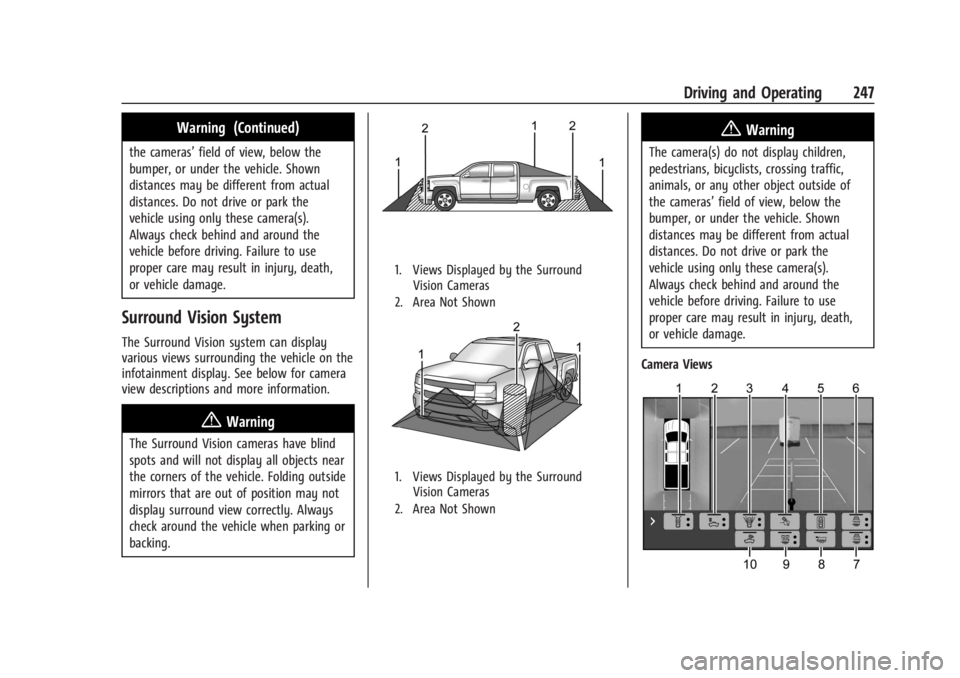
Surround Vision System
The Surround Vision system can display
various views surrounding the vehicle on the
infotainment display. See below for camera
view descriptions and more information.
{Warning
The Surround Vision cameras have blind
spots and will not display all objects near
the corners of the vehicle. Folding outside
mirrors that are out of position may not
display surround view correctly. Always
check around the vehicle when parking or
backing.
1. Views Displayed by the Surround Vision Cameras
2. Area Not Shown
1. Views Displayed by the Surround Vision Cameras
2. Area Not Shown
{Warning
The camera(s) do not display children,
pedestrians, bicyclists, crossing traffic,
animals, or any other object outside of
the cameras’ field of view, below the
bumper, or under the vehicle. Shown
distances may be different from actual
distances. Do not drive or park the
vehicle using only these camera(s).
Always check behind and around the
vehicle before driving. Failure to use
proper care may result in injury, death,
or vehicle damage.
Camera Views
Page 252 of 429
Chevrolet Silverado EV Owner Manual (GMNA-Localizing-U.S./Canada-
16702912) - 2024 - CRC - 1/17/23
Driving and Operating 251
settings from the infotainment screen,
touch Settings > Vehicle > Collision/
Detection Systems. The view can be
closed early by selecting X, Home,
or Back.
A Trailer Length Indicator Overlay is
available in the Turn Signal Activated
Views when the trailer is relatively
straight behind the vehicle and a
compatible profile is configured and
selected via the Trailering App. The
overlay will not be visible when the
position of the trailer is too far to the left
or right. The overlay can be enabled or
disabled. To view available settings from
the infotainment screen, touch Settings >
Vehicle > Collision/Detection Systems.
.Jack-Knife Detection and Alert
The vehicle may be equipped with
Jack-Knife Detection. The system will track
the position of the trailer relative to the
vehicle. As the front of the trailer
approaches the rear of the vehicle, a
warning or an alert will be displayed.
A warning indicates to the driver to
proceed with caution and an alert
indicates that a collision is imminent.
Based on vehicle equipment and user
settings, the visual warning or alert may
be accompanied by audible or safety alertseat notifications. To view available
settings from the infotainment screen,
touch Settings > Vehicle > Collision/
Detection Systems.
.Trailer Angle Indicator
The vehicle may be equipped with a
Trailer Angle Indicator. The Trailer Angle
Indicator gives the driver a visual
representation of the trailer’s position
relative to the vehicle. Available only in
R (Reverse), Guidelines On, or Rear
Trailering Views.
.When driving Off-Road the system will
allow camera usage at higher speeds to
improve safety and awareness. To
activate place the vehicle drive mode in
Off-Road. In this mode all Camera Views
in the infotainment display will be
available at higher speeds.
{Warning
Use Hitch Guidance only to help back the
vehicle to a trailer hitch or, when
traveling above 12 km/h (8 mph), to
briefly check the status of your trailer. Do
not use for any other purpose, such as
making lane change decisions. Before
making a lane change, always check the
(Continued)
Warning (Continued)
mirrors and glance over your shoulder.
Improper use could result in serious
injury to you or others.
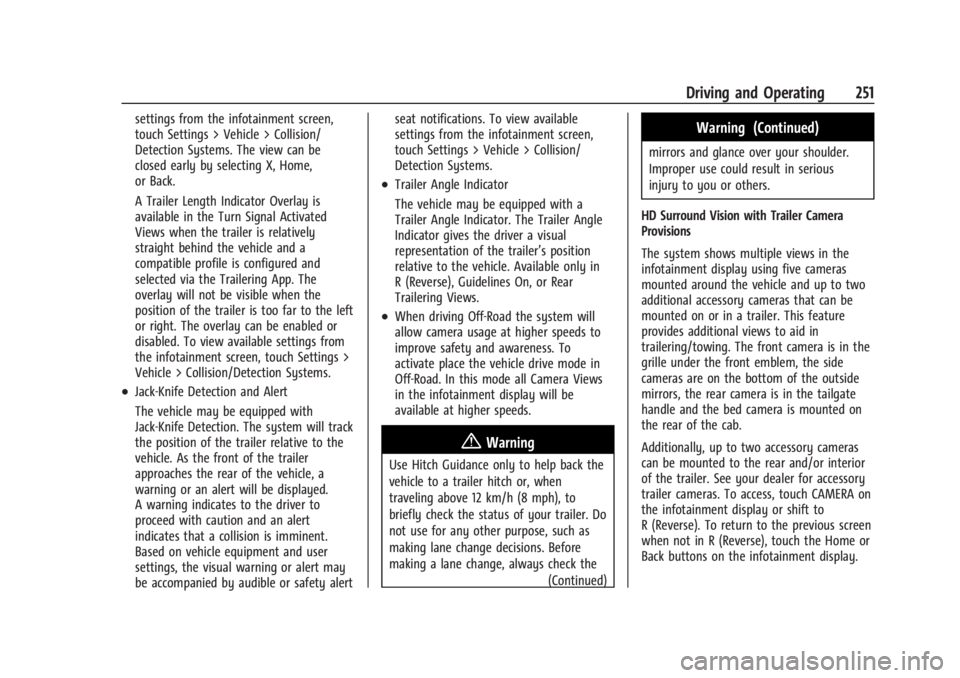
HD Surround Vision with Trailer Camera
Provisions
The system shows multiple views in the
infotainment display using five cameras
mounted around the vehicle and up to two
additional accessory cameras that can be
mounted on or in a trailer. This feature
provides additional views to aid in
trailering/towing. The front camera is in the
grille under the front emblem, the side
cameras are on the bottom of the outside
mirrors, the rear camera is in the tailgate
handle and the bed camera is mounted on
the rear of the cab.
Additionally, up to two accessory cameras
can be mounted to the rear and/or interior
of the trailer. See your dealer for accessory
trailer cameras. To access, touch CAMERA on
the infotainment display or shift to
R (Reverse). To return to the previous screen
when not in R (Reverse), touch the Home or
Back buttons on the infotainment display.