navigation system CHEVROLET SILVERADO EV 2024 User Guide
[x] Cancel search | Manufacturer: CHEVROLET, Model Year: 2024, Model line: SILVERADO EV, Model: CHEVROLET SILVERADO EV 2024Pages: 429, PDF Size: 8.98 MB
Page 158 of 429
Chevrolet Silverado EV Owner Manual (GMNA-Localizing-U.S./Canada-
16702912) - 2024 - CRC - 1/13/23
Infotainment System 157
A second pin in the menu is the route
overview. Touch this pin to show more
details of the destination or to remove the
destination.
Destination
Searching for a Destination
A destination can be searched using Google
Assistant.
To search for a destination without Google
Assistant:1. Open Google Maps.
2. Touch the Search field.
3. Enter the destination.
4. Touch the navigation icon.
Alternate Routes
Alternate routes are displayed as separate
lines. While in either turn-by-turn navigation
or on the route overview, touch the
suggested alternate route.
Adding a Stop on Route by Voice 1. While in turn-by-turn navigation, touch the Search icon at the bottom.
2. Touch the Google Assistant mic icon and say the destination to search by voice. 3. Select the desired search result from
the list.
4. Touch the Add stop icon.
Adding a Stop on Route by Category 1. While in turn-by-turn navigation, touch the Search icon at the bottom.
2. Select a category.
3. Select the desired search result from the list.
4. Touch the Add stop icon.
Adding a Home or Work Address
To edit a home or work address, an account
must be logged in. See Accounts under
Settings 0166.
1. Open Google Maps.
2. Touch Settings, then touch Edit home or work.
3. Enter the address.
Search by Category
Destinations can be searched by category,
such as restaurant or grocery store. 1. Open Google Maps.
2. Touch the search bar.
3. Touch Categories, then select a category. 4. Touch the desired location, then touch
the navigation icon.
Avoid Tolls, Highways, or Ferries 1. Open Google Maps.
2. Touch the settings icon.
3. Select Route options.
4. Select the desired options and then touch X to close.
An Alternative Way for General Route
Options 1. During active route guidance, touch Route Overview.
2. Select Route options.
3. Select the desired option and then touch X to close.
Traffic Layers 1. Open Google Maps.
2. Touch the settings icon.
3. Toggle between Traffic on or off.
Global Positioning System (GPS)
The current position of the vehicle is
determined by using satellite signals and
various vehicle signals.
Page 159 of 429
Chevrolet Silverado EV Owner Manual (GMNA-Localizing-U.S./Canada-
16702912) - 2024 - CRC - 1/13/23
158 Infotainment System
At times, other interference such as the
satellite condition, road configuration,
condition of the vehicle, and/or other
circumstances can affect the navigation
system's ability to determine the accurate
position of the vehicle.
This system might not be available or
interference can occur if any of the
following are true:
.Signals are obstructed by tall buildings,
trees, large trucks, or a tunnel.
.Satellites are being repaired or improved.
For more information if the GPS is not
functioning properly, see Problems with
Route Guidance 0158.
Vehicle Positioning
At times, the position of the vehicle on the
map could be inaccurate due to one or more
of the following reasons:
.The road system has changed.
.The vehicle is driving on slippery road
surfaces such as sand, gravel, or snow.
.The vehicle is traveling on winding roads
or long, straight roads.
.The vehicle is approaching a tall building
or a large vehicle.
.The surface streets run parallel to a
freeway.
.The vehicle has been transferred by a
vehicle carrier or a ferry.
.The current position calibration is set
incorrectly.
.The vehicle is traveling at high speed.
.The vehicle changes directions more than
once, or the vehicle is turning on a turn
table in a parking lot.
.The vehicle is entering and/or exiting a
parking lot, garage, or a lot with a roof.
.The GPS signal is not received.
.A roof carrier is installed on the vehicle.
.Tire chains are installed on the vehicle.
.The tires are replaced or worn.
.The tire pressure for the tires is incorrect.
.This is the first navigation use after the
map data is updated.
.The 12-volt battery has been disconnected
for several days.
.The vehicle is driving in heavy traffic
where driving is at low speeds, and the
vehicle is stopped and started repeatedly.
Problems with Route Guidance
Inappropriate route guidance can occur
under one or more of the following
conditions:
.The turn was not made on the road
indicated.
.Route guidance might not be available
when using automatic rerouting for the
next right or left turn.
.The route might not be changed when
using automatic rerouting.
.There is no route guidance when turning
at an intersection.
.Automatic rerouting might display a route
returning to the set waypoint if heading
for a destination without passing through
a set waypoint.
.The route prohibits the entry of a vehicle
due to a regulation by time or season or
any other regulation which may be given.
.Some routes might not be searched.
.The route to the destination might not be
shown if there are new roads, if roads
have recently changed, or if certain roads
are not listed in Maps.
Page 160 of 429
Chevrolet Silverado EV Owner Manual (GMNA-Localizing-U.S./Canada-
16702912) - 2024 - CRC - 1/13/23
Infotainment System 159
To recalibrate the vehicle's position on the
map, park with the vehicle running for two
to five minutes, until the vehicle position
updates. Make sure the vehicle is parked in
a location that is safe and has a clear view
of the sky and away from large
obstructions.
Voice Recognition
If equipped, Google Assistant allows for
hands-free use of media and messaging,
navigation, and climate control functionality
in the vehicle. This feature can be started by
pressing
gon the steering wheel, touching
Google Assistant on the infotainment home
screen, or by using the wake up words “Hey
Google” or“OK Google.”
However, not all features within these areas
are supported by voice commands and
requires the user to have a valid data
subscription plan or be able to connect to
an external WiFi in order to use the Google
Assistant features.
Using Voice Recognition
Voice recognition becomes available once
the system is initialized. This begins when
the vehicle is turned on. Initialization may
take a few moments. 1. Press
gon the steering wheel controls,
touch Google Assistant on the Home
screen, or use the wake up words “Hey
Google” or“OK Google” to activate voice
recognition. Google Assistant must be set
as the Default Assistant for the
gand
the wake word options to work.
2. Clearly speak one of the commands described later in this section.
Canceling Google Assistant
.Presscon the steering wheel controls
to cancel the Google Assistant request.
Helpful Hints for Speaking Commands
Voice recognition identifies commands that
are naturally stated in sentence form,
or direct commands that state the
application and the task.
For best results:
.Speak the command naturally, not too
fast, not too slow.
.Use direct commands without a lot of
extra words. For example, “Call
at work,” “Play” followed by the artist or
song name, or “Play”followed by the
radio station number. Direct commands are more clearly
understood by the system. An example of a
direct command is
“Call
If a cell phone number was saved with a
name and a place, the direct command
should include both. For example “Call
Voice Recognition for the Radio
When voice is started, the voice recognition
commands for AM, FM, SiriusXM (if
equipped), and media apps (if supported) are
available.
“Play
radio station frequency identified in the
command (like “nine fifty”).
“Play
radio station frequency identified in the
command (like “one oh one point one”).
“Play channel
SiriusXM” :Tune to the SiriusXM radio
station channel number identified in the
command. This command may require an
online connection.
“Play
Tune to the SiriusXM radio station channel
name identified in the command. This
command may require an online connection.
Page 161 of 429
Chevrolet Silverado EV Owner Manual (GMNA-Localizing-U.S./Canada-
16702912) - 2024 - CRC - 1/13/23
160 Infotainment System
“Play
Page 184 of 429
Chevrolet Silverado EV Owner Manual (GMNA-Localizing-U.S./Canada-
16702912) - 2024 - CRC - 1/17/23
Driving and Operating 183
.Keep pets in an appropriate carrier or
restraint.
.Avoid stressful conversations while
driving, whether with a passenger or on a
mobile phone.
{Warning
Taking your eyes off the road too long or
too often could cause a crash resulting in
injury or death. Focus your attention on
driving.
Your vehicle may be equipped with features
that can help with hands-free use of the
infotainment system, navigation system,
and your mobile phone. For more
information, see Introduction0147 in the
Infotainment section, Voice Recognition
0 159, Bluetooth (Pairing and Using a Phone)
0 161 or
Bluetooth (Overview) 0160, and Steering
Wheel Controls 0149.
Defensive Driving
Defensive driving means to always expect
the unexpected. The first step in driving
defensively is to wear a seat belt. See Seat
Belts 052.
.Assume that other road users
(pedestrians, bicyclists, and other drivers)
are going to be careless and make
mistakes. Anticipate what they may do
and be ready.
.Allow enough following distance between
your vehicle and the vehicle in front
of you.
.Focus on the task of driving.
Impaired Driving
Death and injury associated with impaired
driving is a global tragedy.
{Warning
Drinking alcohol or taking drugs and then
driving is very dangerous. Your reflexes,
perceptions, attentiveness, and judgment
can be affected by even a small amount
of alcohol or drugs. You can have a
serious —or even fatal —collision if you
drive after drinking or taking drugs.
Do not drive while under the influence of
alcohol or drugs, or ride with a driver
who has been drinking or is impaired by (Continued)
Warning (Continued)
drugs. Find alternate transportation
home; or if you are with a group,
designate a driver who will remain sober.
Control of a Vehicle
Braking, steering, and accelerating are
important factors in helping to control a
vehicle while driving.
Braking
Braking action involves perception time and
reaction time. Deciding to push the brake
pedal is perception time. Actually doing it is
reaction time.
Average driver reaction time is about
three-quarters of a second. In that time, a
vehicle moving at 100 km/h (60 mph) travels
20 m (66 ft), which could be a lot of
distance in an emergency.
Helpful braking tips to keep in mind include:
.Keep enough distance between you and
the vehicle in front of you.
.Avoid needless heavy braking.
.Keep pace with traffic.
Page 234 of 429
Chevrolet Silverado EV Owner Manual (GMNA-Localizing-U.S./Canada-
16702912) - 2024 - CRC - 1/17/23
Driving and Operating 233
{Warning
Super Cruise Lane Change may not detect
a vehicle in an adjacent lane. Always
supervise the driving task and monitor
traffic conditions when using the Super
Cruise Lane Change feature. Only request
a lane change when traffic conditions are
safe for a lane change, and always be
ready to manually steer the vehicle. See
“Steering Manually and Changing Lanes”
listed previously in this section.
Super Cruise Navigation Route Follow Using
In-Vehicle Google Maps
If equipped, when an active route is selected
using in-vehicle Google Maps, on Super
Cruise-enabled roads when Super Cruise is
active, Super Cruise may take the following
actions to follow the route:
.Initiate an automatic lane change to left
or right.
.Select the direction of travel at a lane
split.
.Maintain the current lane of travel when
following a slower moving vehicle. The driver must always remain prepared to
take control of the vehicle to follow the
route. In some scenarios Super Cruise may
not perform the required lane change.
Super Cruise will not perform the required
lane change if Automatic Lane Change is
unavailable or disabled.
Take Over Alert
{Warning
Super Cruise will not maintain the
vehicle’s speed while the steering wheel
light bar is flashing red. If the steering
wheel light bar flashes red, immediately
resume manual steering to prevent
serious injury or death. If you do not
resume manual steering, the vehicle will
begin to slow in the same lane and
eventually come to a complete stop on
the road.
Any time the steering wheel light bar
flashes red, resume manual steering
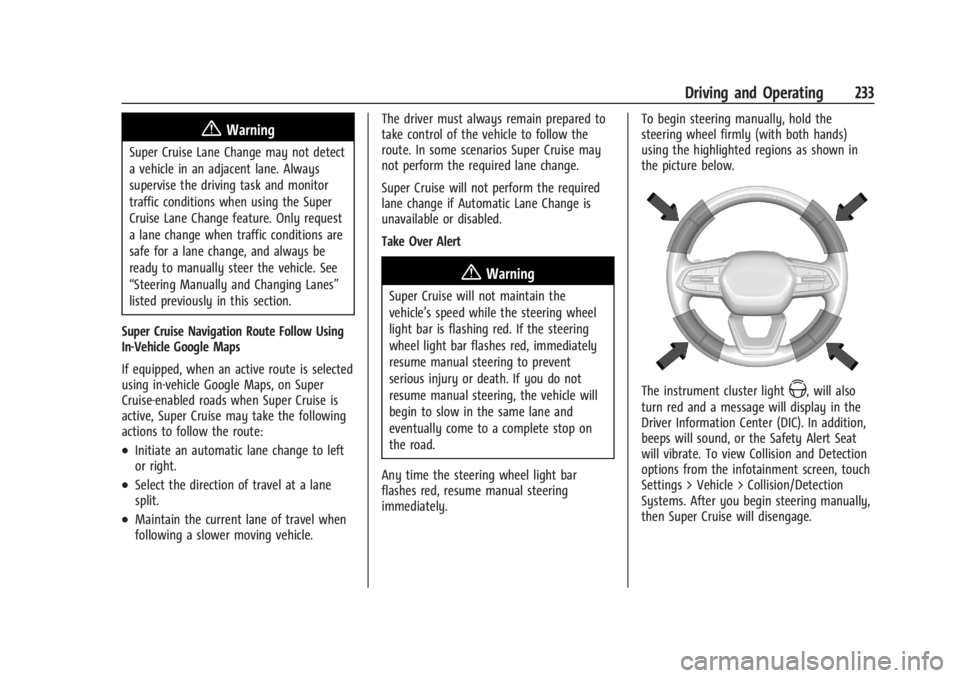
immediately. To begin steering manually, hold the
steering wheel firmly (with both hands)
using the highlighted regions as shown in
the picture below.
The instrument cluster lightZ, will also
turn red and a message will display in the
Driver Information Center (DIC). In addition,
beeps will sound, or the Safety Alert Seat
will vibrate. To view Collision and Detection
options from the infotainment screen, touch
Settings > Vehicle > Collision/Detection
Systems. After you begin steering manually,
then Super Cruise will disengage.
Page 272 of 429
Chevrolet Silverado EV Owner Manual (GMNA-Localizing-U.S./Canada-
16702912) - 2024 - CRC - 1/17/23
Driving and Operating 271
When the vehicle is in D (Drive), a bicyclist
can be detected 3 m (10 ft) behind the
vehicle or to the side of the vehicle.
Turning the Feature On or Off
Bicyclist Detection can be turned on or off
through vehicle settings. To view available
settings from the infotainment screen, touch
Settings > Vehicle > Collision/Detection
Systems.
Blind Zone Steering Assist (BZSA)
If equipped, the Blind Zone Steering Assist
(BZSA) system can detect a potential crash
with a moving vehicle in the lane you are
entering. It provides a brief, urgent turn of
the steering wheel to alert you to take
action to avoid a collision.
BZSA works with the Lane Keep Assist (LKA).
BZSA operates when the vehicle is in a
forward gear, and only when LKA is enabled
and able to assist. SeeLane Keep Assist
(LKA) 0274.
BZSA will provide a steering correction when
your vehicle is about to leave the current
lane of travel, with the possibility of a
collision with a vehicle in the adjacent lane.
This steering correction happens closer to
the center of the lane and has a stronger steering correction than LKA. Unlike LKA, the
steering correction with BSZA will happen
even if your turn signal is on in the
direction of lane departure.
In addition to the BZSA steering
intervention, the
Awill turn amber, six
beeps or six seat pulses will occur,
if equipped with Safety Alert Seat, and
8or|will flash on the outside
rear view mirror.
{Warning
Do not rely on Blind Zone Steering Assist
(BZSA) to prevent crashes. This system
does not replace the need to pay
attention and drive safely. Failure to use
proper care when driving may result in
vehicle damage, injury, or death.
.BZSA performance may be affected by
weather and road conditions.
.BZSA does not provide steering
assistance to avoid a vehicle that is in,
or has entered, your lane of travel.
.BZSA will not prevent a towed trailer
from crossing into the adjacent lane.
Always monitor the trailer position
(Continued)
Warning (Continued)
while towing to ensure it is in the
same lane as your vehicle. BZSA is
only designed to detect when your
vehicle unintentionally crosses
detected lane lines.
Traffic Sign Assistant
If equipped, Traffic Sign Assistant recognizes
designated traffic signs via the front camera
located behind the windshield in front of the
interior rear view mirror, and displays the
detected speed limit in the Driver
Information Center (DIC). Additionally, speed
limit information from the navigation
system map database may be used.
Caution
The system is intended to assist the
driver within a defined speed range to
discern certain traffic signs. Always pay
attention to posted speed limit signs.
Do not ignore traffic signs which are not
displayed by the system.
(Continued)
Page 273 of 429
Chevrolet Silverado EV Owner Manual (GMNA-Localizing-U.S./Canada-
16702912) - 2024 - CRC - 1/17/23
272 Driving and Operating
Caution (Continued)
The system does not discern any signs
other than the conventional traffic signs
that might give or end a speed limit.
It may not detect some electronic speed
signs.
Depending on the weather conditions or
problems with traffic signs, a traffic sign
may not be recognized or a sign different
from the actual traffic sign may be
displayed.
Do not let this special feature tempt you
into taking risks when driving.
Always adapt vehicle speed to the road
conditions.
Driver assistance systems do not relieve
the driver from full responsibility for
vehicle operation.
Traffic signs that are detected are:
.Speed Limit
.Constraint Signs
Display Indication
The currently detected speed limit is
displayed in the DIC until the next speed
limit or end of speed limit sign is detected.
Depending on the vehicle, the current valid
speed limit is permanently displayed on the
DIC or in the upper left of the instrument
cluster.
A (–) symbol in a frame indicates there is a
sign detected which cannot be clearly
identified by the system.
A (/) symbol in a frame indicates that the
feature is turned off or has failed.
See Driver Information Center (DIC) (Base
Level) 0129 or
Driver Information Center (DIC) (Uplevel)
0 130.
Alert Function
If equipped, a chime may sound when you
have exceeded the indicated speed limit,
or if a new speed limit is detected.
The alert function can be turned on or off.
To view available settings from the
infotainment screen, touch Settings >
Vehicle > Collision/Detection Systems. Each time the vehicle is started, the
customization options will be turned on.
Exceeding Indicated Speed Limit
If the indicated traffic sign speed limit is
exceeded by 5 km/h (3 mph) or more, the
permanently displayed traffic sign symbol
will flash until the vehicle speed is reduced
to or below the indicated speed limit.
System Reset
The content of the traffic sign display can
be cleared. To view available settings from
the infotainment screen, touch Settings >
Vehicle > Collision/Detection Systems.
Upon successful reset, a
(–)symbol displays
until the next traffic sign is detected or
provided by the navigation system map
data. In some cases, traffic sign memory is
cleared automatically by the system.
Alert function will automatically be turned
on when the system is reset.
See Driver Information Center (DIC) (Base
Level) 0129 or
Driver Information Center (DIC) (Uplevel)
0 130.
Page 274 of 429
Chevrolet Silverado EV Owner Manual (GMNA-Localizing-U.S./Canada-
16702912) - 2024 - CRC - 1/17/23
Driving and Operating 273
Navigation System Traffic Sign Detection
The currently displayed sign can either
originate from sign detection using the
camera, or from the navigation system map
data. If the currently displayed sign
originates from map data and the map
information changes, a new sign will be
displayed. This may lead to detection of a
new sign although no sign on the road may
have been passed. If the map data is
unavailable, Traffic Sign Assistant will turn
off automatically.
Limitations
Traffic sign memory may not operate
correctly if:
.The area of the windshield, where the
front camera is located, is not clean or is
affected by foreign objects, e.g. stickers,
window tinting, etc.
.Traffic signs are completely or partially
covered, are too low or high or difficult to
discern.
.Traffic signs are incorrectly mounted or
are damaged.
.Traffic signs do not comply with the
approved traffic sign standards.
.The speed limit is displayed by certain
types of electronic speed signs.
.There are adverse environmental
conditions, e.g. heavy rain, snow, direct
sunlight or shadows.
.The headlights are dirty or not correctly
aligned when driving at night.
.The navigation map data is out of date.
.The navigation map is unavailable.
Driver Attention Assist
If equipped, Driver Attention Assist alerts
the driver to pay closer attention to the
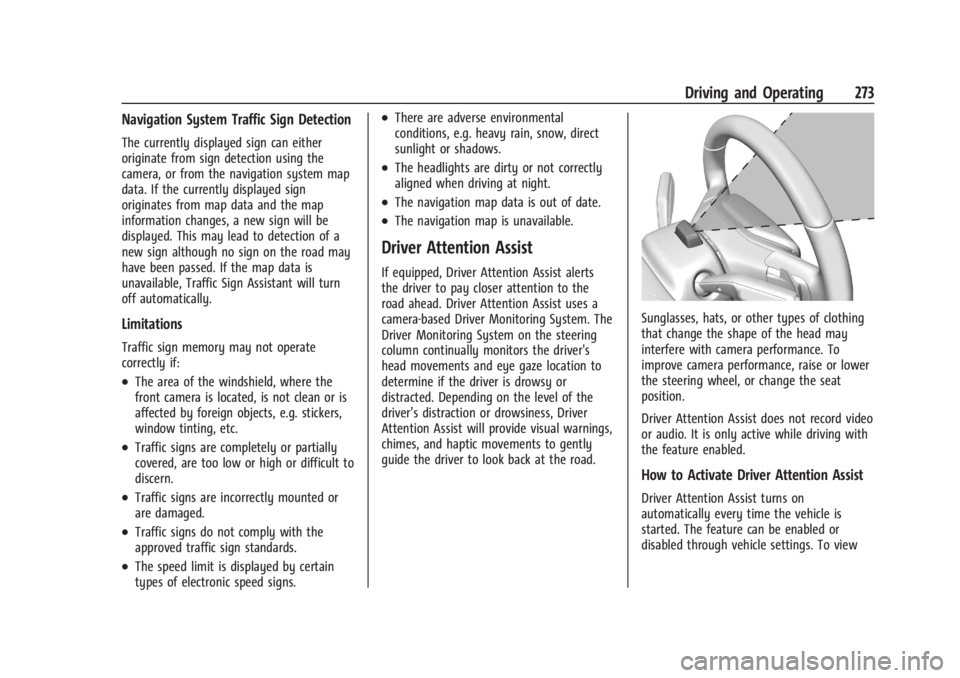
road ahead. Driver Attention Assist uses a
camera-based Driver Monitoring System. The
Driver Monitoring System on the steering
column continually monitors the driver's
head movements and eye gaze location to
determine if the driver is drowsy or
distracted. Depending on the level of the
driver’s distraction or drowsiness, Driver
Attention Assist will provide visual warnings,
chimes, and haptic movements to gently
guide the driver to look back at the road.
Sunglasses, hats, or other types of clothing
that change the shape of the head may
interfere with camera performance. To
improve camera performance, raise or lower
the steering wheel, or change the seat
position.
Driver Attention Assist does not record video
or audio. It is only active while driving with
the feature enabled.
How to Activate Driver Attention Assist
Driver Attention Assist turns on
automatically every time the vehicle is
started. The feature can be enabled or
disabled through vehicle settings. To view
Page 408 of 429
Chevrolet Silverado EV Owner Manual (GMNA-Localizing-U.S./Canada-
16702912) - 2024 - CRC - 1/13/23
Customer Information 407
OnStar
If the vehicle is equipped with OnStar and
has an active service plan, additional data
may be collected and transmitted through
the OnStar system. This includes information
about the vehicle’s operation; collisions
involving the vehicle; the use of the vehicle
and its features, including infotainment; and
the location and approximate GPS speed of
the vehicle. Refer to the OnStar Terms and
Conditions and Privacy Statement on the
OnStar website.
SeeOnStar Additional Information 0410.
Infotainment System
If the vehicle is equipped with a navigation
system as part of the infotainment system,
use of the system may result in the storage
of destinations, addresses, telephone
numbers, and other trip information. See the
infotainment section for information on
stored data and for deletion instructions.