park assist CHEVROLET SILVERADO EV 2024 User Guide
[x] Cancel search | Manufacturer: CHEVROLET, Model Year: 2024, Model line: SILVERADO EV, Model: CHEVROLET SILVERADO EV 2024Pages: 429, PDF Size: 8.98 MB
Page 181 of 429
Chevrolet Silverado EV Owner Manual (GMNA-Localizing-U.S./Canada-
16702912) - 2024 - CRC - 1/17/23
180 Driving and Operating
Driving and Operating
Driving Information
Driving for Better Energy Efficiency . . . . 181
Distracted Driving . . . . . . . . . . . . . . . . . . . . . 182
Defensive Driving . . . . . . . . . . . . . . . . . . . . . . 183
Impaired Driving . . . . . . . . . . . . . . . . . . . . . . . 183
Control of a Vehicle . . . . . . . . . . . . . . . . . . . 183
Braking . . . . . . . . . . . . . . . . . . . . . . . . . . . . . . . . 183
Steering . . . . . . . . . . . . . . . . . . . . . . . . . . . . . . . 184
Off-Road Recovery . . . . . . . . . . . . . . . . . . . . . 184
Loss of Control . . . . . . . . . . . . . . . . . . . . . . . . 185
Off-Road Driving . . . . . . . . . . . . . . . . . . . . . . . 185
Driving on Wet Roads . . . . . . . . . . . . . . . . . 189
Hill and Mountain Roads . . . . . . . . . . . . . . 190
Winter Driving . . . . . . . . . . . . . . . . . . . . . . . . . 191
If the Vehicle Is Stuck . . . . . . . . . . . . . . . . . 192
Vehicle Load Limits . . . . . . . . . . . . . . . . . . . . 193
Truck-Camper Loading Information . . . . . 197
Starting and Operating
New Vehicle Break-In . . . . . . . . . . . . . . . . . . 197
Power Modes . . . . . . . . . . . . . . . . . . . . . . . . . . 197
Shifting Into Park . . . . . . . . . . . . . . . . . . . . . 199
Shifting out of Park . . . . . . . . . . . . . . . . . . . 199
Electric Drive Unit
Electric Drive Unit . . . . . . . . . . . . . . . . . . . . . 200
One-Pedal Driving . . . . . . . . . . . . . . . . . . . . . 203
Drive Systems
Four-Wheel Drive . . . . . . . . . . . . . . . . . . . . . . 204
Brakes
Antilock Brake System (ABS) . . . . . . . . . . 204
Electric Parking Brake . . . . . . . . . . . . . . . . . 205
Brake Assist . . . . . . . . . . . . . . . . . . . . . . . . . . . 206
Hill Start Assist (HSA) . . . . . . . . . . . . . . . . . 206
Regenerative Braking . . . . . . . . . . . . . . . . . . 206
Ride Control Systems
Traction Control/Electronic StabilityControl . . . . . . . . . . . . . . . . . . . . . . . . . . . . . . 207
Driver Mode Control . . . . . . . . . . . . . . . . . . 209
Four-Wheel Steering . . . . . . . . . . . . . . . . . . . 210
Limited-Slip Differential . . . . . . . . . . . . . . . . 211
Air Suspension . . . . . . . . . . . . . . . . . . . . . . . . . 211
Cruise Control
Cruise Control . . . . . . . . . . . . . . . . . . . . . . . . . . 213
Speed Limiter . . . . . . . . . . . . . . . . . . . . . . . . . . 215
Adaptive Cruise Control (Advanced) . . . . 217
Super Cruise . . . . . . . . . . . . . . . . . . . . . . . . . . . 227
Advanced Driver Assistance Systems
Advanced Driver Assistance Systems . . . . . . . . . . . . . . . . . . . . . . . . . . . . . 244
Assistance Systems for Parking or Backing . . . . . . . . . . . . . . . . . . . . . . . . . . . . . . 246
Rear Vision Camera (RVC) . . . . . . . . . . . . . 246
Surround Vision System . . . . . . . . . . . . . . . 247 Park Assist . . . . . . . . . . . . . . . . . . . . . . . . . . . . 254
Automatic Parking Assist (APA) . . . . . . . . 255
Reverse Automatic Braking (RAB) . . . . . . 258
Rear Pedestrian Alert . . . . . . . . . . . . . . . . . . 259
Rear Cross Traffic Alert (RCTA)
System . . . . . . . . . . . . . . . . . . . . . . . . . . . . . . 260
Assistance Systems for Driving . . . . . . . . 261
Forward Collision Alert (FCA) System . . . . . . . . . . . . . . . . . . . . . . . . . . . . . . 261
Automatic Emergency Braking (AEB) . . . . . . . . . . . . . . . . . . . . . . . . 263
Front Pedestrian Braking (FPB) System . . . . . . . . . . . . . . . . . . . . . . . . . . . . . . 266
Side Blind Zone Alert (SBZA) . . . . . . . . . . 268
Lane Change Alert (LCA) . . . . . . . . . . . . . . . 269
Blind Zone Steering Assist (BZSA) . . . . . . 271
Traffic Sign Assistant . . . . . . . . . . . . . . . . . . 271
Driver Attention Assist . . . . . . . . . . . . . . . . . 273
Lane Keep Assist (LKA) . . . . . . . . . . . . . . . . 274
Surround Vision Recorder . . . . . . . . . . . . . . 276
Charging
When to Charge . . . . . . . . . . . . . . . . . . . . . . . 278
Plug-In Charging . . . . . . . . . . . . . . . . . . . . . . . 278
Delayed Charging Override . . . . . . . . . . . . 282
Charging Status Feedback . . . . . . . . . . . . . 283
Charge Cord . . . . . . . . . . . . . . . . . . . . . . . . . . . 286
Utility Interruption of Charging . . . . . . . 293
Electrical Requirements for Battery Charging . . . . . . . . . . . . . . . . . . . . . . . . . . . . . 293
Page 185 of 429
Chevrolet Silverado EV Owner Manual (GMNA-Localizing-U.S./Canada-
16702912) - 2024 - CRC - 1/17/23
184 Driving and Operating
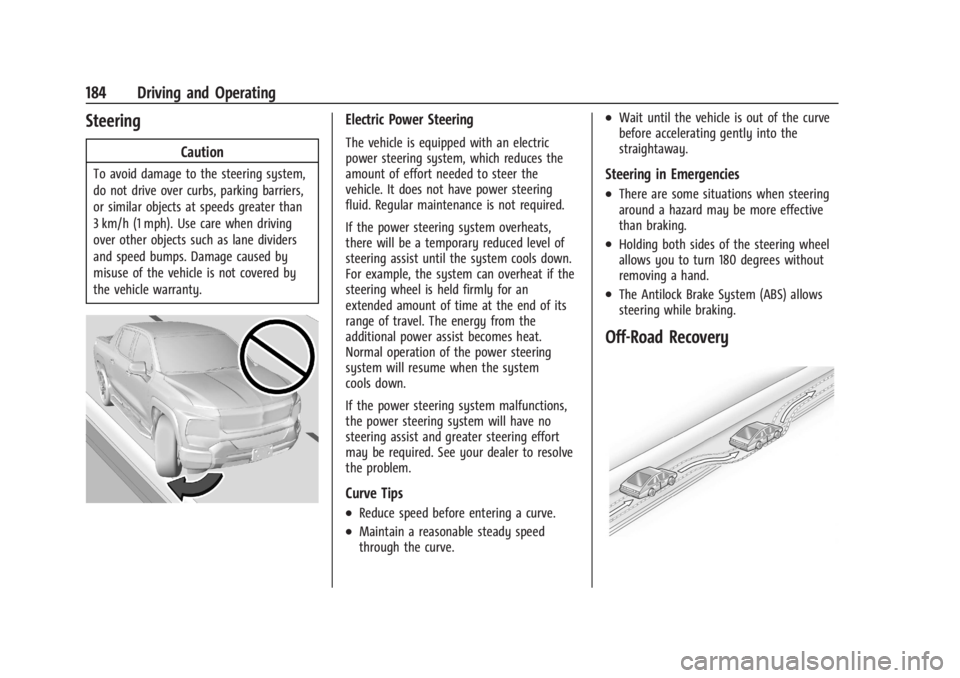
Steering
Caution
To avoid damage to the steering system,
do not drive over curbs, parking barriers,
or similar objects at speeds greater than
3 km/h (1 mph). Use care when driving
over other objects such as lane dividers
and speed bumps. Damage caused by
misuse of the vehicle is not covered by
the vehicle warranty.
Electric Power Steering
The vehicle is equipped with an electric
power steering system, which reduces the
amount of effort needed to steer the
vehicle. It does not have power steering
fluid. Regular maintenance is not required.
If the power steering system overheats,
there will be a temporary reduced level of
steering assist until the system cools down.
For example, the system can overheat if the
steering wheel is held firmly for an
extended amount of time at the end of its
range of travel. The energy from the
additional power assist becomes heat.
Normal operation of the power steering
system will resume when the system
cools down.
If the power steering system malfunctions,
the power steering system will have no
steering assist and greater steering effort
may be required. See your dealer to resolve
the problem.
Curve Tips
.Reduce speed before entering a curve.
.Maintain a reasonable steady speed
through the curve.
.Wait until the vehicle is out of the curve
before accelerating gently into the
straightaway.
Steering in Emergencies
.There are some situations when steering
around a hazard may be more effective
than braking.
.Holding both sides of the steering wheel
allows you to turn 180 degrees without
removing a hand.
.The Antilock Brake System (ABS) allows
steering while braking.
Off-Road Recovery
Page 190 of 429
Chevrolet Silverado EV Owner Manual (GMNA-Localizing-U.S./Canada-
16702912) - 2024 - CRC - 1/17/23
Driving and Operating 189
.After exiting the water, repeatedly and
gently apply the brakes to dry them off
and restore effectiveness.
If Something Goes Wrong
If during your off-road experience a warning
light or warning message displays on the
instrument cluster, or if the vehicle sustains
damage, stop driving as soon as it is safe to
do so. Correct the condition if possible
before continuing driving. If a warning light
or message appears, or if the condition
cannot be corrected, see your dealer. See
Vehicle Messages0135.
If the vehicle is operating with reduced
acceleration or reduced propulsion, stop
your off-road experience and drive slowly to
an accessible point for further assistance.
The vehicle should be taken to your dealer
for service as soon as possible. See
Propulsion Power Messages 0136 and
Propulsion Power is Limited Light 0115.
{Warning
A vehicle with driveline damage may roll
when shifted into P (Park). Always set
the Electric Parking Brake before
inspecting for driveline damage or when
(Continued)
Warning (Continued)
securing the vehicle on a flatbed tow
truck. SeeElectric Parking Brake 0205
and
Transporting a Disabled Vehicle 0378.
After Driving Your Vehicle Off-Road
Be sure to switch out of Off-Road Mode or
Terrain Mode to return to normal driving.
See Driver Mode Control 0209.
Remove any brush or debris that has
collected on the underbody or chassis,
or under the hood. Clean the lens of the
underbody camera. These accumulations can
be a fire hazard.
The extreme conditions of off-road driving
require more frequent maintenance service.
See "Severe Conditions Requiring More
Frequent Maintenance" and "Additional
Required Services —Severe Service" on
Maintenance Schedule 0389.
After operation in mud or sand, have the
brake linings cleaned and checked. These
substances can cause glazing and uneven
braking. Check the body structure, driveline, steering,
suspension, wheels, tires, and other vehicle
systems for damage, or have these
inspections done by your dealer.
{Warning
Lifting a vehicle and getting under it to
do maintenance or repairs is dangerous
without the appropriate safety equipment
and training. If a jack is provided with
the vehicle, it is designed only for
changing a flat tire. If it is used for
anything else, you or others could be
badly injured or killed if the vehicle slips
off the jack. If a jack is provided with the
vehicle, only use it for changing a
flat tire.
Driving on Wet Roads
Rain and wet roads can reduce vehicle
traction and affect your ability to stop and
accelerate. Always drive slower in these
types of driving conditions and avoid driving
through large puddles and deep-standing or
flowing water.
Page 199 of 429
Chevrolet Silverado EV Owner Manual (GMNA-Localizing-U.S./Canada-
16702912) - 2024 - CRC - 1/17/23
198 Driving and Operating
If the vehicle must be shut off in an
emergency:1. Brake using firm and steady pressure. Do not pump the brakes repeatedly. This
may deplete power assist, requiring
increased brake pedal force.
2. Shift the vehicle to N (Neutral). This can be done while the vehicle is moving.
After shifting to N (Neutral), firmly apply
the brakes and steer the vehicle to a
safe location.
3. Come to a complete stop, shift to P (Park), and turn the vehicle off.
4. Set the parking brake. See Electric
Parking Brake 0205.
{Warning
Turning off the vehicle while moving may
disable the airbags. While driving, only
shut the propulsion system off in an
emergency.
If a drive mode is entered where
fis
present while moving, the vehicle can be
shut off while driving. Press
fand follow
the instructions displayed in the Driver
Information Center (DIC) to confirm that
vehicle off mode is desired. Climate control functions, such as defrost,
heating, and air conditioning are only
available while the vehicle is powered on.
Turning the vehicle off will turn off all
climate controls.
If a collision is detected an additional
emergency vehicle off display will be shown
and can be pressed to turn the vehicle off.
Keeping Vehicle On After Driver Exit
{Warning
It is dangerous to get out of the vehicle
if the P (Park) button is not pressed with
the parking brake set. The vehicle
can roll.
Do not leave the vehicle when the
propulsion system is running. If you have
left the propulsion system running, the
vehicle can move suddenly. You or others
could be injured. To be sure the vehicle
will not move, even when you are on
fairly level ground, always set the
parking brake and press the P (Park)
button.
Press
gon the infotainment display to
keep the vehicle on after a driver exit is
detected.
gneeds to be selected each
time the vehicle is shifted to P (Park) to be
active. The vehicle will remain on for a set
time displayed in a notification upon
activation.
gcan be reselected to restart
the time interval.
Before exiting the vehicle, press the P (Park)
button and the Electric Parking Brake (EPB)
switch, then activate
g. See Shifting Into
Park 0199.
Using
gwill reduce the charge level of
the high voltage battery. Ensure your
battery has sufficient charge before
activating
g. See Battery Gauge (High
Voltage) 0110.
gshould only be used when the vehicle
is attended. A horn chirp will sound if the
vehicle turns off during the set time
interval.
Page 207 of 429
Chevrolet Silverado EV Owner Manual (GMNA-Localizing-U.S./Canada-
16702912) - 2024 - CRC - 1/17/23
206 Driving and Operating
3. Press the EPB switch.
The EPB is released when the red parking
brake status light is off.
If the amber service EPB warning light is on,
release the EPB by pressing and holding the
EPB switch. Continue to hold the switch
until the red parking brake status light is
off. If either light stays on after release is
attempted, see your dealer.
Caution
Driving with the parking brake on can
overheat the brake system and cause
premature wear or damage to brake
system parts. Make sure that the parking
brake is fully released and the brake
warning light is off before driving.
If you are towing a trailer and parking on a
hill, see Driving Characteristics and Towing
Tips 0294.
Automatic EPB Release
The EPB automatically releases if the vehicle
is running, placed into gear, and an attempt
is made to drive away. Avoid rapid
acceleration when the EPB is applied, to
preserve parking brake lining life.
Brake Assist
Brake Assist detects rapid brake pedal
applications due to emergency braking
situations and provides additional braking to
activate the Antilock Brake System (ABS) if
the brake pedal is not pushed hard enough
to activate ABS normally. Minor noise, brake
pedal pulsation, and/or pedal movement
during this time may occur. Continue to
apply the brake pedal as the driving
situation dictates. Brake Assist disengages
when the brake pedal is released.
Hill Start Assist (HSA)
{Warning
Do not rely on the HSA feature. HSA does
not replace the need to pay attention
and drive safely. You may not hear or
feel alerts or warnings provided by this
system. Failure to use proper care when
driving may result in injury, death,
or vehicle damage. See Defensive Driving
0 183.
When the vehicle is stopped on a grade, Hill
Start Assist (HSA) prevents the vehicle from
rolling in an unintended direction during the
transition from brake pedal release to accelerator pedal apply. The brakes release
when the accelerator pedal is applied. If the
accelerator pedal is not applied within a few
minutes, the Electric Parking Brake will
apply. The brakes may also release under
other conditions. Do not rely on HSA to hold
the vehicle.
HSA is available when the vehicle is facing
uphill in a forward gear, or when facing
downhill in R (Reverse). The vehicle must
come to a complete stop on a grade for HSA
to activate.
Regenerative Braking
Regenerative braking takes some of the
energy from the moving vehicle and turns it
back into electrical energy. This energy is
then stored back into the high voltage
battery system, contributing to increased
energy efficiency.
Regenerative power may be limited when
the battery is near full charge or cold. See
“Regenerative Power Limited”
underPower
Indicator Gauge 0111. Regenerative braking
supplements your vehicle’s conventional
brakes, especially when going downhill. See
Hill and Mountain Roads 0190.
Page 209 of 429
Chevrolet Silverado EV Owner Manual (GMNA-Localizing-U.S./Canada-
16702912) - 2024 - CRC - 1/17/23
208 Driving and Operating
ESC activates when the vehicle senses a
difference between the intended path and
the direction the vehicle is actually traveling.
ESC selectively applies braking pressure to
one or more of the vehicle wheel brakes to
assist the driver in keeping the vehicle on
the intended path. Trailer Sway Control
(TSC) is also on automatically when the
vehicle is started. SeeTrailer Sway Control
(TSC) 0309.
If cruise control is being used and traction
control or ESC begins to limit wheel spin,
cruise control will disengage. Cruise control
may be turned back on when road
conditions allow.
Both systems come on automatically when
the vehicle is started and begins to move.
The systems may be heard or felt while
they are operating or while performing
diagnostic checks. This is normal and does
not mean there is a problem with the
vehicle.
It is recommended to leave both systems on
for normal driving conditions, but it may be
necessary to turn TCS off if the vehicle gets
stuck in sand, mud, ice, or snow. See If the
Vehicle Is Stuck 0192 and “Turning the
Systems Off and On” later in this section.
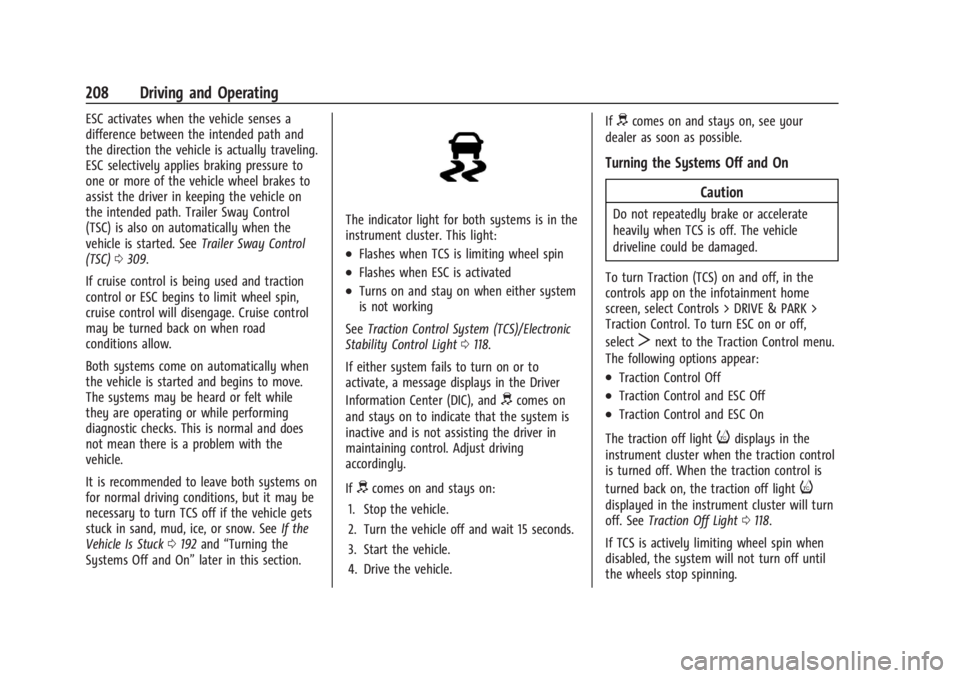
The indicator light for both systems is in the
instrument cluster. This light:
.Flashes when TCS is limiting wheel spin
.Flashes when ESC is activated
.Turns on and stay on when either system
is not working
See Traction Control System (TCS)/Electronic
Stability Control Light 0118.
If either system fails to turn on or to
activate, a message displays in the Driver
Information Center (DIC), and
dcomes on
and stays on to indicate that the system is
inactive and is not assisting the driver in
maintaining control. Adjust driving
accordingly.
If
dcomes on and stays on:
1. Stop the vehicle.
2. Turn the vehicle off and wait 15 seconds.
3. Start the vehicle.
4. Drive the vehicle. If
dcomes on and stays on, see your
dealer as soon as possible.
Turning the Systems Off and On
Caution
Do not repeatedly brake or accelerate
heavily when TCS is off. The vehicle
driveline could be damaged.
To turn Traction (TCS) on and off, in the
controls app on the infotainment home
screen, select Controls > DRIVE & PARK >
Traction Control. To turn ESC on or off,
select
Tnext to the Traction Control menu.
The following options appear:
.Traction Control Off
.Traction Control and ESC Off
.Traction Control and ESC On
The traction off light
idisplays in the
instrument cluster when the traction control
is turned off. When the traction control is
turned back on, the traction off light
i
displayed in the instrument cluster will turn
off. See Traction Off Light 0118.
If TCS is actively limiting wheel spin when
disabled, the system will not turn off until
the wheels stop spinning.
Page 245 of 429
Chevrolet Silverado EV Owner Manual (GMNA-Localizing-U.S./Canada-
16702912) - 2024 - CRC - 1/17/23
244 Driving and Operating
Map Updates
Super Cruise map information must be
periodically updated at least once every
seven months to determine whether Super
Cruise is available on certain roads. Turn on
the vehicle’s built-in Wi-Fi hotspot to receive
automatic updates via OnStar, or see your
dealer.
Disabling the vehicle's Wi-Fi, Share Hotspot
Data, or Location Services will disable
automatic map updates. Super Cruise will
stop functioning after seven months or less,
depending on the time of the last map
update.
Data Download
If the vehicle is equipped with OnStar and
has an active service plan, additional data
may be collected through the OnStar
system. This includes information about: the
vehicle’s operation; a crash involving the
vehicle; the use of the vehicle and its
features; and, in certain situations, the
location and approximate GPS speed of the
vehicle. Refer to the OnStar Terms and
Conditions and Privacy Statement on the
OnStar website.Location Services
This setting enables or disables sharing of
vehicle location outside the vehicle for
certain purposes. Even if the Location
Services setting is disabled, vehicle location
information will continue to be shared for
emergency services and Super Cruise.
System Care
The camera on the steering column has a
lens cover that may become dirty over time
and affect camera performance. Clean the
lens cover with a soft cloth sprayed with
glass cleaner. Wipe the lens gently, then dry
it. Never use abrasive cloths/cleaners or
corrosive chemicals of any kind on the lens
cover.
Super Cruise uses the front radar, front
camera, and 360 degree cameras for its
operation. Clean surfaces are required for
Super Cruise operation. See
Adaptive Cruise
Control (Advanced) 0217, “Surround Vision
Camera” underAssistance Systems for
Parking or Backing 0246, and Lane Keep
Assist (LKA) 0274 for care information.Caution
The Super Cruise system is a highly
sophisticated system and should only be
serviced by technicians with the proper
training, tools, and safety instructions,
which your dealer has. Without proper
training and tools the vehicle may
become damaged.
Advanced Driver Assistance
Systems
This vehicle may have features that work
together to help avoid crashes or reduce
crash damage while driving, backing, and
parking. Read this entire section before
using these systems.
{Warning
Do not rely on the Driver Assistance
Systems. These systems do not replace
the need for paying attention and driving
safely. You may not hear or feel alerts or
warnings provided by these systems.
Failure to use proper care when driving
may result in injury, death, or vehicle
damage. See Defensive Driving 0183.
(Continued)
Page 247 of 429
Chevrolet Silverado EV Owner Manual (GMNA-Localizing-U.S./Canada-
16702912) - 2024 - CRC - 1/17/23
246 Driving and Operating
.Front side and rear side panels
.Outside of the windshield in front of the
rearview mirror
.Side camera lens on the bottom of the
outside mirrors
.Rear side corner bumpers
.Rear Vision Camera in the tailgate handle
.Rear Camera Mirror and Cargo View
Camera in the Center High-Mounted
Stoplamp
Radio Frequency
This vehicle may be equipped with driver
assistance systems that operate using radio
frequency. See Radio Frequency Statement
0 404.
Assistance Systems for Parking or
Backing
The Rear Vision Camera (RVC), Surround
Vision, Rear Park Assist (RPA), Front and Rear
Park Assist (FRPA), and Rear Cross Traffic
Alert (RCTA) may help the driver park or
avoid objects. Always check around the
vehicle when parking or backing.
Rear Vision Camera (RVC)
When the vehicle is shifted into R (Reverse),
the Rear Vision Camera (RVC) displays an
image of the area behind the vehicle in the
infotainment display. The previous screen
displays when the vehicle is shifted out of
R (Reverse) after a short delay. To return to
the previous screen sooner, press Home or
Back on the infotainment system, shift into
P (Park), or reach a vehicle speed of
approximately 12 km/h (8 mph) while in
D (Drive).
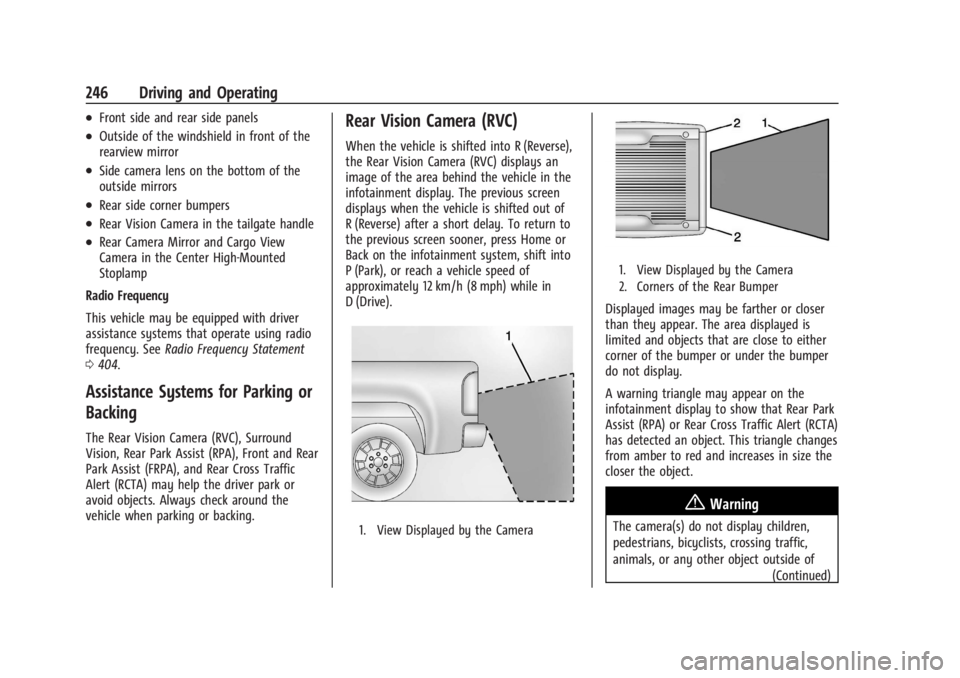
1. View Displayed by the Camera
1. View Displayed by the Camera
2. Corners of the Rear Bumper
Displayed images may be farther or closer
than they appear. The area displayed is
limited and objects that are close to either
corner of the bumper or under the bumper
do not display.
A warning triangle may appear on the
infotainment display to show that Rear Park
Assist (RPA) or Rear Cross Traffic Alert (RCTA)
has detected an object. This triangle changes
from amber to red and increases in size the
closer the object.
{Warning
The camera(s) do not display children,
pedestrians, bicyclists, crossing traffic,
animals, or any other object outside of
(Continued)
Page 249 of 429
Chevrolet Silverado EV Owner Manual (GMNA-Localizing-U.S./Canada-
16702912) - 2024 - CRC - 1/17/23
248 Driving and Operating
Touch the camera view icons along the
bottom of the infotainment display to
access each view:
1. Front/Rear Standard View
Displays an image of the area in front
or behind the vehicle. To select, touch
Front/Rear Standard View on the
infotainment display when a camera
view is active.
When the hitch guidance is selected,
Rear Standard View will remain visible
across gear changes, otherwise the
view will toggle between Front and
Rear Standard View based on gear
position.
The front view camera also displays
when the Park Assist system detects
an object within 30 cm (12 in).
To access this view when in a forward
gear above 12 km/h (8 mph), select
CAMERA on the infotainment display
and select Rear Standard View. The
view will close after eight seconds and
can be closed early by selecting X,
Home, or Back.
2. Front/Rear Top-Down View
Displays a front or rear overhead view
of the vehicle. To view, select
Front/Rear Top-Down View on the
infotainment display when the camera
app is active.
3. Front/Rear Side View
Displays a view that shows objects
next to the front or rear sides of the
vehicle. To select, touch Front/Rear
Side View on the infotainment display
when a camera view is active. Touch
the button to toggle between front
and rear camera views. Park Assist and
Rear Cross Traffic Alert (RCTA) overlays
are not available when Front/Rear Side
View is active.
4. Hitch View
Displays a zoomed-in view of the hitch
area to assist with aligning the
vehicle’s hitch ball with the trailer
coupler and monitoring the trailer
connection. To view, select Hitch View
on the infotainment display when the
camera app is active. To access this
view when in a forward gear above
12 km/h (8 mph), select CAMERA on
the infotainment display and select
Hitch View. The view will close aftereight seconds and can be closed early
by selecting X, Home, or Back. Shifting
into P (Park) while in this view will
automatically engage the Electric
Parking Brake (EPB).
5. Surround View
Displays an image of the area
surrounding the vehicle. Surround
View is displayed alongside the
currently selected view when below
12 km/h (8 mph). Surround View is
disabled when above 12 km/h (8 mph).
6. Camera App Guidance Lines
The camera app supports three
possible guidance modes: No
Guidance, Vehicle Guidance, and
Trailering Guidance. To change
guidance mode, select the appropriate
guidance icon. Depending on the
guidance mode and view selected,
different guidance lines may appear.
A grayed-out icon indicates that
guidance lines are not available.
Certain views do not support guidance
lines.
.Standard Guidance Lines are
available in Front/Rear Standard
Views, Front/Rear Top-Down Views,
and Surround View when the
Page 250 of 429
Chevrolet Silverado EV Owner Manual (GMNA-Localizing-U.S./Canada-
16702912) - 2024 - CRC - 1/17/23
Driving and Operating 249
Vehicle Guidance mode is selected.
Standard Guidance Lines show
current and intended vehicle path.
.Hitch Guidance Line is available in
Rear Standard View when the
Trailering Guidance mode is
selected. Hitch Guidance displays a
single centered guidance line on
the infotainment display to assist
with aligning the vehicle’s hitch
with a trailer coupler. Align the
Hitch Guidance Line with the
trailer coupler by continuously
steering the vehicle to keep the
guidance line centered on the
coupler when backing. Park Assist
overlays will not display when the
Hitch Guidance Line is active.
.Rear Trailer Guidance Lines are
available in the Rear Trailer View
when the Trailering Guidance
mode is selected and the rear
trailer camera calibration has been
successfully completed. Rear Trailer
Guidance Lines show the intended
path (yellow) and the current path
(blue) of the trailer. The current
path guidance lines will converge
with the intended path guidance
lines.
7. Camera App Guidance Lines
8. Transparent Trailer View
Displays a view that allows the driver
to virtually“see through” the trailer.
The feature is available when a
compatible trailer is connected, a valid
profile is selected and the vehicle is
not in R (Reverse). The feature
requires user installation of an
accessory trailer camera on the rear
exterior surface of the trailer per the
accessory trailer camera installation
instructions. See your dealer for
accessory trailer camera(s) and
information. To view, select
Transparent Trailer View on the
infotainment display when the camera
app is active. To access this view
when in a forward gear above
12 km/h (8 mph), select CAMERA on
the infotainment display and select
Transparent Trailer View. The view will
close after eight seconds and can be
closed early by selecting X, Home,
or Back.
To calibrate the system, a minimum
clearance of 61 cm (24 in) is required. When the system is calibrated and
trailer position is known, one of three
views will be shown; Transparent
Trailer View, Left Transparent Trailer
View, or Right Transparent Trailer
View. The Transparent Trailer View is
shown when the position of the trailer
is relatively straight behind the
vehicle. The Left or Right Transparent
Trailer view is shown when the
position of the trailer is too far to the
left or right. When the system is not
calibrated or trailer position is not
known, the Transparent Trailer
Picture-in-Picture View will be shown.
9. Rear Trailer Views
.Rear Trailer View
Displays a view of the area behind
the trailer when a trailer is
connected. The feature requires
user installation of an accessory
trailer camera on the rear exterior
surface of the trailer per the
accessory trailer camera
installation instructions. See your
dealer for accessory trailer
camera(s) and information. To
view, select Rear Trailer View on
the infotainment display when the
camera app is active. To access this