ad blue CHEVROLET SILVERADO EV 2024 Owner's Manual
[x] Cancel search | Manufacturer: CHEVROLET, Model Year: 2024, Model line: SILVERADO EV, Model: CHEVROLET SILVERADO EV 2024Pages: 429, PDF Size: 8.98 MB
Page 237 of 429
Chevrolet Silverado EV Owner Manual (GMNA-Localizing-U.S./Canada-
16702912) - 2024 - CRC - 1/17/23
236 Driving and Operating
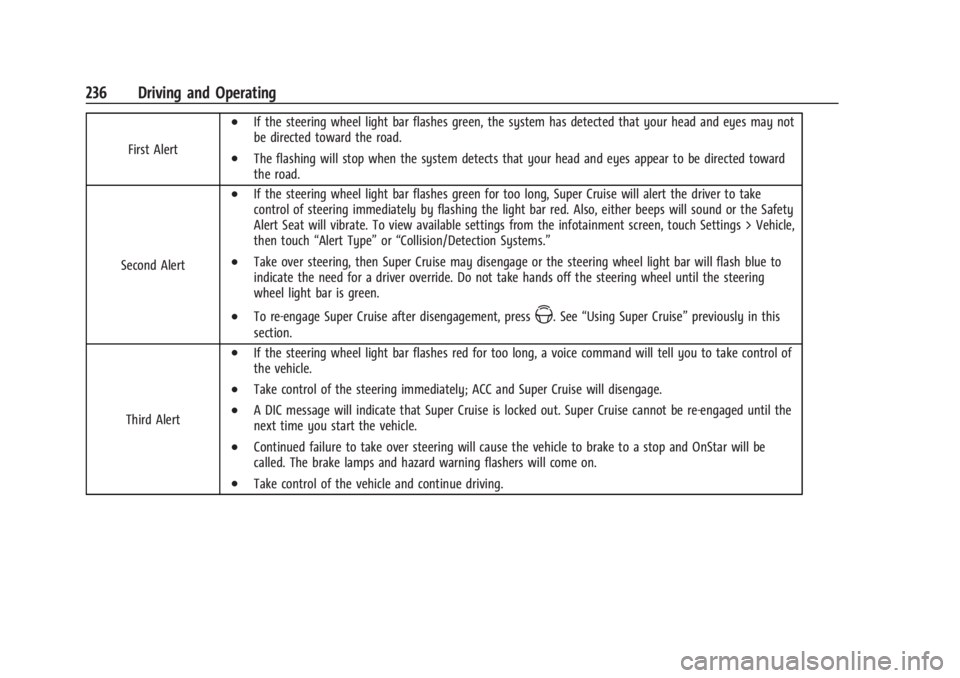
First Alert
.If the steering wheel light bar flashes green, the system has detected that your head and eyes may not
be directed toward the road.
.The flashing will stop when the system detects that your head and eyes appear to be directed toward
the road.
Second Alert
.If the steering wheel light bar flashes green for too long, Super Cruise will alert the driver to take
control of steering immediately by flashing the light bar red. Also, either beeps will sound or the Safety
Alert Seat will vibrate. To view available settings from the infotainment screen, touch Settings > Vehicle,
then touch “Alert Type” or“Collision/Detection Systems.”
.Take over steering, then Super Cruise may disengage or the steering wheel light bar will flash blue to
indicate the need for a driver override. Do not take hands off the steering wheel until the steering
wheel light bar is green.
.To re-engage Super Cruise after disengagement, pressZ. See “Using Super Cruise” previously in this
section.
Third Alert
.If the steering wheel light bar flashes red for too long, a voice command will tell you to take control of
the vehicle.
.Take control of the steering immediately; ACC and Super Cruise will disengage.
.A DIC message will indicate that Super Cruise is locked out. Super Cruise cannot be re-engaged until the
next time you start the vehicle.
.Continued failure to take over steering will cause the vehicle to brake to a stop and OnStar will be
called. The brake lamps and hazard warning flashers will come on.
.Take control of the vehicle and continue driving.
Page 240 of 429
Chevrolet Silverado EV Owner Manual (GMNA-Localizing-U.S./Canada-
16702912) - 2024 - CRC - 1/17/23
Driving and Operating 239
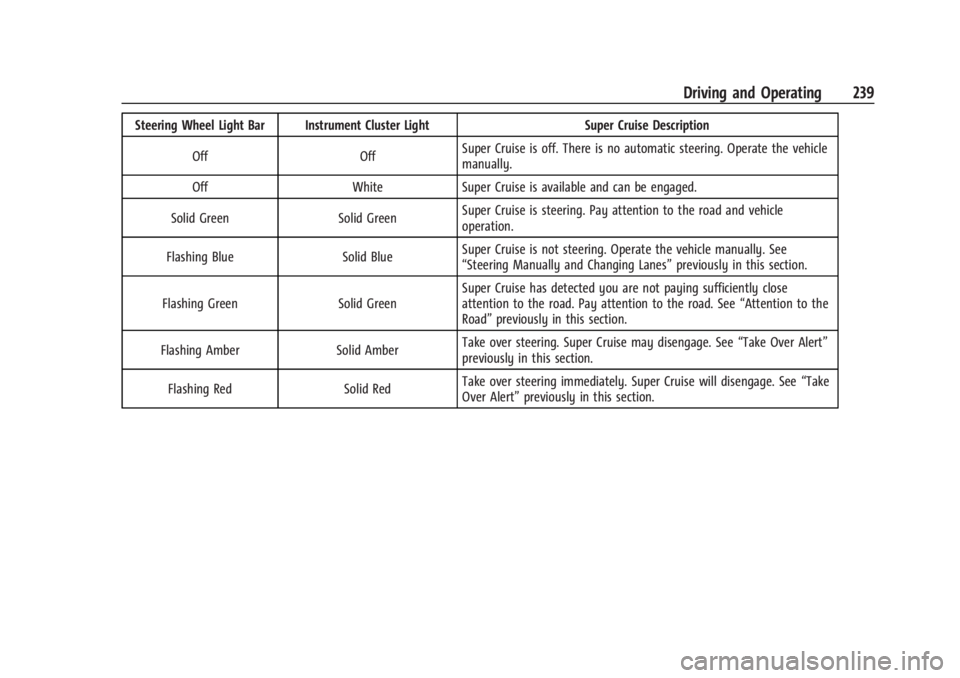
Steering Wheel Light Bar Instrument Cluster LightSuper Cruise Description
Off OffSuper Cruise is off. There is no automatic steering. Operate the vehicle
manually.
Off WhiteSuper Cruise is available and can be engaged.
Solid Green Solid GreenSuper Cruise is steering. Pay attention to the road and vehicle
operation.
Flashing Blue Solid BlueSuper Cruise is not steering. Operate the vehicle manually. See
“Steering Manually and Changing Lanes”
previously in this section.
Flashing Green Solid GreenSuper Cruise has detected you are not paying sufficiently close
attention to the road. Pay attention to the road. See
“Attention to the
Road” previously in this section.
Flashing Amber Solid AmberTake over steering. Super Cruise may disengage. See
“Take Over Alert”
previously in this section.
Flashing Red Solid RedTake over steering immediately. Super Cruise will disengage. See
“Take
Over Alert” previously in this section.
Page 242 of 429
Chevrolet Silverado EV Owner Manual (GMNA-Localizing-U.S./Canada-
16702912) - 2024 - CRC - 1/17/23
Driving and Operating 241
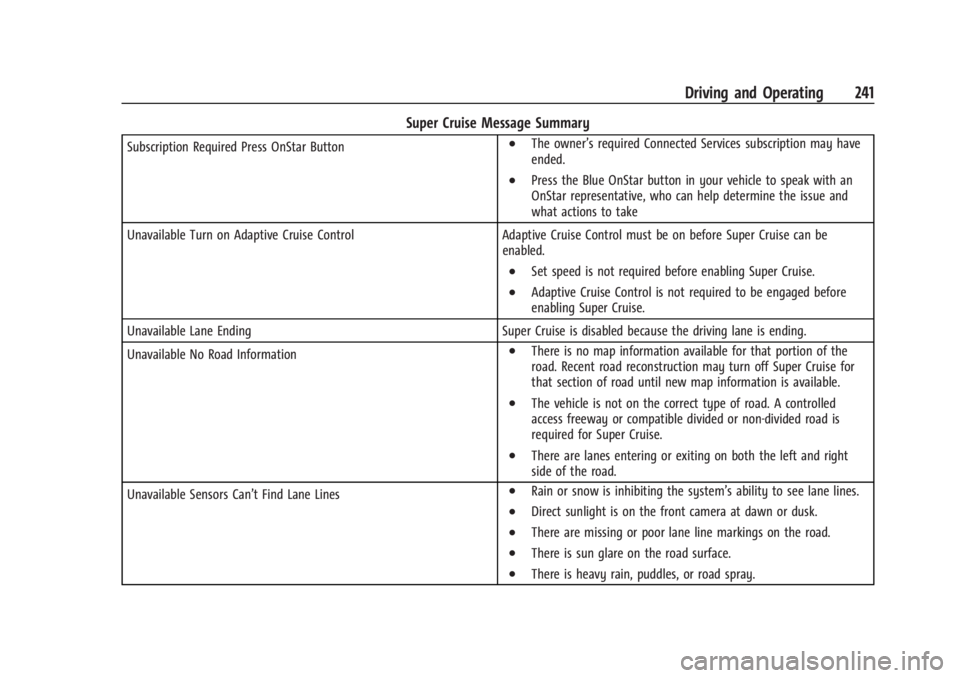
Super Cruise Message Summary
Subscription Required Press OnStar Button.The owner’s required Connected Services subscription may have
ended.
.Press the Blue OnStar button in your vehicle to speak with an
OnStar representative, who can help determine the issue and
what actions to take
Unavailable Turn on Adaptive Cruise Control Adaptive Cruise Control must be on before Super Cruise can be
enabled.
.Set speed is not required before enabling Super Cruise.
.Adaptive Cruise Control is not required to be engaged before
enabling Super Cruise.
Unavailable Lane Ending Super Cruise is disabled because the driving lane is ending.
Unavailable No Road Information
.There is no map information available for that portion of the
road. Recent road reconstruction may turn off Super Cruise for
that section of road until new map information is available.
.The vehicle is not on the correct type of road. A controlled
access freeway or compatible divided or non-divided road is
required for Super Cruise.
.There are lanes entering or exiting on both the left and right
side of the road.
Unavailable Sensors Can’t Find Lane Lines
.Rain or snow is inhibiting the system’s ability to see lane lines.
.Direct sunlight is on the front camera at dawn or dusk.
.There are missing or poor lane line markings on the road.
.There is sun glare on the road surface.
.There is heavy rain, puddles, or road spray.
Page 250 of 429
Chevrolet Silverado EV Owner Manual (GMNA-Localizing-U.S./Canada-
16702912) - 2024 - CRC - 1/17/23
Driving and Operating 249
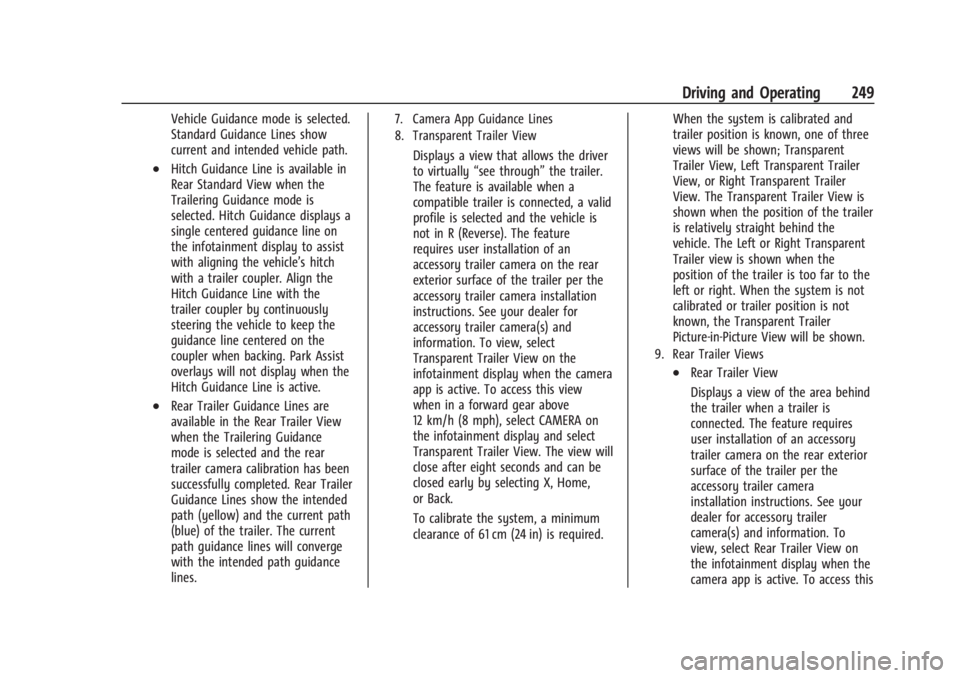
Vehicle Guidance mode is selected.
Standard Guidance Lines show
current and intended vehicle path.
.Hitch Guidance Line is available in
Rear Standard View when the
Trailering Guidance mode is
selected. Hitch Guidance displays a
single centered guidance line on
the infotainment display to assist
with aligning the vehicle’s hitch
with a trailer coupler. Align the
Hitch Guidance Line with the
trailer coupler by continuously
steering the vehicle to keep the
guidance line centered on the
coupler when backing. Park Assist
overlays will not display when the
Hitch Guidance Line is active.
.Rear Trailer Guidance Lines are
available in the Rear Trailer View
when the Trailering Guidance
mode is selected and the rear
trailer camera calibration has been
successfully completed. Rear Trailer
Guidance Lines show the intended
path (yellow) and the current path
(blue) of the trailer. The current
path guidance lines will converge
with the intended path guidance
lines.
7. Camera App Guidance Lines
8. Transparent Trailer View
Displays a view that allows the driver
to virtually“see through” the trailer.
The feature is available when a
compatible trailer is connected, a valid
profile is selected and the vehicle is
not in R (Reverse). The feature
requires user installation of an
accessory trailer camera on the rear
exterior surface of the trailer per the
accessory trailer camera installation
instructions. See your dealer for
accessory trailer camera(s) and
information. To view, select
Transparent Trailer View on the
infotainment display when the camera
app is active. To access this view
when in a forward gear above
12 km/h (8 mph), select CAMERA on
the infotainment display and select
Transparent Trailer View. The view will
close after eight seconds and can be
closed early by selecting X, Home,
or Back.
To calibrate the system, a minimum
clearance of 61 cm (24 in) is required. When the system is calibrated and
trailer position is known, one of three
views will be shown; Transparent
Trailer View, Left Transparent Trailer
View, or Right Transparent Trailer
View. The Transparent Trailer View is
shown when the position of the trailer
is relatively straight behind the
vehicle. The Left or Right Transparent
Trailer view is shown when the
position of the trailer is too far to the
left or right. When the system is not
calibrated or trailer position is not
known, the Transparent Trailer
Picture-in-Picture View will be shown.
9. Rear Trailer Views
.Rear Trailer View
Displays a view of the area behind
the trailer when a trailer is
connected. The feature requires
user installation of an accessory
trailer camera on the rear exterior
surface of the trailer per the
accessory trailer camera
installation instructions. See your
dealer for accessory trailer
camera(s) and information. To
view, select Rear Trailer View on
the infotainment display when the
camera app is active. To access this
Page 284 of 429
Chevrolet Silverado EV Owner Manual (GMNA-Localizing-U.S./Canada-
16702912) - 2024 - CRC - 1/17/23
Driving and Operating 283
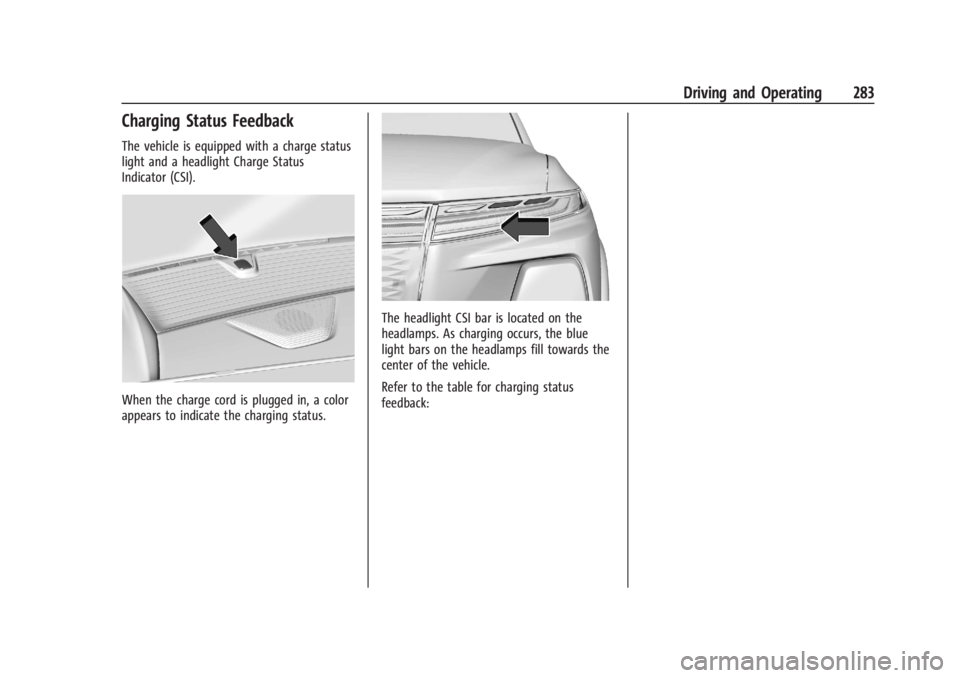
Charging Status Feedback
The vehicle is equipped with a charge status
light and a headlight Charge Status
Indicator (CSI).
When the charge cord is plugged in, a color
appears to indicate the charging status.
The headlight CSI bar is located on the
headlamps. As charging occurs, the blue
light bars on the headlamps fill towards the
center of the vehicle.
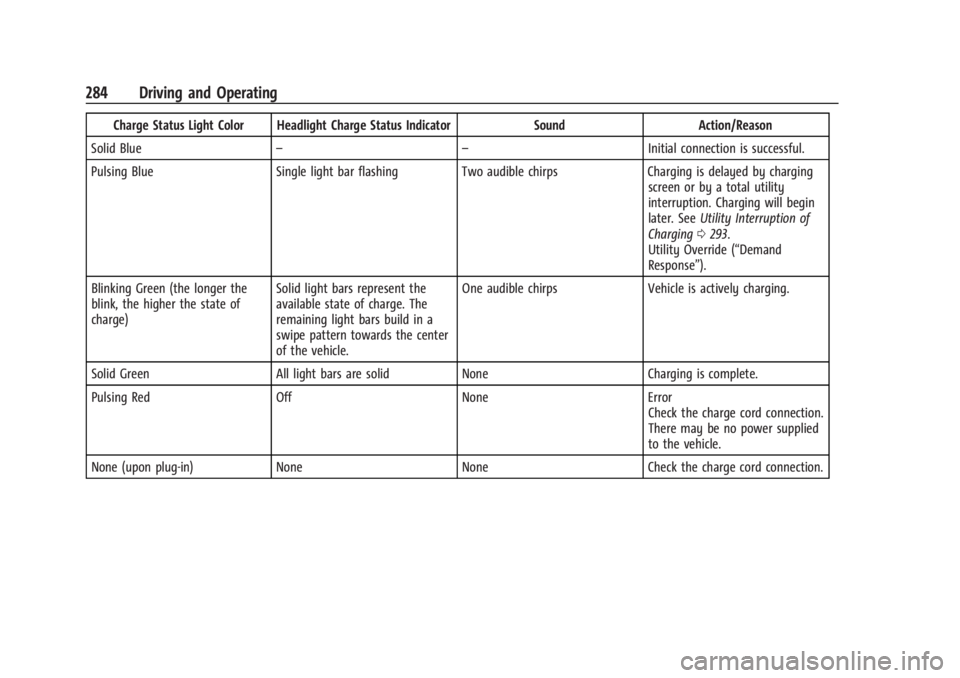
Refer to the table for charging status
feedback:
Page 285 of 429
Chevrolet Silverado EV Owner Manual (GMNA-Localizing-U.S./Canada-
16702912) - 2024 - CRC - 1/17/23
284 Driving and Operating
Charge Status Light Color Headlight Charge Status IndicatorSoundAction/Reason
Solid Blue – – Initial connection is successful.
Pulsing Blue Single light bar flashing Two audible chirps Charging is delayed by charging
screen or by a total utility
interruption. Charging will begin
later. See Utility Interruption of
Charging 0293.
Utility Override (“Demand
Response”).
Blinking Green (the longer the
blink, the higher the state of
charge) Solid light bars represent the
available state of charge. The
remaining light bars build in a
swipe pattern towards the center
of the vehicle. One audible chirps
Vehicle is actively charging.
Solid Green All light bars are solid None Charging is complete.
Pulsing Red Off NoneError
Check the charge cord connection.
There may be no power supplied
to the vehicle.
None (upon plug-in) None NoneCheck the charge cord connection.
Page 286 of 429
Chevrolet Silverado EV Owner Manual (GMNA-Localizing-U.S./Canada-
16702912) - 2024 - CRC - 1/17/23
Driving and Operating 285
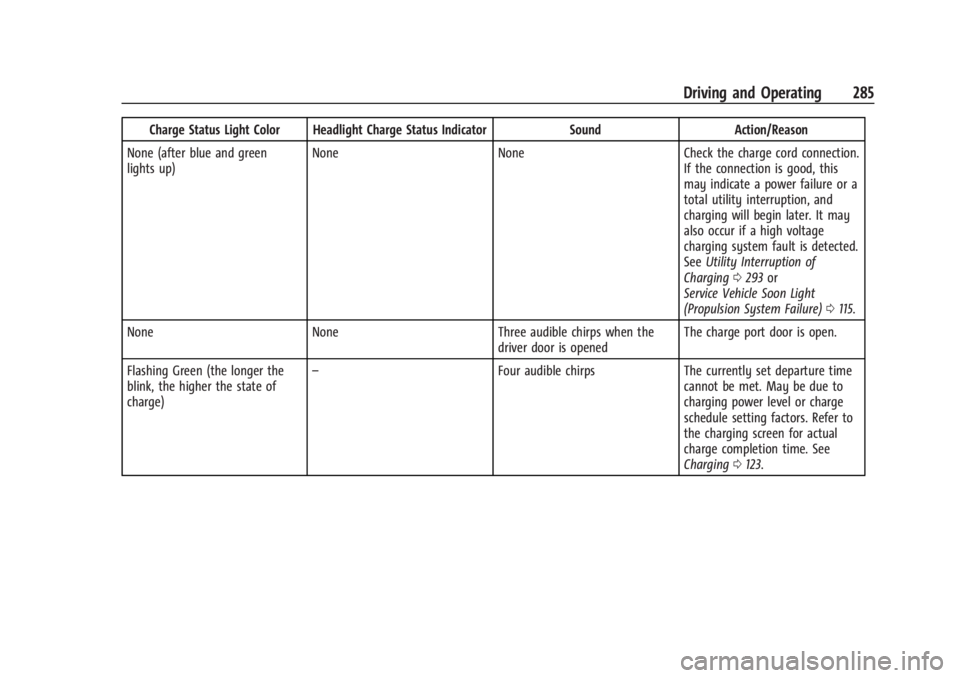
Charge Status Light Color Headlight Charge Status IndicatorSoundAction/Reason
None (after blue and green
lights up) None
NoneCheck the charge cord connection.
If the connection is good, this
may indicate a power failure or a
total utility interruption, and
charging will begin later. It may
also occur if a high voltage
charging system fault is detected.
See Utility Interruption of
Charging 0293 or
Service Vehicle Soon Light
(Propulsion System Failure) 0115.
None None Three audible chirps when the
driver door is opened The charge port door is open.
Flashing Green (the longer the
blink, the higher the state of
charge) –
Four audible chirpsThe currently set departure time
cannot be met. May be due to
charging power level or charge
schedule setting factors. Refer to
the charging screen for actual
charge completion time. See
Charging 0123.
Page 290 of 429
Chevrolet Silverado EV Owner Manual (GMNA-Localizing-U.S./Canada-
16702912) - 2024 - CRC - 1/17/23
Driving and Operating 289
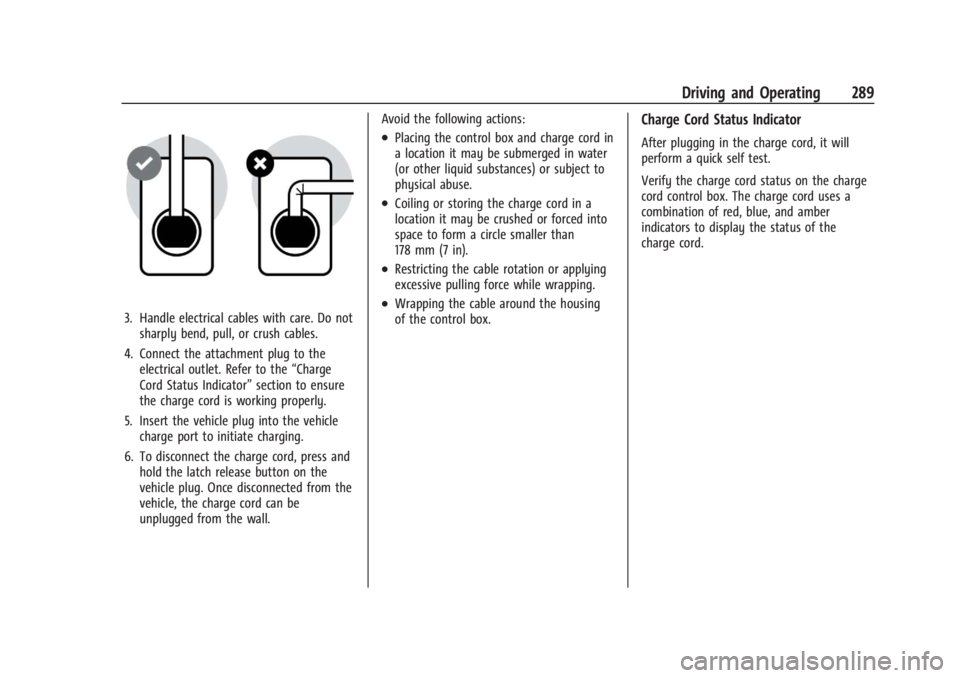
3. Handle electrical cables with care. Do notsharply bend, pull, or crush cables.
4. Connect the attachment plug to the electrical outlet. Refer to the “Charge
Cord Status Indicator” section to ensure
the charge cord is working properly.
5. Insert the vehicle plug into the vehicle charge port to initiate charging.
6. To disconnect the charge cord, press and hold the latch release button on the
vehicle plug. Once disconnected from the
vehicle, the charge cord can be
unplugged from the wall. Avoid the following actions:
.Placing the control box and charge cord in
a location it may be submerged in water
(or other liquid substances) or subject to
physical abuse.
.Coiling or storing the charge cord in a
location it may be crushed or forced into
space to form a circle smaller than
178 mm (7 in).
.Restricting the cable rotation or applying
excessive pulling force while wrapping.
.Wrapping the cable around the housing
of the control box.
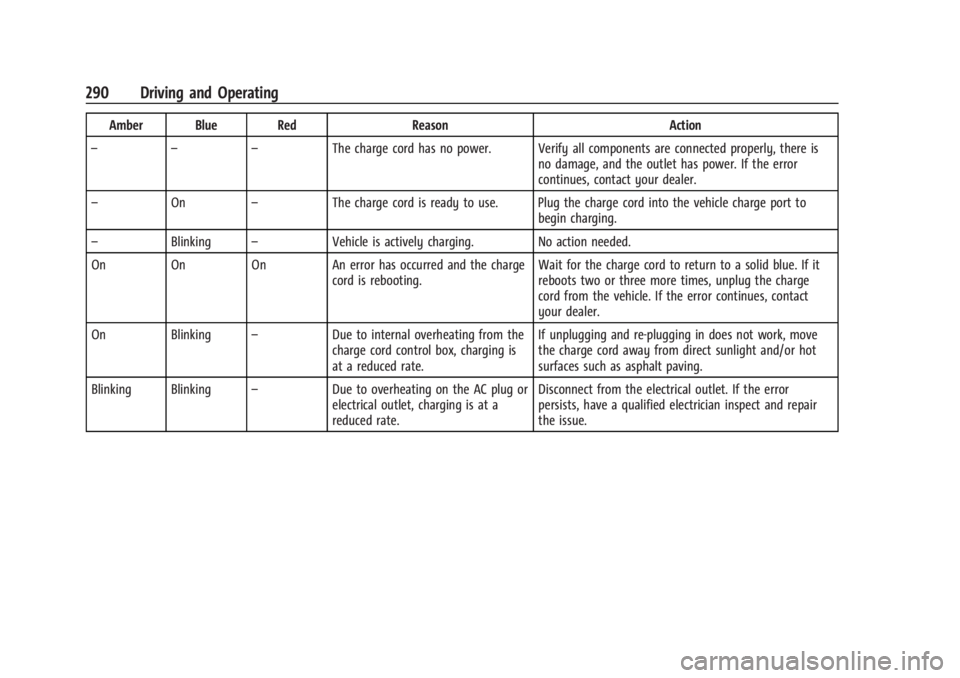
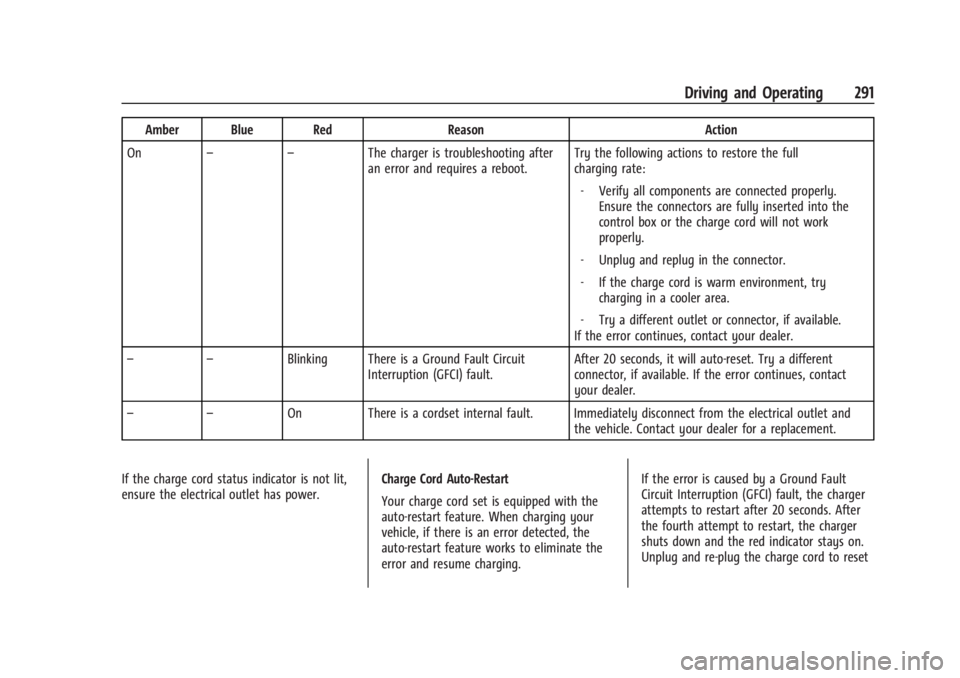
Charge Cord Status Indicator
After plugging in the charge cord, it will
perform a quick self test.
Verify the charge cord status on the charge
cord control box. The charge cord uses a
combination of red, blue, and amber
indicators to display the status of the
charge cord.
Page 291 of 429
Chevrolet Silverado EV Owner Manual (GMNA-Localizing-U.S./Canada-
16702912) - 2024 - CRC - 1/17/23
290 Driving and Operating
Amber Blue RedReasonAction
– – – The charge cord has no power. Verify all components are connected properly, there is
no damage, and the outlet has power. If the error
continues, contact your dealer.
– On –The charge cord is ready to use. Plug the charge cord into the vehicle charge port to
begin charging.
– Blinking –Vehicle is actively charging. No action needed.
On On On An error has occurred and the charge cord is rebooting.Wait for the charge cord to return to a solid blue. If it
reboots two or three more times, unplug the charge
cord from the vehicle. If the error continues, contact
your dealer.
On Blinking –Due to internal overheating from the
charge cord control box, charging is
at a reduced rate. If unplugging and re-plugging in does not work, move
the charge cord away from direct sunlight and/or hot
surfaces such as asphalt paving.
Blinking Blinking –Due to overheating on the AC plug or
electrical outlet, charging is at a
reduced rate. Disconnect from the electrical outlet. If the error
persists, have a qualified electrician inspect and repair
the issue.
Page 292 of 429
Chevrolet Silverado EV Owner Manual (GMNA-Localizing-U.S./Canada-
16702912) - 2024 - CRC - 1/17/23
Driving and Operating 291
Amber Blue RedReasonAction
On – – The charger is troubleshooting after
an error and requires a reboot. Try the following actions to restore the full
charging rate:
‐ Verify all components are connected properly.
Ensure the connectors are fully inserted into the
control box or the charge cord will not work
properly.
‐ Unplug and replug in the connector.
‐ If the charge cord is warm environment, try
charging in a cooler area.
‐ Try a different outlet or connector, if available.
If the error continues, contact your dealer.
– – Blinking There is a Ground Fault Circuit
Interruption (GFCI) fault. After 20 seconds, it will auto-reset. Try a different
connector, if available. If the error continues, contact
your dealer.
– – On There is a cordset internal fault. Immediately disconnect from the electrical outlet and
the vehicle. Contact your dealer for a replacement.
If the charge cord status indicator is not lit,
ensure the electrical outlet has power. Charge Cord Auto-Restart
Your charge cord set is equipped with the
auto-restart feature. When charging your
vehicle, if there is an error detected, the
auto-restart feature works to eliminate the
error and resume charging.If the error is caused by a Ground Fault
Circuit Interruption (GFCI) fault, the charger
attempts to restart after 20 seconds. After
the fourth attempt to restart, the charger
shuts down and the red indicator stays on.
Unplug and re-plug the charge cord to reset