warning light CHEVROLET SILVERADO EV 2024 Workshop Manual
[x] Cancel search | Manufacturer: CHEVROLET, Model Year: 2024, Model line: SILVERADO EV, Model: CHEVROLET SILVERADO EV 2024Pages: 429, PDF Size: 8.98 MB
Page 262 of 429
Chevrolet Silverado EV Owner Manual (GMNA-Localizing-U.S./Canada-
16702912) - 2024 - CRC - 1/17/23
Driving and Operating 261
Turning the Features On or Off
The
Xbutton on the center stack is used
to turn on or off the Front and Rear Park
Assist, and Backing Warning and Reverse
Automatic Braking (RAB) systems at the
same time. The indicator light next to the
button comes on when the features are on
and turns off when the features have been
disabled.
RCTA can be turned on or off using the
infotainment system. To view available
settings from the infotainment screen, touch
Settings > Vehicle > Collision/Detection
Systems.
Assistance Systems for Driving
If equipped, when driving the vehicle in a
forward gear, Forward Collision Alert (FCA),
Lane Departure Warning (LDW), Lane Keep
Assist (LKA), Blind Zone Steering Assist
(BZSA), Lane Change Alert (LCA), Automatic
Emergency Braking (AEB), Intersection
Automatic Emergency Braking (I-AEB), and/or
the Front Pedestrian Braking (FPB) System
can help to avoid a crash or reduce crash
damage.
Forward Collision Alert (FCA)
System
If equipped, the FCA system may help to
avoid or reduce the harm caused by
front-end crashes. When approaching a
vehicle ahead too quickly, FCA provides a
red flashing alert on the windshield and
rapidly beeps or pulses the drivers seat. FCA
also lights an amber visual alert if following
another vehicle much too closely.
FCA detects vehicles within a distance of
approximately 60 m (197 ft) and operates at
speeds above 8 km/h (5 mph).
{Warning
FCA is a warning system and does not
apply the brakes. When approaching a
slower-moving or stopped vehicle ahead
too rapidly, or when following a vehicle
too closely, FCA may not provide a
warning with enough time to help avoid
a crash. It also may not provide any
warning at all. FCA does not warn of
pedestrians, animals, signs, guardrails,
bridges, construction barrels, or other
(Continued)
Warning (Continued)
objects. Be ready to take action and
apply the brakes. SeeDefensive Driving
0 183.
FCA can be disabled. To view available
settings from the infotainment screen, touch
Settings > Vehicle > Collision/Detection
Systems.
Detecting the Vehicle Ahead
FCA warnings will not occur unless the FCA
system detects a vehicle ahead. When a
vehicle is detected, the vehicle ahead
indicator will display green. Vehicles may
not be detected on curves, highway exit
ramps, or hills, due to poor visibility; or if a
vehicle ahead is partially blocked by
pedestrians or other objects. FCA will not
detect another vehicle ahead until it is
completely in the driving lane.
Page 269 of 429
Chevrolet Silverado EV Owner Manual (GMNA-Localizing-U.S./Canada-
16702912) - 2024 - CRC - 1/17/23
268 Driving and Operating
Without Head-Up Display
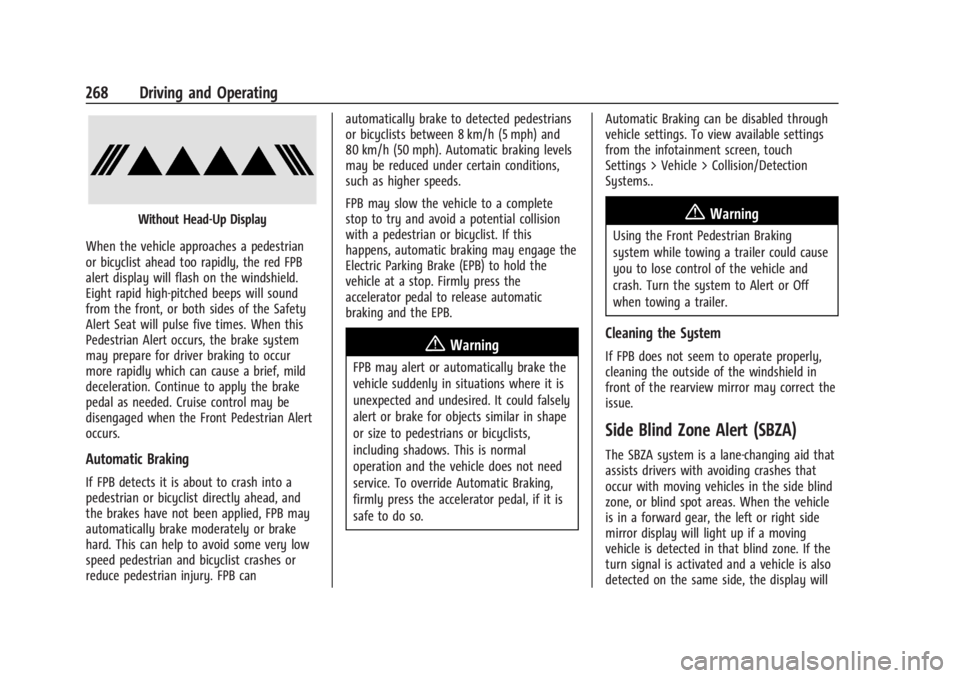
When the vehicle approaches a pedestrian
or bicyclist ahead too rapidly, the red FPB
alert display will flash on the windshield.
Eight rapid high-pitched beeps will sound
from the front, or both sides of the Safety
Alert Seat will pulse five times. When this
Pedestrian Alert occurs, the brake system
may prepare for driver braking to occur
more rapidly which can cause a brief, mild
deceleration. Continue to apply the brake
pedal as needed. Cruise control may be
disengaged when the Front Pedestrian Alert
occurs.
Automatic Braking
If FPB detects it is about to crash into a
pedestrian or bicyclist directly ahead, and
the brakes have not been applied, FPB may
automatically brake moderately or brake
hard. This can help to avoid some very low
speed pedestrian and bicyclist crashes or
reduce pedestrian injury. FPB can automatically brake to detected pedestrians
or bicyclists between 8 km/h (5 mph) and
80 km/h (50 mph). Automatic braking levels
may be reduced under certain conditions,
such as higher speeds.
FPB may slow the vehicle to a complete
stop to try and avoid a potential collision
with a pedestrian or bicyclist. If this
happens, automatic braking may engage the
Electric Parking Brake (EPB) to hold the
vehicle at a stop. Firmly press the
accelerator pedal to release automatic
braking and the EPB.
{Warning
FPB may alert or automatically brake the
vehicle suddenly in situations where it is
unexpected and undesired. It could falsely
alert or brake for objects similar in shape
or size to pedestrians or bicyclists,
including shadows. This is normal
operation and the vehicle does not need
service. To override Automatic Braking,
firmly press the accelerator pedal, if it is
safe to do so.
Automatic Braking can be disabled through
vehicle settings. To view available settings
from the infotainment screen, touch
Settings > Vehicle > Collision/Detection
Systems..
{Warning
Using the Front Pedestrian Braking
system while towing a trailer could cause
you to lose control of the vehicle and
crash. Turn the system to Alert or Off
when towing a trailer.
Cleaning the System
If FPB does not seem to operate properly,
cleaning the outside of the windshield in
front of the rearview mirror may correct the
issue.
Side Blind Zone Alert (SBZA)
The SBZA system is a lane-changing aid that
assists drivers with avoiding crashes that
occur with moving vehicles in the side blind
zone, or blind spot areas. When the vehicle
is in a forward gear, the left or right side
mirror display will light up if a moving
vehicle is detected in that blind zone. If the
turn signal is activated and a vehicle is also
detected on the same side, the display will
Page 270 of 429
Chevrolet Silverado EV Owner Manual (GMNA-Localizing-U.S./Canada-
16702912) - 2024 - CRC - 1/17/23
Driving and Operating 269
flash as an extra warning not to change
lanes. Since this system is part of the Lane
Change Alert (LCA) system, read the entire
LCA section before using this feature.
Lane Change Alert (LCA)
If equipped, the LCA system is a
lane-changing aid that assists drivers with
avoiding lane change crashes that occur with
moving vehicles in the side blind zone
(or spot) areas or with vehicles rapidly
approaching these areas from behind. The
LCA warning display will light up in the
corresponding outside mirror and will flash
if the turn signal is on.
Side Blind Zone Alert (SBZA) is included as
part of the LCA system.
{Warning
LCA does not alert the driver to vehicles
outside of the system detection zones,
pedestrians, bicyclists, or animals. It may
not provide alerts when changing lanes
under all driving conditions. Failure to use
proper care when changing lanes may
result in injury, death, or vehicle damage.(Continued)
Warning (Continued)
Before making a lane change, always
check mirrors, glance over your shoulder,
and use the turn signals.
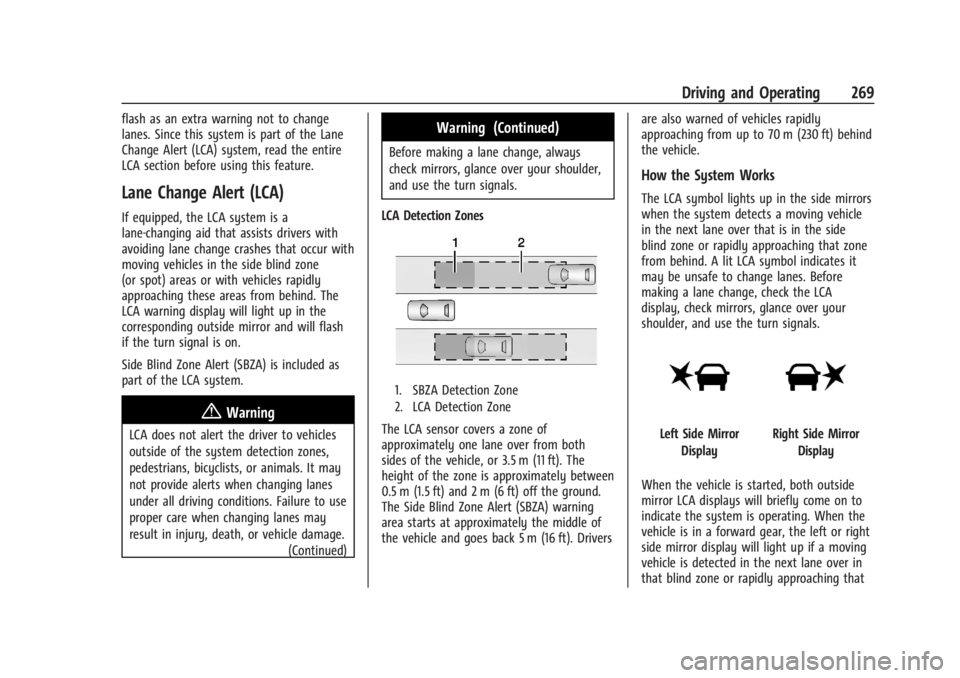
LCA Detection Zones
1. SBZA Detection Zone
2. LCA Detection Zone
The LCA sensor covers a zone of
approximately one lane over from both
sides of the vehicle, or 3.5 m (11 ft). The
height of the zone is approximately between
0.5 m (1.5 ft) and 2 m (6 ft) off the ground.
The Side Blind Zone Alert (SBZA) warning
area starts at approximately the middle of
the vehicle and goes back 5 m (16 ft). Drivers are also warned of vehicles rapidly
approaching from up to 70 m (230 ft) behind
the vehicle.
How the System Works
The LCA symbol lights up in the side mirrors
when the system detects a moving vehicle
in the next lane over that is in the side
blind zone or rapidly approaching that zone
from behind. A lit LCA symbol indicates it
may be unsafe to change lanes. Before
making a lane change, check the LCA
display, check mirrors, glance over your
shoulder, and use the turn signals.
Left Side Mirror
DisplayRight Side Mirror Display
When the vehicle is started, both outside
mirror LCA displays will briefly come on to
indicate the system is operating. When the
vehicle is in a forward gear, the left or right
side mirror display will light up if a moving
vehicle is detected in the next lane over in
that blind zone or rapidly approaching that
Page 271 of 429
Chevrolet Silverado EV Owner Manual (GMNA-Localizing-U.S./Canada-
16702912) - 2024 - CRC - 1/17/23
270 Driving and Operating
zone. If the turn signal is activated in the
same direction as a detected vehicle, this
display will flash as an extra warning not to
change lanes.
LCA can be disabled through vehicle
personalization.To view available settings
from the infotainment screen, touch
Settings > Vehicle > Collision/Detection
Systems. If LCA is disabled by the driver, the
LCA mirror displays will not light up.
When the System Does Not Seem to
Work Properly
The LCA system requires some driving for
the system to calibrate to maximum
performance. This calibration may occur
more quickly if the vehicle is driven on a
straight highway road with traffic and
roadside objects (e.g., guardrails, barriers).
LCA displays may not come on when
passing a vehicle quickly or for a stopped
vehicle. LCA may alert to objects attached to
the vehicle, such as a bicycle, or object
extending out to either side of the vehicle.
Attached objects may also interfere with the
detection of vehicles. This is normal system
operation; the vehicle does not need service.LCA may not always alert the driver to
vehicles in the next lane over, especially in
wet conditions or when driving on sharp
curves. The system does not need to be
serviced. The system may light up due to
guardrails, signs, trees, shrubs, and other
non-moving objects. This is normal system
operation; the vehicle does not need service.
LCA may not operate when the LCA sensors
in the left or right corners of the rear
bumper are covered with mud, dirt, snow,
ice, or slush, or in heavy rainstorms. For
cleaning instructions, see "Washing the
Vehicle" under
Exterior Care0379. If the DIC
still displays the system unavailable
message after cleaning both sides of the
vehicle toward the rear corners of the
vehicle, see your dealer.
If the LCA displays do not light up when
moving vehicles are in the side blind zone or
rapidly approaching this zone and the
system is clean, the system may need
service. Take the vehicle to your dealer.
Driving with a Trailer
If equipped with Lane Change Alert (LCA),
the LCA detection zones that extend back
from the side of the vehicle do not move
further back when a trailer is towed. Use caution while changing lanes when
towing a trailer.
Bicycle Detection
If equipped, the system may detect a
bicyclist approaching from the side or rear
of the vehicle.
If this occurs, a chime will sound in the
direction of the detection, and the Safety
Alert Seat will pulse if enabled through
vehicle settings. To view available settings
from the infotainment screen, touch
Settings > Vehicle > Collision/Detection
Systems.
Bicyclist Detection is available when the
vehicle is in D (Drive), P (Park), and for a
short time after the vehicle is turned off.
If the vehicle detects a bicyclist when it is
off, a DIC message may display and alert to
the direction of the detection. In some
cases, an Unavailable message may display.
This is normal and does not mean that the
system is broken.
Detection Zones
When the vehicle is in P (Park) or is turned
off, a bicyclist can be detected 11 m (36 ft)
behind the vehicle or 10 m (33 ft) to the
side of the vehicle.
Page 274 of 429
Chevrolet Silverado EV Owner Manual (GMNA-Localizing-U.S./Canada-
16702912) - 2024 - CRC - 1/17/23
Driving and Operating 273
Navigation System Traffic Sign Detection
The currently displayed sign can either
originate from sign detection using the
camera, or from the navigation system map
data. If the currently displayed sign
originates from map data and the map
information changes, a new sign will be
displayed. This may lead to detection of a
new sign although no sign on the road may
have been passed. If the map data is
unavailable, Traffic Sign Assistant will turn
off automatically.
Limitations
Traffic sign memory may not operate
correctly if:
.The area of the windshield, where the
front camera is located, is not clean or is
affected by foreign objects, e.g. stickers,
window tinting, etc.
.Traffic signs are completely or partially
covered, are too low or high or difficult to
discern.
.Traffic signs are incorrectly mounted or
are damaged.
.Traffic signs do not comply with the
approved traffic sign standards.
.The speed limit is displayed by certain
types of electronic speed signs.
.There are adverse environmental
conditions, e.g. heavy rain, snow, direct
sunlight or shadows.
.The headlights are dirty or not correctly
aligned when driving at night.
.The navigation map data is out of date.
.The navigation map is unavailable.
Driver Attention Assist
If equipped, Driver Attention Assist alerts
the driver to pay closer attention to the
road ahead. Driver Attention Assist uses a
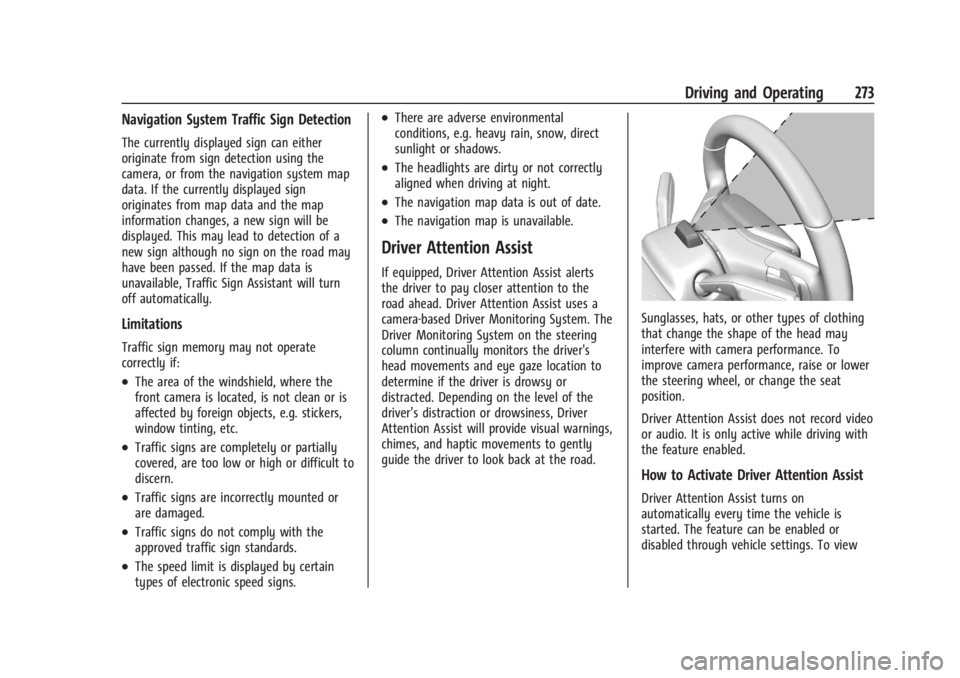
camera-based Driver Monitoring System. The
Driver Monitoring System on the steering
column continually monitors the driver's
head movements and eye gaze location to
determine if the driver is drowsy or
distracted. Depending on the level of the
driver’s distraction or drowsiness, Driver
Attention Assist will provide visual warnings,
chimes, and haptic movements to gently
guide the driver to look back at the road.
Sunglasses, hats, or other types of clothing
that change the shape of the head may
interfere with camera performance. To
improve camera performance, raise or lower
the steering wheel, or change the seat
position.
Driver Attention Assist does not record video
or audio. It is only active while driving with
the feature enabled.
How to Activate Driver Attention Assist
Driver Attention Assist turns on
automatically every time the vehicle is
started. The feature can be enabled or
disabled through vehicle settings. To view
Page 275 of 429
Chevrolet Silverado EV Owner Manual (GMNA-Localizing-U.S./Canada-
16702912) - 2024 - CRC - 1/17/23
274 Driving and Operating
available settings from the infotainment
screen, touch Settings > Vehicle >
Collision/Detection Systems.
Drowsiness Alerts
Depending on the drowsiness level, Driver
Attention Assist will display escalating alerts
in the instrument cluster. These alerts
progress as the drowsiness level increases.
Each level is designated by a coffee cup and
a DIC message recommending that the
driver consider taking a rest break.
Depending on the driver’s drowsiness level,
the system will also send chimes or haptic
alerts, if equipped with Safety Alert Seat.
The higher alerts will be seen more
frequently. Not all alerts may occur during a
drowsy event.
When the maximum drowsiness alert occurs,
the driver will be presented with the
following options on the infotainment
screen:
.Phone a Friend
.Place an OnStar call
.Navigate to Nearest Point of Interest (POI)
Select an option from the list and follow the
instructions displayed on infotainment
screen.
Attention Alerts
Depending on the attention level, Driver
Attention Assist will display escalating alerts
in the instrument cluster that advance from
level one to level two as the attention level
decreases. Depending on the driver’s
distraction level, the system will also send
chimes or haptic alerts, if equipped with
Safety Alert Seat. See Driver Attention Assist
Light 0122.
When Teen Driver is Active, the radio will
momentarily be set to mute when alert
level two is active. See Teen Driver0168.
Cleaning the Camera
The camera lens cover on the steering
column may become dirty over time. If this
occurs, clean the lens cover with a soft cloth
sprayed with glass cleaner. Wipe the lens
gently, then dry it. Never use abrasive
cloths, cleaners, or corrosive chemicals of
any kind on the lens cover.
Limitations
Some factors can impact the performance of
the Driver Attention Assist feature, causing
it to not to function as intended. These
include (but are not limited to):
.Damage to the Driver Monitoring System,
camera, or lens.
.The camera being blocked by the steering
wheel, hands, or objects.
If there is a problem with the system, a DIC
message or icon in the instrument cluster
may display.
Lane Keep Assist (LKA)
If equipped, LKA may help avoid crashes due
to unintentional lane departures. This
system uses a camera to detect lane
markings. The LKA system can be ready to
assist at speeds between approximately
60 km/h (37 mph) and 180 km/h (112 mph).
On some vehicles, the system will instead
operate above 50 km/h (31 mph). LKA may
assist by gently turning the steering wheel
if the vehicle approaches a detected lane
marking. It may also provide a Lane
Departure Warning (LDW) alert if the vehicle
unintentionally crosses a detected lane
marking.
Page 277 of 429
Chevrolet Silverado EV Owner Manual (GMNA-Localizing-U.S./Canada-
16702912) - 2024 - CRC - 1/17/23
276 Driving and Operating
To turn LKA on and off, pressAon the
instrument panel to the left of the steering
wheel. If equipped, the indicator light on the
button comes on when LKA is on and turns
off when LKA is disabled. In some vehicles,
you must press the button for more than
three seconds to turn LKA off.
LKA is not available when Terrain Mode,
Snow/Ice Mode, or Off-Road Mode is
selected.
See Driver Mode Control 0209. See
Four-Wheel Steering 0210.
When attempting to enable LKA in any of
the above conditions, LKA UNAVAILABLE will
display.
When on,
Ais white, if equipped,
indicating that the system is not ready to
assist.
Ais green if LKA is ready to
assist. LKA may assist by gently turning the
steering wheel if the vehicle approaches a
detected lane marking.
Ais amber when
assisting. It may also provide a Lane
Departure Warning (LDW) alert by flashing
Aamber if the vehicle crosses a
detected lane marking. Additionally, there
may be three beeps, or the driver seat may
pulse three times, on the right or left,
depending on the lane departure direction. Take Steering
The LKA system does not continuously steer
the vehicle. If LKA does not detect active
driver steering, an alert and chime may be
provided. Steer the vehicle to dismiss. LKA
may become temporarily unavailable after
repeated take steering alerts.
When the System Does Not Seem to
Work Properly
The system performance may be
affected by:
.Close vehicles ahead.
.Sudden lighting changes, such as when
driving through tunnels.
.Banked roads.
.Roads with poor lane markings, such as
two-lane roads.
If the LKA system is not functioning
properly when lane markings are clearly
visible, cleaning the windshield may help.
A camera blocked message may display if
the camera is blocked. Some driver
assistance systems may have reduced
performance or not work at all. An LKA or
LDW unavailable message may display if the
systems are temporarily unavailable. This
message could be due to a blocked camera. The LKA system does not need service. Clean
the outside of the windshield behind the
rearview mirror.
LKA assistance and/or LDW alerts may occur
due to tar marks, shadows, cracks in the
road, temporary or construction lane
markings, or other road imperfections. This
is normal system operation; the vehicle does
not need service. Turn LKA off if these
conditions continue.
Surround Vision Recorder
If equipped, this system records the 360°
camera views to an SD card. Only images
are recorded, no sound. An SD card will be
needed for this system. The minimum
recommended SD card specifications are at
least 64GB with FAT32 file system, Class V30
or greater.
Page 281 of 429
Chevrolet Silverado EV Owner Manual (GMNA-Localizing-U.S./Canada-
16702912) - 2024 - CRC - 1/17/23
280 Driving and Operating
4. Plug in the AC charge cord into thevehicle charge port . Make sure the AC
vehicle plug is fully connected to the AC
charge port. If it is not properly
connected, the vehicle may not be
charged.
5. Verify that the Headlight Charging Status Indicator (CSI) illuminates on the
headlamps (if enabled), charge port light
turns on, and an audible chirp occurs.
See Charging Status Feedback 0283.
To End AC Charging 1. Unlock the charge cord from the vehicle by pressing the button on the top of the
charge cord plug. Unplug the charge cord
from the vehicle.
2. Close the charge port door by pressing firmly in the center until it latches.
3. Unplug the charge cord from the electrical outlet.
4. Place the charge cord into the storage case.
DC Charging
DC Charging Station Hardware
The vehicle can be charged using DC
charging equipment typically found at
service stations and other public locations. Check the charging station DC vehicle plug
for compatibility with the DC charge port on
this vehicle. This vehicle is compatible with a
Combined Charging System 1 (CCS1)
connector.
When recharging at a DC charge station, the
charging cable connected to the vehicle
must be less than 10 m (33 ft) in length to
meet functionality and regulatory
requirements.
{Warning
Do not use the charging station if the
handle has defects such as cracks,
exposed wires, burnt or missing pins,
or any other damage. A damaged handle
may result in personal injury and/or
damage to the vehicle, the charging port
or other property.
For maximum charging performance, and to
prevent charging interruptions or damage to
the high voltage battery and vehicle:
.Remove your hands from the charging
handle once it has been plugged in. If not
done, this can cause a charging
interruption.
.Ensure that the charge cord plug clicks. Follow the steps listed on the charging
station to perform a DC vehicle charge.
If for any reason DC charging does not
begin or is interrupted, check the DC
charging station display for messages.
Unplug the cord to restart the DC charging
process.
To Start DC Charging
1. Put the vehicle in P (Park).
2. Press the Electric Parking brake (EPB) switch. See Electric Parking Brake 0205.
3. Push the rearward edge of the charge port door and release to open the door.
In cold weather conditions, ice may form
around the charge port door. The charge
port door may not open on the first
attempt. Remove ice from the area and
repeat attempting to open the charge
port door.
Page 293 of 429
Chevrolet Silverado EV Owner Manual (GMNA-Localizing-U.S./Canada-
16702912) - 2024 - CRC - 1/17/23
292 Driving and Operating
the charging. If this error continues, stop
charging your vehicle. See your dealer for
service.
Charge Level Selection
Charge level selection can be made using
the Charging tab in the Energy Application
on the infotainment display. For instructions
to set cord limit settings for a charge
session, seeCharging0123.
{Warning
Using a charge level that exceeds the
electrical circuit or electrical outlet
capacity may start a fire or damage the
electrical circuit. Use the lowest charge
level until a qualified electrician inspects
the electrical circuit capacity. Use the
lowest charge level if the electrical circuit
or electrical outlet capacity is not known.
Troubleshooting
Disconnect the charge cord from the vehicle
and confirm that the attachment plug is not
too hot to grasp before removing. If it is not hot, manually reboot the charge
cord by unplugging and re-plugging the
attachment plug into the electrical outlet.
If the same fault reoccurs, test the charge
cord with a different electrical outlet.
The charge cord monitors temperature at
several locations and may reduce charging
power or interrupt charging if temperatures
become too high. The charge cord status
indicators illuminate and identify this fault.
In hot climates, move the charge cord away
from direct sunlight and/or hot surfaces
such as asphalt paving for approximately
30 minutes.
If there are signs of melting or scorching, do
not touch the charge cord or attachment
plug. Have a qualified electrician inspect and
repair the issue.
If there are no signs of damage, check how
firm the fit of the plug is. If the plug easily
pulls away from the electrical outlet, test
the plug on a known good electrical outlet.
If the fault condition returns, have your
charge cord inspected by your dealership.
If the fault does not return, stop using the
suspected circuit and have a qualified
electrician inspect and repair the issue.
Grounding Instructions
The charge circuit must be grounded. If the
charge circuit should malfunction or break
down, grounding provides a path of least
resistance for the electric current to reduce
the risk of electric shock. This product is
equipped with a cord that has an equipment
grounding conductor and a grounding plug.
The plug must be plugged into an
appropriate outlet that is properly installed
and grounded in accordance with all local
codes and ordinances.
{Warning
Improper connection of the charge cord
ground may cause electrical shock. Check
with a qualified electrician if there is
doubt as to whether the charge circuit is
properly grounded. Do not modify the
plug provided with the product. If it will
not fit the electrical outlet, have a proper
electrical outlet installed by a qualified
electrician.
FCC Information
See
Radio Frequency Statement 0404.
Page 307 of 429
Chevrolet Silverado EV Owner Manual (GMNA-Localizing-U.S./Canada-
16702912) - 2024 - CRC - 1/17/23
306 Driving and Operating
This symbol is on the Trailer Brake Control
Panel on vehicles with an ITBC system. The
power output to the trailer brakes is
proportional to the amount of vehicle
braking. This available power output to the
trailer brakes can be adjusted to a wide
range of trailering situations.
The ITBC system is integrated with the
vehicle brakes, Antilock Brake System (ABS),
and StabiliTrak/Electronic Stability Control
(ESC) systems. In trailering conditions that
cause the vehicle’s anti-lock brake or
StabiliTrak/ESC systems to activate, power
sent to the trailer's brakes will be
automatically adjusted to minimize trailer
wheel lock-up. This does not imply that the
trailer has StabiliTrak/ESC.
If the vehicle brakes, ABS, or StabiliTrak/ESC
systems are not functioning properly, the
ITBC system may not function fully or at all.
Make sure all of these systems are fully
operational to allow the ITBC system to
function properly.
The ITBC system is powered through the
vehicle's electrical system. Turning the
vehicle off will also turn off the ITBC
system. The ITBC system is fully functional
only when the vehicle is in ON/RUN.{Warning
Connecting a trailer that has an air brake
system may result in reduced or
complete loss of trailer braking, including
increased stopping distance or trailer
instability which could result in serious
injury, death, or property damage. Only
use the ITBC system with electric or
electric over hydraulic trailer brake
systems.
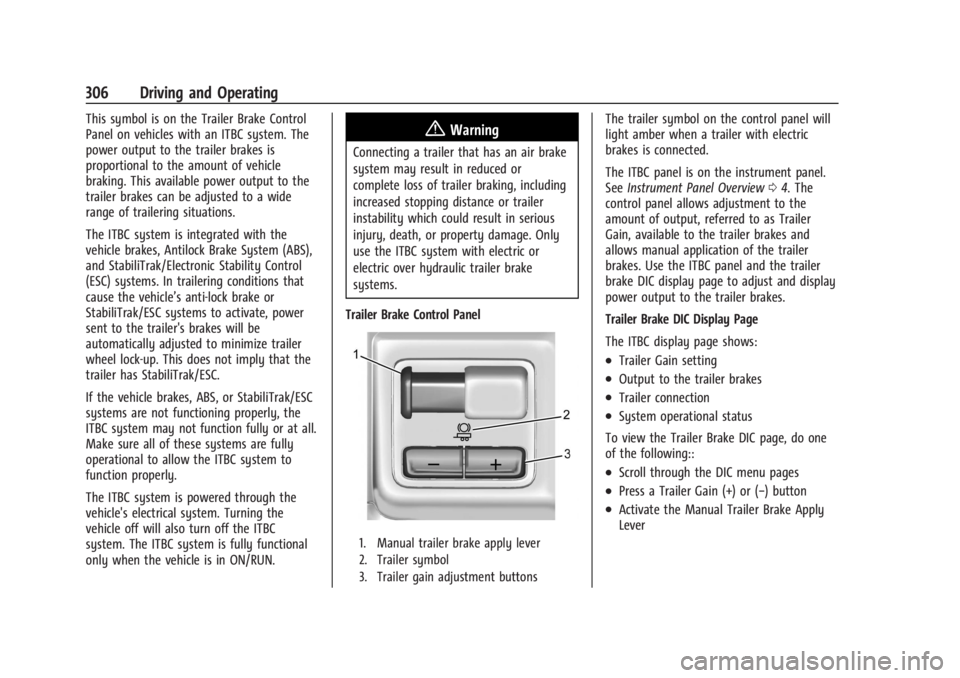
Trailer Brake Control Panel
1. Manual trailer brake apply lever
2. Trailer symbol
3. Trailer gain adjustment buttons
The trailer symbol on the control panel will
light amber when a trailer with electric
brakes is connected.
The ITBC panel is on the instrument panel.
See Instrument Panel Overview 04. The
control panel allows adjustment to the
amount of output, referred to as Trailer
Gain, available to the trailer brakes and
allows manual application of the trailer
brakes. Use the ITBC panel and the trailer
brake DIC display page to adjust and display
power output to the trailer brakes.
Trailer Brake DIC Display Page
The ITBC display page shows:
.Trailer Gain setting
.Output to the trailer brakes
.Trailer connection
.System operational status
To view the Trailer Brake DIC page, do one
of the following::
.Scroll through the DIC menu pages
.Press a Trailer Gain (+) or (−) button
.Activate the Manual Trailer Brake Apply
Lever