change wheel CHEVROLET SILVERADO EV 2024 Owners Manual
[x] Cancel search | Manufacturer: CHEVROLET, Model Year: 2024, Model line: SILVERADO EV, Model: CHEVROLET SILVERADO EV 2024Pages: 429, PDF Size: 8.98 MB
Page 6 of 429

Chevrolet Silverado EV Owner Manual (GMNA-Localizing-U.S./Canada-
16702912) - 2024 - CRC - 1/17/23
Introduction 5
1.Air Vents 0177.
2. Windshield Wiper/Washer 098.
Turn and Lane-Change Signals 0143.
3. Instrument Cluster (Base Level) 0107 or
Instrument Cluster (Uplevel) 0109.
4. Shift Switches. See Electric Drive Unit
0 200.
5. Infotainment Controls. See Overview
0 148.
6. Infotainment Display. See AM-FM Radio
0 152.
7. Light Sensor. See Automatic Headlamp
System 0142.
Vehicle Alarm System. See Vehicle
Security 032.
8. Dual Automatic Climate Control System
0174.
9. Power Outlets 099.
10. USB Port 0154.
11. Steering Wheel Controls 0149.
Driver Information Center (DIC) Controls.
See Driver Information Center (DIC) (Base
Level) 0129 or
Driver Information Center (DIC) (Uplevel)
0 130.
12. Horn 098. 13.
Steering Wheel Adjustment 097 (Out
of View).
14. Trailer Brake Control Panel. See “Integrated Trailer Brake Control System”
under Towing Equipment 0301.
15. Adaptive Cruise Control (Advanced) 0217.
Forward Collision Alert (FCA) System
0 261.
16. Data Link Connector (DLC) (Out of View). SeeService Vehicle Soon Light (Propulsion
System Failure) 0115.
17. Manual Hood Release.
18. Fuse Block Cover.
19. Electric Parking Brake 0205
Tow/Haul Mode. See Driver Mode Control
0 209.
Lane Keep Assist (LKA) 0274.
Power Hood Release. See Hood019.
Instrument Panel Illumination Control
0 143.
Page 8 of 429

Chevrolet Silverado EV Owner Manual (GMNA-Localizing-U.S./Canada-
16702912) - 2024 - CRC - 1/17/23
Introduction 7
1.Air Vents 0177.
2. Windshield Wiper/Washer 098.
Turn and Lane-Change Signals 0143.
3. Regenerative Braking 0206.
4. Instrument Cluster (Base Level) 0107 or
Instrument Cluster (Uplevel) 0109.
5. Driver Monitoring System.
6. Shift Switches. See Electric Drive Unit
0 200.
7. Infotainment Controls. See Overview
0 148.
8. Infotainment Display. See AM-FM Radio
0 152.
9. Light Sensor. See Automatic Headlamp
System 0142.
Vehicle Alarm System. See Vehicle
Security 032.
10. Dual Automatic Climate Control System
0174.
11. USB Port 0154.
12. Power Outlets 099.
13. Wireless Charging 0104. 14.
Steering Wheel Controls 0149.
Driver Information Center (DIC) Controls.
See Driver Information Center (DIC) (Base
Level) 0129 or
Driver Information Center (DIC) (Uplevel)
0 130.
15. Horn 098.
16. Steering Wheel Adjustment 097 (Out
of View).
17. Trailer Brake Control Panel. See “Integrated Trailer Brake Control System”
under Towing Equipment 0301.
18. Adaptive Cruise Control (Advanced) 0217.
Forward Collision Alert (FCA) System
0 261.
Heated Steering Wheel 097 (If
Equipped).
19. Data Link Connector (DLC) (Out of View). SeeService Vehicle Soon Light (Propulsion
System Failure) 0115.
20. Manual Hood Release.
21. Fuse Block Cover. 22.
Electric Parking Brake 0205.
Air Suspension 0211.
Lane Keep Assist (LKA) 0274.
Power Hood Release. See Hood019.
Power Tailgate Release. See Tailgate
0 28.
Instrument Panel Illumination Control
0 143.
Page 69 of 429
Chevrolet Silverado EV Owner Manual (GMNA-Localizing-U.S./Canada-
16702912) - 2024 - CRC - 1/13/23
68 Seats and Restraints
Additional Factors Affecting System
Operation
Seat belts help keep the passenger in
position on the seat during vehicle
maneuvers and braking, which helps the
passenger sensing system maintain the
passenger airbag status. See“Seat Belts”
and “Child Restraints” in the Index for
additional information about the importance
of proper restraint use.
A thick layer of additional material, such as
a blanket or cushion, or aftermarket
equipment such as seat covers, seat heaters,
and seat massagers can affect how well the
passenger sensing system operates. We
recommend that you not use seat covers or
other aftermarket equipment except when
approved by GM for your specific vehicle.
See Adding Equipment to the
Airbag-Equipped Vehicle 068 for more
information about modifications that can
affect how the system operates.
The ON indicator may be lit if an object,
such as a briefcase, handbag, grocery bag,
laptop, or other electronic device, is put on
an unoccupied seat. If this is not desired,
remove the object from the seat.
{Warning
Stowing articles under the passenger seat
or between the passenger seat cushion
and seatback may interfere with the
proper operation of the passenger
sensing system.
Servicing the Airbag-Equipped
Vehicle
Airbags affect how the vehicle should be
serviced. There are parts of the airbag
system in several places around the vehicle.
Your dealer and the service manual have
information about servicing the vehicle and
the airbag system. To purchase a service
manual, see Publication Ordering
Information 0404.
{Warning
For up to 10 seconds after the vehicle is
turned off and the battery is
disconnected, an airbag can still inflate
during improper service. You can be
injured if you are close to an airbag
when it inflates. Avoid yellow connectors.
They are probably part of the airbag
(Continued)
Warning (Continued)
system. Be sure to follow proper service
procedures, and make sure the person
performing work for you is qualified to
do so.
Adding Equipment to the
Airbag-Equipped Vehicle
Adding accessories that change the vehicle's
frame, bumper system, height, front end,
or side sheet metal may keep the airbag
system from working properly.
The operation of the airbag system can also
be affected by changing, including
improperly repairing or replacing, any parts
of the following:
.Airbag system, including airbag modules,
front or side impact sensors, sensing and
diagnostic module, or airbag wiring
.Front seats, including stitching, seams,
or zippers
.Seat belts
.Steering wheel, instrument panel,
overhead console, ceiling trim, or pillar
garnish trim
.Inner door seals, including speakers
Page 99 of 429
Chevrolet Silverado EV Owner Manual (GMNA-Localizing-U.S./Canada-
16702912) - 2024 - CRC - 1/13/23
98 Instruments and Controls
The heated steering wheel will turn on
when the auto heated seat is activated. The
heated steering wheel indicator will display
the state of the steering wheel heat.
SeeHeated and Ventilated Front Seats 047.
To turn this feature on or off, select
Settings > Vehicle > Comfort and
Convenience > Heated Steering Wheel >
Select ON or OFF.
Horn
To sound the horn, pressaon the
steering wheel.
Pedestrian Safety Signal
The vehicle is equipped with automatic
sound generation. The automatic sound is
generated to indicate the vehicle presence
to pedestrians. The sound changes if the
vehicle is speeding up or slowing down. It is
activated when the vehicle is shifted into a
forward gear, N (Neutral), or R (Reverse), up
to driving speeds of 34 km/h (21 mph).
Windshield Wiper/Washer
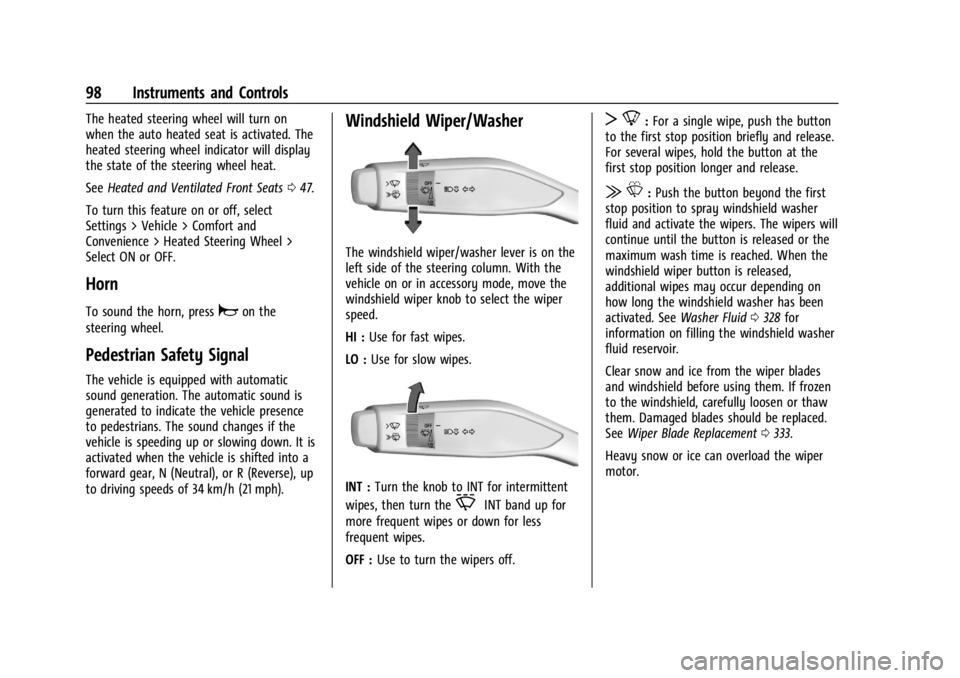
The windshield wiper/washer lever is on the
left side of the steering column. With the
vehicle on or in accessory mode, move the
windshield wiper knob to select the wiper
speed.
HI : Use for fast wipes.
LO : Use for slow wipes.
INT : Turn the knob to INT for intermittent
wipes, then turn the
OINT band up for
more frequent wipes or down for less
frequent wipes.
OFF : Use to turn the wipers off.
T8:For a single wipe, push the button
to the first stop position briefly and release.
For several wipes, hold the button at the
first stop position longer and release.
| L:Push the button beyond the first
stop position to spray windshield washer
fluid and activate the wipers. The wipers will
continue until the button is released or the
maximum wash time is reached. When the
windshield wiper button is released,
additional wipes may occur depending on
how long the windshield washer has been
activated. See Washer Fluid0328 for
information on filling the windshield washer
fluid reservoir.
Clear snow and ice from the wiper blades
and windshield before using them. If frozen
to the windshield, carefully loosen or thaw
them. Damaged blades should be replaced.
See Wiper Blade Replacement 0333.
Heavy snow or ice can overload the wiper
motor.
Page 109 of 429
Chevrolet Silverado EV Owner Manual (GMNA-Localizing-U.S./Canada-
16702912) - 2024 - CRC - 1/13/23
108 Instruments and Controls
Reconfigurable Instrument Cluster
The cluster display layout can be changed.
Some of the selectable views may not be
available for your particular vehicle.
The following are selectable views:
Clean :Displays no information zones.
Info : Displays one information zone under
the speedometer.
Gauge : Displays no information zones and
the gauges are located to the left and right
of the speedometer.
Infotainment : Displays one information
zone under the speedometer.
Driver Assistance : If equipped, displays
information for Adaptive Cruise Control
(ACC), Follow Distance, Lane Keep Assist
(LKA), and Forward Collision Alert (FCA).
Off Road : Displays one information zone
under the speedometer.
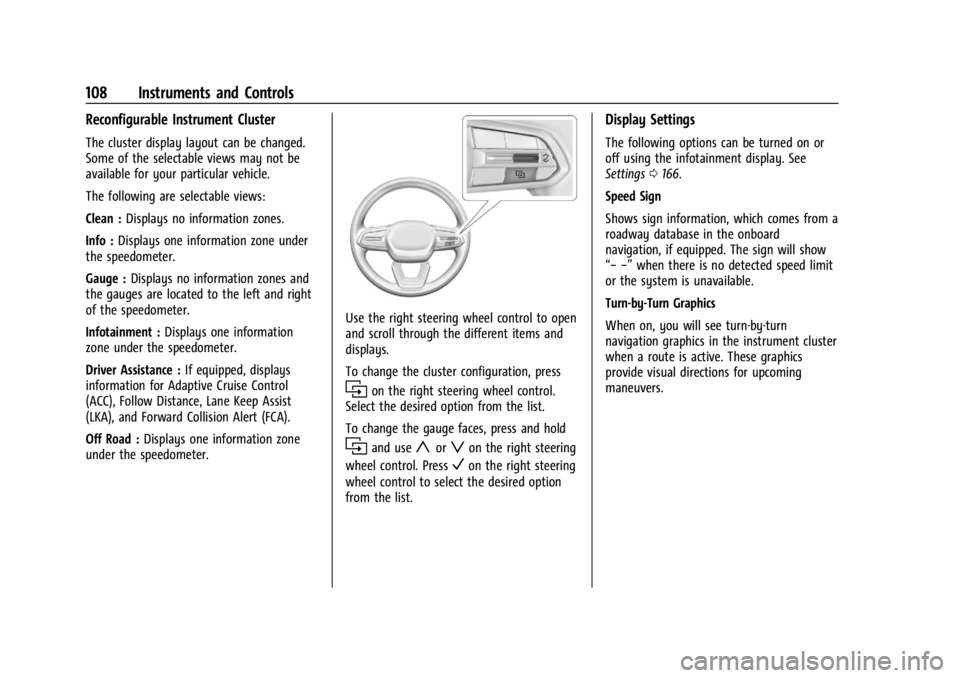
Use the right steering wheel control to open
and scroll through the different items and
displays.
To change the cluster configuration, press
ion the right steering wheel control.
Select the desired option from the list.
To change the gauge faces, press and hold
iand useyorzon the right steering
wheel control. Press
Von the right steering
wheel control to select the desired option
from the list.
Display Settings
The following options can be turned on or
off using the infotainment display. See
Settings 0166.
Speed Sign
Shows sign information, which comes from a
roadway database in the onboard
navigation, if equipped. The sign will show
“− −” when there is no detected speed limit
or the system is unavailable.
Turn-by-Turn Graphics
When on, you will see turn-by-turn
navigation graphics in the instrument cluster
when a route is active. These graphics
provide visual directions for upcoming
maneuvers.
Page 110 of 429
Chevrolet Silverado EV Owner Manual (GMNA-Localizing-U.S./Canada-
16702912) - 2024 - CRC - 1/13/23
Instruments and Controls 109
Instrument Cluster (Uplevel)
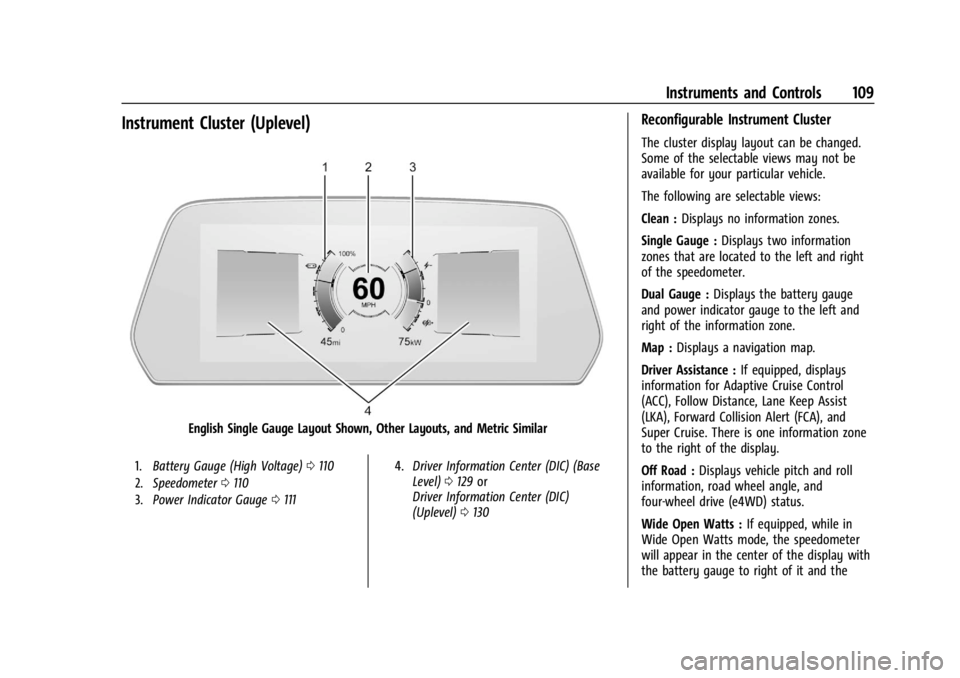
English Single Gauge Layout Shown, Other Layouts, and Metric Similar
1.Battery Gauge (High Voltage) 0110
2. Speedometer 0110
3. Power Indicator Gauge 0111 4.
Driver Information Center (DIC) (Base
Level) 0129 or
Driver Information Center (DIC)
(Uplevel) 0130
Reconfigurable Instrument Cluster
The cluster display layout can be changed.
Some of the selectable views may not be
available for your particular vehicle.
The following are selectable views:
Clean : Displays no information zones.
Single Gauge : Displays two information
zones that are located to the left and right
of the speedometer.
Dual Gauge : Displays the battery gauge
and power indicator gauge to the left and
right of the information zone.
Map : Displays a navigation map.
Driver Assistance : If equipped, displays
information for Adaptive Cruise Control
(ACC), Follow Distance, Lane Keep Assist
(LKA), Forward Collision Alert (FCA), and
Super Cruise. There is one information zone
to the right of the display.
Off Road : Displays vehicle pitch and roll
information, road wheel angle, and
four-wheel drive (e4WD) status.
Wide Open Watts : If equipped, while in
Wide Open Watts mode, the speedometer
will appear in the center of the display with
the battery gauge to right of it and the
Page 111 of 429
Chevrolet Silverado EV Owner Manual (GMNA-Localizing-U.S./Canada-
16702912) - 2024 - CRC - 1/13/23
110 Instruments and Controls
torque gauge to the left of it. There are two
information zones on the left and right of
the display. Follow the prompts on the
instrument cluster. SeeDriver Mode Control
0 209.
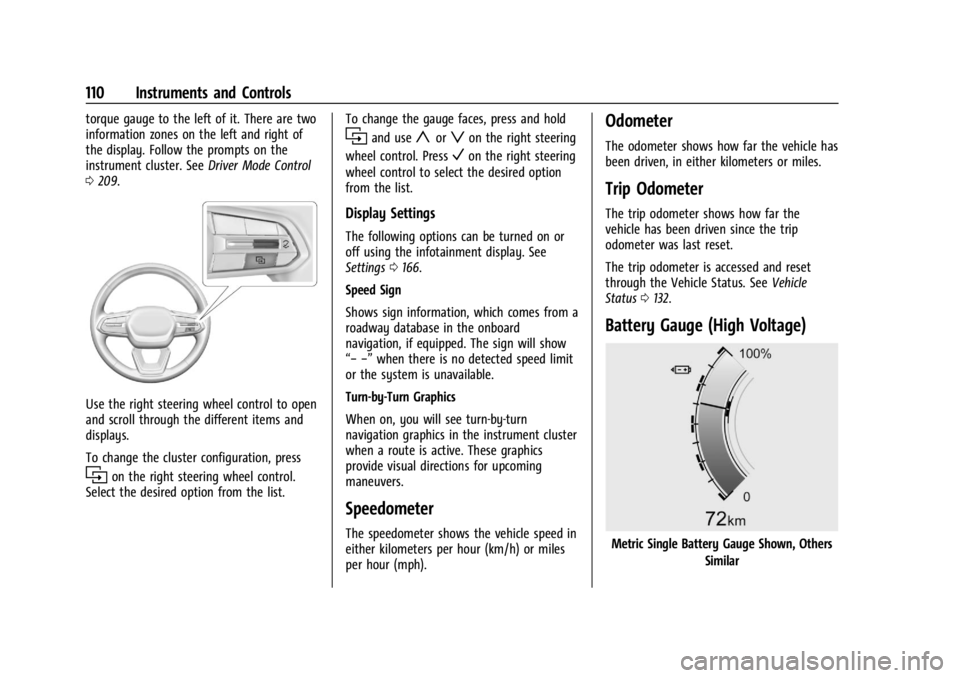
Use the right steering wheel control to open
and scroll through the different items and
displays.
To change the cluster configuration, press
ion the right steering wheel control.
Select the desired option from the list. To change the gauge faces, press and hold
iand useyorzon the right steering
wheel control. Press
Von the right steering
wheel control to select the desired option
from the list.
Display Settings
The following options can be turned on or
off using the infotainment display. See
Settings 0166.
Speed Sign
Shows sign information, which comes from a
roadway database in the onboard
navigation, if equipped. The sign will show
“− −” when there is no detected speed limit
or the system is unavailable.
Turn-by-Turn Graphics
When on, you will see turn-by-turn
navigation graphics in the instrument cluster
when a route is active. These graphics
provide visual directions for upcoming
maneuvers.
Speedometer
The speedometer shows the vehicle speed in
either kilometers per hour (km/h) or miles
per hour (mph).
Odometer
The odometer shows how far the vehicle has
been driven, in either kilometers or miles.
Trip Odometer
The trip odometer shows how far the
vehicle has been driven since the trip
odometer was last reset.
The trip odometer is accessed and reset
through the Vehicle Status. See Vehicle
Status 0132.
Battery Gauge (High Voltage)
Metric Single Battery Gauge Shown, Others
Similar
Page 118 of 429
Chevrolet Silverado EV Owner Manual (GMNA-Localizing-U.S./Canada-
16702912) - 2024 - CRC - 1/13/23
Instruments and Controls 117
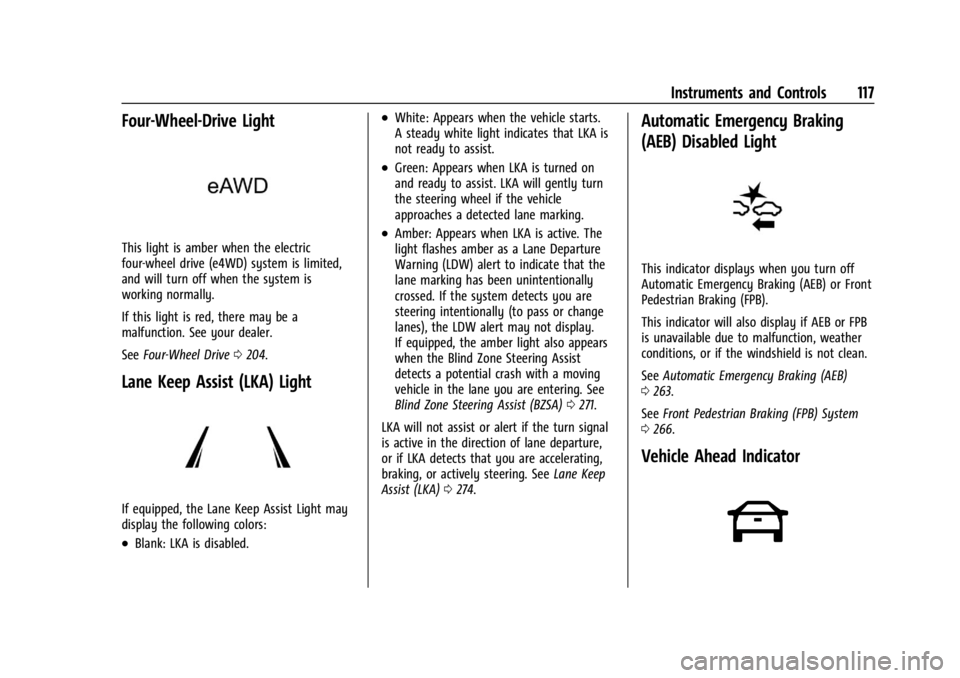
Four-Wheel-Drive Light
This light is amber when the electric
four-wheel drive (e4WD) system is limited,
and will turn off when the system is
working normally.
If this light is red, there may be a
malfunction. See your dealer.
SeeFour-Wheel Drive 0204.
Lane Keep Assist (LKA) Light
If equipped, the Lane Keep Assist Light may
display the following colors:
.Blank: LKA is disabled.
.White: Appears when the vehicle starts.
A steady white light indicates that LKA is
not ready to assist.
.Green: Appears when LKA is turned on
and ready to assist. LKA will gently turn
the steering wheel if the vehicle
approaches a detected lane marking.
.Amber: Appears when LKA is active. The
light flashes amber as a Lane Departure
Warning (LDW) alert to indicate that the
lane marking has been unintentionally
crossed. If the system detects you are
steering intentionally (to pass or change
lanes), the LDW alert may not display.
If equipped, the amber light also appears
when the Blind Zone Steering Assist
detects a potential crash with a moving
vehicle in the lane you are entering. See
Blind Zone Steering Assist (BZSA) 0271.
LKA will not assist or alert if the turn signal
is active in the direction of lane departure,
or if LKA detects that you are accelerating,
braking, or actively steering. See Lane Keep
Assist (LKA) 0274.
Automatic Emergency Braking
(AEB) Disabled Light
This indicator displays when you turn off
Automatic Emergency Braking (AEB) or Front
Pedestrian Braking (FPB).
This indicator will also display if AEB or FPB
is unavailable due to malfunction, weather
conditions, or if the windshield is not clean.
See Automatic Emergency Braking (AEB)
0 263.
See Front Pedestrian Braking (FPB) System
0 266.
Vehicle Ahead Indicator
Page 162 of 429
Chevrolet Silverado EV Owner Manual (GMNA-Localizing-U.S./Canada-
16702912) - 2024 - CRC - 1/13/23
Infotainment System 161
system. The system can be used while the
vehicle is on . The range of the Bluetooth
system can be up to 9.1 m (30 ft). Not all
mobile devices support all functions and not
all mobile devices work with the Bluetooth
system. SeeOnline Account 0398 for more
information about compatible mobile
devices.
Controls
Use the controls on the infotainment display
and the steering wheel to operate the
Bluetooth system.
Steering Wheel Controls
g: Press and release to answer incoming
calls on your connected Bluetooth mobile
device. Press and hold for mobile device
assistant.
c: Press to end a call, decline a call,
or cancel an operation. Press to mute or
unmute the infotainment system when not
on a call.
Infotainment System Controls
For information about how to navigate the
menu system using the infotainment
controls, see Using the System 0149.
Audio System
When using the Bluetooth mobile device
system, sound comes through the vehicle's
front audio system speakers and overrides
the audio system. The volume level while on
a mobile device call can be adjusted by
pressing the steering wheel controls or the
volume controls for the infotainment
system. The adjusted volume level remains
in memory for later calls. The volume
cannot be lowered beyond a certain level.
Bluetooth (Pairing and Using a
Phone)
Pairing
A Bluetooth-enabled mobile device must be
paired to the Bluetooth system and then
connected to the vehicle before it can be
used. See the mobile device manufacturer's
user guide for Bluetooth functions before
pairing the device.
Pairing Information
.Touch the Phone icon on the home page
of the infotainment display.
.If no mobile device has been paired, a
message on the infotainment display will
show the Manage Phones option. Touch this option and the Phones screen will
display. See
“Pairing a Phone” later in this
section.
.A Bluetooth smartphone with music
capability can be paired to the vehicle as
a smartphone and a music player at the
same time.
.Up to 10 devices can be paired to the
Bluetooth system.
.The pairing process is disabled when the
vehicle is moving.
.Pairing only needs to be completed once,
unless the pairing information on the cell
phone changes or the cell phone is
deleted from the system.
.If multiple paired cell phones are within
range of the system, the system connects
to the paired cell phone that is set to
First to Connect. If there is no cell phone
set to First to Connect, it will link to the
cell phone which was used last. To link to
a different paired cell phone, see “Linking
to a Different Phone” later in this section.
Pairing a Phone 1. Make sure Bluetooth has been enabled on the cell phone before starting the
pairing process.
2. Touch the Phone icon on the Home Page.
Page 165 of 429
Chevrolet Silverado EV Owner Manual (GMNA-Localizing-U.S./Canada-
16702912) - 2024 - CRC - 1/13/23
164 Infotainment System
To make a call using the Contacts menu:1. Touch the Phone icon on the Home Page or on the shortcut tray near the left of
the display.
2. Touch Contacts.
3. There are two methods to search for contacts:
.Search bar –Touch the search icon
on the top right of the Phones
window and type the name or
number of the contact on the
keyboard. Search results will be
displayed corresponding to the user
input. Touch the name to call.
.Scroll –Touch the list and scroll,
or use the scrollbar on the left side
of the Phones window. Touch the
name to call.
Making a Call Using the Recents Menu
The Recents menu accesses the recents call
list from your cell phone.
To make a call using the Recents menu:
1. Touch the Phone icon on the Home Page or on the shortcut tray near the left of
the display.
2. Touch Recents.
3. Touch the name or number to call.
Making a Call Using the Keypad
To make a call by dialing the numbers: 1. Touch the Phone icon on the Home Page or on the shortcut tray near the left of
the display.
2. Touch Keypad and enter a phone number.
3. Touch the phone icon on the infotainment display to start dialing the
number.
Searching Contacts Using the Keypad
To search for contacts using the keypad:
1. Touch the Phone icon on the Home Page.
2. Touch Keypad and enter partial phone numbers or contact names using the
digits on the keypad to search.
Results appear on the right side of the
display. Touch one to place a call.
Accepting or Declining a Call
When an incoming call is received, the
infotainment system mutes and a ring tone
is heard in the vehicle.
Accepting a Call
There are two ways to accept a call:
.Pressgon the steering wheel controls.
.Touch Answer on the infotainment
display.
Declining a Call
There are two ways to decline a call:
.Presscon the steering wheel controls.
.Touch Decline on the infotainment
display.
Call Waiting
Call waiting must be supported on the
Bluetooth cell phone and enabled by the
wireless service carrier to work.
Accepting a Call
Press
gto answer, then touch Switch on
the infotainment display.
Declining a Call
Press
cto decline, then touch Decline on
the infotainment display.
Switching Between Calls (Call Waiting
Calls Only)
To switch between calls, touch Phone on the
Home Page to display Call View. While in
Call View, touch the call information of the
call on hold to change calls.