navigation CHEVROLET SILVERADO EV 2024 Owners Manual
[x] Cancel search | Manufacturer: CHEVROLET, Model Year: 2024, Model line: SILVERADO EV, Model: CHEVROLET SILVERADO EV 2024Pages: 429, PDF Size: 8.98 MB
Page 109 of 429
Chevrolet Silverado EV Owner Manual (GMNA-Localizing-U.S./Canada-
16702912) - 2024 - CRC - 1/13/23
108 Instruments and Controls
Reconfigurable Instrument Cluster
The cluster display layout can be changed.
Some of the selectable views may not be
available for your particular vehicle.
The following are selectable views:
Clean :Displays no information zones.
Info : Displays one information zone under
the speedometer.
Gauge : Displays no information zones and
the gauges are located to the left and right
of the speedometer.
Infotainment : Displays one information
zone under the speedometer.
Driver Assistance : If equipped, displays
information for Adaptive Cruise Control
(ACC), Follow Distance, Lane Keep Assist
(LKA), and Forward Collision Alert (FCA).
Off Road : Displays one information zone
under the speedometer.
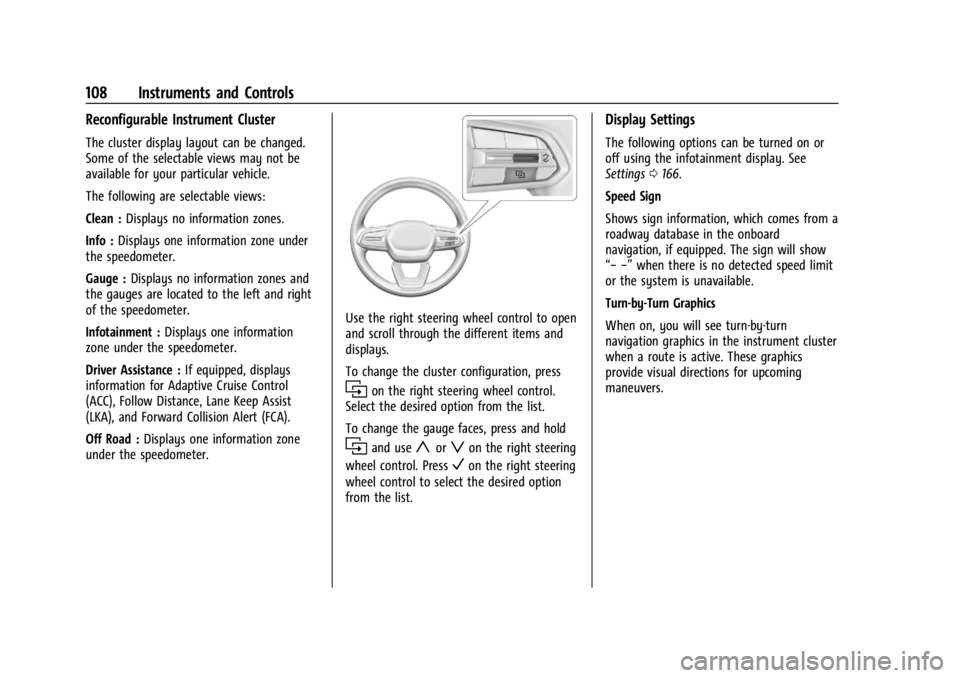
Use the right steering wheel control to open
and scroll through the different items and
displays.
To change the cluster configuration, press
ion the right steering wheel control.
Select the desired option from the list.
To change the gauge faces, press and hold
iand useyorzon the right steering
wheel control. Press
Von the right steering
wheel control to select the desired option
from the list.
Display Settings
The following options can be turned on or
off using the infotainment display. See
Settings 0166.
Speed Sign
Shows sign information, which comes from a
roadway database in the onboard
navigation, if equipped. The sign will show
“− −” when there is no detected speed limit
or the system is unavailable.
Turn-by-Turn Graphics
When on, you will see turn-by-turn
navigation graphics in the instrument cluster
when a route is active. These graphics
provide visual directions for upcoming
maneuvers.
Page 110 of 429
Chevrolet Silverado EV Owner Manual (GMNA-Localizing-U.S./Canada-
16702912) - 2024 - CRC - 1/13/23
Instruments and Controls 109
Instrument Cluster (Uplevel)
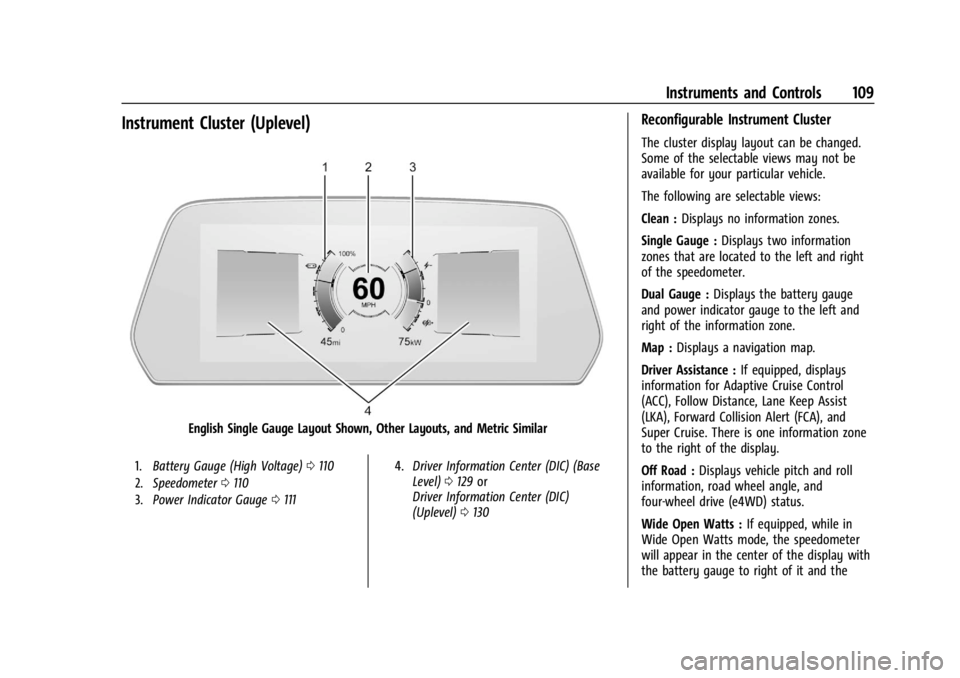
English Single Gauge Layout Shown, Other Layouts, and Metric Similar
1.Battery Gauge (High Voltage) 0110
2. Speedometer 0110
3. Power Indicator Gauge 0111 4.
Driver Information Center (DIC) (Base
Level) 0129 or
Driver Information Center (DIC)
(Uplevel) 0130
Reconfigurable Instrument Cluster
The cluster display layout can be changed.
Some of the selectable views may not be
available for your particular vehicle.
The following are selectable views:
Clean : Displays no information zones.
Single Gauge : Displays two information
zones that are located to the left and right
of the speedometer.
Dual Gauge : Displays the battery gauge
and power indicator gauge to the left and
right of the information zone.
Map : Displays a navigation map.
Driver Assistance : If equipped, displays
information for Adaptive Cruise Control
(ACC), Follow Distance, Lane Keep Assist
(LKA), Forward Collision Alert (FCA), and
Super Cruise. There is one information zone
to the right of the display.
Off Road : Displays vehicle pitch and roll
information, road wheel angle, and
four-wheel drive (e4WD) status.
Wide Open Watts : If equipped, while in
Wide Open Watts mode, the speedometer
will appear in the center of the display with
the battery gauge to right of it and the
Page 111 of 429
Chevrolet Silverado EV Owner Manual (GMNA-Localizing-U.S./Canada-
16702912) - 2024 - CRC - 1/13/23
110 Instruments and Controls
torque gauge to the left of it. There are two
information zones on the left and right of
the display. Follow the prompts on the
instrument cluster. SeeDriver Mode Control
0 209.
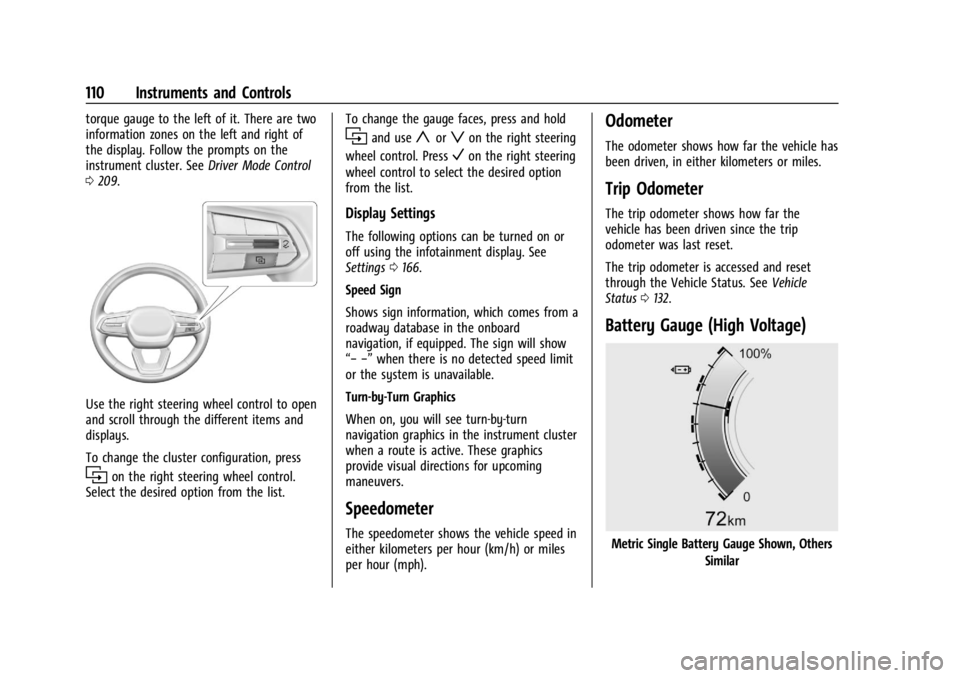
Use the right steering wheel control to open
and scroll through the different items and
displays.
To change the cluster configuration, press
ion the right steering wheel control.
Select the desired option from the list. To change the gauge faces, press and hold
iand useyorzon the right steering
wheel control. Press
Von the right steering
wheel control to select the desired option
from the list.
Display Settings
The following options can be turned on or
off using the infotainment display. See
Settings 0166.
Speed Sign
Shows sign information, which comes from a
roadway database in the onboard
navigation, if equipped. The sign will show
“− −” when there is no detected speed limit
or the system is unavailable.
Turn-by-Turn Graphics
When on, you will see turn-by-turn
navigation graphics in the instrument cluster
when a route is active. These graphics
provide visual directions for upcoming
maneuvers.
Speedometer
The speedometer shows the vehicle speed in
either kilometers per hour (km/h) or miles
per hour (mph).
Odometer
The odometer shows how far the vehicle has
been driven, in either kilometers or miles.
Trip Odometer
The trip odometer shows how far the
vehicle has been driven since the trip
odometer was last reset.
The trip odometer is accessed and reset
through the Vehicle Status. See Vehicle
Status 0132.
Battery Gauge (High Voltage)
Metric Single Battery Gauge Shown, Others
Similar
Page 127 of 429
Chevrolet Silverado EV Owner Manual (GMNA-Localizing-U.S./Canada-
16702912) - 2024 - CRC - 1/13/23
126 Instruments and Controls
temperature, and outside air temperature.
To learn more about the vehicle battery see
Plug-In Charging0278.
The peek-in charging screen can be used to
monitor your vehicle’s charge status when
the vehicle is off, see Instrument Cluster
(Base Level) 0107 or
Instrument Cluster (Uplevel) 0109. To
monitor the charging status remotely,
download the myChevrolet app on your
mobile device.
Fast Charging
The vehicle will immediately begin charging
when plugged into a fast charging station.
While Fast Charging, the vehicle will bypass
any schedule or departure time selection.
See Plug-In Charging 0278.
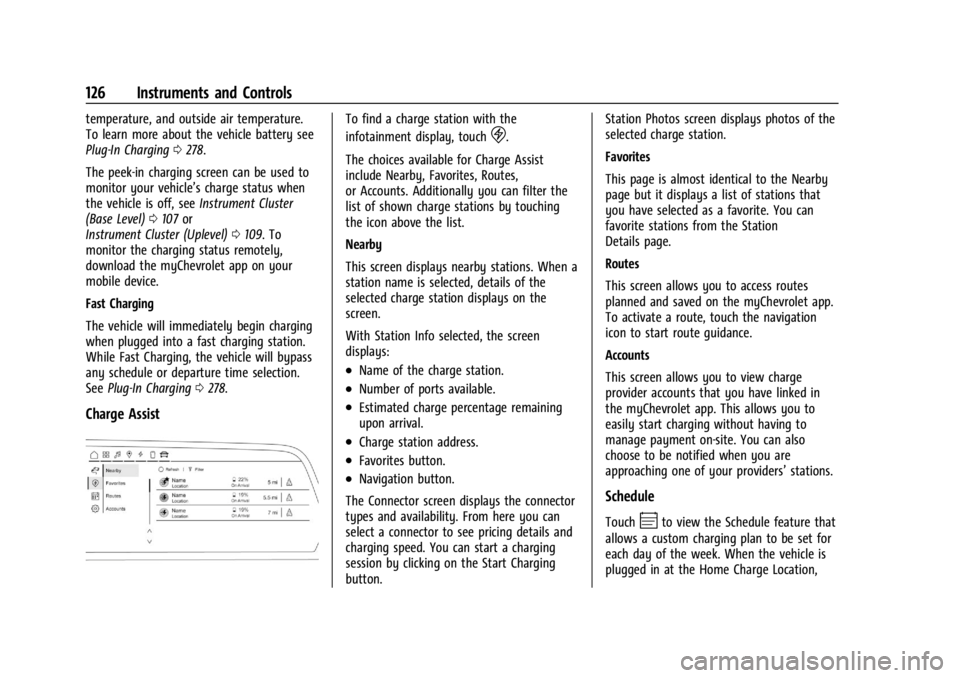
Charge Assist
To find a charge station with the
infotainment display, touch
D.
The choices available for Charge Assist
include Nearby, Favorites, Routes,
or Accounts. Additionally you can filter the
list of shown charge stations by touching
the icon above the list.
Nearby
This screen displays nearby stations. When a
station name is selected, details of the
selected charge station displays on the
screen.
With Station Info selected, the screen
displays:
.Name of the charge station.
.Number of ports available.
.Estimated charge percentage remaining
upon arrival.
.Charge station address.
.Favorites button.
.Navigation button.
The Connector screen displays the connector
types and availability. From here you can
select a connector to see pricing details and
charging speed. You can start a charging
session by clicking on the Start Charging
button. Station Photos screen displays photos of the
selected charge station.
Favorites
This page is almost identical to the Nearby
page but it displays a list of stations that
you have selected as a favorite. You can
favorite stations from the Station
Details page.
Routes
This screen allows you to access routes
planned and saved on the myChevrolet app.
To activate a route, touch the navigation
icon to start route guidance.
Accounts
This screen allows you to view charge
provider accounts that you have linked in
the myChevrolet app. This allows you to
easily start charging without having to
manage payment on-site. You can also
choose to be notified when you are
approaching one of your providers’
stations.
Schedule
TouchEto view the Schedule feature that
allows a custom charging plan to be set for
each day of the week. When the vehicle is
plugged in at the Home Charge Location,
Page 130 of 429

Chevrolet Silverado EV Owner Manual (GMNA-Localizing-U.S./Canada-
16702912) - 2024 - CRC - 1/13/23
Instruments and Controls 129
a lower cost by prioritizing charging during
the electrical provider’s off-peak period. The
vehicle will use these times to reach the
desired Charge Level by the scheduled time.
If the vehicle cannot reach the desired
charge level within these times, it will
charge as needed outside of this time
window.
Driver Information Center (DIC)
(Base Level)
The DIC is displayed in the instrument
cluster. It shows the status of many vehicle
systems.
yorz:Use to scroll to the previous or
next selection.
V: Press to open a menu or select a menu
item. Press and hold to reset certain
displays.
DIC Information Display Options
Select which info display to view on the DIC
through the Settings menu, or by selecting
Add to Driver Display in the Vehicle Status
on the infotainment display. See Settings
0 166 or
Vehicle Status 0132.
DIC Information Displays
The following is the list of all possible DIC
information displays and their locations.
Some of the information displays may not
be available for your particular vehicle.
Auto Lane Change : Displays the status of a
driver-requested lane change when Super
Cruise is active. See Super Cruise0227.
Audio Now Playing : Displays the actively
playing audio.
Navigation : Displays a variety of navigation
information.
Phone : Displays a variety of call
information. Trip 1 or Trip 2 and Average Efficiency :
The
Trip display shows the current distance
traveled, in either kilometers (km) or
miles (mi), since the trip odometer was last
reset. To reset the current trip, touch and
hold the touchscreen display when trip
odometer is displayed on the vehicle status
screen.
The Average Efficiency shows the
approximate average kWh per
100 kilometers (kWh/100 km), kilometers
per kilowatt hour kWh (km/kWh), or miles
per kilowatt hour kWh(mi/kWh). This
number is calculated based on the number
of kWh/100 km, km/kWh, or mi/kWh
recorded since the last time this menu item
was reset. This number only reflects the
approximate average electrical energy
economy that the vehicle has at that
moment, and changes as driving conditions
change.
Current Trip : Displays distance driven,
average efficiency, and time elapsed since
vehicle startup. It resets when you turn your
vehicle off.
Time/Date : Displays current date and time
information.
Page 133 of 429
Chevrolet Silverado EV Owner Manual (GMNA-Localizing-U.S./Canada-
16702912) - 2024 - CRC - 1/13/23
132 Instruments and Controls
Off :Allows for no information to be
displayed in the cluster info display areas.
Right Zone
Auto Lane Change : Displays the status of a
driver-requested lane change when Super
Cruise is active. See Super Cruise0227.
Audio Now Playing : Displays the actively
playing audio.
Navigation : Displays a variety of navigation
information.
Phone : Displays a variety of call
information.
Off : Allows for no information to be
displayed in the cluster info display areas.
Vehicle Status
The following are all possible vehicle status
features.
To access the vehicle status menu touch
A
from the list of home page icons displayed
on the left side of the infotainment display.
Vehicle status content is shown on cards
that are grouped together in option tabs
that are displayed on the infotainment
display. Touching a card on the infotainment display
opens up a dialog box for that card. To
select a desired option within a dialog box,
touch the option and follow any message or
alerts that may display. Some options may
be unavailable while driving.
Touch Add to Driver Display to send the
desired card to the Driver Information
Center (DIC) on the instrument cluster.
Touch Remove from Driver Display to
remove the selected card from the
instrument cluster. See
Driver Information
Center (DIC) (Base Level) 0129 or
Driver Information Center (DIC) (Uplevel)
0 130.
Options
The following is the list of all possible cards
and their locations. Some of the cards may
not be available for your particular vehicle.
Overview
Displays an interactive 3-D rendered image
of your vehicle that shows performance and
health information.
Tire Pressure
Displays the approximate pressures of all
four tires. Tire pressure is displayed in either
kilopascal (kPa) or in pounds per square inch (psi). If the pressure is low, the value
for that tire is shown in amber. See
Tire
Pressure Monitor System 0351 and
Tire Pressure Monitor Operation 0351.
If equipped, Tire Temperature is located
below the tire pressure graphic. Tire
Temperature shows overall temperature as
either Cold, Cool, Normal, Warm, or Hot.
Normal is typical for normal driving while
Warm is typical for spirited driving.
Unknown displays when tire temperature
information is unavailable.
When selected, the following options may
be chosen in the dialog: Relearn Tire
Pressure, Turn Off/On Leak Detection, Reset
Leak Detection, and Add to Driver Display.
When enabled, you will receive alerts when
a fast and/or slow tire leak is detected. The
Leak Detection speeds shown are either Tire
Leak or Fast Leak. When disabled, you will
still receive low tire pressure alerts.
However, you will stop receiving additional
alerts when a tire is leaking air.
Energy Info
Energy Usage : Displays how energy is
being used for the current drive since the
last time the vehicle was started.
Percentages of the Driving, Remote Climate,
and Climate and Prep vehicle systems as
Page 135 of 429

Chevrolet Silverado EV Owner Manual (GMNA-Localizing-U.S./Canada-
16702912) - 2024 - CRC - 1/13/23
134 Instruments and Controls
HUD Display on the Windshield
Depending on how the vehicle is equipped,
the HUD may display some of the following
vehicle information and vehicle messages or
alerts:
.Speed
.Audio
.Phone
.Navigation
.Driver Assistance Features
.Vehicle Messages
Some vehicle messages or alerts displayed in
the HUD may be cleared by using the
steering wheel controls. Head-Up Display (HUD) Controls
If equipped, this feature under HUD Controls
of the infotainment screen allows for
adjusting brightness, height, and rotation.
HUD Controls: This feature may only be
available in P (Park).
HUD controls are available on the
infotainment screen.
To adjust the HUD image:
1. Adjust the driver seat.
2. Start the vehicle.
3. On the infotainment screen navigate to Home > Controls > HUD. 4. Touch the HUD Control icons above and
below to adjust height, brightness, and
image angle. The values can also be
adjusted by tapping on the bar.
The HUD image will automatically dim and
brighten to compensate for outside lighting.
Adjust as needed.
The HUD image can temporarily light up
depending on the angle and position of
sunlight on the HUD display. This is normal.
Polarized sunglasses could make the HUD
image harder to see.
HUD Options
Options can be turned on or off from the
HEAD-UP DISPLAY screen. See Settings0166.
If equipped, the following can be turned on
or off using the infotainment display:
.Speed Sign
.Navigation
.Recent Calls/Audio Lists
Page 136 of 429
Chevrolet Silverado EV Owner Manual (GMNA-Localizing-U.S./Canada-
16702912) - 2024 - CRC - 1/13/23
Instruments and Controls 135
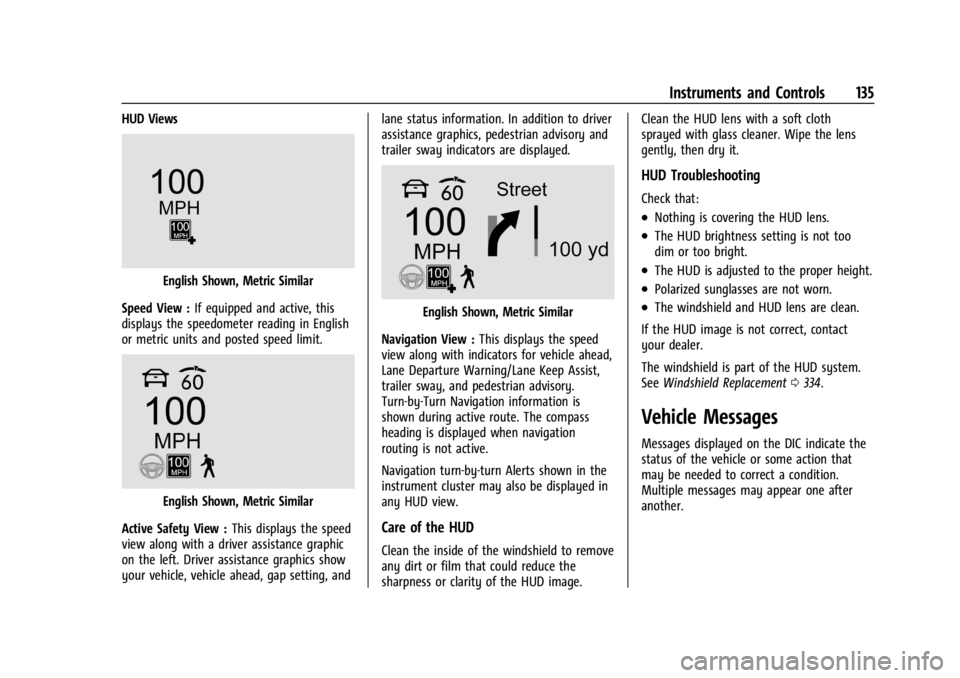
HUD Views
English Shown, Metric Similar
Speed View : If equipped and active, this
displays the speedometer reading in English
or metric units and posted speed limit.
English Shown, Metric Similar
Active Safety View : This displays the speed
view along with a driver assistance graphic
on the left. Driver assistance graphics show
your vehicle, vehicle ahead, gap setting, and lane status information. In addition to driver
assistance graphics, pedestrian advisory and
trailer sway indicators are displayed.
English Shown, Metric Similar
Navigation View : This displays the speed
view along with indicators for vehicle ahead,
Lane Departure Warning/Lane Keep Assist,
trailer sway, and pedestrian advisory.
Turn-by-Turn Navigation information is
shown during active route. The compass
heading is displayed when navigation
routing is not active.
Navigation turn-by-turn Alerts shown in the
instrument cluster may also be displayed in
any HUD view.
Care of the HUD
Clean the inside of the windshield to remove
any dirt or film that could reduce the
sharpness or clarity of the HUD image. Clean the HUD lens with a soft cloth
sprayed with glass cleaner. Wipe the lens
gently, then dry it.
HUD Troubleshooting
Check that:
.Nothing is covering the HUD lens.
.The HUD brightness setting is not too
dim or too bright.
.The HUD is adjusted to the proper height.
.Polarized sunglasses are not worn.
.The windshield and HUD lens are clean.
If the HUD image is not correct, contact
your dealer.
The windshield is part of the HUD system.
See Windshield Replacement 0334.
Vehicle Messages
Messages displayed on the DIC indicate the
status of the vehicle or some action that
may be needed to correct a condition.
Multiple messages may appear one after
another.
Page 148 of 429

Chevrolet Silverado EV Owner Manual (GMNA-Localizing-U.S./Canada-
16702912) - 2024 - CRC - 1/13/23
Infotainment System 147
Infotainment System
Introduction
Introduction . . . . . . . . . . . . . . . . . . . . . . . . . . . 147
Overview . . . . . . . . . . . . . . . . . . . . . . . . . . . . . . 148
Steering Wheel Controls . . . . . . . . . . . . . . . 149
Using the System . . . . . . . . . . . . . . . . . . . . . 149
Software Updates . . . . . . . . . . . . . . . . . . . . . . 152
Radio
AM-FM Radio . . . . . . . . . . . . . . . . . . . . . . . . . . 152
Satellite Radio . . . . . . . . . . . . . . . . . . . . . . . . . 153
Radio Reception . . . . . . . . . . . . . . . . . . . . . . . . 153
Multi-Band Antenna . . . . . . . . . . . . . . . . . . . 154
Audio Players
Avoiding Untrusted Media Devices . . . . . 154
USB Port . . . . . . . . . . . . . . . . . . . . . . . . . . . . . . . 154
Bluetooth Audio . . . . . . . . . . . . . . . . . . . . . . . 155
Navigation
Using the Navigation System . . . . . . . . . . 155
Maps . . . . . . . . . . . . . . . . . . . . . . . . . . . . . . . . . . 156
Navigation Symbols . . . . . . . . . . . . . . . . . . . 156
Destination . . . . . . . . . . . . . . . . . . . . . . . . . . . . 157
Global Positioning System (GPS) . . . . . . . 157
Vehicle Positioning . . . . . . . . . . . . . . . . . . . . 158
Problems with Route Guidance . . . . . . . . 158
Voice Recognition
Voice Recognition . . . . . . . . . . . . . . . . . . . . . . 159
Phone
Bluetooth (Overview) . . . . . . . . . . . . . . . . . . 160
Bluetooth (Pairing and Using aPhone) . . . . . . . . . . . . . . . . . . . . . . . . . . . . . . . 161
Apple CarPlay and Android Auto . . . . . . . 165
Settings
Settings . . . . . . . . . . . . . . . . . . . . . . . . . . . . . . . 166
Teen Driver . . . . . . . . . . . . . . . . . . . . . . . . . . . . 168
Trademarks and License Agreements
Trademarks and License Agreements . . . 171
Introduction
Read the following pages to become familiar
with the features.
{Warning
Taking your eyes off the road for too
long or too often while using any
infotainment feature can cause a crash.
You or others could be injured or killed.
Do not give extended attention to
infotainment tasks while driving. Limit
your glances at the vehicle displays and
focus your attention on driving. Use voice
commands whenever possible.
The infotainment system has built-in
features intended to help avoid distraction
by disabling some features when driving.
These features may gray out when they are
unavailable. Many infotainment features are
also available through the instrument cluster
and steering wheel controls.
Before driving:
.Become familiar with the operation,
center stack controls, steering wheel
controls, and infotainment display.
Page 150 of 429

Chevrolet Silverado EV Owner Manual (GMNA-Localizing-U.S./Canada-
16702912) - 2024 - CRC - 1/13/23
Infotainment System 149
Steering Wheel Controls
If equipped, some audio controls can be
adjusted at the steering wheel.
g:Press to answer an incoming call or
start voice recognition. See Bluetooth
(Pairing and Using a Phone) 0161 or
Bluetooth (Overview) 0160.
e:Press show the audio sources list.
y:Press the control up to answer an
incoming call.
c: Press the control down to decline an
incoming call or end a current call.
The favorites and volume switches are on
the back of the steering wheel.
1. Favorite: When on a radio source, press to select the next or previous audio
broadcast favorite. When listening to a
media device, press to select the next or
previous track.
2. Volume: Press to increase or decrease the volume.
Using the System
Audio
Touch the Audio icon to display the active
audio source page. Examples of available
sources may include AM, FM, SXM (if
equipped), USB, AUX, and Bluetooth.
Phone
Touch the Phone icon to display the Phone
main page. See Bluetooth (Pairing and Using
a Phone) 0161 or
Bluetooth (Overview) 0160.
Maps
If equipped, touch the Maps icon to display
the navigation map. See Using the
Navigation System 0155.
Google Assistant
If equipped, touch the Google Assistant icon
to open the Google Assistant app. See Voice
Recognition 0159.
Google Play
If equipped, touch to download some of
your favorite apps in your vehicle.
Downloading apps on Google Play requires
you to sign into a Google Account and have
internet connectivity in your vehicle. Some
third-party apps require a separate account
and, in some cases, a paid subscription for
in-vehicle access.
Settings
Touch the Settings icon to display the
Settings menu. See Settings0166.