AUX CHEVROLET SONIC 2013 2.G User Guide
[x] Cancel search | Manufacturer: CHEVROLET, Model Year: 2013, Model line: SONIC, Model: CHEVROLET SONIC 2013 2.GPages: 382, PDF Size: 6.71 MB
Page 151 of 382
Black plate (19,1)Chevrolet Sonic Owner Manual - 2013 - 2nd PrintReady - 10/11/12
Infotainment System 7-19
mild neutral detergent solution
mixed with water, and clean it. Wipe
the disc from the center to the
outer edge.
Care of the CD Player
Do not add a label to a disc, as it
could get caught in the CD player.
If a label is needed, label the top of
the recorded disc with a
marking pen.
Do not use disc lens cleaners
because they could contaminate the
lens of the disc optics and damage
the CD player.
Notice:If a label is added to a
CD, more than one CD is inserted
into the slot at a time, or an
attempt is made to play scratched
or damaged CDs, the CD player
could be damaged. While using
the CD player, use only CDs in
good condition without any label,
load one CD at a time, and keep
the CD player and the loading slot
free of foreign materials, liquids,
and debris.Control Buttons
The buttons used to control the CD
player are:
AUX or CD/AUX: Press to use the
CD player.
SEEK
¨or©SEEK: Press to
select tracks or to fast forward or
rewind within a track.
INFO: Press to display additional
information about the current track
that may be available.
MENU/TUNE: Turn to select tracks.
Turn to enter the menu. Press to
select the menu.
Z(Eject): Press to eject the disc.
Inserting a CD
With the printed side facing up,
insert a disc into the CD slot until it
is drawn in.
Removing a CD
PressZ.
The disc is pushed out of the
CD slot. If the disc is not removed after it is
ejected, it is pulled back in after a
few seconds.
Playing a CD or MP3 CD
Press the AUX or CD/AUX button.
If there is a disc in the player, it
begins playing.
Information about the disc and
current track is shown on the
display depending on the data
stored.
Selecting a CD Track
Using the control buttons:
.Press SEEK¨or©SEEK to
select the next or previous track.
.Turn the MENU/TUNE knob.
Using the CD Menu:
1. Turn the MENU/TUNE knob.
2. Select Tracks List.
3. Select the track.
Page 152 of 382
Black plate (20,1)Chevrolet Sonic Owner Manual - 2013 - 2nd PrintReady - 10/11/12
7-20 Infotainment System
Playing Tracks in Random Order
Turn the MENU/TUNE knob and set
Shuffle Songs to On.
Fast Forward and Rewind
Press and hold SEEK
¨or©SEEK
to fast forward or rewind within the
current track.
Selecting an MP3 Track
Using the control buttons:
.Press SEEK¨or©SEEK to
select the next or previous track.
.Turn the MENU/TUNE knob.
Using the CD Menu:
1. Turn the MENU/TUNE knob.
2. Select Playlists/Folders.
3. Select the playlist or folder.
4. Select the track.
Searching for MP3 Tracks
The search feature may take some
time to display the information after
reading the disc due to the amount of information stored on the disc.
FM automatically plays while the
disc is being read.
Tracks can be searched by:
.Playlists
.Artists
.Albums
.Song Titles
.Genres
.Folder View
To search for tracks:
1. Turn the MENU/TUNE knob.
2. Select Search.
3. Select: Playlists, Artists, Albums, Song Titles, Genres,
or Folder View.
4. Select the track.
USB Port
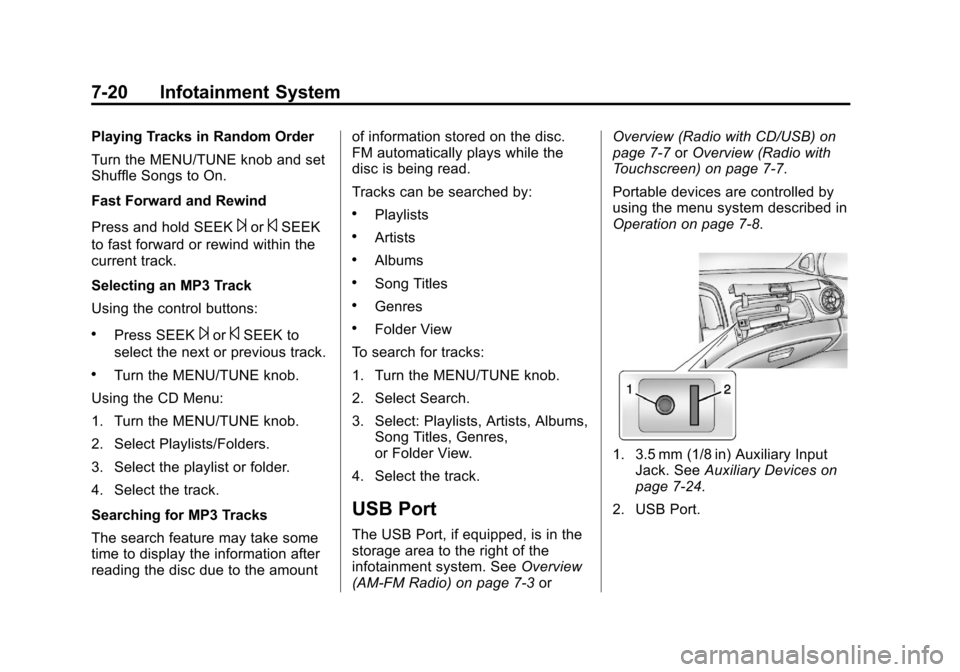
The USB Port, if equipped, is in the
storage area to the right of the
infotainment system. See Overview
(AM-FM Radio) on page 7‑3 orOverview (Radio with CD/USB) on
page 7‑7
orOverview (Radio with
Touchscreen) on page 7‑7.
Portable devices are controlled by
using the menu system described in
Operation on page 7‑8.
1. 3.5 mm (1/8 in) Auxiliary Input Jack. See Auxiliary Devices on
page 7‑24.
2. USB Port.
Page 155 of 382
Black plate (23,1)Chevrolet Sonic Owner Manual - 2013 - 2nd PrintReady - 10/11/12
Infotainment System 7-23
Shuffle Functionality
Turn the MENU/TUNE knob and set
Shuffle Songs (Random) to On
or Off.
On:Plays current tracks in random
order.
Off: Plays current tracks in
sequential order.
Repeat Functionality
Turn the MENU/TUNE knob and set
Repeat to On or Off.
Repeat On: Repeats the current
track.
Repeat Off: Playback starts from
the beginning of the current track
after the last track finishes.
Radio With Touchscreen
The infotainment system can play
music or movies by connecting an
auxiliary device to the USB port,
if equipped. USB Support
USB Supported Devices
.USB Flash Drives
.Portable USB Hard Drives
.2G-5G iPod nano®
.1G-3G iPod touch®
.120GB/160GB iPod classic®
.3G/3GS/4/4S iPhone®
Not all iPods and USB drives are
compatible with the USB port.
Make sure the iPod has the latest
firmware from Apple
®for proper
operation. iPod firmware can be
updated using the latest iTunes
®
application. See www.apple.com/
itunes.
For help with identifying your iPod,
go to www.apple.com/support.
The USB port can play both lower
and upper case .mp3, .wma, .ogg,
and .wav files stored on a USB
storage device. USB Supported File and Folder
Structure
The Infotainment system supports:
.Up to 2,500 folders.
.Up to 10 folders in depth.
.Up to 2,500 music files.
.Up to 2,500 photo files.
.Up to 250 movie files.
.ID3 Tag (versions 1.0/1.1/2.2/
2.3/2.4).
.FAT16.
.FAT32.
.exFAT.
Connecting a USB Storage
Device or iPod/iPhone
To connect a USB storage device,
connect the device to the USB port.
To connect an iPod/iPhone, connect
one end of the device’
s cable to the
iPod/iPhone and the other end to
the USB port.
Page 156 of 382
Black plate (24,1)Chevrolet Sonic Owner Manual - 2013 - 2nd PrintReady - 10/11/12
7-24 Infotainment System
The iPod/iPhone charges while it is
connected to the vehicle if the
vehicle is in the ACC/ACCESSORY
or ON/RUN position. When the
vehicle is turned off, the iPod/
iPhone automatically powers off and
will not charge or draw power from
the vehicle's battery.
For more information on USB
usage, see“Audio System” in
Pictures and Movies (Audio System)
on page 7‑50 orPictures and
Movies (Picture System) on
page 7‑55 orPictures and Movies
(Movie System) on page 7‑56.
Auxiliary Devices
The optional AUX input allows
portable devices to connect to the
vehicle using the 3.5 mm (1/8 in)
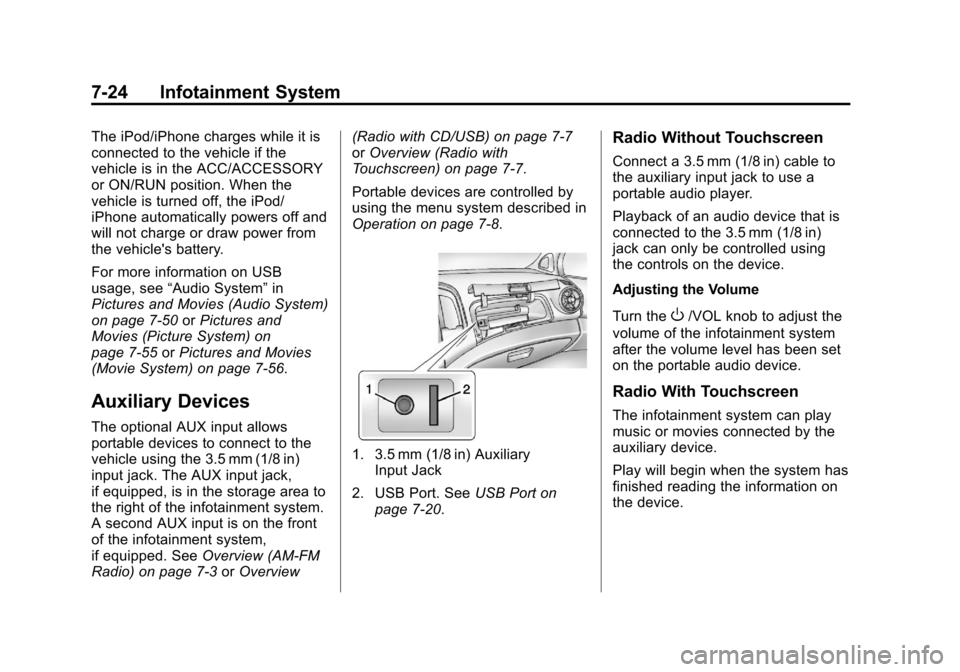
input jack. The AUX input jack,
if equipped, is in the storage area to
the right of the infotainment system.
A second AUX input is on the front
of the infotainment system,
if equipped. See Overview (AM-FM
Radio) on page 7‑3 orOverview (Radio with CD/USB) on page 7‑7
or
Overview (Radio with
Touchscreen) on page 7‑7.
Portable devices are controlled by
using the menu system described in
Operation on page 7‑8.
1. 3.5 mm (1/8 in) Auxiliary Input Jack
2. USB Port. See USB Port on
page 7‑20.
Radio Without Touchscreen
Connect a 3.5 mm (1/8 in) cable to
the auxiliary input jack to use a
portable audio player.
Playback of an audio device that is
connected to the 3.5 mm (1/8 in)
jack can only be controlled using
the controls on the device.
Adjusting the Volume
Turn the
O/VOL knob to adjust the
volume of the infotainment system
after the volume level has been set
on the portable audio device.
Radio With Touchscreen
The infotainment system can play
music or movies connected by the
auxiliary device.
Play will begin when the system has
finished reading the information on
the device.
Page 157 of 382
Black plate (25,1)Chevrolet Sonic Owner Manual - 2013 - 2nd PrintReady - 10/11/12
Infotainment System 7-25
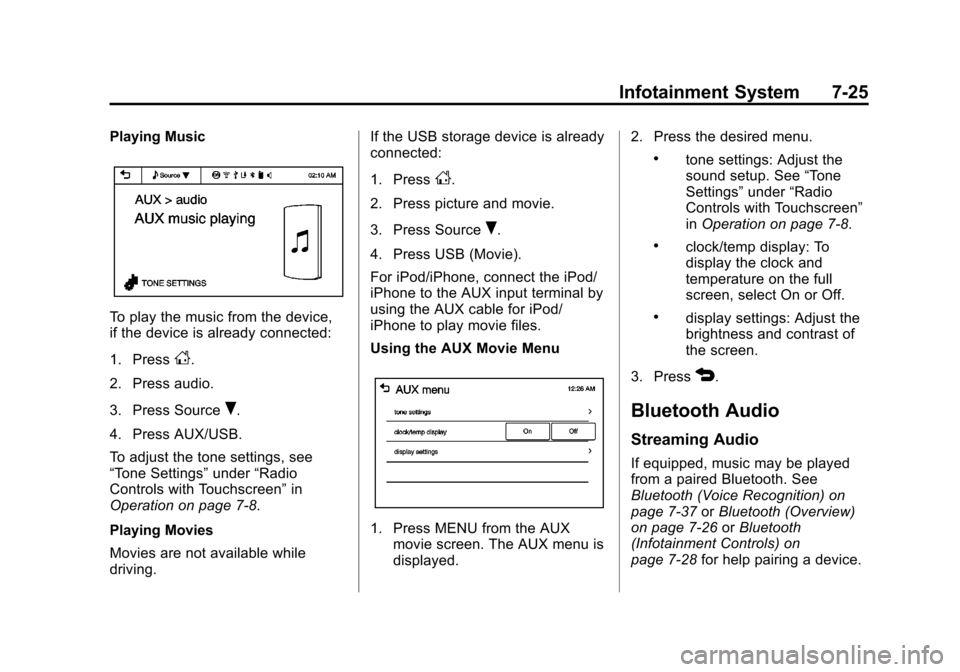
Playing Music
To play the music from the device,
if the device is already connected:
1. Press
D.
2. Press audio.
3. Press Source
R.
4. Press AUX/USB.
To adjust the tone settings, see
“Tone Settings” under“Radio
Controls with Touchscreen” in
Operation on page 7‑8.
Playing Movies
Movies are not available while
driving. If the USB storage device is already
connected:
1. Press
D.
2. Press picture and movie.
3. Press Source
R.
4. Press USB (Movie).
For iPod/iPhone, connect the iPod/
iPhone to the AUX input terminal by
using the AUX cable for iPod/
iPhone to play movie files.
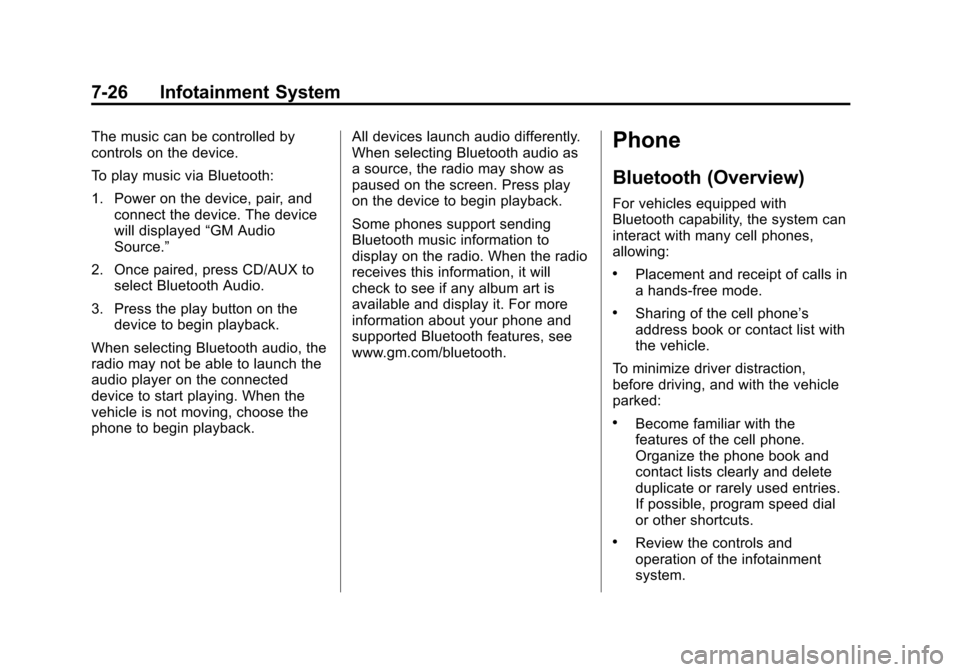
Using the AUX Movie Menu
1. Press MENU from the AUX movie screen. The AUX menu is
displayed. 2. Press the desired menu.
.tone settings: Adjust the
sound setup. See
“Tone
Settings” under“Radio
Controls with Touchscreen”
in Operation on page 7‑8.
.clock/temp display: To
display the clock and
temperature on the full
screen, select On or Off.
.display settings: Adjust the
brightness and contrast of
the screen.
3. Press
4.
Bluetooth Audio
Streaming Audio
If equipped, music may be played
from a paired Bluetooth. See
Bluetooth (Voice Recognition) on
page 7‑37 orBluetooth (Overview)
on page 7‑26 orBluetooth
(Infotainment Controls) on
page 7‑28 for help pairing a device.
Page 158 of 382
Black plate (26,1)Chevrolet Sonic Owner Manual - 2013 - 2nd PrintReady - 10/11/12
7-26 Infotainment System
The music can be controlled by
controls on the device.
To play music via Bluetooth:
1. Power on the device, pair, andconnect the device. The device
will displayed “GM Audio
Source.”
2. Once paired, press CD/AUX to select Bluetooth Audio.
3. Press the play button on the device to begin playback.
When selecting Bluetooth audio, the
radio may not be able to launch the
audio player on the connected
device to start playing. When the
vehicle is not moving, choose the
phone to begin playback. All devices launch audio differently.
When selecting Bluetooth audio as
a source, the radio may show as
paused on the screen. Press play
on the device to begin playback.
Some phones support sending
Bluetooth music information to
display on the radio. When the radio
receives this information, it will
check to see if any album art is
available and display it. For more
information about your phone and
supported Bluetooth features, see
www.gm.com/bluetooth.Phone
Bluetooth (Overview)
For vehicles equipped with
Bluetooth capability, the system can
interact with many cell phones,
allowing:
.Placement and receipt of calls in
a hands-free mode.
.Sharing of the cell phone’s
address book or contact list with
the vehicle.
To minimize driver distraction,
before driving, and with the vehicle
parked:
.Become familiar with the
features of the cell phone.
Organize the phone book and
contact lists clearly and delete
duplicate or rarely used entries.
If possible, program speed dial
or other shortcuts.
.Review the controls and
operation of the infotainment
system.
Page 183 of 382

Black plate (51,1)Chevrolet Sonic Owner Manual - 2013 - 2nd PrintReady - 10/11/12
Infotainment System 7-51
on while the USB device is
connected, the USB device may
be damaged or may not operate
normally.
.USB storage devices can only
be connected for playing music/
movies, viewing photo files,
or upgrading.
.Do not use the USB terminal to
charge USB accessory
equipment. The heat generated
may cause performance issues
or damage.
.Store files in the top-level drive
of the USB storage device.
When the logical drive is
separated from the device, only
the USB music files from the
top-level logical drive can be
played. Music files stored on
USB storage devices may not
play normally if an application is
loaded by partitioning a separate
drive.
.Music files to which Digital Right
Management (DRM) is applied
cannot be played.
.USB storage device capacity
limit is 2,500 music files,
2,500 photo files, 250 movie
files, 2,500 folders, and
10 stages of folder structure.
The iPod/iPhone can play all
music files supported, but will
only display up to 2,500 files on
the screen in alphabetical order.
.The following iPod/iPhone
product models are supported:
‐iPod 2G nano
®/iPod 3G nano/
iPod 4G and 5G nano
‐ iPod 120GB and 160GB
classic
®
‐iPod 1G, 2G, and 3G touch®
‐iPhone 3G and 3GS
‐ iPhone 4/4S
.Only connect the iPod/iPhone
with connection cables
supported by iPod/iPhone
products. Other connection
cables cannot be used.
.The iPod/iPhone may be
damaged if the ignition is turned
off when it is connected to the
vehicle. When not in use,
disconnect the iPod/iPhone.
.When the iPod/iPhone is
connected to the USB port by
using the iPod/iPhone cable, the
Bluetooth music is not
supported.
.Connect the iPod/iPhone to the
USB port by using the iPod/
iPhone cable to play the music
files. When the iPod/iPhone is
connected to the AUX input
terminal, the music file will
not play.
.The iPod/iPhone playback
functions and the information
displayed may be different when
played on the infotainment
system.
Page 270 of 382
Black plate (36,1)Chevrolet Sonic Owner Manual - 2013 - 2nd PrintReady - 10/11/12
10-36 Vehicle Care
The vehicle may not be equipped
with all of the fuses, relays, and
features shown.Mini Fuses Usage
1 Antilock Brake System Valve
2 Sunroof
5 Outside Rearview Mirror
6 AOS/ROS
7 ABS Oil
8 Regulated Voltage Control
9 Rear Wiper
10 Not Used/IBS* 11 Rear Window Defogger
13 Not Used/SAI Valve*
14 Heated Outside Rearview Mirror
15 Heated Seat Front Mini Fuses Usage
16 Fuel System Control Module 1
17 Canister Vent
18 Washer
19 Fuel Pump*
20 Engine Control Module 5
21 Fuel System Control Module 2/
Leveling
22 Transmission Control Module 1/
DC-DC Converter
23 Auxiliary Water Pump Power
24 Engine Control Module 1
25 Coil
26 Engine Control Module 4 Mini Fuses Usage
27 Engine Control Module 3
28 Engine Control Module 2
29 Injector/ Ignition Coil
30 Engine Control Module
31 Air Conditioning Compressor Clutch
32 Transmission Control Module
33 Horn
34 Front Fog Lamps
35 Left High Beam
36 Right High Beam
J-Case Fuses Usage
1 Front Wiper
Page 271 of 382
Black plate (37,1)Chevrolet Sonic Owner Manual - 2013 - 2nd PrintReady - 10/11/12
Vehicle Care 10-37
J-CaseFuses Usage
2 Antilock Brake System Pump
3 Blower
4 Run/Crank IEC
6 Cooling Fan K4
7 Cooling Fan K5
8 SAI Pump*
9 EVP
10 Start
Micro
Relays Usage
RLY 1 Front Wiper Control
RLY 3 Front Wiper Speed
HC-Micro Relays Usage
RLY 7 Auxiliary Water Pump Power* HC-Micro
Relays Usage
RLY 12 Start
U-Micro Relays Usage
RLY 6 Not Used/SAI Valve*
RLY 8 Fuel Pump*
RLY 13 Air Conditioning Compressor Clutch
RLY 14 High-Beam Headlamps
Mini Relays Usage RLY 4 Rear Defogger
RLY 5 Run/Crank
RLY 9 SAI Pump*
RLY 10 Cooling Fan K3
RLY 11 P/T
RLY 15 Cooling Fan K1 * = If equipped
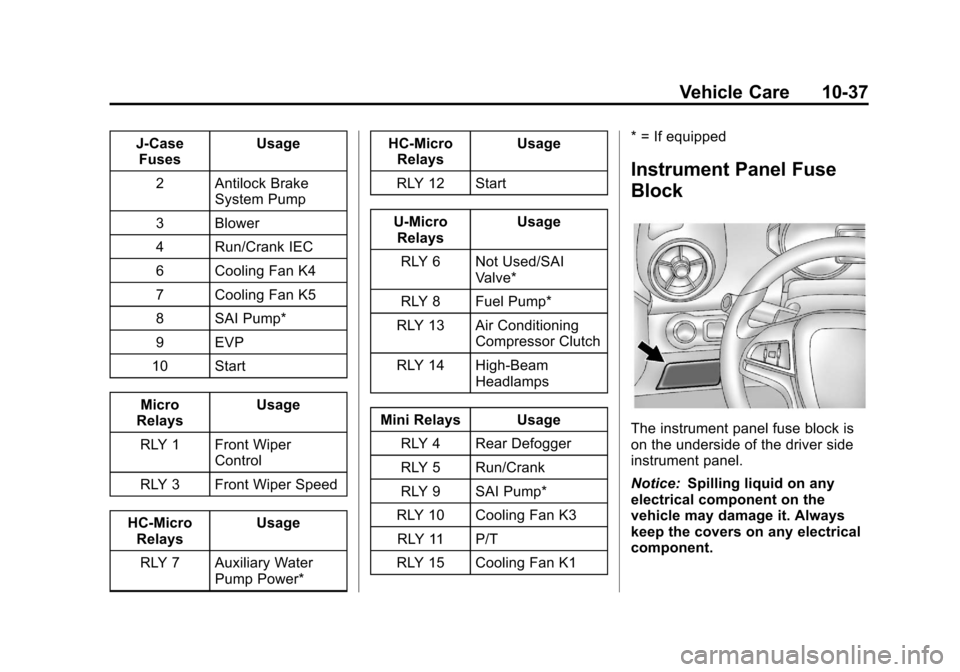
Instrument Panel Fuse
Block
The instrument panel fuse block is
on the underside of the driver side
instrument panel.
Notice:
Spilling liquid on any
electrical component on the
vehicle may damage it. Always
keep the covers on any electrical
component.
Page 371 of 382

Black plate (1,1)Chevrolet Sonic Owner Manual - 2013 - 2nd PrintReady - 10/11/12
INDEX i-1
A
Accessories andModifications . . . . . . . . . . . . . . . . . 10-3
Accessory Power . . . . . . . . . . . . . . 9-18
Add-On Electrical Equipment . . . . . . . . . . . . . . . . . . . 9-38
Additional Information
OnStar
®. . . . . . . . . . . . . . . . . . . . . . 14-5
Air Cleaner/Filter, Engine . . . . . 10-13
Air Filter, Passenger Compartment . . . . . . . . . . . . . . . . . 8-4
Air Intake . . . . . . . . . . . . . . . . . . . . . . . 8-4
Air Vents . . . . . . . . . . . . . . . . . . . . . . . 8-3
Airbag System Check . . . . . . . . . . . . . . . . . . . . . . . . 3-29
How Does an AirbagRestrain? . . . . . . . . . . . . . . . . . . . 3-22
Passenger Sensing System . . . . . . . . . . . . . . . . . . . . . . 3-24
What Makes an Airbag
Inflate? . . . . . . . . . . . . . . . . . . . . . . 3-22
What Will You See after an Airbag Inflates? . . . . . . . . . . . . . 3-22 Airbag System (cont'd)
When Should an Airbag
Inflate? . . . . . . . . . . . . . . . . . . . . . . 3-21
Where Are the Airbags? . . . . . . 3-19
Airbags Adding Equipment to theVehicle . . . . . . . . . . . . . . . . . . . . . . 3-28
Passenger Status Indicator . . . 5-11
Readiness Light . . . . . . . . . . . . . . 5-11
Servicing Airbag-Equipped Vehicles . . . . . . . . . . . . . . . . . . . . . 3-28
System Check . . . . . . . . . . . . . . . . 3-17
Alarm Vehicle Security . . . . . . . . . . . . . . 2-10
AM-FM Radio . . . . . . . . . . . . . . . . . . 7-12
Antenna Multi-band . . . . . . . . . . . . . . . . . . . . 7-18
Satellite Radio . . . . . . . . . . . . . . . . 7-18
Antilock Brake System (ABS) . . . . . . . . . . . . . . . . 9-25
Warning Light . . . . . . . . . . . . . . . . . 5-16
Appearance Care Exterior . . . . . . . . . . . . . . . . . . . . . 10-80
Interior . . . . . . . . . . . . . . . . . . . . . . 10-83 Armrest
Front Seat . . . . . . . . . . . . . . . . . . . . . 3-5
Ashtrays . . . . . . . . . . . . . . . . . . . . . . . . 5-7
Assistance Program, Roadside . . . . . . . . . . . . . . . . . . . . . 13-5
Audio Bluetooth . . . . . . . . . . . . . . . . . . . . . 7-25
Audio Players . . . . . . . . . . . . . . . . . 7-18 CD . . . . . . . . . . . . . . . . . . . . . . . . . . . 7-18
Audio System Radio Reception . . . . . . . . . . . . . . 7-17
Theft-Deterrent Feature . . . . . . . . 7-2
Automatic Door Locks . . . . . . . . . . . . . . . . . . . . 2-7
Headlamp System . . . . . . . . . . . . . 6-3
Transmission . . . . . . . . . . . . . . . . . 9-21
Transmission Fluid . . . . . . . . . 10-13
Automatic Transmission Manual Mode . . . . . . . . . . . . . . . . . 9-23
Shift Lock ControlFunction Check . . . . . . . . . . . 10-25
Auxiliary Devices . . . . . . . . . . . . . . . . . . . . . . . 7-24