light CHEVROLET SONIC 2013 2.G Workshop Manual
[x] Cancel search | Manufacturer: CHEVROLET, Model Year: 2013, Model line: SONIC, Model: CHEVROLET SONIC 2013 2.GPages: 382, PDF Size: 6.71 MB
Page 132 of 382
Black plate (6,1)Chevrolet Sonic Owner Manual - 2013 - 2nd PrintReady - 10/11/12
6-6 Lighting
Lighting Features
Battery Load
Management
The vehicle has Electric Power
Management (EPM) that estimates
the battery's temperature and state
of charge. It then adjusts the voltage
for best performance and extended
life of the battery.
When the battery's state of charge
is low, the voltage is raised slightly
to quickly bring the charge back up.
When the state of charge is high,
the voltage is lowered slightly to
prevent overcharging. If the vehicle
has a voltmeter gauge or a voltage
display on the Driver Information
Center (DIC), you may see the
voltage move up or down. This is
normal. If there is a problem, an
alert will be displayed.
The battery can be discharged at
idle if the electrical loads are very
high. This is true for all vehicles.This is because the generator
(alternator) may not be spinning fast
enough at idle to produce all the
power needed for very high
electrical loads.
A high electrical load occurs when
several of the following are on, such
as: headlamps, high beams, fog
lamps, rear window defogger,
climate control fan at high speed,
heated seats, engine cooling fans,
trailer loads, and loads plugged into
accessory power outlets.
EPM works to prevent excessive
discharge of the battery. It does this
by balancing the generator's output
and the vehicle's electrical needs.
It can increase engine idle speed to
generate more power, whenever
needed. It can temporarily reduce
the power demands of some
accessories.
Normally, these actions occur in
steps or levels, without being
noticeable. In rare cases at the
highest levels of corrective action,
this action may be noticeable to the
driver.
Battery Power Protection
The battery saver feature is
designed to protect the vehicle's
battery.
If some interior lamps are left on
and the ignition is turned off, the
battery rundown protection system
automatically turns the lamp off after
some time.
Page 139 of 382
Black plate (7,1)Chevrolet Sonic Owner Manual - 2013 - 2nd PrintReady - 10/11/12
Infotainment System 7-7
Overview (Radio with Touchscreen)
1.zVOLy(Volume)
.Press to decrease or
increase the volume.
2.
O(Power)
.Press and hold to turn the
power on or off. 3.
D(Home Page)
.Press to go to the Home
Page. See
Home Page
(Radio with Touchscreen)
on page 7‑7.
Home Page (Radio with
Touchscreen)
Touchscreen Buttons
Touchscreen buttons show on the
screen when available. When a
function is unavailable, the button
may gray out. When a function is
selected, the button may highlight.
Home Page Features
PressFto go to the Home Page.
eaudio: Press to select AM, FM,
SiriusXM (if equipped), USB/iPod/
Bluetooth Audio, or AUX.
Gpicture & movie: Press to view
a picture, movie, or auxiliary video.
Page 140 of 382

Black plate (8,1)Chevrolet Sonic Owner Manual - 2013 - 2nd PrintReady - 10/11/12
7-8 Infotainment System
7telephone:Press to activate
the phone features (if equipped).
See Bluetooth (Voice Recognition)
on page 7‑37 orBluetooth
(Overview) on page 7‑26 or
Bluetooth (Infotainment Controls) on
page 7‑28.
^smartphone link: Press to listen
to Pandora or Stitcher. See
Smartphone Link (Overview) on
page 7‑45 orSmartphone Link
(Pandora) on page 7‑47 or
Smartphone Link (Stitcher) on
page 7‑48.
8settings: Press to access the
Personalization menu. See Vehicle
Personalization on page 5‑26.
Operation
Radio Controls Without
Touchscreen
The infotainment system is operated
by using the pushbuttons,
multifunction knobs, menus shown
on the display, and steering wheel
controls, if equipped.
Turning the System On or Off
O/VOL (Power/Volume): Press to
turn the system on and off.
Automatic Switch-Off
If the infotainment system is on after
the ignition is turned off, the system
will turn off automatically after
10 minutes.
Volume Control
O/VOL (Power/Volume): Turn to
adjust the volume.
5/>(Phone/Mute): For vehicles
with OnStar, press and hold
5/>
to mute the infotainment system.
Press and hold
5/>again, or turn
the
O/VOL knob to cancel mute.
For vehicles without OnStar, press
5/>to mute the infotainment
system. Press
5/>again, or turn
the
O/VOL knob to cancel mute.
Menu System
Controls
The MENU/TUNE knob, MENU/
TUNE button, and
/BACK button
are used to navigate the menu
system.
MENU/TUNE Knob:
Turn to:
.Enter the menu system.
.Highlight a menu option.
.Select a value.
MENU/TUNE Button:
Press to:
.Select or activate the highlighted
menu option.
.Confirm a set value.
.Turn a system setting on or off.
/BACK:
Press to:
.Exit a menu.
Page 141 of 382
Black plate (9,1)Chevrolet Sonic Owner Manual - 2013 - 2nd PrintReady - 10/11/12
Infotainment System 7-9
.Return from a submenu screen
to the previous menu screen.
.Delete the last character in a
sequence.
Selecting a Menu Option
1. Turn the MENU/TUNE knob to move the highlighted bar.
2. Press the MENU/TUNE button to select the highlighted option.
Submenus
An arrow on the right-hand edge of
the menu indicates that it has a
submenu with other options.
Activating a Setting
1. Turn the MENU/TUNE knob to highlight the setting.
2. Press the MENU/TUNE button to activate the setting.
Entering a Character Sequence
1. Turn the MENU/TUNE knob to highlight the setting. 2. Press the MENU/TUNE button to
select the character.
Audio Settings
The audio settings can be set for
each radio band and each audio
player source.
To quickly reset an audio setting
value to 0:
1. Press the TONE button.
2. Select the audio setting.
3. Press and hold the MENU/TUNE
button until the value changes
to 0.
Press the
/BACK button to go
back to the Tone Settings menu.
Adjusting the Treble, Midrange,
and Bass
Page 150 of 382
Black plate (18,1)Chevrolet Sonic Owner Manual - 2013 - 2nd PrintReady - 10/11/12
7-18 Infotainment System
SiriusXM®Satellite Radio
Service
SiriusXM Satellite Radio Service
gives digital radio reception from
coast to coast in the 48 contiguous
United States, and in Canada. Just
as with FM, tall buildings or hills can
interfere with satellite radio signals,
causing the sound to fade in and
out. In addition, traveling or standing
under heavy foliage, bridges,
garages, or tunnels may cause loss
of the SiriusXM signal for a period
of time.
Cellular Phone Usage
Cellular phone usage may cause
interference with the vehicle's radio.
This interference may occur when
making or receiving phone calls,
charging the phone's battery,
or simply having the phone on. This
interference causes an increased
level of static while listening to the
radio. If static is received while
listening to the radio, unplug the
cellular phone and turn it off.
Satellite Radio Antenna
The XM Satellite Radio antenna is
located on the roof of the vehicle.
Keep the antenna clear of
obstructions for clear radio
reception.
If the vehicle has a sunroof, the
performance of the XM system (if
equipped) may be affected if the
sunroof is open.
Multi-Band Antenna
The multi-band antenna is on the
roof of the vehicle. The antenna is
used for the AM-FM radio, OnStar,
the SiriusXM Satellite Radio Service
System, and GPS (Global
Positioning System), if the vehicle
has these features. Keep the
antenna clear of obstructions for
clear reception.
Audio Players
CD Player
The CD player can play audio CDs
and MP3 CDs.
The CD player will not play
8 cm (3 in) CDs.
Care of CDs
Sound quality can be reduced due
to disc quality, recording method,
quality of the music recorded, and
how the disc has been handled.
Handle discs carefully and store
them in their original cases or other
protective cases away from direct
sunlight and dust. If the bottom
surface of a disc is damaged, the
disc may not play properly or at all.
Do not touch the bottom surface of
a disc while handling it; this could
damage the surface. Pick up discs
by grasping the outer edges or the
edge of the hole and the outer edge.
If the bottom surface of a disc is
dirty, take a soft, lint-free cloth,
or dampen a clean, soft cloth in a
Page 161 of 382
Black plate (29,1)Chevrolet Sonic Owner Manual - 2013 - 2nd PrintReady - 10/11/12
Infotainment System 7-29
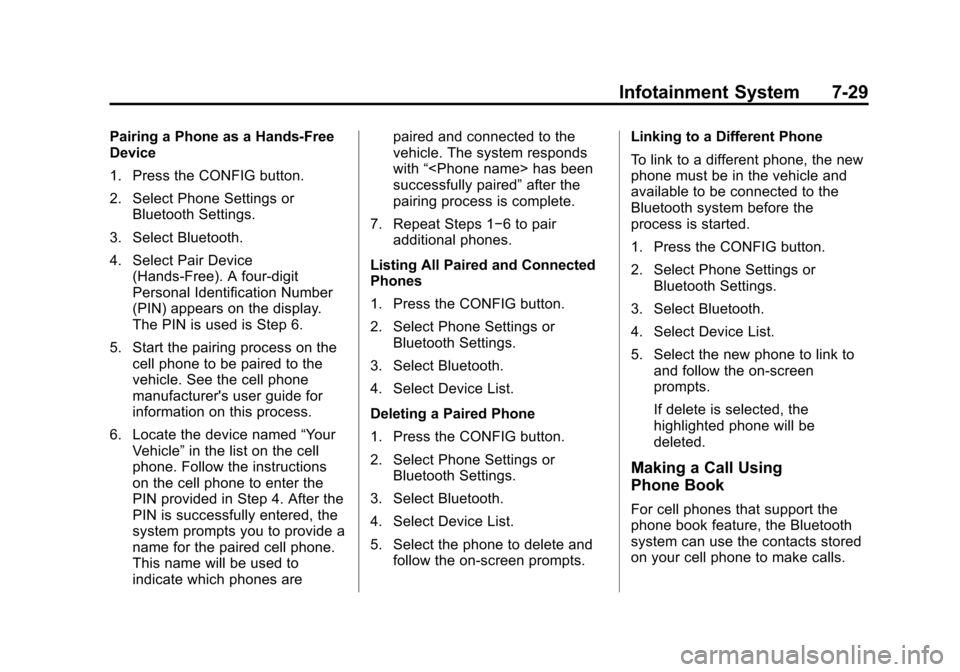
Pairing a Phone as a Hands-Free
Device
1. Press the CONFIG button.
2. Select Phone Settings orBluetooth Settings.
3. Select Bluetooth.
4. Select Pair Device (Hands-Free). A four-digit
Personal Identification Number
(PIN) appears on the display.
The PIN is used is Step 6.
5. Start the pairing process on the cell phone to be paired to the
vehicle. See the cell phone
manufacturer's user guide for
information on this process.
6. Locate the device named “Your
Vehicle” in the list on the cell
phone. Follow the instructions
on the cell phone to enter the
PIN provided in Step 4. After the
PIN is successfully entered, the
system prompts you to provide a
name for the paired cell phone.
This name will be used to
indicate which phones are paired and connected to the
vehicle. The system responds
with
“
successfully paired” after the
pairing process is complete.
7. Repeat Steps 1−6 to pair additional phones.
Listing All Paired and Connected
Phones
1. Press the CONFIG button.
2. Select Phone Settings or Bluetooth Settings.
3. Select Bluetooth.
4. Select Device List.
Deleting a Paired Phone
1. Press the CONFIG button.
2. Select Phone Settings or Bluetooth Settings.
3. Select Bluetooth.
4. Select Device List.
5. Select the phone to delete and follow the on-screen prompts. Linking to a Different Phone
To link to a different phone, the new
phone must be in the vehicle and
available to be connected to the
Bluetooth system before the
process is started.
1. Press the CONFIG button.
2. Select Phone Settings or
Bluetooth Settings.
3. Select Bluetooth.
4. Select Device List.
5. Select the new phone to link to and follow the on-screen
prompts.
If delete is selected, the
highlighted phone will be
deleted.
Making a Call Using
Phone Book
For cell phones that support the
phone book feature, the Bluetooth
system can use the contacts stored
on your cell phone to make calls.
Page 165 of 382
Black plate (33,1)Chevrolet Sonic Owner Manual - 2013 - 2nd PrintReady - 10/11/12
Infotainment System 7-33
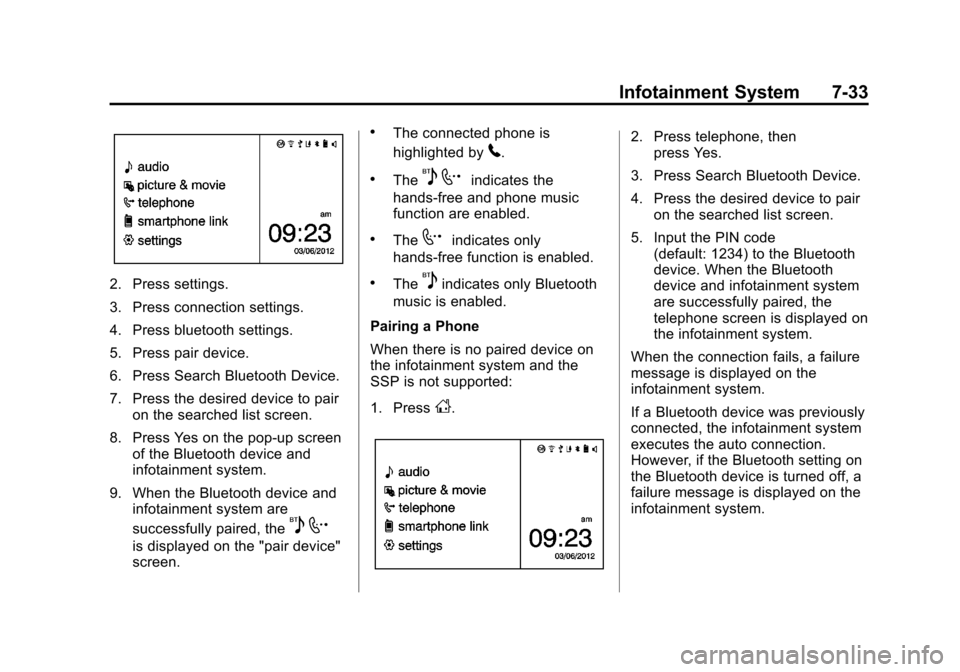
2. Press settings.
3. Press connection settings.
4. Press bluetooth settings.
5. Press pair device.
6. Press Search Bluetooth Device.
7. Press the desired device to pairon the searched list screen.
8. Press Yes on the pop-up screen of the Bluetooth device and
infotainment system.
9. When the Bluetooth device and infotainment system are
successfully paired, the
5 7
is displayed on the "pair device"
screen.
.The connected phone is
highlighted by
5.
.The5 7indicates the
hands-free and phone music
function are enabled.
.The7indicates only
hands-free function is enabled.
.The5indicates only Bluetooth
music is enabled.
Pairing a Phone
When there is no paired device on
the infotainment system and the
SSP is not supported:
1. Press
D.
2. Press telephone, then press Yes.
3. Press Search Bluetooth Device.
4. Press the desired device to pair on the searched list screen.
5. Input the PIN code (default: 1234) to the Bluetooth
device. When the Bluetooth
device and infotainment system
are successfully paired, the
telephone screen is displayed on
the infotainment system.
When the connection fails, a failure
message is displayed on the
infotainment system.
If a Bluetooth device was previously
connected, the infotainment system
executes the auto connection.
However, if the Bluetooth setting on
the Bluetooth device is turned off, a
failure message is displayed on the
infotainment system.
Page 166 of 382
Black plate (34,1)Chevrolet Sonic Owner Manual - 2013 - 2nd PrintReady - 10/11/12
7-34 Infotainment System
Pairing a Phone
When a paired device is on the
infotainment system and the SSP is
not supported:
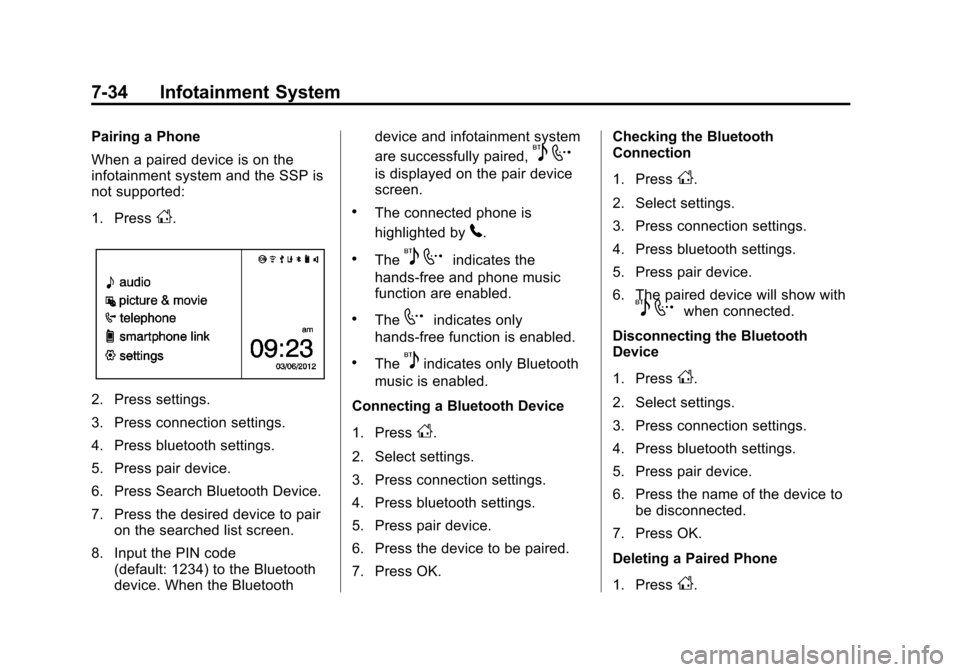
1. Press
D.
2. Press settings.
3. Press connection settings.
4. Press bluetooth settings.
5. Press pair device.
6. Press Search Bluetooth Device.
7. Press the desired device to pairon the searched list screen.
8. Input the PIN code (default: 1234) to the Bluetooth
device. When the Bluetooth device and infotainment system
are successfully paired,
5 7
is displayed on the pair device
screen.
.The connected phone is
highlighted by
5.
.The5 7indicates the
hands-free and phone music
function are enabled.
.The7indicates only
hands-free function is enabled.
.The5indicates only Bluetooth
music is enabled.
Connecting a Bluetooth Device
1. Press
D.
2. Select settings.
3. Press connection settings.
4. Press bluetooth settings.
5. Press pair device.
6. Press the device to be paired.
7. Press OK. Checking the Bluetooth
Connection
1. Press
D.
2. Select settings.
3. Press connection settings.
4. Press bluetooth settings.
5. Press pair device.
6. The paired device will show with
5 7when connected.
Disconnecting the Bluetooth
Device
1. Press
D.
2. Select settings.
3. Press connection settings.
4. Press bluetooth settings.
5. Press pair device.
6. Press the name of the device to be disconnected.
7. Press OK.
Deleting a Paired Phone
1. Press
D.
Page 194 of 382
Black plate (2,1)Chevrolet Sonic Owner Manual - 2013 - 2nd PrintReady - 10/11/12
8-2 Climate Controls
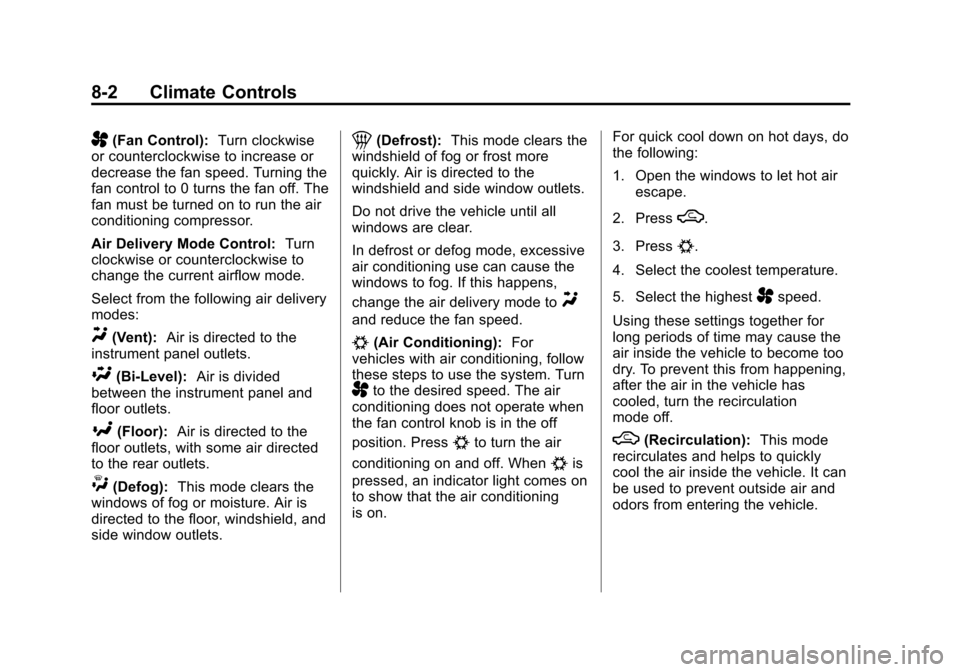
A(Fan Control):Turn clockwise
or counterclockwise to increase or
decrease the fan speed. Turning the
fan control to 0 turns the fan off. The
fan must be turned on to run the air
conditioning compressor.
Air Delivery Mode Control: Turn
clockwise or counterclockwise to
change the current airflow mode.
Select from the following air delivery
modes:
Y(Vent): Air is directed to the
instrument panel outlets.
\(Bi-Level): Air is divided
between the instrument panel and
floor outlets.
[(Floor): Air is directed to the
floor outlets, with some air directed
to the rear outlets.
W(Defog): This mode clears the
windows of fog or moisture. Air is
directed to the floor, windshield, and
side window outlets.
1(Defrost): This mode clears the
windshield of fog or frost more
quickly. Air is directed to the
windshield and side window outlets.
Do not drive the vehicle until all
windows are clear.
In defrost or defog mode, excessive
air conditioning use can cause the
windows to fog. If this happens,
change the air delivery mode to
Y
and reduce the fan speed.
#(Air Conditioning): For
vehicles with air conditioning, follow
these steps to use the system. Turn
Ato the desired speed. The air
conditioning does not operate when
the fan control knob is in the off
position. Press
#to turn the air
conditioning on and off. When
#is
pressed, an indicator light comes on
to show that the air conditioning
is on. For quick cool down on hot days, do
the following:
1. Open the windows to let hot air
escape.
2. Press
M.
3. Press
#.
4. Select the coolest temperature.
5. Select the highest
Aspeed.
Using these settings together for
long periods of time may cause the
air inside the vehicle to become too
dry. To prevent this from happening,
after the air in the vehicle has
cooled, turn the recirculation
mode off.
M(Recirculation): This mode
recirculates and helps to quickly
cool the air inside the vehicle. It can
be used to prevent outside air and
odors from entering the vehicle.
Page 195 of 382
Black plate (3,1)Chevrolet Sonic Owner Manual - 2013 - 2nd PrintReady - 10/11/12
Climate Controls 8-3
Press the button to turn the
recirculation mode on. An indicator
light comes on to show that the
recirculation is on. Press the button
again to return to outside air mode.
Using the recirculation mode for
extended periods may cause the
windows to fog. If this happens,
select the defrost mode.
M/L(Heated Seats, If
Equipped): Press to heat the driver
or passenger seat. See Heated
Front Seats on page 3‑6.
Rear Window and Outside
Mirror Defogger
1(Rear Window Defogger):
Press to turn the rear window and
outside mirror defogger on or off. An
indicator light comes on to show
that the feature is on.
The rear window defogger turns off
after about 10 minutes. It can also
be turned off by pressing
1again
or by turning the ignition to ACC/ ACCESSORY or LOCK/OFF.
If turned on again it runs for about
five minutes before turning off.
For vehicles with heated outside
rearview mirrors, they turn on with
the rear window defogger and help
to clear fog or frost from the surface
of the mirror. See
Heated Mirrors on
page 2‑13.
Notice: Do not use anything
sharp on the inside of the rear
window. If you do, you could cut
or damage the warming grid, and
the repairs would not be covered
by the vehicle warranty. Do not
attach a temporary vehicle
license, tape, a decal, or anything
similar to the defogger grid.
Air Vents
Use the air vents located in the
center and on the side of the
instrument panel to direct the
airflow. Move the slats on the center
air vents to direct airflow.
Turn the knobs on the side air vents
counterclockwise or clockwise to
open or close off the airflow.
Operation Tips
.Clear away any ice, snow,
or leaves from the air inlets at
the base of the windshield that
may block the flow of air into the
vehicle.
.Use of non-GM approved hood
deflectors may adversely affect
the performance of the system.
.Keep the path under the front
seats clear of objects to help
circulate the air inside the
vehicle more effectively.