radio controls CHEVROLET SONIC 2014 2.G User Guide
[x] Cancel search | Manufacturer: CHEVROLET, Model Year: 2014, Model line: SONIC, Model: CHEVROLET SONIC 2014 2.GPages: 400, PDF Size: 5.57 MB
Page 130 of 400
Black plate (30,1)Chevrolet Sonic Owner Manual (GMNA-Localizing-U.S./Canada-6081473) -
2014 - 2nd Edition - 8/19/13
5-30 Instruments and Controls
.Set Date Format: PressSorT
to select the date display.
.Set Time & Date: Select, then
press
yorzto adjust the
value.
.Automatic Clock Sync: Select to
display the real or user time on
the radio. Select On or Off.
Radio Settings
Select and the following may
display:
.Auto Volume
.Radio Favorites
.Radio Tune Bar
.Radio Text
.XM Categories
.Radio Factory Settings
Auto Volume
This feature adjusts the radio
volume to compensate for road and
wind noise as the vehicle speeds up
or slows down, so that the volume
level is consistent. Select Off, Low, Medium, or High.
Radio Favorites
This feature sets the number of
favorite pages displayed.
Press
SorTto select the desired
number.
Radio Tune Bar
Select to display the radio station
tune bar.
Select On or Off.
Radio Text
Select to display the radio broadcast
information.
Select On or Off.
XM Categories
Select to set the selection of XM
categories.
Radio Factory Settings
Select to restore the radio to the
factory settings.
Connection Settings
Select and the following may
display:
.Bluetooth Settings
.Change Ringtone
.Ringtone Volume
Bluetooth Settings
Select this feature to:
.Connect, disconnect, or delete a
device
.Change or set a Personal
Identification Number (PIN)
.Turn on or off the Bluetooth
connection
.Check the device information
Change Ringtone
Select to set different ringtones.
Ringtone Volume
Select to set the ringtone volume.
Press
SorT.
Page 143 of 400
Black plate (1,1)Chevrolet Sonic Owner Manual (GMNA-Localizing-U.S./Canada-6081473) -
2014 - 2nd Edition - 8/19/13
Infotainment System 7-1
Infotainment
System
Introduction
Infotainment . . . . . . . . . . . . . . . . . . . 7-1
Theft-Deterrent Feature . . . . . . . 7-2
Overview (AM-FM Radio) . . . . . 7-3
Overview (Radio withCD/USB) . . . . . . . . . . . . . . . . . . . . 7-5
Overview (Radio with Touchscreen) . . . . . . . . . . . . . . . . 7-7
Home Page (Radio with Touchscreen) . . . . . . . . . . . . . . . . 7-7
Operation . . . . . . . . . . . . . . . . . . . . . 7-8
Radio
AM-FM Radio . . . . . . . . . . . . . . . . 7-12
Satellite Radio . . . . . . . . . . . . . . . 7-16
Radio Reception . . . . . . . . . . . . . 7-17
Satellite Radio Antenna . . . . . . 7-18
Multi-Band Antenna . . . . . . . . . . 7-18
Audio Players
CD Player . . . . . . . . . . . . . . . . . . . 7-19
USB Port . . . . . . . . . . . . . . . . . . . . 7-21
Auxiliary Devices . . . . . . . . . . . . 7-24
Bluetooth Audio . . . . . . . . . . . . . . 7-26
Phone
Bluetooth (Overview) . . . . . . . . 7-26
Bluetooth (Infotainment Controls) . . . . . . . . . . . . . . . . . . . 7-28
Bluetooth (Voice Recognition) . . . . . . . . . . . . . . . 7-37
Hands-Free Phone . . . . . . . . . . 7-42
Downloadable Applications
Smartphone Link (Overview) . . . . . . . . . . . . . . . . . 7-45
Smartphone Link (Pandora) . . . . . . . . . . . . . . . . . . 7-47
Smartphone Link (Stitcher) . . . . . . . . . . . . . . . . . . . 7-49
Bluetooth Phone/Devices
Pictures and Movies (AudioSystem) . . . . . . . . . . . . . . . . . . . . 7-50
Pictures and Movies (Picture System) . . . . . . . . . . . . . . . . . . . . 7-55
Pictures and Movies (Movie System) . . . . . . . . . . . . . . . . . . . . 7-56
Trademarks and License
Agreements
Trademarks and LicenseAgreements . . . . . . . . . . . . . . . . 7-58
Introduction
Infotainment
Determine which radio the vehicle
has and read the following pages to
become familiar with its features.
{Warning
Taking your eyes off the road for
extended periods could cause a
crash resulting in injury or death
to you or others. Do not give
extended attention to infotainment
tasks while driving.
This system provides access to
many audio and non-audio listings.
To minimize taking your eyes off the
road while driving, do the following
while the vehicle is parked:
.Become familiar with the
operation and controls of the
audio system.
Page 150 of 400
Black plate (8,1)Chevrolet Sonic Owner Manual (GMNA-Localizing-U.S./Canada-6081473) -
2014 - 2nd Edition - 8/19/13
7-8 Infotainment System
7telephone:Press to activate
the phone features (if equipped).
See Bluetooth (Voice Recognition)
on page 7-37 orBluetooth
(Overview) on page 7-26 or
Bluetooth (Infotainment Controls) on
page 7-28.
^smartphone link: Press to listen
to Pandora®(if equipped),
Stitcher™, or available application.
See Smartphone Link (Overview) on
page 7-45 orSmartphone Link
(Pandora) on page 7-47 or
Smartphone Link (Stitcher) on
page 7-49.
8settings: Press to access the
Personalization menu. See Vehicle
Personalization on page 5-27.
Operation
Radio Controls without
Touchscreen
The infotainment system is operated
by using the pushbuttons,
multifunction knobs, menus shown
on the display, and steering wheel
controls, if equipped.
Turning the System On or Off
O/VOL (Power/Volume): Press to
turn the system on and off.
Automatic Switch-Off
If the infotainment system is on after
the ignition is turned off, the system
will turn off automatically after
10 minutes.
Volume Control
O/VOL (Power/Volume): Turn to
adjust the volume.
5/>(Phone/Mute): For vehicles
with OnStar, press and hold
5/>
to mute the infotainment system.
Press and hold
5/>again, or turn
the
O/VOL knob to cancel mute.
For vehicles without OnStar, press
5/>to mute the infotainment
system. Press
5/>again, or turn
the
O/VOL knob to cancel mute.
Menu System
Controls
The Push/MENU/TUNE knob, Push/
MENU/TUNE button, and
/BACK
button are used to navigate the
menu system.
Push/MENU/TUNE Knob:
Turn to:
.Enter the menu system.
.Highlight a menu option.
.Select a value.
Page 153 of 400
Black plate (11,1)Chevrolet Sonic Owner Manual (GMNA-Localizing-U.S./Canada-6081473) -
2014 - 2nd Edition - 8/19/13
Infotainment System 7-11
3. Select Auto volume control.
4. Select the setting.
5. Press the
/BACK button to go
back to the System
Configuration menu.
Radio Controls with
Touchscreen
The infotainment system is operated
by using the pushbuttons, menus
shown on the display, and steering
wheel controls.
Turning the System On or Off
O(Power): Press and hold to turn
the radio on and off.
Automatic Switch-Off
If the infotainment system has been
turned on after the ignition is turned
off, the system will turn off
automatically after 10 minutes.
Volume Control
zVOLy(Volume): Press to
increase or decrease the volume or
press the volume bar.
>(Mute): PresszVOLy, then
press
>to mute and unmute the
system.
System Settings
Auto Volume
This feature automatically adjusts
the radio volume to compensate for
road and wind noise.
The level of volume compensation
can be selected, or the feature can
be turned off.
1. Press
D.
2. Select Settings.
3. Select Radio Settings.
4. Select the setting by pressing
S
orT.
5. Press
4. Auto Store (AS)
This feature automatically stores the
stations with the strongest
reception.
To store or update the stations,
press and hold the AS screen
button.
To listen to a auto stored station:
1. Select AM or FM.
2. Press the AS screen button.
3. Press
SorTrepeatedly to
select the desired AS page.
4. Press the desired preset station screen button.
If AS is pressed with no stored
stations, AS will update.
Audio Settings
The audio settings can be set for
each radio band and each audio
player source.
Page 154 of 400
Black plate (12,1)Chevrolet Sonic Owner Manual (GMNA-Localizing-U.S./Canada-6081473) -
2014 - 2nd Edition - 8/19/13
7-12 Infotainment System
Tone Settings:Press menu, then
tone settings from the AM or
FM menu.
.EQ (Equalizer): PressSorTto
select a sound style or turn off
the sound style. When in tone
settings “Manual” and“Talk” may
be the only settings available
depending on the sound system.
.Bass, Mid (Midrange), or Treble:
Press −or + to change the
desired sound style from −12
to +12.
.Fader or Balance: Adjust the
front/rear or left/right speakers
by dragging the dot in the
vehicle image on the screen.
.Reset: Restore the settings back
to default settings.
Press OK to exit Tone Settings.
Radio
AM-FM Radio
Radio Controls without
Touchscreen
The buttons used to control the
radio are:
P/VOL: Press to turn the radio on
and off.
RADIO/BAND: Press to choose
between AM, FM, and SiriusXM
®,
if equipped.
Push/MENU/TUNE Knob: Turn to
navigate the available menus. Turn
to search for stations.
INFO: Press to display additional
information that may be available for
the current song.
SEEK
¨: Press to search for the
next station.
©SEEK: Press to search for the
previous station. FAV:
Press to open the favorites
list and select the favorites page.
1−6: Press to select preset
stations.
RDS (Radio Data System)
The radio may have RDS. The RDS
feature is available for use only on
FM stations that broadcast RDS
information. This feature only works
when the information from the radio
station is available. In rare cases, a
radio station could broadcast
incorrect information that causes the
radio features to work improperly.
If this happens, contact the radio
station.
While the radio is tuned to an
FM-RDS station, the station name
or call letters display.
Radio Menus
Radio menus are available for AM
and FM.
Turn the Push/MENU/TUNE knob to
open the main radio menu for
that band.
Page 156 of 400
Black plate (14,1)Chevrolet Sonic Owner Manual (GMNA-Localizing-U.S./Canada-6081473) -
2014 - 2nd Edition - 8/19/13
7-14 Infotainment System
Storing a Favorite Station
Stations from all bands can be
stored in any order in the favorite
pages.
Up to six stations can be stored in
each favorite page and the number
of available favorite pages can
be set.
Storing Stations
To store the station to a position in
the list, press the corresponding
button 1 to 6 until a beep is heard.
Retrieving Stations
Press the FAV button to open a
favorite page or to switch to another
favorite page. Briefly press one of
the 1 to 6 buttons to retrieve the
station.
Radio Controls with
Touchscreen
Audio Source Menu
zVOLy(Volume):Press to
increase or decrease the volume.
O(Power): Press and hold to turn
the system on and off.
D(Home Page): Press to enter
the Home Page.
RDS (Radio Data System)
The radio may have RDS. The RDS
feature is available for use only on
FM stations that broadcast RDS
information. This feature only works
when the information from the radio
station is available. In rare cases, a
radio station could broadcast
incorrect information that causes the
radio features to work improperly.
If this happens, contact the radio
station.
While the radio is tuned to an
FM-RDS station, the station name
or call letters display.
Selecting a Band
PressD, audio, then SourceRto
choose AM, FM, or SiriusXM®,
if equipped. The last station that
was playing starts playing again.
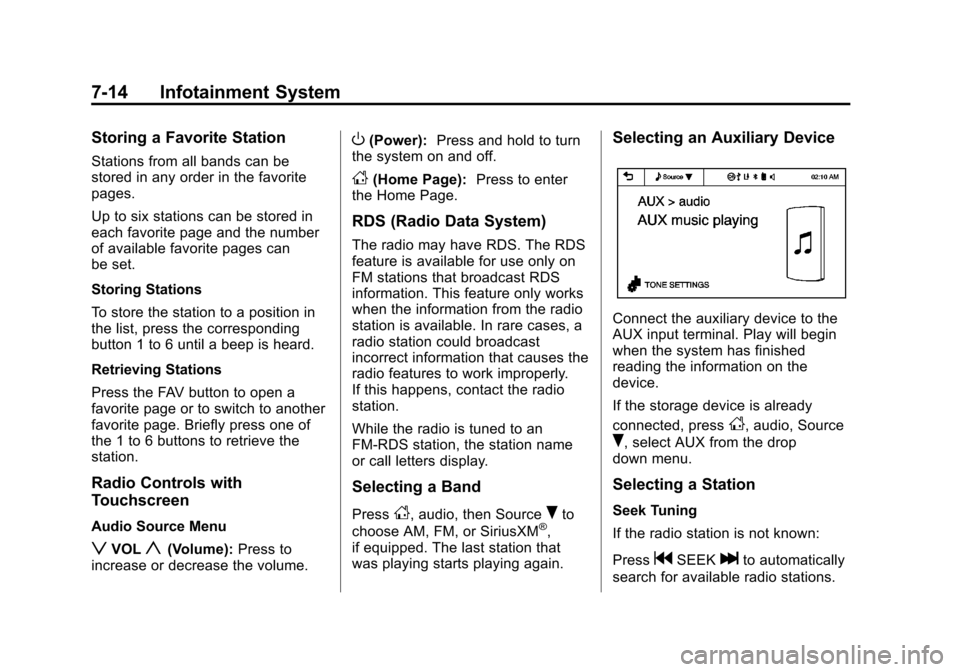
Selecting an Auxiliary Device
Connect the auxiliary device to the
AUX input terminal. Play will begin
when the system has finished
reading the information on the
device.
If the storage device is already
connected, press
D, audio, Source
R, select AUX from the drop
down menu.
Selecting a Station
Seek Tuning
If the radio station is not known:
Press
gSEEKlto automatically
search for available radio stations.
Page 158 of 400
Black plate (16,1)Chevrolet Sonic Owner Manual (GMNA-Localizing-U.S./Canada-6081473) -
2014 - 2nd Edition - 8/19/13
7-16 Infotainment System
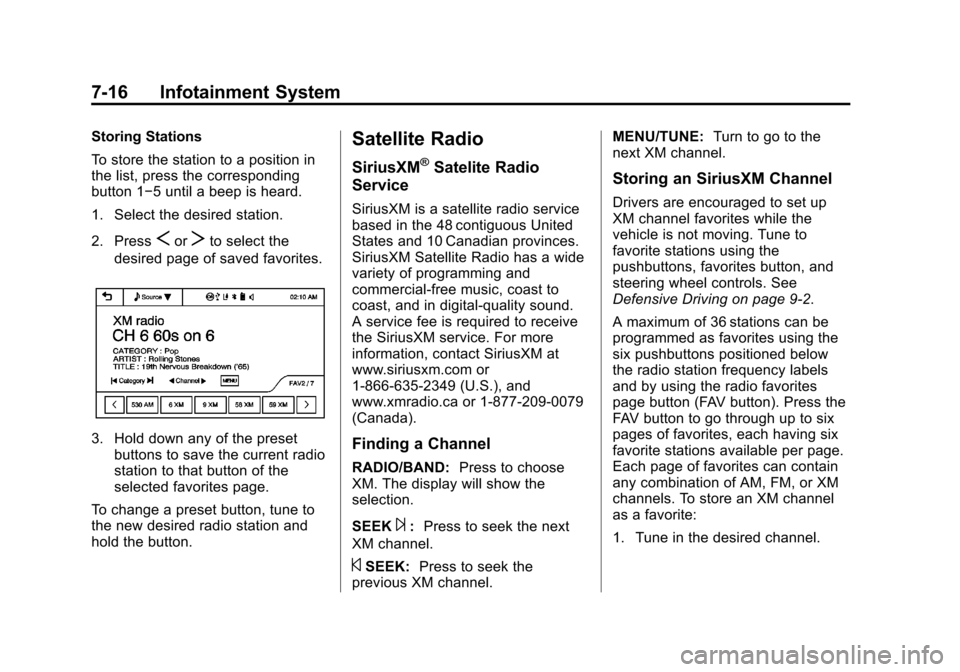
Storing Stations
To store the station to a position in
the list, press the corresponding
button 1−5 until a beep is heard.
1. Select the desired station.
2. Press
SorTto select the
desired page of saved favorites.
3. Hold down any of the preset buttons to save the current radio
station to that button of the
selected favorites page.
To change a preset button, tune to
the new desired radio station and
hold the button.
Satellite Radio
SiriusXM®Satelite Radio
Service
SiriusXM is a satellite radio service
based in the 48 contiguous United
States and 10 Canadian provinces.
SiriusXM Satellite Radio has a wide
variety of programming and
commercial-free music, coast to
coast, and in digital-quality sound.
A service fee is required to receive
the SiriusXM service. For more
information, contact SiriusXM at
www.siriusxm.com or
1-866-635-2349 (U.S.), and
www.xmradio.ca or 1-877-209-0079
(Canada).
Finding a Channel
RADIO/BAND: Press to choose
XM. The display will show the
selection.
SEEK
¨: Press to seek the next
XM channel.
©SEEK: Press to seek the
previous XM channel. MENU/TUNE:
Turn to go to the
next XM channel.
Storing an SiriusXM Channel
Drivers are encouraged to set up
XM channel favorites while the
vehicle is not moving. Tune to
favorite stations using the
pushbuttons, favorites button, and
steering wheel controls. See
Defensive Driving on page 9-2.
A maximum of 36 stations can be
programmed as favorites using the
six pushbuttons positioned below
the radio station frequency labels
and by using the radio favorites
page button (FAV button). Press the
FAV button to go through up to six
pages of favorites, each having six
favorite stations available per page.
Each page of favorites can contain
any combination of AM, FM, or XM
channels. To store an XM channel
as a favorite:
1. Tune in the desired channel.
Page 166 of 400
Black plate (24,1)Chevrolet Sonic Owner Manual (GMNA-Localizing-U.S./Canada-6081473) -
2014 - 2nd Edition - 8/19/13
7-24 Infotainment System
The iPod/iPhone charges while it is
connected to the vehicle if the
vehicle is in the ACC/ACCESSORY
or ON/RUN position. When the
vehicle is turned off, the iPod/
iPhone automatically powers off and
will not charge or draw power from
the vehicle's battery.
For more information on USB
usage, see“Audio System” in
Pictures and Movies (Audio System)
on page 7-50 orPictures and
Movies (Picture System) on
page 7-55 orPictures and Movies
(Movie System) on page 7-56.
Auxiliary Devices
The optional AUX input allows
portable devices to connect to the
vehicle using the 3.5 mm (1/8 in)
input jack. The AUX input jack,
if equipped, is in the storage area to
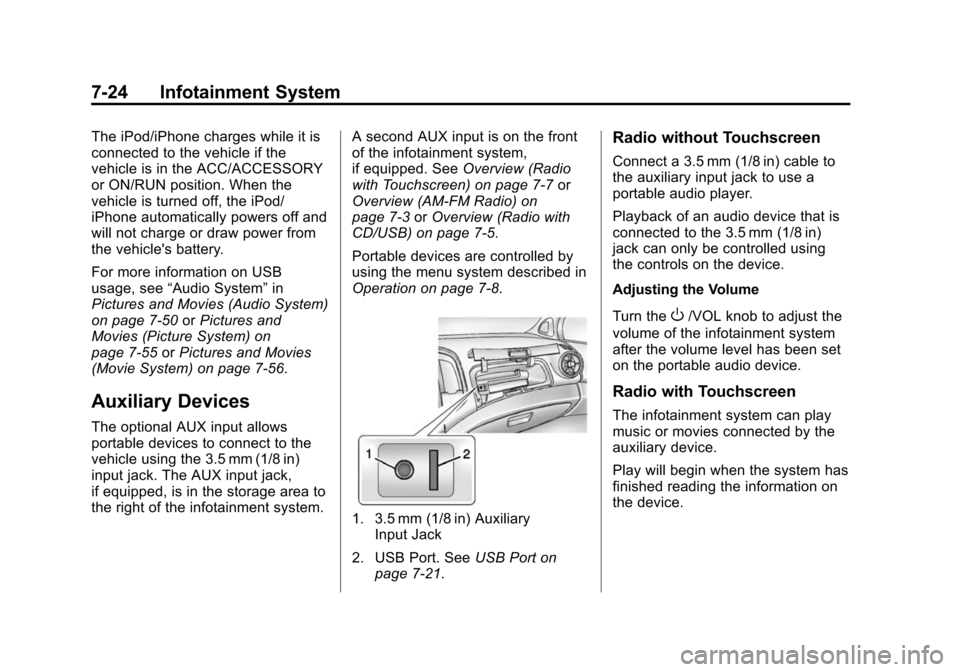
the right of the infotainment system. A second AUX input is on the front
of the infotainment system,
if equipped. See
Overview (Radio
with Touchscreen) on page 7-7 or
Overview (AM-FM Radio) on
page 7-3 orOverview (Radio with
CD/USB) on page 7-5.
Portable devices are controlled by
using the menu system described in
Operation on page 7-8.
1. 3.5 mm (1/8 in) Auxiliary Input Jack
2. USB Port. See USB Port on
page 7-21.
Radio without Touchscreen
Connect a 3.5 mm (1/8 in) cable to
the auxiliary input jack to use a
portable audio player.
Playback of an audio device that is
connected to the 3.5 mm (1/8 in)
jack can only be controlled using
the controls on the device.
Adjusting the Volume
Turn the
O/VOL knob to adjust the
volume of the infotainment system
after the volume level has been set
on the portable audio device.
Radio with Touchscreen
The infotainment system can play
music or movies connected by the
auxiliary device.
Play will begin when the system has
finished reading the information on
the device.
Page 167 of 400
Black plate (25,1)Chevrolet Sonic Owner Manual (GMNA-Localizing-U.S./Canada-6081473) -
2014 - 2nd Edition - 8/19/13
Infotainment System 7-25
Playing Music
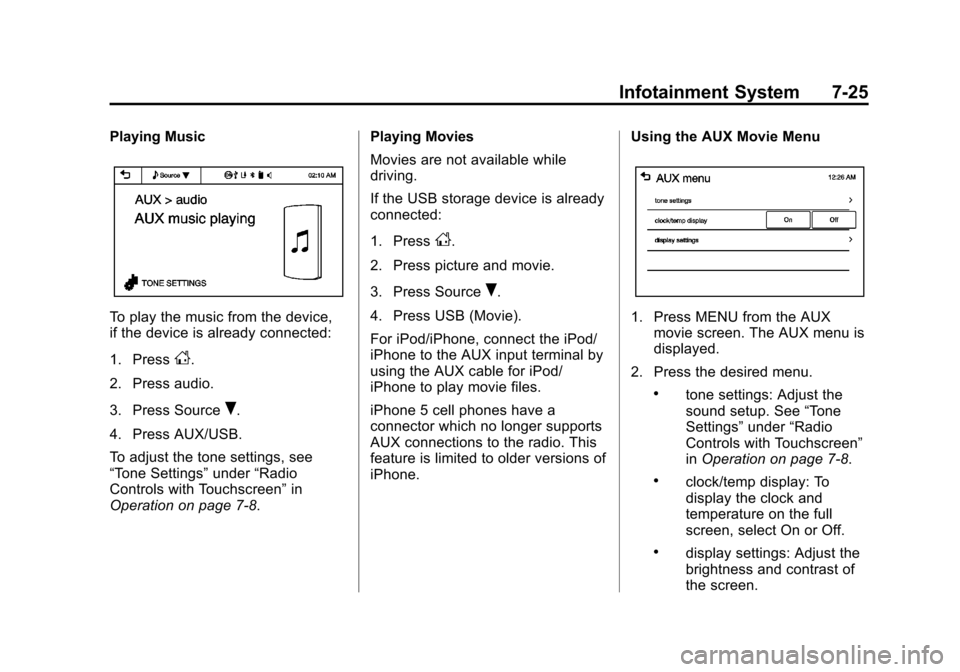
To play the music from the device,
if the device is already connected:
1. Press
D.
2. Press audio.
3. Press Source
R.
4. Press AUX/USB.
To adjust the tone settings, see
“Tone Settings” under“Radio
Controls with Touchscreen” in
Operation on page 7-8. Playing Movies
Movies are not available while
driving.
If the USB storage device is already
connected:
1. Press
D.
2. Press picture and movie.
3. Press Source
R.
4. Press USB (Movie).
For iPod/iPhone, connect the iPod/
iPhone to the AUX input terminal by
using the AUX cable for iPod/
iPhone to play movie files.
iPhone 5 cell phones have a
connector which no longer supports
AUX connections to the radio. This
feature is limited to older versions of
iPhone. Using the AUX Movie Menu
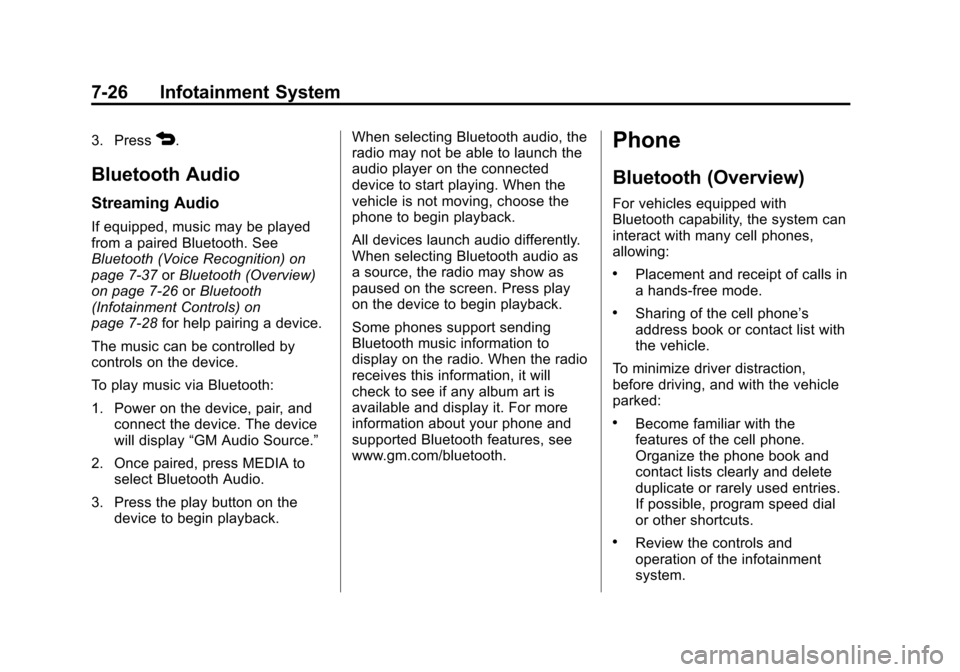
1. Press MENU from the AUX
movie screen. The AUX menu is
displayed.
2. Press the desired menu.
.tone settings: Adjust the
sound setup. See “Tone
Settings” under“Radio
Controls with Touchscreen”
in Operation on page 7-8.
.clock/temp display: To
display the clock and
temperature on the full
screen, select On or Off.
.display settings: Adjust the
brightness and contrast of
the screen.
Page 168 of 400
Black plate (26,1)Chevrolet Sonic Owner Manual (GMNA-Localizing-U.S./Canada-6081473) -
2014 - 2nd Edition - 8/19/13
7-26 Infotainment System
3. Press4.
Bluetooth Audio
Streaming Audio
If equipped, music may be played
from a paired Bluetooth. See
Bluetooth (Voice Recognition) on
page 7-37orBluetooth (Overview)
on page 7-26 orBluetooth
(Infotainment Controls) on
page 7-28 for help pairing a device.
The music can be controlled by
controls on the device.
To play music via Bluetooth:
1. Power on the device, pair, and connect the device. The device
will display “GM Audio Source.”
2. Once paired, press MEDIA to select Bluetooth Audio.
3. Press the play button on the device to begin playback. When selecting Bluetooth audio, the
radio may not be able to launch the
audio player on the connected
device to start playing. When the
vehicle is not moving, choose the
phone to begin playback.
All devices launch audio differently.
When selecting Bluetooth audio as
a source, the radio may show as
paused on the screen. Press play
on the device to begin playback.
Some phones support sending
Bluetooth music information to
display on the radio. When the radio
receives this information, it will
check to see if any album art is
available and display it. For more
information about your phone and
supported Bluetooth features, see
www.gm.com/bluetooth.
Phone
Bluetooth (Overview)
For vehicles equipped with
Bluetooth capability, the system can
interact with many cell phones,
allowing:
.Placement and receipt of calls in
a hands-free mode.
.Sharing of the cell phone’s
address book or contact list with
the vehicle.
To minimize driver distraction,
before driving, and with the vehicle
parked:
.Become familiar with the
features of the cell phone.
Organize the phone book and
contact lists clearly and delete
duplicate or rarely used entries.
If possible, program speed dial
or other shortcuts.
.Review the controls and
operation of the infotainment
system.