bluetooth CHEVROLET SONIC 2014 2.G Owner's Manual
[x] Cancel search | Manufacturer: CHEVROLET, Model Year: 2014, Model line: SONIC, Model: CHEVROLET SONIC 2014 2.GPages: 400, PDF Size: 5.57 MB
Page 178 of 400
Black plate (36,1)Chevrolet Sonic Owner Manual (GMNA-Localizing-U.S./Canada-6081473) -
2014 - 2nd Edition - 8/19/13
7-36 Infotainment System
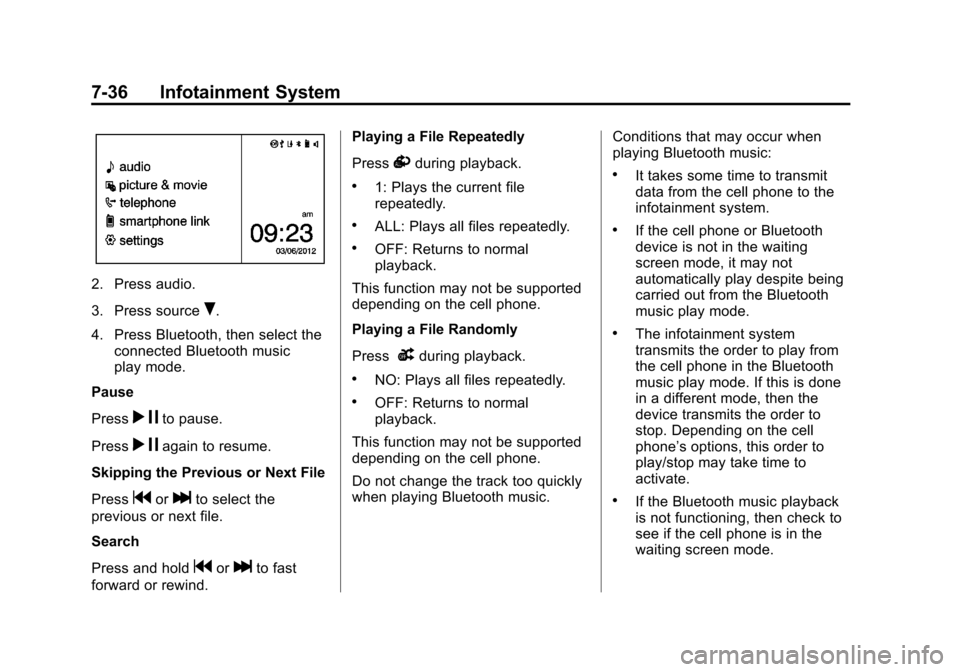
2. Press audio.
3. Press source
R.
4. Press Bluetooth, then select the connected Bluetooth music
play mode.
Pause
Press
r jto pause.
Press
r jagain to resume.
Skipping the Previous or Next File
Press
gorlto select the
previous or next file.
Search
Press and hold
gorlto fast
forward or rewind. Playing a File Repeatedly
Press
vduring playback.
.1: Plays the current file
repeatedly.
.ALL: Plays all files repeatedly.
.OFF: Returns to normal
playback.
This function may not be supported
depending on the cell phone.
Playing a File Randomly
Press
uduring playback.
.NO: Plays all files repeatedly.
.OFF: Returns to normal
playback.
This function may not be supported
depending on the cell phone.
Do not change the track too quickly
when playing Bluetooth music. Conditions that may occur when
playing Bluetooth music:
.It takes some time to transmit
data from the cell phone to the
infotainment system.
.If the cell phone or Bluetooth
device is not in the waiting
screen mode, it may not
automatically play despite being
carried out from the Bluetooth
music play mode.
.The infotainment system
transmits the order to play from
the cell phone in the Bluetooth
music play mode. If this is done
in a different mode, then the
device transmits the order to
stop. Depending on the cell
phone’s options, this order to
play/stop may take time to
activate.
.If the Bluetooth music playback
is not functioning, then check to
see if the cell phone is in the
waiting screen mode.
Page 179 of 400
Black plate (37,1)Chevrolet Sonic Owner Manual (GMNA-Localizing-U.S./Canada-6081473) -
2014 - 2nd Edition - 8/19/13
Infotainment System 7-37
.Sounds may be cut off during
the Bluetooth music playback.
.The infotainment system outputs
the audio from the cell phone or
Bluetooth device as it is
transmitted.
Bluetooth (Voice
Recognition)
Using Voice Recognition
To use voice recognition, press theb/gbutton located on the steering
wheel. Use the commands below for
the various voice features. For
additional information, say "Help"
while you are in a voice
recognition menu.
Pairing
A Bluetooth-enabled cell phone
must be paired to the Bluetooth
system and then connected to the
vehicle before it can be used. See
your cell phone manufacturer's user
guide for Bluetooth functions before
pairing the cell phone. If a Bluetooth
phone is not connected, calls will be made using OnStar Hands-Free
Calling, if available. See
OnStar
Overview on page 14-1.
Pairing Information
.A Bluetooth phone with MP3
capability can be paired to the
vehicle as a phone and an MP3
player at the same time.
.Up to five cell phones can be
paired to the Bluetooth system.
.The pairing process is disabled
when the vehicle is moving.
.Pairing only needs to be
completed once, unless the
pairing information on the cell
phone changes or the cell phone
is deleted from the system.
.Only one paired cell phone can
be connected to the Bluetooth
system at a time.
.If multiple paired cell phones are
within range of the system, the
system connects to the first
available paired cell phone in the
order that they were first paired to the system. To link to a
different paired phone, see
“Connecting to a Different
Phone”
later in this section.
Pairing a Phone
1. Press
b/g. The system
responds “Ready,”followed by
a tone.
2. Say “Bluetooth.” This command
can be skipped.
3. Say “Pair.”The system responds
with instructions and a four-digit
Personal Identification Number
(PIN). The PIN is used in Step 5.
4. Start the pairing process on the cell phone that you want to pair.
For help with this process, see
your cell phone manufacturer's
user guide.
5. Locate the device named “Your
Vehicle” in the list on the cell
phone. Follow the instructions
on the cell phone to enter the
PIN provided in Step 3. After the
PIN is successfully entered, the
system prompts you to provide a
Page 180 of 400
Black plate (38,1)Chevrolet Sonic Owner Manual (GMNA-Localizing-U.S./Canada-6081473) -
2014 - 2nd Edition - 8/19/13
7-38 Infotainment System
name for the paired cell phone.
This name will be used to
indicate which phones are
paired and connected to the
vehicle. The system responds
with“
successfully paired” after the
pairing process is complete.
6. Repeat Steps 1−5 to pair additional phones.
Listing All Paired and Connected
Phones
The system can list all cell phones
paired to it. If a paired cell phone is
also connected to the vehicle, the
system responds with “is connected”
after that phone name.
1. Press
b/g. The system
responds “Ready,”followed by
a tone.
2. Say “Bluetooth.”
3. Say “List.” Deleting a Paired Phone
If the phone name you want to
delete is unknown, see
“Listing All
Paired and Connected Phones.”
1. Press
b/g. The system
responds “Ready,”followed by
a tone.
2. Say “Bluetooth.”
3. Say “Delete.” The system asks
for which phone to delete.
4. Say the name of the phone you want to delete.
Connecting to a Different Phone
To connect to a different cell phone,
the Bluetooth system looks for the
next available cell phone in the
order in which all available cell
phones were paired. Depending on
which cell phone you want to
connect to, you may have to use
this command several times.
1. Press
b/g. The system
responds “Ready,”followed by
a tone. 2. Say
“Bluetooth.”
3. Say “Change phone.”
.If another cell phone is
found, the response will be
“
connected.”
.If another cell phone is not
found, the original phone
remains connected.
Storing and Deleting Phone
Numbers
The system can store up to
30 phone numbers as name tags in
the Hands-Free Directory that is
shared between the Bluetooth and
OnStar systems.
The following commands are used
to delete and store phone numbers.
Store:This command will store a
phone number, or a group of
numbers as a name tag.
Digit Store: This command allows
a phone number to be stored as a
name tag by entering the digits one
at a time.
Page 183 of 400
Black plate (41,1)Chevrolet Sonic Owner Manual (GMNA-Localizing-U.S./Canada-6081473) -
2014 - 2nd Edition - 8/19/13
Infotainment System 7-41
Receiving a Call
When an incoming call is received,
the audio system mutes and a ring
tone is heard in the vehicle.
.Pressb/gto answer the call.
.Press$/ito ignore a call.
Call Waiting
Call waiting must be supported on
the cell phone and enabled by the
wireless service carrier.
.Pressb/gto answer an
incoming call when another call
is active. The original call is
placed on hold.
.Pressb/gagain to return to
the original call.
.To ignore the incoming call, no
action is required.
.Press$/ito disconnect the
current call and switch to the call
on hold.
Three-Way Calling
Three-way calling must be
supported on the cell phone and
enabled by the wireless service
carrier.
1. While on a call, press
b/g.
2. Say “Three-way call.”
3. Use the dial or call command to dial the number of the third party
to be called.
4. Once the call is connected, press
b/gto link all callers
together.
Ending a Call
Press$/ito end a call.
Muting a Call
During a call, all sounds from inside
the vehicle can be muted so that the
person on the other end of the call
cannot hear them.
To mute a call, press
b/g, and
then say “Mute Call.” To cancel mute, press
b/g, and
then say “Un-mute Call.”
Transferring a Call
Audio can be transferred between
the Bluetooth system and the cell
phone.
The cell phone must be paired and
connected with the Bluetooth
system before a call can be
transferred. The connection process
can take up to two minutes after the
ignition is turned to ON/RUN.
To Transfer Audio from the
Bluetooth System to a Cell Phone
During a call with the audio in the
vehicle:
1. Press
b/g.
2. Say “Transfer Call.”
To Transfer Audio to the Bluetooth
System from a Cell Phone
During a call with the audio on the
cell phone, press
b/g. The audio
transfers to the vehicle. If the audio
Page 184 of 400
Black plate (42,1)Chevrolet Sonic Owner Manual (GMNA-Localizing-U.S./Canada-6081473) -
2014 - 2nd Edition - 8/19/13
7-42 Infotainment System
does not transfer to the vehicle, use
the audio transfer feature on the cell
phone. See the cell phone
manufacturer's user guide.
Voice Pass-Thru
Voice pass-thru allows access to the
voice recognition commands on the
cell phone. See the cell phone
manufacturer's user guide to see if
the cell phone supports this feature.
To access contacts stored in the cell
phone:
1. Press
b/g. The system
responds “Ready,”followed by
a tone.
2. Say “Bluetooth.” This command
can be skipped.
3. Say “Voice.” The system
responds “OK, accessing
The cell phone's normal prompt
messages will go through their cycle
according to the phone's operating
instructions.
Dual Tone Multi-Frequency
(DTMF) Tones
The Bluetooth system can send
numbers and the numbers stored as
name tags during a call. You can
use this feature when calling a
menu-driven phone system.
Account numbers can also be
stored for use.
Sending a Number or Name Tag
During a Call
1. Press
b/g. The system
responds “Ready,”followed by
a tone.
2. Say “Dial.”
3. Say the number or name tag to send.
Clearing the System
Unless information is deleted out of
the in-vehicle Bluetooth system, it
will be retained indefinitely. This
includes all saved name tags in the
phone book and phone pairing
information. For information on how
to delete this information, see the previous sections on deleting a
paired phone and deleting
name tags.
Hands-Free Phone
General Information with
Touchscreen
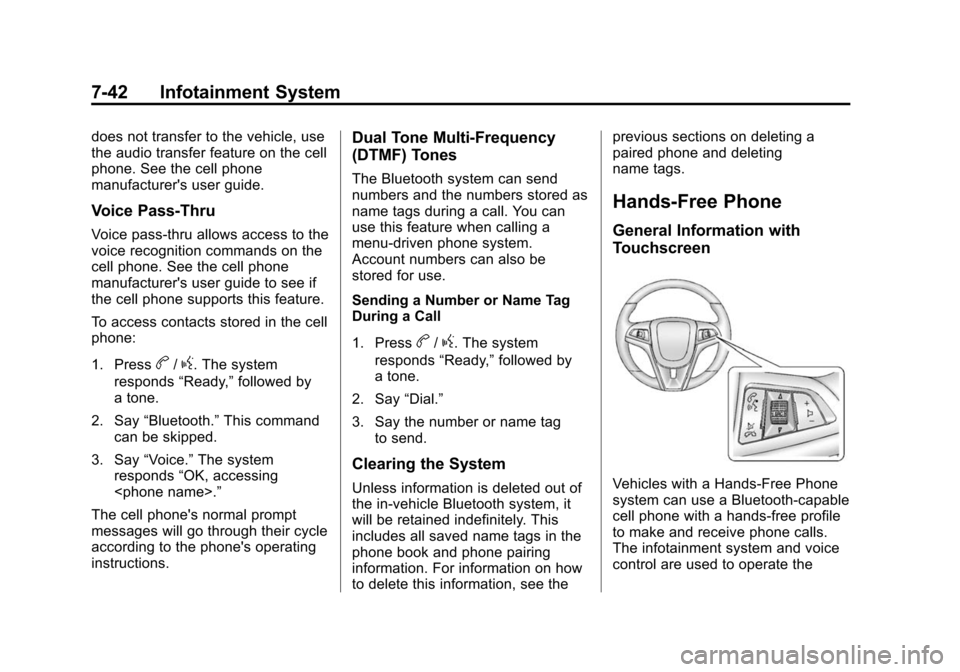
Vehicles with a Hands-Free Phone
system can use a Bluetooth-capable
cell phone with a hands-free profile
to make and receive phone calls.
The infotainment system and voice
control are used to operate the
Page 186 of 400
Black plate (44,1)Chevrolet Sonic Owner Manual (GMNA-Localizing-U.S./Canada-6081473) -
2014 - 2nd Edition - 8/19/13
7-44 Infotainment System
Taking calls
When a phone call comes through
the connected Bluetooth cell phone,
the playing track will be cut off and
the phone will ring with the relevant
information displayed.
Press
b/gon the steering wheel
controls or press Accept on the
screen.
To decline the call, press
$/ion
the steering wheel controls or press
Reject on the screen.
Using the Phone Book Menu
1. Press Phone Book on the telephone screen.
2. Press
QorRto scroll through
the list.
3. Select the phone book entry to call.
4. Press the number to dial.
Searching for Phone Book Entries
1. Press Phone Book on the telephone screen. 2. Press
9on the phone book
screen.
3. Use the keypad to input the name to search. For details,
refer to the “Searching for a
Name” later in this section.
4. Select the phone book entry to call.
5. Press the number to dial.
When the Bluetooth device and
infotainment system are
successfully paired, the phone book
will download. Some phones may
not download automatically. If this
happens, connect it again or
proceed with the phone book
download on the phone.
Always accept the Phone book
request on the initial pairing of the
phone.
Searching for a Name
Select characters by using the
keypad on the phone book screen.
As characters are selected, the
names that include those characters will display on the phone book
screen. As more characters of the
name are entered, the list of
possible names is shortened.
To search for the name Alex:
1. Press (abc) to select the first
character.
2. Press (jkl) to select the second character.
3. Press (def) to select the third character.
4. Press (wxy) to select the fourth character.
Making a Call from Call History
1. Press Call History on the telephone screen.
2. Press one of the following for:
.2Dialed calls.
.4Missed calls.
.9Received calls.
3. Select the phone book entry to call.
Page 188 of 400

Black plate (46,1)Chevrolet Sonic Owner Manual (GMNA-Localizing-U.S./Canada-6081473) -
2014 - 2nd Edition - 8/19/13
7-46 Infotainment System
.Connect Andriod™phones
through Bluetooth.
iPod/iPhone Error Messages and
Solution
If the system fails to activate the
application on the iPod/iPhone
connected, an error message is
displayed as, “Unable to start
application, possible reasons.”
.Your iPhone is locked. To
resolve, unlock the iPhone.
.You have another active
application open. To resolve,
close the other active
application.
.You have not installed the
application on your iPhone. To
resolve, install the application on
the iPhone.
iOS Version Error
If the iOS version of the iPhone is
less than 4.0, the error message is
displayed as, “Your iPhone does not allow this application to be
opened on a USB connection.
Please refer to owner
’s manual.”
.Activate the application on your
iPhone, then press the desired
application menu on the
infotainment system.
Connecting Application Error
If the infotainment system fails to
activate the application on the
smartphone connected through
Bluetooth wireless technology, the
error message is displayed as,
“Connecting application error.”
.Reset all settings related to the
phone, then press the desired
application menu on the
infotainment system.
.Reconnect the smartphone and
infotainment system through
Bluetooth wireless technology,
then press the desired
application menu on the
infotainment system.
.When the application is stopped
on the smartphone, it usually
takes time to return to normal
operation. Try to activate the
application after 10–20 seconds.
To switch to another application
while playing an application and
connected through the USB port,
press the HOME button on the iPod/
iPhone, then press the application
icon on the infotainment system.
Switching Between a USB
Connected Device and a
Bluetooth Device
When the iPhone is connected to
the infotainment system through the
USB port, and the infotainment
system is connected to another
phone through Bluetooth wireless
technology, press iPhone or
bluetooth phone on the smartphone
list menu to switch between the two
applications.
Page 189 of 400
Black plate (47,1)Chevrolet Sonic Owner Manual (GMNA-Localizing-U.S./Canada-6081473) -
2014 - 2nd Edition - 8/19/13
Infotainment System 7-47
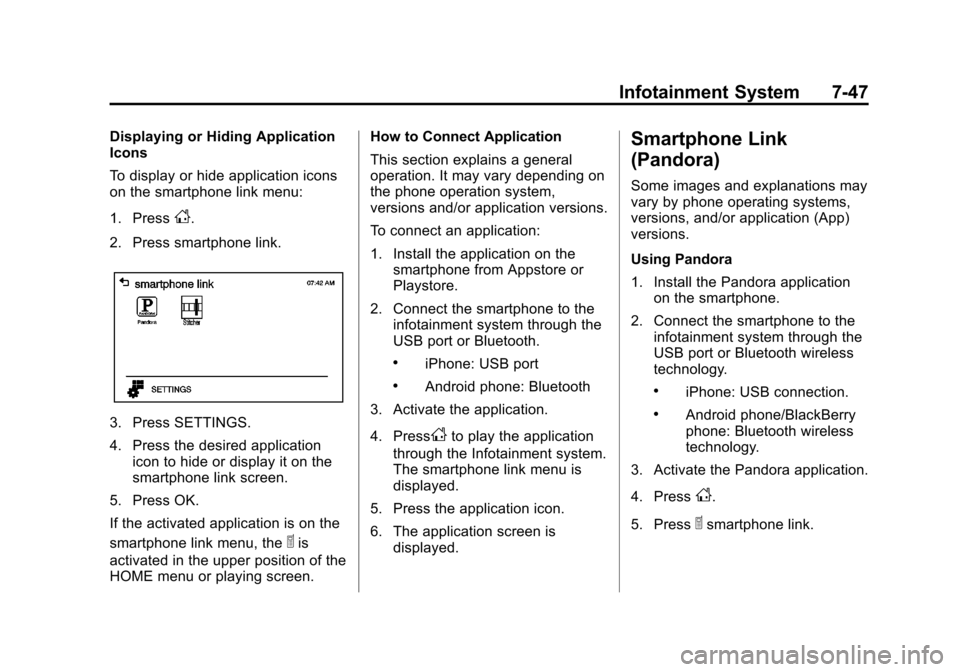
Displaying or Hiding Application
Icons
To display or hide application icons
on the smartphone link menu:
1. Press
D.
2. Press smartphone link.
3. Press SETTINGS.
4. Press the desired application icon to hide or display it on the
smartphone link screen.
5. Press OK.
If the activated application is on the
smartphone link menu, the
^is
activated in the upper position of the
HOME menu or playing screen. How to Connect Application
This section explains a general
operation. It may vary depending on
the phone operation system,
versions and/or application versions.
To connect an application:
1. Install the application on the
smartphone from Appstore or
Playstore.
2. Connect the smartphone to the infotainment system through the
USB port or Bluetooth.
.iPhone: USB port
.Android phone: Bluetooth
3. Activate the application.
4. Press
Dto play the application
through the Infotainment system.
The smartphone link menu is
displayed.
5. Press the application icon.
6. The application screen is displayed.
Smartphone Link
(Pandora)
Some images and explanations may
vary by phone operating systems,
versions, and/or application (App)
versions.
Using Pandora
1. Install the Pandora applicationon the smartphone.
2. Connect the smartphone to the infotainment system through the
USB port or Bluetooth wireless
technology.
.iPhone: USB connection.
.Android phone/BlackBerry
phone: Bluetooth wireless
technology.
3. Activate the Pandora application.
4. Press
D.
5. Press
^smartphone link.
Page 191 of 400
Black plate (49,1)Chevrolet Sonic Owner Manual (GMNA-Localizing-U.S./Canada-6081473) -
2014 - 2nd Edition - 8/19/13
Infotainment System 7-49
2. Press QuickMixZto listen to a
selection of tracks from your
stations.
Tone Settings
1. Press MENU. The Pandora menu is displayed.
2. Press tone settings. The tone settings menu is displayed. See
“Tone Settings” under“Radio
Controls with Touchscreen” in
Operation on page 7-8.
Smartphone Link
(Stitcher)
Some images and explanations may
vary by phone operating systems,
versions, and/or application (App)
versions.
Using Stitcher
1. Install the Stitcher application on the smartphone. 2. Connect the smartphone to the
infotainment system through the
USB port or Bluetooth wireless
technology.
.iPhone: USB connection.
.Android phone/BlackBerry
phone: Bluetooth wireless
technology.
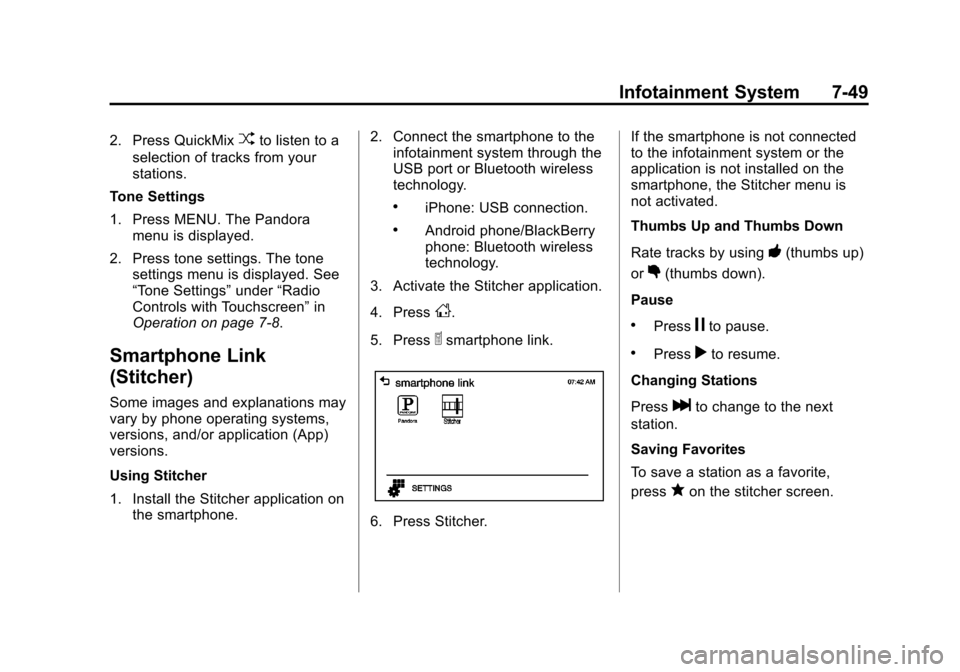
3. Activate the Stitcher application.
4. Press
D.
5. Press
^smartphone link.
6. Press Stitcher. If the smartphone is not connected
to the infotainment system or the
application is not installed on the
smartphone, the Stitcher menu is
not activated.
Thumbs Up and Thumbs Down
Rate tracks by using
-(thumbs up)
or
,(thumbs down).
Pause
.Pressjto pause.
.Pressrto resume.
Changing Stations
Press
lto change to the next
station.
Saving Favorites
To save a station as a favorite,
press
qon the stitcher screen.
Page 192 of 400
Black plate (50,1)Chevrolet Sonic Owner Manual (GMNA-Localizing-U.S./Canada-6081473) -
2014 - 2nd Edition - 8/19/13
7-50 Infotainment System
Stitcher Menus
The Stitcher Station menu displays
available station data from the
Stitcher server.
1. Press MENU. The StitcherStation menu is displayed.
2. Press
QorRto scroll through
the list. Select the desired
station.
Tone Settings
1. Press MENU. The Stitcher menu is displayed.
2. Press tone settings. The tone settings menu is displayed. See
“Tone Settings” under“Radio
Controls with Touchscreen” in
Operation on page 7-8.
Bluetooth Phone/
Devices
Pictures and Movies
(Audio System)
The infotainment system can play
the music files contained in the USB
storage device or iPod/iPhone
products.
Audio System Information
Using MP3/WMA/OGG/WAV Files
.Music files with .mp3, .wma,
.ogg, and .wav file name
extensions can be played.
.MP3 files that can be played
are: Bit rate: 8 kbps to
320 kbps - Sampling frequency:
48 kHz, 44.1 kHz, 32 kHz,
24 kHz, 22.05 kHz, and 16 kHz.
.Files with a bit rate above
128 kbps will result in higher
quality sound.
.ID3 Tag information for MP3
files, such as the album name
and the artist, can be played.
.To display album title, track title,
and artist information, the file
should be compatible with the
ID3 Tag V1 and V2 formats.
Using USB Storage Devices and
iPod/iPhone
.Use a USB or flash memory type
storage device. Do not connect
using a USB adaptor.
.Do not connect and reconnect
the USB device repeatedly in a
short time, as this may cause
static electricity and problems
using the device.
.Use a USB device with a metal
connecting terminal.
.Connection with i-Stick Type
USB storage devices may be
faulty due to vehicle vibration.
.Do not to touch the USB
connecting terminal.