lock CHEVROLET SONIC 2014 2.G Workshop Manual
[x] Cancel search | Manufacturer: CHEVROLET, Model Year: 2014, Model line: SONIC, Model: CHEVROLET SONIC 2014 2.GPages: 400, PDF Size: 5.57 MB
Page 129 of 400
Black plate (29,1)Chevrolet Sonic Owner Manual (GMNA-Localizing-U.S./Canada-6081473) -
2014 - 2nd Edition - 8/19/13
Instruments and Controls 5-29
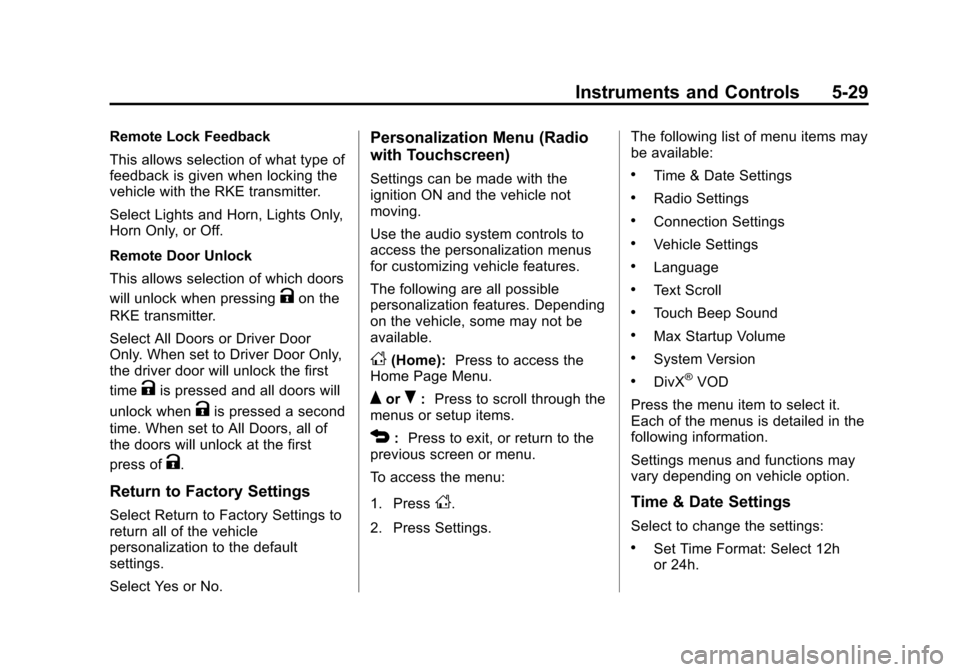
Remote Lock Feedback
This allows selection of what type of
feedback is given when locking the
vehicle with the RKE transmitter.
Select Lights and Horn, Lights Only,
Horn Only, or Off.
Remote Door Unlock
This allows selection of which doors
will unlock when pressing
Kon the
RKE transmitter.
Select All Doors or Driver Door
Only. When set to Driver Door Only,
the driver door will unlock the first
time
Kis pressed and all doors will
unlock when
Kis pressed a second
time. When set to All Doors, all of
the doors will unlock at the first
press of
K.
Return to Factory Settings
Select Return to Factory Settings to
return all of the vehicle
personalization to the default
settings.
Select Yes or No.
Personalization Menu (Radio
with Touchscreen)
Settings can be made with the
ignition ON and the vehicle not
moving.
Use the audio system controls to
access the personalization menus
for customizing vehicle features.
The following are all possible
personalization features. Depending
on the vehicle, some may not be
available.
D(Home): Press to access the
Home Page Menu.
QorR: Press to scroll through the
menus or setup items.
4: Press to exit, or return to the
previous screen or menu.
To access the menu:
1. Press
D.
2. Press Settings. The following list of menu items may
be available:
.Time & Date Settings
.Radio Settings
.Connection Settings
.Vehicle Settings
.Language
.Text Scroll
.Touch Beep Sound
.Max Startup Volume
.System Version
.DivX®VOD
Press the menu item to select it.
Each of the menus is detailed in the
following information.
Settings menus and functions may
vary depending on vehicle option.
Time & Date Settings
Select to change the settings:
.Set Time Format: Select 12h
or 24h.
Page 130 of 400
Black plate (30,1)Chevrolet Sonic Owner Manual (GMNA-Localizing-U.S./Canada-6081473) -
2014 - 2nd Edition - 8/19/13
5-30 Instruments and Controls
.Set Date Format: PressSorT
to select the date display.
.Set Time & Date: Select, then
press
yorzto adjust the
value.
.Automatic Clock Sync: Select to
display the real or user time on
the radio. Select On or Off.
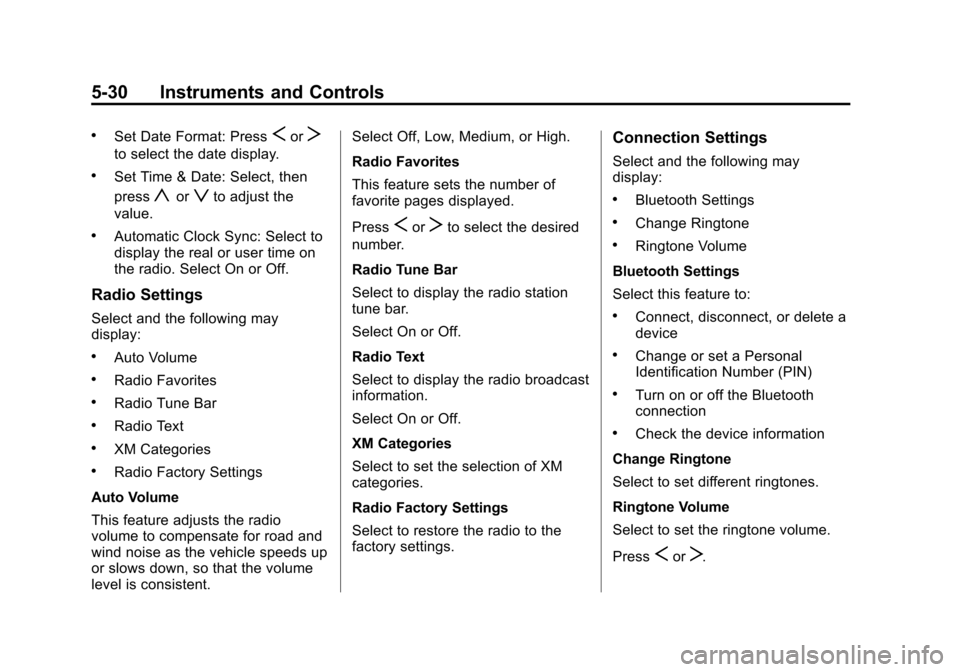
Radio Settings
Select and the following may
display:
.Auto Volume
.Radio Favorites
.Radio Tune Bar
.Radio Text
.XM Categories
.Radio Factory Settings
Auto Volume
This feature adjusts the radio
volume to compensate for road and
wind noise as the vehicle speeds up
or slows down, so that the volume
level is consistent. Select Off, Low, Medium, or High.
Radio Favorites
This feature sets the number of
favorite pages displayed.
Press
SorTto select the desired
number.
Radio Tune Bar
Select to display the radio station
tune bar.
Select On or Off.
Radio Text
Select to display the radio broadcast
information.
Select On or Off.
XM Categories
Select to set the selection of XM
categories.
Radio Factory Settings
Select to restore the radio to the
factory settings.
Connection Settings
Select and the following may
display:
.Bluetooth Settings
.Change Ringtone
.Ringtone Volume
Bluetooth Settings
Select this feature to:
.Connect, disconnect, or delete a
device
.Change or set a Personal
Identification Number (PIN)
.Turn on or off the Bluetooth
connection
.Check the device information
Change Ringtone
Select to set different ringtones.
Ringtone Volume
Select to set the ringtone volume.
Press
SorT.
Page 131 of 400
Black plate (31,1)Chevrolet Sonic Owner Manual (GMNA-Localizing-U.S./Canada-6081473) -
2014 - 2nd Edition - 8/19/13
Instruments and Controls 5-31
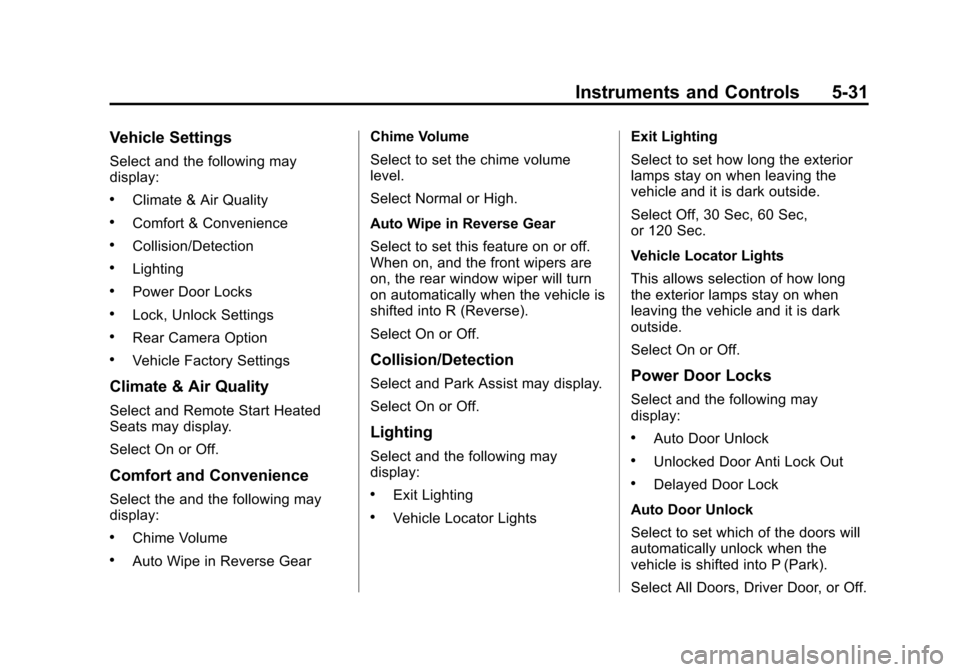
Vehicle Settings
Select and the following may
display:
.Climate & Air Quality
.Comfort & Convenience
.Collision/Detection
.Lighting
.Power Door Locks
.Lock, Unlock Settings
.Rear Camera Option
.Vehicle Factory Settings
Climate & Air Quality
Select and Remote Start Heated
Seats may display.
Select On or Off.
Comfort and Convenience
Select the and the following may
display:
.Chime Volume
.Auto Wipe in Reverse GearChime Volume
Select to set the chime volume
level.
Select Normal or High.
Auto Wipe in Reverse Gear
Select to set this feature on or off.
When on, and the front wipers are
on, the rear window wiper will turn
on automatically when the vehicle is
shifted into R (Reverse).
Select On or Off.
Collision/Detection
Select and Park Assist may display.
Select On or Off.
Lighting
Select and the following may
display:
.Exit Lighting
.Vehicle Locator Lights
Exit Lighting
Select to set how long the exterior
lamps stay on when leaving the
vehicle and it is dark outside.
Select Off, 30 Sec, 60 Sec,
or 120 Sec.
Vehicle Locator Lights
This allows selection of how long
the exterior lamps stay on when
leaving the vehicle and it is dark
outside.
Select On or Off.
Power Door Locks
Select and the following may
display:
.Auto Door Unlock
.Unlocked Door Anti Lock Out
.Delayed Door Lock
Auto Door Unlock
Select to set which of the doors will
automatically unlock when the
vehicle is shifted into P (Park).
Select All Doors, Driver Door, or Off.
Page 132 of 400
Black plate (32,1)Chevrolet Sonic Owner Manual (GMNA-Localizing-U.S./Canada-6081473) -
2014 - 2nd Edition - 8/19/13
5-32 Instruments and Controls
Unlocked Door Anti Lock Out
When on, this feature will keep the
driver door from locking when the
door is open. If Off is selected, the
Delayed Door Lock menu will be
available and the door will lock as
programmed through this menu.
Select On or Off.
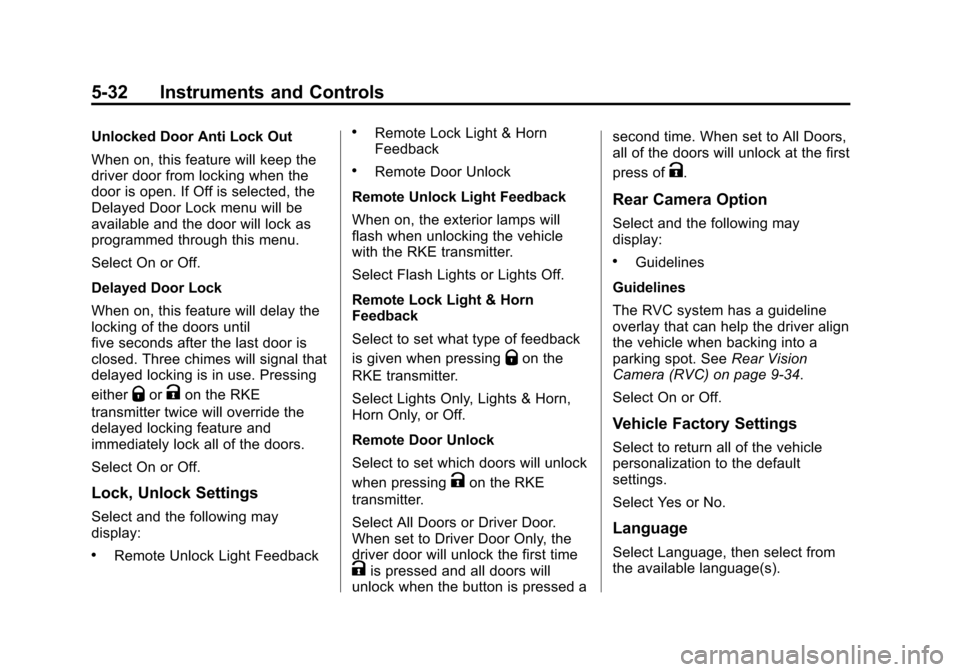
Delayed Door Lock
When on, this feature will delay the
locking of the doors until
five seconds after the last door is
closed. Three chimes will signal that
delayed locking is in use. Pressing
either
QorKon the RKE
transmitter twice will override the
delayed locking feature and
immediately lock all of the doors.
Select On or Off.
Lock, Unlock Settings
Select and the following may
display:
.Remote Unlock Light Feedback
.Remote Lock Light & Horn
Feedback
.Remote Door Unlock
Remote Unlock Light Feedback
When on, the exterior lamps will
flash when unlocking the vehicle
with the RKE transmitter.
Select Flash Lights or Lights Off.
Remote Lock Light & Horn
Feedback
Select to set what type of feedback
is given when pressing
Qon the
RKE transmitter.
Select Lights Only, Lights & Horn,
Horn Only, or Off.
Remote Door Unlock
Select to set which doors will unlock
when pressing
Kon the RKE
transmitter.
Select All Doors or Driver Door.
When set to Driver Door Only, the
driver door will unlock the first time
Kis pressed and all doors will
unlock when the button is pressed a second time. When set to All Doors,
all of the doors will unlock at the first
press of
K.
Rear Camera Option
Select and the following may
display:
.Guidelines
Guidelines
The RVC system has a guideline
overlay that can help the driver align
the vehicle when backing into a
parking spot. See Rear Vision
Camera (RVC) on page 9-34.
Select On or Off.
Vehicle Factory Settings
Select to return all of the vehicle
personalization to the default
settings.
Select Yes or No.
Language
Select Language, then select from
the available language(s).
Page 146 of 400

Black plate (4,1)Chevrolet Sonic Owner Manual (GMNA-Localizing-U.S./Canada-6081473) -
2014 - 2nd Edition - 8/19/13
7-4 Infotainment System
6. Push/MENU/TUNE
.Radio: Manually selects
radio stations.
.CD: Selects tracks.
7. RADIO/BAND
.Changes the band while
listening to the radio.
.Selects the radio when
listening to a different audio
source.
8.
/BACK
.Menu: Moves one
level back.
.Character Input: Deletes
the last character.
9. MEDIA
.Selects external audio
source.
10. CLOCK
.Opens the Clock menu.
11.
5/>(Phone Mute)
.Mutes the audio system. 12. TONE
.Opens the Tone menu.
13. INFO (Information)
.Radio: Shows available
information about the
current station.
.CD: Shows available
information about the
current track.
14. CONFIG (Configuration)
.Opens the
Configuration menu.
15. AUX Port
.3.5 mm (1/8 in)
connection for external
devices.
Page 148 of 400

Black plate (6,1)Chevrolet Sonic Owner Manual (GMNA-Localizing-U.S./Canada-6081473) -
2014 - 2nd Edition - 8/19/13
7-6 Infotainment System
7. INFO (Information)
.Radio: Shows available
information about the
current station.
.CD: Shows available
information about the
current track.
8. CD Slot
9. SEEK
¨
.Radio: Seeks the next
station.
.CD: Selects the next track
or fast forwards within a
track.
10.
©SEEK
.Radio: Seeks the previous
station.
.CD: Selects the previous
track or rewinds within a
track.
11. MEDIA
.Selects the CD player or
an external audio source. 12. RADIO/BAND
.Changes the band while
listening to the radio.
.Selects the radio when
listening to a different
audio source.
13. CLOCK
.Opens the Clock menu.
14. TONE
.Opens the Tone menu.
15. CONFIG (Configuration)
.Opens the
Configuration menu.
16.
/BACK
.Menu: Moves one
level back.
.Character Input: Deletes
the last character.
17.
5/>(Phone/Mute)
.Opens the Phone menu.
.Mutes the audio system.
Page 159 of 400
Black plate (17,1)Chevrolet Sonic Owner Manual (GMNA-Localizing-U.S./Canada-6081473) -
2014 - 2nd Edition - 8/19/13
Infotainment System 7-17
2. Press and release the FAVbutton to display the page where
the channel is to be stored.
3. Press and hold one of the six numbered pushbuttons until a
beep sounds. When the
pushbutton is pressed and
released, the channel that was
set will return.
4. Repeat Steps 1−3 for each XM channel to be stored as a
favorite.
To set up the number of favorites
pages:
1. Press and hold FAV until the radio setup menu displays.
2. Select the desired number of favorites pages by pressing the
pushbutton located below the
displayed page numbers.
3. Press FAV to return to the original main radio screen
showing the radio frequency
tabs and to begin the process of programming favorites for the
chosen number of numbered
pages.
SiriusXM Radio Messages
UPDATING:
The encryption code
in the receiver is being updated, and
no action is required. This process
should take no longer than
30 seconds.
NO SIGNAL: The system is
functioning correctly, but the vehicle
is in a location that is blocking the
SiriusXM signal. When the vehicle is
moved into an open area, the signal
should return.
LOADING: The audio system is
acquiring and processing audio and
text data. No action is needed. This
message should disappear shortly.
OFF AIR: This channel is not
currently in service. Tune in to
another channel.
CH UNAVAILABLE: This
previously assigned channel is no
longer assigned. Tune to another station. If this station was one of the
presets, choose another station for
that preset button.
RADIO ID:
If tuned to channel 0,
this message alternates with the
SiriusXM Radio eight-digit radio ID
label. This label is needed to
activate the service.
CHECK XM TUNER: If this
message does not clear within a
short period of time, the receiver
could have a fault. Consult with your
dealer.
Radio Reception
Frequency interference and static
can occur during normal radio
reception if items such as cell phone
chargers, vehicle convenience
accessories, and external electronic
devices are plugged into the
accessory power outlet. If there is
interference or static, unplug the
item from the accessory power
outlet.
Page 167 of 400
Black plate (25,1)Chevrolet Sonic Owner Manual (GMNA-Localizing-U.S./Canada-6081473) -
2014 - 2nd Edition - 8/19/13
Infotainment System 7-25
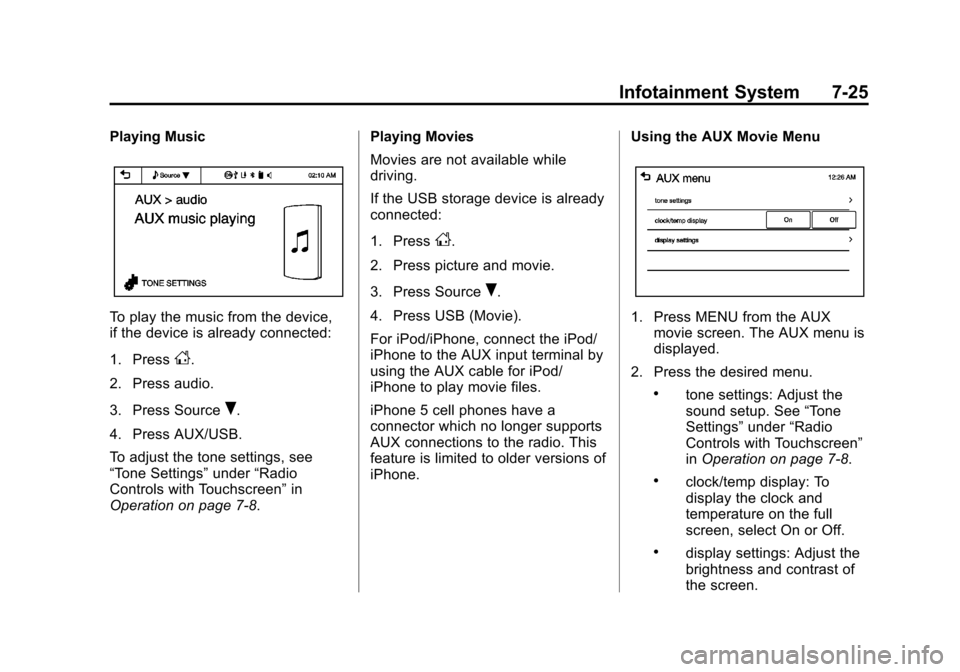
Playing Music
To play the music from the device,
if the device is already connected:
1. Press
D.
2. Press audio.
3. Press Source
R.
4. Press AUX/USB.
To adjust the tone settings, see
“Tone Settings” under“Radio
Controls with Touchscreen” in
Operation on page 7-8. Playing Movies
Movies are not available while
driving.
If the USB storage device is already
connected:
1. Press
D.
2. Press picture and movie.
3. Press Source
R.
4. Press USB (Movie).
For iPod/iPhone, connect the iPod/
iPhone to the AUX input terminal by
using the AUX cable for iPod/
iPhone to play movie files.
iPhone 5 cell phones have a
connector which no longer supports
AUX connections to the radio. This
feature is limited to older versions of
iPhone. Using the AUX Movie Menu
1. Press MENU from the AUX
movie screen. The AUX menu is
displayed.
2. Press the desired menu.
.tone settings: Adjust the
sound setup. See “Tone
Settings” under“Radio
Controls with Touchscreen”
in Operation on page 7-8.
.clock/temp display: To
display the clock and
temperature on the full
screen, select On or Off.
.display settings: Adjust the
brightness and contrast of
the screen.
Page 188 of 400

Black plate (46,1)Chevrolet Sonic Owner Manual (GMNA-Localizing-U.S./Canada-6081473) -
2014 - 2nd Edition - 8/19/13
7-46 Infotainment System
.Connect Andriod™phones
through Bluetooth.
iPod/iPhone Error Messages and
Solution
If the system fails to activate the
application on the iPod/iPhone
connected, an error message is
displayed as, “Unable to start
application, possible reasons.”
.Your iPhone is locked. To
resolve, unlock the iPhone.
.You have another active
application open. To resolve,
close the other active
application.
.You have not installed the
application on your iPhone. To
resolve, install the application on
the iPhone.
iOS Version Error
If the iOS version of the iPhone is
less than 4.0, the error message is
displayed as, “Your iPhone does not allow this application to be
opened on a USB connection.
Please refer to owner
’s manual.”
.Activate the application on your
iPhone, then press the desired
application menu on the
infotainment system.
Connecting Application Error
If the infotainment system fails to
activate the application on the
smartphone connected through
Bluetooth wireless technology, the
error message is displayed as,
“Connecting application error.”
.Reset all settings related to the
phone, then press the desired
application menu on the
infotainment system.
.Reconnect the smartphone and
infotainment system through
Bluetooth wireless technology,
then press the desired
application menu on the
infotainment system.
.When the application is stopped
on the smartphone, it usually
takes time to return to normal
operation. Try to activate the
application after 10–20 seconds.
To switch to another application
while playing an application and
connected through the USB port,
press the HOME button on the iPod/
iPhone, then press the application
icon on the infotainment system.
Switching Between a USB
Connected Device and a
Bluetooth Device
When the iPhone is connected to
the infotainment system through the
USB port, and the infotainment
system is connected to another
phone through Bluetooth wireless
technology, press iPhone or
bluetooth phone on the smartphone
list menu to switch between the two
applications.
Page 198 of 400
Black plate (56,1)Chevrolet Sonic Owner Manual (GMNA-Localizing-U.S./Canada-6081473) -
2014 - 2nd Edition - 8/19/13
7-56 Infotainment System
Some features are disabled while
the vehicle is in motion.
Viewing a Slide Show
1. From the picture screen, press
z. The slide show will start
to play.
2. Press the screen to cancel the slide show during the slide show
playback.
Viewing a Previous or Next
Picture
Press
torufrom the picture
screen.
Rotating a Picture
Press
yorwfrom the picture
screen.
Enlarging a Picture
Press
xfrom the picture screen.
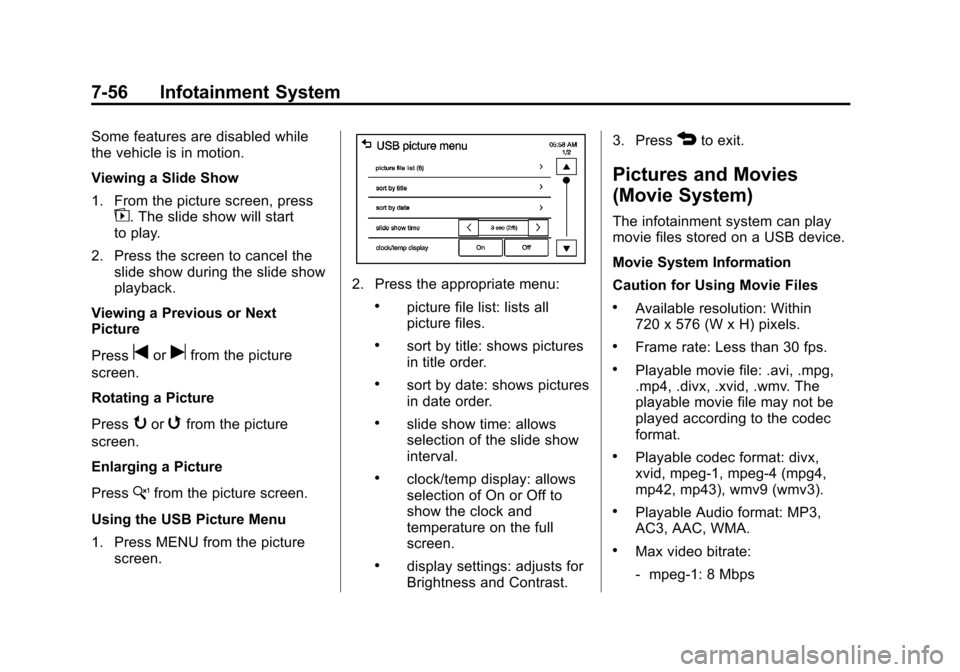
Using the USB Picture Menu
1. Press MENU from the picture screen.
2. Press the appropriate menu:
.picture file list: lists all
picture files.
.sort by title: shows pictures
in title order.
.sort by date: shows pictures
in date order.
.slide show time: allows
selection of the slide show
interval.
.clock/temp display: allows
selection of On or Off to
show the clock and
temperature on the full
screen.
.display settings: adjusts for
Brightness and Contrast. 3. Press
4to exit.
Pictures and Movies
(Movie System)
The infotainment system can play
movie files stored on a USB device.
Movie System Information
Caution for Using Movie Files
.Available resolution: Within
720 x 576 (W x H) pixels.
.Frame rate: Less than 30 fps.
.Playable movie file: .avi, .mpg,
.mp4, .divx, .xvid, .wmv. The
playable movie file may not be
played according to the codec
format.
.Playable codec format: divx,
xvid, mpeg-1, mpeg-4 (mpg4,
mp42, mp43), wmv9 (wmv3).
.Playable Audio format: MP3,
AC3, AAC, WMA.
.Max video bitrate:
‐
mpeg-1: 8 Mbps