programming CHEVROLET SONIC 2014 2.G Owners Manual
[x] Cancel search | Manufacturer: CHEVROLET, Model Year: 2014, Model line: SONIC, Model: CHEVROLET SONIC 2014 2.GPages: 400, PDF Size: 5.57 MB
Page 22 of 400
Black plate (16,1)Chevrolet Sonic Owner Manual (GMNA-Localizing-U.S./Canada-6081473) -
2014 - 2nd Edition - 8/19/13
1-16 In Brief
Storing Stations
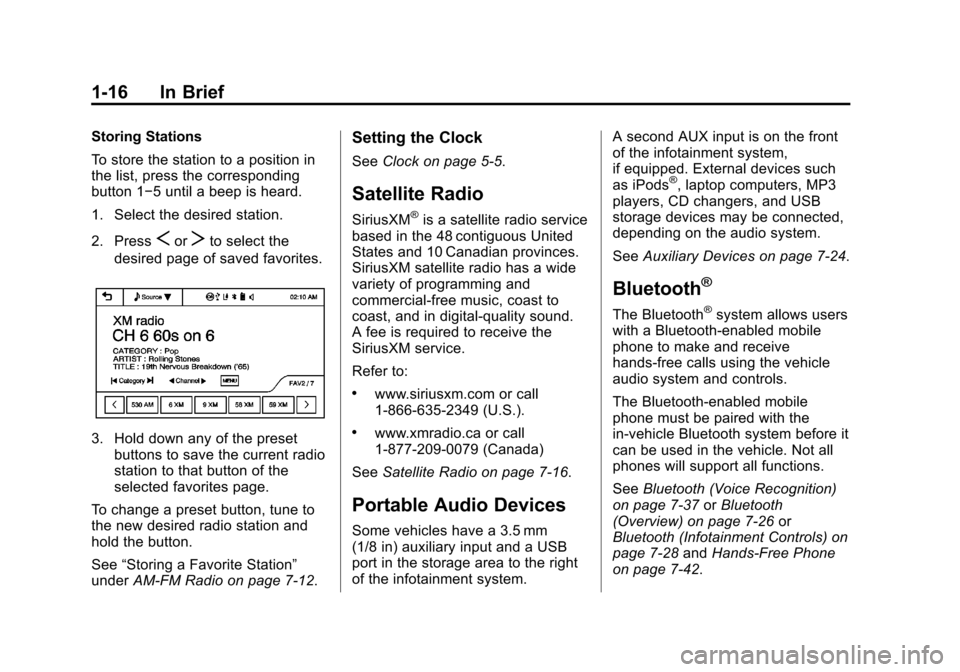
To store the station to a position in
the list, press the corresponding
button 1−5 until a beep is heard.
1. Select the desired station.
2. Press
SorTto select the
desired page of saved favorites.
3. Hold down any of the preset buttons to save the current radio
station to that button of the
selected favorites page.
To change a preset button, tune to
the new desired radio station and
hold the button.
See “Storing a Favorite Station”
under AM-FM Radio on page 7-12.
Setting the Clock
SeeClock on page 5-5.
Satellite Radio
SiriusXM®is a satellite radio service
based in the 48 contiguous United
States and 10 Canadian provinces.
SiriusXM satellite radio has a wide
variety of programming and
commercial-free music, coast to
coast, and in digital-quality sound.
A fee is required to receive the
SiriusXM service.
Refer to:
.www.siriusxm.com or call
1-866-635-2349 (U.S.).
.www.xmradio.ca or call
1-877-209-0079 (Canada)
See Satellite Radio on page 7-16.
Portable Audio Devices
Some vehicles have a 3.5 mm
(1/8 in) auxiliary input and a USB
port in the storage area to the right
of the infotainment system. A second AUX input is on the front
of the infotainment system,
if equipped. External devices such
as iPods
®, laptop computers, MP3
players, CD changers, and USB
storage devices may be connected,
depending on the audio system.
See Auxiliary Devices on page 7-24.
Bluetooth®
The Bluetooth®system allows users
with a Bluetooth-enabled mobile
phone to make and receive
hands-free calls using the vehicle
audio system and controls.
The Bluetooth-enabled mobile
phone must be paired with the
in-vehicle Bluetooth system before it
can be used in the vehicle. Not all
phones will support all functions.
See Bluetooth (Voice Recognition)
on page 7-37 orBluetooth
(Overview) on page 7-26 or
Bluetooth (Infotainment Controls) on
page 7-28 andHands-Free Phone
on page 7-42.
Page 32 of 400
Black plate (4,1)Chevrolet Sonic Owner Manual (GMNA-Localizing-U.S./Canada-6081473) -
2014 - 2nd Edition - 8/19/13
2-4 Keys, Doors, and Windows
7(Vehicle Locator/Panic
Alarm): Press and release one
time to initiate vehicle locator. The
exterior lamps flash and the horn
chirps three times. Press and hold
7for at least three seconds to
sound the panic alarm. The horn
sounds and the turn signals flash for
30 seconds until
7is pressed
again, or the key is placed in the
ignition and turned to ON/RUN.
/(Remote Vehicle Start):
If equipped, press and release
Q
and then immediately press and
hold
/for approximately
two seconds or until the turn signal
lamps flash to start the engine from
outside the vehicle using the RKE
transmitter. See Remote Vehicle
Start on page 2-5.
The buttons on the RKE transmitter
are disabled when there is a key in
the ignition.
Programming Transmitters to
the Vehicle
Only RKE transmitters programmed
to this vehicle will work. If a
transmitter is lost or stolen, a
replacement can be purchased and
programmed through your dealer.
When the replacement transmitter is
programmed to this vehicle, all
remaining transmitters must also be
reprogrammed. Any lost or stolen
transmitters will no longer work
once the new transmitter is
programmed. See your dealer to
have new transmitters programmed.
Programming with a Recognized
Transmitter
To program a new key:
1. Insert the original, already programmed key in the ignition
and turn to the key to the ON/
RUN position.
2. Turn the key to LOCK/OFF, and remove the key. 3. Insert the new key to be
programmed and turn it to the
ON/RUN position within
five seconds.
The security light will turn off
once the key has been
programmed.
4. Repeat Steps 1–3 if additional keys are to be programmed.
If a key is lost or damaged, see your
dealer to have a new key made.
Programming without a
Recognized Transmitter
Program a new key to the vehicle
when a recognized key is not
available. Canadian regulations
require that owners see their
dealer.
If there are no currently recognized
keys available, follow this procedure
to program the first key.
This procedure will take
approximately 30 minutes to
complete for the first key. The
Page 33 of 400
Black plate (5,1)Chevrolet Sonic Owner Manual (GMNA-Localizing-U.S./Canada-6081473) -
2014 - 2nd Edition - 8/19/13
Keys, Doors, and Windows 2-5
vehicle must be off and all of the
keys you wish to program must be
with you.
1. Insert the new vehicle key intothe ignition.
2. Turn to ON/RUN. The security light will come on.
3. Wait 10 minutes until the security light turns off.
4. Turn the ignition to LOCK/OFF.
5. Repeat Steps 2–4 two more times. After the third time, turn to
ON/RUN; the key is learned and
all previously known keys will no
longer work with the vehicle.
Remaining keys can be learned by
following the procedure in
“Programming with a Recognized
Transmitter.”Battery Replacement
The battery is not rechargeable. To
replace the battery:
{Caution
When replacing the battery, do
not touch any of the circuitry on
the transmitter. Static from your
body could damage the
transmitter.
1. Press the button on the transmitter to extend the key.
2. Remove the battery cover by prying with a finger.
3. Remove the old battery.
4. Insert the new battery, positive side facing up. Replace with a
CR2032 or equivalent battery.
5. Snap the battery cover back on to the transmitter.
Remote Vehicle Start
If equipped, this feature allows the
engine to be started from outside
the vehicle.
/(Remote Vehicle Start): This
button will be on the RKE
transmitter if the vehicle has remote
start.
The climate control system will use
the previous settings during a
remote start. The rear defog may
come on during remote start based
on cold ambient conditions. The
rear fog indicator light does not
come on during remote start.
If the vehicle has heated seats, they
may come on during a remote start.
See Heated Front Seats on
page 3-6.
Laws in some local communities
may restrict the use of remote
starters. For example, some laws
require a person using remote start
to have the vehicle in view. Check
local regulations for any
requirements.
Page 47 of 400
Black plate (19,1)Chevrolet Sonic Owner Manual (GMNA-Localizing-U.S./Canada-6081473) -
2014 - 2nd Edition - 8/19/13
Keys, Doors, and Windows 2-19
Safety Function
If any object is in the path of the
window when the express-up
feature is active, the window will
stop and auto-reverse to a preset
position. Weather conditions may
cause the window to auto-reverse.
The window switch may be held up
to the second position to close the
window. The window will return to
normal operation once the
obstruction or condition is removed.
Safety Function Override
If the battery on the vehicle has
been recharged or disconnected,
or is not working, the windows will
need to be reprogrammed for the
express-up feature to work. Before
reprogramming, replace or recharge
the vehicle's battery.
To program the driver window:
1. With the ignition in ACC/ACCESSORY or ON/RUN,
or when RAP is active, close all
doors. 2. Press and hold the power
window switch until the window
is fully open.
3. Pull the power window switch up until the window is fully closed.
4. Continue holding the switch up for approximately two seconds
after the window is completely
closed.
The window is now reprogrammed.
Window Lockout
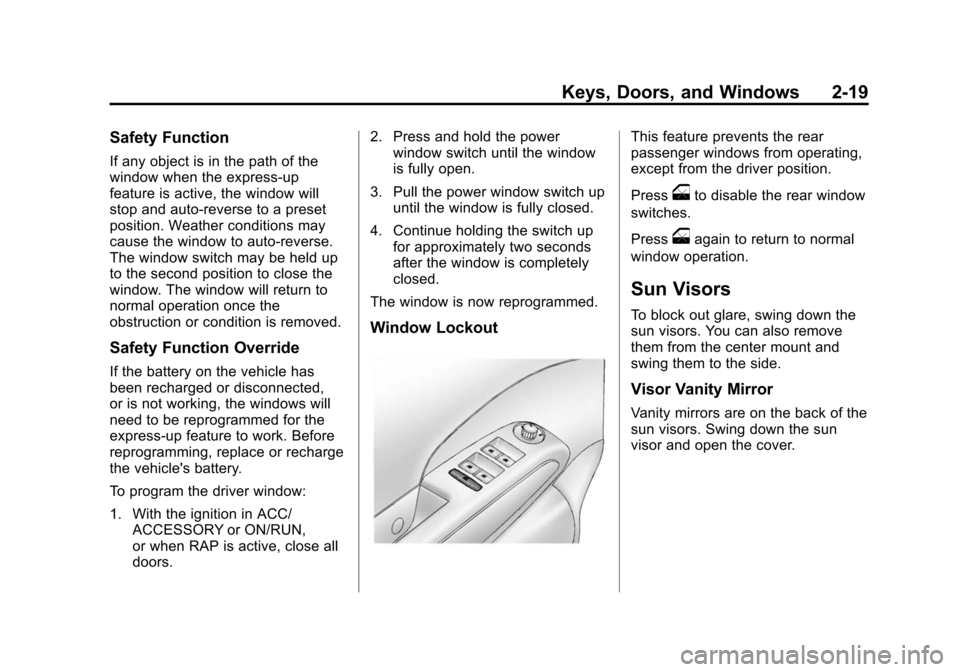
This feature prevents the rear
passenger windows from operating,
except from the driver position.
Press
oto disable the rear window
switches.
Press
oagain to return to normal
window operation.
Sun Visors
To block out glare, swing down the
sun visors. You can also remove
them from the center mount and
swing them to the side.
Visor Vanity Mirror
Vanity mirrors are on the back of the
sun visors. Swing down the sun
visor and open the cover.
Page 155 of 400
Black plate (13,1)Chevrolet Sonic Owner Manual (GMNA-Localizing-U.S./Canada-6081473) -
2014 - 2nd Edition - 8/19/13
Infotainment System 7-13
Selecting a Band
Press the RADIO/BAND button to
choose AM, FM, or SiriusXM,
if equipped. The last station that
was playing starts playing again.
Selecting a Station
Seek Tuning
If the radio station is not known:
Briefly press SEEK
¨or©SEEK to
automatically search for the next
available station. If a station is not
found, the radio switches to a more
sensitive search level. If a station
still is not found, the frequency that
was last active begins to play.
If the radio station is known:
Press and hold SEEK
¨or©SEEK
until the station on the display is
reached, then release the button.
Favorites List
1. Turn the Push/MENU/ TUNE knob.
2. Select Favorites List. 3. Select the station.
Station Lists
1. Turn the Push/MENU/
TUNE knob.
2. Select AM or FM Station List. All receivable stations in the current
reception area are displayed. If a
station list has not been created,
an automatic station search
is done.
3. The first station in the list will play.
Category Lists
Most stations that broadcast an
RDS program type code specify the
type of programming transmitted.
Some stations change the program
type code depending on the
content. The system stores the RDS
stations sorted by program type in
the FM category list.
To search for a programming type
determined by station:
1. Turn the Push/MENU/ TUNE knob. 2. Select FM category list. A list of
all available programming types
displays.
3. Select the programming type. A list of stations that transmit
programming of the selected
type displays.
4. Select the station. The category lists are updated
when the station lists are
updated.
Updating Station and Category
Lists
If stations stored in the station list
can no longer be received:
1. Turn the Push/MENU/ TUNE knob.
2. Select Update AM or FM Station List, if the stations stored in the
station list are no longer
received. A station search will be
completed and the first station in
the updated list will play.
To cancel the station search, press
the Push/MENU/TUNE button.
Page 158 of 400
Black plate (16,1)Chevrolet Sonic Owner Manual (GMNA-Localizing-U.S./Canada-6081473) -
2014 - 2nd Edition - 8/19/13
7-16 Infotainment System
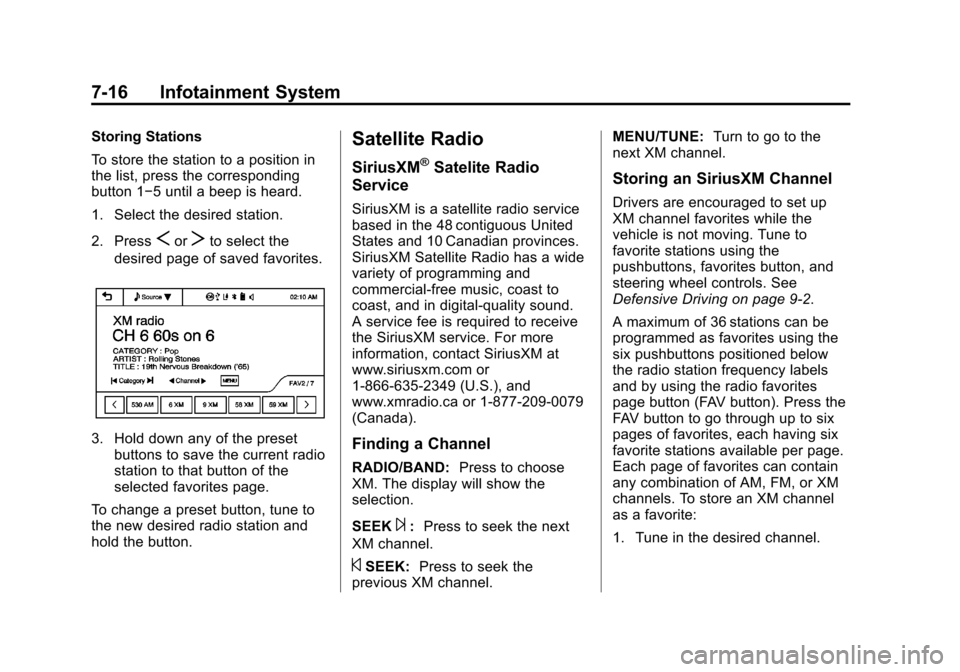
Storing Stations
To store the station to a position in
the list, press the corresponding
button 1−5 until a beep is heard.
1. Select the desired station.
2. Press
SorTto select the
desired page of saved favorites.
3. Hold down any of the preset buttons to save the current radio
station to that button of the
selected favorites page.
To change a preset button, tune to
the new desired radio station and
hold the button.
Satellite Radio
SiriusXM®Satelite Radio
Service
SiriusXM is a satellite radio service
based in the 48 contiguous United
States and 10 Canadian provinces.
SiriusXM Satellite Radio has a wide
variety of programming and
commercial-free music, coast to
coast, and in digital-quality sound.
A service fee is required to receive
the SiriusXM service. For more
information, contact SiriusXM at
www.siriusxm.com or
1-866-635-2349 (U.S.), and
www.xmradio.ca or 1-877-209-0079
(Canada).
Finding a Channel
RADIO/BAND: Press to choose
XM. The display will show the
selection.
SEEK
¨: Press to seek the next
XM channel.
©SEEK: Press to seek the
previous XM channel. MENU/TUNE:
Turn to go to the
next XM channel.
Storing an SiriusXM Channel
Drivers are encouraged to set up
XM channel favorites while the
vehicle is not moving. Tune to
favorite stations using the
pushbuttons, favorites button, and
steering wheel controls. See
Defensive Driving on page 9-2.
A maximum of 36 stations can be
programmed as favorites using the
six pushbuttons positioned below
the radio station frequency labels
and by using the radio favorites
page button (FAV button). Press the
FAV button to go through up to six
pages of favorites, each having six
favorite stations available per page.
Each page of favorites can contain
any combination of AM, FM, or XM
channels. To store an XM channel
as a favorite:
1. Tune in the desired channel.
Page 159 of 400
Black plate (17,1)Chevrolet Sonic Owner Manual (GMNA-Localizing-U.S./Canada-6081473) -
2014 - 2nd Edition - 8/19/13
Infotainment System 7-17
2. Press and release the FAVbutton to display the page where
the channel is to be stored.
3. Press and hold one of the six numbered pushbuttons until a
beep sounds. When the
pushbutton is pressed and
released, the channel that was
set will return.
4. Repeat Steps 1−3 for each XM channel to be stored as a
favorite.
To set up the number of favorites
pages:
1. Press and hold FAV until the radio setup menu displays.
2. Select the desired number of favorites pages by pressing the
pushbutton located below the
displayed page numbers.
3. Press FAV to return to the original main radio screen
showing the radio frequency
tabs and to begin the process of programming favorites for the
chosen number of numbered
pages.
SiriusXM Radio Messages
UPDATING:
The encryption code
in the receiver is being updated, and
no action is required. This process
should take no longer than
30 seconds.
NO SIGNAL: The system is
functioning correctly, but the vehicle
is in a location that is blocking the
SiriusXM signal. When the vehicle is
moved into an open area, the signal
should return.
LOADING: The audio system is
acquiring and processing audio and
text data. No action is needed. This
message should disappear shortly.
OFF AIR: This channel is not
currently in service. Tune in to
another channel.
CH UNAVAILABLE: This
previously assigned channel is no
longer assigned. Tune to another station. If this station was one of the
presets, choose another station for
that preset button.
RADIO ID:
If tuned to channel 0,
this message alternates with the
SiriusXM Radio eight-digit radio ID
label. This label is needed to
activate the service.
CHECK XM TUNER: If this
message does not clear within a
short period of time, the receiver
could have a fault. Consult with your
dealer.
Radio Reception
Frequency interference and static
can occur during normal radio
reception if items such as cell phone
chargers, vehicle convenience
accessories, and external electronic
devices are plugged into the
accessory power outlet. If there is
interference or static, unplug the
item from the accessory power
outlet.
Page 201 of 400
Black plate (59,1)Chevrolet Sonic Owner Manual (GMNA-Localizing-U.S./Canada-6081473) -
2014 - 2nd Edition - 8/19/13
Infotainment System 7-59
DivX®, DivX Certified®and
associated logos are trademarks of
Rovi Corporation or its subsidiaries
and are used under license.
“Made for iPod” and“Made for
iPhone” mean that an electronic
accessory has been designed to
connect specifically to iPod or
iPhone and has been certified by
the developer to meet Apple
performance standards.
iPod and iPhone are trademarks of
Apple Computer, Inc., registered in
the U.S. and other countries.
Fees and Taxes: Subscription fee,
taxes, one time activation fee, and
other fees may apply. Subscription
fee is consumer only. All fees and
programming subject to change.
Subscriptions subject to Customer
Agreement available at
www.siriusxm.com. SiriusXM
®
service only available in the
48 contiguous United States and
Canada.
In Canada: Some deterioration of
service may occur in extreme
northern latitudes. This is beyond
the control of SiriusXM
®Satellite
Radio. Explicit Language Notice: Channels
with frequent explicit language are
indicated with an
“XL”preceding the
channel name. Channel blocking is
available for SiriusXM Satellite
Radio receivers by notifying
SiriusXM:
.USA: 866-635-2349 or see
www.siriusxm.com.
.Canada: 877-209-0079 or see
www.xmradio.ca.
It is prohibited to copy, decompile,
disassemble, reverse engineer,
hack, manipulate, or otherwise
make available any technology or
software incorporated in receivers
compatible with the SiriusXM
Satellite Radio System or that
support the SiriusXM website, the
Online Service or any of its content.
Furthermore, the AMBER voice
compression software included in
this product is protected by
intellectual property rights including
patent rights, copyrights, and trade
secrets of Digital Voice
Systems, Inc.
Page 210 of 400
Black plate (2,1)Chevrolet Sonic Owner Manual (GMNA-Localizing-U.S./Canada-6081473) -
2014 - 2nd Edition - 8/19/13
9-2 Driving and Operating
Driving Information
Distracted Driving
Distraction comes in many forms
and can take your focus from the
task of driving. Exercise good
judgment and do not let other
activities divert your attention away
from the road. Many local
governments have enacted laws
regarding driver distraction. Become
familiar with the local laws in
your area.
To avoid distracted driving, always
keep your eyes on the road, hands
on the wheel, and mind on the drive.
.Do not use a phone in
demanding driving situations.
Use a hands-free method to
place or receive necessary
phone calls.
.Watch the road. Do not read,
take notes, or look up
information on phones or other
electronic devices.
.Designate a front seat
passenger to handle potential
distractions.
.Become familiar with vehicle
features before driving, such as
programming favorite radio
stations and adjusting climate
control and seat settings.
Program all trip information into
any navigation device prior to
driving.
.Wait until the vehicle is parked
to retrieve items that have fallen
to the floor.
.Stop or park the vehicle to tend
to children.
.Keep pets in an appropriate
carrier or restraint.
.Avoid stressful conversations
while driving, whether with a
passenger or on a cell phone.
{Warning
Taking your eyes off the road too
long or too often could cause a
crash resulting in injury or death.
Focus your attention on driving.
Refer to the Infotainment section for
more information on using that
system, including pairing and using
a cell phone.
Defensive Driving
Defensive driving means “always
expect the unexpected.” The first
step in driving defensively is to wear
the safety belt. See Safety Belts on
page 3-8.
.Assume that other road users
(pedestrians, bicyclists, and
other drivers) are going to be
careless and make mistakes.
Anticipate what they might do
and be ready.