radio CHEVROLET SONIC 2015 2.G Service Manual
[x] Cancel search | Manufacturer: CHEVROLET, Model Year: 2015, Model line: SONIC, Model: CHEVROLET SONIC 2015 2.GPages: 403, PDF Size: 5.68 MB
Page 179 of 403
Black plate (32,1)Chevrolet Sonic Owner Manual (GMNA-Localizing-U.S./Canada-7707487) -
2015 - crc - 10/31/14
7-32 Infotainment System
Pairing Information
.A Bluetooth phone with MP3
capability cannot be paired to
the vehicle as a phone and an
MP3 player at the same time.
.Up to five cell phones can be
paired to the Bluetooth system.
.The pairing process is disabled
when the vehicle is moving.
.Depending on the phone book
entries, paring time may be
different.
.Pairing only needs to be
completed once, unless the
pairing information on the cell
phone changes or the cell phone
is deleted from the system.
.Only one paired cell phone can
be connected to the Bluetooth
system at a time.
.If multiple paired cell phones are
within range of the system, the
system connects to the first
available paired cell phone in the
order that they were first paired
to the system. To link to adifferent paired phone, see
“Linking to a Different Phone”
later in this section.
.Always accept the Phone book
request on the initial pairing of
the phone.
When the Bluetooth device and
infotainment system are
successfully paired, the phone book
is downloaded automatically.
However, the phone book may not
be downloaded automatically
according to the type of the phone.
In this case, proceed with the
phonebook download on phone.
If the phone list is more than 1,000,
it may not download to the radio.
Pairing a Phone
When there is no paired device on
the infotainment system and the
Simple Secure Pairing (SSP) is
supported:
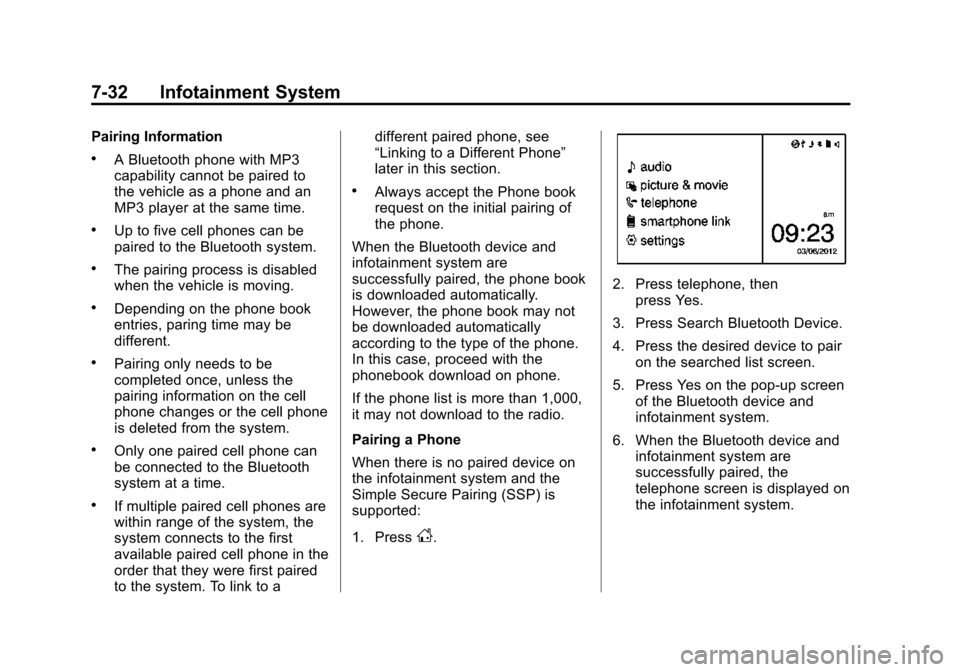
1. Press
D.
2. Press telephone, then press Yes.
3. Press Search Bluetooth Device.
4. Press the desired device to pair on the searched list screen.
5. Press Yes on the pop-up screen of the Bluetooth device and
infotainment system.
6. When the Bluetooth device and infotainment system are
successfully paired, the
telephone screen is displayed on
the infotainment system.
Page 192 of 403
Black plate (45,1)Chevrolet Sonic Owner Manual (GMNA-Localizing-U.S./Canada-7707487) -
2015 - crc - 10/31/14
Infotainment System 7-45
Making a Call with Speed Dial
Numbers
Press and hold the speed dial
number using the keypad on the
telephone screen.
Only speed dial numbers already
stored on the cell phone can be
used for speed dial calls. Up to
two-digit speed dial numbers are
supported.
For two-digit speed dial numbers,
press and hold the second digit to
make a call to the speed dial
number.Downloadable
Applications
Smartphone Link
(Overview)
Before Using Smartphone Link
If equipped, the vehicle can connect
to Pandora
®, Stitcher SmartRadio®,
or other available applications
through the infotainment system.
The applications must be
downloaded to the device first, then
the device can be connected to the
infotainment system.
Pandora is a free Internet radio
service that streams personalized
radio stations based on artists,
songs, genres, and comedians.
Create stations using the Pandora
website or smartphone application,
then use
-(thumbs up) or,
(thumbs down) to personalize
stations. To set up an account, or for
more information, go to www.pandora.com. Pandora may
not be available in Canada or
Mexico.
Stitcher SmartRadio is an Internet
radio service that streams news,
sports, and entertainment shows
through the audio system. Create
personalized, on-demand stations or
discover new shows through
Stitcher's preset stations. To set up
an account, download the
application from the Android Market
or iTunes Store, or go to
www.stitcher.com.
A phone or tablet with Internet
connection and the application
installed is required. Personal cell
phone data plans are used. Make
sure the latest version is installed
on the device and the volume is
turned up.
Smartphone Supported by
Application
To use Applications:
.Connect an iPod/iPhone using
the USB port.
Page 195 of 403
Black plate (48,1)Chevrolet Sonic Owner Manual (GMNA-Localizing-U.S./Canada-7707487) -
2015 - crc - 10/31/14
7-48 Infotainment System
If the smartphone is not connected
to the infotainment system or the
application is not installed on the
smartphone, the Pandora menu is
not activated.
Thumbs Up and Thumbs Down
Rate tracks by using
-(thumbs up)
or
,(thumbs down).
Pause
.Pressjto pause.
.Pressrto resume.
Changing Tracks
Press
lto change to the next
track.
Bookmark
To bookmark a favorite artist or
track:
1. Press
Son the screen.
2. Press Artist or Track. Pandora Menus
Creating Stations from Currently
Playing Music
1. Press MENU. The Pandora
menu is displayed.
2. Press create station.
3. Press from currently playing.
4. Press Artist or Track.
5. Press the desired station. The station is added into the
Pandora menu automatically.
Creating Stations by Searching
by Artist or Track
1. Press MENU. The Pandora menu is displayed.
2. Press create station.
3. Press enter artist/track. The keypad is displayed.
4. Enter the artist or track name using the keypad, then press
Create. 5. Press the desired station. The
station is added into the
Pandora menu automatically.
Listening to Stations
1. Press MENU. The Pandora menu is displayed.
2. Press
QorRto scroll through
the list. Select the desired
station.
QuickMix
1. Press MENU. The Pandora menu is displayed.
2. Press QuickMix
Zto listen to a
selection of tracks from your
stations.
Tone Settings
1. Press MENU. The Pandora menu is displayed.
2. Press tone settings. The tone settings menu is displayed. See
“Tone Settings” under“Radio
Controls with Touchscreen” in
Operation on page 7-8.
Page 196 of 403
Black plate (49,1)Chevrolet Sonic Owner Manual (GMNA-Localizing-U.S./Canada-7707487) -
2015 - crc - 10/31/14
Infotainment System 7-49
Smartphone Link
(Stitcher)
Some images and explanations may
vary by phone operating systems,
versions, and/or application (App)
versions.
Using Stitcher
1. Install the Stitcher application onthe smartphone.
2. Connect the smartphone to the infotainment system through the
USB port or Bluetooth wireless
technology.
.iPhone: USB connection.
.Android phone/BlackBerry
phone: Bluetooth wireless
technology.
3. Activate the Stitcher application.
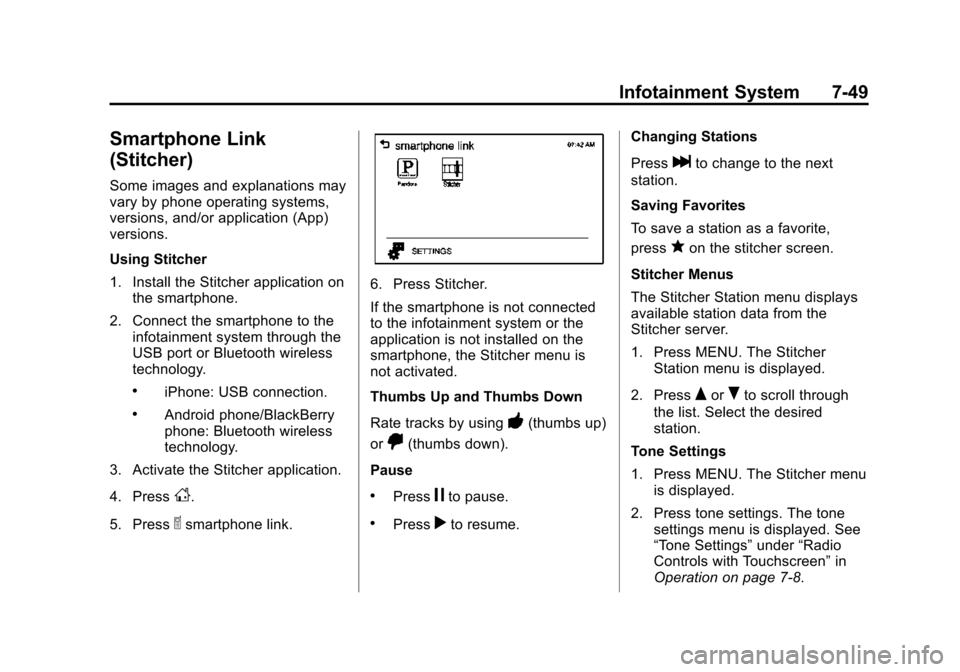
4. Press
D.
5. Press
^smartphone link.
6. Press Stitcher.
If the smartphone is not connected
to the infotainment system or the
application is not installed on the
smartphone, the Stitcher menu is
not activated.
Thumbs Up and Thumbs Down
Rate tracks by using
-(thumbs up)
or
,(thumbs down).
Pause
.Pressjto pause.
.Pressrto resume. Changing Stations
Press
lto change to the next
station.
Saving Favorites
To save a station as a favorite,
press
qon the stitcher screen.
Stitcher Menus
The Stitcher Station menu displays
available station data from the
Stitcher server.
1. Press MENU. The Stitcher Station menu is displayed.
2. Press
QorRto scroll through
the list. Select the desired
station.
Tone Settings
1. Press MENU. The Stitcher menu is displayed.
2. Press tone settings. The tone settings menu is displayed. See
“Tone Settings” under“Radio
Controls with Touchscreen” in
Operation on page 7-8.
Page 200 of 403
Black plate (53,1)Chevrolet Sonic Owner Manual (GMNA-Localizing-U.S./Canada-7707487) -
2015 - crc - 10/31/14
Infotainment System 7-53
.OFF: Returns to normal
playback.
Viewing Information on the
Currently Playing File
Press the title during playback to
display information about the current
file playing.
.The information displayed
includes the title, file name,
folder name, and artist/album
saved with the song.
.Incorrect information cannot be
modified or corrected on the
infotainment system.
.The information for songs
expressed in special symbols or
in unavailable languages may be
displayed as “
u.”
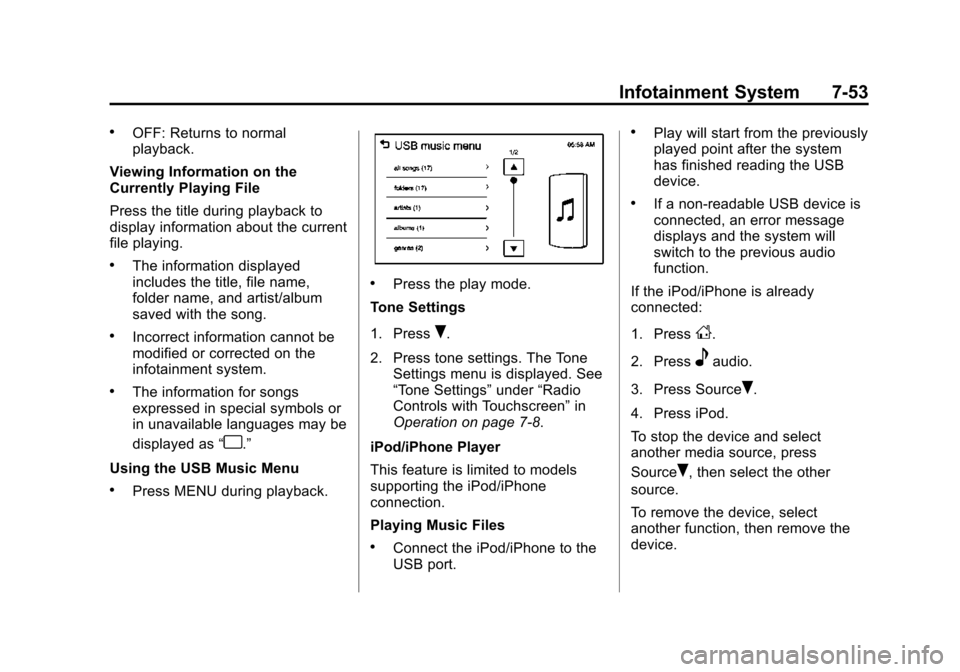
Using the USB Music Menu
.Press MENU during playback.
.Press the play mode.
Tone Settings
1. Press
R.
2. Press tone settings. The Tone Settings menu is displayed. See
“Tone Settings” under“Radio
Controls with Touchscreen” in
Operation on page 7-8.
iPod/iPhone Player
This feature is limited to models
supporting the iPod/iPhone
connection.
Playing Music Files
.Connect the iPod/iPhone to the
USB port.
.Play will start from the previously
played point after the system
has finished reading the USB
device.
.If a non-readable USB device is
connected, an error message
displays and the system will
switch to the previous audio
function.
If the iPod/iPhone is already
connected:
1. Press
D.
2. Press
eaudio.
3. Press Source
R.
4. Press iPod.
To stop the device and select
another media source, press
Source
R, then select the other
source.
To remove the device, select
another function, then remove the
device.
Page 201 of 403
Black plate (54,1)Chevrolet Sonic Owner Manual (GMNA-Localizing-U.S./Canada-7707487) -
2015 - crc - 10/31/14
7-54 Infotainment System
Pause
.Pressjto pause.
.Pressrto resume.
Changing to Next/Previous Song
.Presslto change to the
next song.
.Pressgwithin two seconds of
the playback time to play the
previous file.
Returning to the Beginning of the
Current File
Press
gafter two seconds of the
playback time.
Scanning Forward or Backward
Press and hold
gorlduring
playback to rewind or fast forward.
Release the button to resume
playback at normal speed. Playing a File Repeatedly
Press
vduring playback.
.1: Plays the current file
repeatedly.
.ALL: Plays all files repeatedly.
.OFF: Returns to normal
playback.
Playing a File Randomly
Press
uduring playback.
.NO: Plays all files randomly.
.OFF: Returns to normal
playback.
Viewing Information on the
Currently Playing Song
Press the title during playback to
display information about the current
song playing.
.The information displayed
includes the title, file name,
folder name, and artist/album
saved with the song.
.Incorrect information cannot be
modified or corrected on the
infotainment system.
.The information for songs
expressed in special symbols or
in unavailable languages may be
displayed as “
u.”
Using the iPod Menu
.Press MENU during playback.
.Press the appropriate
play mode.
Tone Settings
1. Press
Ron the iPod menu.
2. Press tone settings. The tone settings menu is displayed. See
“Tone Settings” under“Radio
Controls with Touchscreen” in
Operation on page 7-8.
Page 204 of 403
Black plate (57,1)Chevrolet Sonic Owner Manual (GMNA-Localizing-U.S./Canada-7707487) -
2015 - crc - 10/31/14
Infotainment System 7-57
If the USB device is already
connected:
1. Press
D.
2. Press
Gpicture & movie.
3. Press Source
R.
4. Press USB movie.
Movie is not available while driving.
Viewing a Slide Show
From the picture screen, press
z.
.The slide show will start to play.
.Press the screen to cancel the
slide show during the slide show
playback.
.The last played audio source will
play as background music
during the slide show playback.
Pause
.Pressjto pause.
.Pressrto resume. Changing to Next/Previous Movie
.Pressuto change to the
next file.
.Presstwithin five seconds of
the playback time to play the
previous file.
Returning to the Beginning of the
Current Movie
Press
tafter five seconds of the
playback time.
Scanning Forward or Backward
Press and hold
toruduring
playback to rewind or fast forward.
Release the button to resume
playback at normal speed.
Viewing Full Screen
Press
tfrom the movie screen.
Press
tagain to return to the
previous screen.
Using the USB Movie Menu
1. Press MENU from the movie screen.
2. Press the appropriate menu:
.movie file list: lists all movie
files.
.clock/temp display: allows
selection of On or Off to
show the clock and
temperature on the full
screen.
.display settings: adjusts for
Brightness and Contrast.
.tone settings: shows the
sound setup. See “Tone
Settings” under“Radio
Controls with Touchscreen”
in Operation on page 7-8.
3. Press
4to exit.
Page 205 of 403
Black plate (58,1)Chevrolet Sonic Owner Manual (GMNA-Localizing-U.S./Canada-7707487) -
2015 - crc - 10/31/14
7-58 Infotainment System
Subtitle Language
If the movie file has a subtitle
language, it can be viewed.
.Pressqfrom the movie screen.
.PressSorTon the pop-up
screen.
.Pressrto close the pop-up
screen.
If there is only one subtitle
language, it can be set to On/Off.
Audio Language
If the movie file has an audio
language, it can be used.
.Pressqfrom the movie screen.
.PressZ SorTon the pop-up
screen.
.Pressrto close the pop-up
screen.
An audio language can be set only
when supported by the DivX
movie file.
Trademarks and
License Agreements
FCC Information
See Radio Frequency Statement on
page 13-12.
Bluetooth
®
The Bluetooth word mark and logos
are owned by the Bluetooth®SIG,
Inc. and any use of such marks by
General Motors is under license.
Other trademarks and trade names
are those of their respective owners.
DivX Certified®to play DivX®video,
including premium content.
Covered by one or more of the
following U.S. patents: 7,295,673;
7,460,668; 7,515,710; 7,519,274. DivX
®, DivX Certified®and
associated logos are trademarks of
Rovi Corporation or its subsidiaries
and are used under license.
“Made for iPod” and“Made for
iPhone” mean that an electronic
accessory has been designed to
connect specifically to iPod or
iPhone and has been certified by
the developer to meet Apple
performance standards.
iPod and iPhone are trademarks of
Apple Computer, Inc., registered in
the U.S. and other countries.
Page 206 of 403
Black plate (59,1)Chevrolet Sonic Owner Manual (GMNA-Localizing-U.S./Canada-7707487) -
2015 - crc - 10/31/14
Infotainment System 7-59
Fees and Taxes: Subscription fee,
taxes, one time activation fee, and
other fees may apply. Subscription
fee is consumer only. All fees and
programming subject to change.
Subscriptions subject to Customer
Agreement available at
www.siriusxm.com. SiriusXM
®
service only available in the
48 contiguous United States and
Canada.
In Canada: Some deterioration of
service may occur in extreme
northern latitudes. This is beyond
the control of SiriusXM
®Satellite
Radio.
It is prohibited to copy, decompile,
disassemble, reverse engineer,
hack, manipulate, or otherwise
make available any technology or
software incorporated in receivers compatible with the SiriusXM
Satellite Radio System or that
support the SiriusXM website, the
Online Service or any of its content.
Furthermore, the AMBER voice
compression software included in
this product is protected by
intellectual property rights including
patent rights, copyrights, and trade
secrets of Digital Voice
Systems, Inc.
General Requirements:
1. A License Agreement from
SiriusXM is required for any
product that incorporates
SiriusXM Technology and/or for
use of any of the SiriusXM
marks to be manufactured,
distributed, or marketed in the
SiriusXM Service Area.
2. For products to be distributed, marketed, and/or sold in
Canada, a separate agreement
is required with Canadian
Satellite Radio Inc. (operating as
XM Canada). FreeType 2
Portions of this software are
copyright
®2007-2012 The
FreeType Project
(www.freetype.org). All rights
reserved.
Libjpeg
The navigation software is based in
part on the work of the independent
JPEG Group.
Page 215 of 403
Black plate (2,1)Chevrolet Sonic Owner Manual (GMNA-Localizing-U.S./Canada-7707487) -
2015 - crc - 10/31/14
9-2 Driving and Operating
Driving Information
Distracted Driving
Distraction comes in many forms
and can take your focus from the
task of driving. Exercise good
judgment and do not let other
activities divert your attention away
from the road. Many local
governments have enacted laws
regarding driver distraction. Become
familiar with the local laws in
your area.
To avoid distracted driving, always
keep your eyes on the road, hands
on the wheel, and mind on the drive.
.Do not use a phone in
demanding driving situations.
Use a hands-free method to
place or receive necessary
phone calls.
.Watch the road. Do not read,
take notes, or look up
information on phones or other
electronic devices.
.Designate a front seat
passenger to handle potential
distractions.
.Become familiar with vehicle
features before driving, such as
programming favorite radio
stations and adjusting climate
control and seat settings.
Program all trip information into
any navigation device prior to
driving.
.Wait until the vehicle is parked
to retrieve items that have fallen
to the floor.
.Stop or park the vehicle to tend
to children.
.Keep pets in an appropriate
carrier or restraint.
.Avoid stressful conversations
while driving, whether with a
passenger or on a cell phone.
{Warning
Taking your eyes off the road too
long or too often could cause a
crash resulting in injury or death.
Focus your attention on driving.
Refer to the Infotainment section for
more information on using that
system, including pairing and using
a cell phone.
Defensive Driving
Defensive driving means “always
expect the unexpected.” The first
step in driving defensively is to wear
the safety belt. See Safety Belts on
page 3-8.
.Assume that other road users
(pedestrians, bicyclists, and
other drivers) are going to be
careless and make mistakes.
Anticipate what they might do
and be ready.