audio CHEVROLET SONIC 2016 2.G User Guide
[x] Cancel search | Manufacturer: CHEVROLET, Model Year: 2016, Model line: SONIC, Model: CHEVROLET SONIC 2016 2.GPages: 353, PDF Size: 7.74 MB
Page 129 of 353
Chevrolet Sonic Owner Manual (GMNA-Localizing-U.S/Canada-9085902) -
2016 - CRC - 5/27/15
128 Infotainment System
The infotainment system has built-in
features intended to help avoid
distraction by disabling some
functions when driving. These
functions may gray out when they
are unavailable. Many infotainment
features are also available through
the instrument cluster and steering
wheel controls.Before driving:
.
Become familiar with the
operation, faceplate buttons, and
screen buttons.
. Set up the audio by presetting
favorite stations, setting the
tone, and adjusting the
speakers.
. Set up phone numbers in
advance so they can be called
easily by touching a single
button or by using a single voice
command if equipped with
Bluetooth phone capability.
See Defensive Driving 0181.
To play the infotainment system with
the ignition off, see Retained
Accessory Power (RAP) 0194.Theft-Deterrent Feature
The theft-deterrent feature works by
learning a portion of the Vehicle
Identification Number (VIN) to the
infotainment system. The
infotainment system does not
operate if it is stolen or moved to a
different vehicle.
Page 131 of 353
Chevrolet Sonic Owner Manual (GMNA-Localizing-U.S/Canada-9085902) -
2016 - CRC - 5/27/15
130 Infotainment System
8.5/>(Phone/Mute)
. Mutes the audio system.
9. CLOCK .Opens the Clock menu.
10. MEDIA .Selects external audio
source.
11.
/BACK
. Menu: Moves one
level back.
. Character Input: Deletes
the last character.
12. RADIO/BAND .Changes the band while
listening to the radio.
. Selects the radio when
listening to a different audio
source. 13. Push/MENU/TUNE
.Radio: Manually selects
radio stations.
14.
©SEEK
. Radio: Seeks the previous
station.
15. SEEK
¨
. Radio: Seeks the next
station.
Page 132 of 353
Chevrolet Sonic Owner Manual (GMNA-Localizing-U.S/Canada-9085902) -
2016 - CRC - 5/27/15
Infotainment System 131
Overview (Radio with Touchscreen)
1.zVOLy(Volume)
. Press to decrease or
increase the volume.
2.
O(Power)
. Press and hold to turn the
power on or off. 3.
D(Home Page)
. Press to go to the Home
Page. See Home Page
(Radio with Touchscreen)
0 131.
Home Page (Radio with
Touchscreen)
Touchscreen Buttons
Touchscreen buttons show on the
screen when available. When a
function is unavailable, the button
may gray out. When a function is
selected, the button may highlight.
Home Page Features
PressFto go to the Home Page.
eaudio : Press to select AM, FM,
SiriusXM®(if equipped), USB/iPod/
Bluetooth Audio, or AUX.
Gpicture & movie : Press to view
a picture, movie, or auxiliary video.
Page 134 of 353
Chevrolet Sonic Owner Manual (GMNA-Localizing-U.S/Canada-9085902) -
2016 - CRC - 5/27/15
Infotainment System 133
/BACK:
Press to:
. Exit a menu.
. Return from a submenu screen
to the previous menu screen.
. Delete the last character in a
sequence.
Selecting a Menu Option
1. Turn the Push/MENU/TUNE knob to move the
highlighted bar.
2. Press the Push/MENU/TUNE button to select the highlighted
option. Submenus
An arrow on the right-hand edge of
the menu indicates that it has a
submenu with other options.
Activating a Setting
1. Turn the Push/MENU/TUNE
knob to highlight the setting.
2. Press the Push/MENU/TUNE button to activate the setting. Entering a Character Sequence
1. Turn the Push/MENU/TUNE
knob to highlight the setting.
2. Press the Push/MENU/TUNE button to select the character.
Audio Settings
The audio settings can be set for
each radio band and each audio
player source.
To quickly reset an audio setting
value to 0:
1. Press the TONE button.
2. Select the audio setting.
3. Press and hold the Push/ MENU/TUNE button until the
value changes to 0.
Press the
/BACK button to go
back to the Tone Settings menu.
Page 136 of 353
Chevrolet Sonic Owner Manual (GMNA-Localizing-U.S/Canada-9085902) -
2016 - CRC - 5/27/15
Infotainment System 135
Radio Controls with
Touchscreen
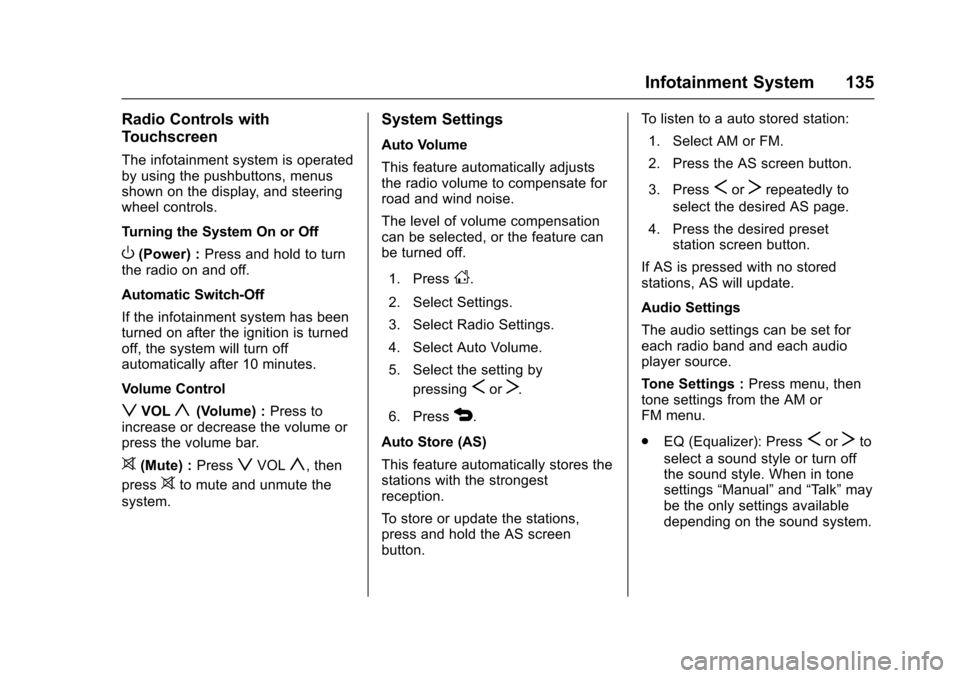
The infotainment system is operated
by using the pushbuttons, menus
shown on the display, and steering
wheel controls.
Turning the System On or Off
O(Power) :Press and hold to turn
the radio on and off.
Automatic Switch-Off
If the infotainment system has been
turned on after the ignition is turned
off, the system will turn off
automatically after 10 minutes.
Volume Control
zVOLy(Volume) : Press to
increase or decrease the volume or
press the volume bar.
>(Mute) : PresszVOLy, then
press
>to mute and unmute the
system.
System Settings
Auto Volume
This feature automatically adjusts
the radio volume to compensate for
road and wind noise.
The level of volume compensation
can be selected, or the feature can
be turned off.
1. Press
D.
2. Select Settings.
3. Select Radio Settings.
4. Select Auto Volume.
5. Select the setting by pressing
SorT.
6. Press
4.
Auto Store (AS)
This feature automatically stores the
stations with the strongest
reception.
To store or update the stations,
press and hold the AS screen
button. To listen to a auto stored station:
1. Select AM or FM.
2. Press the AS screen button.
3. Press
SorTrepeatedly to
select the desired AS page.
4. Press the desired preset station screen button.
If AS is pressed with no stored
stations, AS will update.
Audio Settings
The audio settings can be set for
each radio band and each audio
player source.
Tone Settings : Press menu, then
tone settings from the AM or
FM menu.
. EQ (Equalizer): Press
SorTto
select a sound style or turn off
the sound style. When in tone
settings “Manual” and“Talk” may
be the only settings available
depending on the sound system.
Page 139 of 353
Chevrolet Sonic Owner Manual (GMNA-Localizing-U.S/Canada-9085902) -
2016 - CRC - 5/27/15
138 Infotainment System
Storing a Favorite Station
Stations from all bands can be
stored in any order in the favorite
pages.
Up to six stations can be stored in
each favorite page and the number
of available favorite pages can
be set.
Storing Stations
To store the station to a position in
the list, press the corresponding
button 1 to 6 until a beep is heard.
Retrieving Stations
Press the FAV button to open a
favorite page or to switch to another
favorite page. Briefly press one of
the 1 to 6 buttons to retrieve the
station.
Radio Controls with
Touchscreen
Audio Source Menu
zVOLy(Volume):Press to
increase or decrease the volume.
O(Power) : Press and hold to turn
the system on and off.
D(Home Page) : Press to enter
the Home Page.
RDS (Radio Data System)
The radio may have RDS. The RDS
feature is available for use only on
FM stations that broadcast RDS
information. This feature only works
when the information from the radio
station is available. In rare cases, a
radio station could broadcast
incorrect information that causes the
radio features to work improperly.
If this happens, contact the radio
station.
While the radio is tuned to an
FM-RDS station, the station name
or call letters display.
Selecting a Band
PressD, audio, then SourceRto
choose AM, FM, or SiriusXM®,
if equipped. The last station that
was playing starts playing again.
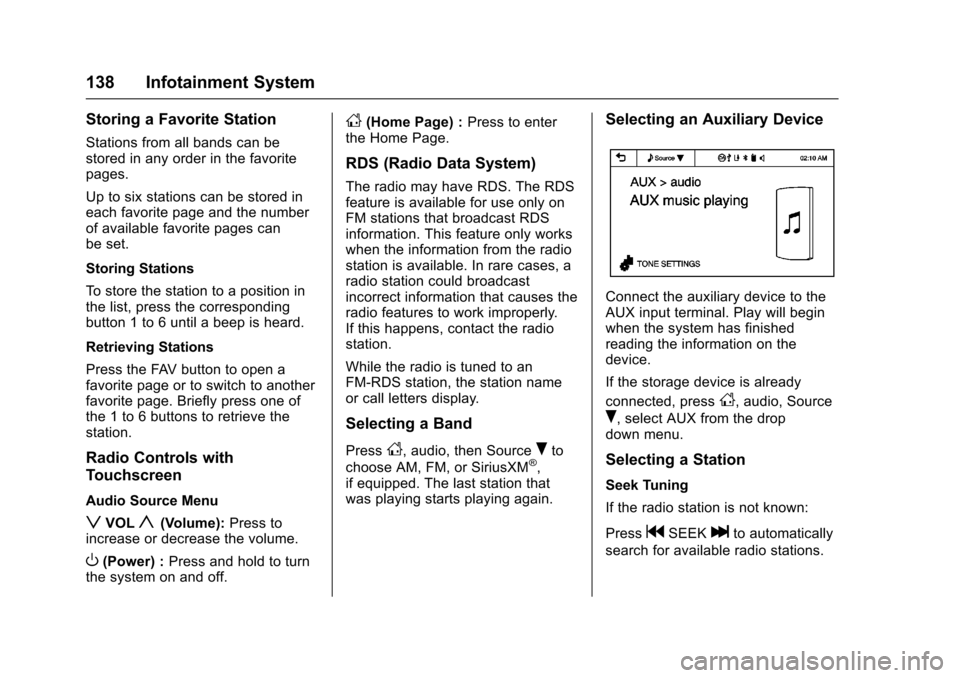
Selecting an Auxiliary Device
Connect the auxiliary device to the
AUX input terminal. Play will begin
when the system has finished
reading the information on the
device.
If the storage device is already
connected, press
D, audio, Source
R, select AUX from the drop
down menu.
Selecting a Station
Seek Tuning
If the radio station is not known:
Press
gSEEKlto automatically
search for available radio stations.
Page 143 of 353
Chevrolet Sonic Owner Manual (GMNA-Localizing-U.S/Canada-9085902) -
2016 - CRC - 5/27/15
142 Infotainment System
charging the phone's battery,
or simply having the phone on. This
interference causes an increased
level of static while listening to the
radio. If static is received while
listening to the radio, unplug the
cellular phone and turn it off.
Satellite Radio Antenna
The XM Satellite Radio antenna is
located on the roof of the vehicle.
Keep the antenna clear of
obstructions for clear radio
reception.
If the vehicle has a sunroof, the
performance of the XM system (if
equipped) may be affected if the
sunroof is open.
Multi-Band Antenna
The multi-band antenna is on the
roof of the vehicle. The antenna is
used for the AM-FM radio, OnStar,
the SiriusXM Satellite Radio Service
System, and GPS (Global
Positioning System), if the vehicle
has these features. Keep the
antenna clear of obstructions for
clear reception.
If the vehicle has a sunroof, the
performance of the features listed
above may be affected if the
sunroof is open.
Audio Players
USB Port
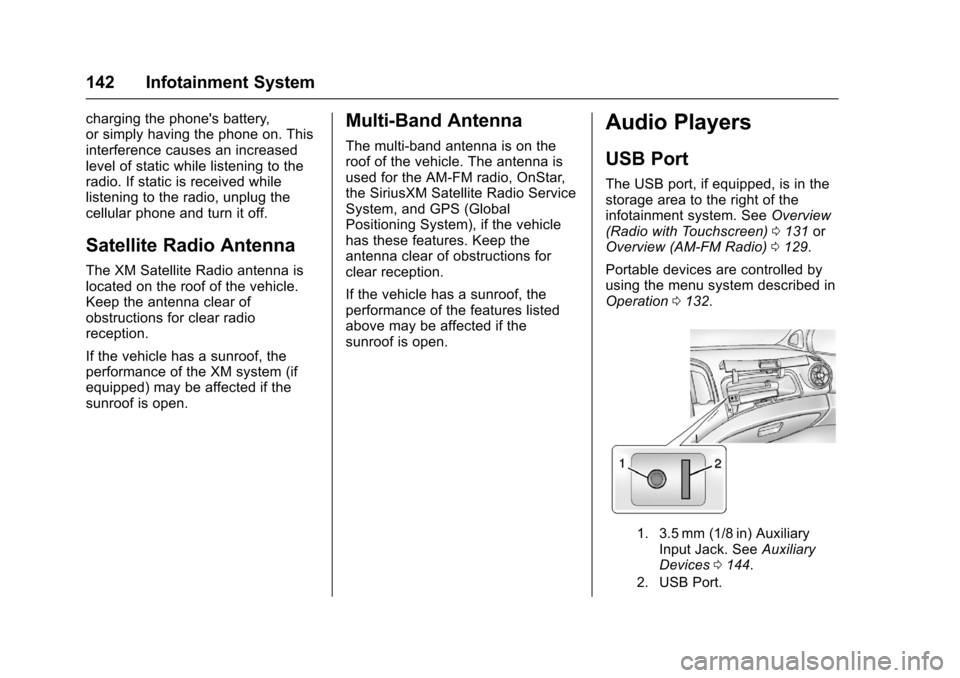
The USB port, if equipped, is in the
storage area to the right of the
infotainment system. SeeOverview
(Radio with Touchscreen) 0131 or
Overview (AM-FM Radio) 0129.
Portable devices are controlled by
using the menu system described in
Operation 0132.
1. 3.5 mm (1/8 in) Auxiliary
Input Jack. See Auxiliary
Devices 0144.
2. USB Port.
Page 144 of 353
Chevrolet Sonic Owner Manual (GMNA-Localizing-U.S/Canada-9085902) -
2016 - CRC - 5/27/15
Infotainment System 143
Radio with Touchscreen
The infotainment system can play
music or movies by connecting an
auxiliary device to the USB port,
if equipped.
USB Supported Devices
.USB Flash Drives
. Devices that support Media
Transfer Protocol (MTP)
. Portable USB Hard Drives
. 2G-5G iPod nano
®
.1G-3G iPod touch®
.
120GB/160GB iPod classic®
.3G/3GS/4/4S iPhone®
Not all iPods and USB drives are
compatible with the USB port.
Make sure the iPod has the latest
firmware from Apple
®for proper
operation. iPod firmware can be
updated using the latest iTunes
®
application. See www.apple.com/
itunes.
For help with identifying your iPod,
go to www.apple.com/support. The USB port can play both lower
and upper case .mp3, .wma, .ogg,
and .wav files stored on a USB
storage device.
USB Supported File and Folder
Structure
The Infotainment system supports:
.
Up to 2,500 folders.
. Up to 10 folders in depth.
. Up to 2,500 music files.
. Up to 2,500 photo files.
. Up to 250 movie files.
. ID3 Tag (versions 1.0/1.1/2.2/
2.3/2.4).
. FAT16.
. FAT32.
. exFAT.
Connecting a USB Storage
Device or iPod/iPhone
To connect a USB storage device,
connect the device to the USB port. To connect an iPod/iPhone, connect
one end of the device’
s cable to the
iPod/iPhone and the other end to
the USB port.
The iPod/iPhone charges while it is
connected to the vehicle if the
vehicle is in the ACC/ACCESSORY
or ON/RUN position. When the
vehicle is turned off, the iPod/
iPhone automatically powers off and
will not charge or draw power from
the vehicle's battery.
For more information on USB
usage, see “Audio System” in
Pictures and Movies (Picture
System) 0170 orPictures and
Movies (Movie System) 0172 or
Pictures and Movies (Audio System)
0 165.
Connecting an MTP USB
Device
To connect a USB device, connect
the device to the USB port.
Once the infotainment system
finishes reading the information on
the device it will be automatically
played.
Page 145 of 353
Chevrolet Sonic Owner Manual (GMNA-Localizing-U.S/Canada-9085902) -
2016 - CRC - 5/27/15
144 Infotainment System
If a non-readable device that
supports MTP is connected, then an
error message will appear and the
infotainment system will be
automatically switched to the
previous audio function.
All files may not play. File loading
may take a few minutes. An MTP
device that has external memory
may be recognized as USB1/USB2.
Auxiliary Devices
The optional AUX input allows
portable devices to connect to the
vehicle using the 3.5 mm (1/8 in)
input jack. If equipped with a
touchscreen radio, the AUX input
jack is in the storage area to the
right of the infotainment system.
If equipped with a non-touchscreen
radio, the AUX input is on the front
of the infotainment system. See
Overview (Radio with Touchscreen)
0131 orOverview (AM-FM Radio)
0 129.
Portable devices are controlled by
using the menu system described in
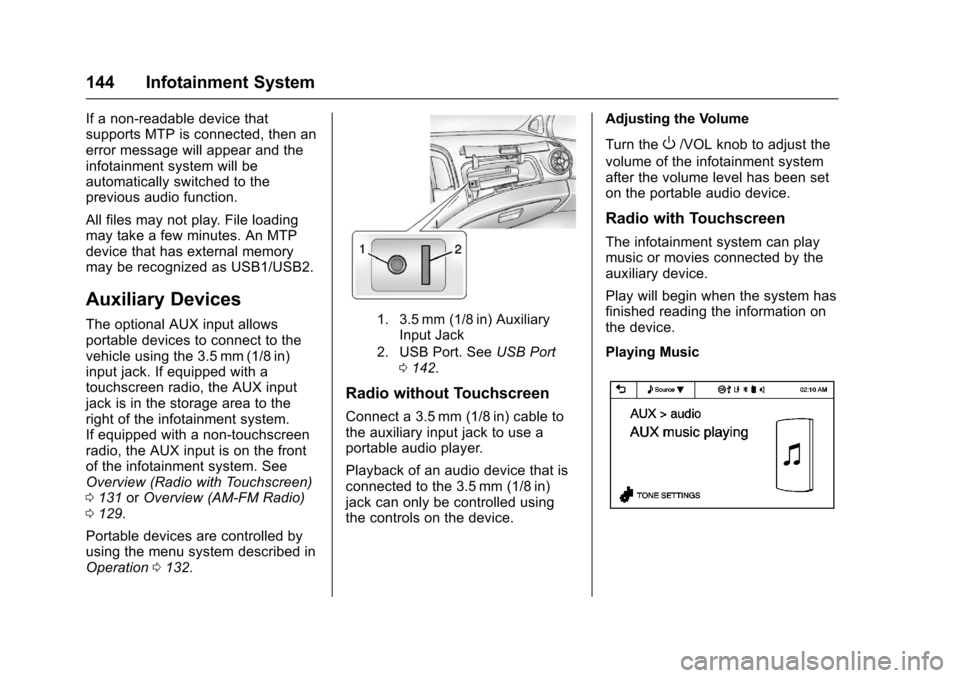
Operation 0132.1. 3.5 mm (1/8 in) Auxiliary
Input Jack
2. USB Port. See USB Port
0 142.
Radio without Touchscreen
Connect a 3.5 mm (1/8 in) cable to
the auxiliary input jack to use a
portable audio player.
Playback of an audio device that is
connected to the 3.5 mm (1/8 in)
jack can only be controlled using
the controls on the device. Adjusting the Volume
Turn the
O/VOL knob to adjust the
volume of the infotainment system
after the volume level has been set
on the portable audio device.
Radio with Touchscreen
The infotainment system can play
music or movies connected by the
auxiliary device.
Play will begin when the system has
finished reading the information on
the device.
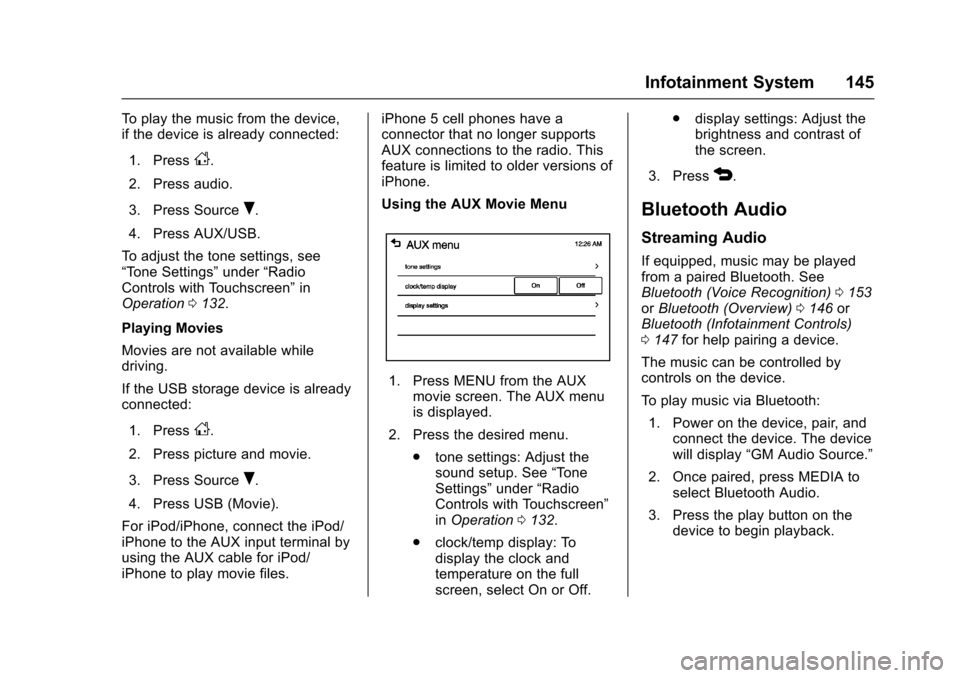
Playing Music
Page 146 of 353
Chevrolet Sonic Owner Manual (GMNA-Localizing-U.S/Canada-9085902) -
2016 - CRC - 5/27/15
Infotainment System 145
To play the music from the device,
if the device is already connected:1. Press
D.
2. Press audio.
3. Press Source
R.
4. Press AUX/USB.
To adjust the tone settings, see
“Tone Settings” under“Radio
Controls with Touchscreen” in
Operation 0132.
Playing Movies
Movies are not available while
driving.
If the USB storage device is already
connected:
1. Press
D.
2. Press picture and movie.
3. Press Source
R.
4. Press USB (Movie).
For iPod/iPhone, connect the iPod/
iPhone to the AUX input terminal by
using the AUX cable for iPod/
iPhone to play movie files. iPhone 5 cell phones have a
connector that no longer supports
AUX connections to the radio. This
feature is limited to older versions of
iPhone.
Using the AUX Movie Menu
1. Press MENU from the AUX
movie screen. The AUX menu
is displayed.
2. Press the desired menu. .tone settings: Adjust the
sound setup. See “Tone
Settings” under“Radio
Controls with Touchscreen”
in Operation 0132.
. clock/temp display: To
display the clock and
temperature on the full
screen, select On or Off. .
display settings: Adjust the
brightness and contrast of
the screen.
3. Press
4.
Bluetooth Audio
Streaming Audio
If equipped, music may be played
from a paired Bluetooth. See
Bluetooth (Voice Recognition) 0153
or Bluetooth (Overview) 0146 or
Bluetooth (Infotainment Controls)
0 147 for help pairing a device.
The music can be controlled by
controls on the device.
To play music via Bluetooth:
1. Power on the device, pair, and connect the device. The device
will display “GM Audio Source.”
2. Once paired, press MEDIA to select Bluetooth Audio.
3. Press the play button on the device to begin playback.