service CHEVROLET SONIC 2016 2.G Owner's Manual
[x] Cancel search | Manufacturer: CHEVROLET, Model Year: 2016, Model line: SONIC, Model: CHEVROLET SONIC 2016 2.GPages: 353, PDF Size: 7.74 MB
Page 108 of 353
Chevrolet Sonic Owner Manual (GMNA-Localizing-U.S/Canada-9085902) -
2016 - CRC - 5/27/15
Instruments and Controls 107
Caution (Continued)
level is within the operating range
and the oil pressure is still low,
have the vehicle serviced. Always
follow the maintenance schedule
for changing engine oil.
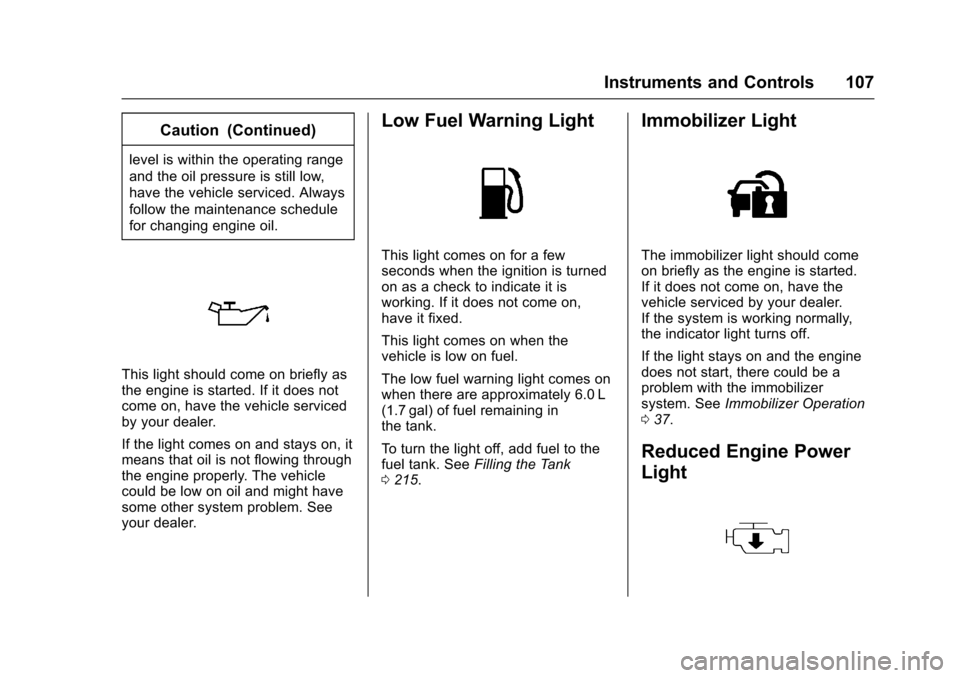
This light should come on briefly as
the engine is started. If it does not
come on, have the vehicle serviced
by your dealer.
If the light comes on and stays on, it
means that oil is not flowing through
the engine properly. The vehicle
could be low on oil and might have
some other system problem. See
your dealer.
Low Fuel Warning Light
This light comes on for a few
seconds when the ignition is turned
on as a check to indicate it is
working. If it does not come on,
have it fixed.
This light comes on when the
vehicle is low on fuel.
The low fuel warning light comes on
when there are approximately 6.0 L
(1.7 gal) of fuel remaining in
the tank.
To turn the light off, add fuel to the
fuel tank. SeeFilling the Tank
0 215.
Immobilizer Light
The immobilizer light should come
on briefly as the engine is started.
If it does not come on, have the
vehicle serviced by your dealer.
If the system is working normally,
the indicator light turns off.
If the light stays on and the engine
does not start, there could be a
problem with the immobilizer
system. See Immobilizer Operation
0 37.
Reduced Engine Power
Light
Page 109 of 353
Chevrolet Sonic Owner Manual (GMNA-Localizing-U.S/Canada-9085902) -
2016 - CRC - 5/27/15
108 Instruments and Controls
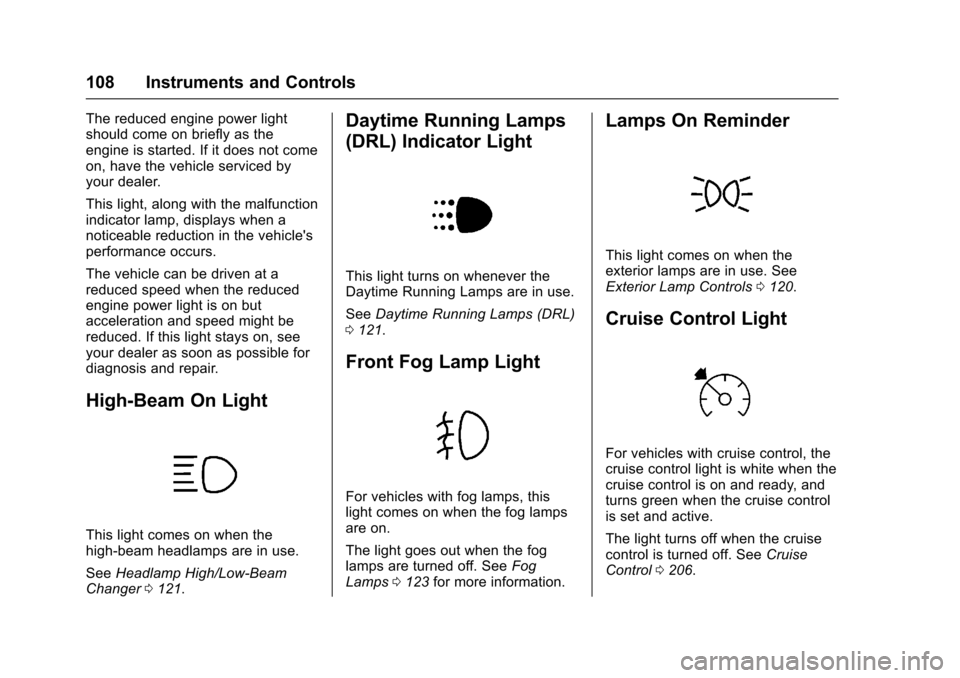
The reduced engine power light
should come on briefly as the
engine is started. If it does not come
on, have the vehicle serviced by
your dealer.
This light, along with the malfunction
indicator lamp, displays when a
noticeable reduction in the vehicle's
performance occurs.
The vehicle can be driven at a
reduced speed when the reduced
engine power light is on but
acceleration and speed might be
reduced. If this light stays on, see
your dealer as soon as possible for
diagnosis and repair.
High-Beam On Light
This light comes on when the
high-beam headlamps are in use.
SeeHeadlamp High/Low-Beam
Changer 0121.
Daytime Running Lamps
(DRL) Indicator Light
This light turns on whenever the
Daytime Running Lamps are in use.
See Daytime Running Lamps (DRL)
0 121.
Front Fog Lamp Light
For vehicles with fog lamps, this
light comes on when the fog lamps
are on.
The light goes out when the fog
lamps are turned off. See Fog
Lamps 0123 for more information.
Lamps On Reminder
This light comes on when the
exterior lamps are in use. See
Exterior Lamp Controls 0120.
Cruise Control Light
For vehicles with cruise control, the
cruise control light is white when the
cruise control is on and ready, and
turns green when the cruise control
is set and active.
The light turns off when the cruise
control is turned off. See Cruise
Control 0206.
Page 112 of 353
Chevrolet Sonic Owner Manual (GMNA-Localizing-U.S/Canada-9085902) -
2016 - CRC - 5/27/15
Instruments and Controls 111
Vehicle Messages
DIC messages display when the
status of the vehicle has changed
and action may be needed to
correct the condition. Multiple
messages appear one after another.
Press any of the DIC buttons on the
turn signal lever to acknowledge
and clear them from the display.
More urgent messages cannot be
cleared from the DIC display. All
messages should be taken
seriously. Clearing messages will
not correct the problem.
Vehicle messages appear as code
numbers.
25 :Left Front Turn Signal Failure
26 : Left Rear Turn Signal Failure
27 : Right Front Turn Signal Failure
28 : Right Rear Turn Signal Failure
49 : Lane Departure Warning
Unavailable
52 : Change Timing Belt
77 : Service Front Camera System
84 : Engine Power Is Reduced 89 :
Service Vehicle SoonEngine Oil Messages
:
% CHANGE
This message displays when the
engine oil needs to be changed.
When changing the engine oil, be
sure to reset the Oil Life System.
See Engine Oil Life System 0228,
Engine Oil 0226, and Maintenance
Schedule 0302.
Tire Messages
LF XX, RF XX, LR XX,
or RR XX
A message displays when the tire
pressure is low. It shows the
location of the low tire and the
approximate pressure of the low tire.
If a tire pressure message appears,
stop as soon as you can. Inflate the
tires by adding air until the tire
pressure is equal to the values
shown on the Tire and Loading
Information label. See Tires0254,
Vehicle Load Limits 0187, and Tire
Pressure 0261.
Trip Computer
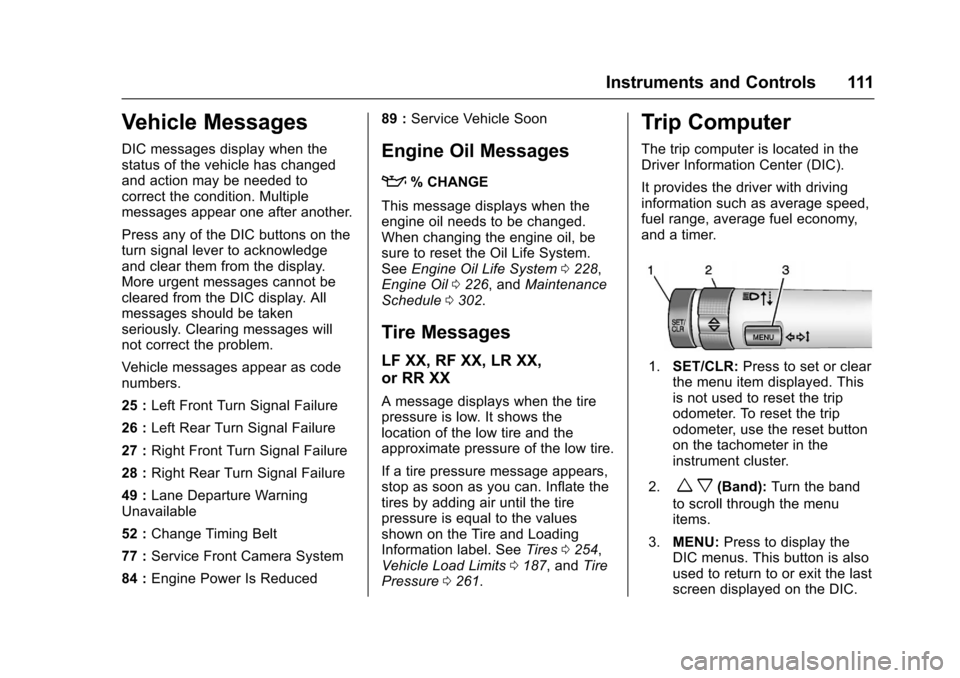
The trip computer is located in the
Driver Information Center (DIC).
It provides the driver with driving
information such as average speed,
fuel range, average fuel economy,
and a timer.
1. SET/CLR: Press to set or clear
the menu item displayed. This
is not used to reset the trip
odometer. To reset the trip
odometer, use the reset button
on the tachometer in the
instrument cluster.
2.
w x(Band): Turn the band
to scroll through the menu
items.
3. MENU: Press to display the
DIC menus. This button is also
used to return to or exit the last
screen displayed on the DIC.
Page 141 of 353
Chevrolet Sonic Owner Manual (GMNA-Localizing-U.S/Canada-9085902) -
2016 - CRC - 5/27/15
140 Infotainment System
Storing Stations
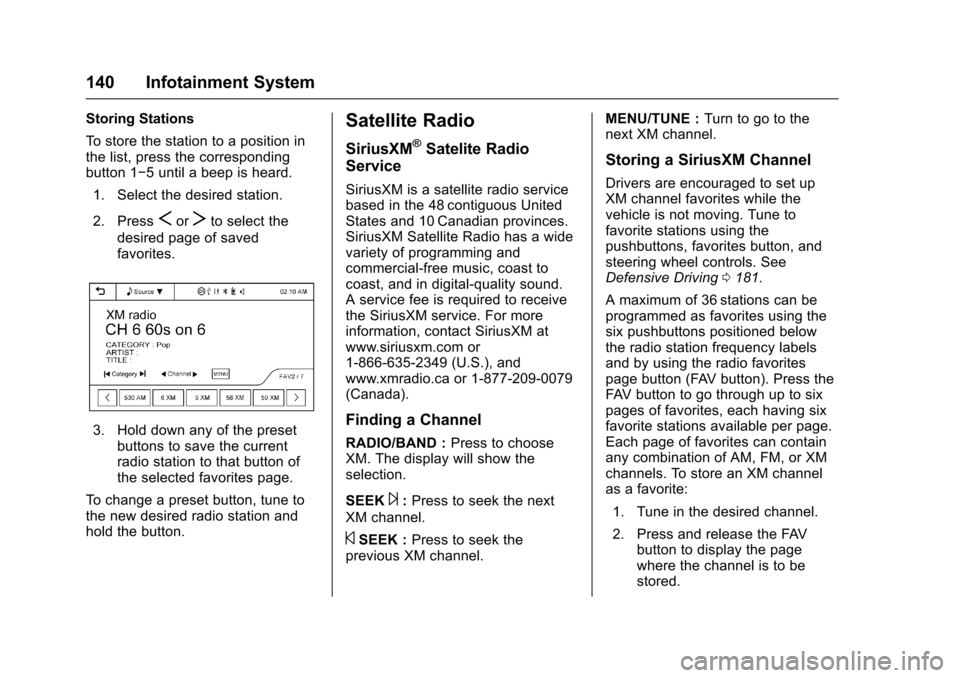
To store the station to a position in
the list, press the corresponding
button 1−5 until a beep is heard.1. Select the desired station.
2. Press
SorTto select the
desired page of saved
favorites.
3. Hold down any of the preset buttons to save the current
radio station to that button of
the selected favorites page.
To change a preset button, tune to
the new desired radio station and
hold the button.
Satellite Radio
SiriusXM®Satelite Radio
Service
SiriusXM is a satellite radio service
based in the 48 contiguous United
States and 10 Canadian provinces.
SiriusXM Satellite Radio has a wide
variety of programming and
commercial-free music, coast to
coast, and in digital-quality sound.
A service fee is required to receive
the SiriusXM service. For more
information, contact SiriusXM at
www.siriusxm.com or
1-866-635-2349 (U.S.), and
www.xmradio.ca or 1-877-209-0079
(Canada).
Finding a Channel
RADIO/BAND : Press to choose
XM. The display will show the
selection.
SEEK
¨: Press to seek the next
XM channel.
©SEEK : Press to seek the
previous XM channel. MENU/TUNE :
Turn to go to the
next XM channel.
Storing a SiriusXM Channel
Drivers are encouraged to set up
XM channel favorites while the
vehicle is not moving. Tune to
favorite stations using the
pushbuttons, favorites button, and
steering wheel controls. See
Defensive Driving 0181.
A maximum of 36 stations can be
programmed as favorites using the
six pushbuttons positioned below
the radio station frequency labels
and by using the radio favorites
page button (FAV button). Press the
FAV button to go through up to six
pages of favorites, each having six
favorite stations available per page.
Each page of favorites can contain
any combination of AM, FM, or XM
channels. To store an XM channel
as a favorite:
1. Tune in the desired channel.
2. Press and release the FAV button to display the page
where the channel is to be
stored.
Page 142 of 353
Chevrolet Sonic Owner Manual (GMNA-Localizing-U.S/Canada-9085902) -
2016 - CRC - 5/27/15
Infotainment System 141
3. Press and hold one of the sixnumbered pushbuttons until a
beep sounds. When the
pushbutton is pressed and
released, the channel that was
set will return.
4. Repeat Steps 1−3 for each XM channel to be stored as a
favorite.
To set up the number of favorites
pages: 1. Press and hold FAV until the radio setup menu displays.
2. Select the desired number of favorites pages by pressing the
pushbutton located below the
displayed page numbers.
3. Press FAV to return to the original main radio screen
showing the radio frequency
tabs and to begin the process
of programming favorites for
the chosen number of
numbered pages.Radio Reception
Frequency interference and static
can occur during normal radio
reception if items such as cell phone
chargers, vehicle convenience
accessories, and external electronic
devices are plugged into the
accessory power outlet. If there is
interference or static, unplug the
item from the accessory power
outlet.
AM
The range for most AM stations is
greater than for FM, especially at
night. The longer range can cause
station frequencies to interfere with
each other. For better radio
reception, most AM radio stations
boost the power levels during the
day, and then reduce these levels
during the night. Static can also
occur when things like storms and
power lines interfere with radio
reception. When this happens, try
reducing the treble on the radio.
FM Stereo
FM signals only reach about 16 to
65 km (10 to 40 mi). Although the
radio has a built-in electronic circuit
that automatically works to reduce
interference, some static can occur,
especially around tall buildings or
hills, causing the sound to fade in
and out.
SiriusXM®Satellite Radio
Service
SiriusXM Satellite Radio Service
gives digital radio reception from
coast to coast in the 48 contiguous
United States, and in Canada. Just
as with FM, tall buildings or hills can
interfere with satellite radio signals,
causing the sound to fade in and
out. In addition, traveling or standing
under heavy foliage, bridges,
garages, or tunnels may cause loss
of the SiriusXM signal for a period
of time.
Cellular Phone Usage
Cellular phone usage may cause
interference with the vehicle's radio.
This interference may occur when
making or receiving phone calls,
Page 143 of 353
Chevrolet Sonic Owner Manual (GMNA-Localizing-U.S/Canada-9085902) -
2016 - CRC - 5/27/15
142 Infotainment System
charging the phone's battery,
or simply having the phone on. This
interference causes an increased
level of static while listening to the
radio. If static is received while
listening to the radio, unplug the
cellular phone and turn it off.
Satellite Radio Antenna
The XM Satellite Radio antenna is
located on the roof of the vehicle.
Keep the antenna clear of
obstructions for clear radio
reception.
If the vehicle has a sunroof, the
performance of the XM system (if
equipped) may be affected if the
sunroof is open.
Multi-Band Antenna
The multi-band antenna is on the
roof of the vehicle. The antenna is
used for the AM-FM radio, OnStar,
the SiriusXM Satellite Radio Service
System, and GPS (Global
Positioning System), if the vehicle
has these features. Keep the
antenna clear of obstructions for
clear reception.
If the vehicle has a sunroof, the
performance of the features listed
above may be affected if the
sunroof is open.
Audio Players
USB Port
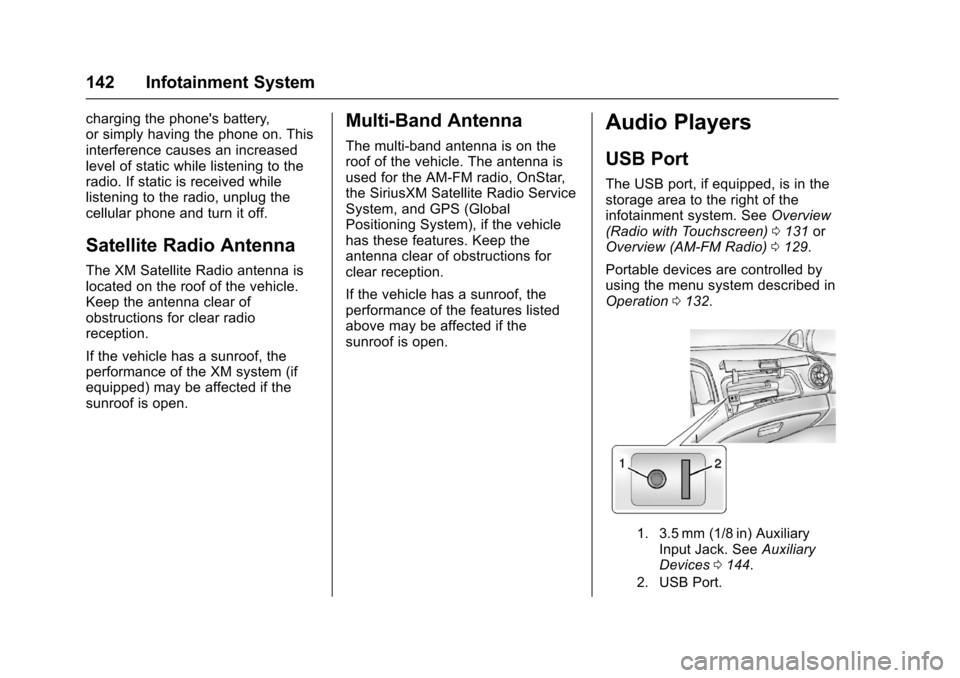
The USB port, if equipped, is in the
storage area to the right of the
infotainment system. SeeOverview
(Radio with Touchscreen) 0131 or
Overview (AM-FM Radio) 0129.
Portable devices are controlled by
using the menu system described in
Operation 0132.
1. 3.5 mm (1/8 in) Auxiliary
Input Jack. See Auxiliary
Devices 0144.
2. USB Port.
Page 157 of 353
Chevrolet Sonic Owner Manual (GMNA-Localizing-U.S/Canada-9085902) -
2016 - CRC - 5/27/15
156 Infotainment System
2. Say“Dial”or“Call.”
3. Say the entire number without pausing or say the name tag.
Once connected, the person called
will be heard through the audio
speakers.
Calling 911 Emergency Number
1. Press
b/g. The system
responds “Ready,”followed by
a tone.
2. Say “Dial”or“Call.”
3. Say “911.”
4. Say “Dial”or“Call.”
Using the “Digit Dial” Command
The digit dial command allows a
phone number to be dialed by
entering the digits one at a time.
After each digit is entered, the
system repeats back the digit it
heard followed by a tone.
If an unwanted number is
recognized by the system, say
“Clear” at any time to clear the last
number. To hear all of the numbers
recognized by the system, say
“Verify”
at any time.
1. Press
b/g. The system
responds “Ready,”followed by
a tone.
2. Say “Digit Dial.”
3. Say each digit, one at a time, that you want to dial. After
each digit is entered, the
system repeats back the digit it
heard followed by a tone. After
the last digit has been entered,
say “Dial.”
Once connected, the person called
will be heard through the audio
speakers.
Using the “Re-dial”Command
1. Press
b/g. The system
responds “Ready,”followed by
a tone.
2. After the tone, say “Re-dial.”
The system dials the last
number called from the
connected cell phone. Once connected, the person called
will be heard through the audio
speakers.
Receiving a Call
When an incoming call is received,
the audio system mutes and a ring
tone is heard in the vehicle.
.
Press
b/gto answer the call.
. Press
$/ito ignore a call.
Call Waiting
Call waiting must be supported on
the cell phone and enabled by the
wireless service carrier.
.Press
b/gto answer an
incoming call when another call
is active. The original call is
placed on hold.
. Press
b/gagain to return to
the original call.
. To ignore the incoming call, no
action is required.
. Press
$/ito disconnect the
current call and switch to the call
on hold.
Page 158 of 353
Chevrolet Sonic Owner Manual (GMNA-Localizing-U.S/Canada-9085902) -
2016 - CRC - 5/27/15
Infotainment System 157
Three-Way Calling
Three-way calling must be
supported on the cell phone and
enabled by the wireless service
carrier.1. While on a call, press
b/g.
2. Say “Three-way call.”
3. Use the dial or call command to dial the number of the third
party to be called.
4. Once the call is connected, press
b/gto link all callers
together.
Ending a Call
Press$/ito end a call.
Muting a Call
During a call, all sounds from inside
the vehicle can be muted so that the
person on the other end of the call
cannot hear them.
To mute a call, press
b/g, and
then say “Mute Call.”
To cancel mute, press
b/g, and
then say “Un-mute Call.”
Transferring a Call
Audio can be transferred between
the Bluetooth system and the cell
phone.
The cell phone must be paired and
connected with the Bluetooth
system before a call can be
transferred. The connection process
can take up to two minutes after the
ignition is turned to ON/RUN.
To Transfer Audio from the
Bluetooth System to a Cell Phone
During a call with the audio in the
vehicle:
1. Press
b/g.
2. Say “Transfer Call.”
To Transfer Audio to the Bluetooth
System from a Cell Phone
During a call with the audio on the
cell phone, press
b/g. The audio
transfers to the vehicle. If the audio
does not transfer to the vehicle, use
the audio transfer feature on the cell
phone. See the cell phone
manufacturer's user guide.
Voice Pass-Thru
Voice pass-thru allows access to the
voice recognition commands on the
cell phone. See the cell phone
manufacturer's user guide to see if
the cell phone supports this feature.
To access contacts stored in the cell
phone:
1. Press
b/g. The system
responds “Ready,”followed by
a tone.
2. Say “Bluetooth.” This command
can be skipped.
3. Say “Voice.”The system
responds “OK, accessing
The cell phone's normal prompt
messages will go through their cycle
according to the phone's operating
instructions.
Dual Tone Multi-Frequency
(DTMF) Tones
The Bluetooth system can send
numbers and the numbers stored as
name tags during a call. You can
use this feature when calling a
Page 161 of 353
Chevrolet Sonic Owner Manual (GMNA-Localizing-U.S/Canada-9085902) -
2016 - CRC - 5/27/15
160 Infotainment System
When the Bluetooth device and
infotainment system are
successfully paired, the phone book
will download. Some phones may
not download automatically. If this
happens, connect it again or
proceed with the phone book
download on the phone.
Always accept the phone book
request on the initial pairing of the
phone.
Searching for a Name
Select characters by using the
keypad on the phone book screen.
As characters are selected, the
names that include those characters
will display on the phone book
screen. As more characters of the
name are entered, the list of
possible names is shortened.
To search for the name Alex:1. Press (abc) to select the first character.
2. Press (jkl) to select the second character.
3. Press (def) to select the third character. 4. Press (wxy) to select the fourth
character.
Making a Call from Call History 1. Press Call History on the telephone screen.
2. Press one of the following for:
.
2Dialed calls.
.
4Missed calls.
.
9Received calls.
3. Select the phone book entry to call.
Making a Call with Speed Dial
Numbers
Press and hold the speed dial
number using the keypad on the
telephone screen.
Only speed dial numbers already
stored on the cell phone can be
used for speed dial calls. Up to
two-digit speed dial numbers are
supported.
For two-digit speed dial numbers,
press and hold the second digit to
make a call to the speed dial
number.
Downloadable
Applications
Smartphone Link
(Overview)
Before Using Smartphone Link
If equipped, the vehicle can connect
to Pandora
®, Stitcher SmartRadio®,
or other available applications
through the infotainment system.
The applications must be
downloaded to the device first, then
the device can be connected to the
infotainment system.
Pandora is a free Internet radio
service that streams personalized
radio stations based on artists,
songs, genres, and comedians.
Create stations using the Pandora
website or smartphone application,
then use
-(thumbs up) or,
(thumbs down) to personalize
stations. To set up an account, or for
more information, go to
www.pandora.com. Pandora may
not be available in Canada or
Mexico.
Page 162 of 353
Chevrolet Sonic Owner Manual (GMNA-Localizing-U.S/Canada-9085902) -
2016 - CRC - 5/27/15
Infotainment System 161
Stitcher SmartRadio is an Internet
radio service that streams news,
sports, and entertainment shows
through the audio system. Create
personalized, on-demand stations or
discover new shows through
Stitcher's preset stations. To set up
an account, download the
application from the Android Market
or iTunes Store, or go to
www.stitcher.com.
A phone or tablet with Internet
connection and the application
installed is required. Personal cell
phone data plans are used. Make
sure the latest version is installed
on the device and the volume is
turned up.
Smartphone Supported by
Application
To use Applications:
.Connect an iPod/iPhone using
the USB port.
. Connect Andriod™ phones
through Bluetooth. iPod/iPhone Error Messages and
Solutions
If the system fails to activate the
application on the iPod/iPhone
connected, an error message is
displayed as,
“Unable to start
application, possible reasons.”
. Your iPhone is locked. To
resolve, unlock the iPhone.
. You have another active
application open. To resolve,
close the other active
application.
. You have not installed the
application on your iPhone. To
resolve, install the application on
the iPhone.
iOS Version Error
If the iOS version of the iPhone is
less than 4.0, the error message is
displayed as, “Your iPhone does not
allow this application to be opened
on a USB connection. Please refer
to owner ’s manual.”
. Activate the application on your
iPhone, then touch the desired
application menu on the
infotainment system. Connecting Application Error
If the infotainment system fails to
activate the application on the
smartphone connected through
Bluetooth wireless technology, the
error message is displayed as,
“Connecting application failed.”
.
Reset all settings related to the
phone, then touch the desired
application menu on the
infotainment system.
. Reconnect the smartphone and
infotainment system through
Bluetooth wireless technology,
then touch the desired
application menu on the
infotainment system.
. When the application is stopped
on the smartphone, it usually
takes time to return to normal
operation. Try to activate the
application after 10–20 seconds.
To switch to another application
while playing an application and
connected through the USB port,
touch HOME on the iPod/iPhone,
then touch the application icon on
the infotainment system.