display CHEVROLET SONIC 2019 Owner's Guide
[x] Cancel search | Manufacturer: CHEVROLET, Model Year: 2019, Model line: SONIC, Model: CHEVROLET SONIC 2019Pages: 351, PDF Size: 5.32 MB
Page 131 of 351
Chevrolet Sonic Owner Manual (GMNA-Localizing-U.S./Canada-12461769) -
2019 - crc - 5/21/18
130 Instruments and Controls
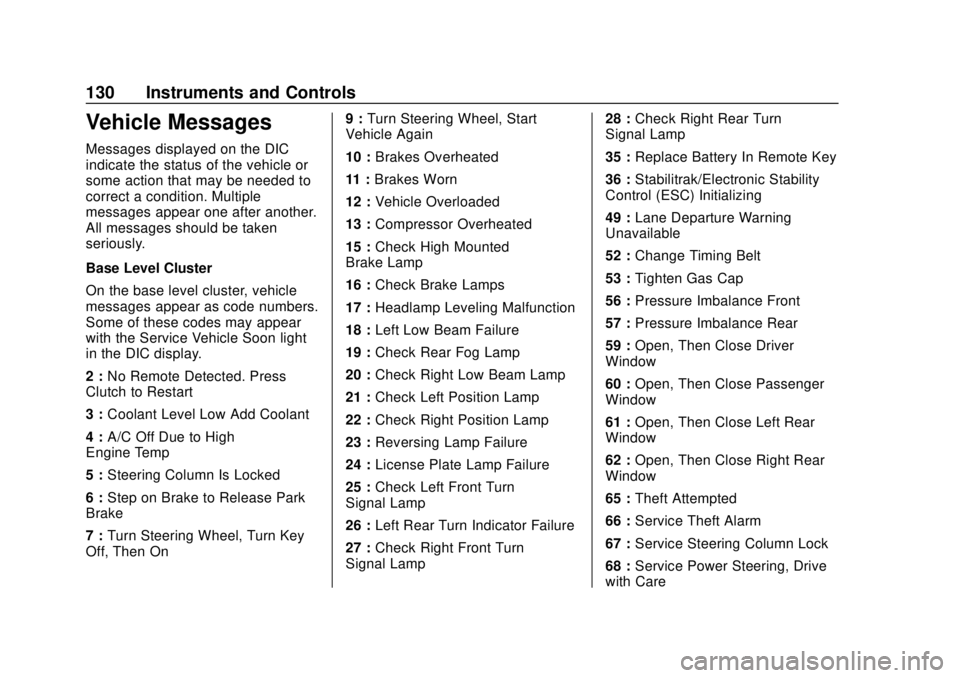
Vehicle Messages
Messages displayed on the DIC
indicate the status of the vehicle or
some action that may be needed to
correct a condition. Multiple
messages appear one after another.
All messages should be taken
seriously.
Base Level Cluster
On the base level cluster, vehicle
messages appear as code numbers.
Some of these codes may appear
with the Service Vehicle Soon light
in the DIC display.
2 :No Remote Detected. Press
Clutch to Restart
3 : Coolant Level Low Add Coolant
4 : A/C Off Due to High
Engine Temp
5 : Steering Column Is Locked
6 : Step on Brake to Release Park
Brake
7 : Turn Steering Wheel, Turn Key
Off, Then On 9 :
Turn Steering Wheel, Start
Vehicle Again
10 : Brakes Overheated
11 : Brakes Worn
12 : Vehicle Overloaded
13 : Compressor Overheated
15 : Check High Mounted
Brake Lamp
16 : Check Brake Lamps
17 : Headlamp Leveling Malfunction
18 : Left Low Beam Failure
19 : Check Rear Fog Lamp
20 : Check Right Low Beam Lamp
21 : Check Left Position Lamp
22 : Check Right Position Lamp
23 : Reversing Lamp Failure
24 : License Plate Lamp Failure
25 : Check Left Front Turn
Signal Lamp
26 : Left Rear Turn Indicator Failure
27 : Check Right Front Turn
Signal Lamp 28 :
Check Right Rear Turn
Signal Lamp
35 : Replace Battery In Remote Key
36 : Stabilitrak/Electronic Stability
Control (ESC) Initializing
49 : Lane Departure Warning
Unavailable
52 : Change Timing Belt
53 : Tighten Gas Cap
56 : Pressure Imbalance Front
57 : Pressure Imbalance Rear
59 : Open, Then Close Driver
Window
60 : Open, Then Close Passenger
Window
61 : Open, Then Close Left Rear
Window
62 : Open, Then Close Right Rear
Window
65 : Theft Attempted
66 : Service Theft Alarm
67 : Service Steering Column Lock
68 : Service Power Steering, Drive
with Care
Page 132 of 351
Chevrolet Sonic Owner Manual (GMNA-Localizing-U.S./Canada-12461769) -
2019 - crc - 5/21/18
Instruments and Controls 131
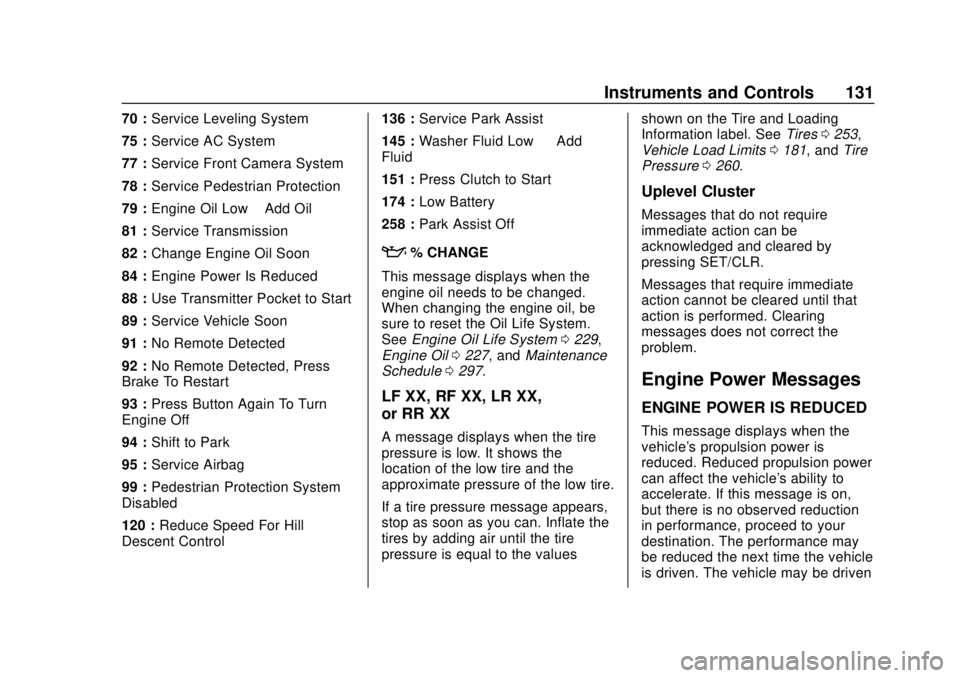
70 :Service Leveling System
75 : Service AC System
77 : Service Front Camera System
78 : Service Pedestrian Protection
79 : Engine Oil Low –Add Oil
81 : Service Transmission
82 : Change Engine Oil Soon
84 : Engine Power Is Reduced
88 : Use Transmitter Pocket to Start
89 : Service Vehicle Soon
91 : No Remote Detected
92 : No Remote Detected, Press
Brake To Restart
93 : Press Button Again To Turn
Engine Off
94 : Shift to Park
95 : Service Airbag
99 : Pedestrian Protection System
Disabled
120 : Reduce Speed For Hill
Descent Control 136 :
Service Park Assist
145 : Washer Fluid Low —Add
Fluid
151 : Press Clutch to Start
174 : Low Battery
258 : Park Assist Off
:% CHANGE
This message displays when the
engine oil needs to be changed.
When changing the engine oil, be
sure to reset the Oil Life System.
See Engine Oil Life System 0229,
Engine Oil 0227, and Maintenance
Schedule 0297.
LF XX, RF XX, LR XX,
or RR XX
A message displays when the tire
pressure is low. It shows the
location of the low tire and the
approximate pressure of the low tire.
If a tire pressure message appears,
stop as soon as you can. Inflate the
tires by adding air until the tire
pressure is equal to the values shown on the Tire and Loading
Information label. See
Tires0253,
Vehicle Load Limits 0181, and Tire
Pressure 0260.
Uplevel Cluster
Messages that do not require
immediate action can be
acknowledged and cleared by
pressing SET/CLR.
Messages that require immediate
action cannot be cleared until that
action is performed. Clearing
messages does not correct the
problem.
Engine Power Messages
ENGINE POWER IS REDUCED
This message displays when the
vehicle's propulsion power is
reduced. Reduced propulsion power
can affect the vehicle's ability to
accelerate. If this message is on,
but there is no observed reduction
in performance, proceed to your
destination. The performance may
be reduced the next time the vehicle
is driven. The vehicle may be driven
Page 133 of 351
Chevrolet Sonic Owner Manual (GMNA-Localizing-U.S./Canada-12461769) -
2019 - crc - 5/21/18
132 Instruments and Controls
while this message is on, but
maximum acceleration and speed
may be reduced. Anytime this
message stays on, or displays
repeatedly, the vehicle should be
taken to your dealer for service as
soon as possible.
Vehicle Speed Messages
SPEED LIMITED TO XXX
KM/H (MPH)
This message shows that the
vehicle speed has been limited to
the speed displayed. The limited
speed is a protection for various
propulsion and vehicle systems,
such as lubrication, thermal,
suspension, Teen Driver if
equipped, or tires.
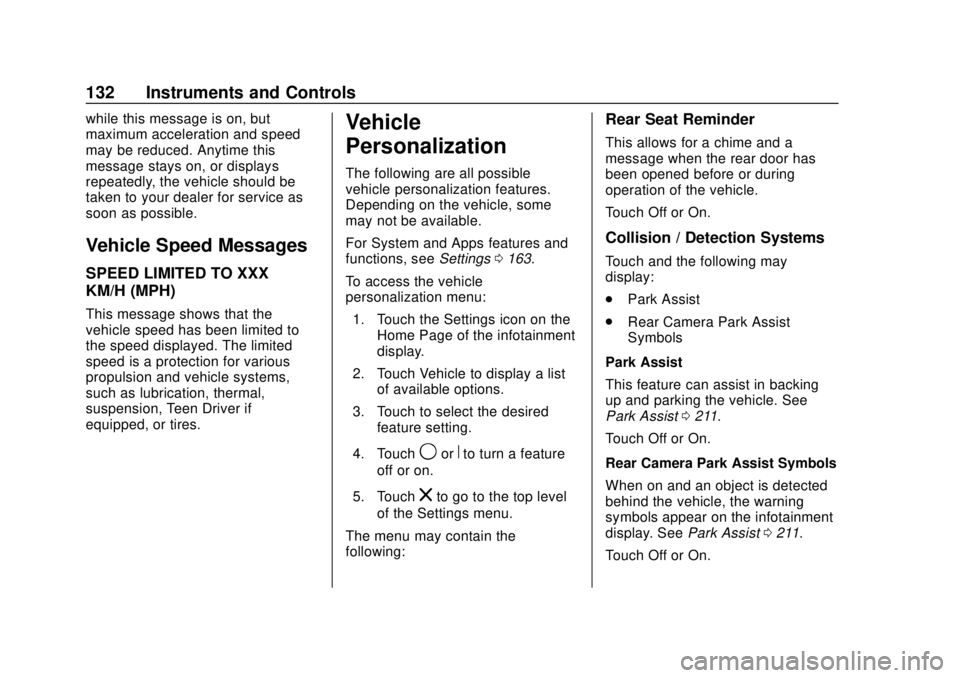
Vehicle
Personalization
The following are all possible
vehicle personalization features.
Depending on the vehicle, some
may not be available.
For System and Apps features and
functions, seeSettings0163.
To access the vehicle
personalization menu: 1. Touch the Settings icon on the Home Page of the infotainment
display.
2. Touch Vehicle to display a list of available options.
3. Touch to select the desired feature setting.
4. Touch
9orRto turn a feature
off or on.
5. Touch
zto go to the top level
of the Settings menu.
The menu may contain the
following:
Rear Seat Reminder
This allows for a chime and a
message when the rear door has
been opened before or during
operation of the vehicle.
Touch Off or On.
Collision / Detection Systems
Touch and the following may
display:
. Park Assist
. Rear Camera Park Assist
Symbols
Park Assist
This feature can assist in backing
up and parking the vehicle. See
Park Assist 0211.
Touch Off or On.
Rear Camera Park Assist Symbols
When on and an object is detected
behind the vehicle, the warning
symbols appear on the infotainment
display. See Park Assist0211.
Touch Off or On.
Page 134 of 351
Chevrolet Sonic Owner Manual (GMNA-Localizing-U.S./Canada-12461769) -
2019 - crc - 5/21/18
Instruments and Controls 133
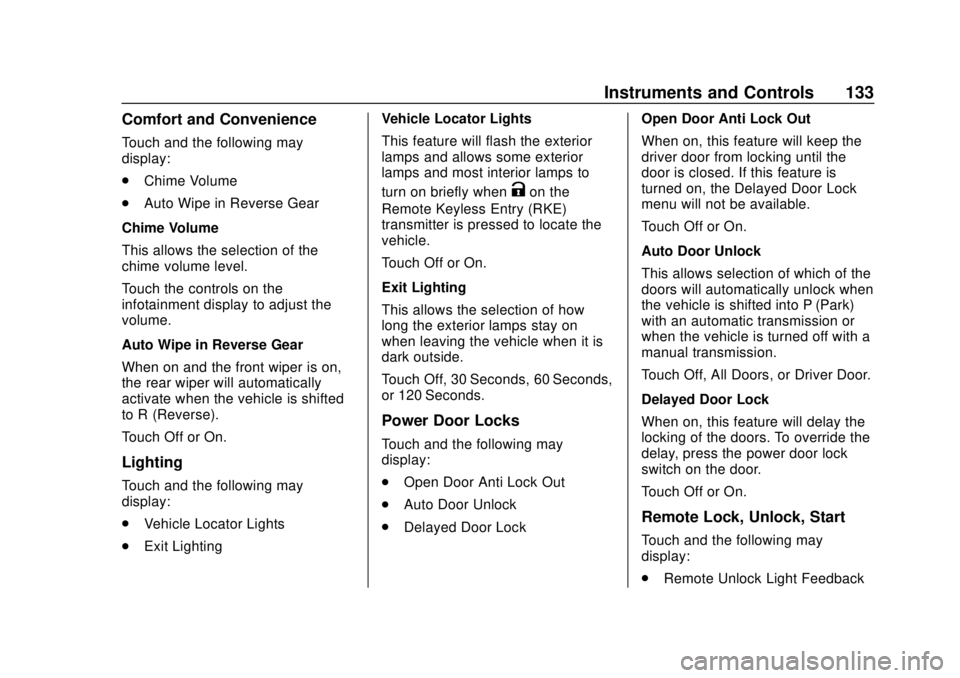
Comfort and Convenience
Touch and the following may
display:
.Chime Volume
. Auto Wipe in Reverse Gear
Chime Volume
This allows the selection of the
chime volume level.
Touch the controls on the
infotainment display to adjust the
volume.
Auto Wipe in Reverse Gear
When on and the front wiper is on,
the rear wiper will automatically
activate when the vehicle is shifted
to R (Reverse).
Touch Off or On.
Lighting
Touch and the following may
display:
. Vehicle Locator Lights
. Exit Lighting Vehicle Locator Lights
This feature will flash the exterior
lamps and allows some exterior
lamps and most interior lamps to
turn on briefly when
Kon the
Remote Keyless Entry (RKE)
transmitter is pressed to locate the
vehicle.
Touch Off or On.
Exit Lighting
This allows the selection of how
long the exterior lamps stay on
when leaving the vehicle when it is
dark outside.
Touch Off, 30 Seconds, 60 Seconds,
or 120 Seconds.
Power Door Locks
Touch and the following may
display:
. Open Door Anti Lock Out
. Auto Door Unlock
. Delayed Door Lock Open Door Anti Lock Out
When on, this feature will keep the
driver door from locking until the
door is closed. If this feature is
turned on, the Delayed Door Lock
menu will not be available.
Touch Off or On.
Auto Door Unlock
This allows selection of which of the
doors will automatically unlock when
the vehicle is shifted into P (Park)
with an automatic transmission or
when the vehicle is turned off with a
manual transmission.
Touch Off, All Doors, or Driver Door.
Delayed Door Lock
When on, this feature will delay the
locking of the doors. To override the
delay, press the power door lock
switch on the door.
Touch Off or On.
Remote Lock, Unlock, Start
Touch and the following may
display:
.
Remote Unlock Light Feedback
Page 140 of 351
Chevrolet Sonic Owner Manual (GMNA-Localizing-U.S./Canada-12461769) -
2019 - crc - 5/21/18
Lighting 139
Interior Lighting
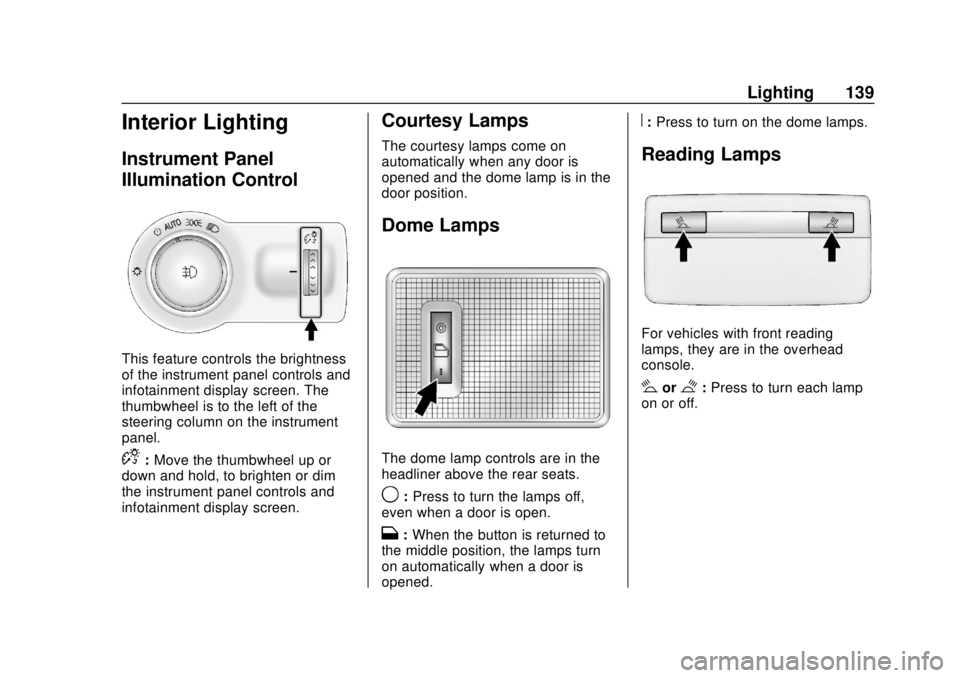
Instrument Panel
Illumination Control
This feature controls the brightness
of the instrument panel controls and
infotainment display screen. The
thumbwheel is to the left of the
steering column on the instrument
panel.
D:Move the thumbwheel up or
down and hold, to brighten or dim
the instrument panel controls and
infotainment display screen.
Courtesy Lamps
The courtesy lamps come on
automatically when any door is
opened and the dome lamp is in the
door position.
Dome Lamps
The dome lamp controls are in the
headliner above the rear seats.
9: Press to turn the lamps off,
even when a door is open.
H: When the button is returned to
the middle position, the lamps turn
on automatically when a door is
opened.
R: Press to turn on the dome lamps.
Reading Lamps
For vehicles with front reading
lamps, they are in the overhead
console.
#or$:Press to turn each lamp
on or off.
Page 141 of 351
Chevrolet Sonic Owner Manual (GMNA-Localizing-U.S./Canada-12461769) -
2019 - crc - 5/21/18
140 Lighting
Lighting Features
Entry Lighting
Some exterior lamps and interior
lamps turn on briefly at night, or in
areas with limited lighting, when
K
is pressed on the Remote Keyless
Entry (RKE) transmitter. When a
door is opened, the interior lamps
come on if the dome lamp control is
in the Door position. They stay on
for about 20 seconds. When all of
the doors have been closed or the
ignition is turned on, they gradually
fade out.
This feature can be changed. See
“Vehicle Locator Lights”under
Vehicle Personalization 0132.
Exit Lighting
Some exterior lamps and interior
lamps come on at night, or in areas
with limited lighting, when the key is
removed from the ignition. The
exterior lamps and dome lamp
remain on for a set amount of time,
then automatically turn off. If equipped with Keyless Access,
the exterior lamps automatically turn
on when a door is opened after the
ignition is turned off. The dome
lamps also come on after the
ignition is turned off.
See
Ignition Positions (Key Access)
0 185 orIgnition Positions (Keyless
Access) 0188.
The exterior lamps turn off
immediately by turning the exterior
lamps control off.
This feature can be changed. See
Vehicle Personalization 0132.
Battery Load
Management
The vehicle has Electric Power
Management (EPM) that estimates
the battery's temperature and state
of charge. It then adjusts the voltage
for best performance and extended
life of the battery.
When the battery's state of charge
is low, the voltage is raised slightly
to quickly bring the charge back up.
When the state of charge is high,
the voltage is lowered slightly to prevent overcharging. If the vehicle
has a voltmeter gauge or a voltage
display on the Driver Information
Center (DIC), you may see the
voltage move up or down. This is
normal. If there is a problem, an
alert will be displayed.
The battery can be discharged at
idle if the electrical loads are very
high. This is true for all vehicles.
This is because the generator
(alternator) may not be spinning fast
enough at idle to produce all the
power needed for very high
electrical loads.
A high electrical load occurs when
several of the following are on, such
as: headlamps, high beams, fog
lamps, rear window defogger,
climate control fan at high speed,
heated seats, engine cooling fans,
trailer loads, and loads plugged into
accessory power outlets.
EPM works to prevent excessive
discharge of the battery. It does this
by balancing the generator's output
and the vehicle's electrical needs.
It can increase engine idle speed to
generate more power, whenever
Page 143 of 351
Chevrolet Sonic Owner Manual (GMNA-Localizing-U.S./Canada-12461769) -
2019 - crc - 5/21/18
142 Infotainment System
Infotainment
System
Introduction
Introduction . . . . . . . . . . . . . . . . . . . 142
Overview . . . . . . . . . . . . . . . . . . . . . 143
Using the System . . . . . . . . . . . . 145
Radio
AM-FM Radio . . . . . . . . . . . . . . . . 147
Satellite Radio . . . . . . . . . . . . . . . . 149
Radio Reception . . . . . . . . . . . . . . 149
Backglass Antenna . . . . . . . . . . . 150
Multi-Band Antenna . . . . . . . . . . 150
Audio Players
Avoiding Untrusted MediaDevices . . . . . . . . . . . . . . . . . . . . . 150
USB Port . . . . . . . . . . . . . . . . . . . . . 150
Auxiliary Jack . . . . . . . . . . . . . . . . 153
Bluetooth Audio . . . . . . . . . . . . . . 154
OnStar System
OnStar System . . . . . . . . . . . . . . . 155
Phone
Bluetooth (Overview) . . . . . . . . . 156
Bluetooth (Pairing and Using a Phone) . . . . . . . . . . . . . . . . . . . . . . 157 Apple CarPlay and
Android Auto . . . . . . . . . . . . . . . . 162
Settings
Settings . . . . . . . . . . . . . . . . . . . . . . 163
Trademarks and License
Agreements
Trademarks and LicenseAgreements . . . . . . . . . . . . . . . . . 167
Introduction
Read the following pages to
become familiar with the features.
{Warning
Taking your eyes off the road for
too long or too often while using
any infotainment feature can
cause a crash. You or others
could be injured or killed. Do not
give extended attention to
infotainment tasks while driving.
Limit your glances at the vehicle
displays and focus your attention
on driving. Use voice commands
whenever possible.
The infotainment system has built-in
features intended to help avoid
distraction by disabling some
functions when driving. These
functions may gray out when they
are unavailable. Many infotainment
features are also available through
the instrument cluster and steering
wheel controls.
Page 144 of 351
Chevrolet Sonic Owner Manual (GMNA-Localizing-U.S./Canada-12461769) -
2019 - crc - 5/21/18
Infotainment System 143
Before driving:
.Become familiar with the
operation, center stack controls,
and infotainment display
controls.
. Set up the audio by presetting
favorite stations, setting the
tone, and adjusting the
speakers.
. Set up phone numbers in
advance so they can be called
easily by pressing a single
control or by using a single voice
command if equipped with
Bluetooth phone capability.
See Defensive Driving 0176.
To play the infotainment system with
the ignition off, see Retained
Accessory Power (RAP) 0192.
Active Noise Cancellation (ANC)
If equipped, ANC reduces engine
noise in the vehicle’s interior. ANC
requires the factory-installed audio
system, radio, speakers, amplifier (if
equipped), induction system, and
exhaust system to work properly. Deactivation is required by your
dealer if related aftermarket
equipment is installed.
Overview
Customer Assistance
Assistance is available to help with
Bluetooth pairing, other mobile
device interface, and operation
support of the infotainment system.
See
Customer Assistance Offices
0 315.
Page 145 of 351
Chevrolet Sonic Owner Manual (GMNA-Localizing-U.S./Canada-12461769) -
2019 - crc - 5/21/18
144 Infotainment System
Infotainment System
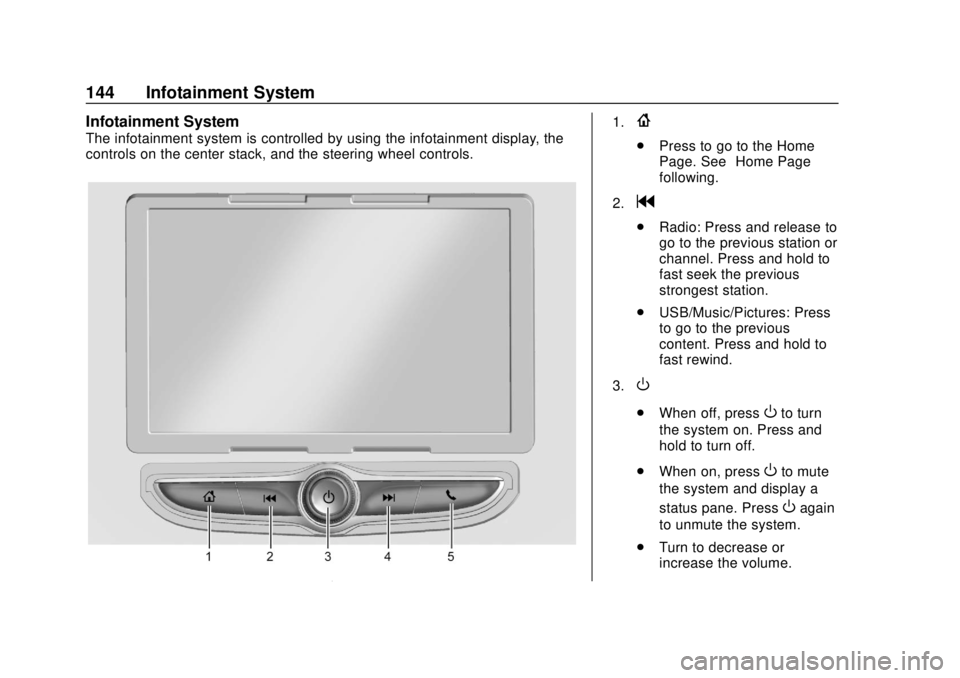
The infotainment system is controlled by using the infotainment display, the
controls on the center stack, and the steering wheel controls.
1.{
.Press to go to the Home
Page. See “Home Page”
following.
2.
g
. Radio: Press and release to
go to the previous station or
channel. Press and hold to
fast seek the previous
strongest station.
. USB/Music/Pictures: Press
to go to the previous
content. Press and hold to
fast rewind.
3.
O
. When off, pressOto turn
the system on. Press and
hold to turn off.
. When on, press
Oto mute
the system and display a
status pane. Press
Oagain
to unmute the system.
. Turn to decrease or
increase the volume.
Page 146 of 351
Chevrolet Sonic Owner Manual (GMNA-Localizing-U.S./Canada-12461769) -
2019 - crc - 5/21/18
Infotainment System 145
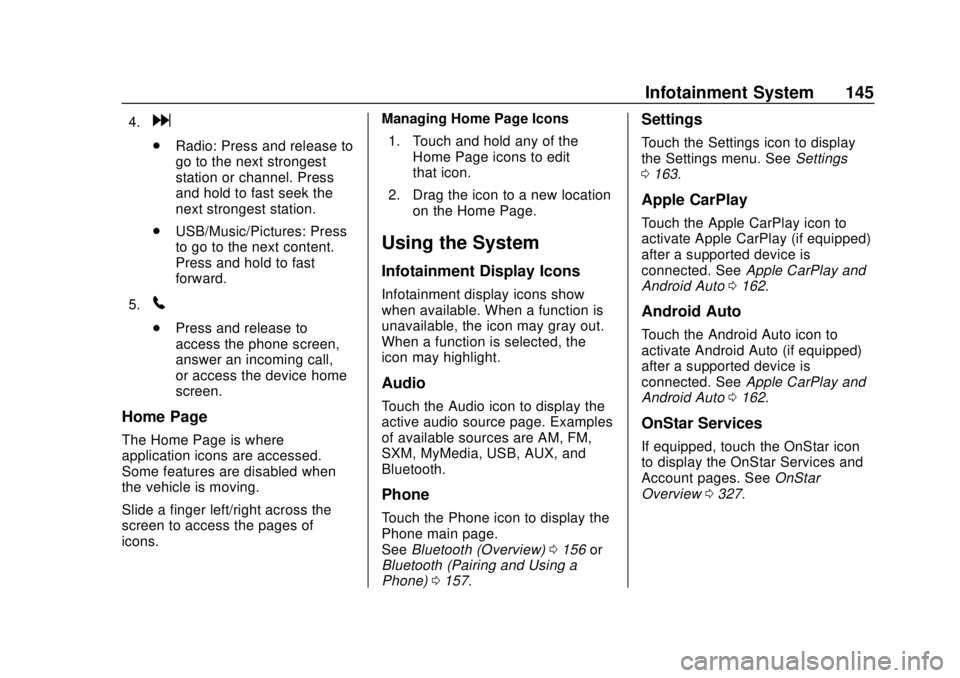
4.d
.Radio: Press and release to
go to the next strongest
station or channel. Press
and hold to fast seek the
next strongest station.
. USB/Music/Pictures: Press
to go to the next content.
Press and hold to fast
forward.
5.
5
. Press and release to
access the phone screen,
answer an incoming call,
or access the device home
screen.
Home Page
The Home Page is where
application icons are accessed.
Some features are disabled when
the vehicle is moving.
Slide a finger left/right across the
screen to access the pages of
icons. Managing Home Page Icons
1. Touch and hold any of the Home Page icons to edit
that icon.
2. Drag the icon to a new location on the Home Page.
Using the System
Infotainment Display Icons
Infotainment display icons show
when available. When a function is
unavailable, the icon may gray out.
When a function is selected, the
icon may highlight.
Audio
Touch the Audio icon to display the
active audio source page. Examples
of available sources are AM, FM,
SXM, MyMedia, USB, AUX, and
Bluetooth.
Phone
Touch the Phone icon to display the
Phone main page.
See Bluetooth (Overview) 0156 or
Bluetooth (Pairing and Using a
Phone) 0157.
Settings
Touch the Settings icon to display
the Settings menu. See Settings
0 163.
Apple CarPlay
Touch the Apple CarPlay icon to
activate Apple CarPlay (if equipped)
after a supported device is
connected. See Apple CarPlay and
Android Auto 0162.
Android Auto
Touch the Android Auto icon to
activate Android Auto (if equipped)
after a supported device is
connected. See Apple CarPlay and
Android Auto 0162.
OnStar Services
If equipped, touch the OnStar icon
to display the OnStar Services and
Account pages. See OnStar
Overview 0327.