reset CHEVROLET SPARK 2013 3.G User Guide
[x] Cancel search | Manufacturer: CHEVROLET, Model Year: 2013, Model line: SPARK, Model: CHEVROLET SPARK 2013 3.GPages: 350, PDF Size: 5.89 MB
Page 139 of 350
Black plate (9,1)Chevrolet Spark Owner Manual - 2013 - crc - 9/11/12
Infotainment System 7-9
Tone Settings:Press menu, then
tone settings from the AM or
FM menu.
.EQ (Equalizer): PressSorTto
select a sound style or turn off
the sound style.
.Bass, Mid (Midrange), or Treble:
Press −or + to change the
desired sound style from −12
to +12.
.Fader or Balance: Adjust the
front/rear or left/right speakers.
.Reset: Restore the settings back
to default settings.
Press OK to exit Tone Settings.
Radio
AM-FM Radio
Playing the Radio without
Touchscreen
Audio Source Menu
O/ VOL (Power/Volume): Press to
turn the system on and off. Turn to
increase or decrease the volume.
MENU/TUNE: Turn to change the
radio station.
RADIO/BAND: Press to select AM
and FM.
INFO: Press to display additional
information that may be available for
the current song.
FAV 123: Press to open the
favorites list and select a
favorite page.
Preset Buttons 1–6: Press to
select preset stations.
Radio Broadcast Data
System (RBDS)
RBDS is a service by FM stations
that makes it easier to find radio
stations with fault-free reception.
RBDS stations are indicated by the
program name instead of the
broadcasting frequency.
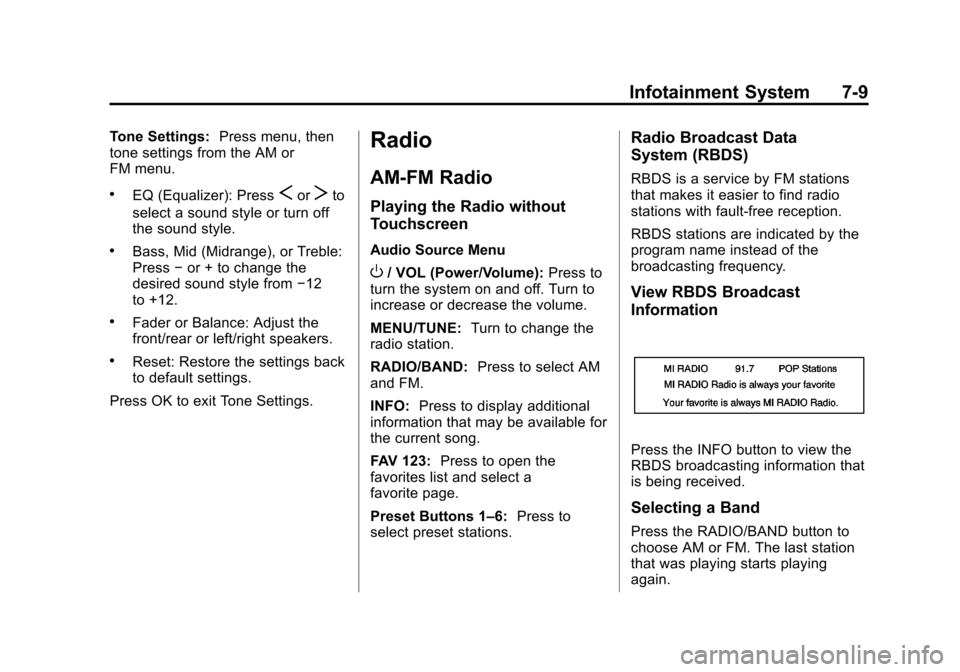
View RBDS Broadcast
Information
Press the INFO button to view the
RBDS broadcasting information that
is being received.
Selecting a Band
Press the RADIO/BAND button to
choose AM or FM. The last station
that was playing starts playing
again.
Page 140 of 350
Black plate (10,1)Chevrolet Spark Owner Manual - 2013 - crc - 9/11/12
7-10 Infotainment System
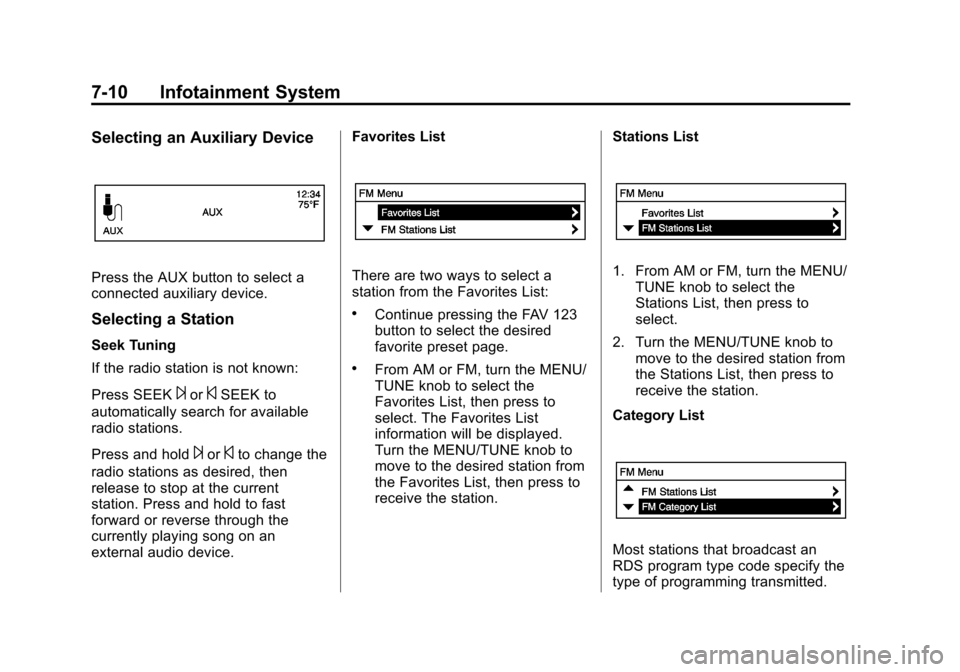
Selecting an Auxiliary Device
Press the AUX button to select a
connected auxiliary device.
Selecting a Station
Seek Tuning
If the radio station is not known:
Press SEEK
¨or©SEEK to
automatically search for available
radio stations.
Press and hold
¨or©to change the
radio stations as desired, then
release to stop at the current
station. Press and hold to fast
forward or reverse through the
currently playing song on an
external audio device. Favorites List
There are two ways to select a
station from the Favorites List:
.Continue pressing the FAV 123
button to select the desired
favorite preset page.
.From AM or FM, turn the MENU/
TUNE knob to select the
Favorites List, then press to
select. The Favorites List
information will be displayed.
Turn the MENU/TUNE knob to
move to the desired station from
the Favorites List, then press to
receive the station.
Stations List
1. From AM or FM, turn the MENU/
TUNE knob to select the
Stations List, then press to
select.
2. Turn the MENU/TUNE knob to move to the desired station from
the Stations List, then press to
receive the station.
Category List
Most stations that broadcast an
RDS program type code specify the
type of programming transmitted.
Page 141 of 350
Black plate (11,1)Chevrolet Spark Owner Manual - 2013 - crc - 9/11/12
Infotainment System 7-11
Some stations change the program
type code depending on the
content. The system stores the RDS
stations sorted by program type in
the FM category list.
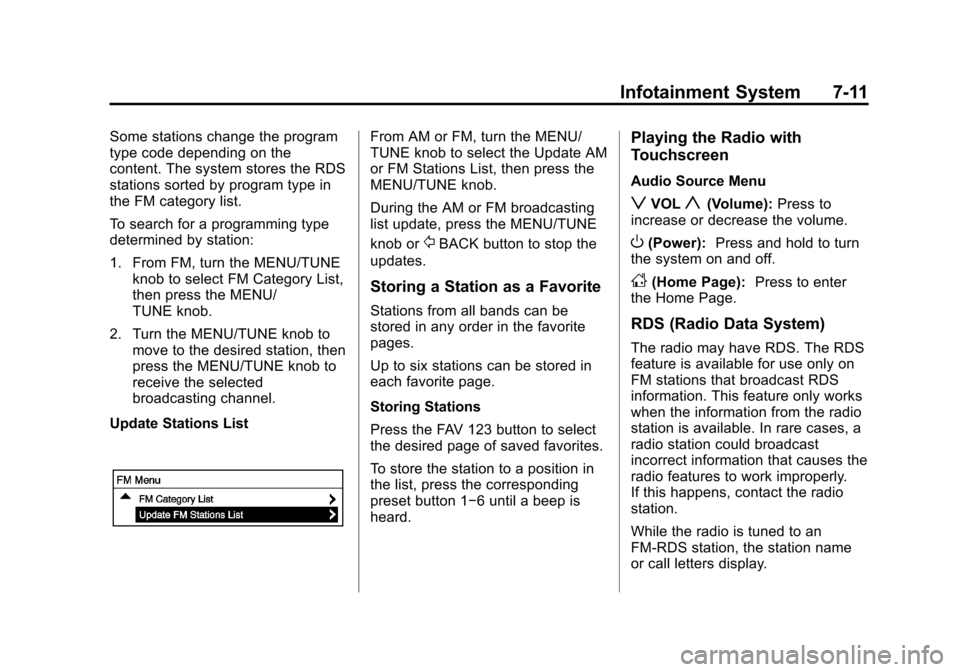
To search for a programming type
determined by station:
1. From FM, turn the MENU/TUNEknob to select FM Category List,
then press the MENU/
TUNE knob.
2. Turn the MENU/TUNE knob to move to the desired station, then
press the MENU/TUNE knob to
receive the selected
broadcasting channel.
Update Stations ListFrom AM or FM, turn the MENU/
TUNE knob to select the Update AM
or FM Stations List, then press the
MENU/TUNE knob.
During the AM or FM broadcasting
list update, press the MENU/TUNE
knob or
/BACK button to stop the
updates.
Storing a Station as a Favorite
Stations from all bands can be
stored in any order in the favorite
pages.
Up to six stations can be stored in
each favorite page.
Storing Stations
Press the FAV 123 button to select
the desired page of saved favorites.
To store the station to a position in
the list, press the corresponding
preset button 1−6 until a beep is
heard.
Playing the Radio with
Touchscreen
Audio Source Menu
zVOLy(Volume): Press to
increase or decrease the volume.
O(Power): Press and hold to turn
the system on and off.
D(Home Page): Press to enter
the Home Page.
RDS (Radio Data System)
The radio may have RDS. The RDS
feature is available for use only on
FM stations that broadcast RDS
information. This feature only works
when the information from the radio
station is available. In rare cases, a
radio station could broadcast
incorrect information that causes the
radio features to work improperly.
If this happens, contact the radio
station.
While the radio is tuned to an
FM-RDS station, the station name
or call letters display.
Page 143 of 350
Black plate (13,1)Chevrolet Spark Owner Manual - 2013 - crc - 9/11/12
Infotainment System 7-13
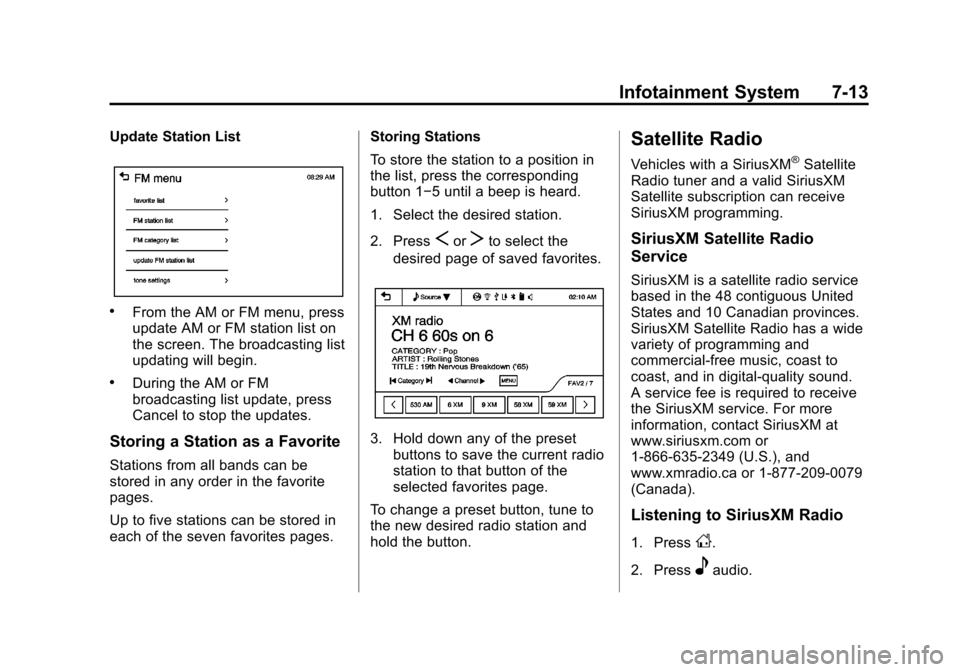
Update Station List
.From the AM or FM menu, press
update AM or FM station list on
the screen. The broadcasting list
updating will begin.
.During the AM or FM
broadcasting list update, press
Cancel to stop the updates.
Storing a Station as a Favorite
Stations from all bands can be
stored in any order in the favorite
pages.
Up to five stations can be stored in
each of the seven favorites pages.Storing Stations
To store the station to a position in
the list, press the corresponding
button 1−5 until a beep is heard.
1. Select the desired station.
2. Press
SorTto select the
desired page of saved favorites.
3. Hold down any of the preset buttons to save the current radio
station to that button of the
selected favorites page.
To change a preset button, tune to
the new desired radio station and
hold the button.
Satellite Radio
Vehicles with a SiriusXM®Satellite
Radio tuner and a valid SiriusXM
Satellite subscription can receive
SiriusXM programming.
SiriusXM Satellite Radio
Service
SiriusXM is a satellite radio service
based in the 48 contiguous United
States and 10 Canadian provinces.
SiriusXM Satellite Radio has a wide
variety of programming and
commercial-free music, coast to
coast, and in digital-quality sound.
A service fee is required to receive
the SiriusXM service. For more
information, contact SiriusXM at
www.siriusxm.com or
1-866-635-2349 (U.S.), and
www.xmradio.ca or 1-877-209-0079
(Canada).
Listening to SiriusXM Radio
1. PressD.
2. Press
eaudio.
Page 144 of 350
Black plate (14,1)Chevrolet Spark Owner Manual - 2013 - crc - 9/11/12
7-14 Infotainment System
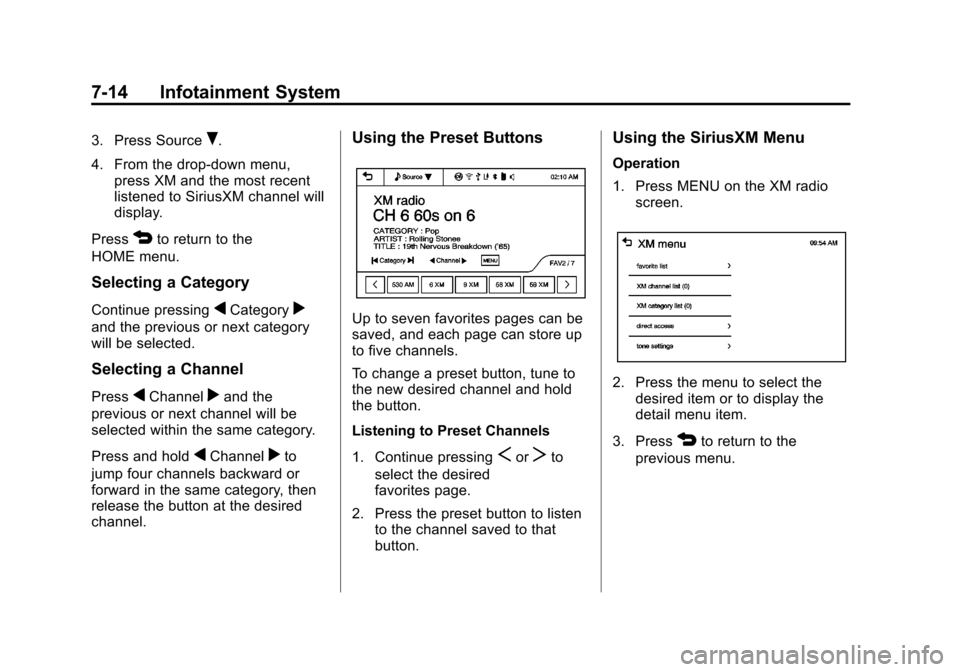
3. Press SourceR.
4. From the drop-down menu, press XM and the most recent
listened to SiriusXM channel will
display.
Press
4to return to the
HOME menu.
Selecting a Category
Continue pressingqCategoryr
and the previous or next category
will be selected.
Selecting a Channel
PressqChannelrand the
previous or next channel will be
selected within the same category.
Press and hold
qChannelrto
jump four channels backward or
forward in the same category, then
release the button at the desired
channel.
Using the Preset Buttons
Up to seven favorites pages can be
saved, and each page can store up
to five channels.
To change a preset button, tune to
the new desired channel and hold
the button.
Listening to Preset Channels
1. Continue pressing
SorTto
select the desired
favorites page.
2. Press the preset button to listen to the channel saved to that
button.
Using the SiriusXM Menu
Operation
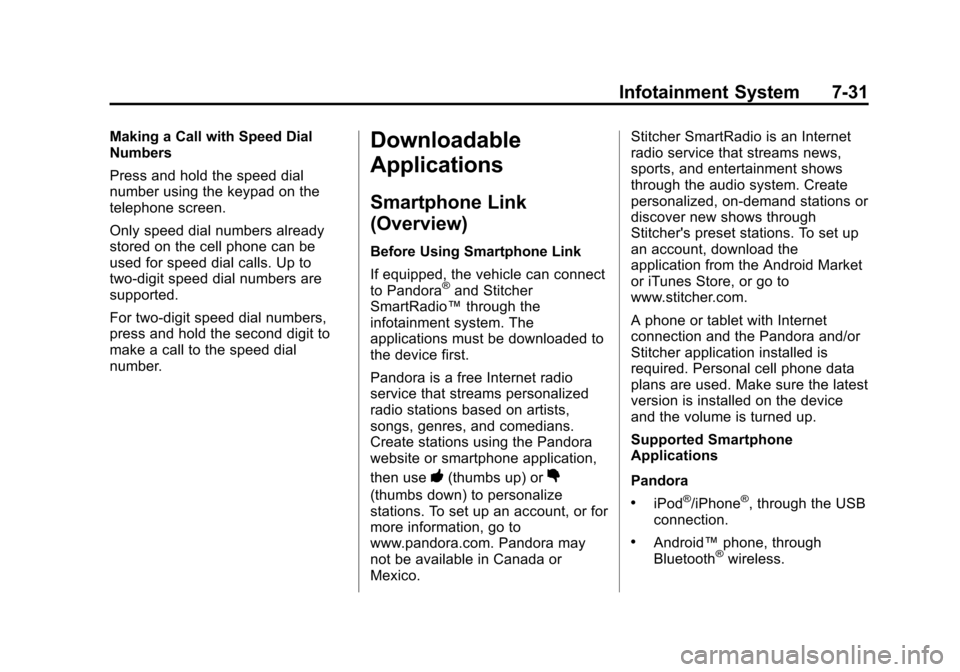
1. Press MENU on the XM radioscreen.
2. Press the menu to select thedesired item or to display the
detail menu item.
3. Press
4to return to the
previous menu.
Page 161 of 350
Black plate (31,1)Chevrolet Spark Owner Manual - 2013 - crc - 9/11/12
Infotainment System 7-31
Making a Call with Speed Dial
Numbers
Press and hold the speed dial
number using the keypad on the
telephone screen.
Only speed dial numbers already
stored on the cell phone can be
used for speed dial calls. Up to
two-digit speed dial numbers are
supported.
For two-digit speed dial numbers,
press and hold the second digit to
make a call to the speed dial
number.Downloadable
Applications
Smartphone Link
(Overview)
Before Using Smartphone Link
If equipped, the vehicle can connect
to Pandora
®and Stitcher
SmartRadio™ through the
infotainment system. The
applications must be downloaded to
the device first.
Pandora is a free Internet radio
service that streams personalized
radio stations based on artists,
songs, genres, and comedians.
Create stations using the Pandora
website or smartphone application,
then use
-(thumbs up) or,
(thumbs down) to personalize
stations. To set up an account, or for
more information, go to
www.pandora.com. Pandora may
not be available in Canada or
Mexico. Stitcher SmartRadio is an Internet
radio service that streams news,
sports, and entertainment shows
through the audio system. Create
personalized, on-demand stations or
discover new shows through
Stitcher's preset stations. To set up
an account, download the
application from the Android Market
or iTunes Store, or go to
www.stitcher.com.
A phone or tablet with Internet
connection and the Pandora and/or
Stitcher application installed is
required. Personal cell phone data
plans are used. Make sure the latest
version is installed on the device
and the volume is turned up.
Supported Smartphone
Applications
Pandora.iPod®/iPhone®, through the USB
connection.
.Android™ phone, through
Bluetooth®wireless.
Page 162 of 350
Black plate (32,1)Chevrolet Spark Owner Manual - 2013 - crc - 9/11/12
7-32 Infotainment System
.BlackBerry®phone, through
Bluetooth wireless.
Stitcher
.iPod/iPhone, through the USB
connection.
.Android phone, through
Bluetooth wireless.
iPod/iPhone Error Messages and
Solution
If the infotainment system fails to
activate the application on your
iPod/iPhone connected through the
USB port, the error message is
displayed as, “Unable to start
application, possible reasons.”
.Your iPhone is locked. To
resolve, unlock the iPhone.
.You have another active
application open. To resolve,
close the other active
application.
.You have not installed the
application on your iPhone. To
resolve, install the application on
the iPhone. iOS Version Error
If the iOS version of the iPhone is
less than 4.0, the error message is
displayed as,
“Your iPhone does
not allow this application to be
opened on a USB connection.
Please refer to owner ’s manual.”
.Activate the application on your
iPhone, then press the desired
application menu on the
infotainment system.
Connecting Application Error
If the infotainment system fails to
activate the application on the
smartphone connected through
Bluetooth wireless technology, the
error message is displayed as,
“Connecting application error.”
.Reset all settings related to the
phone, then press the desired
application menu on the
infotainment system.
.Reconnect the smartphone and
Infotainment system through
Bluetooth wireless technology, then press the desired
application menu on the
Infotainment system.
.When the application is stopped
on the smartphone, it usually
takes time to return to normal
operation. Try to activate the
application after 10–20 seconds.
To switch between Stitcher or
Pandora while playing the other on
the iPod/iPhone connected through
the USB port, press the
Dbutton
on the iPod/iPhone, then press
Stitcher or Pandora on the
smartphone link menu of the
infotainment system.
Switching Between a USB
Connected Device and a
Bluetooth Device
When the iPhone is connected to
the infotainment system through the
USB port, and the infotainment
system is connected to another
phone through Bluetooth wireless
technology, it is possible to switch
between the two applications, using
the smartphone list menu.
Page 207 of 350
Black plate (27,1)Chevrolet Spark Owner Manual - 2013 - crc - 9/11/12
Driving and Operating 9-27
Hill Start Assist (HSA)
This vehicle has a Hill Start Assist
(HSA) feature, which may be useful
when the vehicle is stopped on a
grade. This feature is designed to
prevent the vehicle from rolling,
either forward or rearward, during
vehicle drive off. After the driver
completely stops and holds the
vehicle in a complete standstill on a
grade, HSA will be automatically
activated. During the transition
period between when the driver
releases the brake pedal and starts
to accelerate to drive off on a grade,
HSA holds the braking pressure to
ensure that there is no rolling. The
brakes will automatically release
when the accelerator pedal is
applied within the two-second
window. It will not activate if the
vehicle is in a drive gear and facing
downhill, or if the vehicle is facing
uphill and in R (Reverse).
Ride Control Systems
Traction Control
System (TCS)
The vehicle has a TCS that limits
wheel spin. On a front-wheel-drive
vehicle, the system operates if it
senses that one or both of the front
wheels are spinning or beginning to
lose traction. When this happens,
the system brakes the spinning
wheel(s), and/or reduces engine
power to limit wheel spin.
The system may be heard or felt
while it is working, but this is
normal.
TCS is on whenever the vehicle is
started. To limit wheel spin,
especially in slippery road
conditions, the system should
always be left on. But, TCS can be
turned off if needed.TCS/StabiliTrak Light
dflashes to indicate that the
traction control system is active.
If there is a problem detected with
TCS,
dcomes on in the instrument
cluster and stays on. The vehicle is
safe to drive but the system is not
operational. Driving should be
adjusted accordingly.
If
dcomes on and stays on, reset
the system:
1. Stop the vehicle.
2. Turn the engine off and wait 15 seconds.
3. Start the engine.
If
dstill comes on and stays on at a
speed above 20 km/h (13 mph), see
your dealer for service.
Page 209 of 350
Black plate (29,1)Chevrolet Spark Owner Manual - 2013 - crc - 9/11/12
Driving and Operating 9-29
StabiliTrak is on automatically
whenever the vehicle is started. To
assist with directional control of the
vehicle, the system should always
be left on.
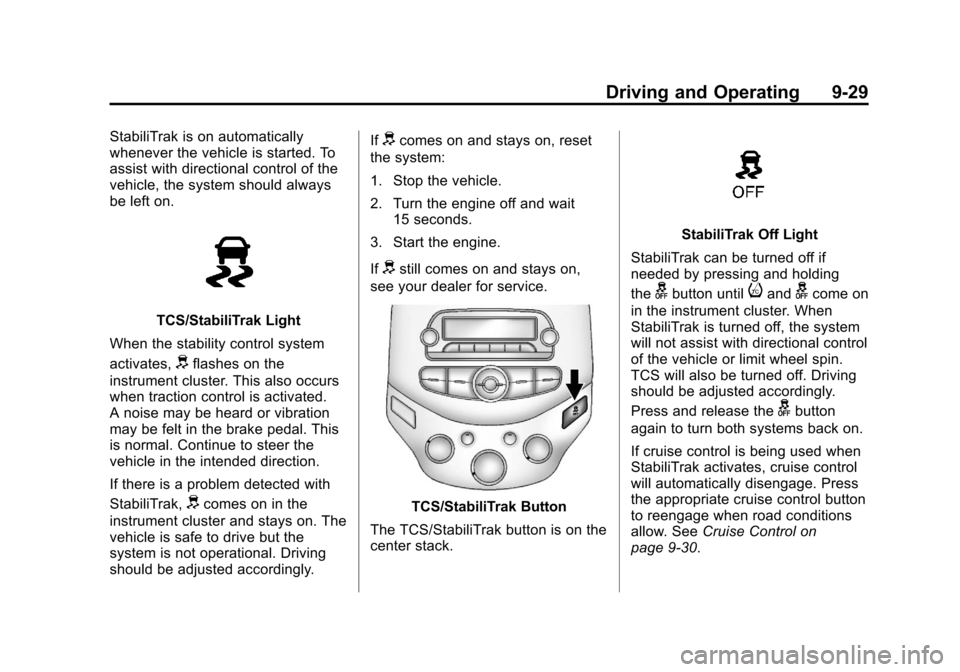
TCS/StabiliTrak Light
When the stability control system
activates,
dflashes on the
instrument cluster. This also occurs
when traction control is activated.
A noise may be heard or vibration
may be felt in the brake pedal. This
is normal. Continue to steer the
vehicle in the intended direction.
If there is a problem detected with
StabiliTrak,
dcomes on in the
instrument cluster and stays on. The
vehicle is safe to drive but the
system is not operational. Driving
should be adjusted accordingly. If
dcomes on and stays on, reset
the system:
1. Stop the vehicle.
2. Turn the engine off and wait 15 seconds.
3. Start the engine.
If
dstill comes on and stays on,
see your dealer for service.
TCS/StabiliTrak Button
The TCS/StabiliTrak button is on the
center stack.
StabiliTrak Off Light
StabiliTrak can be turned off if
needed by pressing and holding
the
gbutton untiliandgcome on
in the instrument cluster. When
StabiliTrak is turned off, the system
will not assist with directional control
of the vehicle or limit wheel spin.
TCS will also be turned off. Driving
should be adjusted accordingly.
Press and release the
gbutton
again to turn both systems back on.
If cruise control is being used when
StabiliTrak activates, cruise control
will automatically disengage. Press
the appropriate cruise control button
to reengage when road conditions
allow. See Cruise Control on
page 9‑30.
Page 227 of 350
Black plate (9,1)Chevrolet Spark Owner Manual - 2013 - crc - 9/11/12
Vehicle Care 10-9
Viscosity Grade
SAE 5W-20 is the best viscosity
grade for the vehicle. Do not use
other viscosity grade oils such as
SAE 10W-30, 10W-40, or 20W-50.
Cold Temperature Operation: In an
area of extreme cold, where the
temperature falls below−29°C
(−20°F), an SAE 0W-30 oil may be
used. An oil of this viscosity grade
will provide easier cold starting for
the engine at extremely low
temperatures. When selecting an oil
of the appropriate viscosity grade,
always select an oil of the correct
specification. See “Specification”
earlier in this section for more
information.
Engine Oil Additives/Engine
Oil Flushes
Do not add anything to the oil. The
recommended oils with the dexos
specification and displaying the
dexos certification mark are all that
is needed for good performance and
engine protection. Engine oil system flushes are not
recommended and could cause
engine damage not covered by the
vehicle warranty.
What to Do with Used Oil
Used engine oil contains certain
elements that can be unhealthy for
your skin and could even cause
cancer. Do not let used oil stay on
your skin for very long. Clean your
skin and nails with soap and water,
or a good hand cleaner. Wash or
properly dispose of clothing or rags
containing used engine oil. See the
manufacturer's warnings about the
use and disposal of oil products.
Used oil can be a threat to the
environment. If you change your
own oil, be sure to drain all the oil
from the filter before disposal. Never
dispose of oil by putting it in the
trash or pouring it on the ground,
into sewers, or into streams or
bodies of water. Recycle it by taking
it to a place that collects used oil.
Engine Oil Life System
When to Change Engine Oil
This vehicle has a computer system
that indicates when to change the
engine oil and filter. This is based
on a combination of factors which
include engine revolutions, engine
temperature, and miles driven.
Based on driving conditions, the
mileage at which an oil change is
indicated can vary considerably. For
the oil life system to work properly,
the system must be reset every time
the oil is changed.
When the system has calculated
that oil life has been diminished, it
indicates that an oil change is
necessary. A Code 82 (change
engine oil soon) DIC message
comes on. Change the oil as soon
as possible within the next 1 000 km
(600 mi). It is possible that, if driving
under the best conditions, the oil life
system might indicate that an oil
change is not necessary for up to a
year. The engine oil and filter must
be changed at least once a year