audio CHEVROLET SPARK 2013 3.G Owner's Manual
[x] Cancel search | Manufacturer: CHEVROLET, Model Year: 2013, Model line: SPARK, Model: CHEVROLET SPARK 2013 3.GPages: 350, PDF Size: 5.89 MB
Page 146 of 350
Black plate (16,1)Chevrolet Spark Owner Manual - 2013 - crc - 9/11/12
7-16 Infotainment System
AM
The range for most AM stations is
greater than for FM, especially at
night. The longer range can cause
station frequencies to interfere with
each other. Static can occur when
things like storms and power lines
interfere with radio reception. When
this happens, try reducing the treble
on the radio.
SiriusXM®Satellite Radio
Service
SiriusXM Satellite Radio Service
gives digital radio reception from
coast to coast in the 48 contiguous
United States, and in Canada. Just
as with FM, tall buildings or hills can
interfere with satellite radio signals,
causing the sound to fade in and
out. In addition, traveling or standing
under heavy foliage, bridges,
garages, or tunnels may cause loss
of the SiriusXM signal for a period
of time.
Cellular Phone Usage
Cellular phone usage can cause
interference with the vehicle's radio.
Multi-Band Antenna
The multi-band antenna is on the
roof of the vehicle. The antenna is
used for the AM-FM radio, OnStar,
the SiriusXM Satellite Radio Service
System, and GPS (Global
Positioning System), if the vehicle
has these features. Keep the
antenna clear of obstructions for
clear reception.
Audio Players
USB Port
Using the USB Port
The infotainment system can play
music or movies by connecting an
auxiliary device to the USB port,
if equipped.
USB Support
The USB connector is in the center
stack, and uses the USB 2.0
standard.
USB Supported Devices
.USB Flash Drives
.Portable USB Hard Drives
.2G–5G iPod nano®
.1G–3G iPod touch®
.120GB/160GB iPod classic®
.3G/3GS/4/4S iPhone®
Not all iPods and USB drives are
compatible with the USB port.
Page 147 of 350
Black plate (17,1)Chevrolet Spark Owner Manual - 2013 - crc - 9/11/12
Infotainment System 7-17
Make sure the iPod has the latest
firmware from Apple®for proper
operation. iPod firmware can be
updated using the latest iTunes
®
application. See www.apple.com/
itunes.
For help with identifying your iPod,
go to www.apple.com/support.
The USB port can play both lower
and upper case .mp3, .wma, .ogg,
and .wav files stored on a USB
storage device.
USB Supported File and Folder
Structure
The Infotainment system supports:
.Up to 2,500 folders.
.Up to 10 folders in depth.
.Up to 2,500 music files.
.Up to 2,500 photo files.
.Up to 250 movie files.
.ID3 Tag (versions 1.0/1.1/2.2/
2.3/2.4).
.FAT16.
.FAT32.
.exFAT.
Connecting a USB Storage
Device or iPod/iPhone
To connect a USB storage device,
connect the device to the USB port.
To connect an iPod/iPhone, connect
one end of the device’ s cable to the
iPod/iPhone and the other end to
the USB port.
The iPod/iPhone charges while it is
connected to the vehicle if the
vehicle is in the ACC/ACCESSORY
or ON/RUN position. When the
vehicle is turned off, the iPod/
iPhone automatically powers off and
will not charge or draw power from
the vehicle's battery. For more information on USB
usage, see
“Audio System
Information” underPictures and
Movies (Audio System) on
page 7‑36 orPictures and Movies
(Picture System) on page 7‑41 or
Pictures and Movies (Movie
System) on page 7‑42.
Auxiliary Devices
Using the Auxiliary Input Jack
Settings menus and functions may
vary depending on vehicle options.
The auxiliary input jack in the center
stack can be used to connect
external audio devices such as an
iPod
®, iPhone®, MP3 player, CD
player, and other supported devices
for use as another source for audio
listening. This input jack is not an
audio output; do not plug
headphones into the front auxiliary
input jack.
Page 148 of 350
Black plate (18,1)Chevrolet Spark Owner Manual - 2013 - crc - 9/11/12
7-18 Infotainment System
Radio without Touchscreen
To use a portable device, connect
the device with a 3.5 mm (1/8 in)
cable to the auxiliary input jack. The
radio will automatically switch to the
device if the radio is on.
When a device is already
connected, press the AUX button to
begin playing the device.
Use the
O/VOL knob to adjust the
volume.
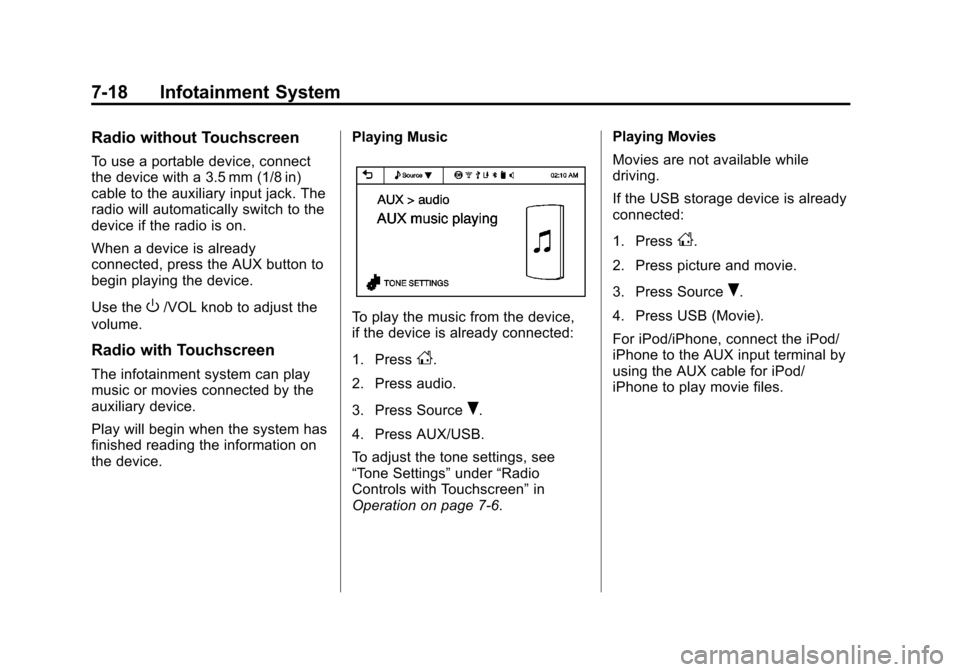
Radio with Touchscreen
The infotainment system can play
music or movies connected by the
auxiliary device.
Play will begin when the system has
finished reading the information on
the device. Playing Music
To play the music from the device,
if the device is already connected:
1. Press
D.
2. Press audio.
3. Press Source
R.
4. Press AUX/USB.
To adjust the tone settings, see
“Tone Settings” under“Radio
Controls with Touchscreen” in
Operation on page 7‑6. Playing Movies
Movies are not available while
driving.
If the USB storage device is already
connected:
1. Press
D.
2. Press picture and movie.
3. Press Source
R.
4. Press USB (Movie).
For iPod/iPhone, connect the iPod/
iPhone to the AUX input terminal by
using the AUX cable for iPod/
iPhone to play movie files.
Page 151 of 350

Black plate (21,1)Chevrolet Spark Owner Manual - 2013 - crc - 9/11/12
Infotainment System 7-21
‐Press route preview to preview
the route. The distance
information among turns from
current position to destination
can be checked. Check the
distance information by
pressing
QorR. If there is no
operation for about
five seconds, the current
Turn-by-Turn Navigation
information is displayed.
‐ Press repeat to repeat the
Turn-by-Turn Navigation voice
guidance.
‐ While the route is calculating,
the Cancel route menu is only
activated.
Blue OnStar
Press
Qto be connected to a
specially trained OnStar Advisor
who can verify account information
and answer questions about the
system. Emergency
With Automatic Crash Response,
the built-in system can automatically
connect to help in a crash even if
you cannot ask for it.
Press
]to connect to an
Emergency Advisor. GPS
technology is used to identify the
vehicle location and can provide
critical information to emergency
personnel. The Advisor is also
trained to offer critical assistance in
emergency situations.
OnStar SMS
When the Short Message Service
(SMS) is received by the vehicle, a
pop-up screen with the message is
displayed.
OnStar Welcome
When the user joins and operates
the OnStar service for the first time,
the pop-up screen “Get OnStar
started now please push the blue
button” is displayed.
Phone
Bluetooth (Overview)
For vehicles equipped with
Bluetooth®capability, the system
can interact with many Bluetooth
phones, PDAs, or other devices to:
.Place and receive hands-free
calls.
.Transmit hands-free data.
.Play audio streaming files.
The device most be paired first. See
“Pairing” under Bluetooth
(Infotainment Controls) Bluetooth
(Overview) on page 7‑21 or
Bluetooth (Infotainment Controls) on
page 7‑23.
To minimize driver distraction,
before driving, and with the vehicle
parked:
.Become familiar with the
features of the cell phone.
Organize the phone book and
contact lists clearly and delete
Page 153 of 350
Black plate (23,1)Chevrolet Spark Owner Manual - 2013 - crc - 9/11/12
Infotainment System 7-23
5/g(Push to Talk):Press to
interact with Bluetooth or OnStar,
if equipped. See Bluetooth
(Overview) on page 7‑21 or
Bluetooth (Infotainment Controls) on
page 7‑23 orOnStar
®System on
page 7‑19.
>/R(Mute/End Call): Press to
silence the vehicle speakers only.
Press again to turn the sound on.
For vehicles with OnStar or
Bluetooth systems, press to reject
an incoming call, or end a
current call.
x+ orx− (Volume): Press to
increase or decrease the volume.
Audio System
When using the Bluetooth system,
sound comes through the vehicle's
front audio system speakers and
overrides the audio system. Use the
volume bar during a call to change
the volume level. The adjusted
volume level remains in memory for
later calls. The system maintains a
minimum volume level.
Bluetooth (Infotainment
Controls)
To use infotainment controls to
access the menu system, see
Overview on page 7‑3.
Pairing
A Bluetooth-enabled cell phone
must be paired to the Bluetooth
system and then connected to the
vehicle before it can be used. See
your cell phone manufacturer's user
guide for Bluetooth functions before
pairing the cell phone. If a Bluetooth
phone is not connected, calls will be
made using OnStar Hands-Free
Calling, if available. See OnStar
®
System on page 7‑19.
Pairing Information
.A Bluetooth phone with MP3
capability cannot be paired to
the vehicle as a phone and an
MP3 player at the same time.
.Up to five cell phones can be
paired to the Bluetooth system.
.The pairing process is disabled
when the vehicle is moving.
.Pairing only needs to be
completed once, unless the
pairing information on the cell
phone changes or the cell phone
is deleted from the system.
.Only one paired cell phone can
be connected to the Bluetooth
system at a time.
.If multiple paired cell phones are
within range of the system, the
system connects to the first
available paired cell phone in the
order that they were first paired
to the system. To link to a
different paired phone, see
“Linking to a Different Phone”
later in this section.
When the Bluetooth device and
infotainment system are
successfully paired, the phone book
is downloaded automatically.
However, the phone book may not
be downloaded automatically
Page 156 of 350
Black plate (26,1)Chevrolet Spark Owner Manual - 2013 - crc - 9/11/12
7-26 Infotainment System
.The connected phone is
highlighted by
5.
.5 7indicates the hands-free
and phone music function are
enabled.
.7indicates only the hands-free
function is enabled.
.5indicates only Bluetooth
music is enabled.
Connecting a Bluetooth Device
1. Press
D.
2. Select settings.
3. Press connection settings.
4. Press bluetooth settings.
5. Press pair device.
6. Press the device to be paired.
7. Press OK.
Checking the Bluetooth
Connection
1. Press
D.
2. Select
8settings. 3. Press connection settings.
4. Press bluetooth settings.
5. Press pair device.
6. The paired device will show
with
5 7when connected.
Disconnecting the Bluetooth
Device
1. Press
D.
2. Select
8settings.
3. Press connection settings.
4. Press bluetooth settings.
5. Press pair device.
6. Press the name of the device to be disconnected.
7. Press OK.
Deleting a Paired Phone
1. Press
D.
2. Select
8settings.
3. Press connection settings.
4. Press bluetooth settings. 5. Press pair device.
6. Press Delete.
7. Press Yes.
Bluetooth Music
Before playing Bluetooth music,
read the following information.
.A cell phone or Bluetooth device
that supports Advanced Audio
Distribution Profile (A2DP)
versions over 1.2 must be
registered and connected to the
product.
.From the cell phone or Bluetooth
device, find the Bluetooth device
type to set/connect the item as a
stereo headset.
.5will appear on the screen if
the stereo headset is
successfully connected.
.The sound played by the
Bluetooth device is delivered
through the infotainment system.
Page 157 of 350
Black plate (27,1)Chevrolet Spark Owner Manual - 2013 - crc - 9/11/12
Infotainment System 7-27
.Bluetooth music can be played
only when a Bluetooth device
has been connected. To play
Bluetooth music, connect the
Bluetooth phone to the
infotainment system.
.If the Bluetooth device is
disconnected while playing
phone music, the music is
discontinued. The audio
streaming function may not be
supported in some Bluetooth
phones. Only one function can
be used at a time between the
Bluetooth hands-free or Phone
music function. For example,
if you convert to Bluetooth
hands-free while playing
Phone music, the music is
discontinued. Playing music from
the car is not possible when
there are no music files stored in
the cell phone.
.For Bluetooth music to play, the
music must be played at least
once from the music player
mode of the cell phone or
Bluetooth device afterconnecting as a stereo headset.
After being played at least
once, the music player will
automatically play upon entering
play mode, and it will
automatically stop when the
music player mode ends. If the
cell phone or Bluetooth device is
not in the waiting screen mode,
some devices may not
automatically play in Bluetooth
music play mode.
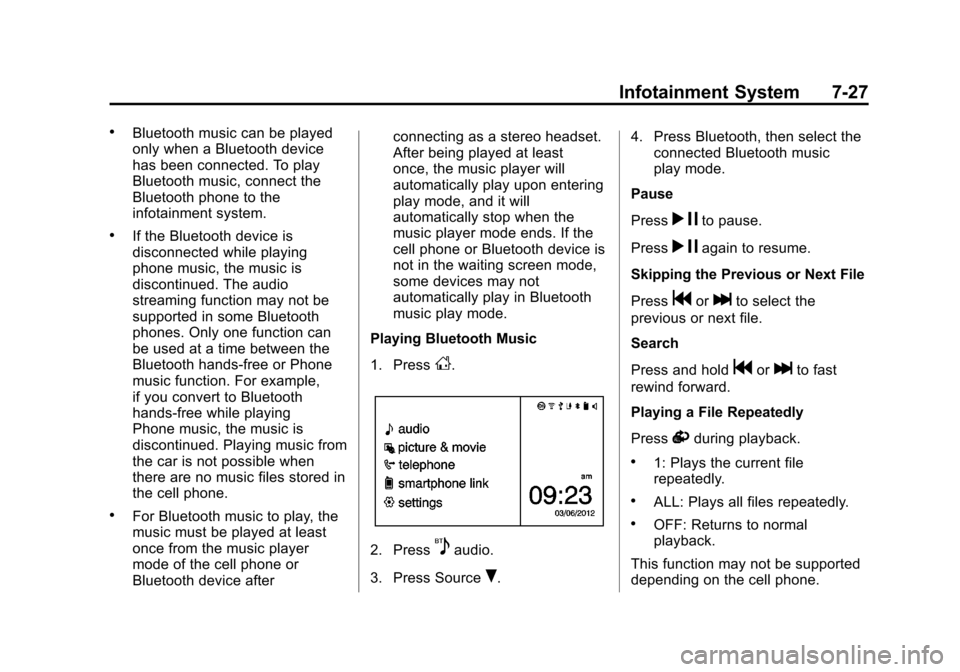
Playing Bluetooth Music
1. Press
D.
2. Press5audio.
3. Press Source
R. 4. Press Bluetooth, then select the
connected Bluetooth music
play mode.
Pause
Press
r jto pause.
Press
r jagain to resume.
Skipping the Previous or Next File
Press
gorlto select the
previous or next file.
Search
Press and hold
gorlto fast
rewind forward.
Playing a File Repeatedly
Press
vduring playback.
.1: Plays the current file
repeatedly.
.ALL: Plays all files repeatedly.
.OFF: Returns to normal
playback.
This function may not be supported
depending on the cell phone.
Page 158 of 350
Black plate (28,1)Chevrolet Spark Owner Manual - 2013 - crc - 9/11/12
7-28 Infotainment System
Playing a File Randomly
Press
uduring playback.
.NO: Plays all files repeatedly.
.OFF: Returns to normal
playback.
This function may not be supported
depending on the cell phone.
Do not change the track too quickly
when playing Bluetooth music.
Conditions that may occur when
playing Bluetooth music:
.It takes some time to transmit
data from the cell phone to the
infotainment system.
.If the cell phone or Bluetooth
device is not in the waiting
screen mode, it may not
automatically play despite being
carried out from the Bluetooth
music play mode.
.The infotainment system
transmits the order to play from
the cell phone in the Bluetooth
music play mode. If this is done
in a different mode, then the
device transmits the order to
stop. Depending on the cell
phone’s options, this order to
play/stop may take time to
activate.
.If the Bluetooth music playback
is not functioning, then check to
see if the cell phone is in the
waiting screen mode.
.Sounds may be cut off during
the Bluetooth music playback.
.The infotainment system outputs
the audio from the cell phone or
Bluetooth device as it is
transmitted.
Hands-Free Phone
General Information without
Touchscreen
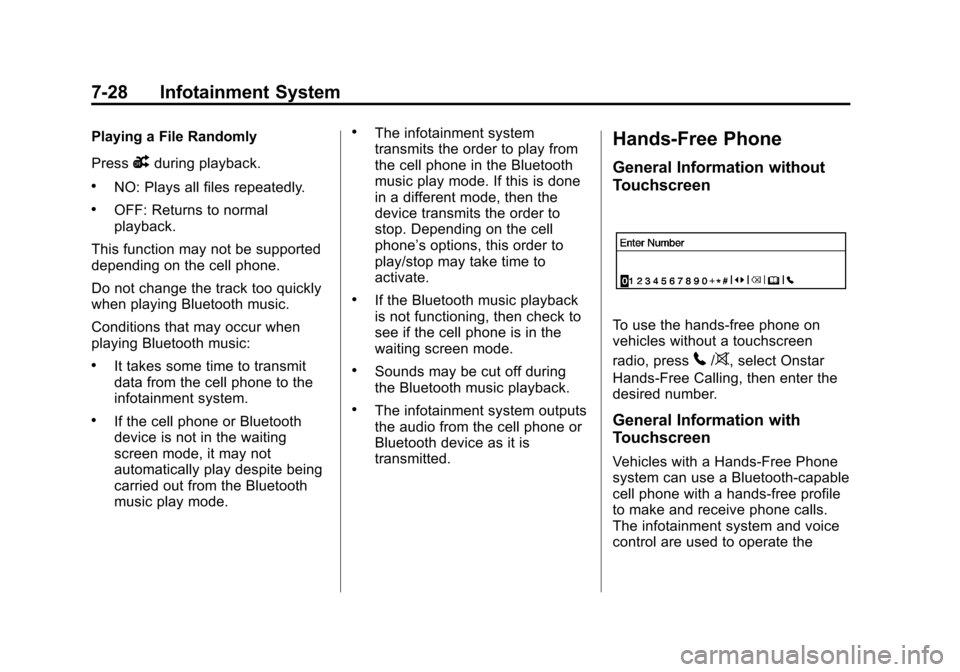
To use the hands-free phone on
vehicles without a touchscreen
radio, press
5/>, select Onstar
Hands-Free Calling, then enter the
desired number.
General Information with
Touchscreen
Vehicles with a Hands-Free Phone
system can use a Bluetooth-capable
cell phone with a hands-free profile
to make and receive phone calls.
The infotainment system and voice
control are used to operate the
Page 161 of 350
Black plate (31,1)Chevrolet Spark Owner Manual - 2013 - crc - 9/11/12
Infotainment System 7-31
Making a Call with Speed Dial
Numbers
Press and hold the speed dial
number using the keypad on the
telephone screen.
Only speed dial numbers already
stored on the cell phone can be
used for speed dial calls. Up to
two-digit speed dial numbers are
supported.
For two-digit speed dial numbers,
press and hold the second digit to
make a call to the speed dial
number.Downloadable
Applications
Smartphone Link
(Overview)
Before Using Smartphone Link
If equipped, the vehicle can connect
to Pandora
®and Stitcher
SmartRadio™ through the
infotainment system. The
applications must be downloaded to
the device first.
Pandora is a free Internet radio
service that streams personalized
radio stations based on artists,
songs, genres, and comedians.
Create stations using the Pandora
website or smartphone application,
then use
-(thumbs up) or,
(thumbs down) to personalize
stations. To set up an account, or for
more information, go to
www.pandora.com. Pandora may
not be available in Canada or
Mexico. Stitcher SmartRadio is an Internet
radio service that streams news,
sports, and entertainment shows
through the audio system. Create
personalized, on-demand stations or
discover new shows through
Stitcher's preset stations. To set up
an account, download the
application from the Android Market
or iTunes Store, or go to
www.stitcher.com.
A phone or tablet with Internet
connection and the Pandora and/or
Stitcher application installed is
required. Personal cell phone data
plans are used. Make sure the latest
version is installed on the device
and the volume is turned up.
Supported Smartphone
Applications
Pandora.iPod®/iPhone®, through the USB
connection.
.Android™ phone, through
Bluetooth®wireless.
Page 166 of 350
Black plate (36,1)Chevrolet Spark Owner Manual - 2013 - crc - 9/11/12
7-36 Infotainment System
Bluetooth Phone/
Devices
Pictures and Movies
(Audio System)
The infotainment system can play
the music files contained in the USB
storage device or iPod/iPhone
products.
Audio System Information
Using MP3/WMA/OGG/WAV Files
.Music files with .mp3, .wma,
.ogg, and .wav file name
extensions can be played.
.MP3 files that can be played are:
Bit rate: 8 kbps ~ 320 kbps -
Sampling frequency: 48 kHz,
44.1 kHz, 32 kHz, 24 kHz,
22.05 kHz, and 16 kHz.
.Files with a bit rate above
128 kbps will result in higher
quality sound.
.ID3 Tag information for MP3
files, such as the album name
and the artist, can be played.
.To display album title, track title,
and artist information, the file
should be compatible with the
ID3 Tag V1 and V2 formats.
Using USB Storage Devices and
iPod/iPhone
.Use a USB or flash memory type
storage device. Do not connect
using a USB adaptor.
.Do not connect and reconnect
the USB device repeatedly in a
short time, as this may cause
static electricity and problems
using the device.
.Use a USB device with a metal
connecting terminal.
.Connection with i-Stick Type
USB storage devices may be
faulty due to vehicle vibration.
.Do not to touch the USB
connecting terminal.
.Only USB storage devices
formatted in FAT16/32, exFAT
file system are recognized.
NTFS and other file systems are
not recognized.
.The time it takes to process files
will depend on the USB storage
device type and capacity, and
the type of files stored.
.Some USB storage device files
may not be compatible.
.Up to two USB devices and one
iPod can be played through a
USB hub. All devices may not be
supported, depending on the
performance of the USB hub.
If there is not enough power
supply, it may not operate
normally.
.Do not disconnect the USB
storage device while it is playing.
This may cause damage
to the product or affect the
performance of the USB device.