buttons CHEVROLET SPARK 2014 3.G User Guide
[x] Cancel search | Manufacturer: CHEVROLET, Model Year: 2014, Model line: SPARK, Model: CHEVROLET SPARK 2014 3.GPages: 362, PDF Size: 4.94 MB
Page 142 of 362

Black plate (6,1)Chevrolet Spark Owner Manual (GMNA-Localizing-U.S./Canada-5853490) -
2014 - crc - 9/3/13
7-6 Infotainment System
7telephone:Press to activate
the phone features (if equipped).
See Bluetooth (Overview) on
page 7-19 orBluetooth
(Infotainment Controls) on
page 7-21.
^smartphone link: Press to listen
to Pandora®(if equipped),
Stitcher™, or available application.
See Smartphone Link (Overview) on
page 7-29 orSmartphone Link
(Pandora) on page 7-31 or
Smartphone Link (Stitcher) on
page 7-32.
8settings: Press to access the
Personalization menu. See Vehicle
Personalization on page 5-27.
Operation
Radio Controls without
Touchscreen
The infotainment system is operated
by using the pushbuttons,
multifunction knobs, and menus
shown on the display.
Turning the System On or Off
O/VOL (Power/Volume): Press to
turn the radio on and off.
Automatic Switch-Off
If the infotainment system has been
turned on after the ignition is turned
off, the system will turn off
automatically after 10 minutes.
Volume Control
O/VOL (Power/Volume): Turn to
adjust the volume.
5/>(Phone/Mute): Press to
activate OnStar. See OnStar
Overview on page 14-1. Press and hold to mute the
infotainment system. Press again or
turn the
O/VOL knob to
cancel mute.
Menu System
Controls
The MENU/TUNE knob and
/
BACK button are used to navigate
the menu system.
MENU/TUNE Knob:
Turn to:
.Highlight a menu option.
.Select a value.
Press to:
.Enter the menu system.
.Select or activate the highlighted
menu option.
.Confirm a set value.
.Turn a system setting on or off.
Page 144 of 362

Black plate (8,1)Chevrolet Spark Owner Manual (GMNA-Localizing-U.S./Canada-5853490) -
2014 - crc - 9/3/13
7-8 Infotainment System
The level of volume compensation
can be selected, or the feature can
be turned off.
1. Press the CONFIG button.
2. Select Radio Settings.
3. Select Auto Volume.
4. Select the setting.
5. Press the
/BACK button to go
back to the System
Configuration menu.
Radio Controls with
Touchscreen
The infotainment system is operated
by using the pushbuttons, menus
shown on the display, and steering
wheel controls.
Turning the System On or Off
O(Power): Press and hold to turn
the radio on and off. Automatic Switch-Off
If the infotainment system has been
turned on after the ignition is turned
off, the system will turn off
automatically after 10 minutes.
Volume Control
zVOLy(Volume):
Press to
increase or decrease the volume or
press the volume bar.
>(Mute): PresszVOLy, then
press
>on the screen to mute and
unmute the system.
System Settings
Auto Volume
This feature automatically adjusts
the radio volume to compensate for
road and wind noise.
The level of volume compensation
can be selected, or the feature can
be turned off.
1. Press
D.
2. Select Settings.
3. Select Radio Settings. 4. Select Auto Volume.
5. Select the setting by pressing
S
orT.
6. Press the
4button to go back
to the System
Configuration menu.
Auto Store (AS)
This feature automatically stores the
stations with the strongest
reception.
To store or update the stations,
press and hold the AS screen
button.
To listen to a auto stored station:
1. Select AM or FM.
2. Press the AS screen button.
3. Press
SorTrepeatedly to
select the desired AS page.
4. Press the desired preset station screen button.
Page 145 of 362

Black plate (9,1)Chevrolet Spark Owner Manual (GMNA-Localizing-U.S./Canada-5853490) -
2014 - crc - 9/3/13
Infotainment System 7-9
Audio Settings
The audio settings can be set for
each radio band and each audio
player source.
Tone Settings:Press menu, then
tone settings from the AM or
FM menu.
.EQ (Equalizer): PressSorTto
select a sound style or turn off
the sound style. When in tone
settings “Manual” and“Talk” may
be the only settings available
depending on the sound system.
.Bass, Mid (Midrange), or Treble:
Press −or + to change the
desired sound style from −12
to +12.
.Fader or Balance: Adjust the
front/rear or left/right speakers
by dragging the dot in the
vehicle image on the screen.
.Reset: Restore the settings back
to default settings.
Press OK to exit Tone Settings.
Radio
AM-FM Radio
Playing the Radio without
Touchscreen
Audio Source Menu
O/VOL (Power/Volume): Press to
turn the system on and off. Turn to
increase or decrease the volume.
MENU/TUNE: Turn to change the
radio station.
RADIO/BAND: Press to select AM
and FM.
INFO: Press to display additional
information that may be available for
the current song.
FAV 123: Press to open the
favorites list and select a
favorite page.
Preset Buttons 1–6: Press to
select preset stations.
Radio Broadcast Data
System (RBDS)
RBDS is a service by FM stations
that makes it easier to find radio
stations with fault-free reception.
RBDS stations are indicated by the
program name instead of the
broadcasting frequency.
View RBDS Broadcast
Information
Press the INFO button to view the
RBDS broadcasting information that
is being received.
Selecting a Band
Press the RADIO/BAND button to
choose AM or FM. The last station
that was playing starts playing
again.
Page 149 of 362

Black plate (13,1)Chevrolet Spark Owner Manual (GMNA-Localizing-U.S./Canada-5853490) -
2014 - crc - 9/3/13
Infotainment System 7-13
Update Station List
.From the AM or FM menu, press
update AM or FM station list on
the screen. The broadcasting list
updating will begin.
.During the AM or FM
broadcasting list update, press
Cancel to stop the updates.
Storing a Station as a Favorite
Stations from all bands can be
stored in any order in the favorite
pages.
Up to five stations can be stored in
each of the seven favorites pages.Storing Stations
To store the station to a position in
the list, press the corresponding
button 1−5 until a beep is heard.
1. Select the desired station.
2. Press
SorTto select the
desired page of saved favorites.
3. Hold down any of the preset buttons to save the current radio
station to that button of the
selected favorites page.
To change a preset button, tune to
the new desired radio station and
hold the button.
Satellite Radio
Vehicles with a SiriusXM®Satellite
Radio tuner and a valid SiriusXM
Satellite subscription can receive
SiriusXM programming.
SiriusXM Satellite Radio
Service
SiriusXM is a satellite radio service
based in the 48 contiguous United
States and 10 Canadian provinces.
SiriusXM Satellite Radio has a wide
variety of programming and
commercial-free music, coast to
coast, and in digital-quality sound.
A service fee is required to receive
the SiriusXM service. For more
information, contact SiriusXM at
www.siriusxm.com or
1-866-635-2349 (U.S.), and
www.xmradio.ca or 1-877-209-0079
(Canada).
Listening to SiriusXM Radio
1. PressD.
2. Press
gMultimedia.
Page 150 of 362

Black plate (14,1)Chevrolet Spark Owner Manual (GMNA-Localizing-U.S./Canada-5853490) -
2014 - crc - 9/3/13
7-14 Infotainment System
3. Press SourceR.
4. From the drop-down menu, press XM and the most recent
listened to SiriusXM channel will
display.
Press
4to return to the
HOME menu.
Selecting a Category
Continue pressingqCategoryr
and the previous or next category
will be selected.
Selecting a Channel
PressqChannelrand the
previous or next channel will be
selected within the same category.
Press and hold
qChannelrto
jump four channels backward or
forward in the same category, then
release the button at the desired
channel.
Using the Preset Buttons
Up to seven favorites pages can be
saved, and each page can store up
to five channels.
To change a preset button, tune to
the new desired channel and hold
the button.
Listening to Preset Channels
1. Continue pressing
SorTto
select the desired
favorites page.
2. Press the preset button to listen to the channel saved to that
button.
Using the SiriusXM Menu
Operation
1. Press MENU on the XM radioscreen.
2. Press the menu to select thedesired item or to display the
detail menu item.
3. Press
4to return to the
previous menu.
Favorite List
1. Press favorite list from the XM menu. The favorite list
information is displayed.
Page 156 of 362
Black plate (20,1)Chevrolet Spark Owner Manual (GMNA-Localizing-U.S./Canada-5853490) -
2014 - crc - 9/3/13
7-20 Infotainment System
Vehicles with a Bluetooth system
can use a Bluetooth-capable cell
phone with a Hands-Free Profile to
make and receive phone calls. The
infotainment system is used to
control the system. The system can
be used while in ACC/
ACCESSORY, ON/RUN. See
Retained Accessory Power (RAP)
on page 9-18. Not all phones
support all functions and not all
phones work with the Bluetooth
system. See www.gm.com/bluetooth
for more information about
compatible phones.
There may be restrictions on using
Bluetooth wireless technology in
some locations.
Due to the variety of Bluetooth
devices and their firmware versions,
the device may respond differently
when performing over Bluetooth.
Refer to the cell phone
manufacturer’s user guide for
questions about the phone's
Bluetooth functionality.Bluetooth Controls
For vehicles equipped with
Bluetooth capability, use the buttons
on the infotainment system and the
steering wheel to operate the
system.
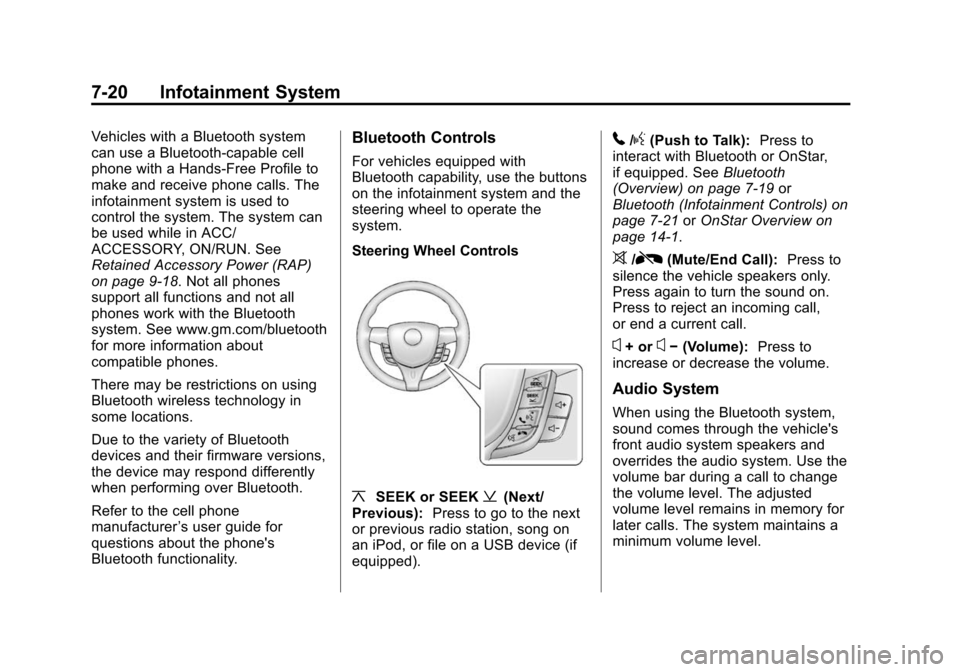
Steering Wheel Controls
¦SEEK or SEEK¥(Next/
Previous): Press to go to the next
or previous radio station, song on
an iPod, or file on a USB device (if
equipped).
5/g(Push to Talk): Press to
interact with Bluetooth or OnStar,
if equipped. See Bluetooth
(Overview) on page 7-19 or
Bluetooth (Infotainment Controls) on
page 7-21 orOnStar Overview on
page 14-1.
>/R(Mute/End Call): Press to
silence the vehicle speakers only.
Press again to turn the sound on.
Press to reject an incoming call,
or end a current call.
x+ orx− (Volume): Press to
increase or decrease the volume.
Audio System
When using the Bluetooth system,
sound comes through the vehicle's
front audio system speakers and
overrides the audio system. Use the
volume bar during a call to change
the volume level. The adjusted
volume level remains in memory for
later calls. The system maintains a
minimum volume level.
Page 162 of 362

Black plate (26,1)Chevrolet Spark Owner Manual (GMNA-Localizing-U.S./Canada-5853490) -
2014 - crc - 9/3/13
7-26 Infotainment System
Conditions that may occur when
playing Bluetooth music:
.It takes some time to transmit
data from the cell phone to the
infotainment system.
.If the cell phone or Bluetooth
device is not in the waiting
screen mode, it may not
automatically play despite being
carried out from the Bluetooth
music play mode.
.The infotainment system
transmits the order to play from
the cell phone in the Bluetooth
music play mode. If this is done
in a different mode, then the
device transmits the order to
stop. Depending on the cell
phone’s options, this order to
play/stop may take time to
activate.
.If the Bluetooth music playback
is not functioning, then check to
see if the cell phone is in the
waiting screen mode.
.Sounds may be cut off during
the Bluetooth music playback.
.The infotainment system outputs
the audio from the cell phone or
Bluetooth device as it is
transmitted.
Hands-Free Phone
General Information without
Touchscreen
To use the hands-free phone on
vehicles without a touchscreen
radio, press
5/>, select Onstar
Hands-Free Calling, then enter the
desired number.
General Information with
Touchscreen
Vehicles with a Hands-Free Phone
system can use a Bluetooth-capable
cell phone with a hands-free profile
to make and receive phone calls.
The infotainment system and voice
control are used to operate the
system. Not all phones support all
functions and not all phones work
with the Hands-Free Phone system.
Hands-Free Phone Controls
Use the buttons on the infotainment
system and the steering wheel to
operate the Hands-Free Phone
system.
Steering Wheel Controls
Steering wheel controls can be
used to:
.Answer incoming calls.
.Confirm system information.
.End a call.
.Decline a call.
.Cancel an operation.
Page 341 of 362

Black plate (1,1)Chevrolet Spark Owner Manual (GMNA-Localizing-U.S./Canada-5853490) -
2014 - crc - 9/3/13
OnStar 14-1
OnStar
OnStar Overview
OnStar Overview . . . . . . . . . . . . 14-1
OnStar Services
Emergency . . . . . . . . . . . . . . . . . . 14-2
Security . . . . . . . . . . . . . . . . . . . . . . 14-2
Navigation . . . . . . . . . . . . . . . . . . . 14-2
Connections . . . . . . . . . . . . . . . . . 14-3
Diagnostics . . . . . . . . . . . . . . . . . . 14-5
OnStar Additional Information
OnStar AdditionalInformation . . . . . . . . . . . . . . . . . 14-5
OnStar Overview
If equipped, this vehicle has a
comprehensive, in-vehicle system
that can connect to a live Advisor
for Emergency, Security, Navigation,
Connection, and Diagnostic
Services.
The OnStar system status light is
next to the OnStar buttons. If the
status light is:
.Solid Green: System is ready.
.Flashing Green: On a call.
.Red: Indicates a problem.
Press
Qor call 1-888-4-ONSTAR
(1-888-466-7827) to speak to an
Advisor. Press
=to:
.Make a call, end a call,
or answer an incoming call.
.Give OnStar Hands-Free Calling
voice commands.
.Give OnStar Turn-by-Turn
Navigation voice commands.
Requires the available Directions
and Connections service plan.
Press
Qto connect to a live
Advisor to:
.Verify account information or
update contact information.
.Get driving directions. Requires
the available Directions and
Connections service plan.
.Receive On-Demand
Diagnostics for a check of the
vehicle’s key operating systems.
.Receive Roadside Assistance.