change time CHEVROLET SPARK 2015 3.G User Guide
[x] Cancel search | Manufacturer: CHEVROLET, Model Year: 2015, Model line: SPARK, Model: CHEVROLET SPARK 2015 3.GPages: 363, PDF Size: 5.05 MB
Page 132 of 363
Black plate (1,1)Chevrolet Spark Owner Manual (GMNA-Localizing-U.S./Canada-7707489) -
2015 - CRC - 11/19/14
Lighting 6-1
Lighting
Exterior Lighting
Exterior Lamp Controls . . . . . . . . 6-1
Exterior Lamps OffReminder . . . . . . . . . . . . . . . . . . . . 6-1
Headlamp High/Low-Beam Changer . . . . . . . . . . . . . . . . . . . . . 6-1
Flash-to-Pass . . . . . . . . . . . . . . . . . 6-2
Daytime Running Lamps (DRL) . . . . . . . . . . . . . . . . 6-2
Automatic Headlamp System . . . . . . . . . . . . . . . . . . . . . . 6-2
Hazard Warning Flashers . . . . . 6-3
Turn and Lane-Change Signals . . . . . . . . . . . . . . . . . . . . . . 6-4
Fog Lamps . . . . . . . . . . . . . . . . . . . . 6-4
Interior Lighting
Instrument Panel Illumination Control . . . . . . . . . . . . . . . . . . . . . . 6-5
Courtesy Lamps . . . . . . . . . . . . . . 6-5
Dome Lamps . . . . . . . . . . . . . . . . . 6-5
Lighting Features
Entry Lighting . . . . . . . . . . . . . . . . . 6-6
Exit Lighting . . . . . . . . . . . . . . . . . . . 6-6
Battery Power Protection . . . . . . 6-6
Exterior Lighting
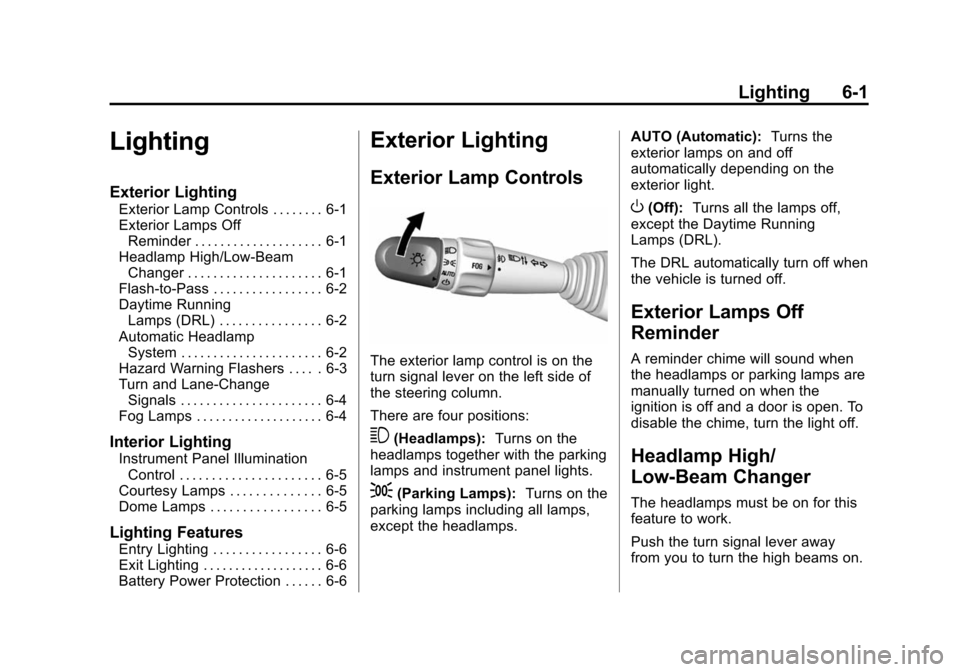
Exterior Lamp Controls
The exterior lamp control is on the
turn signal lever on the left side of
the steering column.
There are four positions:
3(Headlamps): Turns on the
headlamps together with the parking
lamps and instrument panel lights.
;(Parking Lamps): Turns on the
parking lamps including all lamps,
except the headlamps. AUTO (Automatic):
Turns the
exterior lamps on and off
automatically depending on the
exterior light.
O(Off): Turns all the lamps off,
except the Daytime Running
Lamps (DRL).
The DRL automatically turn off when
the vehicle is turned off.
Exterior Lamps Off
Reminder
A reminder chime will sound when
the headlamps or parking lamps are
manually turned on when the
ignition is off and a door is open. To
disable the chime, turn the light off.
Headlamp High/
Low-Beam Changer
The headlamps must be on for this
feature to work.
Push the turn signal lever away
from you to turn the high beams on.
Page 134 of 363
Black plate (3,1)Chevrolet Spark Owner Manual (GMNA-Localizing-U.S./Canada-7707489) -
2015 - CRC - 11/19/14
Lighting 6-3
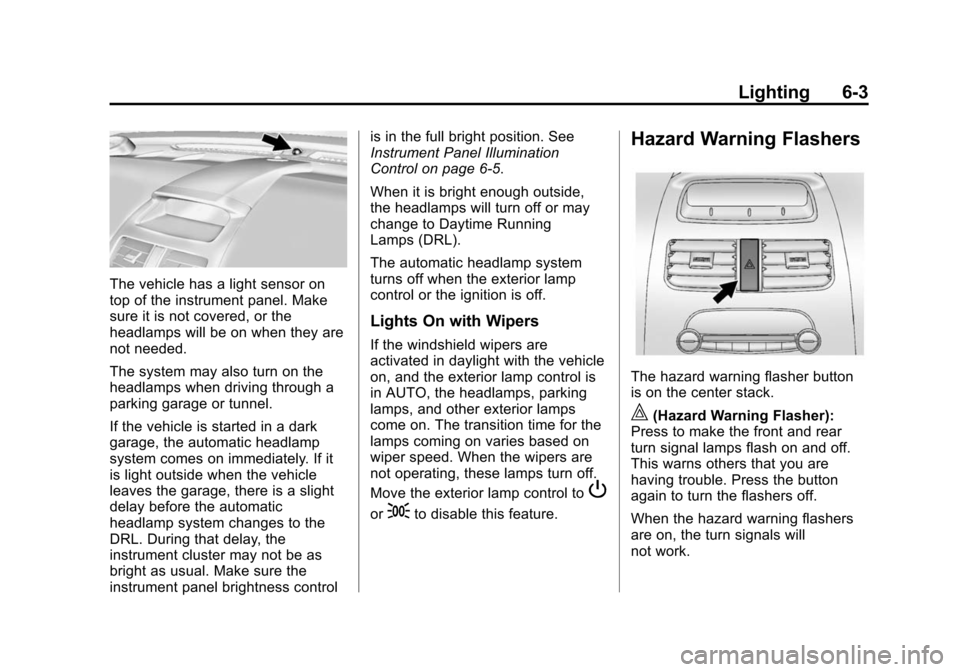
The vehicle has a light sensor on
top of the instrument panel. Make
sure it is not covered, or the
headlamps will be on when they are
not needed.
The system may also turn on the
headlamps when driving through a
parking garage or tunnel.
If the vehicle is started in a dark
garage, the automatic headlamp
system comes on immediately. If it
is light outside when the vehicle
leaves the garage, there is a slight
delay before the automatic
headlamp system changes to the
DRL. During that delay, the
instrument cluster may not be as
bright as usual. Make sure the
instrument panel brightness controlis in the full bright position. See
Instrument Panel Illumination
Control on page 6-5.
When it is bright enough outside,
the headlamps will turn off or may
change to Daytime Running
Lamps (DRL).
The automatic headlamp system
turns off when the exterior lamp
control or the ignition is off.
Lights On with Wipers
If the windshield wipers are
activated in daylight with the vehicle
on, and the exterior lamp control is
in AUTO, the headlamps, parking
lamps, and other exterior lamps
come on. The transition time for the
lamps coming on varies based on
wiper speed. When the wipers are
not operating, these lamps turn off.
Move the exterior lamp control to
P
or;to disable this feature.
Hazard Warning Flashers
The hazard warning flasher button
is on the center stack.
|(Hazard Warning Flasher):
Press to make the front and rear
turn signal lamps flash on and off.
This warns others that you are
having trouble. Press the button
again to turn the flashers off.
When the hazard warning flashers
are on, the turn signals will
not work.
Page 135 of 363
Black plate (4,1)Chevrolet Spark Owner Manual (GMNA-Localizing-U.S./Canada-7707489) -
2015 - CRC - 11/19/14
6-4 Lighting
Turn and Lane-Change
Signals
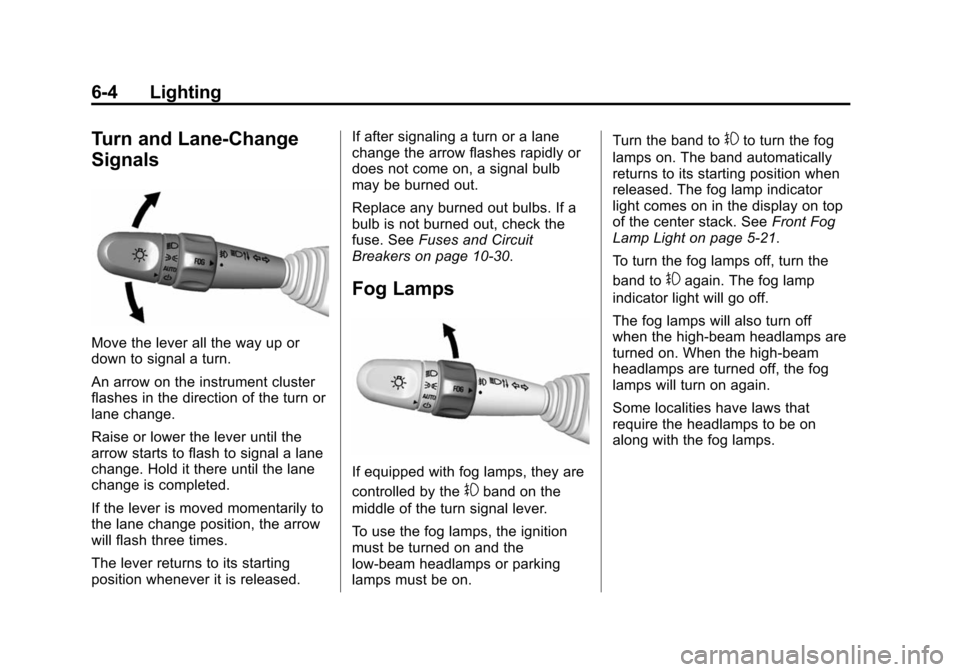
Move the lever all the way up or
down to signal a turn.
An arrow on the instrument cluster
flashes in the direction of the turn or
lane change.
Raise or lower the lever until the
arrow starts to flash to signal a lane
change. Hold it there until the lane
change is completed.
If the lever is moved momentarily to
the lane change position, the arrow
will flash three times.
The lever returns to its starting
position whenever it is released.If after signaling a turn or a lane
change the arrow flashes rapidly or
does not come on, a signal bulb
may be burned out.
Replace any burned out bulbs. If a
bulb is not burned out, check the
fuse. See
Fuses and Circuit
Breakers on page 10-30.
Fog Lamps
If equipped with fog lamps, they are
controlled by the
#band on the
middle of the turn signal lever.
To use the fog lamps, the ignition
must be turned on and the
low-beam headlamps or parking
lamps must be on. Turn the band to
#to turn the fog
lamps on. The band automatically
returns to its starting position when
released. The fog lamp indicator
light comes on in the display on top
of the center stack. See Front Fog
Lamp Light on page 5-21.
To turn the fog lamps off, turn the
band to
#again. The fog lamp
indicator light will go off.
The fog lamps will also turn off
when the high-beam headlamps are
turned on. When the high-beam
headlamps are turned off, the fog
lamps will turn on again.
Some localities have laws that
require the headlamps to be on
along with the fog lamps.
Page 137 of 363
Black plate (6,1)Chevrolet Spark Owner Manual (GMNA-Localizing-U.S./Canada-7707489) -
2015 - CRC - 11/19/14
6-6 Lighting
Lighting Features
Entry Lighting
The headlamps, parking lamps,
taillamps, and the interior lights turn
on briefly at night when the Remote
Keyless Entry (RKE) transmitter
K
is pressed. The lights turn off
immediately when the ignition is
turned on or automatically after a
brief period.
Exit Lighting
If the dome lamps are in the DOOR
position, they come on automatically
when the key is removed from the
ignition. The exterior lamps and
dome lamps remain on after the
door is closed for a set amount of
time, then automatically turn off.
The headlamps, parking lamps, and
back-up lamps will turn on for a set
amount of time when the vehicle is
turned off and the key is removed
from the ignition, then automatically
turn off.This feature can be changed. See
Vehicle Personalization on
page 5-27.
Battery Power Protection
The battery saver feature is
designed to protect the vehicle's
battery.
If some interior lamps and/or
headlamps are left on and the
ignition is turned off, the battery
rundown protection system
automatically turns the lamp off after
some time.
Page 158 of 363
Black plate (21,1)Chevrolet Spark Owner Manual (GMNA-Localizing-U.S./Canada-7707489) -
2015 - CRC - 11/19/14
Infotainment System 7-21
5/g(Push to Talk):Press to
interact with Bluetooth or OnStar,
if equipped. See Bluetooth
(Overview) on page 7-19 or
Bluetooth (Infotainment Controls) on
page 7-21 orOnStar Overview on
page 14-1.
>/R(Mute/End Call): Press to
silence the vehicle speakers only.
Press again to turn the sound on.
Press to reject an incoming call,
or end a current call.
x+ orx− (Volume): Press to
increase or decrease the volume.
Audio System
When using the Bluetooth system,
sound comes through the vehicle's
front audio system speakers and
overrides the audio system. Use the
volume bar during a call to change
the volume level. The adjusted
volume level remains in memory for
later calls. The system maintains a
minimum volume level.
Bluetooth (Infotainment
Controls)
To use infotainment controls to
access the menu system, see
Overview on page 7-3.
Pairing
A Bluetooth-enabled cell phone
must be paired to the Bluetooth
system and then connected to the
vehicle before it can be used. See
your cell phone manufacturer's user
guide for Bluetooth functions before
pairing the cell phone. If a Bluetooth
phone is not connected, calls will be
made using OnStar Hands-Free
Calling, if available. See OnStar
Overview on page 14-1.
Pairing Information
.A Bluetooth phone with MP3
capability cannot be paired to
the vehicle as a phone and an
MP3 player at the same time.
.Up to five cell phones can be
paired to the Bluetooth system.
.The pairing process is disabled
when the vehicle is moving.
.Pairing only needs to be
completed once, unless the
pairing information on the cell
phone changes or the cell phone
is deleted from the system.
.Only one paired cell phone can
be connected to the Bluetooth
system at a time.
.If multiple paired cell phones are
within range of the system, the
system connects to the first
available paired cell phone in the
order that they were first paired
to the system. To link to a
different paired phone, see
“Linking to a Different Phone”
later in this section.
When the Bluetooth device and
infotainment system are
successfully paired, the phone book
is downloaded automatically.
However, the phone book may not
be downloaded automatically
Page 163 of 363
Black plate (26,1)Chevrolet Spark Owner Manual (GMNA-Localizing-U.S./Canada-7707489) -
2015 - CRC - 11/19/14
7-26 Infotainment System
Search
Press and hold
gorlto rewind
or fast forward.
Playing a File Repeatedly
Press
vduring playback.
.1: Plays the current file
repeatedly.
.ALL: Plays all files repeatedly.
.OFF: Returns to normal
playback.
This function may not be supported
depending on the cell phone.
Playing a File Randomly
Press
uduring playback.
.NO: Plays all files repeatedly.
.OFF: Returns to normal
playback.
This function may not be supported
depending on the cell phone.
Do not change the track too quickly
when playing Bluetooth music. Conditions that may occur when
playing Bluetooth music:
.It takes some time to transmit
data from the cell phone to the
infotainment system.
.If the cell phone or Bluetooth
device is not in the waiting
screen mode, it may not
automatically play despite being
carried out from the Bluetooth
music play mode.
.The infotainment system
transmits the order to play from
the cell phone in the Bluetooth
music play mode. If this is done
in a different mode, then the
device transmits the order to
stop. Depending on the cell
phone’s options, this order to
play/stop may take time to
activate.
.If the Bluetooth music playback
is not functioning, then check to
see if the cell phone is in the
waiting screen mode.
.Sounds may be cut off during
the Bluetooth music playback.
.The infotainment system outputs
the audio from the cell phone or
Bluetooth device as it is
transmitted.
Hands-Free Phone
General Information without
Touchscreen
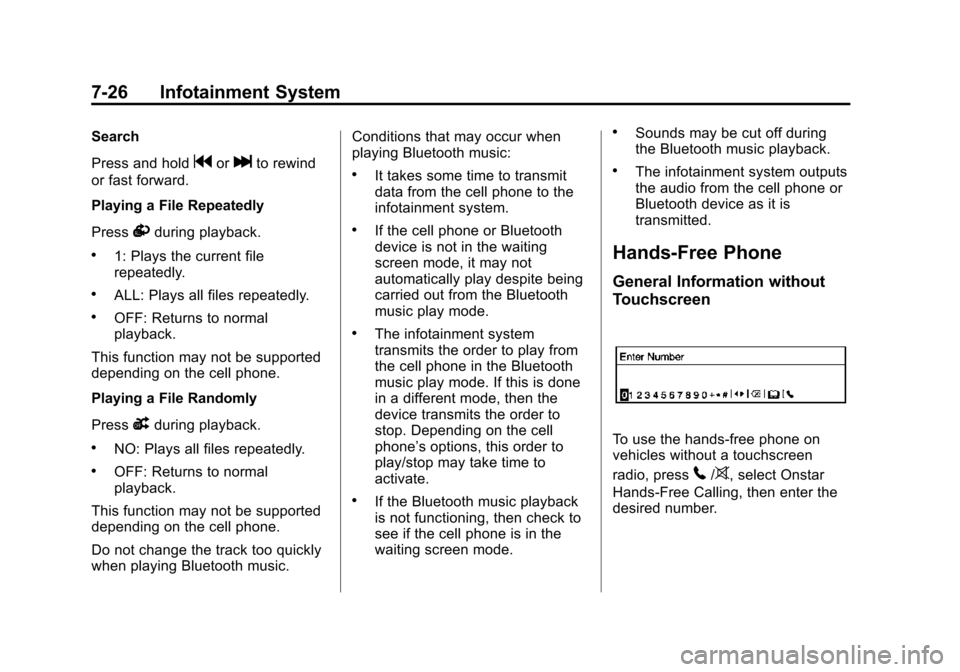
To use the hands-free phone on
vehicles without a touchscreen
radio, press
5/>, select Onstar
Hands-Free Calling, then enter the
desired number.
Page 173 of 363
Black plate (36,1)Chevrolet Spark Owner Manual (GMNA-Localizing-U.S./Canada-7707489) -
2015 - CRC - 11/19/14
7-36 Infotainment System
.Refer to the table for the
classification items related to the
search function provided by the
iPod/iPhone.
USB Player
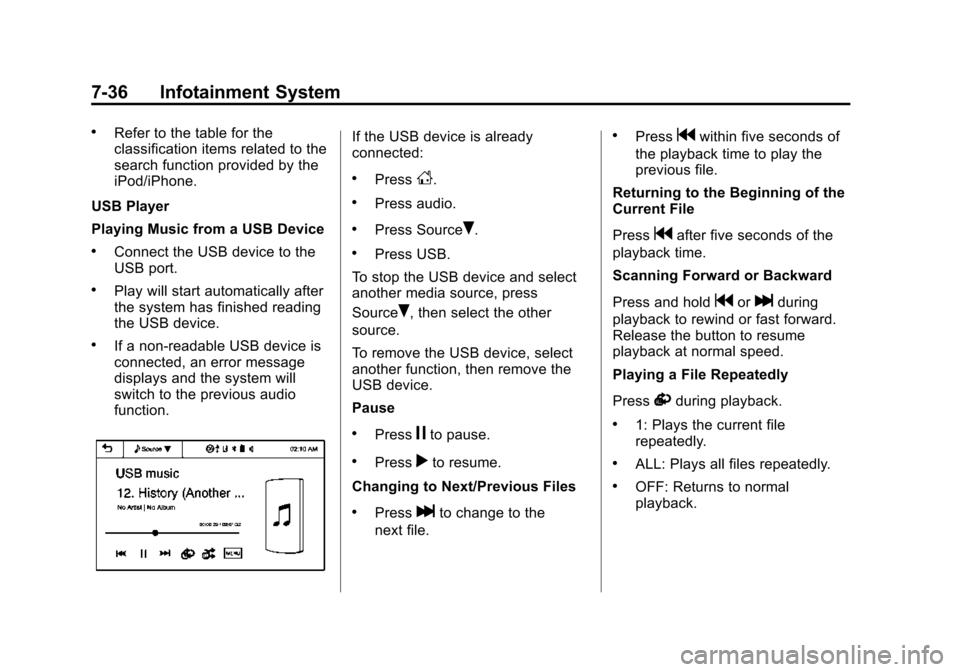
Playing Music from a USB Device
.Connect the USB device to the
USB port.
.Play will start automatically after
the system has finished reading
the USB device.
.If a non-readable USB device is
connected, an error message
displays and the system will
switch to the previous audio
function.
If the USB device is already
connected:
.PressD.
.Press audio.
.Press SourceR.
.Press USB.
To stop the USB device and select
another media source, press
Source
R, then select the other
source.
To remove the USB device, select
another function, then remove the
USB device.
Pause
.Pressjto pause.
.Pressrto resume.
Changing to Next/Previous Files
.Presslto change to the
next file.
.Pressgwithin five seconds of
the playback time to play the
previous file.
Returning to the Beginning of the
Current File
Press
gafter five seconds of the
playback time.
Scanning Forward or Backward
Press and hold
gorlduring
playback to rewind or fast forward.
Release the button to resume
playback at normal speed.
Playing a File Repeatedly
Press
vduring playback.
.1: Plays the current file
repeatedly.
.ALL: Plays all files repeatedly.
.OFF: Returns to normal
playback.
Page 175 of 363
Black plate (38,1)Chevrolet Spark Owner Manual (GMNA-Localizing-U.S./Canada-7707489) -
2015 - CRC - 11/19/14
7-38 Infotainment System
To remove the device, select
another function, then remove the
device.
Pause
.Pressjto pause.
.Pressrto resume.
Changing to Next/Previous Song
.Presslto change to the
next song.
.Pressgwithin two seconds of
the playback time to play the
previous file.
Returning to the Beginning of the
Current File
Press
gafter two seconds of the
playback time.
Scanning Forward or Backward
Press and hold
gorlduring
playback to rewind or fast forward.
Release the button to resume
playback at normal speed. Playing a File Repeatedly
Press
vduring playback.
.1: Plays the current file
repeatedly.
.ALL: Plays all files repeatedly.
.OFF: Returns to normal
playback.
Playing a File Randomly
Press
uduring playback.
.NO: Plays all files randomly.
.OFF: Returns to normal
playback.
Viewing Information on the
Currently Playing Song
Press the title during playback to
display information about the current
song playing.
.The information displayed
includes the title, file name,
folder name, and artist/album
saved with the song.
.Incorrect information cannot be
modified or corrected on the
infotainment system.
.The information for songs
expressed in special symbols or
in unavailable languages may be
displayed as “
u.”
Using the iPod Menu
.Press MENU during playback.
.Press the appropriate
play mode.
Tone Settings
1. Press
Ron the iPod menu.
2. Press tone settings. The tone settings menu is displayed. See
“Tone Settings” under“Radio
Controls with Touchscreen” in
Operation on page 7-6.
Page 178 of 363
Black plate (41,1)Chevrolet Spark Owner Manual (GMNA-Localizing-U.S./Canada-7707489) -
2015 - CRC - 11/19/14
Infotainment System 7-41
2. Press the screen to open to fullscreen. Press the screen again
to return to the previous screen.
If the USB device is already
connected:
1. Press
D.
2. Press
Gpicture & movie.
3. Press Source
R.
4. Press USB movie.
Movie is not available while driving.
Viewing a Slide Show
From the picture screen, press
z.
.The slide show will start to play.
.Press the screen to cancel the
slide show during the slide show
playback.
.The last played audio source will
play as background music
during the slide show playback. Pause
.Pressjto pause.
.Pressrto resume.
Changing to Next/Previous Movie
.Pressuto change to the
next file.
.Presstwithin five seconds of
the playback time to play the
previous file.
Returning to the Beginning of the
Current Movie
Press
tafter five seconds of the
playback time.
Scanning Forward or Backward
Press and hold
toruduring
playback to rewind or fast forward.
Release the button to resume
playback at normal speed. Viewing Full Screen
Press
tfrom the movie screen.
Press
tagain to return to the
previous screen.
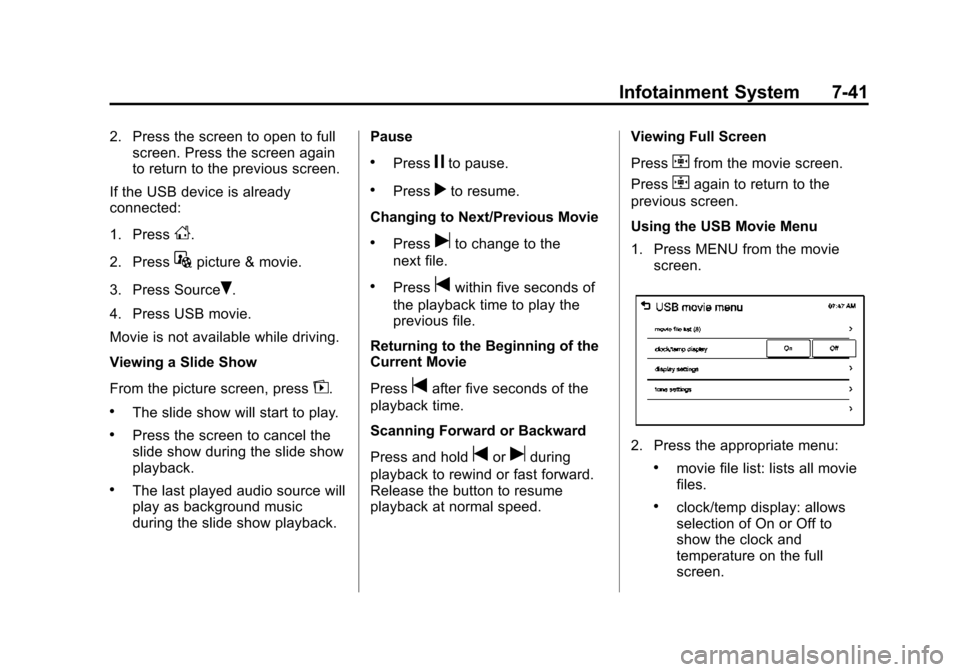
Using the USB Movie Menu
1. Press MENU from the movie screen.
2. Press the appropriate menu:
.movie file list: lists all movie
files.
.clock/temp display: allows
selection of On or Off to
show the clock and
temperature on the full
screen.
Page 180 of 363
Black plate (43,1)Chevrolet Spark Owner Manual (GMNA-Localizing-U.S./Canada-7707489) -
2015 - CRC - 11/19/14
Infotainment System 7-43
Covered by one or more of the
following U.S. patents: 7,295,673;
7,460,668; 7,515,710; 7,519,274.
DivX
®, DivX Certified®and
associated logos are trademarks of
Rovi Corporation or its subsidiaries
and are used under license.
“Made for iPod” and“Made for
iPhone” mean that an electronic
accessory has been designed to
connect specifically to iPod or
iPhone and has been certified by
the developer to meet Apple
performance standards.
iPod and iPhone are trademarks of
Apple Computer, Inc., registered in
the U.S. and other countries.
Fees and Taxes: Subscription fee,
taxes, one time activation fee, and
other fees may apply. Subscription
fee is consumer only. All fees and
programming subject to change.
Subscriptions subject to Customer
Agreement available at
www.siriusxm.com. SiriusXM
®
service only available in the
48 contiguous United States and
Canada.
In Canada: Some deterioration of
service may occur in extreme
northern latitudes. This is beyond
the control of SiriusXM
®Satellite
Radio.
It is prohibited to copy, decompile,
disassemble, reverse engineer,
hack, manipulate, or otherwise
make available any technology or
software incorporated in receivers compatible with the SiriusXM
Satellite Radio System or that
support the SiriusXM website, the
Online Service or any of its content.
Furthermore, the AMBER voice
compression software included in
this product is protected by
intellectual property rights including
patent rights, copyrights, and trade
secrets of Digital Voice
Systems, Inc.
General Requirements:
1. A License Agreement from
SiriusXM is required for any
product that incorporates
SiriusXM Technology and/or for
use of any of the SiriusXM
marks to be manufactured,
distributed, or marketed in the
SiriusXM Service Area.
2. For products to be distributed, marketed, and/or sold in
Canada, a separate agreement
is required with Canadian
Satellite Radio Inc. (operating as
XM Canada).