radio CHEVROLET SPARK 2015 3.G User Guide
[x] Cancel search | Manufacturer: CHEVROLET, Model Year: 2015, Model line: SPARK, Model: CHEVROLET SPARK 2015 3.GPages: 363, PDF Size: 5.05 MB
Page 122 of 363
Black plate (27,1)Chevrolet Spark Owner Manual (GMNA-Localizing-U.S./Canada-7707489) -
2015 - CRC - 11/19/14
Instruments and Controls 5-27
If a tire pressure message appears,
stop as soon as you can. Inflate the
tires by adding air until the tire
pressure is equal to the values
shown on the Tire and Loading
Information label. SeeTires on
page 10-36, Vehicle Load Limits on
page 9-9, and Tire Pressure on
page 10-43.Vehicle
Personalization
Personalization Menu (Radio
without Touchscreen)
The audio system controls and
touchscreen are used to access the
personalization menus for
customizing vehicle features.
The following are all possible
personalization features. Depending
on the vehicle, some may not be
available.
CONFIG (Configuration): Press to
access the Configuration
Settings Menu.
MENU/TUNE: Turn to scroll
through the menus or setup items.
Press to enter the menus and select
the menu items.
/BACK: Press to exit or return to
the previous screen or menu.
To access a menu:
1. Press the CONFIG button. 2. Turn the MENU/TUNE knob to
select the desired menu.
3. Press the MENU/TUNE knob.
Settings menus and functions may
vary depending on vehicle options.
Press the CONFIG button and the
following list of menu items may be
available:
.Language
.Time and Date Settings
.Radio Settings
.Vehicle Settings
Language
Select the Language menu and the
following may be displayed:
.English
.French
.Spanish
1. Turn MENU/TUNE to the desired language.
2. Press the MENU/TUNE knob to select.
Page 123 of 363
Black plate (28,1)Chevrolet Spark Owner Manual (GMNA-Localizing-U.S./Canada-7707489) -
2015 - CRC - 11/19/14
5-28 Instruments and Controls
Press/BACK to go back to the
last menu.
Time and Date Settings
Select the Time and Date Settings
menu and the following may be
displayed:
.Set Time
.Set Date
.Set Time Format
.Set Date Format
.Auto Time Adjust
Set Time
Select to manually set the time.
1. Turn the MENU/TUNE knob to the desired value.
2. Press the MENU/TUNE knob to select the value.
3. Turn the MENU/TUNE knob to change the desired value. 4. To save and return to the
Time Settings menu, press
the
/BACK button at any time.
Set Date
Select to manually set the date.
1. Turn the MENU/TUNE knob to the desired value.
2. Press the MENU/TUNE knob to select the value.
3. Turn the MENU/TUNE knob to change the desired value.
4. To save and return to the Time Settings menu, press
the
/BACK button at any time.
Set Time Format
Select to set the 12/24 hour format.
1. Press the MENU/TUNE knob to select the 12 hour or 24 hour
display format. Set Date Format
Select to set the month and day
format.
1. Turn the MENU/TUNE knob to
the desired setting.
2. Press the MENU/TUNE knob to select the DD/MM/YYYY (day/
month/year), MM/DD/YYYY
(month/day/year), or YYYY/MM/
DD (year/month/day) display
format.
Auto Time Adjust
Select to turn the auto time adjust
on or off.
1. Press the MENU/TUNE knob to turn On or Off.
Radio Settings
Select the Radio Settings menu and
the following may be displayed:
.Auto Volume
.Maximum Startup Volume
.Radio Favorites
Page 124 of 363
Black plate (29,1)Chevrolet Spark Owner Manual (GMNA-Localizing-U.S./Canada-7707489) -
2015 - CRC - 11/19/14
Instruments and Controls 5-29
Auto Volume
The auto volume feature
automatically adjusts the radio
volume to compensate for road and
wind noise as the vehicle speeds up
or slows down, so that the volume
level is consistent.
1. Turn the MENU/TUNE knob tothe desired value.
2. Press the MENU/TUNE knob to select the value.
Maximum Startup Volume
Select to manually set the startup
volume of the radio.
1. Turn the MENU/TUNE knob to increase or decrease the value.
2. To save, press the MENU/TUNE or
/BACK button.
Radio Favorites
Select to manually set the number
of favorite pages.
1. Turn the MENU/TUNE knob to select 1-6. 2. Press the MENU/TUNE knob to
select the value.
Vehicle Settings
Select the Vehicle Settings menu
and the following may be displayed:
.Comfort & Convenience
.Lighting
.Power Door Locks
.Lock, Unlock Settings
.Vehicle Factory Settings
Comfort & Convenience
Select the Comfort & Convenience
menu and the following may be
displayed:
.Chime Volume
.Auto Wipe in Reverse Gear
Chime Volume
Select to set the chime volume level
to Normal or High.
1. Turn the MENU/TUNE knob to select Chime Volume. 2. Press the MENU/TUNE knob to
select.
3. Turn the MENU/TUNE knob to the desired level.
4. Press the MENU/TUNE knob to select the level.
Auto Wipe in Reverse Gear
Select to set the Auto Wipe in
Reverse Gear feature on or off.
When on, and the front wipers are
on, the rear window wiper will turn
on automatically when the vehicle is
shifted into R (Reverse).
1. Turn the MENU/TUNE knob to select Auto Wipe in
Reverse Gear.
2. Press the MENU/TUNE knob to turn On or Off.
Lighting
Select the Lighting menu and the
following may be displayed:
.Exit Lighting
Page 126 of 363
Black plate (31,1)Chevrolet Spark Owner Manual (GMNA-Localizing-U.S./Canada-7707489) -
2015 - CRC - 11/19/14
Instruments and Controls 5-31
1. Turn the MENU/TUNE knob tothe desired selection.
2. Press the MENU/TUNE knob to select.
Remote Door Unlock
Select to set which doors will unlock
when pressing
Kon the RKE
transmitter. Select All Doors or
Driver Door.
When set to Driver Door, the driver
door will unlock the first time
Kis
pressed and all doors will unlock
when the button is pressed a
second time. When set to All Doors,
all of the doors will unlock at the first
press of
K.
1. Turn the MENU/TUNE knob to the desired selection.
2. Press the MENU/TUNE knob to select.
Vehicle Factory Settings
Select Vehicle Factory Settings to
return all of the vehicle
personalization to the default settings. Press MENU/TUNE when
Vehicle Factory Settings is selected
and open the menu. Select Yes or
No by turning and pressing the
MENU/TUNE knob.
Personalization Menu (Radio
with Touchscreen)
Settings can be made with the
ignition on and the vehicle not
moving.
The following are all possible
personalization features. Depending
on the vehicle, some may not be
available.
D(Home):
Press to access the
Home Page Menu.
QorR(Up/Down): Press to scroll
through the menus or setup items.
4(Back): Press to exit or return
to the previous screen or menu.
To access the menu:
1. Press
D.
2. Press
8settings. Press the menu item to select it.
Each of the menus is detailed in the
following information.
Settings menus and functions may
vary depending on vehicle options.
The following list of menu items may
be available:
.Language
.Time & Date Settings
.Radio Settings
.Connection Settings
.Vehicle Settings
.Text Scroll
.Touch Beep Sound
.Max Startup Volume
.System Version
.DivX®VOD
Language
Select the Language menu and the
following may be displayed:
.English
Page 127 of 363

Black plate (32,1)Chevrolet Spark Owner Manual (GMNA-Localizing-U.S./Canada-7707489) -
2015 - CRC - 11/19/14
5-32 Instruments and Controls
.French
.Spanish
Select the language desired.
Press
4.
Time & Date Settings
Select the Time & Date Settings
menu and the following may be
displayed:
.Set Time Format
.Set Date Format
.Set Time and Date
.Automatic Clock Sync
Set Time Format
Select to set the 12/24 hour format.
Press 12h or 24h.
Set Date Format
Select to set the month and day
format.
Press
SorTto select the DD/MM/
YYYY (day/month/year), MM/DD/
YYYY (month/day/year), or YYYY/
MM/DD (year/month/day) format. Set Time and Date
Select to manually set the time
and date.
1. Press
yorzto adjust the
value.
2. Press OK.
Automatic Clock Sync
Select to display the real or user
time on the radio.
Select On to display the real time or
Off to display the time set by
the user.
Radio Settings
Select the Radio Settings menu and
the following may be displayed:
.Auto Volume
.Radio Favorites
.Radio Tune Bar
.Radio Text
.XM Categories
.Radio Factory Settings Auto Volume
This feature adjusts the radio
volume to compensate for road and
wind noise as the vehicle speeds up
or slows down, so that the volume
level is consistent.
Press
SorTto select Off, Low,
Medium, or High.
Radio Favorites
Select to set the number of favorite
pages from one to seven.
Radio Tune Bar
Select to display the radio station
tune bar.
Select On or Off.
Radio Text
Select to display the radio broadcast
information.
Select On or Off.
XM Categories
Select to set the selection of XM
categories.
Page 128 of 363
Black plate (33,1)Chevrolet Spark Owner Manual (GMNA-Localizing-U.S./Canada-7707489) -
2015 - CRC - 11/19/14
Instruments and Controls 5-33
Radio Factory Settings
Select to restore the radio to the
factory settings.
Connection Settings
Select the Connection Settings
menu and the following may be
displayed:
.Bluetooth Settings
.Change Ringtone
.Ringtone Volume
Bluetooth Settings
Select this feature to:
.Connect, disconnect, or delete a
device.
.Change or set a Personal
Identification Number (PIN).
.Turn on or off the Bluetooth
connection.
.Check the device information.
Change Ringtone
Select to set different ringtones. Ringtone Volume
Select to set the ringtone volume.
Press
SorT.
Vehicle Settings
Select the Vehicle Settings menu
and the following may be displayed:
.Comfort & Convenience
.Lighting
.Power Door Locks
.Lock, Unlock Settings
.Rear Camera Option
.Vehicle Factory Settings
Comfort & Convenience
Select the Comfort & Convenience
menu and the following may be
displayed:
.Chime Volume
.Auto Wipe in Reverse Gear
Chime Volume
Select to set the chime volume
level. Select Normal or High. Press
4.
Auto Wipe in Reverse Gear
Select to set the Auto Wipe in
Reverse Gear feature on or off.
When on, and the front wipers are
on, the rear window wiper will turn
on automatically when the vehicle is
shifted into R (Reverse).
Select On or Off. Press
4.
Lighting
Select the Lighting menu and the
following may be displayed:
.Exit Lighting
.Vehicle Location Lights
Exit Lighting
Select to set how long the exterior
lamps stay on when leaving the
vehicle and it is dark outside.
Select Off, 30 Sec, 60 Sec, or 120 Sec. Press
4.
Page 138 of 363
Black plate (1,1)Chevrolet Spark Owner Manual (GMNA-Localizing-U.S./Canada-7707489) -
2015 - CRC - 11/19/14
Infotainment System 7-1
Infotainment
System
Introduction
Infotainment . . . . . . . . . . . . . . . . . . . 7-1
Theft-Deterrent Feature . . . . . . . 7-2
Overview . . . . . . . . . . . . . . . . . . . . . . 7-3
Home Page (Radio withTouchscreen) . . . . . . . . . . . . . . . . 7-5
Operation . . . . . . . . . . . . . . . . . . . . . 7-6
Radio
AM-FM Radio . . . . . . . . . . . . . . . . . 7-9
Satellite Radio . . . . . . . . . . . . . . . 7-14
Radio Reception . . . . . . . . . . . . . 7-15
Multi-Band Antenna . . . . . . . . . . 7-16
Audio Players
USB Port . . . . . . . . . . . . . . . . . . . . 7-16
Auxiliary Devices . . . . . . . . . . . . 7-17
Phone
Bluetooth (Overview) . . . . . . . . 7-19
Bluetooth (Infotainment Controls) . . . . . . . . . . . . . . . . . . . 7-21
Hands-Free Phone . . . . . . . . . . 7-26
Downloadable Applications
Smartphone Link (Overview) . . . . . . . . . . . . . . . . . 7-29
Smartphone Link (Pandora) . . . . . . . . . . . . . . . . . . 7-31
Smartphone Link
(Stitcher) . . . . . . . . . . . . . . . . . . . 7-33
Bluetooth Phone/Devices
Pictures and Movies (AudioSystem) . . . . . . . . . . . . . . . . . . . . 7-34
Pictures and Movies (Picture System) . . . . . . . . . . . . . . . . . . . . 7-39
Pictures and Movies (Movie System) . . . . . . . . . . . . . . . . . . . . 7-40
Trademarks and License
Agreements
Trademarks and LicenseAgreements . . . . . . . . . . . . . . . . 7-42
Introduction
Infotainment
Read the following pages to
become familiar with these features.
{Warning
Taking your eyes off the road for
too long or too often while using
any infotainment feature can
cause a crash. You or others
could be injured or killed. Do not
give extended attention to
infotainment tasks while driving.
Limit your glances at the vehicle
displays and focus your attention
on driving. Use voice commands
whenever possible.
Page 140 of 363
Black plate (3,1)Chevrolet Spark Owner Manual (GMNA-Localizing-U.S./Canada-7707489) -
2015 - CRC - 11/19/14
Infotainment System 7-3
Overview
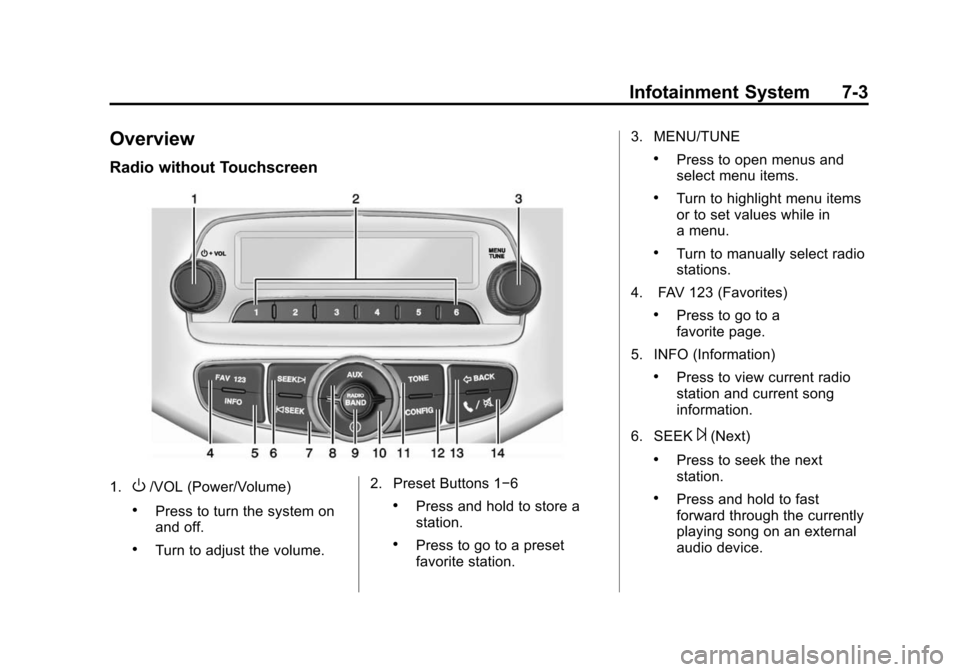
Radio without Touchscreen
1.O/VOL (Power/Volume)
.Press to turn the system on
and off.
.Turn to adjust the volume.2. Preset Buttons 1−6
.Press and hold to store a
station.
.Press to go to a preset
favorite station.3. MENU/TUNE
.Press to open menus and
select menu items.
.Turn to highlight menu items
or to set values while in
a menu.
.Turn to manually select radio
stations.
4. FAV 123 (Favorites)
.Press to go to a
favorite page.
5. INFO (Information)
.Press to view current radio
station and current song
information.
6. SEEK
¨(Next)
.Press to seek the next
station.
.Press and hold to fast
forward through the currently
playing song on an external
audio device.
Page 141 of 363

Black plate (4,1)Chevrolet Spark Owner Manual (GMNA-Localizing-U.S./Canada-7707489) -
2015 - CRC - 11/19/14
7-4 Infotainment System
7.©SEEK (Previous)
.Press to seek the previous
station.
.Press and hold to reverse
through the currently playing
song on an external audio
device.
8. AUX (Auxiliary)
.Press to access the auxiliary
input device.
9. RADIO/BAND
.Press to select AM or FM.
.Press to select the radio
when listening to a different
audio source. 10.
H(Clock)
.Press to enter the Time and
Date settings menu.
11. TONE
.Press to open the
Tone menu.
12. CONFIG (Configuration)
.Press to open the System
Configuration menu. 13.
/BACK
.Press to go to the previous
screen.
.Press to cancel entered
content.
14.
5/>(Phone/Mute)
.Press to open the Phone
main menu.
.Press to mute the audio
system.
Page 142 of 363
Black plate (5,1)Chevrolet Spark Owner Manual (GMNA-Localizing-U.S./Canada-7707489) -
2015 - CRC - 11/19/14
Infotainment System 7-5
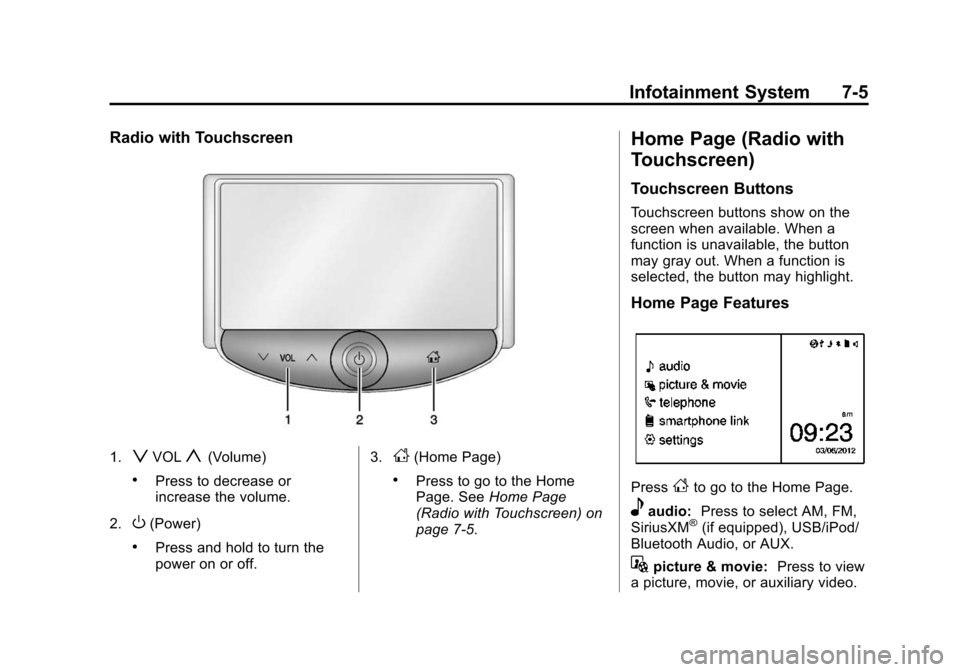
Radio with Touchscreen
1.zVOLy(Volume)
.Press to decrease or
increase the volume.
2.
O(Power)
.Press and hold to turn the
power on or off. 3.
D(Home Page)
.Press to go to the Home
Page. See
Home Page
(Radio with Touchscreen) on
page 7-5.
Home Page (Radio with
Touchscreen)
Touchscreen Buttons
Touchscreen buttons show on the
screen when available. When a
function is unavailable, the button
may gray out. When a function is
selected, the button may highlight.
Home Page Features
PressFto go to the Home Page.
eaudio: Press to select AM, FM,
SiriusXM®(if equipped), USB/iPod/
Bluetooth Audio, or AUX.
Gpicture & movie: Press to view
a picture, movie, or auxiliary video.