change wheel CHEVROLET SPARK 2022 Owners Manual
[x] Cancel search | Manufacturer: CHEVROLET, Model Year: 2022, Model line: SPARK, Model: CHEVROLET SPARK 2022Pages: 270, PDF Size: 8.57 MB
Page 6 of 270
Chevrolet Spark Owner Manual (GMNA-Localizing-U.S./Canada-14622955) -
2021 - CRC - 8/17/20
Introduction 5
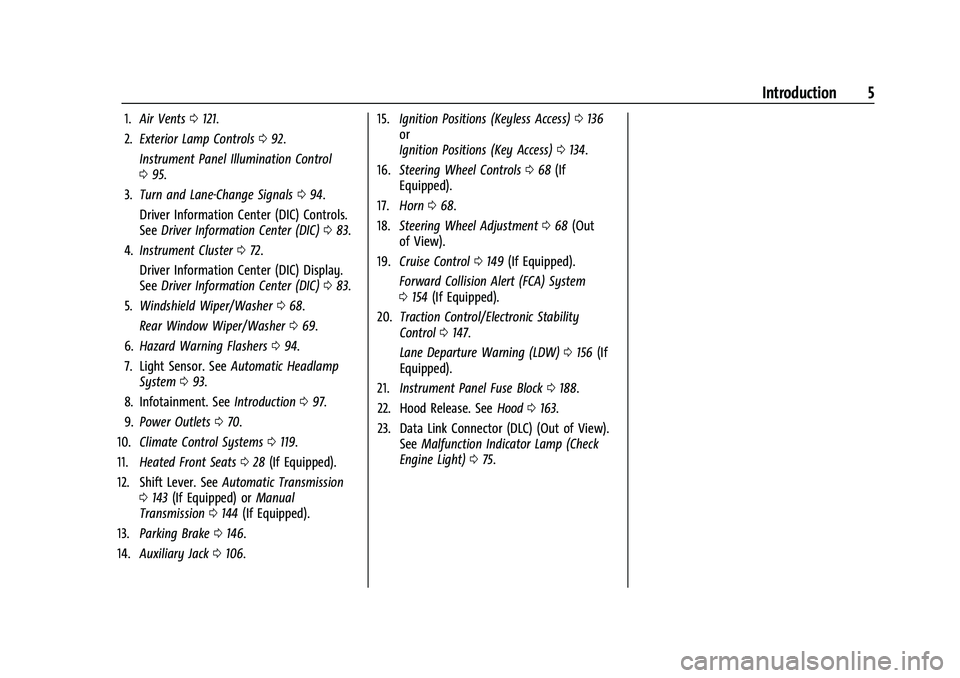
1.Air Vents 0121.
2. Exterior Lamp Controls 092.
Instrument Panel Illumination Control
0 95.
3. Turn and Lane-Change Signals 094.
Driver Information Center (DIC) Controls.
See Driver Information Center (DIC) 083.
4. Instrument Cluster 072.
Driver Information Center (DIC) Display.
See Driver Information Center (DIC) 083.
5. Windshield Wiper/Washer 068.
Rear Window Wiper/Washer 069.
6. Hazard Warning Flashers 094.
7. Light Sensor. See Automatic Headlamp
System 093.
8. Infotainment. See Introduction097.
9. Power Outlets 070.
10. Climate Control Systems 0119.
11. Heated Front Seats 028 (If Equipped).
12. Shift Lever. See Automatic Transmission
0 143 (If Equipped) or Manual
Transmission 0144 (If Equipped).
13. Parking Brake 0146.
14. Auxiliary Jack 0106. 15.
Ignition Positions (Keyless Access) 0136
or
Ignition Positions (Key Access) 0134.
16. Steering Wheel Controls 068 (If
Equipped).
17. Horn 068.
18. Steering Wheel Adjustment 068 (Out
of View).
19. Cruise Control 0149 (If Equipped).
Forward Collision Alert (FCA) System
0 154 (If Equipped).
20. Traction Control/Electronic Stability
Control 0147.
Lane Departure Warning (LDW) 0156 (If
Equipped).
21. Instrument Panel Fuse Block 0188.
22. Hood Release. See Hood0163.
23. Data Link Connector (DLC) (Out of View). SeeMalfunction Indicator Lamp (Check
Engine Light) 075.
Page 8 of 270
Chevrolet Spark Owner Manual (GMNA-Localizing-U.S./Canada-14622955) -
2021 - CRC - 8/17/20
Keys, Doors, and Windows 7
{Warning
If the key is unintentionally rotated while
the vehicle is running, the ignition could
be moved out of the RUN position. This
could be caused by heavy items hanging
from the key ring, or by large or long
items attached to the key ring that could
be contacted by the driver or steering
wheel. If the ignition moves out of the
RUN position, the engine will shut off,
braking and steering power assist may be
impacted, and airbags may not deploy.
To reduce the risk of unintentional
rotation of the ignition key, do not
change the way the ignition key and
Remote Keyless Entry (RKE) transmitter,
if equipped, are connected to the
provided key rings.
The ignition key and key rings, and RKE
transmitter, if equipped, are designed to
work together as a system to reduce the
risk of unintentionally moving the key out
of the RUN position. The ignition key has a
small hole to allow attachment of the
provided key ring. It is important that any replacement ignition keys have a small hole.
See your dealer if a replacement key is
required.
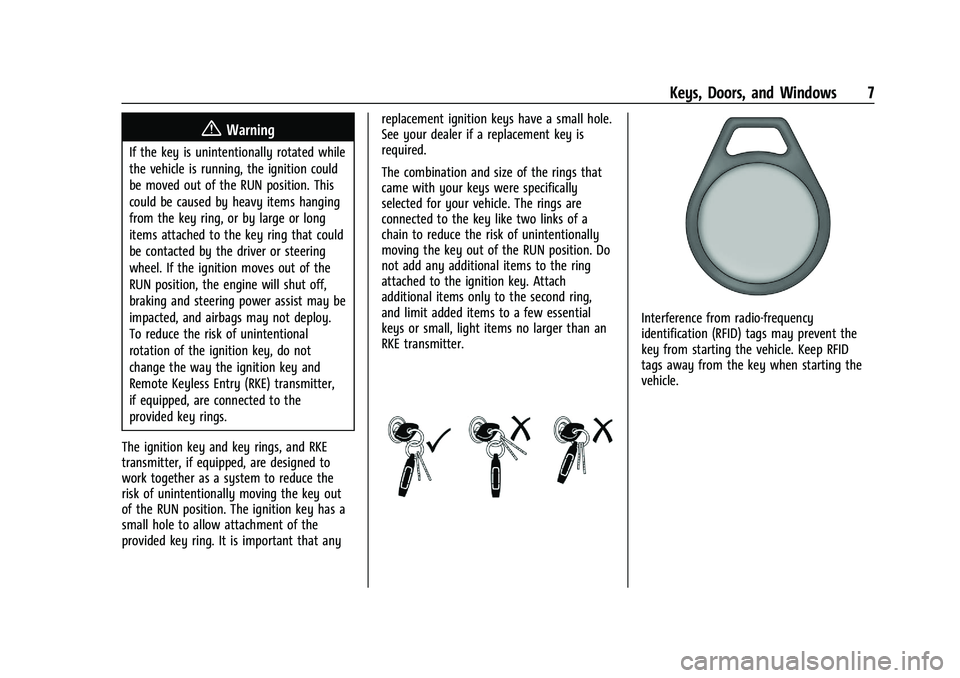
The combination and size of the rings that
came with your keys were specifically
selected for your vehicle. The rings are
connected to the key like two links of a
chain to reduce the risk of unintentionally
moving the key out of the RUN position. Do
not add any additional items to the ring
attached to the ignition key. Attach
additional items only to the second ring,
and limit added items to a few essential
keys or small, light items no larger than an
RKE transmitter.
Interference from radio-frequency
identification (RFID) tags may prevent the
key from starting the vehicle. Keep RFID
tags away from the key when starting the
vehicle.
Page 69 of 270

Chevrolet Spark Owner Manual (GMNA-Localizing-U.S./Canada-14622955) -
2021 - CRC - 8/17/20
68 Instruments and Controls
Controls
Steering Wheel Adjustment
To adjust the steering wheel:1. Pull the lever down.
2. Move the steering wheel up or down.
3. Pull the lever up to lock the steering wheel in place.
Do not adjust the steering wheel while
driving.
Steering Wheel Controls
For vehicles with audio steering wheel
controls, some audio controls can be
adjusted at the steering wheel.
b/g: For vehicles with Bluetooth or
OnStar, press to interact with those systems.
See Bluetooth (Overview) 0108 or
Bluetooth (Pairing and Using a Phone) 0109
or
OnStar Overview 0251.
$/i:Press to silence the vehicle
speakers only. Press again to turn the sound
on. For vehicles with Bluetooth or OnStar
systems, press to reject an incoming call,
or to end a current call.
_SRC^: Press to select a source or toggle
to change favorite stations.
+
x− :Press + to increase the volume.
Press −to decrease the volume.
Horn
Pressaon the steering wheel pad to
sound the horn.
Windshield Wiper/Washer
The windshield wiper/washer lever is on the
right side of the steering column.
Move the lever to one of the following
positions:
HI : Use for fast wipes.
LO : Use for slow wipes.
Page 77 of 270

Chevrolet Spark Owner Manual (GMNA-Localizing-U.S./Canada-14622955) -
2021 - CRC - 8/17/20
76 Instruments and Controls
Caution
If the vehicle is driven continually with
this light on, the emission control system
may not work as well, the fuel economy
may be lower, and the vehicle may not
run smoothly. This could lead to costly
repairs that might not be covered by the
vehicle warranty.
Caution
Modifications to the engine, transmission,
exhaust, intake, or fuel system, or the
use of replacement tires that do not
meet the original tire specifications, can
cause this light to come on. This could
lead to costly repairs not covered by the
vehicle warranty. This could also affect
the vehicle’s ability to pass an Emissions
Inspection/Maintenance test. See
Accessories and Modifications0162.
If the light is flashing : A malfunction has
been detected that could damage the
emission control system and increase vehicle
emissions. Diagnosis and service may be
required. To help prevent damage, reduce vehicle
speed and avoid hard accelerations and
uphill grades.
If the light continues to flash, find a safe
place to park. Turn the vehicle off and wait
at least 10 seconds before restarting the
engine. If the light is still flashing, follow
the previous guidelines and see your dealer
for service as soon as possible.
If the light is on steady :
A malfunction has
been detected. Diagnosis and service may be
required.
Check the following:
.A loose or missing fuel cap may cause
the light to come on. See Filling the Tank
0 158. A few driving trips with the cap
properly installed may turn the light off.
.Poor fuel quality can cause inefficient
engine operation and poor driveability,
which may go away once the engine is
warmed up. If this occurs, change the fuel
brand. It may require at least one full
tank of the proper fuel to turn the light
off. See Recommended Fuel 0157.
If the light remains on, see your dealer.
Emissions Inspection and Maintenance
Programs
If the vehicle requires an Emissions
Inspection/Maintenance test, the test
equipment will likely connect to the
vehicle's Data Link Connector (DLC).
The DLC is under the instrument panel to
the left of the steering wheel. Connecting
devices that are not used to perform an
Emissions Inspection/Maintenance test or to
service the vehicle may affect vehicle
operation. See Add-On Electrical Equipment
0 160. See your dealer if assistance is
needed.
The vehicle may not pass inspection if:
.The light is on when the engine is
running.
.The light does not come on when the
ignition is on with the engine not running
for Key Access or in Service Mode for
Keyless Access.
Page 80 of 270
Chevrolet Spark Owner Manual (GMNA-Localizing-U.S./Canada-14622955) -
2021 - CRC - 8/17/20
Instruments and Controls 79
This light changes to amber and flashes to
indicate that the lane marking has been
crossed without using a turn signal in that
direction.
SeeLane Departure Warning (LDW) 0156.
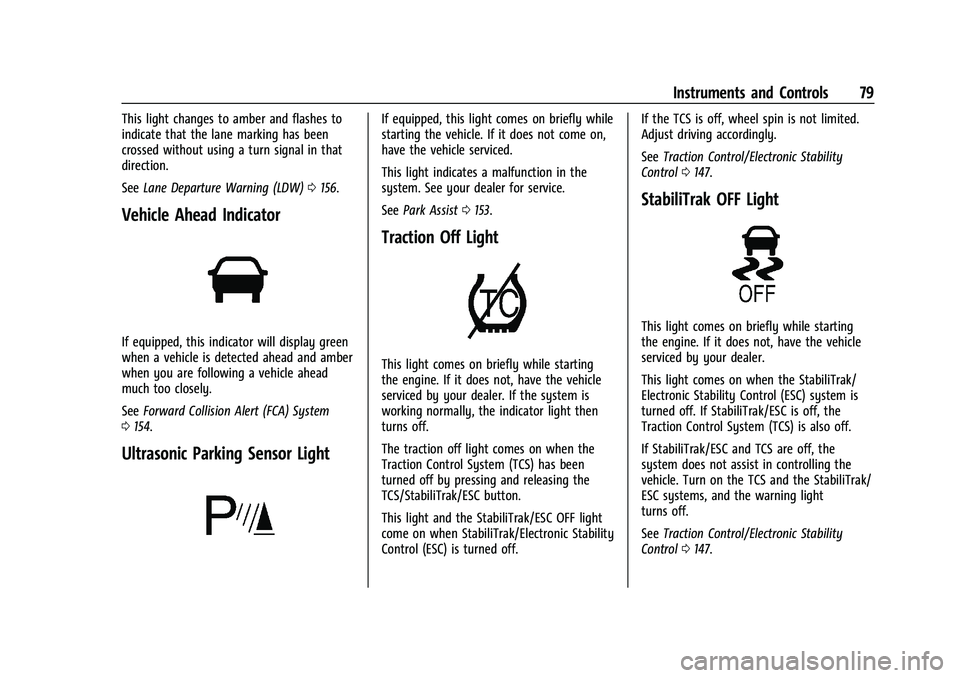
Vehicle Ahead Indicator
If equipped, this indicator will display green
when a vehicle is detected ahead and amber
when you are following a vehicle ahead
much too closely.
See Forward Collision Alert (FCA) System
0 154.
Ultrasonic Parking Sensor Light
If equipped, this light comes on briefly while
starting the vehicle. If it does not come on,
have the vehicle serviced.
This light indicates a malfunction in the
system. See your dealer for service.
See Park Assist 0153.
Traction Off Light
This light comes on briefly while starting
the engine. If it does not, have the vehicle
serviced by your dealer. If the system is
working normally, the indicator light then
turns off.
The traction off light comes on when the
Traction Control System (TCS) has been
turned off by pressing and releasing the
TCS/StabiliTrak/ESC button.
This light and the StabiliTrak/ESC OFF light
come on when StabiliTrak/Electronic Stability
Control (ESC) is turned off. If the TCS is off, wheel spin is not limited.
Adjust driving accordingly.
See
Traction Control/Electronic Stability
Control 0147.
StabiliTrak OFF Light
This light comes on briefly while starting
the engine. If it does not, have the vehicle
serviced by your dealer.
This light comes on when the StabiliTrak/
Electronic Stability Control (ESC) system is
turned off. If StabiliTrak/ESC is off, the
Traction Control System (TCS) is also off.
If StabiliTrak/ESC and TCS are off, the
system does not assist in controlling the
vehicle. Turn on the TCS and the StabiliTrak/
ESC systems, and the warning light
turns off.
See Traction Control/Electronic Stability
Control 0147.
Page 88 of 270
Chevrolet Spark Owner Manual (GMNA-Localizing-U.S./Canada-14622955) -
2021 - CRC - 8/17/20
Instruments and Controls 87
oil change. To reset the engine oil life
system, press SET/CLR while the Oil Life
display is active. SeeEngine Oil Life System
0 168.
Vehicle Messages
Vehicle Messages (Base Level
Cluster)
DIC messages display when the status of the
vehicle has changed and action may be
needed to correct the condition. Multiple
messages appear one after another. All
messages should be taken seriously.
On the base level cluster, vehicle messages
appear as code numbers. Some of these
codes may appear along with the service
vehicle soon light and the owner’s manual
symbol in the DIC display.
2 : No Remote Detected, Press Clutch To
Restart
4 : A/C Off Due to High Engine Temp
5 : Steering Column Is Locked
7 : Turn Steering Wheel, Turn Key Off,
Then On
9 : Turn Steering Wheel, Start Vehicle Again 10 :
Brakes Overheated
15 : Check High Mounted Brake Lamp
16 : Check Brake Lamps
17 : Headlamp Leveling Malfunction —
Contact Service
18 : Left Low Beam Failure
20 : Right Low Beam Failure
21 : Check Left Position Lamp
22 : Check Right Position Lamp
23 : Reversing Lamp Failure
24 : License Plate Lamp Failure
25 : Left Front Turn Indicator Failure
26 : Left Rear Turn Indicator Failure
27 : Right Front Turn Indicator Failure
28 : Right Rear Turn Indicator Failure
35 : Replace Battery In Remote Key
49 : Lane Departure Warning Unavailable
52 : Change Timing Belt –See Owner’s
Manual
53 : Tighten Gas Cap
59 : Open, Then Close Driver Window
65 : Theft Attempted 66 :
Service Theft Alarm
67 : Service Steering Column Lock
68 : Service Power Steering, Drive with Care
77 : Service Front Camera
79 : Engine Oil Low –Add Oil
81 : Service Transmission
84 : Engine Power Is Reduced
88 : Use Transmitter Pocket to Start
89 : Service Vehicle Soon
91 : No Remote Detected
92 : No Remote Detected, Press Brake To
Restart
93 : Press Button Again To Turn Engine Off
94 : Shift to Park
95 : Service Airbag
174 : Low Battery
258 : Park Assist Off
Engine Oil Messages
:% CHANGE
This message displays when the engine oil
needs to be changed. When changing the
engine oil, be sure to reset the Oil Life
Page 107 of 270

Chevrolet Spark Owner Manual (GMNA-Localizing-U.S./Canada-14622955) -
2021 - CRC - 8/17/20
106 Infotainment System
Select from one of the following Browse
options to save a favorite:
Playlists :Touch
Hnext to any playlist to
store the playlist as a favorite. Touch a
saved favorite to recall a favorite playlist.
The first song in the playlist begins to play.
Artists : Touch
Hnext to any artist to
store the artist as a favorite. Touch a saved
favorite to recall a favorite artist. The first
song in the artist list begins to play.
Songs : Touch
Hnext to any song to store
the song as a favorite. Touch a saved
favorite to recall a favorite song.
Albums : Touch
Hnext to any album to
store the album as a favorite. Touch a saved
favorite to recall a favorite album. The first
song in the album list begins to play.
Genres : Touch
Hnext to any genre to
store the genre as a favorite. Touch a saved
favorite to recall a favorite genre. The first
song of the genre begins to play.
Podcasts : Touch
Hnext to any podcast to
store the podcast as a favorite. Touch a
saved favorite to recall a favorite podcast.
The podcast begins to play. Audiobooks :
Touch
Hnext to any
audiobook to store the audiobook as a
favorite. Touch a saved favorite to recall a
favorite audiobook. The first chapter in the
audiobook begins to play.
Media Playback and Mute
USB playback will be paused if the system is
muted. If the steering wheel mute control is
pressed again, playback will resume.
If the source is changed while in mute,
playback resumes and audio will unmute.
Auxiliary Jack
This vehicle has an auxiliary input jack in
the center stack. Possible auxiliary audio
sources include:
.Laptop computer
.Audio music player
This jack is not an audio output. Do not
plug headphones into the auxiliary input
jack. Set up an auxiliary device while the
vehicle is parked.
Connect a 3.5 mm (1/8 in) cable from the
auxiliary device to the auxiliary input jack.
When a device is connected, the system can
play audio from the device over the vehicle
speakers. If an auxiliary device has already been
connected, but a different source is currently
active, touch More and select AUX to make
the source active.
Shuffle and Browse are not available in the
AUX source menu.
Bluetooth Audio
Music may be played from a paired
Bluetooth device. See
Bluetooth (Overview)
0 108 or
Bluetooth (Pairing and Using a Phone)
0 109.
Volume and song selection may be
controlled by using the infotainment
controls or the phone/device. If Bluetooth is
selected and no volume is present, check the
volume setting on both your phone/device
and the infotainment system.
Music can be launched by touching
Bluetooth from the recent sources list on
the left of the screen or by touching More
and then selecting the Bluetooth device.
To play music via Bluetooth: 1. Power on the device, and pair to connect the device.
Page 109 of 270

Chevrolet Spark Owner Manual (GMNA-Localizing-U.S./Canada-14622955) -
2021 - CRC - 8/17/20
108 Infotainment System
Advisor Call
Selecting Advisor Call is the same as
pressing
Qor calling 1-888- 4ONSTAR
(1-888-466-7827). The X option in the upper
right corner of the screen does not end the
call, but returns to the previous display.
Turn-by-Turn Directions
With a connected plan, an OnStar Advisor
can download a destination to the vehicle or
its embedded navigation system,
if equipped. Touch Turn-by-Turn Directions
from the main page of the OnStar app and
follow the display prompts. A destination
transfer from OnStar will show the detail
view of the destination when it is
transferred from OnStar to the Navigation
application. Touch OK to go back to the
previous menu. An ABS and Guidance or
Navigation Add-On Plan is required. See
www.onstar.com for a coverage map.
Services vary by model. Map coverage is
available in the United States, Puerto Rico,
and Canada.
Wi-Fi Hotspot
Touch to display the Settings page, which
shows the configurations for the vehicle
hotspot and allows them to be changed. For more information, see www.onstar.com.Phone
Bluetooth (Overview)
The Bluetooth-capable system can interact
with many cell phones, allowing:
.Placement and receipt of calls in a
hands-free mode.
.Sharing of the cell phone’s address book
or contact list with the vehicle.
To minimize driver distraction, before
driving, and with the vehicle parked:
.Become familiar with the features of the
cell phone. Organize the phone book and
contact lists clearly and delete duplicate
or rarely used entries. If possible,
program speed dial or other shortcuts.
.Review the controls and operation of the
infotainment system.
.Pair cell phone(s) to the vehicle. The
system may not work with all cell
phones. See “Pairing”later in this section.
Vehicles with a Bluetooth system can use a
Bluetooth-capable cell phone with a
Hands-Free Profile to make and receive
phone calls. The infotainment system and
voice recognition are used to control the system. The system can be used when the
ignition is on or in ACC/ACCESSORY. The
range of the Bluetooth system can be up to
9.1 m (30 ft). Not all phones support all
functions and not all phones work with the
Bluetooth system. See my.chevrolet.com for
more information about compatible phones.
Controls
Use the controls on the center stack and the
steering wheel to operate the Bluetooth
system.
Steering Wheel Controls
b/g:
Press to answer incoming calls.
Hold to start voice recognition on your
connected Bluetooth phone, for example Siri
and Google.
$/i: Press to end a call, decline a call,
or cancel an operation. Press to mute or
unmute the infotainment system when not
on a call.
Infotainment System Controls
For information about how to navigate the
menu system using the infotainment
controls, see Introduction097.
Page 110 of 270

Chevrolet Spark Owner Manual (GMNA-Localizing-U.S./Canada-14622955) -
2021 - CRC - 8/17/20
Infotainment System 109
Phone
Touch the Phone icon on the Home Page to
enter the phone main menu.
Audio System
When using the Bluetooth phone system,
sound comes through the vehicle's front
audio system speakers and overrides the
audio system. The volume level while on a
phone call can be adjusted by pressing the
steering wheel controls or by touching the
volume control on the center stack. The
adjusted volume level remains in memory
for later calls. The volume cannot be
lowered beyond a certain level.
Bluetooth (Pairing and Using a
Phone)
Pairing
A Bluetooth-enabled cell phone must be
paired to the Bluetooth system and then
connected to the vehicle before it can be
used. See the cell phone manufacturer's user
guide for Bluetooth functions before pairing
the cell phone.Pairing Information
.If no mobile device has been connected,
the Phone main page on the infotainment
display will show the Connect Phone
option. Touch this option to connect.
Another way to connect is to touch the
Phones tab at the top right of the display
and then touch Add Phone.
.A Bluetooth phone with music capability
can be paired to the vehicle as a phone
and a music player at the same time.
.Up to 10 devices can be paired to the
Bluetooth system.
.The pairing process is disabled when the
vehicle is moving.
.Pairing only needs to be completed once,
unless the pairing information on the cell
phone changes or the cell phone is
deleted from the system.
.If multiple paired cell phones are within
range of the system, the system connects
to the paired cell phone that is set to
First to Connect. If there is no phone set
to First to Connect, it will link to the
device which was used last. To link to a
different paired phone, see
“Linking to a
Different Phone” later in this section. Pairing a Phone
1. Make sure Bluetooth has been enabled on the cell phone before pairing is
started.
2. Touch the Phone icon on the Home Page or the phone shortcut on the
applications tray at the bottom of the
display.
3. Touch Phone at the top of the infotainment display. There is also an
Add option in the middle of the Phone
screen. Touching this Add Phone option
will shortcut to the Phone List menu.
4. Touch Add Phone.
5. Select the vehicle name shown on the infotainment display from your phone’s
Bluetooth Settings list.
6. Follow the instructions on the cell phone to confirm the six-digit code shown on
the infotainment display and touch Pair.
The code on the cell phone and
infotainment display will need to be
acknowledged for a successful pair.
7. Start the pairing process on the cell phone to be paired to the vehicle. See
the cell phone manufacturer's user guide
Page 113 of 270

Chevrolet Spark Owner Manual (GMNA-Localizing-U.S./Canada-14622955) -
2021 - CRC - 8/17/20
112 Infotainment System
Accepting a Call
There are three ways to accept a call:
.Pressb/gon the steering wheel
controls.
.Touch Answer on the infotainment
display.
.Select Answer on the instrument cluster
using the select control.
Declining a Call
There are three ways to decline a call:
.Press$/ion the steering wheel
controls.
.Touch Ignore on the infotainment display.
.Select Ignore on the instrument cluster
using the select control.
Call Waiting
Call waiting must be supported on the
Bluetooth phone and enabled by the
wireless service carrier to work.
Accepting a Call
There are three ways to accept a
call-waiting call:
.Pressb/gon the steering wheel
controls.
.Touch Switch on the infotainment display.
.Select Switch on the instrument cluster
using the select control.
Declining a Call
There are three ways to decline a
call-waiting call:
.Press$/ion the steering wheel
controls.
.Touch Ignore on the infotainment display.
.Select Ignore on the instrument cluster
using the select control.
Switching Between Calls (Call Waiting
Calls Only)
To switch between calls, press the Phone
icon on the Home Page to display Call View.
While in Call View, touch the call
information of the call on hold to change
calls.
Three-Way Calling
Three-way calling must be supported on the
Bluetooth phone and enabled by the
wireless service carrier to work.
To start a three-way call while in a
current call: 1. In the Call View, touch Add Call to add another call. 2. Initiate the second call by selecting from
Recents, Contacts, or Keypad.
3. When the second call is active, touch the merge icon to conference the three-way
call together.
Ending a Call
.Press$/ion the steering wheel
controls.
.Touch#on the infotainment display,
next to a call to end only that call.
.Select End on the instrument cluster using
the select control.
Dual Tone Multi-Frequency (DTMF) Tones
The in-vehicle Bluetooth system can send
numbers during a call. This is used when
calling a menu-driven phone system. Use the
Keypad to enter the number.
Apple CarPlay and Android Auto
If equipped, Android Auto and/or Apple
CarPlay capability may be available through
a compatible smartphone. If available, the
Android Auto and Apple CarPlay icons will
appear on the Home Page of the
infotainment display.