radio controls CHEVROLET SS 2014 User Guide
[x] Cancel search | Manufacturer: CHEVROLET, Model Year: 2014, Model line: SS, Model: CHEVROLET SS 2014Pages: 422, PDF Size: 6.18 MB
Page 148 of 422
Black plate (12,1)Chevrolet SS Sedan Owner Manual (GMNA-Localizing-U.S.-6014851) - 2014 -
1st Edition - 8/22/13
7-12 Infotainment System
10 minutes. Opening the driver door
will not turn the radio off when
pressing the power button.
Some radios may stay on longer
and reset the time for 10 minutes if
there are any additional presses of
any radio button.
The radio can be turned off at any
time by pressing the power button.
Audio Source
Press SRCE or SRC on the steering
wheel controls to display and scroll
through the available sources AM,
FM, XM (if equipped), Pandora (if
equipped), Stitcher, USB, AUX, and
Bluetooth Audio.
Infotainment System Settings
Tone Settings
To access the tone settings, press
the Tone Settings button on the
Home Page. Tone settings are
specific to each source.
To adjust the settings:
.Bass: Press + or−to change
the level.
.Mid (Midrange): Press + or −to
change the level.
.Treble: Press + or −to change
the level.
.EQ: Press or turn the TUNE/
MENU knob to cycle through the
preset EQ options.
.Fade: Press the F or R button
for more sound from the front or
rear speakers. The middle
position balances the sound
between the front and rear
speakers.
.Balance: Press the L or R button
for more sound from the left or
right speakers. The middle
position balances the sound
between the left and right
speakers.
Finding a Station
Press SRCE or SRC on the steering
wheel controls to select AM, FM,
XM, Pandora (if equipped), Stitcher,
USB, AUX, and Bluetooth Audio.
Turn the TUNE/MENU knob to find
a radio station. To select a preset
station, press FAV to scroll through
the favorite pages and then press a
preset button on the radio or the
screen button.
Seeking a Station
Press
©SEEK or SEEK¨to search
for a station.
ProCarManuals.com
Page 159 of 422
Black plate (23,1)Chevrolet SS Sedan Owner Manual (GMNA-Localizing-U.S.-6014851) - 2014 -
1st Edition - 8/22/13
Infotainment System 7-23
.On a BlackBerry®phone, go to
the BlackBerry App World™ and
search for Pandora.
.On an iPhone®, iPad®, or iPod
touch®, go to the iTunes®Store
and search for Pandora.
Launching Pandora
Connect the iPhone, iPad, or iPod
touch to the USB port, or connect
an Android or BlackBerry through
Bluetooth. See Auxiliary Devices on
page 7-40 orBluetooth on
page 7-75. For first-time use, set up
stations before connecting to the
vehicle. The Pandora icon will be
available on the Home Page and
the source pop-up displays if the
latest application is installed on the
device.
Using the iPhone, iPod Touch,
or iPad
1. Plug the device into the USB
port. The phone screen must be
unlocked. 2. To launch, do one of the
following:
.Launch the application on
the device.
.Press Pandora on the
Home Page.
.Pressb/gand say
“Pandora” or“Tune
Pandora.”
.Accept any notification on
the screen of the device.
To relaunch Pandora, press SRCE
or SRC on the steering wheel
controls.
If nothing happens when the
available Pandora screen button is
pressed, download the latest
Pandora application and retry.
Pandora will always be highlighted
on the Home Page when an iPhone,
iPad, or iPod touch is connected
using the USB port. To use, log into
your account. If the
“Please See Device” message
is shown, the login screen may
display on the device.
If the “Please Unlock the Phone or
Restart the App and Try Again”
message is shown, then the phone
may be locked. Unlock the phone,
close the app, then restart the app
and make sure the Home Page is
visible on the phone/device.
If the vehicle is shut off while tuned
to Pandora and the iPhone, iPad,
or iPod touch is left connected to
the USB port before the next ignition
cycle, the radio will start playing
Pandora when the vehicle is started.
If Pandora is shut down on the
phone or another audio app is used,
Pandora may not start on the next
ignition cycle. If iPod source is
selected, it may show iPod and then
switch to Pandora.
Using an Android Phone
1. Pair the Android phone using Bluetooth.
ProCarManuals.com
Page 169 of 422
Black plate (33,1)Chevrolet SS Sedan Owner Manual (GMNA-Localizing-U.S.-6014851) - 2014 -
1st Edition - 8/22/13
Infotainment System 7-33
.Do not apply labels to discs. The
labels could get caught in the
player.
.Insert only one disc at a time.
.Keep the loading slot free of
foreign materials, liquids, and
debris.
.Use a marking pen to label the
top of the disc.
Loading and Ejecting Discs
To load a disc:
1. Turn the infotainment system on.
2. Insert a disc into the slot, rightside up. The player pulls it in the
rest of the way. If the disc is
damaged or improperly loaded,
there is an error and the disc
ejects.
The disc automatically plays once
loaded. Press
Zto eject a disc from the
CD player. If the disc is not removed
within a short period of time, it is
automatically pulled back into the
player.
Playing an Audio CD
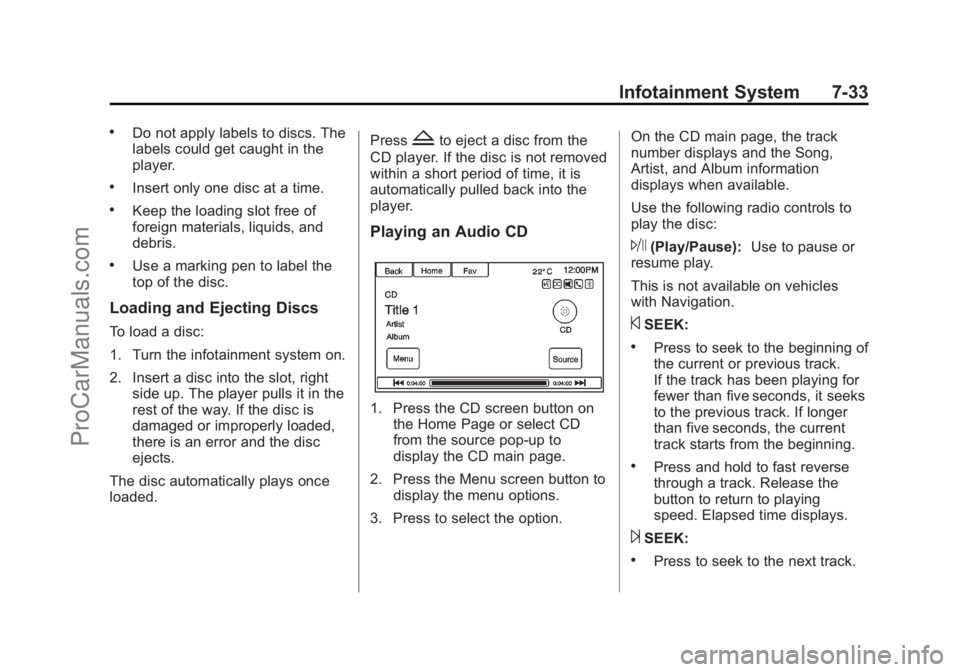
1. Press the CD screen button on the Home Page or select CD
from the source pop-up to
display the CD main page.
2. Press the Menu screen button to display the menu options.
3. Press to select the option. On the CD main page, the track
number displays and the Song,
Artist, and Album information
displays when available.
Use the following radio controls to
play the disc:
J(Play/Pause):
Use to pause or
resume play.
This is not available on vehicles
with Navigation.
©SEEK:
.Press to seek to the beginning of
the current or previous track.
If the track has been playing for
fewer than five seconds, it seeks
to the previous track. If longer
than five seconds, the current
track starts from the beginning.
.Press and hold to fast reverse
through a track. Release the
button to return to playing
speed. Elapsed time displays.
¨SEEK:
.Press to seek to the next track.
ProCarManuals.com
Page 172 of 422
Black plate (36,1)Chevrolet SS Sedan Owner Manual (GMNA-Localizing-U.S.-6014851) - 2014 -
1st Edition - 8/22/13
7-36 Infotainment System
not be available until the radio has
completed indexing the device.
Devices with more music may take
longer to index. The device will
index when plugged into the radio
for the first time. When Indexing is
removed from the screen, the radio
is ready to support music search.
On the next connection or ignition
cycle, Indexing will show briefly on
the screen. The radio is searching
for changes to the device and
preparing the music list. If there are
no changes, the voice recognition
music search will be available. The
radio will index and store two
devices with up to 10,000 songs on
each device.
USB MP3 Player and USB Drives
.The USB MP3 players and USB
drives connected must comply
with the USB Mass Storage
Class specification (USB MSC).
.Hard disk drives are not
supported.
.The radio will not be able to play
back write-protected music.
.File system supported: FAT32.
.The following restrictions apply
for the data stored on a USB
MP3 player or USB device:
‐Maximum folder structure
depth: eight levels.
‐ Maximum number of MP3/
WMA files that can be
displayed: 10,000.
‐ Playlist entries must be in the
form of relative paths.
‐ The system attribute for
folders/files that contain audio
data must not be set.
To play a USB device, do one of the
following:
.Connect the USB and it begins
to play.
.Press the Now Playing screen
button on the Home Page.
.Press SRCE to scroll until the
USB source screen is available.
.Pressb/gon the steering
wheel controls to select songs
by Artist, Album, Song Title,
or Song Genre. See Voice
Recognition on page 7-68.
The following playlist formats are
supported:
.M3U (Standard and Extended)
.iTunes
.PLS (Standard)
.WAX
.ASX
.RMP
The radio supports plugging a cell
phone in as a USB drive as long as
the cell phone supports USB mass
storage class or has USB disc drive
support enabled.
ProCarManuals.com
Page 177 of 422

Black plate (41,1)Chevrolet SS Sedan Owner Manual (GMNA-Localizing-U.S.-6014851) - 2014 -
1st Edition - 8/22/13
Infotainment System 7-41
automatically begins playing audio
from the device over the vehicle
speakers.
If an auxiliary device has already
been connected, but a different
source is currently active, do one of
the following:
.Press SRCE to scroll all of the
available audio source screens,
until the AUX source screen is
selected.
.Say“Play Front AUX” using
voice recognition to play the
auxiliary device. See Voice
Recognition on page 7-68.
Bluetooth Audio
If equipped, music may be played
from a paired Bluetooth device. See
“Pairing a Phone/Device” under
Bluetooth on page 7-75.
To play music through a Bluetooth
device:
1. Power on the device, pair, and connect the device. 2. Music can be launched by doing
one of the following:
.Press the Bluetooth Audio
screen button on the
Home Page.
.Press SRCE until Bluetooth
Audio is selected.
.Press the SRC button on
the steering wheel controls
until Bluetooth Audio is
selected. See Steering
Wheel Controls on
page 5-2.
.Use voice recognition. See
Voice Recognition on
page 7-68.
The music can be controlled by
either the infotainment controls or
the controls on the device.
When a phone is connected to the
system through Bluetooth Audio the
phone notifications and sounds may
not be heard on the phone until
Bluetooth is disconnected.
Notification features may vary based on the phone. Check the phone’s
manufacture information for
notification support.
Bluetooth Audio Menu
Press the Menu screen button and
the following may display:
Shuffle:
Press the TUNE/MENU
knob to turn shuffle on or off. Not all
devices support the shuffle feature.
When selecting Bluetooth audio, the
Bluetooth device internal music
player may not open depending on
the status of the device. All devices
launch and play back audio
differently. Make sure the correct
audio source is playing on the
device for Bluetooth audio playback
on the radio. When the vehicle is
not moving, use the device to begin
playback.
When selecting Bluetooth audio as
a source, the radio may source to
Bluetooth Audio Paused screen and
no audio playing. Press play on the
device or press
Jto begin
ProCarManuals.com
Page 211 of 422
Black plate (75,1)Chevrolet SS Sedan Owner Manual (GMNA-Localizing-U.S.-6014851) - 2014 -
1st Edition - 8/22/13
Infotainment System 7-75
.Virtual Advisor
Virtual Advisor
Choose this option to connect to a
live Advisor.
Voice Pass-Thru
Voice pass-thru allows access to the
voice recognition commands on the
cell phone, i.e. Siri or Voice
Command. See the cell phone
manufacturer's user guide to see if
the cell phone supports this feature.
To activate phone voice recognition
system, press and hold
b/gon
the steering wheel for approximately
two seconds.
Bluetooth Phone/
Devices
Bluetooth
Overview
For vehicles equipped with
Bluetooth capability, the system can
interact with many cell phones and
devices, allowing:
.Placing and receiving hands-free
calls.
.Sharing of the cell phone’s
address book or contact list with
the vehicle. The phone book will
only display when that phone is
connected.
.Placing outgoing calls by voice
recognition.
The system can be used while in
ON/RUN, ACC/ACCESSORY,
or Retained Accessory Power
(RAP). The range of the Bluetooth
system can be up to 9.1 m (30 ft).
The radio can connect to most Bluetooth-enabled phones.
Available features and functions
may be dependent on the device.
On a current phone call screen, an
image of the contact from your
phone's contact list can be
displayed. Not all phones are
compatible with this feature.
Bluetooth Controls
Use the buttons on the infotainment
system and the steering wheel to
operate the Bluetooth system.
Steering Wheel Controls
b/g(Push to Talk):
Press to
answer incoming calls and start
voice recognition.
$/i(Mute/End Call): Press to
end a call, decline an incoming call,
or cancel voice recognition.
+
x− (Volume): Press + or−to
increase or decrease the volume.
ProCarManuals.com
Page 212 of 422
Black plate (76,1)Chevrolet SS Sedan Owner Manual (GMNA-Localizing-U.S.-6014851) - 2014 -
1st Edition - 8/22/13
7-76 Infotainment System
Infotainment System Controls
For information about how to
navigate the menu system using the
infotainment controls, seeOverview
on page 7-2.
b/>(Phone/Mute): Press to
enter the Phone main menu. Press
and hold to mute or unmute.
Voice Recognition
The voice recognition system uses
commands to control the system
and dial phone numbers.
When using voice recognition:
.The system may not recognize
voice commands if there is too
much background noise.
.A tone sounds to indicate that
the system is ready for a voice
command. Wait for the tone and
then speak.
.Speak clearly in a calm and
natural voice.
See Voice Recognition on
page 7-68.
Audio System
Sound comes through the vehicle's
front audio system speakers and
overrides the audio system. Use the
VOL/
Oknob during a call to change
the volume level. The adjusted
volume level remains in memory for
later calls. The system maintains a
minimum volume level.
See Voice Recognition on
page 7-68.
Bluetooth Audio
See Bluetooth Audio on page 7-41.
Pairing with Infotainment
Controls
A Bluetooth-enabled cell phone
must be paired and then connected
to the vehicle before it can be used.
See your cell phone manufacturer's
user guide for Bluetooth functions
before pairing the cell phone. If a
Bluetooth phone is not connected,
calls will be made using OnStar
Hands-Free Calling, if available.
SeeOnStar Overview on page 14-1. Pairing Information
.A Bluetooth-enabled phone and
an audio playback device can be
paired to the system at the
same time.
.Up to five devices can be paired
to the Bluetooth system.
.The pairing process is disabled
when the vehicle is moving.
.Pairing only needs to be
completed once, unless the
pairing information on the cell
phone changes or the cell phone
is deleted from the system.
.Only one paired cell phone can
be connected to the Bluetooth
system at a time.
.If multiple paired cell phones are
within range of the system, the
radio will connect to the first
phone in the list or to the phone
that was previously connected.
ProCarManuals.com
Page 215 of 422
Black plate (79,1)Chevrolet SS Sedan Owner Manual (GMNA-Localizing-U.S.-6014851) - 2014 -
1st Edition - 8/22/13
Infotainment System 7-79
Making a Call Using Phone
Book and Infotainment
Controls
For cell phones that support the
phone book feature, the Bluetooth
system can use the contacts stored
on the cell phone to make calls. See
the cell phone manufacturer‘s user
guide or contact the wireless
provider to find out if this feature is
supported.
When a cell phone supports the
phone book feature, the Phone
Book and Call Lists menus are
automatically available.
The Phone Book menu allows
access to the phone book stored in
the cell phone to make a call.
The Call Lists menu allows access
to the phone numbers from the
Incoming Calls, Outgoing Calls, and
Missed Calls menus on the cell
phone to make a call.The radio will display the first 1,000
contacts and the phone numbers for
each contact including Home, Work,
Mobile, and Other.
To make a call using the Phone
Book menu:
1. Press
b/>once on the radio
or the Phone screen button.
2. Select Phone Book.
3. Select the letter group of the phone book entry to scroll
through the list of names/
numbers.
4. Select the name.
5. Select the number to call.
To make a call using the Call
Lists menu:
1. Press
b/>once on the radio
or the Phone screen button.
2. Select Call Lists.
3. Select the Incoming Calls, Outgoing Calls, or Missed
Calls list. 4. Select the name or number
to call.
Making a Call Using the
Infotainment Controls
To make a call:
1. Press
b/>once on the radio
or the Phone screen button.
2. Press Enter Number.
3. Enter the phone number.
4. Select OK to start dialing the number.
5. Select Call to place the call.
To make a call using voice
recognition, see “Making a Call”
under Bluetooth on page 7-75.
Accepting or Declining a Call
When an incoming call is received,
the infotainment system mutes and
a ring tone is heard in the vehicle.
ProCarManuals.com
Page 416 of 422
Black plate (6,1)Chevrolet SS Sedan Owner Manual (GMNA-Localizing-U.S.-6014851) - 2014 -
1st Edition - 8/22/13
i-6 INDEX
Instrument Cluster . . . . . . . . . . . . . . 5-7
Instrument Panel Overview . . . . . 1-2
Interior Rearview Mirrors . . . . . . . 2-17
Internet RadioPandora . . . . . . . . . . . . . . . . . . . . . . 7-22
Introduction . . . . . . . . . . . . . . . . . . . . . . . iii
J
Jump Starting . . . . . . . . . . . . . . . . . 10-69
K
Key and Lock Messages . . . . . . . 5-29
Keyless Entry Remote (RKE) System . . . . . . . . 2-3
Keys . . . . . . . . . . . . . . . . . . . . . . . . . . . . 2-1
L
Labeling, Tire Sidewall . . . . . . . . 10-36
Lamps Daytime Running (DRL) . . . . . . . 6-2
Dome . . . . . . . . . . . . . . . . . . . . . . . . . . 6-4
Exterior Controls . . . . . . . . . . . . . . . 6-1
License Plate . . . . . . . . . . . . . . . 10-25
Malfunction Indicator . . . . . . . . . 5-12 Lamps (cont'd)
Messages . . . . . . . . . . . . . . . . . . . . 5-29
On Reminder . . . . . . . . . . . . . . . . . 5-20
Reading . . . . . . . . . . . . . . . . . . . . . . . 6-4
Lane Departure Warning (LDW) . . . . . . . . . . . . . . . 9-44
Lane Departure Warning Light . . . . . . . . . . . . . . . . . . . . . . . . . 5-16
Lap-Shoulder Belt . . . . . . . . . . . . . 3-10
LATCH System
Replacing Parts after aCrash . . . . . . . . . . . . . . . . . . . . . . . 3-39
LATCH, Lower Anchors and Tethers for Children . . . . . . . . . . 3-34
Lighting Entry . . . . . . . . . . . . . . . . . . . . . . . . . . 6-5
Exit . . . . . . . . . . . . . . . . . . . . . . . . . . . . 6-5
Illumination Control . . . . . . . . . . . . 6-4
Lights Airbag Readiness . . . . . . . . . . . . . 5-10
Antilock Brake System(ABS) Warning . . . . . . . . . . . . . . 5-16
Brake System Warning . . . . . . . 5-14
Charging System . . . . . . . . . . . . . 5-11
Cruise Control . . . . . . . . . . . . . . . . 5-20
Door Ajar . . . . . . . . . . . . . . . . . . . . . 5-20
Electric Parking Brake . . . . . . . . 5-15 Lights (cont'd)
Engine Oil Pressure . . . . . . . . . . 5-18
Flash-to-Pass . . . . . . . . . . . . . . . . . . 6-1
Front Fog Lamp . . . . . . . . . . . . . . 5-20
High-Beam On . . . . . . . . . . . . . . . . 5-20
High/Low Beam Changer . . . . . . 6-1
Lane Departure Warning . . . . . . 5-16
Low Fuel Warning . . . . . . . . . . . . 5-19
Safety Belt Reminders . . . . . . . . . 5-9
Security . . . . . . . . . . . . . . . . . . . . . . 5-19
Service Electric Parking
Brake . . . . . . . . . . . . . . . . . . . . . . . 5-15
Service Vehicle Soon . . . . . . . . . 5-14
StabiliTrak
®OFF . . . . . . . . . . . . . 5-17
Tire Pressure . . . . . . . . . . . . . . . . . 5-18
Traction Control System (TCS)/StabiliTrak
®. . . . . . . . . . 5-18
Traction Off . . . . . . . . . . . . . . . . . . . 5-17
Limited-Slip Rear Axle . . . . . . . . . 9-32
Locks Automatic Door . . . . . . . . . . . . . . . 2-11
Delayed Locking . . . . . . . . . . . . . . 2-11
Door . . . . . . . . . . . . . . . . . . . . . . . . . . 2-10
Lockout Protection . . . . . . . . . . . . 2-11
Power Door . . . . . . . . . . . . . . . . . . . 2-11
Safety . . . . . . . . . . . . . . . . . . . . . . . . 2-12
Loss of Control . . . . . . . . . . . . . . . . . 9-5
ProCarManuals.com
Page 420 of 422
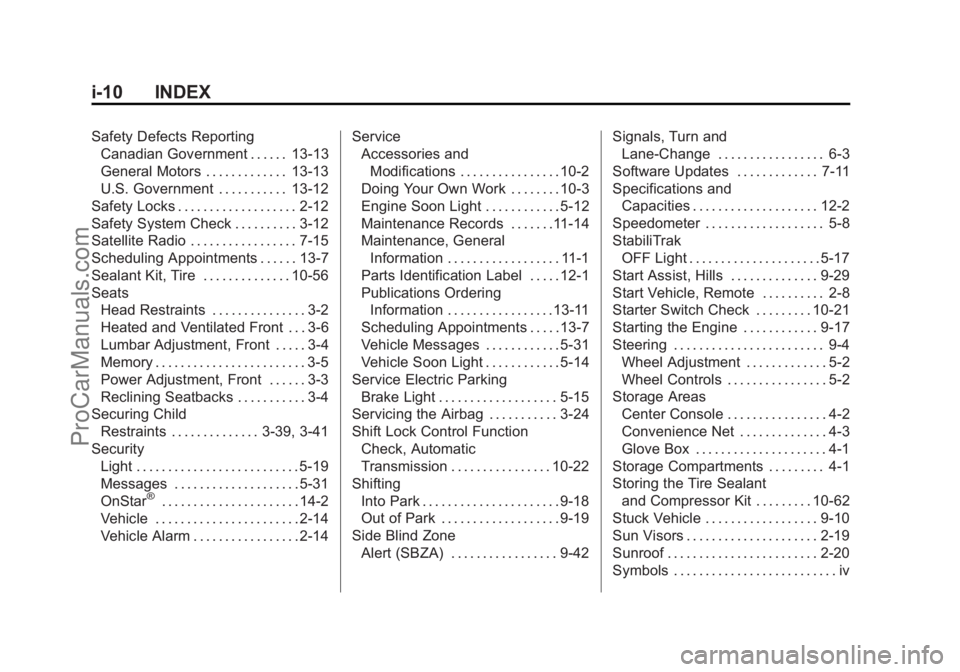
Black plate (10,1)Chevrolet SS Sedan Owner Manual (GMNA-Localizing-U.S.-6014851) - 2014 -
1st Edition - 8/22/13
i-10 INDEX
Safety Defects ReportingCanadian Government . . . . . . 13-13
General Motors . . . . . . . . . . . . . 13-13
U.S. Government . . . . . . . . . . . 13-12
Safety Locks . . . . . . . . . . . . . . . . . . . 2-12
Safety System Check . . . . . . . . . . 3-12
Satellite Radio . . . . . . . . . . . . . . . . . 7-15
Scheduling Appointments . . . . . . 13-7
Sealant Kit, Tire . . . . . . . . . . . . . . 10-56
Seats Head Restraints . . . . . . . . . . . . . . . 3-2
Heated and Ventilated Front . . . 3-6
Lumbar Adjustment, Front . . . . . 3-4
Memory . . . . . . . . . . . . . . . . . . . . . . . . 3-5
Power Adjustment, Front . . . . . . 3-3
Reclining Seatbacks . . . . . . . . . . . 3-4
Securing Child Restraints . . . . . . . . . . . . . . 3-39, 3-41
Security Light . . . . . . . . . . . . . . . . . . . . . . . . . . 5-19
Messages . . . . . . . . . . . . . . . . . . . . 5-31
OnStar
®. . . . . . . . . . . . . . . . . . . . . . 14-2
Vehicle . . . . . . . . . . . . . . . . . . . . . . . 2-14
Vehicle Alarm . . . . . . . . . . . . . . . . . 2-14 Service
Accessories and
Modifications . . . . . . . . . . . . . . . . 10-2
Doing Your Own Work . . . . . . . . 10-3
Engine Soon Light . . . . . . . . . . . . 5-12
Maintenance Records . . . . . . .11-14
Maintenance, General Information . . . . . . . . . . . . . . . . . . 11-1
Parts Identification Label . . . . . 12-1
Publications Ordering Information . . . . . . . . . . . . . . . . .13-11
Scheduling Appointments . . . . . 13-7
Vehicle Messages . . . . . . . . . . . . 5-31
Vehicle Soon Light . . . . . . . . . . . . 5-14
Service Electric Parking Brake Light . . . . . . . . . . . . . . . . . . . 5-15
Servicing the Airbag . . . . . . . . . . . 3-24
Shift Lock Control Function Check, Automatic
Transmission . . . . . . . . . . . . . . . . 10-22
Shifting
Into Park . . . . . . . . . . . . . . . . . . . . . . 9-18
Out of Park . . . . . . . . . . . . . . . . . . . 9-19
Side Blind Zone Alert (SBZA) . . . . . . . . . . . . . . . . . 9-42 Signals, Turn and
Lane-Change . . . . . . . . . . . . . . . . . 6-3
Software Updates . . . . . . . . . . . . . 7-11
Specifications and Capacities . . . . . . . . . . . . . . . . . . . . 12-2
Speedometer . . . . . . . . . . . . . . . . . . . 5-8
StabiliTrak OFF Light . . . . . . . . . . . . . . . . . . . . . 5-17
Start Assist, Hills . . . . . . . . . . . . . . 9-29
Start Vehicle, Remote . . . . . . . . . . 2-8
Starter Switch Check . . . . . . . . . 10-21
Starting the Engine . . . . . . . . . . . . 9-17
Steering . . . . . . . . . . . . . . . . . . . . . . . . 9-4 Wheel Adjustment . . . . . . . . . . . . . 5-2
Wheel Controls . . . . . . . . . . . . . . . . 5-2
Storage Areas
Center Console . . . . . . . . . . . . . . . . 4-2
Convenience Net . . . . . . . . . . . . . . 4-3
Glove Box . . . . . . . . . . . . . . . . . . . . . 4-1
Storage Compartments . . . . . . . . . 4-1
Storing the Tire Sealant and Compressor Kit . . . . . . . . . 10-62
Stuck Vehicle . . . . . . . . . . . . . . . . . . 9-10
Sun Visors . . . . . . . . . . . . . . . . . . . . . 2-19
Sunroof . . . . . . . . . . . . . . . . . . . . . . . . 2-20
Symbols . . . . . . . . . . . . . . . . . . . . . . . . . . iv
ProCarManuals.com