steering wheel CHEVROLET SS 2014 Owner's Guide
[x] Cancel search | Manufacturer: CHEVROLET, Model Year: 2014, Model line: SS, Model: CHEVROLET SS 2014Pages: 422, PDF Size: 6.18 MB
Page 177 of 422

Black plate (41,1)Chevrolet SS Sedan Owner Manual (GMNA-Localizing-U.S.-6014851) - 2014 -
1st Edition - 8/22/13
Infotainment System 7-41
automatically begins playing audio
from the device over the vehicle
speakers.
If an auxiliary device has already
been connected, but a different
source is currently active, do one of
the following:
.Press SRCE to scroll all of the
available audio source screens,
until the AUX source screen is
selected.
.Say“Play Front AUX” using
voice recognition to play the
auxiliary device. See Voice
Recognition on page 7-68.
Bluetooth Audio
If equipped, music may be played
from a paired Bluetooth device. See
“Pairing a Phone/Device” under
Bluetooth on page 7-75.
To play music through a Bluetooth
device:
1. Power on the device, pair, and connect the device. 2. Music can be launched by doing
one of the following:
.Press the Bluetooth Audio
screen button on the
Home Page.
.Press SRCE until Bluetooth
Audio is selected.
.Press the SRC button on
the steering wheel controls
until Bluetooth Audio is
selected. See Steering
Wheel Controls on
page 5-2.
.Use voice recognition. See
Voice Recognition on
page 7-68.
The music can be controlled by
either the infotainment controls or
the controls on the device.
When a phone is connected to the
system through Bluetooth Audio the
phone notifications and sounds may
not be heard on the phone until
Bluetooth is disconnected.
Notification features may vary based on the phone. Check the phone’s
manufacture information for
notification support.
Bluetooth Audio Menu
Press the Menu screen button and
the following may display:
Shuffle:
Press the TUNE/MENU
knob to turn shuffle on or off. Not all
devices support the shuffle feature.
When selecting Bluetooth audio, the
Bluetooth device internal music
player may not open depending on
the status of the device. All devices
launch and play back audio
differently. Make sure the correct
audio source is playing on the
device for Bluetooth audio playback
on the radio. When the vehicle is
not moving, use the device to begin
playback.
When selecting Bluetooth audio as
a source, the radio may source to
Bluetooth Audio Paused screen and
no audio playing. Press play on the
device or press
Jto begin
ProCarManuals.com
Page 204 of 422
Black plate (68,1)Chevrolet SS Sedan Owner Manual (GMNA-Localizing-U.S.-6014851) - 2014 -
1st Edition - 8/22/13
7-68 Infotainment System
If the System Needs
Service
If the navigation system needs
service and the steps listed here
have been followed but there are
still problems, see your dealer for
assistance.
Map Data Updates
The map data provided in the
vehicle is the most up-to-date
information available when the
vehicle was produced. The map
data is updated periodically,
provided that the map information
has changed.
For questions about the operation of
the navigation system or the update
process, contact the GM Nav Disc
Center toll-free phone number,
1-877-NAV-DISC (1-877-628-3472)
or go to the center’s website,
www.gmnavdisc.com. If updates are
needed, call the GM Nav Disc
Center or order a new Map Update
online. To order map data, have the vehicle’s Vehicle Identification
Number (VIN) available. See
Vehicle Identification Number (VIN)
on page 12-1.
After receiving the updated map
data, see
Maps on page 7-46.
Database Coverage
Explanations
Coverage areas vary with respect to
the level of map detail available for
any given area. Some areas feature
greater levels of detail than others.
If this happens, it does not mean
there is a problem with the system.
As the map data is updated, more
detail can become available for
areas which previously had limited
detail. See Map Data Updates on
page 7-68 for more information.
Voice Recognition
Voice recognition allows for
hands-free operation of the
infotainment system features.
Voice recognition can be used when
the radio is on or when Retained
Accessory Power (RAP) is active.
SeeRetained Accessory Power
(RAP) on page 9-18. The system
maintains a minimum volume level.
Using Voice Recognition
1. Pressb/gon the steering
wheel. The audio system mutes.
A voice prompt states, “Please
say a command.” Wait until the
tone is heard before speaking.
If there is no tone, make sure
that the volume is turned up.
While voice recognition is active,
the system displays a
gsymbol
in the top right of the screen.
2. Clearly speak one of the commands listed later in this
section.
ProCarManuals.com
Page 205 of 422
Black plate (69,1)Chevrolet SS Sedan Owner Manual (GMNA-Localizing-U.S.-6014851) - 2014 -
1st Edition - 8/22/13
Infotainment System 7-69
Pressb/gtwice on the steering
wheel to skip the voice prompt
messages.
Canceling Voice Recognition
1. Press and release$/ion
the steering wheel control to
cancel a command, if the system
response does not match the
voice command, or say
“Goodbye” or“Cancel.”
2. The system replies, “Goodbye.”
Helpful Hints for Speaking
Commands
.When multiple commands are
available, choose the command
that works best for you.
.Words in parentheses are
optional. For example, for the
command“Tune FM
(frequency),” saying“Tune FM
87.7” or“Tune FM” are both
valid commands.
.When the command is
recognized, the system will
either perform the function or
ask to confirm the choice.
.When the system does not
recognize the command, the
system says “pardon.”
.If experiencing difficulty with the
system recognizing a command,
confirm that the command is
correct. Try saying the command
clearly or wait for a brief moment
after the tone.
.Background noise such as a
climate control fan positioned on
high, open windows, and very
loud outside noises, even if the
windows are closed, can cause
voice commands to be
misunderstood.
.The system is able to recognize
commands in different
languages, such as English,
Canadian French, and Spanish.
The system only recognizes
commands based on the
language selected.
.To increase or decrease the
voice volume during a voice
recognition session, turn the
volume knob of the radio,
or press the volume steering
wheel control. If the volume is
adjusted during a voice
recognition session, a Volume
bar appears on the screen
showing the voice volume level
as it is being adjusted. This also
changes the volume of the
guidance prompts.
.When using navigation
commands, take the time to
become familiar with the
address. Long delays when
giving the address can result in
the system not recognizing the
address or routing to different
location than intended.
.When providing the house
number portion of the address,
the system recognizes both digit
format and numerical text. An
example would be to say,
“3-0-0-0-1”or“Thirty
Thousand One.”
⁐⁃⁍⁵
Page 208 of 422
Black plate (72,1)Chevrolet SS Sedan Owner Manual (GMNA-Localizing-U.S.-6014851) - 2014 -
1st Edition - 8/22/13
7-72 Infotainment System
Search Podcast (podcast name):
Instructs the system to show a list of
all tracks in a specific podcast. For
example, say "Search podcast
More Like This:Instructs the
system to create a playlist of tracks
similar to the current track playing.
Settings Commands
Verbose (set) on (mode), Verbose
(set) off (mode): Instructs the
system to turn voice prompts on or
off. When off, this feature turns off
voice prompts.
Language (language): Instructs
the system to set the language.
List Devices: Instructs the system
to give a list of devices to use.
Other Commands
Goodbye: Instructs the system to
end a phone call or voice
recognition.
Cancel: Instructs the system to
cancel an action. Go Back, Back, Previous:
Instructs the system to go back to a
prior menu.
Main Menu:
Instructs the system to
go to the main menu.
Yes, Yep, Yup, Ya, Sure, Right,
Correct, OK, Positive, You Got it,
Probably, You Bet: These can be
used to say “Yes.”
No, Nope, Na, No way, Wrong,
Incorrect, Negative, Not really, No
I said, No I Did Not, No I Do Not:
These can be used to say “No.”
Next Page, Page Down: Instructs
the system to scroll forward one
page in a list.
Previous Page, Page Up: Instructs
the system to scroll back one page
in a list.
Navigation Commands (If
Equipped)
To activate the navigation voice
recognition:
1. Press
b/gon the steering
wheel. The audio system mutes.
A voice prompt says, “Please
say a command.” Wait until the
tone is heard before speaking.
If there is no tone, make sure
the volume is turned up.
While voice recognition is active,
the system displays a symbol in
the top right of the screen.
2. Clearly speak the command “Navigation.”
3. Clearly speak one of the commands in this section.
The following commands only apply
once the Navigation command is
given.
ProCarManuals.com
Page 210 of 422
Black plate (74,1)Chevrolet SS Sedan Owner Manual (GMNA-Localizing-U.S.-6014851) - 2014 -
1st Edition - 8/22/13
7-74 Infotainment System
1. Pressb/gon the steering
wheel.
2. Say “Navigation.”
3. Say “Change Country.”
4. Say the country name. For example, say “Canada.”
OnStar Command (If Equipped)
To activate OnStar voice
recognition, press
=on the mirror
or press
b/gon the steering
wheel and say “OnStar”after the
beep. This will activate the OnStar
voice control. See OnStar Overview
on page 14-1.
Help Commands
.Help
.Hands-Free Calling (If Equipped)
.Turn-by-Turn Directions
.OnStar Info
After each list of help commands,
the following are available:
.Go Back
.Repeat
.Cancel
.Help
.Goodbye
Hands-Free Calling
.Call
.Store
.Commands
‐ Call
‐ Store
‐ My Number
‐ Minutes
‐ Store Last Number
‐ Digit Dial
‐ Redial
‐ Dial
‐ Number Recall
‐ Directory
‐ Digit Store Turn-by-Turn Directions
.Directory
.Plan Route
.Commands
‐
Directory
‐ Store Destination
‐ Plan Route
‐ Delete Destination
‐ Mute Directions
OnStar Info
.Messages
.Minutes
.My Number
.Commands
‐ Messages
‐ Virtual Advisor
‐ My Number
‐ Minutes
‐ Number Recall
‐ Advisor Playback
ProCarManuals.com
Page 211 of 422
Black plate (75,1)Chevrolet SS Sedan Owner Manual (GMNA-Localizing-U.S.-6014851) - 2014 -
1st Edition - 8/22/13
Infotainment System 7-75
.Virtual Advisor
Virtual Advisor
Choose this option to connect to a
live Advisor.
Voice Pass-Thru
Voice pass-thru allows access to the
voice recognition commands on the
cell phone, i.e. Siri or Voice
Command. See the cell phone
manufacturer's user guide to see if
the cell phone supports this feature.
To activate phone voice recognition
system, press and hold
b/gon
the steering wheel for approximately
two seconds.
Bluetooth Phone/
Devices
Bluetooth
Overview
For vehicles equipped with
Bluetooth capability, the system can
interact with many cell phones and
devices, allowing:
.Placing and receiving hands-free
calls.
.Sharing of the cell phone’s
address book or contact list with
the vehicle. The phone book will
only display when that phone is
connected.
.Placing outgoing calls by voice
recognition.
The system can be used while in
ON/RUN, ACC/ACCESSORY,
or Retained Accessory Power
(RAP). The range of the Bluetooth
system can be up to 9.1 m (30 ft).
The radio can connect to most Bluetooth-enabled phones.
Available features and functions
may be dependent on the device.
On a current phone call screen, an
image of the contact from your
phone's contact list can be
displayed. Not all phones are
compatible with this feature.
Bluetooth Controls
Use the buttons on the infotainment
system and the steering wheel to
operate the Bluetooth system.
Steering Wheel Controls
b/g(Push to Talk):
Press to
answer incoming calls and start
voice recognition.
$/i(Mute/End Call): Press to
end a call, decline an incoming call,
or cancel voice recognition.
+
x− (Volume): Press + or−to
increase or decrease the volume.
ProCarManuals.com
Page 214 of 422
Black plate (78,1)Chevrolet SS Sedan Owner Manual (GMNA-Localizing-U.S.-6014851) - 2014 -
1st Edition - 8/22/13
7-78 Infotainment System
Pairing a Phone
1. Press
b/g. The system
responds “Please say a
command,” followed by a tone.
2. Say “Pair.”The system responds
with “Please search for
Bluetooth devices on your
phone, select your vehicle,
confirm and enter the PIN
provided on the screen.”
3. Start the search for Bluetooth devices on the phone. Then
select the device and follow the
instructions on the phone by
either entering the four-digit PIN
or confirming the six-digit
passcode. The PIN is used in
Step 4.
4. Locate and select the device named after the vehicle make
and model in the list on the cell
phone. Follow the instructions
on the cell phone to enter the
PIN provided in Step 3 or to
confirm the six-digit code
matches. The system responds
“successfully paired.” 5. Repeat Steps 1−4 to pair
additional phones.
Listing All Paired and Connected
Phones
The system can list all cell phones
paired to it. If a paired cell phone is
also connected to the vehicle, the
system responds with “is connected”
after that phone name.
1. Press
b/g. The system
responds “Please say a
command,” followed by a tone.
2. Say “Device List.”
Deleting a Paired Phone
If the phone name to delete is
unknown, see “Listing All Paired
and Connected Phones.”
1. Press
b/g. The system
responds “Please say a
command,” followed by a tone.
2. Say “Delete Device.” 3. The system responds with:
“To
delete a device, please touch its
name on the screen.” Select the
device to delete on the display
and it will be removed.
To cancel this command, press
$/ion the steering wheel
control or press the
/BACK button
on the radio faceplate.
Connecting to a Different Phone
or Device
To connect to a different cell phone,
the system looks for the next
available cell phone. Depending on
the cell phone to be connected, this
command may need to be repeated.
1. Press
b/g. The system
responds “Please say a
command,” followed by a tone.
2. Say “Change Phone.”
.To select a device, press
the name on the display.
.If another cell phone is not
found, the original phone
remains connected.
ProCarManuals.com
Page 216 of 422
Black plate (80,1)Chevrolet SS Sedan Owner Manual (GMNA-Localizing-U.S.-6014851) - 2014 -
1st Edition - 8/22/13
7-80 Infotainment System
Using the Infotainment Controls
Turn the TUNE/MENU knob to
“Answer”or“Decline” and press the
TUNE/MENU knob or press Accept
or Decline on the screen.
Using Steering Wheel Controls
Press
b/gto answer or$/ito
decline the call.
Call Waiting Using the
Infotainment Controls
Call waiting must be supported on
the Bluetooth phone and enabled by
the wireless service carrier to work.
Switching Between Calls (Call
Waiting Calls Only)
To switch between calls turn and
press the TUNE/MENU knob and
select Switch Call or select Switch
Call on the screen.
Call Waiting Using Steering
Wheel Controls
Call waiting must be supported on
the cell phone and enabled by the
wireless service carrier.
.Pressb/gto answer an
incoming call when another call
is active. The original call is
placed on hold.
.Pressb/gagain to return to
the original call.
.To decline answering the
incoming call, press Decline on
the screen or take no action.
.Press$/ito disconnect the
current call and switch to the call
on hold.
Conference Calling Using the
Infotainment Controls
Conference calling and three-way
calling must be supported on the
Bluetooth phone and enabled by the wireless service carrier to work. This
feature is only supported when the
vehicle is not moving.
To start a conference while in a
current call:
1. Turn and press the TUNE/MENU
knob and select Enter Number.
2. Enter the phone number and select OK.
3. After the call has been placed, turn the TUNE/MENU knob and
choose Merge Calls.
4. To add more callers to the conference call, repeat Steps 1
−3. The number of callers that
can be added is limited by your
wireless service carrier.
Ending a Call
Using the Infotainment Controls
Turn and press the TUNE/MENU
knob and select Hang Up or press
Hang Up on the screen.
Using Steering Wheel Controls
Press
$/i.
ProCarManuals.com
Page 217 of 422
Black plate (81,1)Chevrolet SS Sedan Owner Manual (GMNA-Localizing-U.S.-6014851) - 2014 -
1st Edition - 8/22/13
Infotainment System 7-81
Muting a Call
During a call, all sounds from inside
the vehicle can be muted so that the
person on the other end of the call
cannot hear them.
Using the Infotainment Controls
Turn and press the TUNE/MENU
knob and select Mute Call. Press
again to cancel mute.
Transferring a Call
Audio can be transferred between
the Bluetooth system and the cell
phone.
The cell phone must be paired and
connected with the Bluetooth
system before a call can be
transferred.
To Transfer Audio from the
Bluetooth System to a Cell Phone
During a call with the audio in the
vehicle, press the Transfer Call
button on the screen or press and
hold the
b/gbutton on the
steering wheel. To Transfer Audio to the Bluetooth
System from a Cell Phone
Use the audio transfer feature on
the cell phone. See your cell phone
manufacturer's user guide for more
information. Press the Transfer call
button on the screen or press and
hold the
b/gbutton on the
steering wheel.
Dual Tone Multi-Frequency
(DTMF) Tones
The in-vehicle Bluetooth system can
send numbers during a call. This is
used when calling a menu-driven
phone system.
Using the Infotainment Controls
1. Turn and press the TUNE/MENU knob and select Enter Number.
2. Enter the phone number, or select Enter Number on the
screen and select digits, then
press OK.
Hands-Free Phone
Using Bluetooth Voice
Recognition
To use voice recognition, press the
b/gbutton on the steering wheel.
Use the commands below for the
various voice features. For
additional information, say “Help”
while in a voice recognition menu.
Making a Call
Calls can be made using the
following commands.
Dial or Call: These commands can
be used interchangeably to dial a
phone number.
Digit Dial: This command allows a
phone number to be dialed by
entering the digits one at a time.
Re-dial: This command dials the
last number used on the cell phone.
ProCarManuals.com
Page 236 of 422
Black plate (4,1)Chevrolet SS Sedan Owner Manual (GMNA-Localizing-U.S.-6014851) - 2014 -
1st Edition - 8/22/13
9-4 Driving and Operating
If the engine ever stops while the
vehicle is being driven, brake
normally but do not pump the
brakes. Doing so could make the
pedal harder to push down. If the
engine stops, there will be some
power brake assist but it will be
used when the brake is applied.
Once the power assist is used up, it
can take longer to stop and the
brake pedal will be harder to push.
Steering
Electric Power Steering
The vehicle has electric power
steering. It does not have power
steering fluid. Regular maintenance
is not required.
If power steering assist is lost due
to a system malfunction, the vehicle
can be steered, but may require
increased effort.
See your dealer if there is a
problem.If the steering wheel is turned until it
reaches the end of its travel and is
held against that position for an
extended period of time, power
steering assist may be reduced.
If the steering assist is used for an
extended period of time, power
assist may be reduced.
Normal use of the power steering
assist should return when the
system cools down.
See specific vehicle steering
messages under
Service Vehicle
Messages on page 5-31. See your
dealer if there is a problem.
Curve Tips
.Take curves at a reasonable
speed.
.Reduce speed before entering a
curve.
.Maintain a reasonable steady
speed through the curve.
.Wait until the vehicle is out of
the curve before accelerating
gently into the straightaway.
Steering in Emergencies
.There are some situations when
steering around a problem may
be more effective than braking.
.Holding both sides of the
steering wheel allows you to turn
180 degrees without removing
a hand.
.The Antilock Brake System
(ABS) allows steering while
braking.
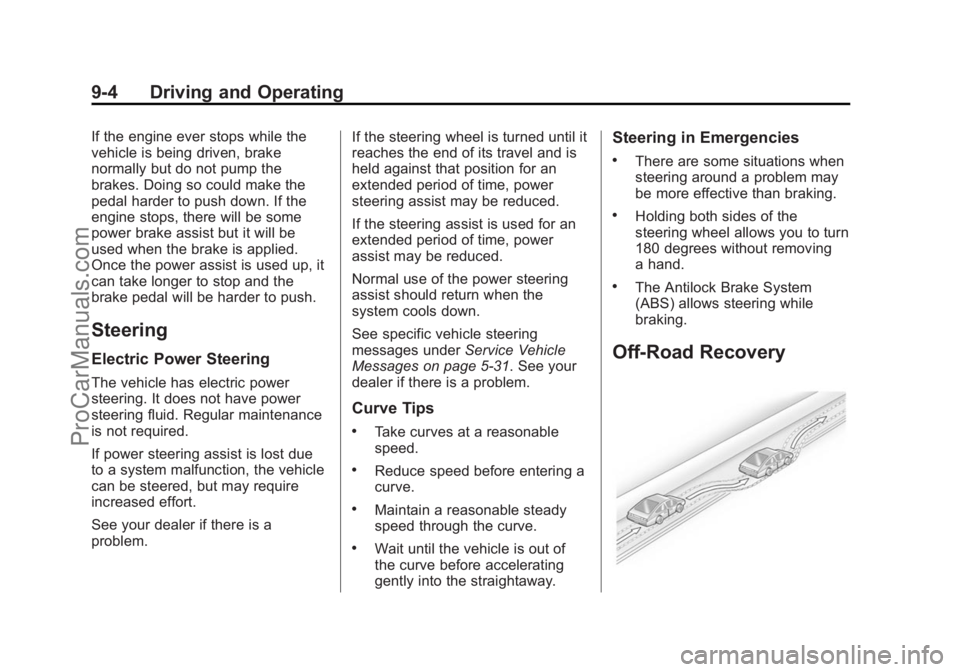
Off-Road Recovery
ProCarManuals.com