radio CHEVROLET SS 2014 Workshop Manual
[x] Cancel search | Manufacturer: CHEVROLET, Model Year: 2014, Model line: SS, Model: CHEVROLET SS 2014Pages: 422, PDF Size: 6.18 MB
Page 206 of 422
Black plate (70,1)Chevrolet SS Sedan Owner Manual (GMNA-Localizing-U.S.-6014851) - 2014 -
1st Edition - 8/22/13
7-70 Infotainment System
.If the system provides
destination in another country on
several attempts, say the
“Change Country”command and
say the country of interest. The
country default is the United
States. To enter a destination in
Canada or Mexico, the country
will first have to be changed in
the system.
Voice Recognition Help
To enter the help playback session,
clearly speak one of the help
commands.
Help: The system plays back more
specific help commands such as
Radio Settings for the user to
choose from.
Radio: Use this command to learn
about how to select a band (AM,
FM, or XM), and how to change
radio stations by speaking
frequency numbers.
Phone: Use this command to learn
about how to dial, pair a device,
or delete a device. My Media:
Use this command to
learn how to play specific tracks,
artists, albums, devices connected
to the USB port, or to change
sources.
Settings: Use this command to
learn about how to turn Verbose on
or off, or set the language.
Voice Recognition Commands
The following list shows the voice
commands available for the
infotainment system with a brief
description of each. The commands
are listed with the optional words in
parentheses. To use the voice
commands, see the previous
instructions.
Radio Commands
Tune AM, Tune FM, Tune XM,
Tune Pandora, Tune Stitcher:
Instructs the system to go to the
specific band and the last channel. Tune AM (frequency), Tune FM
(frequency), Tune XM (channel
number), or Tune XM (channel
name):
Instructs the system to go
to the specific station.
Thumbs Up: Instructs the system
to give the current song or station a
thumbs up in Pandora or Stitcher.
Thumbs Down: Instructs the
system to give the current song or
station a thumbs down in Pandora
or Stitcher.
Phone Commands
Dial or Call (phone number or
contact): Instructs the system to
start a phone call. For example, say
“Dial 1 248 123 4567.” To call a
phone book contact, say “Dial”or
“Call,” say the name and location,
and then say “Dial.”For example,
say “Call John at Home” or“Call
John at Work.” If a number is not
recognized, the first number in the
list will be called.
Pair or Connect: Instructs the
system to begin pairing a device.
ProCarManuals.com
Page 211 of 422
Black plate (75,1)Chevrolet SS Sedan Owner Manual (GMNA-Localizing-U.S.-6014851) - 2014 -
1st Edition - 8/22/13
Infotainment System 7-75
.Virtual Advisor
Virtual Advisor
Choose this option to connect to a
live Advisor.
Voice Pass-Thru
Voice pass-thru allows access to the
voice recognition commands on the
cell phone, i.e. Siri or Voice
Command. See the cell phone
manufacturer's user guide to see if
the cell phone supports this feature.
To activate phone voice recognition
system, press and hold
b/gon
the steering wheel for approximately
two seconds.
Bluetooth Phone/
Devices
Bluetooth
Overview
For vehicles equipped with
Bluetooth capability, the system can
interact with many cell phones and
devices, allowing:
.Placing and receiving hands-free
calls.
.Sharing of the cell phone’s
address book or contact list with
the vehicle. The phone book will
only display when that phone is
connected.
.Placing outgoing calls by voice
recognition.
The system can be used while in
ON/RUN, ACC/ACCESSORY,
or Retained Accessory Power
(RAP). The range of the Bluetooth
system can be up to 9.1 m (30 ft).
The radio can connect to most Bluetooth-enabled phones.
Available features and functions
may be dependent on the device.
On a current phone call screen, an
image of the contact from your
phone's contact list can be
displayed. Not all phones are
compatible with this feature.
Bluetooth Controls
Use the buttons on the infotainment
system and the steering wheel to
operate the Bluetooth system.
Steering Wheel Controls
b/g(Push to Talk):
Press to
answer incoming calls and start
voice recognition.
$/i(Mute/End Call): Press to
end a call, decline an incoming call,
or cancel voice recognition.
+
x− (Volume): Press + or−to
increase or decrease the volume.
ProCarManuals.com
Page 212 of 422
Black plate (76,1)Chevrolet SS Sedan Owner Manual (GMNA-Localizing-U.S.-6014851) - 2014 -
1st Edition - 8/22/13
7-76 Infotainment System
Infotainment System Controls
For information about how to
navigate the menu system using the
infotainment controls, seeOverview
on page 7-2.
b/>(Phone/Mute): Press to
enter the Phone main menu. Press
and hold to mute or unmute.
Voice Recognition
The voice recognition system uses
commands to control the system
and dial phone numbers.
When using voice recognition:
.The system may not recognize
voice commands if there is too
much background noise.
.A tone sounds to indicate that
the system is ready for a voice
command. Wait for the tone and
then speak.
.Speak clearly in a calm and
natural voice.
See Voice Recognition on
page 7-68.
Audio System
Sound comes through the vehicle's
front audio system speakers and
overrides the audio system. Use the
VOL/
Oknob during a call to change
the volume level. The adjusted
volume level remains in memory for
later calls. The system maintains a
minimum volume level.
See Voice Recognition on
page 7-68.
Bluetooth Audio
See Bluetooth Audio on page 7-41.
Pairing with Infotainment
Controls
A Bluetooth-enabled cell phone
must be paired and then connected
to the vehicle before it can be used.
See your cell phone manufacturer's
user guide for Bluetooth functions
before pairing the cell phone. If a
Bluetooth phone is not connected,
calls will be made using OnStar
Hands-Free Calling, if available.
SeeOnStar Overview on page 14-1. Pairing Information
.A Bluetooth-enabled phone and
an audio playback device can be
paired to the system at the
same time.
.Up to five devices can be paired
to the Bluetooth system.
.The pairing process is disabled
when the vehicle is moving.
.Pairing only needs to be
completed once, unless the
pairing information on the cell
phone changes or the cell phone
is deleted from the system.
.Only one paired cell phone can
be connected to the Bluetooth
system at a time.
.If multiple paired cell phones are
within range of the system, the
radio will connect to the first
phone in the list or to the phone
that was previously connected.
ProCarManuals.com
Page 213 of 422
Black plate (77,1)Chevrolet SS Sedan Owner Manual (GMNA-Localizing-U.S.-6014851) - 2014 -
1st Edition - 8/22/13
Infotainment System 7-77
Pairing a Phone/Device
1. Press the CONFIG buttonor
b/>.
2. Select Phone Settings.
3. Select Pair Device (Phone). The radio displays “Please start
Bluetooth search on your phone.
Confirm or enter number:.” If the
device supports a four-digit
Personal Identification Number
(PIN), it will display. The PIN is
used in Step 5.
4. Start the pairing process on the cell phone to be paired to the
vehicle. See the cell phone
manufacturer's user guide.
5. Locate and select the device named after the vehicle make
and model in the list on the cell
phone. Follow the instructions
on the cell phone to enter the
PIN provided in Step 3, or to
confirm the six-digit code
matches. The system recognizes
the new connected phone after
the pairing process is complete. 6. If the phone prompts to accept
connection or allow phone book
download, select always accept
and allow. The phone book may
not be available if not accepted.
Some phones will put
connection request or
phonebook request in a pull
down task bar at the top of the
screen. Drag down the task bar
and look for connection/
phonebook request and accept.
7. Repeat to pair additional phones.
Listing All Paired and Connected
Phones/Devices
1. Press the CONFIG button.
2. Select Phone Settings.
3. Select Device List.
Deleting a Paired Phone/Device
1. Press the CONFIG button.
2. Select Phone Settings.
3. Select Device List. 4. Select the phone to delete and
follow the screen prompts.
Connecting to a Different Phone
To connect to a different phone, the
new phone must be in the vehicle
and available to be connected to the
Bluetooth system before the
process is started.
1. Press the CONFIG button.
2. Select Phone Settings.
3. Select Device List.
4. Select the new phone to connect to and follow the screen
prompts.
Pairing with Voice Recognition
A Bluetooth-enabled cell phone
must be paired and then connected
to the vehicle before it can be used.
See the cell phone manufacturer's
user guide for Bluetooth functions
before pairing the cell phone. If a
Bluetooth phone is not connected,
calls will be made using OnStar
Hands-Free Calling, if available.
See OnStar Overview on page 14-1.
ProCarManuals.com
Page 214 of 422
Black plate (78,1)Chevrolet SS Sedan Owner Manual (GMNA-Localizing-U.S.-6014851) - 2014 -
1st Edition - 8/22/13
7-78 Infotainment System
Pairing a Phone
1. Press
b/g. The system
responds “Please say a
command,” followed by a tone.
2. Say “Pair.”The system responds
with “Please search for
Bluetooth devices on your
phone, select your vehicle,
confirm and enter the PIN
provided on the screen.”
3. Start the search for Bluetooth devices on the phone. Then
select the device and follow the
instructions on the phone by
either entering the four-digit PIN
or confirming the six-digit
passcode. The PIN is used in
Step 4.
4. Locate and select the device named after the vehicle make
and model in the list on the cell
phone. Follow the instructions
on the cell phone to enter the
PIN provided in Step 3 or to
confirm the six-digit code
matches. The system responds
“successfully paired.” 5. Repeat Steps 1−4 to pair
additional phones.
Listing All Paired and Connected
Phones
The system can list all cell phones
paired to it. If a paired cell phone is
also connected to the vehicle, the
system responds with “is connected”
after that phone name.
1. Press
b/g. The system
responds “Please say a
command,” followed by a tone.
2. Say “Device List.”
Deleting a Paired Phone
If the phone name to delete is
unknown, see “Listing All Paired
and Connected Phones.”
1. Press
b/g. The system
responds “Please say a
command,” followed by a tone.
2. Say “Delete Device.” 3. The system responds with:
“To
delete a device, please touch its
name on the screen.” Select the
device to delete on the display
and it will be removed.
To cancel this command, press
$/ion the steering wheel
control or press the
/BACK button
on the radio faceplate.
Connecting to a Different Phone
or Device
To connect to a different cell phone,
the system looks for the next
available cell phone. Depending on
the cell phone to be connected, this
command may need to be repeated.
1. Press
b/g. The system
responds “Please say a
command,” followed by a tone.
2. Say “Change Phone.”
.To select a device, press
the name on the display.
.If another cell phone is not
found, the original phone
remains connected.
ProCarManuals.com
Page 215 of 422
Black plate (79,1)Chevrolet SS Sedan Owner Manual (GMNA-Localizing-U.S.-6014851) - 2014 -
1st Edition - 8/22/13
Infotainment System 7-79
Making a Call Using Phone
Book and Infotainment
Controls
For cell phones that support the
phone book feature, the Bluetooth
system can use the contacts stored
on the cell phone to make calls. See
the cell phone manufacturer‘s user
guide or contact the wireless
provider to find out if this feature is
supported.
When a cell phone supports the
phone book feature, the Phone
Book and Call Lists menus are
automatically available.
The Phone Book menu allows
access to the phone book stored in
the cell phone to make a call.
The Call Lists menu allows access
to the phone numbers from the
Incoming Calls, Outgoing Calls, and
Missed Calls menus on the cell
phone to make a call.The radio will display the first 1,000
contacts and the phone numbers for
each contact including Home, Work,
Mobile, and Other.
To make a call using the Phone
Book menu:
1. Press
b/>once on the radio
or the Phone screen button.
2. Select Phone Book.
3. Select the letter group of the phone book entry to scroll
through the list of names/
numbers.
4. Select the name.
5. Select the number to call.
To make a call using the Call
Lists menu:
1. Press
b/>once on the radio
or the Phone screen button.
2. Select Call Lists.
3. Select the Incoming Calls, Outgoing Calls, or Missed
Calls list. 4. Select the name or number
to call.
Making a Call Using the
Infotainment Controls
To make a call:
1. Press
b/>once on the radio
or the Phone screen button.
2. Press Enter Number.
3. Enter the phone number.
4. Select OK to start dialing the number.
5. Select Call to place the call.
To make a call using voice
recognition, see “Making a Call”
under Bluetooth on page 7-75.
Accepting or Declining a Call
When an incoming call is received,
the infotainment system mutes and
a ring tone is heard in the vehicle.
ProCarManuals.com
Page 218 of 422
Black plate (82,1)Chevrolet SS Sedan Owner Manual (GMNA-Localizing-U.S.-6014851) - 2014 -
1st Edition - 8/22/13
7-82 Infotainment System
Using the“Dial”or“Call”
Command
To call a number:
1. Press
b/g. The system
responds “Please say a
command,” followed by a tone.
2. Say “Dial”or“Call.”
3. Say the entire number without pausing, followed by “Dial.”
Once connected, the person called
will be heard through the audio
speakers.
To call using a name tag:
1. Press
b/g. The system
responds “Please say a
command,” followed by a tone.
2. Say “Dial”or“Call” and then say
the name tag. For example “Call
John at Work.”
Once connected, the person called
will be heard through the audio
speakers. Using the
“Digit Dial” Command
This allows a phone number to be
dialed by entering the digits one at
a time.
1. Press
b/g. The system
responds “Please say a
command,” followed by a tone.
2. Say “Digit Dial.”
3. Say each digit, one at a time, to dial. After each digit is entered,
the system repeats back the
digit it heard followed by a tone.
After the last digit has been
entered, say “Dial.”
If an unwanted number is repeated
back, say “Clear”to clear the last
number.
Once connected, the person called
will be heard through the audio
speakers.
Using the “Redial”Command
1. Press
b/g. The system
responds “Please say a
command,” followed by a tone. 2. After the tone, say
“Redial.”The
system dials the last number
called from the connected cell
phone.
Once connected, the person called
will be heard through the audio
speakers.
Clearing the System
Unless information is deleted out of
the vehicle Bluetooth system, it will
be retained. This includes phone
pairing information. For directions
on how to delete this information,
see “Deleting a Paired Phone/
Device.”
Text Messaging
For vehicles equipped with
Bluetooth capability, the system,
if equipped with text messaging, can
display text messages, play back a
message over the audio system,
and send a predefined message.
Not all phones support all functions
and work with Bluetooth. The radio
only supports the receipt of SMS
ProCarManuals.com
Page 221 of 422
Black plate (85,1)Chevrolet SS Sedan Owner Manual (GMNA-Localizing-U.S.-6014851) - 2014 -
1st Edition - 8/22/13
Infotainment System 7-85
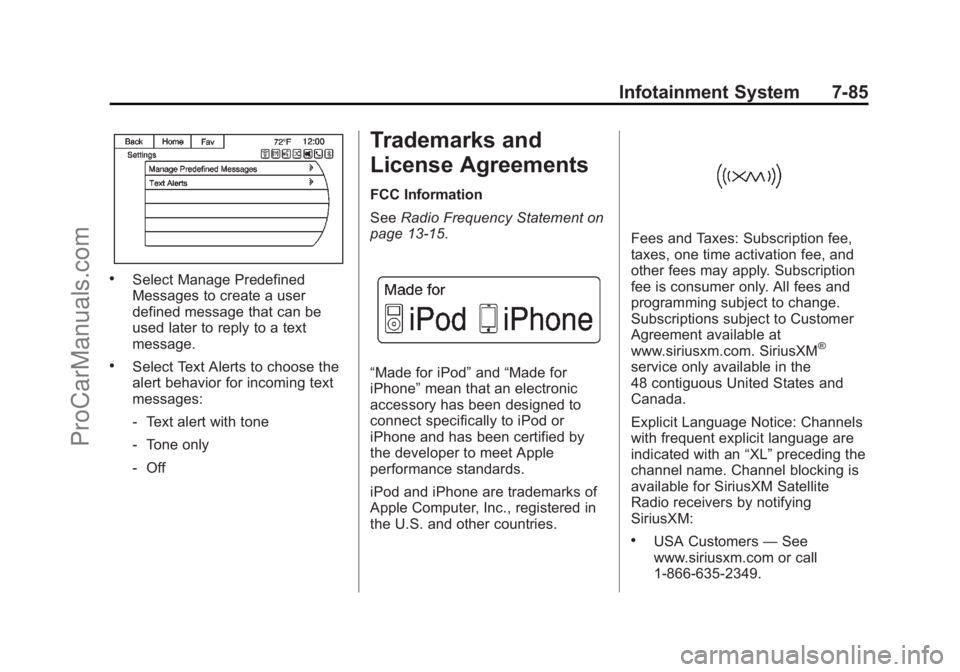
.Select Manage Predefined
Messages to create a user
defined message that can be
used later to reply to a text
message.
.Select Text Alerts to choose the
alert behavior for incoming text
messages:
‐Text alert with tone
‐ Tone only
‐ Off
Trademarks and
License Agreements
FCC Information
See Radio Frequency Statement on
page 13-15.
“Made for iPod” and“Made for
iPhone” mean that an electronic
accessory has been designed to
connect specifically to iPod or
iPhone and has been certified by
the developer to meet Apple
performance standards.
iPod and iPhone are trademarks of
Apple Computer, Inc., registered in
the U.S. and other countries.
Fees and Taxes: Subscription fee,
taxes, one time activation fee, and
other fees may apply. Subscription
fee is consumer only. All fees and
programming subject to change.
Subscriptions subject to Customer
Agreement available at
www.siriusxm.com. SiriusXM
®
service only available in the
48 contiguous United States and
Canada.
Explicit Language Notice: Channels
with frequent explicit language are
indicated with an “XL”preceding the
channel name. Channel blocking is
available for SiriusXM Satellite
Radio receivers by notifying
SiriusXM:
.USA Customers —See
www.siriusxm.com or call
1-866-635-2349.
ProCarManuals.com
Page 222 of 422
Black plate (86,1)Chevrolet SS Sedan Owner Manual (GMNA-Localizing-U.S.-6014851) - 2014 -
1st Edition - 8/22/13
7-86 Infotainment System
It is prohibited to copy, decompile,
disassemble, reverse engineer,
hack, manipulate, or otherwise
make available any technology or
software incorporated in receivers
compatible with the SiriusXM
®
Satellite Radio System or that
support the SiriusXM website, the
Online Service or any of its content.
Furthermore, the AMBER voice
compression software included in
this product is protected by
intellectual property rights including
patent rights, copyrights, and trade
secrets of Digital Voice
Systems, Inc.
General Requirements:
.A License Agreement from
SiriusXM®is required for any
product that incorporates
SiriusXM Technology and/or for
use of any of the SiriusXM
marks to be manufactured,
distributed, or marketed in the
SiriusXM Service Area.
Gracenote
Gracenote®, Gracenote logo and
logotype, and the "Powered by
Gracenote" logo are either a
registered trademark or a trademark
of Gracenote, Inc. in the United
States and/or other countries.
Bluetooth
The Bluetooth®word mark and
logos are owned by the Bluetooth®
SIG, Inc. and any use of such marks
by General Motors is under license.
Other trademarks and trade names
are those of their respective owners.
Pandora (If Equipped)
Pandora is a registered trademark
of Pandora Media, Inc., used under
license.
Manufactured under license from
Dolby Laboratories. Dolby and the
double-D symbol are trademarks of
Dolby Laboratories.
Map End User License
Agreement (Optional
Equipment Applies Where
Equipped)
END USER TERMS
The data (“Data”) is provided for
your personal, internal use only and
not for resale. It is protected by
copyright, and is subject to the
following terms and conditions
which are agreed to by you, on the
one hand, and Panasonic
Automotive Systems Company of
America (“PANASONIC”) and its
licensors (including their licensors
and suppliers) on the other hand.
© 2013 NAVTEQ. All rights
reserved.
The Data includes certain
information and related content
provided under license to NT from
third parties and is subject to the
ProCarManuals.com
Page 223 of 422
Black plate (87,1)Chevrolet SS Sedan Owner Manual (GMNA-Localizing-U.S.-6014851) - 2014 -
1st Edition - 8/22/13
Infotainment System 7-87
applicable supplier terms and
copyright notices set forth
at the following URL:
http://corporate.navteq.com/
supplier_terms.html.
In addition, the Lonely Planet Travel
Guide content is subject to the
following supplier notices (if
equipped):
© 2013 Lonely Planet Publications
Pty Ltd. All rights reserved.
PANASONIC and its content
providers have tried to make this
information as accurate as possible,
but it is provided“as is”and
PANASONIC and its content
providers accept no responsibility
for any loss, injury or inconvenience
resulting from this information. You
should verify critical information (like
visas, health and safety) before you
travel.
TERMS AND CONDITIONS
Personal Use Only. You agree to
use this Data together with the
General Motors MyLink or IntelliLink Connected Navigation Radio
Platform for the solely personal,
non-commercial purposes for which
you were licensed, and not for
service bureau, time-sharing or
other similar purposes. Accordingly,
but subject to the restrictions set
forth in the following paragraphs,
you agree not to otherwise
reproduce, copy, modify, decompile,
disassemble, create any derivative
works of, or reverse engineer any
portion of this Data, and may not
transfer or distribute it in any form,
for any purpose, except to the
extent permitted by mandatory laws.
Restrictions
Except where you have been
specifically licensed to do so by
PANASONIC, and without limiting
the preceding paragraph, you may
not (a) use this Data with any
products, systems, or applications
installed or otherwise connected to
or in communication with vehicles,
capable of vehicle navigation,
positioning, dispatch, real time route
guidance, fleet management orsimilar applications; or (b) with or in
communication with any positioning
devices or any mobile or
wireless-connected electronic or
computer devices, including without
limitation cellular phones, palmtop
and handheld computers, pagers,
and personal digital assistants
or PDAs
Warning
The Data may contain inaccurate or
incomplete information due to the
passage of time, changing
circumstances, sources used and
the nature of collecting
comprehensive geographic data,
any of which may lead to incorrect
results.
No Warranty
This Data is provided to you
“as is,”
and you agree to use it at your own
risk. PANASONIC and its licensors
(and their licensors and suppliers)
make no guarantees,
representations or warranties of any
kind, express or implied, arising by
law or otherwise, including but not
ProCarManuals.com