AUX CHEVROLET SS 2014 Owners Manual
[x] Cancel search | Manufacturer: CHEVROLET, Model Year: 2014, Model line: SS, Model: CHEVROLET SS 2014Pages: 422, PDF Size: 6.18 MB
Page 126 of 422
Black plate (34,1)Chevrolet SS Sedan Owner Manual (GMNA-Localizing-U.S.-6014851) - 2014 -
1st Edition - 8/22/13
5-34 Instruments and Controls
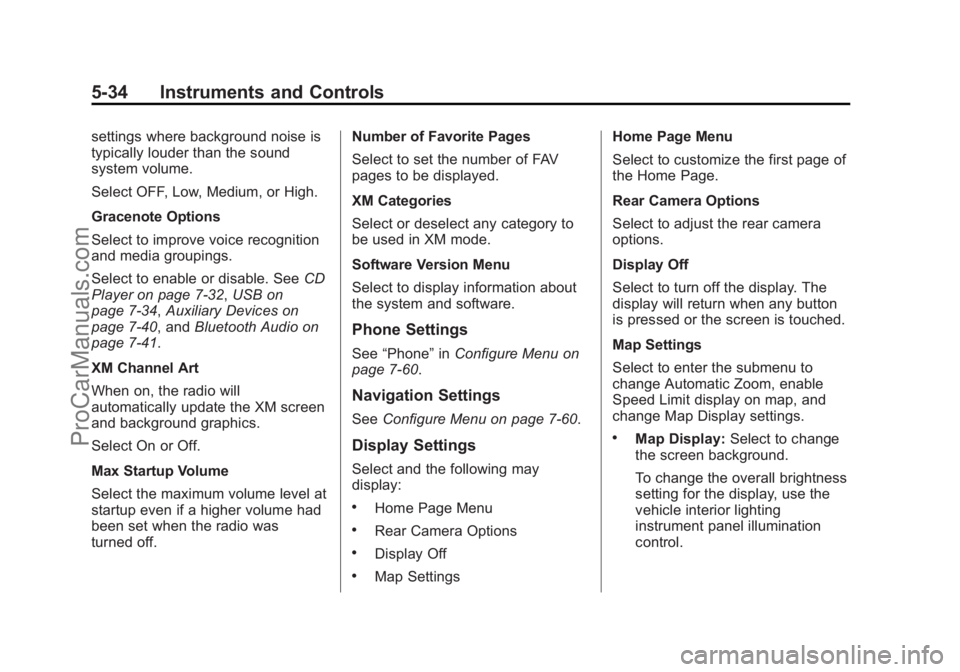
settings where background noise is
typically louder than the sound
system volume.
Select OFF, Low, Medium, or High.
Gracenote Options
Select to improve voice recognition
and media groupings.
Select to enable or disable. SeeCD
Player on page 7-32, USB on
page 7-34, Auxiliary Devices on
page 7-40, and Bluetooth Audio on
page 7-41.
XM Channel Art
When on, the radio will
automatically update the XM screen
and background graphics.
Select On or Off.
Max Startup Volume
Select the maximum volume level at
startup even if a higher volume had
been set when the radio was
turned off. Number of Favorite Pages
Select to set the number of FAV
pages to be displayed.
XM Categories
Select or deselect any category to
be used in XM mode.
Software Version Menu
Select to display information about
the system and software.
Phone Settings
See
“Phone” inConfigure Menu on
page 7-60.
Navigation Settings
See Configure Menu on page 7-60.
Display Settings
Select and the following may
display:
.Home Page Menu
.Rear Camera Options
.Display Off
.Map Settings Home Page Menu
Select to customize the first page of
the Home Page.
Rear Camera Options
Select to adjust the rear camera
options.
Display Off
Select to turn off the display. The
display will return when any button
is pressed or the screen is touched.
Map Settings
Select to enter the submenu to
change Automatic Zoom, enable
Speed Limit display on map, and
change Map Display settings.
.Map Display:
Select to change
the screen background.
To change the overall brightness
setting for the display, use the
vehicle interior lighting
instrument panel illumination
control.
ProCarManuals.com
Page 137 of 422
Black plate (1,1)Chevrolet SS Sedan Owner Manual (GMNA-Localizing-U.S.-6014851) - 2014 -
1st Edition - 8/22/13
Infotainment System 7-1
Infotainment
System
Introduction
Infotainment . . . . . . . . . . . . . . . . . . . 7-2
Overview . . . . . . . . . . . . . . . . . . . . . . 7-2
Using the System . . . . . . . . . . . . . 7-6
Software Updates . . . . . . . . . . . . 7-11
Radio
AM-FM Radio . . . . . . . . . . . . . . . . 7-11
Radio Data System (RDS) . . . 7-14
Satellite Radio . . . . . . . . . . . . . . . 7-15
Radio Reception . . . . . . . . . . . . . 7-20
Backglass Antenna . . . . . . . . . . 7-21
Multi-Band Antenna . . . . . . . . . . 7-21
Quick Info . . . . . . . . . . . . . . . . . . . 7-22Pandora Internet Radio . . . . . . 7-22
Stitcher Internet Radio . . . . . . . 7-27
Pictures . . . . . . . . . . . . . . . . . . . . . . 7-31
Audio Players
CD Player . . . . . . . . . . . . . . . . . . . 7-32
USB . . . . . . . . . . . . . . . . . . . . . . . . . 7-34
Auxiliary Devices . . . . . . . . . . . . 7-40
Bluetooth Audio . . . . . . . . . . . . . . 7-41
Navigation
Using the Navigation
System . . . . . . . . . . . . . . . . . . . . . 7-42
Maps . . . . . . . . . . . . . . . . . . . . . . . . 7-46
Navigation Symbols . . . . . . . . . 7-46
Destination . . . . . . . . . . . . . . . . . . 7-48
OnStar
®Destination
Download . . . . . . . . . . . . . . . . . . 7-59
Configure Menu . . . . . . . . . . . . . 7-60
Global Positioning System (GPS) . . . . . . . . . . . . . . 7-66 Vehicle Positioning . . . . . . . . . . 7-66
Problems with Route
Guidance . . . . . . . . . . . . . . . . . . . 7-67
If the System Needs Service . . . . . . . . . . . . . . . . . . . . . 7-68
Map Data Updates . . . . . . . . . . . 7-68
Database Coverage Explanations . . . . . . . . . . . . . . . 7-68
Voice Recognition
Voice Recognition . . . . . . . . . . . 7-68
Bluetooth Phone/Devices
Bluetooth . . . . . . . . . . . . . . . . . . . . 7-75
Text Messaging . . . . . . . . . . . . . . 7-82
Trademarks and License
Agreements
Trademarks and LicenseAgreements . . . . . . . . . . . . . . . . 7-85
ProCarManuals.com
Page 141 of 422
Black plate (5,1)Chevrolet SS Sedan Owner Manual (GMNA-Localizing-U.S.-6014851) - 2014 -
1st Edition - 8/22/13
Infotainment System 7-5
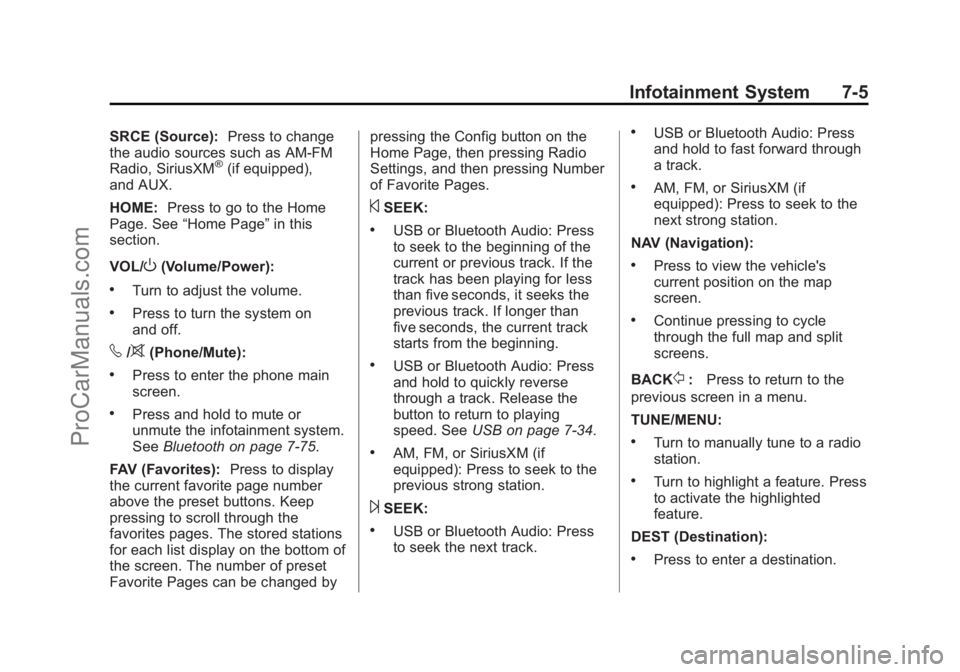
SRCE (Source):Press to change
the audio sources such as AM-FM
Radio, SiriusXM
®(if equipped),
and AUX.
HOME: Press to go to the Home
Page. See “Home Page” in this
section.
VOL/
O(Volume/Power):
.Turn to adjust the volume.
.Press to turn the system on
and off.
v/>(Phone/Mute):
.Press to enter the phone main
screen.
.Press and hold to mute or
unmute the infotainment system.
See Bluetooth on page 7-75.
FAV (Favorites): Press to display
the current favorite page number
above the preset buttons. Keep
pressing to scroll through the
favorites pages. The stored stations
for each list display on the bottom of
the screen. The number of preset
Favorite Pages can be changed by pressing the Config button on the
Home Page, then pressing Radio
Settings, and then pressing Number
of Favorite Pages.
©SEEK:
.USB or Bluetooth Audio: Press
to seek to the beginning of the
current or previous track. If the
track has been playing for less
than five seconds, it seeks the
previous track. If longer than
five seconds, the current track
starts from the beginning.
.USB or Bluetooth Audio: Press
and hold to quickly reverse
through a track. Release the
button to return to playing
speed. See
USB on page 7-34.
.AM, FM, or SiriusXM (if
equipped): Press to seek to the
previous strong station.
¨SEEK:
.USB or Bluetooth Audio: Press
to seek the next track.
.USB or Bluetooth Audio: Press
and hold to fast forward through
a track.
.AM, FM, or SiriusXM (if
equipped): Press to seek to the
next strong station.
NAV (Navigation):
.Press to view the vehicle's
current position on the map
screen.
.Continue pressing to cycle
through the full map and split
screens.
BACK
/: Press to return to the
previous screen in a menu.
TUNE/MENU:
.Turn to manually tune to a radio
station.
.Turn to highlight a feature. Press
to activate the highlighted
feature.
DEST (Destination):
.Press to enter a destination.
ProCarManuals.com
Page 143 of 422
Black plate (7,1)Chevrolet SS Sedan Owner Manual (GMNA-Localizing-U.S.-6014851) - 2014 -
1st Edition - 8/22/13
Infotainment System 7-7
To add screen buttons:
1. Press Menu.
2. Press Customize.
3. Press a screen button to add orremove from the first Home
Page. A
hindicates it will be
displayed. The maximum
number of buttons on Home
Page 1 is eight.
4. Press Done.
To move screen buttons:
1. Press Sort.
2. Press an icon to move.
3. Press an icon to swap with.
4. Press Done.
To restore Home Page 1 defaults:
1. Press Menu.
2. Press Restore Home Page Defaults.
3. Press Yes or Cancel.
Home Page Features
Touch screen buttons are
highlighted when a feature is
available.
Various functions are disabled when
the vehicle is moving.
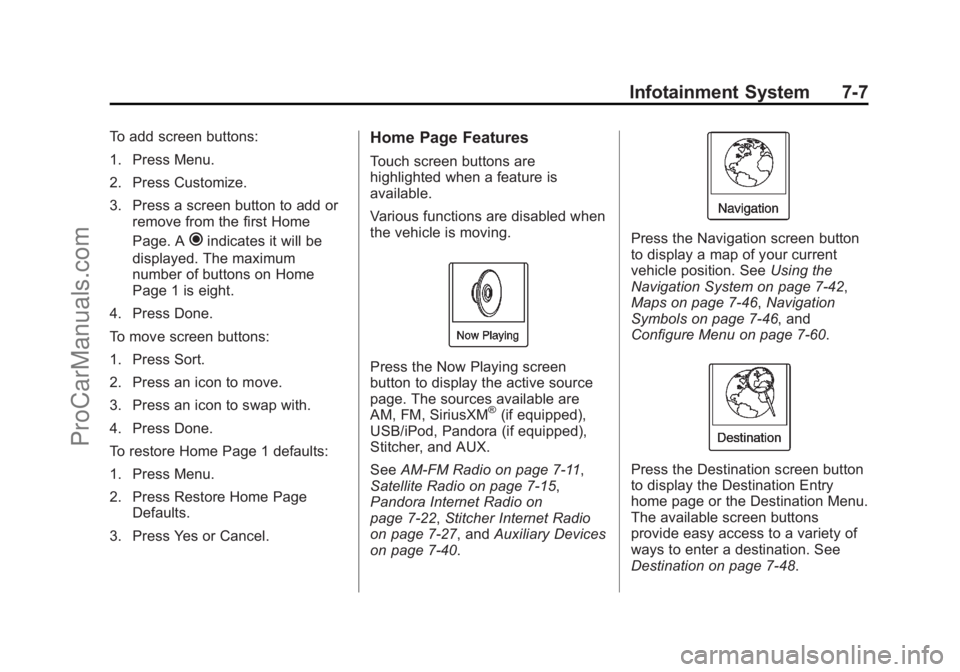
Press the Now Playing screen
button to display the active source
page. The sources available are
AM, FM, SiriusXM
®(if equipped),
USB/iPod, Pandora (if equipped),
Stitcher, and AUX.
See AM-FM Radio on page 7-11,
Satellite Radio on page 7-15,
Pandora Internet Radio on
page 7-22, Stitcher Internet Radio
on page 7-27, and Auxiliary Devices
on page 7-40.
Press the Navigation screen button
to display a map of your current
vehicle position. See Using the
Navigation System on page 7-42,
Maps on page 7-46, Navigation
Symbols on page 7-46, and
Configure Menu on page 7-60.
Press the Destination screen button
to display the Destination Entry
home page or the Destination Menu.
The available screen buttons
provide easy access to a variety of
ways to enter a destination. See
Destination on page 7-48.
ProCarManuals.com
Page 145 of 422
Black plate (9,1)Chevrolet SS Sedan Owner Manual (GMNA-Localizing-U.S.-6014851) - 2014 -
1st Edition - 8/22/13
Infotainment System 7-9
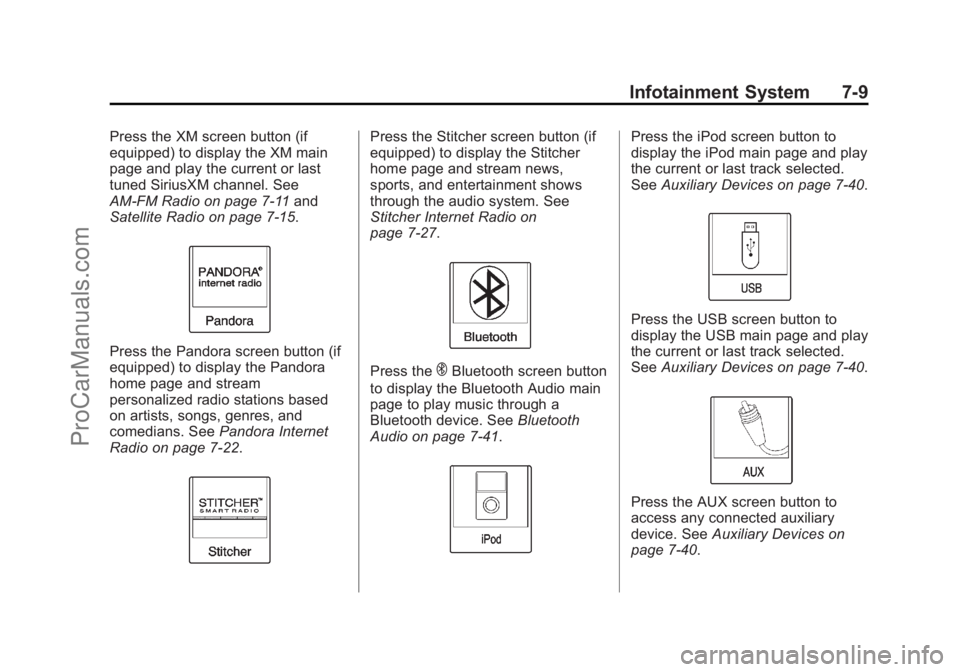
Press the XM screen button (if
equipped) to display the XM main
page and play the current or last
tuned SiriusXM channel. See
AM-FM Radio on page 7-11and
Satellite Radio on page 7-15.
Press the Pandora screen button (if
equipped) to display the Pandora
home page and stream
personalized radio stations based
on artists, songs, genres, and
comedians. See Pandora Internet
Radio on page 7-22.
Press the Stitcher screen button (if
equipped) to display the Stitcher
home page and stream news,
sports, and entertainment shows
through the audio system. See
Stitcher Internet Radio on
page 7-27.
Press theEBluetooth screen button
to display the Bluetooth Audio main
page to play music through a
Bluetooth device. See Bluetooth
Audio on page 7-41.
Press the iPod screen button to
display the iPod main page and play
the current or last track selected.
See Auxiliary Devices on page 7-40.
Press the USB screen button to
display the USB main page and play
the current or last track selected.
SeeAuxiliary Devices on page 7-40.
Press the AUX screen button to
access any connected auxiliary
device. See Auxiliary Devices on
page 7-40.
ProCarManuals.com
Page 148 of 422
Black plate (12,1)Chevrolet SS Sedan Owner Manual (GMNA-Localizing-U.S.-6014851) - 2014 -
1st Edition - 8/22/13
7-12 Infotainment System
10 minutes. Opening the driver door
will not turn the radio off when
pressing the power button.
Some radios may stay on longer
and reset the time for 10 minutes if
there are any additional presses of
any radio button.
The radio can be turned off at any
time by pressing the power button.
Audio Source
Press SRCE or SRC on the steering
wheel controls to display and scroll
through the available sources AM,
FM, XM (if equipped), Pandora (if
equipped), Stitcher, USB, AUX, and
Bluetooth Audio.
Infotainment System Settings
Tone Settings
To access the tone settings, press
the Tone Settings button on the
Home Page. Tone settings are
specific to each source.
To adjust the settings:
.Bass: Press + or−to change
the level.
.Mid (Midrange): Press + or −to
change the level.
.Treble: Press + or −to change
the level.
.EQ: Press or turn the TUNE/
MENU knob to cycle through the
preset EQ options.
.Fade: Press the F or R button
for more sound from the front or
rear speakers. The middle
position balances the sound
between the front and rear
speakers.
.Balance: Press the L or R button
for more sound from the left or
right speakers. The middle
position balances the sound
between the left and right
speakers.
Finding a Station
Press SRCE or SRC on the steering
wheel controls to select AM, FM,
XM, Pandora (if equipped), Stitcher,
USB, AUX, and Bluetooth Audio.
Turn the TUNE/MENU knob to find
a radio station. To select a preset
station, press FAV to scroll through
the favorite pages and then press a
preset button on the radio or the
screen button.
Seeking a Station
Press
©SEEK or SEEK¨to search
for a station.
ProCarManuals.com
Page 159 of 422
Black plate (23,1)Chevrolet SS Sedan Owner Manual (GMNA-Localizing-U.S.-6014851) - 2014 -
1st Edition - 8/22/13
Infotainment System 7-23
.On a BlackBerry®phone, go to
the BlackBerry App World™ and
search for Pandora.
.On an iPhone®, iPad®, or iPod
touch®, go to the iTunes®Store
and search for Pandora.
Launching Pandora
Connect the iPhone, iPad, or iPod
touch to the USB port, or connect
an Android or BlackBerry through
Bluetooth. See Auxiliary Devices on
page 7-40 orBluetooth on
page 7-75. For first-time use, set up
stations before connecting to the
vehicle. The Pandora icon will be
available on the Home Page and
the source pop-up displays if the
latest application is installed on the
device.
Using the iPhone, iPod Touch,
or iPad
1. Plug the device into the USB
port. The phone screen must be
unlocked. 2. To launch, do one of the
following:
.Launch the application on
the device.
.Press Pandora on the
Home Page.
.Pressb/gand say
“Pandora” or“Tune
Pandora.”
.Accept any notification on
the screen of the device.
To relaunch Pandora, press SRCE
or SRC on the steering wheel
controls.
If nothing happens when the
available Pandora screen button is
pressed, download the latest
Pandora application and retry.
Pandora will always be highlighted
on the Home Page when an iPhone,
iPad, or iPod touch is connected
using the USB port. To use, log into
your account. If the
“Please See Device” message
is shown, the login screen may
display on the device.
If the “Please Unlock the Phone or
Restart the App and Try Again”
message is shown, then the phone
may be locked. Unlock the phone,
close the app, then restart the app
and make sure the Home Page is
visible on the phone/device.
If the vehicle is shut off while tuned
to Pandora and the iPhone, iPad,
or iPod touch is left connected to
the USB port before the next ignition
cycle, the radio will start playing
Pandora when the vehicle is started.
If Pandora is shut down on the
phone or another audio app is used,
Pandora may not start on the next
ignition cycle. If iPod source is
selected, it may show iPod and then
switch to Pandora.
Using an Android Phone
1. Pair the Android phone using Bluetooth.
ProCarManuals.com
Page 164 of 422
Black plate (28,1)Chevrolet SS Sedan Owner Manual (GMNA-Localizing-U.S.-6014851) - 2014 -
1st Edition - 8/22/13
7-28 Infotainment System
Launching Stitcher
Connect the iPhone, iPad, or iPod
touch to the USB port, or connect
Android through Bluetooth. See
Auxiliary Devices on page 7-40or
Bluetooth on page 7-75. For
first-time use, set up the stations
before connecting to the vehicle.
The Stitcher icon will be available
on the Home Page and source
pop-up displays if the latest
application is installed on the
device.
Using the iPhone, iPod Touch,
or iPad
1. Plug the device into the USB port. The phone screen must be
unlocked.
2. Use one of the following to launch:
.Press the application on the
device.
.Press Stitcher on the
Home Page.
.Pressb/gand say
“Stitcher” or“Tune Stitcher.”
.Accept any notification on
the screen of the device.
3. If Stitcher does not begin playing, select a category and
then a station.
After Stitcher has been launched,
press SRCE or SRC on the steering
wheel controls to access Stitcher
features.
If nothing happens when the
available Stitcher screen button is
pressed, download the latest
Stitcher application and retry.
Stitcher will always be highlighted
on the Home Page when an iPhone,
iPad, or iPod touch is connected
using the USB port. To use, log into
your account.
If the “Please See Device” message
is shown, the login screen may
display on the device.
If the "Please unlock your phone or
restart the app" message is shown,
then the phone may be locked. Unlock the phone, close the app,
then restart the app to make sure
the Home Page is visible on the
phone/device.
Using an Android Phone
1. Pair the Android phone using
Bluetooth.
2. Use one of the following to launch:
.Press the application on the
device.
.Press Stitcher on the
Home Page.
.Pressb/gand say
“Stitcher” or“Tune Stitcher.”
3. If Stitcher does not begin playing, select a category and
then a station.
After Stitcher has been launched,
press SRCE or SRC on the steering
wheel controls to access Stitcher
features.
ProCarManuals.com
Page 174 of 422
Black plate (38,1)Chevrolet SS Sedan Owner Manual (GMNA-Localizing-U.S.-6014851) - 2014 -
1st Edition - 8/22/13
7-38 Infotainment System
3. Select a song from the list tobegin playback.
Genres:
1. Press to view the genres on the USB.
2. Select a genre to view a list of all songs of that genre.
3. Select a song from the list to begin playback.
Songs:
1. Press to display a list of all songs on the USB.
2. Songs are displayed as they are stored on the disc. To begin
playback, select a song from
the list.
File System and Naming
The songs, artists, albums, and
genres are taken from the file’s
song information and are only
displayed if present. The radio
displays the file name as the track
name if the song information is not
available.Playing from an iPod®
This feature supports the following
iPod models:
.iPod classic®(6th generation)
.iPod nano®(3G, 4G, 5G,
and 6G)
.iPod touch®(1G, 2G, 3G,
and 4G)
There may be problems with the
operation and function in the
following situations:
.When connecting an iPod on
which a more recent version of
the firmware is installed than is
supported by the infotainment
system.
.When connecting an iPod on
which firmware from other
providers is installed.
To connect an iPod:
1. Connect one end of the standard iPod USB cable to the iPod's
dock connector. 2. Connect the other end to the
USB port in the center console.
iPod music information displays on
the radio’s display and begins
playing through the vehicle’s audio
system.
The iPod battery recharges
automatically while the vehicle is on.
The iPod shuts off and stops
charging when the vehicle is
shut off.
If the iPod is an unsupported model,
it can still be listened to in the
vehicle by connecting to the
auxiliary input jack using a standard
3.5 mm (1/8 in) stereo cable.
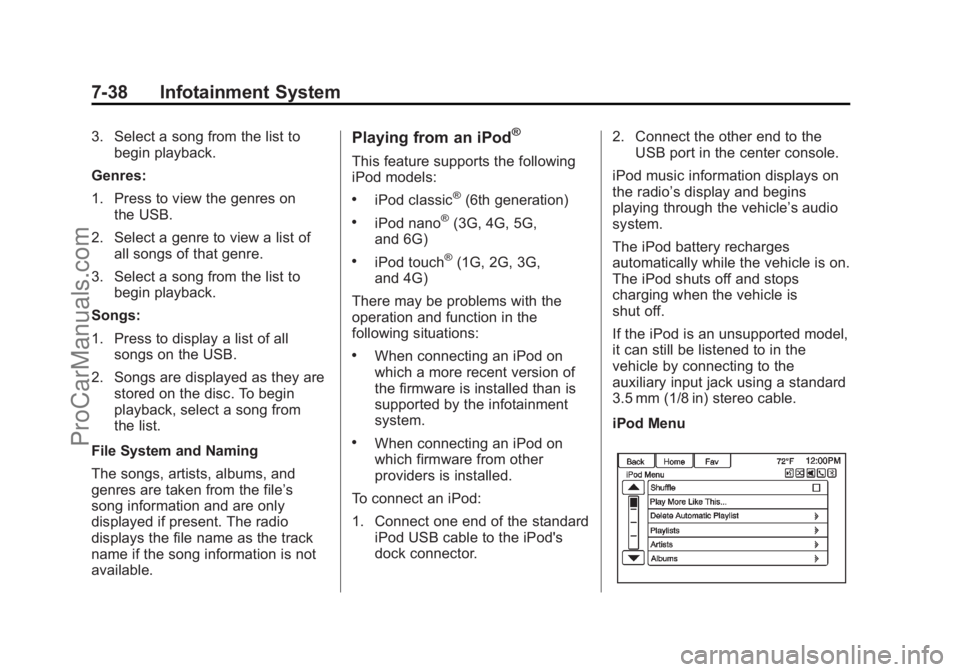
iPod Menu
ProCarManuals.com
Page 176 of 422

Black plate (40,1)Chevrolet SS Sedan Owner Manual (GMNA-Localizing-U.S.-6014851) - 2014 -
1st Edition - 8/22/13
7-40 Infotainment System
Audio Books:
1. Press to view the audio bookson the iPod.
2. Select the audio book from the list to begin playback.
Playing from an iPhone or iPad
This feature supports the following
iPhone or iPad models:
.iPhone®(2G, 3G, 3GS, 4, 4S,
and 5)
.iPad®(1G, 2G)
Follow the same instructions as
stated earlier for using an iPod. To
use voice recognition to play music,
say “Play USB,” “Play Artist,” “Play
Album,” “Play Song,” or“Play
Genre.” SeeVoice Recognition on
page 7-68.
iPhone, iPod Touch and iPad
Troubleshooting
When an iPhone, iPod touch,
or iPad are connected through USB
and Bluetooth, the audio may not be
heard when the iPod source on the radio is selected. If a phone call is
received while listening to the iPod
source and there is no audio for the
iPod after the source, then go to the
Airplay icon on the device and
select dock connector or disconnect
and reconnect the dock connector
on the device.
Some functionality may differ based
on operating system version on
device.
USB Troubleshooting
If the device is not being recognized
or the music is missing screen
information, restore the radio
defaults:
1. Press Config.
2. Press Vehicle Settings.
3. Press Return to Factory
Settings.
4. Press Yes.
Pair the phone again and the device
will have to index again. Bluetooth Audio and Voice
Recognition
See
Bluetooth Audio on page 7-41
and Voice Recognition on page 7-68
for information using voice
recognition with Bluetooth audio.
Make sure all devices have the
latest software downloaded.
Auxiliary Devices
This vehicle has an auxiliary input
jack in the center console. Possible
auxiliary audio sources include:
.Laptop computer
.MP3 player
.Tape player
This jack is not an audio output. Do
not plug headphones into the
auxiliary input jack. Set up any
auxiliary device while the vehicle is
in P (Park).
Connect a 3.5 mm (1/8 in) cable
from the auxiliary device to the
auxiliary input jack. When a device
is connected, the system
ProCarManuals.com