manual radio set CHEVROLET SS 2014 Owners Manual
[x] Cancel search | Manufacturer: CHEVROLET, Model Year: 2014, Model line: SS, Model: CHEVROLET SS 2014Pages: 422, PDF Size: 6.18 MB
Page 18 of 422
Black plate (14,1)Chevrolet SS Sedan Owner Manual (GMNA-Localizing-U.S.-6014851) - 2014 -
1st Edition - 8/22/13
1-14 In Brief
$/i:Press to decline an
incoming call, or to end a current
call. Press to silence the vehicle
speakers while using the
infotainment system. Press again to
turn the sound on. Press to cancel
voice recognition.
_SRC^: Press to select an
audio source.
Use the thumbwheel to select the
next or previous favorite radio
station, CD track, MP3 track, USB
track, and Bluetooth Audio track.
Use
_SRC to skip to the next song
or show using Pandora or Stitcher.
See Pandora Internet Radio on
page 7-22 orStitcher Internet Radio
on page 7-27.
+
x−: Press + to increase the
volume. Press −to decrease.
See Steering Wheel Controls on
page 5-2.
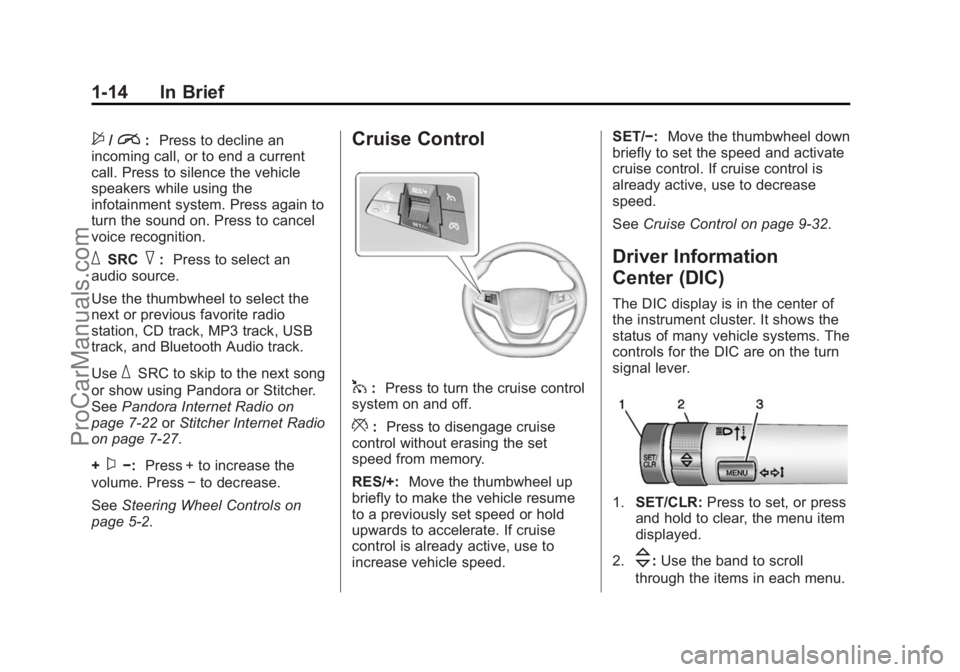
Cruise Control
1: Press to turn the cruise control
system on and off.
*: Press to disengage cruise
control without erasing the set
speed from memory.
RES/+: Move the thumbwheel up
briefly to make the vehicle resume
to a previously set speed or hold
upwards to accelerate. If cruise
control is already active, use to
increase vehicle speed. SET/−:
Move the thumbwheel down
briefly to set the speed and activate
cruise control. If cruise control is
already active, use to decrease
speed.
See Cruise Control on page 9-32.
Driver Information
Center (DIC)
The DIC display is in the center of
the instrument cluster. It shows the
status of many vehicle systems. The
controls for the DIC are on the turn
signal lever.
1.SET/CLR: Press to set, or press
and hold to clear, the menu item
displayed.
2.
\: Use the band to scroll
through the items in each menu.
ProCarManuals.com
Page 39 of 422
Black plate (15,1)Chevrolet SS Sedan Owner Manual (GMNA-Localizing-U.S.-6014851) - 2014 -
1st Edition - 8/22/13
Keys, Doors, and Windows 2-15
transmitter during the 10-second
pre-alarm, the alarm will be
activated.
The alarm will also be activated if
the passenger door, the trunk, or the
hood is opened without first
disarming the system. When the
alarm is activated, the turn signals
flash and the horn sounds for about
30 seconds. The alarm system will
then re-arm to monitor for the next
unauthorized event.
Disarming the System
To disarm the system, do one of the
following:
.PressKon the RKE transmitter.
.Start the engine.
To avoid setting off the alarm by
accident:
.Lock the vehicle with the RKE
transmitter after all occupants
have exited.
.Always unlock the vehicle with
the RKE transmitter, or use the
Keyless Access system.
Unlocking the driver door with
the key will not disarm the
system or turn off the alarm.
Immobilizer
See Radio Frequency Statement on
page 13-15.
Immobilizer Operation
This vehicle has a passive
theft-deterrent system.
The system does not have to be
manually armed or disarmed.
The immobilizer activates itself
automatically after the key has been
removed from the ignition switch,
if equipped with Keyless Access,
when the engine is switched off by
pressing the ENGINE START/STOP
button. The system checks whether the
vehicle is allowed to start with the
key used. If the transponder in the
key is recognized, the vehicle can
be started.The security light in the instrument
cluster comes on when there is a
problem with arming or disarming
the theft-deterrent system.
The system has one or more
transmitters matched to an
immobilizer control unit in your
vehicle. Only a correctly matched
transmitter will start the vehicle.
If the transmitter is ever damaged,
you may not be able to start your
vehicle.
When trying to start the vehicle, the
security light comes on briefly when
the ignition is turned on.
ProCarManuals.com
Page 96 of 422

Black plate (4,1)Chevrolet SS Sedan Owner Manual (GMNA-Localizing-U.S.-6014851) - 2014 -
1st Edition - 8/22/13
5-4 Instruments and Controls
Keep this area of the windshield
clear of debris to allow for best
system performance.
INT (Rainsense Wipe Sensitivity
Control):Move the windshield
wiper lever to INT. Turn the
xINT
band on the wiper lever to adjust the
sensitivity.
.Turn the band up for more
sensitivity to moisture.
.Turn the band down for less
sensitivity to moisture.
.Move the windshield wiper lever
out of the INT position to
deactivate Rainsense.
n L(Windshield Washer): Pull
the windshield wiper lever toward
you to spray windshield washer fluid
and activate the wipers. The wipers will continue until the lever is
released or the maximum wash time
is reached. When the windshield
wiper lever is released, additional
wipes may occur depending on how
long the windshield washer had
been activated. See
Washer Fluid
on page 10-17 for information on
filling the windshield washer fluid
reservoir.
{Warning
In freezing weather, do not use
the washer until the windshield is
warmed. Otherwise the washer
fluid can form ice on the
windshield, blocking your vision.
Clock
Time and Date
1. Press HOME on the radio
faceplate.
2. Press the Config screen button on the Home Page. 3. Select Time and Date.
4. Select the desired setting to
change.
Set Time: Press + or−to increase
or decrease the hours and minutes.
If auto timing is set, the time
displayed on the clock may not
update immediately when driving
into a new time zone.
Set Date: Press + or−to increase
or decrease the year, month,
and day.
12hr/24hr Format: Press to select
12 hour or 24 hour time format.
Press the Back screen button
to save.
Power Outlets
The accessory power outlets can be
used to plug in electrical equipment,
such as a cell phone or MP3 player.
The vehicle has an accessory
power outlet on the center stack and
inside the center console storage.
ProCarManuals.com
Page 113 of 422
Black plate (21,1)Chevrolet SS Sedan Owner Manual (GMNA-Localizing-U.S.-6014851) - 2014 -
1st Edition - 8/22/13
Instruments and Controls 5-21
Information Displays
Driver Information
Center (DIC)
The DIC displays information about
the vehicle. It also displays warning
messages if a system problem is
detected. SeeVehicle Messages on
page 5-26. All messages appear in
the DIC display in the center of the
instrument cluster.
The vehicle may also have features
that can be customized through the
controls on the radio. See Vehicle
Personalization on page 5-33.
DIC Operation and Displays
The DIC has different displays,
which can be accessed by using the
DIC buttons on the turn signal lever
to the left of the steering wheel. The
DIC displays trip, fuel, vehicle
system information, and warning
messages if a system problem is
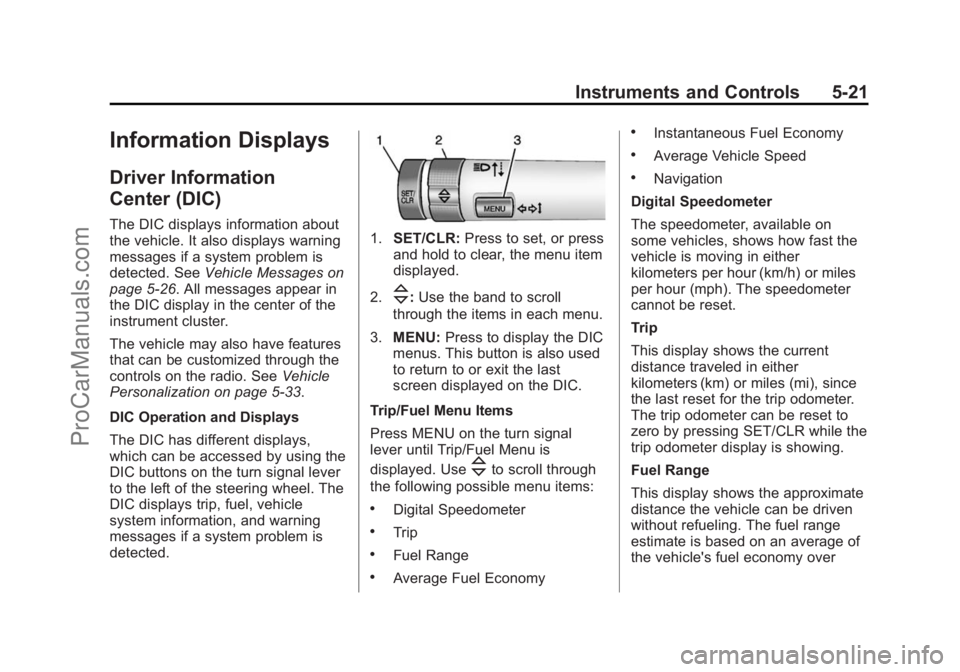
detected.1. SET/CLR: Press to set, or press
and hold to clear, the menu item
displayed.
2.
\: Use the band to scroll
through the items in each menu.
3. MENU: Press to display the DIC
menus. This button is also used
to return to or exit the last
screen displayed on the DIC.
Trip/Fuel Menu Items
Press MENU on the turn signal
lever until Trip/Fuel Menu is
displayed. Use
\to scroll through
the following possible menu items:
.Digital Speedometer
.Trip
.Fuel Range
.Average Fuel Economy
.Instantaneous Fuel Economy
.Average Vehicle Speed
.Navigation
Digital Speedometer
The speedometer, available on
some vehicles, shows how fast the
vehicle is moving in either
kilometers per hour (km/h) or miles
per hour (mph). The speedometer
cannot be reset.
Trip
This display shows the current
distance traveled in either
kilometers (km) or miles (mi), since
the last reset for the trip odometer.
The trip odometer can be reset to
zero by pressing SET/CLR while the
trip odometer display is showing.
Fuel Range
This display shows the approximate
distance the vehicle can be driven
without refueling. The fuel range
estimate is based on an average of
the vehicle's fuel economy over
ProCarManuals.com
Page 125 of 422
Black plate (33,1)Chevrolet SS Sedan Owner Manual (GMNA-Localizing-U.S.-6014851) - 2014 -
1st Edition - 8/22/13
Instruments and Controls 5-33
Vehicle
Personalization
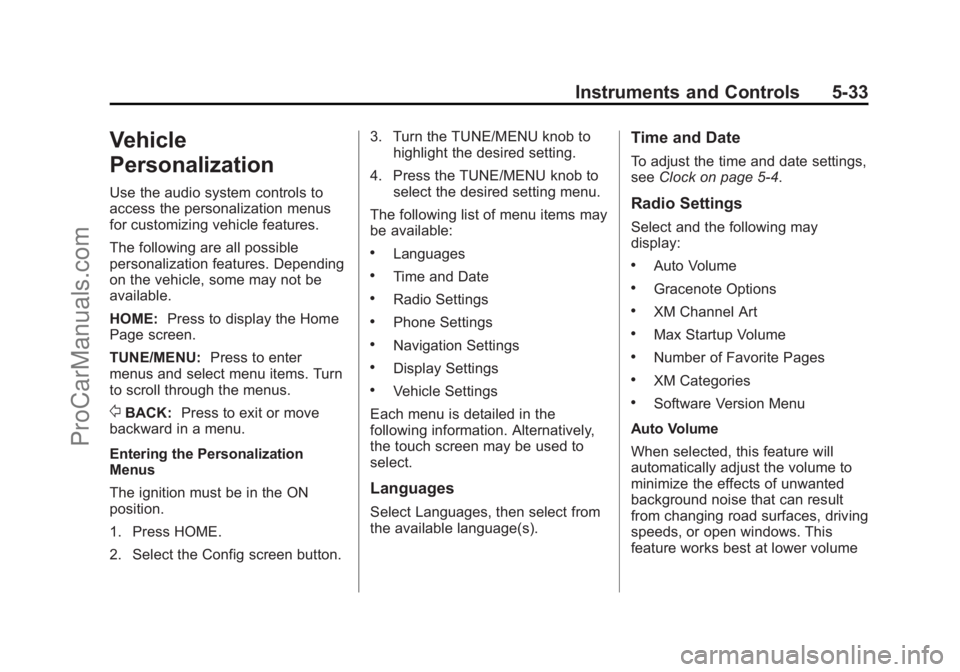
Use the audio system controls to
access the personalization menus
for customizing vehicle features.
The following are all possible
personalization features. Depending
on the vehicle, some may not be
available.
HOME:Press to display the Home
Page screen.
TUNE/MENU: Press to enter
menus and select menu items. Turn
to scroll through the menus.
/BACK: Press to exit or move
backward in a menu.
Entering the Personalization
Menus
The ignition must be in the ON
position.
1. Press HOME.
2. Select the Config screen button. 3. Turn the TUNE/MENU knob to
highlight the desired setting.
4. Press the TUNE/MENU knob to select the desired setting menu.
The following list of menu items may
be available:
.Languages
.Time and Date
.Radio Settings
.Phone Settings
.Navigation Settings
.Display Settings
.Vehicle Settings
Each menu is detailed in the
following information. Alternatively,
the touch screen may be used to
select.
Languages
Select Languages, then select from
the available language(s).
Time and Date
To adjust the time and date settings,
see Clock on page 5-4.
Radio Settings
Select and the following may
display:
.Auto Volume
.Gracenote Options
.XM Channel Art
.Max Startup Volume
.Number of Favorite Pages
.XM Categories
.Software Version Menu
Auto Volume
When selected, this feature will
automatically adjust the volume to
minimize the effects of unwanted
background noise that can result
from changing road surfaces, driving
speeds, or open windows. This
feature works best at lower volume
ProCarManuals.com
Page 126 of 422
Black plate (34,1)Chevrolet SS Sedan Owner Manual (GMNA-Localizing-U.S.-6014851) - 2014 -
1st Edition - 8/22/13
5-34 Instruments and Controls
settings where background noise is
typically louder than the sound
system volume.
Select OFF, Low, Medium, or High.
Gracenote Options
Select to improve voice recognition
and media groupings.
Select to enable or disable. SeeCD
Player on page 7-32, USB on
page 7-34, Auxiliary Devices on
page 7-40, and Bluetooth Audio on
page 7-41.
XM Channel Art
When on, the radio will
automatically update the XM screen
and background graphics.
Select On or Off.
Max Startup Volume
Select the maximum volume level at
startup even if a higher volume had
been set when the radio was
turned off. Number of Favorite Pages
Select to set the number of FAV
pages to be displayed.
XM Categories
Select or deselect any category to
be used in XM mode.
Software Version Menu
Select to display information about
the system and software.
Phone Settings
See
“Phone” inConfigure Menu on
page 7-60.
Navigation Settings
See Configure Menu on page 7-60.
Display Settings
Select and the following may
display:
.Home Page Menu
.Rear Camera Options
.Display Off
.Map Settings Home Page Menu
Select to customize the first page of
the Home Page.
Rear Camera Options
Select to adjust the rear camera
options.
Display Off
Select to turn off the display. The
display will return when any button
is pressed or the screen is touched.
Map Settings
Select to enter the submenu to
change Automatic Zoom, enable
Speed Limit display on map, and
change Map Display settings.
.Map Display:
Select to change
the screen background.
To change the overall brightness
setting for the display, use the
vehicle interior lighting
instrument panel illumination
control.
ProCarManuals.com
Page 138 of 422
Black plate (2,1)Chevrolet SS Sedan Owner Manual (GMNA-Localizing-U.S.-6014851) - 2014 -
1st Edition - 8/22/13
7-2 Infotainment System
Introduction
Infotainment
Read the following pages to
become familiar with the
infotainment system features.
{Warning
Taking your eyes off the road for
extended periods could cause a
crash resulting in injury or death
to you or others. Do not give
extended attention to infotainment
tasks while driving.
This system provides access to
many audio and non-audio listings.
To minimize taking your eyes off the
road while driving, do the following
while the vehicle is parked:
.Become familiar with the
operation and controls of the
audio system.
.Set up the tone, speaker
adjustments, and preset radio
stations.
For more information, see Defensive
Driving on page 9-3.
{Caution
Contact your dealer before adding
any equipment.
Adding audio or communication
equipment could interfere with the
operation of the engine, radio,
or other systems, and could
damage them. Follow federal
rules covering mobile radio and
telephone equipment.
The vehicle has Retained
Accessory Power (RAP). With RAP,
the audio system can be played
even after the ignition is turned off.
See Retained Accessory Power
(RAP) on page 9-18 for more
information.
Overview
Read the following pages to
become familiar with the
infotainment system features.
The infotainment system has built-in
features intended to help with this
by disabling some functions when
driving. A grayed out function is not
available when the vehicle is
moving.
All functions are available when the
vehicle is parked. Before driving:
.Become familiar with the
infotainment system operation,
buttons on the faceplate, and
touch-sensitive screen buttons.
.Set up the audio by presetting
favorite stations, setting the
tone, and adjusting the
speakers.
.Set up phone numbers in
advance so they can be called
easily by pressing a single
button or by using a single voice
command for vehicles equipped
with phone capability.
ProCarManuals.com
Page 141 of 422
Black plate (5,1)Chevrolet SS Sedan Owner Manual (GMNA-Localizing-U.S.-6014851) - 2014 -
1st Edition - 8/22/13
Infotainment System 7-5
SRCE (Source):Press to change
the audio sources such as AM-FM
Radio, SiriusXM
®(if equipped),
and AUX.
HOME: Press to go to the Home
Page. See “Home Page” in this
section.
VOL/
O(Volume/Power):
.Turn to adjust the volume.
.Press to turn the system on
and off.
v/>(Phone/Mute):
.Press to enter the phone main
screen.
.Press and hold to mute or
unmute the infotainment system.
See Bluetooth on page 7-75.
FAV (Favorites): Press to display
the current favorite page number
above the preset buttons. Keep
pressing to scroll through the
favorites pages. The stored stations
for each list display on the bottom of
the screen. The number of preset
Favorite Pages can be changed by pressing the Config button on the
Home Page, then pressing Radio
Settings, and then pressing Number
of Favorite Pages.
©SEEK:
.USB or Bluetooth Audio: Press
to seek to the beginning of the
current or previous track. If the
track has been playing for less
than five seconds, it seeks the
previous track. If longer than
five seconds, the current track
starts from the beginning.
.USB or Bluetooth Audio: Press
and hold to quickly reverse
through a track. Release the
button to return to playing
speed. See
USB on page 7-34.
.AM, FM, or SiriusXM (if
equipped): Press to seek to the
previous strong station.
¨SEEK:
.USB or Bluetooth Audio: Press
to seek the next track.
.USB or Bluetooth Audio: Press
and hold to fast forward through
a track.
.AM, FM, or SiriusXM (if
equipped): Press to seek to the
next strong station.
NAV (Navigation):
.Press to view the vehicle's
current position on the map
screen.
.Continue pressing to cycle
through the full map and split
screens.
BACK
/: Press to return to the
previous screen in a menu.
TUNE/MENU:
.Turn to manually tune to a radio
station.
.Turn to highlight a feature. Press
to activate the highlighted
feature.
DEST (Destination):
.Press to enter a destination.
ProCarManuals.com
Page 146 of 422
Black plate (10,1)Chevrolet SS Sedan Owner Manual (GMNA-Localizing-U.S.-6014851) - 2014 -
1st Edition - 8/22/13
7-10 Infotainment System
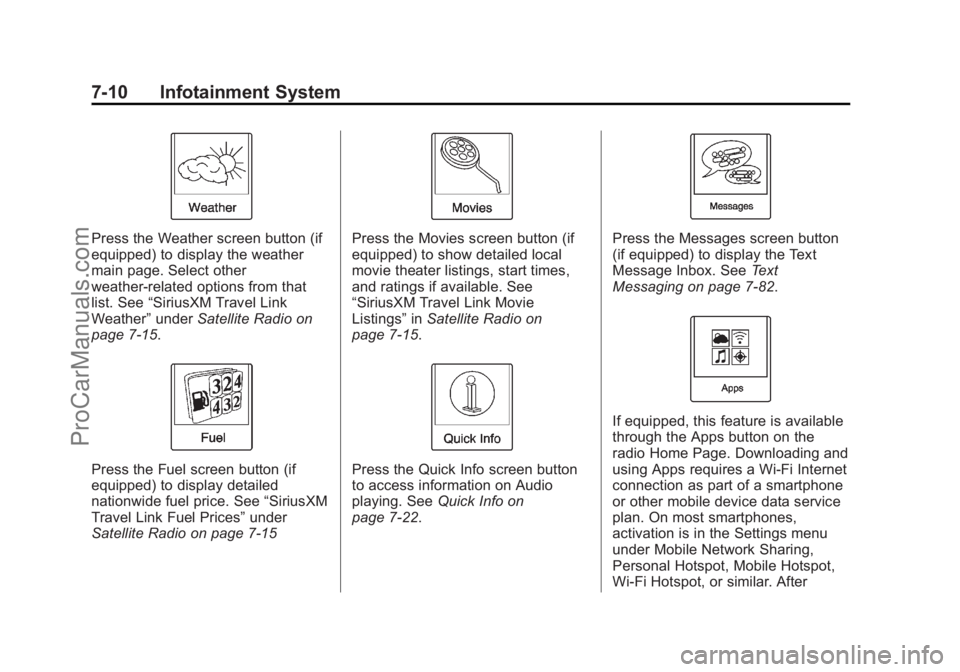
Press the Weather screen button (if
equipped) to display the weather
main page. Select other
weather-related options from that
list. See“SiriusXM Travel Link
Weather” underSatellite Radio on
page 7-15.
Press the Fuel screen button (if
equipped) to display detailed
nationwide fuel price. See “SiriusXM
Travel Link Fuel Prices” under
Satellite Radio on page 7-15
Press the Movies screen button (if
equipped) to show detailed local
movie theater listings, start times,
and ratings if available. See
“SiriusXM Travel Link Movie
Listings” inSatellite Radio on
page 7-15.
Press the Quick Info screen button
to access information on Audio
playing. See Quick Info on
page 7-22.
Press the Messages screen button
(if equipped) to display the Text
Message Inbox. See Text
Messaging on page 7-82.
If equipped, this feature is available
through the Apps button on the
radio Home Page. Downloading and
using Apps requires a Wi-Fi Internet
connection as part of a smartphone
or other mobile device data service
plan. On most smartphones,
activation is in the Settings menu
under Mobile Network Sharing,
Personal Hotspot, Mobile Hotspot,
Wi-Fi Hotspot, or similar. After
ProCarManuals.com
Page 147 of 422
Black plate (11,1)Chevrolet SS Sedan Owner Manual (GMNA-Localizing-U.S.-6014851) - 2014 -
1st Edition - 8/22/13
Infotainment System 7-11
activation of Wi-Fi on the
smartphone, press the Apps button
on the radio Home Page. Follow the
prompts to configure the Internet
connection and set up an account.
See www.chevrolet.com/mylink
(U.S.) or www.mylink.chevrolet.ca
(Canada).
Cleaning High Gloss Surfaces
and Vehicle Information and
Radio Displays
For vehicles with high gloss
surfaces or vehicle displays, use a
microfiber cloth to wipe surfaces.
Before wiping the surface with the
microfiber cloth, use a soft bristle
brush to remove dirt that could
scratch the surface. Then use the
microfiber cloth by gently rubbing to
clean. Never use window cleaners
or solvents. Periodically hand wash
the microfiber cloth separately,
using mild soap. Do not use bleach
or fabric softener. Rinse thoroughly
and air dry before next use.
{Caution
Do not attach a device with a
suction cup to the display. This
may cause damage and would
not be covered by the warranty.
Software Updates
See the websites for more
information.
Website Information
In the U.S., see www.chevrolet.com
In Canada, see
www.chevrolet.gm.ca
Radio
AM-FM Radio
Playing the Radio
VOL/O(Volume/Power):
.Press to turn the radio on or off.
.Turn to increase or decrease the
volume of the active source.
The steering wheel controls can
also be used to adjust the volume.
See Steering Wheel Controls on
page 5-2.
Radio Operation
The radio will work when the key is
in ON/RUN or ACC/
ACCESSORY. When the key is
turned from ON/RUN to LOCK/OFF,
the radio will continue to work for
10 minutes or until the driver door is
opened.
The radio can be turned on by
pressing the power button on the
radio and will stay on for
ProCarManuals.com