manual radio set CHEVROLET SS 2015 User Guide
[x] Cancel search | Manufacturer: CHEVROLET, Model Year: 2015, Model line: SS, Model: CHEVROLET SS 2015Pages: 435, PDF Size: 6.27 MB
Page 154 of 435
Black plate (13,1)Chevrolet SS Sedan Owner Manual (GMNA-Localizing-U.S.-7707491) - 2015 -
crc - 9/11/14
Infotainment System 7-13
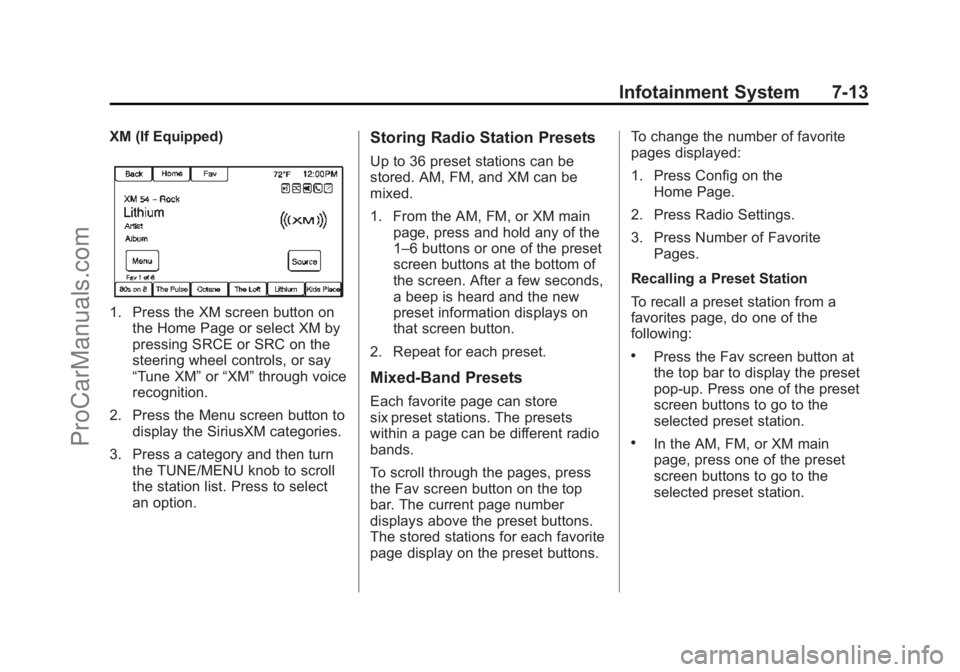
XM (If Equipped)
1. Press the XM screen button onthe Home Page or select XM by
pressing SRCE or SRC on the
steering wheel controls, or say
“Tune XM” or“XM” through voice
recognition.
2. Press the Menu screen button to display the SiriusXM categories.
3. Press a category and then turn the TUNE/MENU knob to scroll
the station list. Press to select
an option.
Storing Radio Station Presets
Up to 36 preset stations can be
stored. AM, FM, and XM can be
mixed.
1. From the AM, FM, or XM mainpage, press and hold any of the
1–6 buttons or one of the preset
screen buttons at the bottom of
the screen. After a few seconds,
a beep is heard and the new
preset information displays on
that screen button.
2. Repeat for each preset.
Mixed-Band Presets
Each favorite page can store
six preset stations. The presets
within a page can be different radio
bands.
To scroll through the pages, press
the Fav screen button on the top
bar. The current page number
displays above the preset buttons.
The stored stations for each favorite
page display on the preset buttons. To change the number of favorite
pages displayed:
1. Press Config on the
Home Page.
2. Press Radio Settings.
3. Press Number of Favorite Pages.
Recalling a Preset Station
To recall a preset station from a
favorites page, do one of the
following:
.Press the Fav screen button at
the top bar to display the preset
pop-up. Press one of the preset
screen buttons to go to the
selected preset station.
.In the AM, FM, or XM main
page, press one of the preset
screen buttons to go to the
selected preset station.
ProCarManuals.com
Page 156 of 435
Black plate (15,1)Chevrolet SS Sedan Owner Manual (GMNA-Localizing-U.S.-7707491) - 2015 -
crc - 9/11/14
Infotainment System 7-15
To store an Artist or Song:
1. Press Menu when the Artist orSong is on XM.
2. Select TuneSelect.
3. Select Save Alert for Artist Playing or Save Alert for Song
Playing.
4. Press OK to confirm.
To turn TuneSelect On or Off:
1. Press Menu when in XM.
2. Select TuneSelect.
3. Select Alerts Active to turn the alerts on or off.
To delete TuneSelect Alerts:
1. Press Menu when in XM.
2. Select TuneSelect.
3. Press Delete Alerts.
4. Select the alert to delete.
5. Press OK to confirm.SiriusXM Categories
SiriusXM channels are organized in
categories.
Adding or Removing XM
Categories
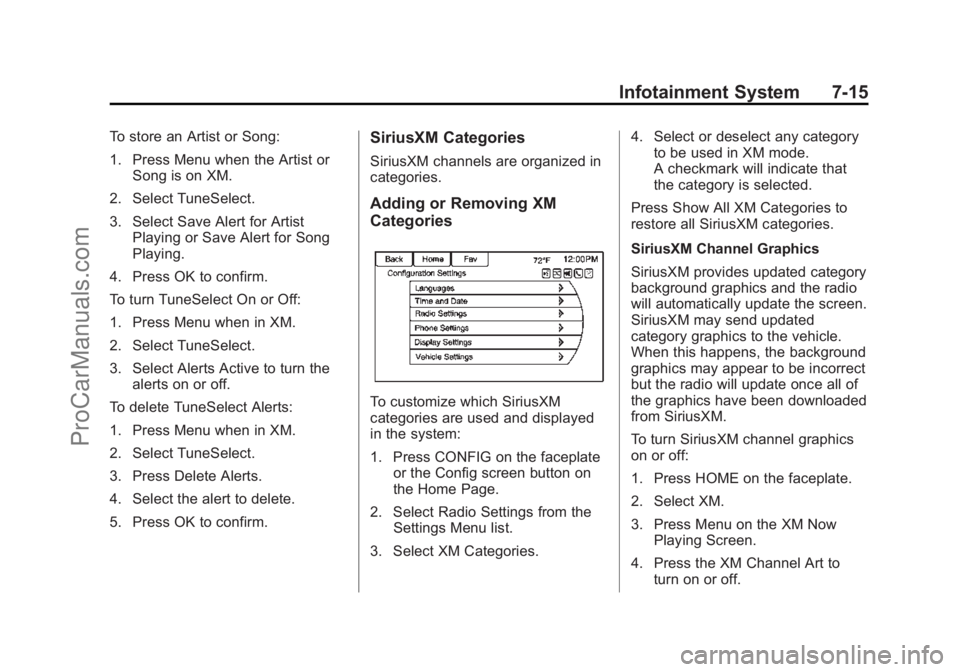
To customize which SiriusXM
categories are used and displayed
in the system:
1. Press CONFIG on the faceplate or the Config screen button on
the Home Page.
2. Select Radio Settings from the Settings Menu list.
3. Select XM Categories. 4. Select or deselect any category
to be used in XM mode.
A checkmark will indicate that
the category is selected.
Press Show All XM Categories to
restore all SiriusXM categories.
SiriusXM Channel Graphics
SiriusXM provides updated category
background graphics and the radio
will automatically update the screen.
SiriusXM may send updated
category graphics to the vehicle.
When this happens, the background
graphics may appear to be incorrect
but the radio will update once all of
the graphics have been downloaded
from SiriusXM.
To turn SiriusXM channel graphics
on or off:
1. Press HOME on the faceplate.
2. Select XM.
3. Press Menu on the XM Now Playing Screen.
4. Press the XM Channel Art to turn on or off.
ProCarManuals.com
Page 157 of 435
Black plate (16,1)Chevrolet SS Sedan Owner Manual (GMNA-Localizing-U.S.-7707491) - 2015 -
crc - 9/11/14
7-16 Infotainment System
NavTraffic®(If Equipped)
The navigation system might have a
SiriusXM NavTraffic receiver. It is a
subscription service provided
through SiriusXM Satellite Radio.
A service fee is required to receive
the SiriusXM NavTraffic service.
Real-time traffic information is
provided to fully integrate the
navigation system to display current
traffic conditions for the chosen
route. See“Traffic Settings” in this
section for more information.
A screen displays to indicate that
the SiriusXM NavTraffic subscription
is not activated.
If activated, traffic information
displays:
.Unscheduled traffic incident
data, such as accidents and
disabled vehicles.
.Scheduled traffic incident data,
such as road construction and
road closures.
.Traffic flow information (rate of
speed data). Flow data might not
be available in all markets.
Traffic information is delivered to the
vehicle by the SiriusXM Radio
satellites. SiriusXM NavTraffic
provides continuously updated
traffic information.
SiriusXM NavTraffic currently
broadcasts the traffic information for
many markets nationally. The
service may be available in more
cities in the future. Visit
www.xmnavtraffic.com for more
details on local coverage.
To access the traffic features, press
the Traffic button from the
Navigation Menu or map screen.
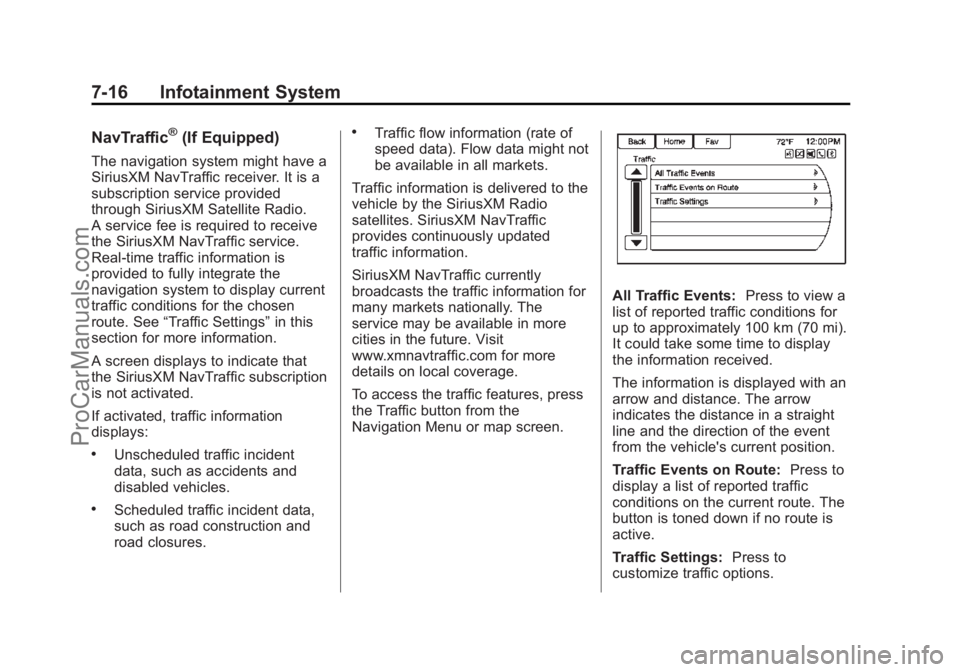
All Traffic Events: Press to view a
list of reported traffic conditions for
up to approximately 100 km (70 mi).
It could take some time to display
the information received.
The information is displayed with an
arrow and distance. The arrow
indicates the distance in a straight
line and the direction of the event
from the vehicle's current position.
Traffic Events on Route: Press to
display a list of reported traffic
conditions on the current route. The
button is toned down if no route is
active.
Traffic Settings: Press to
customize traffic options.
ProCarManuals.com
Page 160 of 435
Black plate (19,1)Chevrolet SS Sedan Owner Manual (GMNA-Localizing-U.S.-7707491) - 2015 -
crc - 9/11/14
Infotainment System 7-19
Allow approximately 15 minutes for
the current weather in the area to
display.
Extended Forecast
Press to show the extended
forecast.
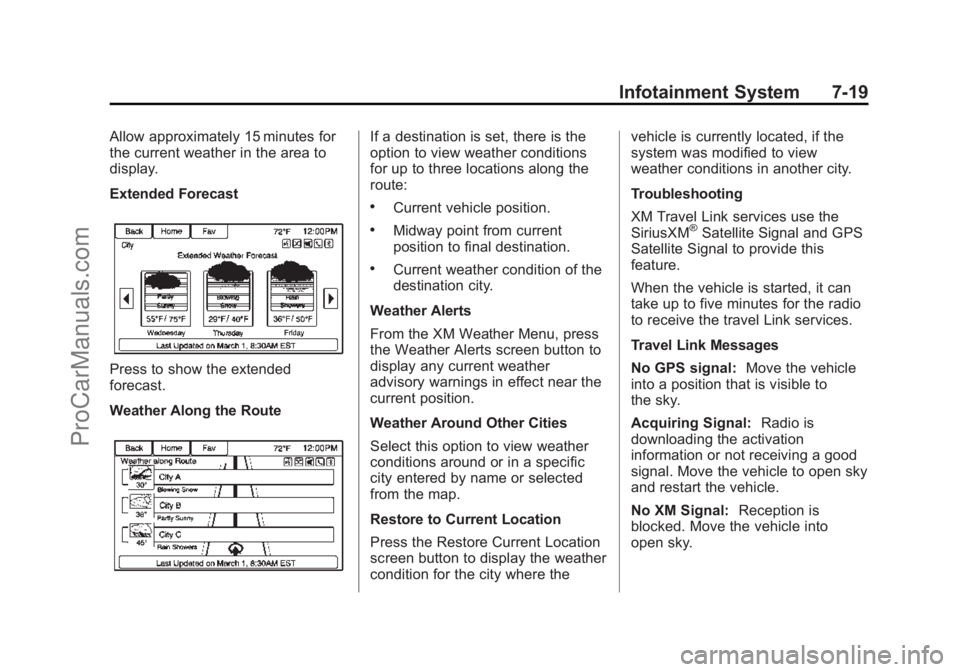
Weather Along the Route
If a destination is set, there is the
option to view weather conditions
for up to three locations along the
route:
.Current vehicle position.
.Midway point from current
position to final destination.
.Current weather condition of the
destination city.
Weather Alerts
From the XM Weather Menu, press
the Weather Alerts screen button to
display any current weather
advisory warnings in effect near the
current position.
Weather Around Other Cities
Select this option to view weather
conditions around or in a specific
city entered by name or selected
from the map.
Restore to Current Location
Press the Restore Current Location
screen button to display the weather
condition for the city where the vehicle is currently located, if the
system was modified to view
weather conditions in another city.
Troubleshooting
XM Travel Link services use the
SiriusXM
®Satellite Signal and GPS
Satellite Signal to provide this
feature.
When the vehicle is started, it can
take up to five minutes for the radio
to receive the travel Link services.
Travel Link Messages
No GPS signal: Move the vehicle
into a position that is visible to
the sky.
Acquiring Signal: Radio is
downloading the activation
information or not receiving a good
signal. Move the vehicle to open sky
and restart the vehicle.
No XM Signal: Reception is
blocked. Move the vehicle into
open sky.
ProCarManuals.com
Page 163 of 435
Black plate (22,1)Chevrolet SS Sedan Owner Manual (GMNA-Localizing-U.S.-7707491) - 2015 -
crc - 9/11/14
7-22 Infotainment System
Pandora Internet Radio
Pandora (if equipped) is a free
Internet radio service that streams
personalized radio stations based
on artists, songs, genres, and
comedians. Create stations using
the Pandora website or smartphone
application, then use
-(thumbs up)
or
,(thumbs down) to personalize
stations. To set up an account, or for
more information, go to
www.pandora.com.
A phone or tablet with Internet
connection and the Pandora
application installed is required.
Personal cell phone data plans are
used. Make sure the latest version
is installed on the device and the
volume is turned up.
To install Pandora:
.On an Android™ phone or
Android Tablet, go to the Android
Play Store, and search for
Pandora. Install to the phone,
not to the SD card.
.On a BlackBerry®phone, go to
the BlackBerry App World™ and
search for Pandora.
.On an iPhone®, iPad®, or iPod
touch®, go to the iTunes®Store
and search for Pandora.
Launching Pandora
Connect the iPhone, iPad, or iPod
touch to the USB port, or connect
an Android or BlackBerry through
Bluetooth. See Auxiliary Devices on
page 7-40 orBluetooth on
page 7-74. For first-time use, set up
stations before connecting to the
vehicle. The Pandora icon will be
available on the Home Page and
the source pop-up displays if the
latest application is installed on the
device.
Using the iPhone, iPod touch,
or iPad
1. Plug the device into the USB
port. The phone screen must be
unlocked. 2. To launch, do one of the
following:
.Launch the application on
the device.
.Press Pandora on the
Home Page.
.Pressb/gand say
“Pandora” or“Tune
Pandora.”
.Accept any notification on
the screen of the device.
To relaunch Pandora, press SRCE
or SRC on the steering wheel
controls.
If nothing happens when the
available Pandora screen button is
pressed, download the latest
Pandora application and retry.
Pandora will always be highlighted
on the Home Page when an iPhone,
iPad, or iPod touch is connected
using the USB port. To use, log into
your account.
ProCarManuals.com
Page 168 of 435
Black plate (27,1)Chevrolet SS Sedan Owner Manual (GMNA-Localizing-U.S.-7707491) - 2015 -
crc - 9/11/14
Infotainment System 7-27
Stitcher Internet Radio
Stitcher SmartRadio®is an Internet
radio service that streams news,
sports, and entertainment shows
through the audio system. Create
personalized, on-demand stations or
discover new shows through
Stitcher's preset stations. To set up
an account, download the
application from the Android Market
or iTunes Store, or go to
www.stitcher.com.
A phone or tablet with Internet
connection is required for this
application. Personal cell phone
data plans are used. Make sure the
latest version is installed on the
device and the volume on the
device is turned up.
BlackBerry phones are not
supported for this application. To install Stitcher:.On an Android phone or Tablet
with Internet connection, go to
the Android Play Store, search
for Stitcher, and install to the
phone, not to the SD card.
.On an iPhone, iPad, or iPod
touch, go to the iTunes Store
and search for Stitcher.
Launching Stitcher
Connect the iPhone, iPad, or iPod
touch to the USB port, or connect
Android through Bluetooth. See
Auxiliary Devices on page 7-40
or
Bluetooth on page 7-74. For
first-time use, set up the stations
before connecting to the vehicle.
The Stitcher icon will be available
on the Home Page and source
pop-up displays if the latest
application is installed on the
device. Using the iPhone, iPod touch,
or iPad
1. Plug the device into the USB
port. The phone screen must be
unlocked.
2. Use one of the following to launch:
.Press the application on the
device.
.Press Stitcher on the
Home Page.
.Pressb/gand say
“Stitcher” or“Tune Stitcher.”
.Accept any notification on
the screen of the device.
3. If Stitcher does not begin playing, select a category and
then a station.
After Stitcher has been launched,
press SRCE or SRC on the steering
wheel controls to access Stitcher
features.
ProCarManuals.com
Page 172 of 435
Black plate (31,1)Chevrolet SS Sedan Owner Manual (GMNA-Localizing-U.S.-7707491) - 2015 -
crc - 9/11/14
Infotainment System 7-31
Please Choose a New Station:
The end of the station has been
reached and there is no more
content to play. Select a new station
through the Stitcher menu.
Please Unlock Your Phone or
Restart Phone App and Try
Again:Communication failure
between the radio and the phone
application or the device is locked.
See www.stitcher.com/help for more
information. If the service will not
work, send an e-mail to
[email protected] or see your
dealer for assistance.
Pictures
Pictures can only be viewed using
USB devices. If pictures are on an
SD card, transfer to a USB device
or use a USB-SD adapter.
A maximum 5Mb uncompressed
photo size is supported, however to
achieve this, use a 4 Megapixel or
lower resolution camera setting.
Only jpeg, bmp, gif, and png files
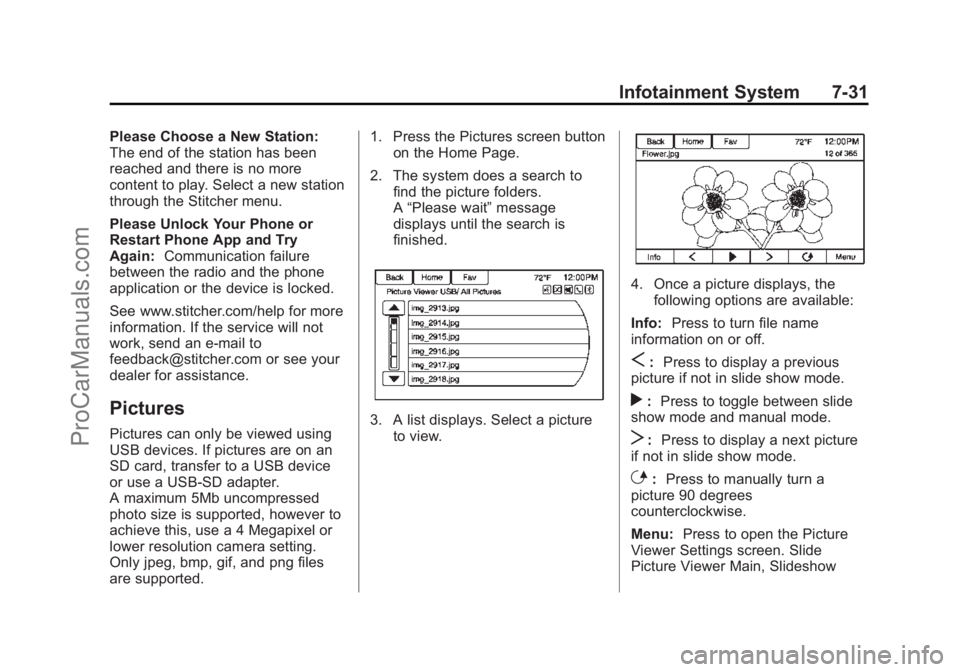
are supported. 1. Press the Pictures screen button
on the Home Page.
2. The system does a search to find the picture folders.
A“Please wait” message
displays until the search is
finished.3. A list displays. Select a picture
to view.
4. Once a picture displays, thefollowing options are available:
Info: Press to turn file name
information on or off.
S: Press to display a previous
picture if not in slide show mode.
r: Press to toggle between slide
show mode and manual mode.
T: Press to display a next picture
if not in slide show mode.
E: Press to manually turn a
picture 90 degrees
counterclockwise.
Menu: Press to open the Picture
Viewer Settings screen. Slide
Picture Viewer Main, Slideshow
ProCarManuals.com
Page 176 of 435
Black plate (35,1)Chevrolet SS Sedan Owner Manual (GMNA-Localizing-U.S.-7707491) - 2015 -
crc - 9/11/14
Infotainment System 7-35
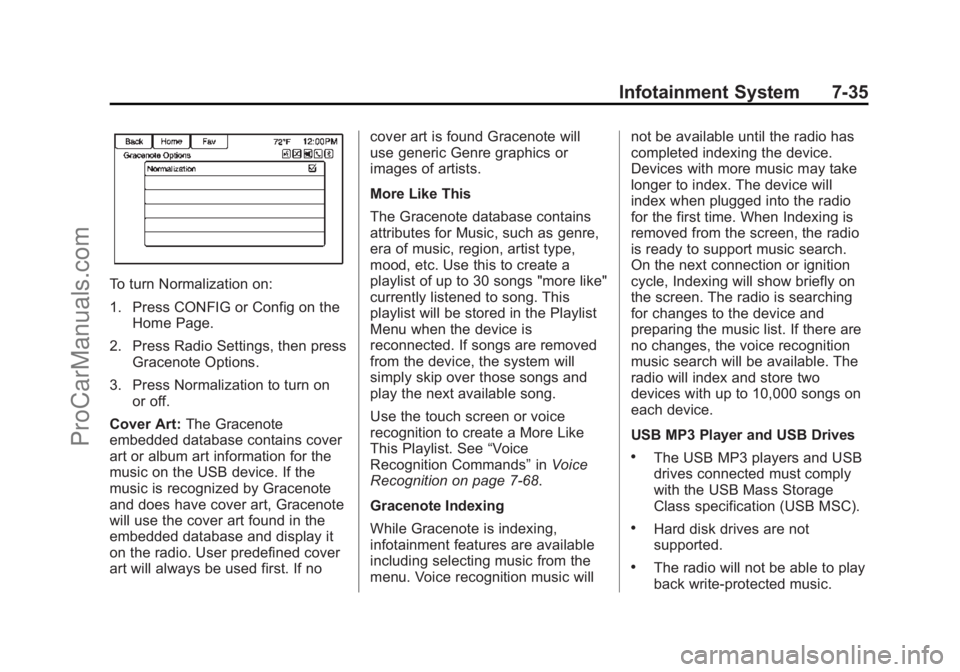
To turn Normalization on:
1. Press CONFIG or Config on theHome Page.
2. Press Radio Settings, then press Gracenote Options.
3. Press Normalization to turn on or off.
Cover Art: The Gracenote
embedded database contains cover
art or album art information for the
music on the USB device. If the
music is recognized by Gracenote
and does have cover art, Gracenote
will use the cover art found in the
embedded database and display it
on the radio. User predefined cover
art will always be used first. If no cover art is found Gracenote will
use generic Genre graphics or
images of artists.
More Like This
The Gracenote database contains
attributes for Music, such as genre,
era of music, region, artist type,
mood, etc. Use this to create a
playlist of up to 30 songs "more like"
currently listened to song. This
playlist will be stored in the Playlist
Menu when the device is
reconnected. If songs are removed
from the device, the system will
simply skip over those songs and
play the next available song.
Use the touch screen or voice
recognition to create a More Like
This Playlist. See
“Voice
Recognition Commands” inVoice
Recognition on page 7-68.
Gracenote Indexing
While Gracenote is indexing,
infotainment features are available
including selecting music from the
menu. Voice recognition music will not be available until the radio has
completed indexing the device.
Devices with more music may take
longer to index. The device will
index when plugged into the radio
for the first time. When Indexing is
removed from the screen, the radio
is ready to support music search.
On the next connection or ignition
cycle, Indexing will show briefly on
the screen. The radio is searching
for changes to the device and
preparing the music list. If there are
no changes, the voice recognition
music search will be available. The
radio will index and store two
devices with up to 10,000 songs on
each device.
USB MP3 Player and USB Drives
.The USB MP3 players and USB
drives connected must comply
with the USB Mass Storage
Class specification (USB MSC).
.Hard disk drives are not
supported.
.The radio will not be able to play
back write-protected music.
ProCarManuals.com
Page 177 of 435
Black plate (36,1)Chevrolet SS Sedan Owner Manual (GMNA-Localizing-U.S.-7707491) - 2015 -
crc - 9/11/14
7-36 Infotainment System
.File systems supported: FAT32,
NTFS, Linux, and HFS+.
.The following restrictions apply
for the data stored on a USB
MP3 player or USB device:
‐Maximum folder structure
depth: eight levels.
‐ Maximum number of MP3/
WMA files that can be
displayed: 10,000.
‐ Playlist entries must be in the
form of relative paths.
‐ The system attribute for
folders/files that contain audio
data must not be set.
To play a USB device, do one of the
following:
.Connect the USB and it begins
to play.
.Press the Now Playing screen
button on the Home Page.
.Press SRCE to scroll until the
USB source screen is available.
.Pressb/gon the steering
wheel controls to select songs
by Artist, Album, Song Title,
or Song Genre. See Voice
Recognition on page 7-68.
The following playlist formats are
supported:
.M3U (Standard and Extended)
.iTunes
.PLS (Standard)
.WAX
.ASX
.RMP
The radio supports plugging a cell
phone in as a USB drive as long as
the cell phone supports USB mass
storage class or has USB disc drive
support enabled. While the USB source is active, use
the following to operate USB
function:
TUNE/MENU Knob:
Turn to scroll
through the list. Turn quickly to fast
scroll alphabetically through large
lists.
J(Play/Pause): Press to start,
pause, or resume play of the current
media source.
©SEEK (Previous/Reverse):
.Press to seek to the beginning of
the current or previous track.
If the track has been playing for
less than five seconds, the
previous track plays. If playing
longer than five seconds, the
current track restarts.
.Press and hold to reverse
quickly through playback.
Release to return to playing
speed. Elapsed time displays.
¨SEEK (Next/Forward):
.Press to seek to the next track.
ProCarManuals.com
Page 181 of 435
Black plate (40,1)Chevrolet SS Sedan Owner Manual (GMNA-Localizing-U.S.-7707491) - 2015 -
crc - 9/11/14
7-40 Infotainment System
radio is selected. If a phone call is
received while listening to the iPod
source and there is no audio for the
iPod after the source, then go to the
Airplay icon on the device and
select dock connector or disconnect
and reconnect the dock connector
on the device.
Some functionality may differ based
on operating system version on
device.
USB Troubleshooting
If the device is not being recognized
or the music is missing screen
information, restore the radio
defaults:
1. Press Config.
2. Press Radio Settings.
3. Press Software Versions Menu.
4. Press Clear and Reset Radio.
5. Press Yes.
Pair the phone again and the device
will have to index again.Bluetooth Audio and Voice
Recognition
See
Bluetooth Audio on page 7-40
and Voice Recognition on page 7-68
for information using voice
recognition with Bluetooth audio.
Make sure all devices have the
latest software downloaded.
Auxiliary Devices
This vehicle has an auxiliary input
jack in the center console. Possible
auxiliary audio sources include:
.Laptop computer
.MP3 player
.Tape player
This jack is not an audio output. Do
not plug headphones into the
auxiliary input jack. Set up any
auxiliary device while the vehicle is
parked.
Connect a 3.5 mm (1/8 in) cable
from the auxiliary device to the
auxiliary input jack. When a device
is connected, the system automatically begins playing audio
from the device over the vehicle
speakers.
If an auxiliary device has already
been connected, but a different
source is currently active, do one of
the following:
.Press SRCE to scroll all of the
available audio source screens,
until the AUX source screen is
selected.
.Say
“Play Front AUX” using
voice recognition to play the
auxiliary device. See Voice
Recognition on page 7-68.
.Press the AUX screen button on
the Home Page.
Bluetooth Audio
If equipped, music may be played
from a paired Bluetooth device. See
“Pairing a Phone/Device” under
Bluetooth on page 7-74.
ProCarManuals.com