key CHEVROLET SS 2015 Owner's Guide
[x] Cancel search | Manufacturer: CHEVROLET, Model Year: 2015, Model line: SS, Model: CHEVROLET SS 2015Pages: 435, PDF Size: 6.27 MB
Page 132 of 435

Black plate (35,1)Chevrolet SS Sedan Owner Manual (GMNA-Localizing-U.S.-7707491) - 2015 -
crc - 9/18/14
Instruments and Controls 5-35
.Map Display:Select to change
the screen background.
To change the overall brightness
setting for the display, use the
vehicle interior lighting
instrument panel illumination
control.
‐ The Automatic setting adjusts
the screen background
automatically depending on
the exterior lighting conditions.
‐ The Day setting brightens the
map background.
‐ The Night setting darkens the
map background.
.Speed Limits: Select to display
the posted speed limit on the
map, when available.
Vehicle Settings
Select and the following may
display:
.Climate and Air Quality
.Comfort and Convenience
.Collision/Detection Systems
.Lighting
.Power Door Locks
.Remote Lock/Unlock/Start
.Return to Factory Settings?
Climate and Air Quality
Select and the following may
display:
.Auto Fan Speed
.Remote Start Auto Cool Seat
.Remote Start Auto Heat Seat
Auto Fan Speed
This feature sets the climate control
fan speed to maintain the interior
temperature.
Select High, Medium, or Low.
Remote Start Auto Cool Seat
When on and it is hot outside, the
ventilated seats will turn on
automatically.
Select to turn on or off. Remote Start Auto Heat Seat
When on and it is cold outside, the
heated seats will turn on
automatically.
Select to turn on or off.
Comfort and Convenience
Select and the following may
display:
.Auto Memory Recall
.Chime Volume
.Button Chime
.Reverse Tilt Mirror
Auto Memory Recall
When on, this feature will recall the
stored seat positions for the Remote
Keyless Entry (RKE) transmitter
being used. See Memory Seats on
page 3-5.
Select On or Off.
Chime Volume
This allows the selection of the
chime volume level.
ProCarManuals.com
Page 134 of 435

Black plate (37,1)Chevrolet SS Sedan Owner Manual (GMNA-Localizing-U.S.-7707491) - 2015 -
crc - 9/18/14
Instruments and Controls 5-37
Delay Door Lock
When on, this feature will delay the
locking of the doors. To override the
delay, press the power door lock
switch on the door.
Select On or Off.
Remote Lock/Unlock/Start
Select and the following may
display:
.Remote Unlock Feedback
.Remote Lock Feedback
.Remote Door Unlock
.Passive Door Unlock
.Passive Door Lock
.Remote Left in Veh. Reminder
Remote Unlock Feedback
If equipped, this allows the selection
of what type of feedback is given
when unlocking the vehicle with the
RKE transmitter.
Select Flash Lights or Off. Remote Lock Feedback
This allows the selection of what
type of feedback is given when
locking the vehicle with the Remote
Keyless Entry (RKE) transmitter.
Select Lights and Horn, Lights Only,
Horn Only, or Off.
Remote Door Unlock
This allows the selection of which
doors will unlock when pressing
K
on the RKE transmitter.
Select Driver Door or All Doors.
When set to Driver Door, the driver
door will unlock the first time
Kis
pressed and all doors will unlock
when
Kis pressed a second time.
When set to All Doors, all of the
doors will unlock with the first press
of
K.
Passive Door Unlock
This allows the selection of what
doors will unlock when using the
button on the driver door to unlock
the vehicle. Select All Doors or Driver
Door Only.
Passive Door Lock
This allows passive locking to be
turned on or off and selects
feedback. See
Remote Keyless
Entry (RKE) System Operation on
page 2-3.
Select On with Horn Chirp, On,
or Off.
Remote Left in Veh. Reminder
Select to turn this feature on or off.
This feature sounds an alert when
the RKE transmitter is left in the
vehicle.
Return to Factory Settings?
Select to return all vehicle
personalization to the default
settings.
Select Yes or No.
ProCarManuals.com
Page 140 of 435

Black plate (5,1)Chevrolet SS Sedan Owner Manual (GMNA-Localizing-U.S.-7707491) - 2015 -
crc - 9/11/14
Lighting 6-5
Rear Reading Lamps
The rear reading lamps are in the
headliner.
Press
(or)to turn the lamp
on or off.
Lighting Features
Entry Lighting
Some exterior lamps and most of
the interior lamps turn on briefly
when
Kis pressed on the Remote
Keyless Entry (RKE) transmitter.
After about 30 seconds the exterior
lamps turn off, and then the dome
and remaining interior lamps will dim
to off.
This feature can be changed. See
“Vehicle Locator Lights” under
Vehicle Personalization on
page 5-33.
Exit Lighting
The exterior lamps will illuminate an
area with limited lighting for a set
amount of time when the ignition is
turned to LOCK/OFF.
This feature can be changed. See
Vehicle Personalization on
page 5-33.
Battery Power Protection
To prevent the battery from being
drained, the glove box, trunk, and
reading lamps automatically turn off
10 minutes after the ignition is
turned off.
The lamps are reactivated if any of
the following occur:
.The ignition is turned on.
.The vehicle is unlocked.
.The trunk is opened.
ProCarManuals.com
Page 152 of 435
Black plate (11,1)Chevrolet SS Sedan Owner Manual (GMNA-Localizing-U.S.-7707491) - 2015 -
crc - 9/11/14
Infotainment System 7-11
Radio
AM-FM Radio
Playing the Radio
VOL/O(Volume/Power):
.Press to turn the radio on or off.
.Turn to increase or decrease the
volume of the active source.
The steering wheel controls can
also be used to adjust the volume.
See Steering Wheel Controls on
page 7-5.
Radio Operation
The radio will work when the key is
in ON/RUN or ACC/
ACCESSORY. When the key is
turned from ON/RUN to LOCK/OFF,
the radio will continue to work for
10 minutes or until the driver door is
opened.
The radio can be turned on by
pressing the power button on the
radio and will stay on for 10 minutes. Opening the driver door
will not turn the radio off when
pressing the power button.
Some radios may stay on longer
and reset the time for 10 minutes if
there are any additional presses of
any radio button.
The radio can be turned off at any
time by pressing the power button.
Audio Source
Press SRCE or SRC on the steering
wheel controls to display and scroll
through the available sources AM,
FM, XM (if equipped), Pandora (if
equipped), Stitcher, USB, AUX, and
Bluetooth Audio.
Infotainment System Settings
Tone Settings
To access the tone settings, press
the Tone Settings button on the
Home Page. Tone settings are
specific to each source.
To adjust the settings:
.Bass: Press + or
−to change
the level.
.Mid (Midrange): Press + or −to
change the level.
.Treble: Press + or −to change
the level.
.EQ: Press or turn the TUNE/
MENU knob to cycle through the
preset EQ options.
.Fade: Press the F or R button
for more sound from the front or
rear speakers. The middle
position balances the sound
between the front and rear
speakers.
ProCarManuals.com
Page 166 of 435
Black plate (25,1)Chevrolet SS Sedan Owner Manual (GMNA-Localizing-U.S.-7707491) - 2015 -
crc - 9/11/14
Infotainment System 7-25
Pandora Skip Limit
Pandora limits the number of skips
allowed on their service. When the
skip limit is reached,
,will not skip
the currently playing track, but
,
feedback will be recorded.
Pandora Advertisement
Pandora may display
advertisements. Artist name and
track title will not be displayed and
the skip track button is not
available.
Switching Between Pandora and
Stitcher
To switch between Pandora and
Stitcher, press the application icon
on the iPhone, iPod touch, or iPad.
This is not required for Android
devices. See Stitcher Internet Radio
on page 7-27.
Pandora Troubleshooting
Unable to Connect Device to
Vehicle
If the device is unable to connect to
the USB or Bluetooth:
1. Turn the vehicle off.
2. Remove the key from the ignition.
3. Open and close the driver door, wait about 30 seconds, and try
to connect the device again.
Unable to Start Pandora
If the device is unable to launch
Pandora:
.Check that the latest version of
Pandora is installed.
.Check that there is an active
account logged into Pandora.
.Have at least one station
created.
.For Android and BlackBerry
devices, check that the device is
paired with the vehicle, and the
Bluetooth icon on the display is
highlighted.
.For iPhone, iPod touch, or iPad
devices, check that the USB
cable is connected to the USB
port and the screen is unlocked.
.Close Pandora on the device
and launch again. Devices that
allow multitasking may require
an extra step to quit the Pandora
application. See the cell phone
manufacturer's user guide.
Thumbs Up or Thumbs Down
Error
If there is an error trying to rate a
track with the
,or-buttons, the
message “Thumbs Down Error” or
“Thumbs Up Error” will display.
Press OK to retry.
ProCarManuals.com
Page 170 of 435
Black plate (29,1)Chevrolet SS Sedan Owner Manual (GMNA-Localizing-U.S.-7707491) - 2015 -
crc - 9/11/14
Infotainment System 7-29
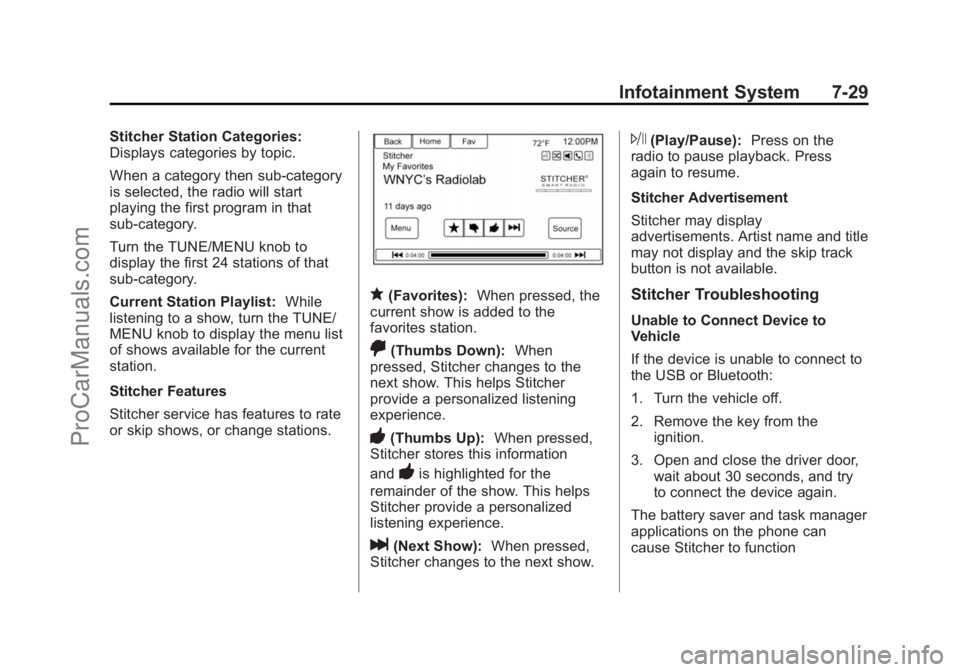
Stitcher Station Categories:
Displays categories by topic.
When a category then sub-category
is selected, the radio will start
playing the first program in that
sub-category.
Turn the TUNE/MENU knob to
display the first 24 stations of that
sub-category.
Current Station Playlist:While
listening to a show, turn the TUNE/
MENU knob to display the menu list
of shows available for the current
station.
Stitcher Features
Stitcher service has features to rate
or skip shows, or change stations.
q(Favorites): When pressed, the
current show is added to the
favorites station.
,(Thumbs Down): When
pressed, Stitcher changes to the
next show. This helps Stitcher
provide a personalized listening
experience.
-(Thumbs Up): When pressed,
Stitcher stores this information
and
-is highlighted for the
remainder of the show. This helps
Stitcher provide a personalized
listening experience.
l(Next Show): When pressed,
Stitcher changes to the next show.
J(Play/Pause): Press on the
radio to pause playback. Press
again to resume.
Stitcher Advertisement
Stitcher may display
advertisements. Artist name and title
may not display and the skip track
button is not available.
Stitcher Troubleshooting
Unable to Connect Device to
Vehicle
If the device is unable to connect to
the USB or Bluetooth:
1. Turn the vehicle off.
2. Remove the key from the ignition.
3. Open and close the driver door, wait about 30 seconds, and try
to connect the device again.
The battery saver and task manager
applications on the phone can
cause Stitcher to function
ProCarManuals.com
Page 190 of 435
Black plate (49,1)Chevrolet SS Sedan Owner Manual (GMNA-Localizing-U.S.-7707491) - 2015 -
crc - 9/11/14
Infotainment System 7-49
Destination
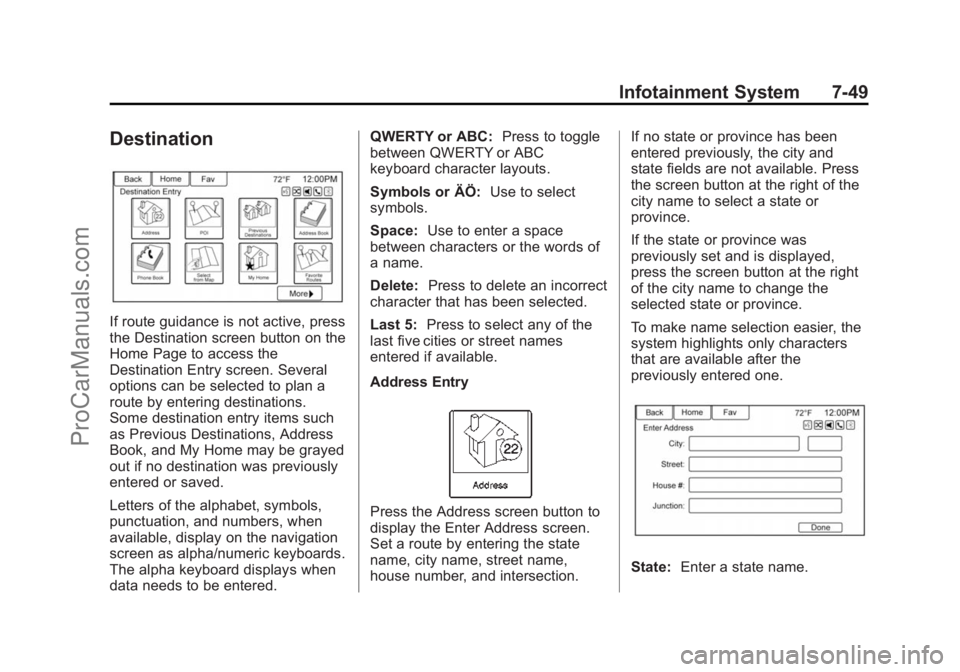
If route guidance is not active, press
the Destination screen button on the
Home Page to access the
Destination Entry screen. Several
options can be selected to plan a
route by entering destinations.
Some destination entry items such
as Previous Destinations, Address
Book, and My Home may be grayed
out if no destination was previously
entered or saved.
Letters of the alphabet, symbols,
punctuation, and numbers, when
available, display on the navigation
screen as alpha/numeric keyboards.
The alpha keyboard displays when
data needs to be entered.QWERTY or ABC:
Press to toggle
between QWERTY or ABC
keyboard character layouts.
Symbols or ÄÖ: Use to select
symbols.
Space: Use to enter a space
between characters or the words of
a name.
Delete: Press to delete an incorrect
character that has been selected.
Last 5: Press to select any of the
last five cities or street names
entered if available.
Address Entry
Press the Address screen button to
display the Enter Address screen.
Set a route by entering the state
name, city name, street name,
house number, and intersection. If no state or province has been
entered previously, the city and
state fields are not available. Press
the screen button at the right of the
city name to select a state or
province.
If the state or province was
previously set and is displayed,
press the screen button at the right
of the city name to change the
selected state or province.
To make name selection easier, the
system highlights only characters
that are available after the
previously entered one.
State:
Enter a state name.
ProCarManuals.com
Page 192 of 435
Black plate (51,1)Chevrolet SS Sedan Owner Manual (GMNA-Localizing-U.S.-7707491) - 2015 -
crc - 9/11/14
Infotainment System 7-51
Select the Country line option.
The available Country List
displays.
4. Select the desired country. For example, select Canada as a
default country.
5. Enter State/Province. For example, enter Ontario and
confirm the selection.
The destination in other countries
can also be changed using voice
recognition. See Voice Recognition
on page 7-68.
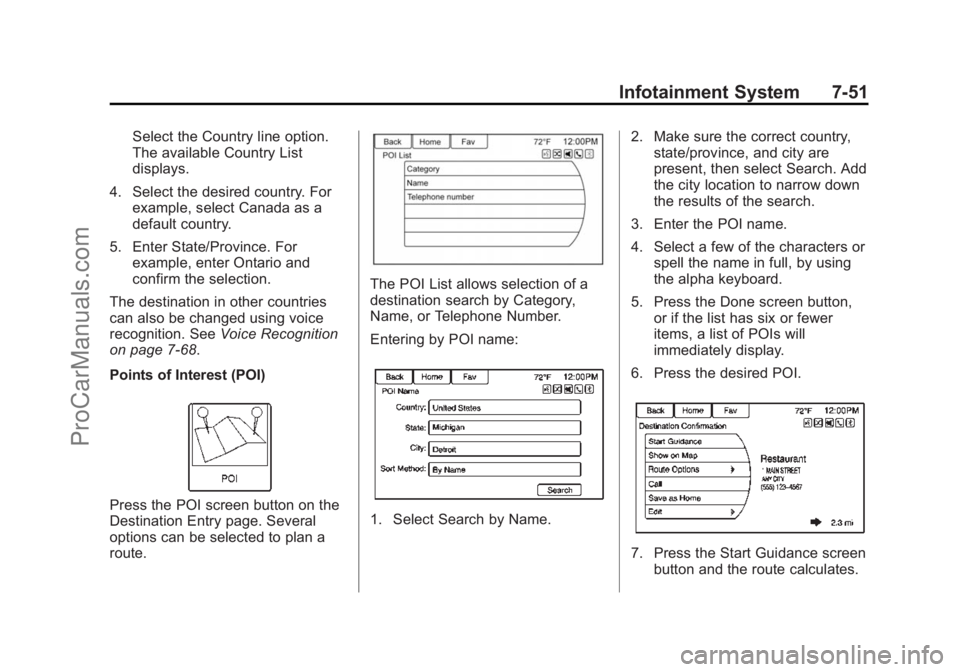
Points of Interest (POI)
Press the POI screen button on the
Destination Entry page. Several
options can be selected to plan a
route.
The POI List allows selection of a
destination search by Category,
Name, or Telephone Number.
Entering by POI name:
1. Select Search by Name. 2. Make sure the correct country,
state/province, and city are
present, then select Search. Add
the city location to narrow down
the results of the search.
3. Enter the POI name.
4. Select a few of the characters or spell the name in full, by using
the alpha keyboard.
5. Press the Done screen button, or if the list has six or fewer
items, a list of POIs will
immediately display.
6. Press the desired POI.
7. Press the Start Guidance screen button and the route calculates.
ProCarManuals.com
Page 195 of 435
Black plate (54,1)Chevrolet SS Sedan Owner Manual (GMNA-Localizing-U.S.-7707491) - 2015 -
crc - 9/11/14
7-54 Infotainment System
Changing the route name:
1. Press the Home PageDestination button to display the
Favorite Routes screen button.
Press this button to display the
list of available favorite routes.
2. Press the Edit screen button.
3. Select Edit Name.
4. Using the keypad, enter the name.
5. Press the Done screen button. The new name will be in the
Favorite Routes Menu.
My Home
If no home destination is entered,
save a destination by pressing the
Home Page Destination button.
Enter a destination using any of the
destination entry methods (Address Entry, POI Entry, etc.). Select Save
as Home from the Destination
Confirmation screen.
If a destination is already saved as
home, press the Home Page
Destination button to display the My
Home screen button. Press this
button to start route guidance.
Select from Map
.Press the Home Page
Destination button to display the
Select from Map screen button.
Press this button to display the
map screen with a scroll symbol
centered on the map.
.Press the Zoom in/out button on
the screen and press the map to
locate the destination to select.
Press and hold a finger on the
map to activate fast scrolling.
.Press the Go button on the
bottom of the screen to display
the Destination Confirmation
screen.
.Press the Start Guidance screen
button. The route calculates.
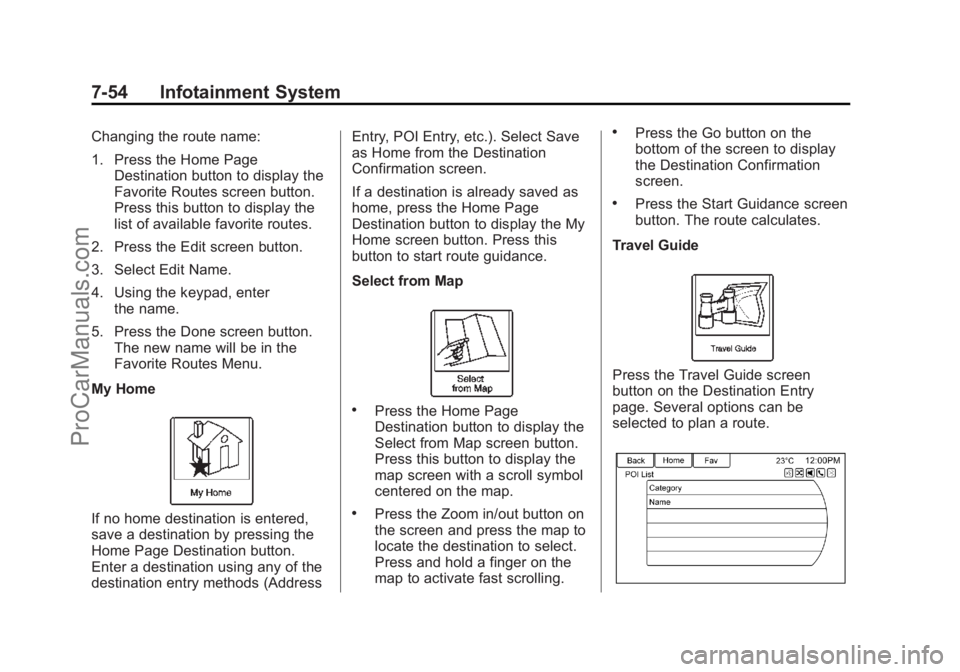
Travel Guide
Press the Travel Guide screen
button on the Destination Entry
page. Several options can be
selected to plan a route.
ProCarManuals.com
Page 197 of 435
Black plate (56,1)Chevrolet SS Sedan Owner Manual (GMNA-Localizing-U.S.-7707491) - 2015 -
crc - 9/11/14
7-56 Infotainment System
4. Select a few of the characters orspell the name in full, by using
the alpha keyboard.
5. Select the Done screen button, or if the list has six or fewer
items, a list of POIs will
immediately display.
6. Press the desired POI.
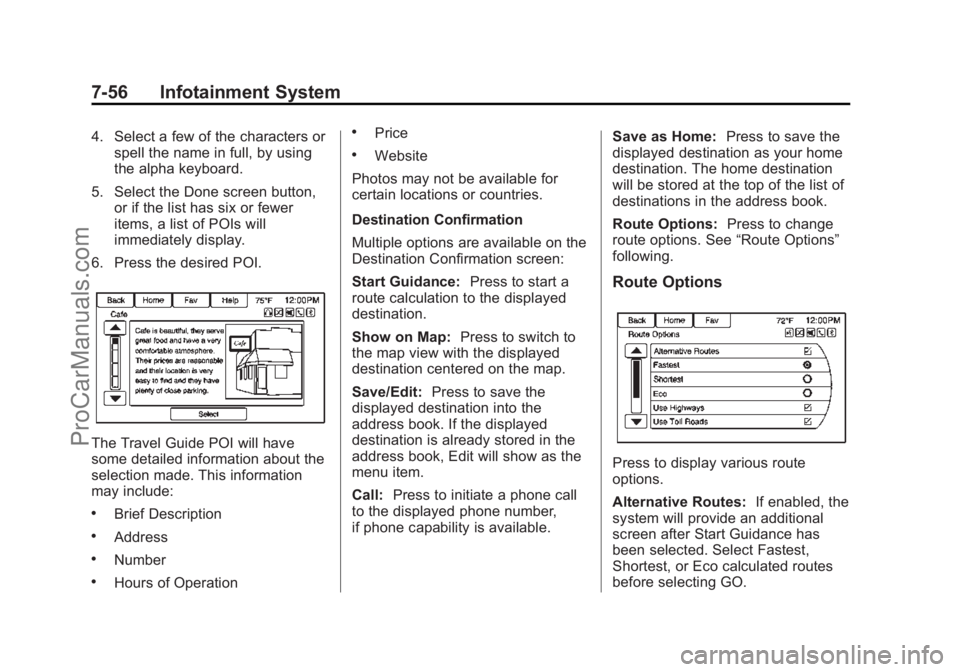
The Travel Guide POI will have
some detailed information about the
selection made. This information
may include:
.Brief Description
.Address
.Number
.Hours of Operation
.Price
.Website
Photos may not be available for
certain locations or countries.
Destination Confirmation
Multiple options are available on the
Destination Confirmation screen:
Start Guidance: Press to start a
route calculation to the displayed
destination.
Show on Map: Press to switch to
the map view with the displayed
destination centered on the map.
Save/Edit: Press to save the
displayed destination into the
address book. If the displayed
destination is already stored in the
address book, Edit will show as the
menu item.
Call: Press to initiate a phone call
to the displayed phone number,
if phone capability is available. Save as Home:
Press to save the
displayed destination as your home
destination. The home destination
will be stored at the top of the list of
destinations in the address book.
Route Options: Press to change
route options. See “Route Options”
following.
Route Options
Press to display various route
options.
Alternative Routes: If enabled, the
system will provide an additional
screen after Start Guidance has
been selected. Select Fastest,
Shortest, or Eco calculated routes
before selecting GO.
ProCarManuals.com