service CHEVROLET SS 2015 Service Manual
[x] Cancel search | Manufacturer: CHEVROLET, Model Year: 2015, Model line: SS, Model: CHEVROLET SS 2015Pages: 435, PDF Size: 6.27 MB
Page 168 of 435
Black plate (27,1)Chevrolet SS Sedan Owner Manual (GMNA-Localizing-U.S.-7707491) - 2015 -
crc - 9/11/14
Infotainment System 7-27
Stitcher Internet Radio
Stitcher SmartRadio®is an Internet
radio service that streams news,
sports, and entertainment shows
through the audio system. Create
personalized, on-demand stations or
discover new shows through
Stitcher's preset stations. To set up
an account, download the
application from the Android Market
or iTunes Store, or go to
www.stitcher.com.
A phone or tablet with Internet
connection is required for this
application. Personal cell phone
data plans are used. Make sure the
latest version is installed on the
device and the volume on the
device is turned up.
BlackBerry phones are not
supported for this application. To install Stitcher:.On an Android phone or Tablet
with Internet connection, go to
the Android Play Store, search
for Stitcher, and install to the
phone, not to the SD card.
.On an iPhone, iPad, or iPod
touch, go to the iTunes Store
and search for Stitcher.
Launching Stitcher
Connect the iPhone, iPad, or iPod
touch to the USB port, or connect
Android through Bluetooth. See
Auxiliary Devices on page 7-40
or
Bluetooth on page 7-74. For
first-time use, set up the stations
before connecting to the vehicle.
The Stitcher icon will be available
on the Home Page and source
pop-up displays if the latest
application is installed on the
device. Using the iPhone, iPod touch,
or iPad
1. Plug the device into the USB
port. The phone screen must be
unlocked.
2. Use one of the following to launch:
.Press the application on the
device.
.Press Stitcher on the
Home Page.
.Pressb/gand say
“Stitcher” or“Tune Stitcher.”
.Accept any notification on
the screen of the device.
3. If Stitcher does not begin playing, select a category and
then a station.
After Stitcher has been launched,
press SRCE or SRC on the steering
wheel controls to access Stitcher
features.
ProCarManuals.com
Page 170 of 435
Black plate (29,1)Chevrolet SS Sedan Owner Manual (GMNA-Localizing-U.S.-7707491) - 2015 -
crc - 9/11/14
Infotainment System 7-29
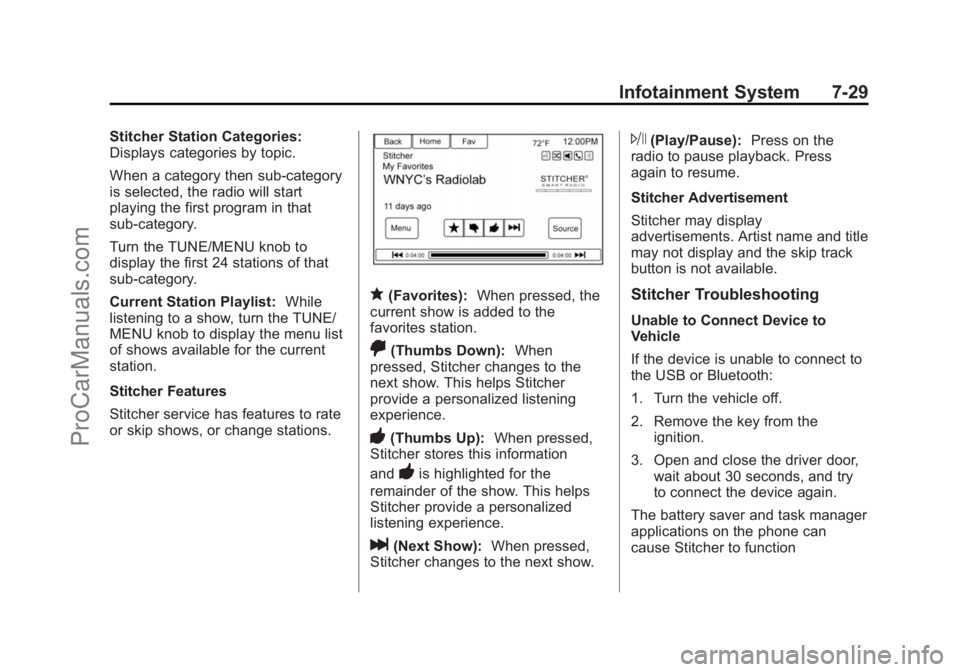
Stitcher Station Categories:
Displays categories by topic.
When a category then sub-category
is selected, the radio will start
playing the first program in that
sub-category.
Turn the TUNE/MENU knob to
display the first 24 stations of that
sub-category.
Current Station Playlist:While
listening to a show, turn the TUNE/
MENU knob to display the menu list
of shows available for the current
station.
Stitcher Features
Stitcher service has features to rate
or skip shows, or change stations.
q(Favorites): When pressed, the
current show is added to the
favorites station.
,(Thumbs Down): When
pressed, Stitcher changes to the
next show. This helps Stitcher
provide a personalized listening
experience.
-(Thumbs Up): When pressed,
Stitcher stores this information
and
-is highlighted for the
remainder of the show. This helps
Stitcher provide a personalized
listening experience.
l(Next Show): When pressed,
Stitcher changes to the next show.
J(Play/Pause): Press on the
radio to pause playback. Press
again to resume.
Stitcher Advertisement
Stitcher may display
advertisements. Artist name and title
may not display and the skip track
button is not available.
Stitcher Troubleshooting
Unable to Connect Device to
Vehicle
If the device is unable to connect to
the USB or Bluetooth:
1. Turn the vehicle off.
2. Remove the key from the ignition.
3. Open and close the driver door, wait about 30 seconds, and try
to connect the device again.
The battery saver and task manager
applications on the phone can
cause Stitcher to function
ProCarManuals.com
Page 171 of 435
Black plate (30,1)Chevrolet SS Sedan Owner Manual (GMNA-Localizing-U.S.-7707491) - 2015 -
crc - 9/11/14
7-30 Infotainment System
incorrectly. Remove those apps
from the phone or remove Stitcher
and Bluetooth from the task lists.
Unable to Start Stitcher
If the device is unable to launch
Stitcher:
.Check that the latest version of
Stitcher is installed.
.Check that there is an active
account logged into Stitcher.
.For Android devices, check that
the device is paired with the
vehicle, and the Bluetooth icon
on the display is highlighted.
.For iPhone, iPod touch, or iPad
devices, check that the USB
cable is connected to the USB
port and the screen is unlocked
and the Home Page is showing.
.Close Stitcher on the device and
launch again. Devices that allow
multitasking may require an
extra step to quit the Stitcher
application. See the cell phone
manufacturer's user guide.Loss of Audio
Loss of Stitcher audio can happen
due to:
.Weak or lost data connection.
.Device needs to be charged.
.Application needs to be
relaunched.
.Connection between phone and
radio is lost.
.If any iPhone, iPod touch,
or iPad is connected to
Bluetooth and the dock
connector, go to the Airplay icon
on the device and select dock
connector or disconnect and
reconnect the dock connector on
the device.
.The volume is too low. Turn up
the volume on the device.
If the connection is lost between the
application and device, a message
“Please unlock your phone or restart
the phone app and try again” will
display. Press OK to retry. If pressing OK does not clear the
issue, see
“Please Unlock Your
Phone or Restart Phone App and
Try Again” under“Common Stitcher
Messages” following.
Common Stitcher Messages
Please Try Again Later: A general
error has occurred. A data
connection may be unavailable due
to a weak or lost signal or the
Stitcher service being temporarily
down. Press OK to continue.
Paused or Audio Paused:
Playback is paused on the radio or
the device. Press
Jor play on the
device.
Please See Device: When the user
is not logged in or when
authentication failed, see the
device. Press OK to continue.
Disconnect the phone from the radio
and follow the Stitcher account login
process on the phone.
No Stations Found: Logged in but
no stations have been created.
Press OK to continue.
ProCarManuals.com
Page 172 of 435
Black plate (31,1)Chevrolet SS Sedan Owner Manual (GMNA-Localizing-U.S.-7707491) - 2015 -
crc - 9/11/14
Infotainment System 7-31
Please Choose a New Station:
The end of the station has been
reached and there is no more
content to play. Select a new station
through the Stitcher menu.
Please Unlock Your Phone or
Restart Phone App and Try
Again:Communication failure
between the radio and the phone
application or the device is locked.
See www.stitcher.com/help for more
information. If the service will not
work, send an e-mail to
[email protected] or see your
dealer for assistance.
Pictures
Pictures can only be viewed using
USB devices. If pictures are on an
SD card, transfer to a USB device
or use a USB-SD adapter.
A maximum 5Mb uncompressed
photo size is supported, however to
achieve this, use a 4 Megapixel or
lower resolution camera setting.
Only jpeg, bmp, gif, and png files
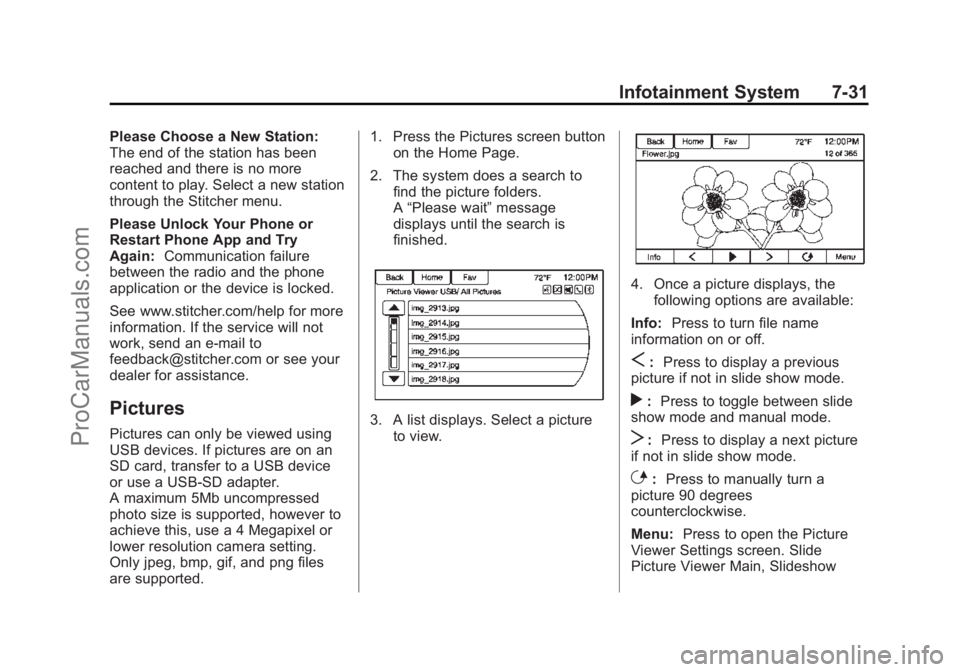
are supported. 1. Press the Pictures screen button
on the Home Page.
2. The system does a search to find the picture folders.
A“Please wait” message
displays until the search is
finished.3. A list displays. Select a picture
to view.
4. Once a picture displays, thefollowing options are available:
Info: Press to turn file name
information on or off.
S: Press to display a previous
picture if not in slide show mode.
r: Press to toggle between slide
show mode and manual mode.
T: Press to display a next picture
if not in slide show mode.
E: Press to manually turn a
picture 90 degrees
counterclockwise.
Menu: Press to open the Picture
Viewer Settings screen. Slide
Picture Viewer Main, Slideshow
ProCarManuals.com
Page 183 of 435
Black plate (42,1)Chevrolet SS Sedan Owner Manual (GMNA-Localizing-U.S.-7707491) - 2015 -
crc - 9/11/14
7-42 Infotainment System
OnStar System
OnStar®with 4G LTE
If equipped with OnStar 4G LTE, up
to seven devices, such as
smartphones, tablets, and laptops,
can be connected to high-speed
Internet through the vehicle’s built-in
Wi-Fi
®hotspot.Call 1-888-4-ONSTAR
(1-888-466-7827) to connect to an
OnStar Advisor for assistance. See
www.onstar.com for a detailed
instruction guide, vehicle availability,
details, and system limitations.
Services and apps vary by make,
model, year, carrier, availability, and
conditions. 4G LTE service is
available in select markets. 4G LTE
performance is based on industry
averages and vehicle systems
design. Some services require a
data plan.
Navigation
Using the Navigation
System
Use the NAV button on the
faceplate or Home Page to access
the navigation map.
Press the NAV button again to
change between alternative views of
the normal split and full map views.
The Menu screen button at the
bottom right side of the display
accesses the Navigation Menu.
ProCarManuals.com
Page 187 of 435
Black plate (46,1)Chevrolet SS Sedan Owner Manual (GMNA-Localizing-U.S.-7707491) - 2015 -
crc - 9/11/14
7-46 Infotainment System
.Press and hold the screen in any
direction outside the scroll
symbol to scroll the map in that
direction.
.Scroll speed increases when
touching closer to the edge of
the screen.
.Press NAV or BACK/on the
faceplate to exit map scrolling
and return to the current vehicle
location on the map.
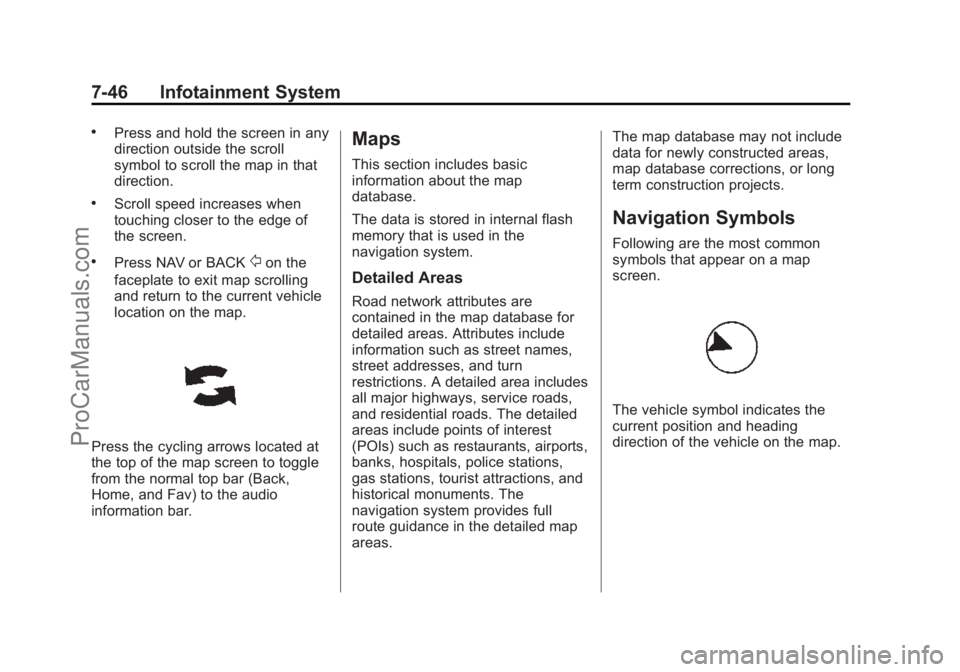
Press the cycling arrows located at
the top of the map screen to toggle
from the normal top bar (Back,
Home, and Fav) to the audio
information bar.
Maps
This section includes basic
information about the map
database.
The data is stored in internal flash
memory that is used in the
navigation system.
Detailed Areas
Road network attributes are
contained in the map database for
detailed areas. Attributes include
information such as street names,
street addresses, and turn
restrictions. A detailed area includes
all major highways, service roads,
and residential roads. The detailed
areas include points of interest
(POIs) such as restaurants, airports,
banks, hospitals, police stations,
gas stations, tourist attractions, and
historical monuments. The
navigation system provides full
route guidance in the detailed map
areas. The map database may not include
data for newly constructed areas,
map database corrections, or long
term construction projects.
Navigation Symbols
Following are the most common
symbols that appear on a map
screen.
The vehicle symbol indicates the
current position and heading
direction of the vehicle on the map.
ProCarManuals.com
Page 206 of 435
Black plate (65,1)Chevrolet SS Sedan Owner Manual (GMNA-Localizing-U.S.-7707491) - 2015 -
crc - 9/11/14
Infotainment System 7-65
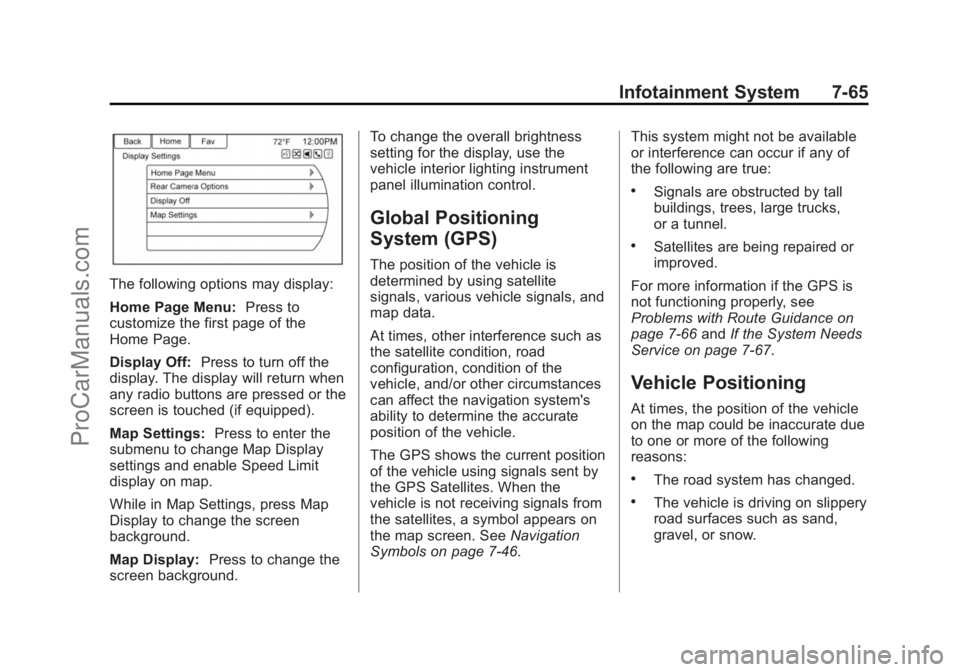
The following options may display:
Home Page Menu:Press to
customize the first page of the
Home Page.
Display Off: Press to turn off the
display. The display will return when
any radio buttons are pressed or the
screen is touched (if equipped).
Map Settings: Press to enter the
submenu to change Map Display
settings and enable Speed Limit
display on map.
While in Map Settings, press Map
Display to change the screen
background.
Map Display: Press to change the
screen background. To change the overall brightness
setting for the display, use the
vehicle interior lighting instrument
panel illumination control.
Global Positioning
System (GPS)
The position of the vehicle is
determined by using satellite
signals, various vehicle signals, and
map data.
At times, other interference such as
the satellite condition, road
configuration, condition of the
vehicle, and/or other circumstances
can affect the navigation system's
ability to determine the accurate
position of the vehicle.
The GPS shows the current position
of the vehicle using signals sent by
the GPS Satellites. When the
vehicle is not receiving signals from
the satellites, a symbol appears on
the map screen. See
Navigation
Symbols on page 7-46. This system might not be available
or interference can occur if any of
the following are true:
.Signals are obstructed by tall
buildings, trees, large trucks,
or a tunnel.
.Satellites are being repaired or
improved.
For more information if the GPS is
not functioning properly, see
Problems with Route Guidance on
page 7-66 andIf the System Needs
Service on page 7-67.
Vehicle Positioning
At times, the position of the vehicle
on the map could be inaccurate due
to one or more of the following
reasons:
.The road system has changed.
.The vehicle is driving on slippery
road surfaces such as sand,
gravel, or snow.
ProCarManuals.com
Page 208 of 435
Black plate (67,1)Chevrolet SS Sedan Owner Manual (GMNA-Localizing-U.S.-7707491) - 2015 -
crc - 9/11/14
Infotainment System 7-67
To recalibrate the vehicle's position
on the map, park with the vehicle
running for two to five minutes, until
the vehicle position updates. Make
sure the vehicle is parked in a
location that is safe and has a clear
view of the sky and away from large
obstruction.
If the System Needs
Service
If the navigation system needs
service and the steps listed here
have been followed but there are
still problems, see your dealer for
assistance.
Map Data Updates
The map data provided in the
vehicle is the most up-to-date
information available when the
vehicle was produced. The map
data is updated periodically,
provided that the map information
has changed.
For questions about the operation of
the navigation system or the update
process, contact the GM Nav Disc
Center toll-free phone number,
1-877-NAV-DISC (1-877-628-3472)
or go to the center’s website,
www.gmnavdisc.com. If updates are
needed, call the GM Nav Disc
Center or order a new Map Update
online. To order map data, have the
vehicle’s Vehicle Identification
Number (VIN) available. See
Vehicle Identification Number (VIN)
on page 12-1.
After receiving the updated map
data, see Maps on page 7-46.
Database Coverage
Explanations
Coverage areas vary with respect to
the level of map detail available for
any given area. Some areas feature
greater levels of detail than others.
If this happens, it does not mean
there is a problem with the system.
As the map data is updated, more
detail can become available for
areas which previously had limited
detail. See Map Data Updates on
page 7-67 for more information.
ProCarManuals.com
Page 220 of 435
Black plate (79,1)Chevrolet SS Sedan Owner Manual (GMNA-Localizing-U.S.-7707491) - 2015 -
crc - 9/11/14
Infotainment System 7-79
4. Select the name or numberto call.
Making a Call Using the
Infotainment Controls
To make a call:
1. Press
b/>once on the radio
or the Phone screen button.
2. Press Enter Number.
3. Enter the phone number.
4. Select OK to start dialing the number.
5. Select Call to place the call.
To make a call using voice
recognition, see “Making a Call”
under Bluetooth on page 7-74.
Accepting or Declining a Call
When an incoming call is received,
the infotainment system mutes and
a ring tone is heard in the vehicle. Using the Infotainment Controls
Turn the TUNE/MENU knob to
“Answer”
or“Decline” and press the
TUNE/MENU knob or press Accept
or Decline on the screen.
Using Steering Wheel Controls
Press
b/gto answer or$/ito
decline the call.
Call Waiting Using the
Infotainment Controls
Call waiting must be supported on
the Bluetooth phone and enabled by
the wireless service carrier to work.
Switching Between Calls (Call
Waiting Calls Only)
To switch between calls turn and
press the TUNE/MENU knob and
select Switch Call or select Switch
Call on the screen.
Call Waiting Using Steering
Wheel Controls
Call waiting must be supported on
the cell phone and enabled by the
wireless service carrier.
.Pressb/gto answer an
incoming call when another call
is active. The original call is
placed on hold.
.Pressb/gagain to return to
the original call.
.To decline answering the
incoming call, press Decline on
the screen or take no action.
.Press$/ito disconnect the
current call and switch to the call
on hold.
Conference Calling Using the
Infotainment Controls
Conference calling and three-way
calling must be supported on the
Bluetooth phone and enabled by the
ProCarManuals.com
Page 221 of 435
Black plate (80,1)Chevrolet SS Sedan Owner Manual (GMNA-Localizing-U.S.-7707491) - 2015 -
crc - 9/11/14
7-80 Infotainment System
wireless service carrier to work. This
feature is only supported when the
vehicle is not moving.
To start a conference while in a
current call:
1. Turn and press the TUNE/MENUknob and select Enter Number.
2. Enter the phone number and select OK.
3. After the call has been placed, turn the TUNE/MENU knob and
choose Merge Calls.
4. To add more callers to the conference call, repeat Steps 1
−3. The number of callers that
can be added is limited by your
wireless service carrier.
Ending a Call
Using the Infotainment Controls
Turn and press the TUNE/MENU
knob and select Hang Up or press
Hang Up on the screen.
Using Steering Wheel Controls
Press
$/i.
Muting a Call
During a call, all sounds from inside
the vehicle can be muted so that the
person on the other end of the call
cannot hear them.
Using the Infotainment Controls
Turn and press the TUNE/MENU
knob and select Mute Call. Press
again to cancel mute.
Transferring a Call
Audio can be transferred between
the Bluetooth system and the cell
phone.
The cell phone must be paired and
connected with the Bluetooth
system before a call can be
transferred.
To Transfer Audio from the
Bluetooth System to a Cell Phone
During a call with the audio in the
vehicle, press the Transfer Call
button on the screen or press and
hold the
b/gbutton on the
steering wheel. To Transfer Audio to the Bluetooth
System from a Cell Phone
Use the audio transfer feature on
the cell phone. See your cell phone
manufacturer's user guide for more
information. Press the Transfer call
button on the screen or press and
hold the
b/gbutton on the
steering wheel.
Dual Tone Multi-Frequency
(DTMF) Tones
The in-vehicle Bluetooth system can
send numbers during a call. This is
used when calling a menu-driven
phone system.
Using the Infotainment Controls
1. Turn and press the TUNE/MENU knob and select Enter Number.
2. Enter the phone number, or select Enter Number on the
screen and select digits, then
press OK.
ProCarManuals.com