infotainment CHEVROLET SS 2015 Workshop Manual
[x] Cancel search | Manufacturer: CHEVROLET, Model Year: 2015, Model line: SS, Model: CHEVROLET SS 2015Pages: 435, PDF Size: 6.27 MB
Page 187 of 435
Black plate (46,1)Chevrolet SS Sedan Owner Manual (GMNA-Localizing-U.S.-7707491) - 2015 -
crc - 9/11/14
7-46 Infotainment System
.Press and hold the screen in any
direction outside the scroll
symbol to scroll the map in that
direction.
.Scroll speed increases when
touching closer to the edge of
the screen.
.Press NAV or BACK/on the
faceplate to exit map scrolling
and return to the current vehicle
location on the map.
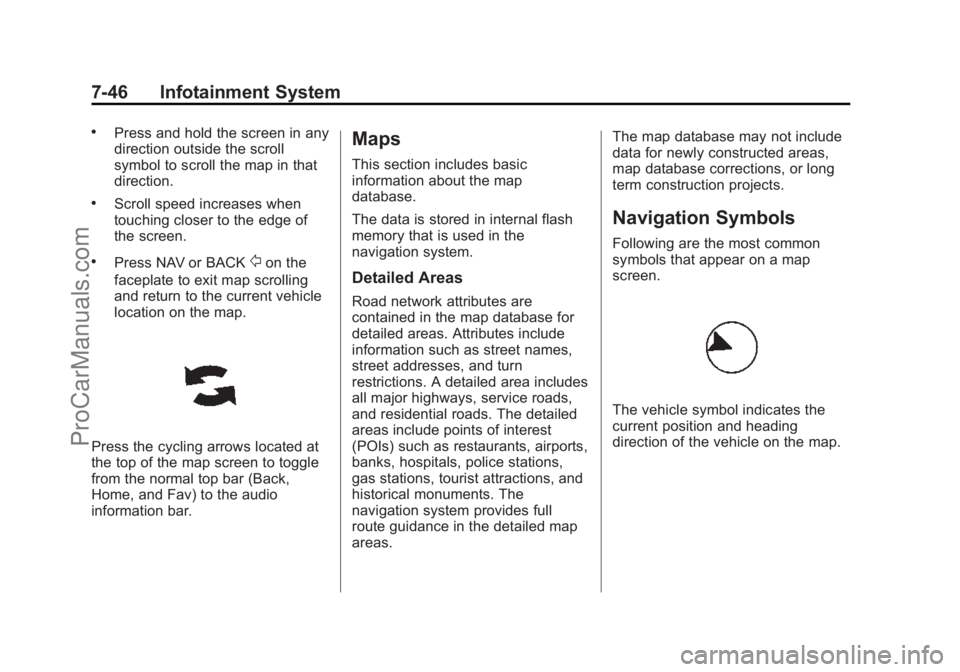
Press the cycling arrows located at
the top of the map screen to toggle
from the normal top bar (Back,
Home, and Fav) to the audio
information bar.
Maps
This section includes basic
information about the map
database.
The data is stored in internal flash
memory that is used in the
navigation system.
Detailed Areas
Road network attributes are
contained in the map database for
detailed areas. Attributes include
information such as street names,
street addresses, and turn
restrictions. A detailed area includes
all major highways, service roads,
and residential roads. The detailed
areas include points of interest
(POIs) such as restaurants, airports,
banks, hospitals, police stations,
gas stations, tourist attractions, and
historical monuments. The
navigation system provides full
route guidance in the detailed map
areas. The map database may not include
data for newly constructed areas,
map database corrections, or long
term construction projects.
Navigation Symbols
Following are the most common
symbols that appear on a map
screen.
The vehicle symbol indicates the
current position and heading
direction of the vehicle on the map.
ProCarManuals.com
Page 188 of 435
Black plate (47,1)Chevrolet SS Sedan Owner Manual (GMNA-Localizing-U.S.-7707491) - 2015 -
crc - 9/11/14
Infotainment System 7-47
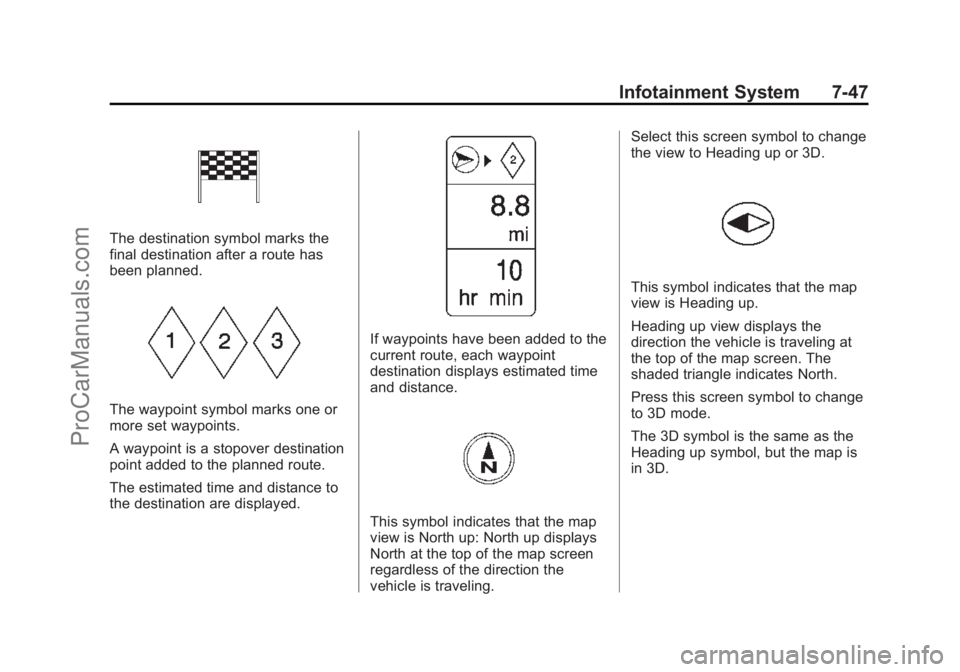
The destination symbol marks the
final destination after a route has
been planned.
The waypoint symbol marks one or
more set waypoints.
A waypoint is a stopover destination
point added to the planned route.
The estimated time and distance to
the destination are displayed.
If waypoints have been added to the
current route, each waypoint
destination displays estimated time
and distance.
This symbol indicates that the map
view is North up: North up displays
North at the top of the map screen
regardless of the direction the
vehicle is traveling.Select this screen symbol to change
the view to Heading up or 3D.
This symbol indicates that the map
view is Heading up.
Heading up view displays the
direction the vehicle is traveling at
the top of the map screen. The
shaded triangle indicates North.
Press this screen symbol to change
to 3D mode.
The 3D symbol is the same as the
Heading up symbol, but the map is
in 3D.
ProCarManuals.com
Page 189 of 435
Black plate (48,1)Chevrolet SS Sedan Owner Manual (GMNA-Localizing-U.S.-7707491) - 2015 -
crc - 9/11/14
7-48 Infotainment System
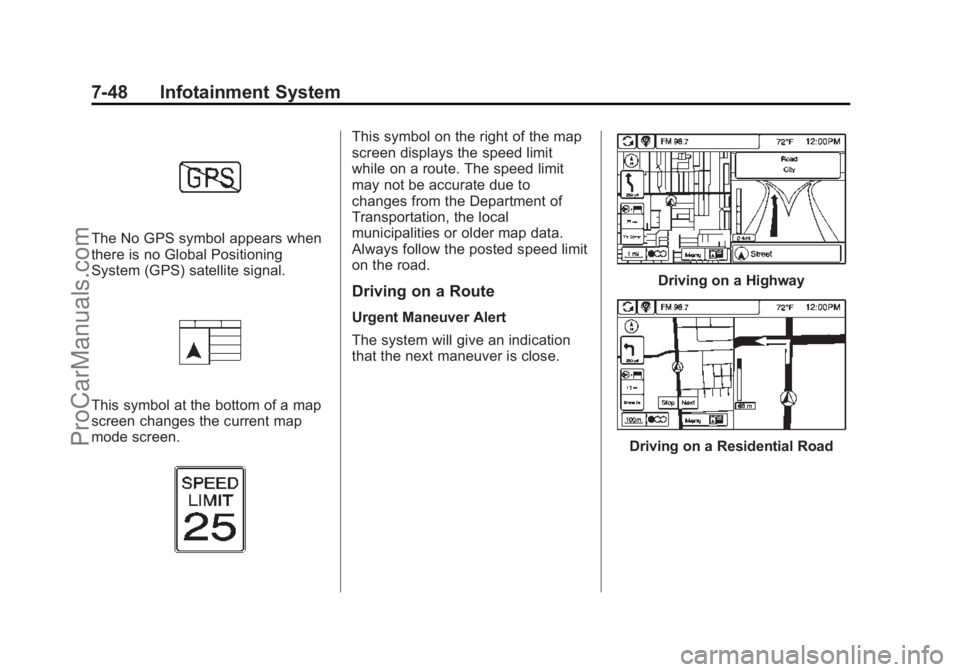
The No GPS symbol appears when
there is no Global Positioning
System (GPS) satellite signal.
This symbol at the bottom of a map
screen changes the current map
mode screen.
This symbol on the right of the map
screen displays the speed limit
while on a route. The speed limit
may not be accurate due to
changes from the Department of
Transportation, the local
municipalities or older map data.
Always follow the posted speed limit
on the road.
Driving on a Route
Urgent Maneuver Alert
The system will give an indication
that the next maneuver is close.
Driving on a Highway
Driving on a Residential Road
ProCarManuals.com
Page 190 of 435
Black plate (49,1)Chevrolet SS Sedan Owner Manual (GMNA-Localizing-U.S.-7707491) - 2015 -
crc - 9/11/14
Infotainment System 7-49
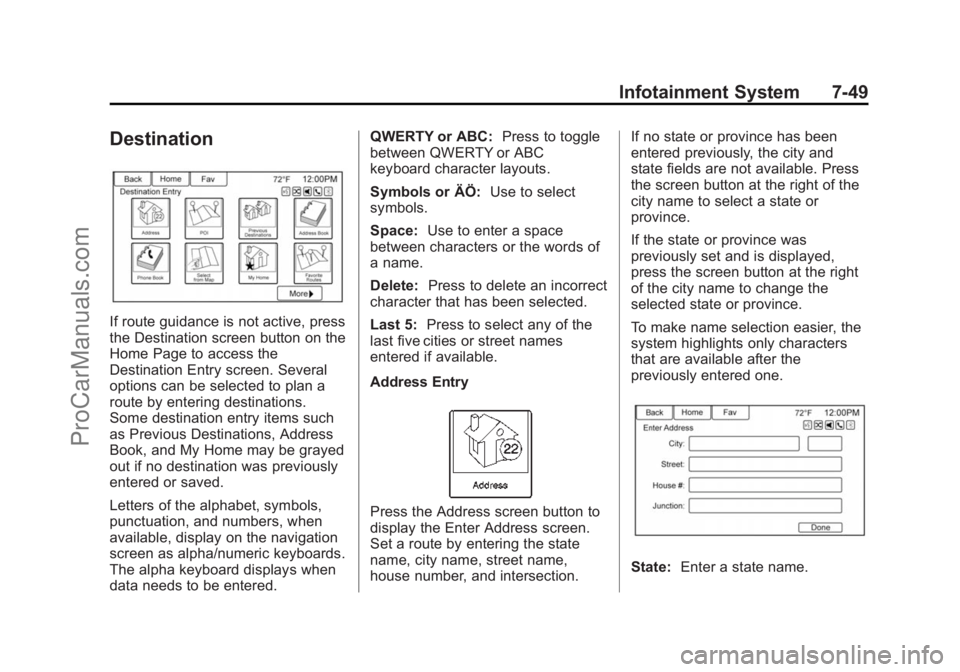
Destination
If route guidance is not active, press
the Destination screen button on the
Home Page to access the
Destination Entry screen. Several
options can be selected to plan a
route by entering destinations.
Some destination entry items such
as Previous Destinations, Address
Book, and My Home may be grayed
out if no destination was previously
entered or saved.
Letters of the alphabet, symbols,
punctuation, and numbers, when
available, display on the navigation
screen as alpha/numeric keyboards.
The alpha keyboard displays when
data needs to be entered.QWERTY or ABC:
Press to toggle
between QWERTY or ABC
keyboard character layouts.
Symbols or ÄÖ: Use to select
symbols.
Space: Use to enter a space
between characters or the words of
a name.
Delete: Press to delete an incorrect
character that has been selected.
Last 5: Press to select any of the
last five cities or street names
entered if available.
Address Entry
Press the Address screen button to
display the Enter Address screen.
Set a route by entering the state
name, city name, street name,
house number, and intersection. If no state or province has been
entered previously, the city and
state fields are not available. Press
the screen button at the right of the
city name to select a state or
province.
If the state or province was
previously set and is displayed,
press the screen button at the right
of the city name to change the
selected state or province.
To make name selection easier, the
system highlights only characters
that are available after the
previously entered one.
State:
Enter a state name.
ProCarManuals.com
Page 191 of 435
Black plate (50,1)Chevrolet SS Sedan Owner Manual (GMNA-Localizing-U.S.-7707491) - 2015 -
crc - 9/11/14
7-50 Infotainment System
City:Enter a city name.
Street: Enter a street name.
House No.: Enter a valid address
number.
Junction: Enter a street name that
intersects with the selected street.
Entering the city name first:
1. Enter the city name.
2. Enter the street name. Use the
Delete screen button to delete
an incorrectly entered character.
A list displays if six or fewer
names are available. If there are
more than six, there is a match
counter with a number of
available streets. Press the List
screen button to view the list and
select the street.
3. Enter the house number.
4. Press the Done screen button at any time and the system tries to
resolve a destination based on
the entered information, then
displays it on the screen.
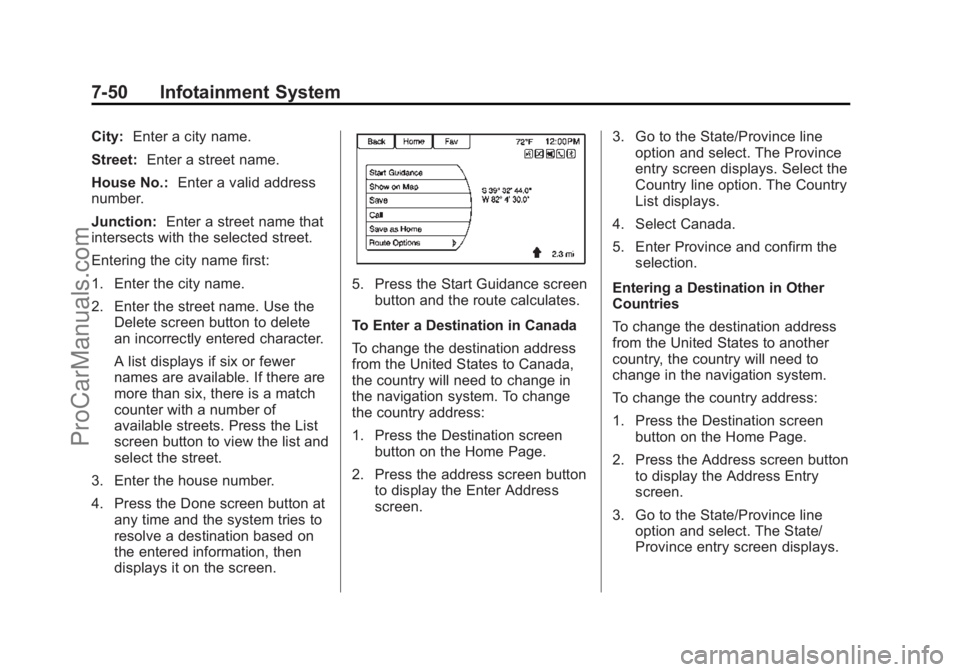
5. Press the Start Guidance screenbutton and the route calculates.
To Enter a Destination in Canada
To change the destination address
from the United States to Canada,
the country will need to change in
the navigation system. To change
the country address:
1. Press the Destination screen button on the Home Page.
2. Press the address screen button to display the Enter Address
screen. 3. Go to the State/Province line
option and select. The Province
entry screen displays. Select the
Country line option. The Country
List displays.
4. Select Canada.
5. Enter Province and confirm the selection.
Entering a Destination in Other
Countries
To change the destination address
from the United States to another
country, the country will need to
change in the navigation system.
To change the country address:
1. Press the Destination screen button on the Home Page.
2. Press the Address screen button to display the Address Entry
screen.
3. Go to the State/Province line option and select. The State/
Province entry screen displays.
ProCarManuals.com
Page 192 of 435
Black plate (51,1)Chevrolet SS Sedan Owner Manual (GMNA-Localizing-U.S.-7707491) - 2015 -
crc - 9/11/14
Infotainment System 7-51
Select the Country line option.
The available Country List
displays.
4. Select the desired country. For example, select Canada as a
default country.
5. Enter State/Province. For example, enter Ontario and
confirm the selection.
The destination in other countries
can also be changed using voice
recognition. See Voice Recognition
on page 7-68.
Points of Interest (POI)
Press the POI screen button on the
Destination Entry page. Several
options can be selected to plan a
route.
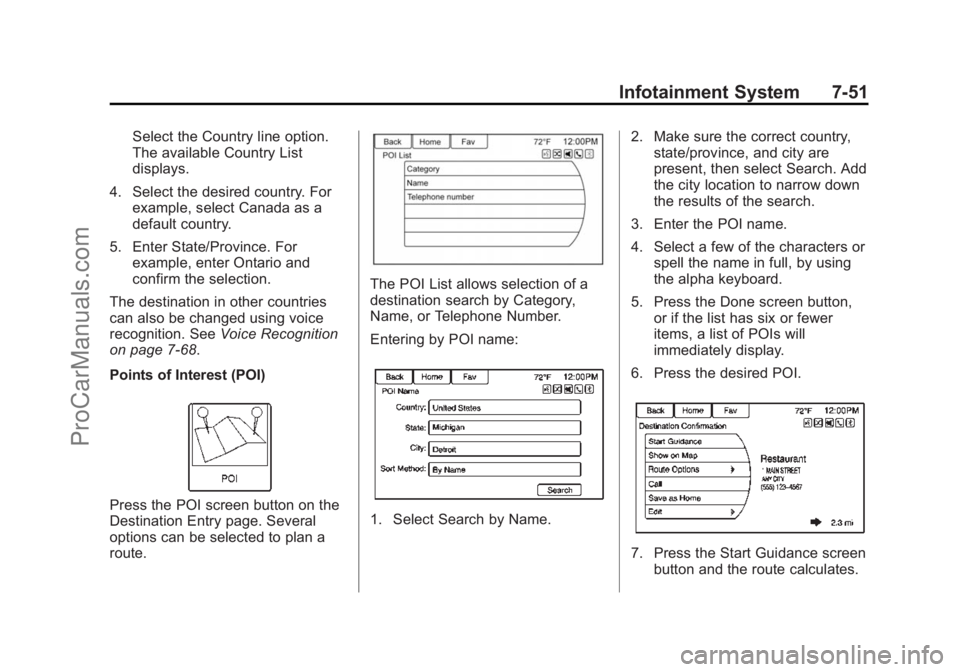
The POI List allows selection of a
destination search by Category,
Name, or Telephone Number.
Entering by POI name:
1. Select Search by Name. 2. Make sure the correct country,
state/province, and city are
present, then select Search. Add
the city location to narrow down
the results of the search.
3. Enter the POI name.
4. Select a few of the characters or spell the name in full, by using
the alpha keyboard.
5. Press the Done screen button, or if the list has six or fewer
items, a list of POIs will
immediately display.
6. Press the desired POI.
7. Press the Start Guidance screen button and the route calculates.
ProCarManuals.com
Page 193 of 435
Black plate (52,1)Chevrolet SS Sedan Owner Manual (GMNA-Localizing-U.S.-7707491) - 2015 -
crc - 9/11/14
7-52 Infotainment System
Previous Destinations
Select a destination from the
Previous Destination List. Up to
15 points that have been previously
entered can be recalled. If the list is
full, the oldest destinations are
automatically deleted once the
newest destinations are added.
Address Book
If no destination is saved to the
address book, save a destination:
1. Press Destination on theHome Page. 2. Enter an address using any of
the destination methods
(Address Entry, POI Entry, etc.).
3. On the Destination Confirmation screen, select Save.
4. The system displays the options Name, Number, Icon, and Done.
Press Done to save the
destination.
5. To customize the address book entry, select Name, Number,
or Icon.
If a destination is already saved to
the address book, press Destination
on the Home Page to display the
Address Book screen button.
Choose a destination by selecting
an address that has been stored in
the address book.
1. Press the Address Book screen button. A list displays the
address book entries.
2. Select the destination from the list. 3. Press the Start Guidance screen
button and the route calculates.
To edit Address Book entries:
1. Select an item from the address book.
2. On the Destination Confirmation screen, select Edit.
3. The system displays the options Name, Number, Icon, and
Delete. Press Delete to delete
the destination from the
address book.
4. To customize the address book entry, select Name, Number,
or Icon.
Latitude/Longitude Coordinates
Choose a destination based on
latitudinal and longitudinal
coordinates.
ProCarManuals.com
Page 194 of 435
Black plate (53,1)Chevrolet SS Sedan Owner Manual (GMNA-Localizing-U.S.-7707491) - 2015 -
crc - 9/11/14
Infotainment System 7-53
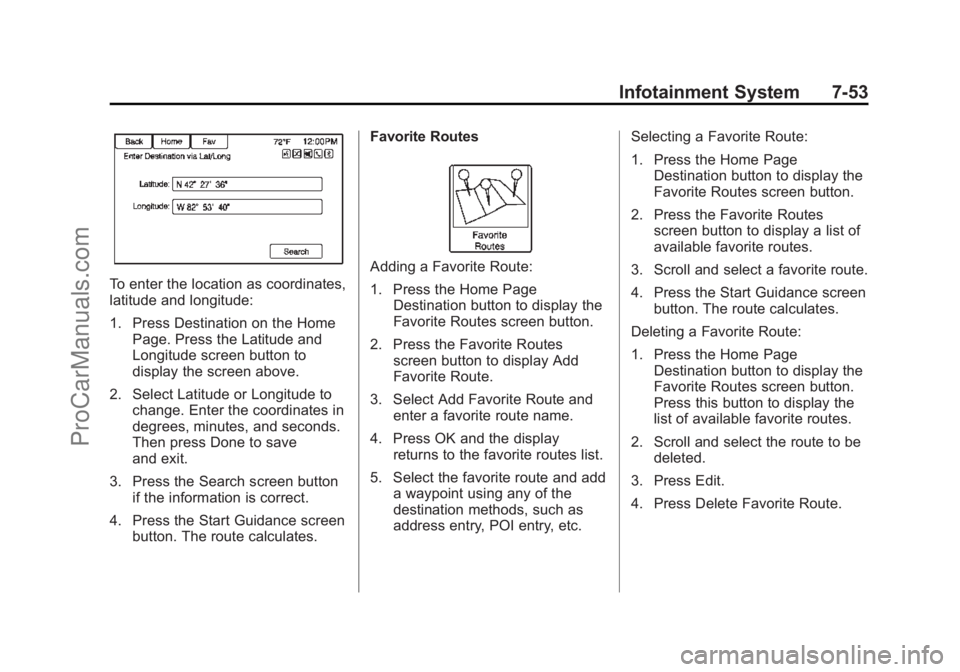
To enter the location as coordinates,
latitude and longitude:
1. Press Destination on the HomePage. Press the Latitude and
Longitude screen button to
display the screen above.
2. Select Latitude or Longitude to change. Enter the coordinates in
degrees, minutes, and seconds.
Then press Done to save
and exit.
3. Press the Search screen button if the information is correct.
4. Press the Start Guidance screen button. The route calculates. Favorite Routes
Adding a Favorite Route:
1. Press the Home Page
Destination button to display the
Favorite Routes screen button.
2. Press the Favorite Routes screen button to display Add
Favorite Route.
3. Select Add Favorite Route and enter a favorite route name.
4. Press OK and the display returns to the favorite routes list.
5. Select the favorite route and add a waypoint using any of the
destination methods, such as
address entry, POI entry, etc. Selecting a Favorite Route:
1. Press the Home Page
Destination button to display the
Favorite Routes screen button.
2. Press the Favorite Routes screen button to display a list of
available favorite routes.
3. Scroll and select a favorite route.
4. Press the Start Guidance screen button. The route calculates.
Deleting a Favorite Route:
1. Press the Home Page Destination button to display the
Favorite Routes screen button.
Press this button to display the
list of available favorite routes.
2. Scroll and select the route to be deleted.
3. Press Edit.
4. Press Delete Favorite Route.
ProCarManuals.com
Page 195 of 435
Black plate (54,1)Chevrolet SS Sedan Owner Manual (GMNA-Localizing-U.S.-7707491) - 2015 -
crc - 9/11/14
7-54 Infotainment System
Changing the route name:
1. Press the Home PageDestination button to display the
Favorite Routes screen button.
Press this button to display the
list of available favorite routes.
2. Press the Edit screen button.
3. Select Edit Name.
4. Using the keypad, enter the name.
5. Press the Done screen button. The new name will be in the
Favorite Routes Menu.
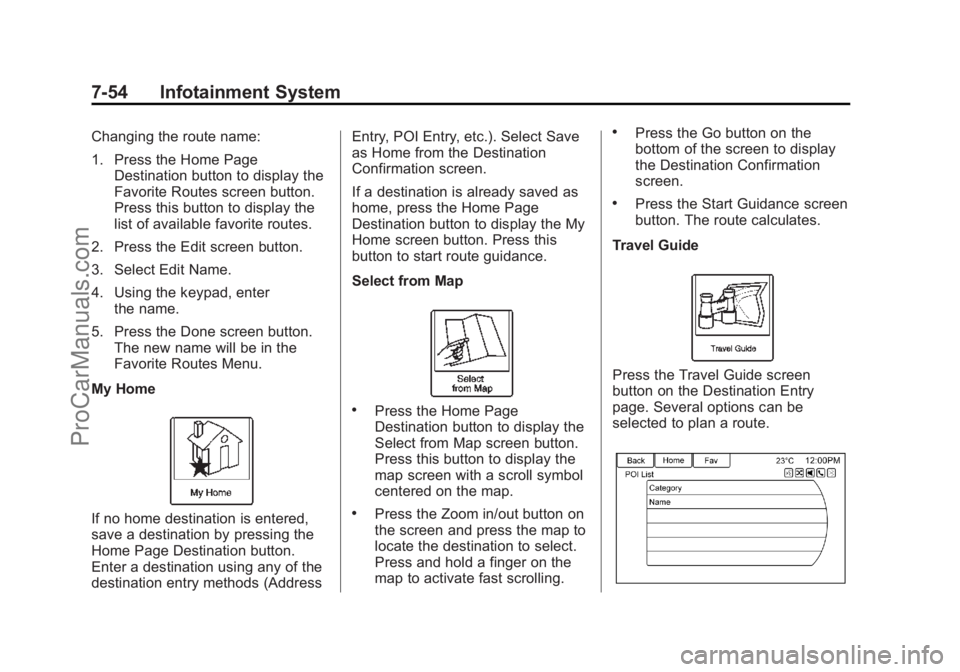
My Home
If no home destination is entered,
save a destination by pressing the
Home Page Destination button.
Enter a destination using any of the
destination entry methods (Address Entry, POI Entry, etc.). Select Save
as Home from the Destination
Confirmation screen.
If a destination is already saved as
home, press the Home Page
Destination button to display the My
Home screen button. Press this
button to start route guidance.
Select from Map
.Press the Home Page
Destination button to display the
Select from Map screen button.
Press this button to display the
map screen with a scroll symbol
centered on the map.
.Press the Zoom in/out button on
the screen and press the map to
locate the destination to select.
Press and hold a finger on the
map to activate fast scrolling.
.Press the Go button on the
bottom of the screen to display
the Destination Confirmation
screen.
.Press the Start Guidance screen
button. The route calculates.
Travel Guide
Press the Travel Guide screen
button on the Destination Entry
page. Several options can be
selected to plan a route.
ProCarManuals.com
Page 196 of 435
Black plate (55,1)Chevrolet SS Sedan Owner Manual (GMNA-Localizing-U.S.-7707491) - 2015 -
crc - 9/11/14
Infotainment System 7-55
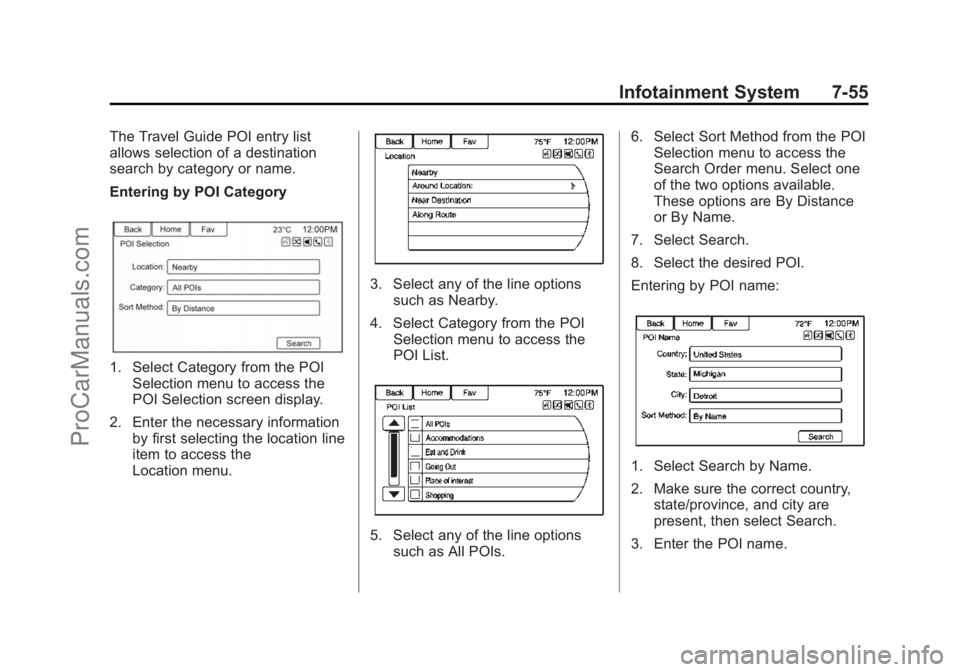
The Travel Guide POI entry list
allows selection of a destination
search by category or name.
Entering by POI Category
1. Select Category from the POISelection menu to access the
POI Selection screen display.
2. Enter the necessary information by first selecting the location line
item to access the
Location menu.
3. Select any of the line optionssuch as Nearby.
4. Select Category from the POI Selection menu to access the
POI List.
5. Select any of the line optionssuch as All POIs. 6. Select Sort Method from the POI
Selection menu to access the
Search Order menu. Select one
of the two options available.
These options are By Distance
or By Name.
7. Select Search.
8. Select the desired POI.
Entering by POI name:
1. Select Search by Name.
2. Make sure the correct country, state/province, and city are
present, then select Search.
3. Enter the POI name.
ProCarManuals.com