buttons CHEVROLET SS 2016 User Guide
[x] Cancel search | Manufacturer: CHEVROLET, Model Year: 2016, Model line: SS, Model: CHEVROLET SS 2016Pages: 397, PDF Size: 7.17 MB
Page 133 of 397
Chevrolet SS Sedan Owner Manual (GMNA-Localizing-U.S.-9234782) - 2016 -
CRC - 8/24/15
132 Infotainment System
Morer:This button may display
depending on the number of options
stored on the Home Page. Press to
go to the next page.
qPrevious : Press to go to the
previous page.
Next
r: Press to go to the
next page.
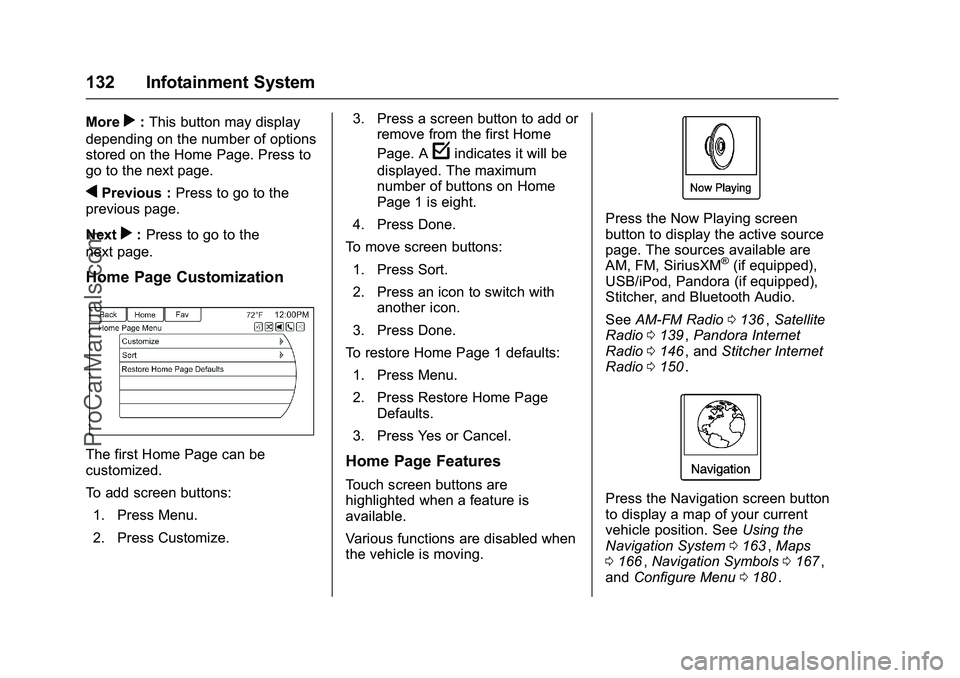
Home Page Customization
The first Home Page can be
customized.
To add screen buttons:
1. Press Menu.
2. Press Customize. 3. Press a screen button to add or
remove from the first Home
Page. A
findicates it will be
displayed. The maximum
number of buttons on Home
Page 1 is eight.
4. Press Done.
To move screen buttons:
1. Press Sort.
2. Press an icon to switch with another icon.
3. Press Done.
To restore Home Page 1 defaults: 1. Press Menu.
2. Press Restore Home Page Defaults.
3. Press Yes or Cancel.
Home Page Features
Touch screen buttons are
highlighted when a feature is
available.
Various functions are disabled when
the vehicle is moving.
Press the Now Playing screen
button to display the active source
page. The sources available are
AM, FM, SiriusXM
®(if equipped),
USB/iPod, Pandora (if equipped),
Stitcher, and Bluetooth Audio.
See AM-FM Radio 0136
ii,Satellite
Radio 0139ii,Pandora Internet
Radio 0146ii, and Stitcher Internet
Radio 0150ii.
Press the Navigation screen button
to display a map of your current
vehicle position. See Using the
Navigation System 0163
ii,Maps
0 166ii,Navigation Symbols 0167ii,
and Configure Menu 0180ii.
ProCarManuals.com
Page 134 of 397
Chevrolet SS Sedan Owner Manual (GMNA-Localizing-U.S.-9234782) - 2016 -
CRC - 8/24/15
Infotainment System 133
Press the Destination screen button
to display the Destination Entry
home page or the Destination Menu.
The available screen buttons
provide easy access to a variety of
ways to enter a destination. See
Destination0169
ii.
Press the Phone screen button to
display the Phone main page. See
Bluetooth 0193
ii.
Press the Config screen button to
display the Config main page. From
this display, adjust features such as
time and date, radio, phone,
navigation, vehicle, and display. See
Configure Menu 0180
ii.
Press the Tone screen button to
display the Tone main page. Adjust
the tone and speakers by pressing
the screen buttons to change the
levels of sound for treble, midrange,
bass, fade, and balance. See
AM-FM Radio 0136
ii.
Press the Pictures screen button to
view pictures on your USB drive or
SD card. Pictures on the SD card
can only be viewed through a USB
adapter.
Press the FM screen button to
display the FM main page and play
the current or last tuned FM station.
See AM-FM Radio 0136
ii.
Press the AM screen button to
display the AM main page and play
the current or last tuned AM station.
See AM-FM Radio 0136
ii.
ProCarManuals.com
Page 139 of 397
Chevrolet SS Sedan Owner Manual (GMNA-Localizing-U.S.-9234782) - 2016 -
CRC - 8/24/15
138 Infotainment System
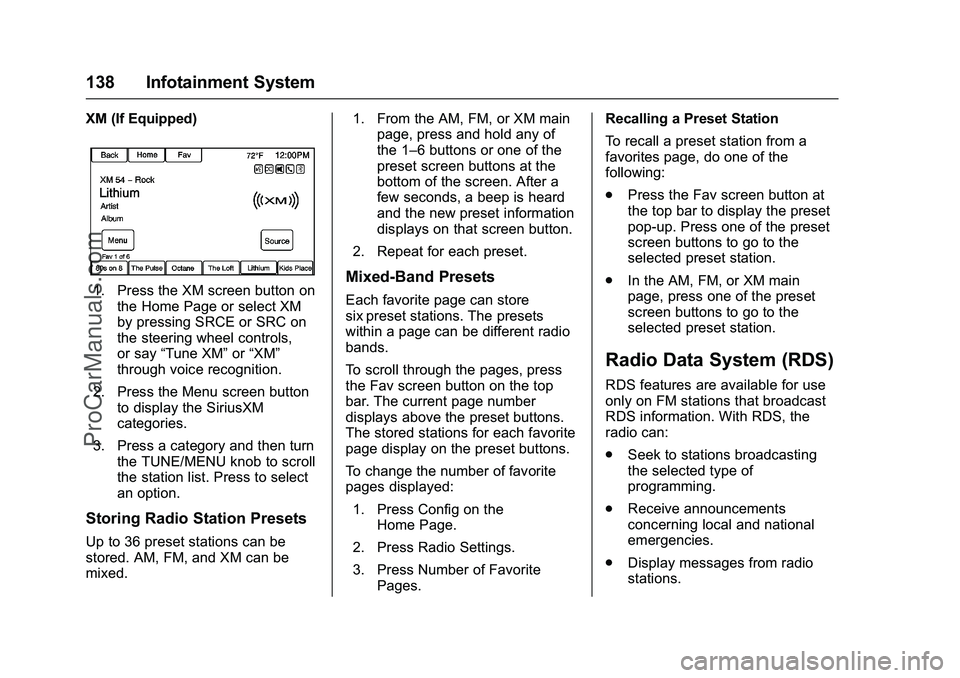
XM (If Equipped)
1. Press the XM screen button onthe Home Page or select XM
by pressing SRCE or SRC on
the steering wheel controls,
or say “Tune XM” or“XM”
through voice recognition.
2. Press the Menu screen button to display the SiriusXM
categories.
3. Press a category and then turn the TUNE/MENU knob to scroll
the station list. Press to select
an option.
Storing Radio Station Presets
Up to 36 preset stations can be
stored. AM, FM, and XM can be
mixed. 1. From the AM, FM, or XM main
page, press and hold any of
the 1–6 buttons or one of the
preset screen buttons at the
bottom of the screen. After a
few seconds, a beep is heard
and the new preset information
displays on that screen button.
2. Repeat for each preset.
Mixed-Band Presets
Each favorite page can store
six preset stations. The presets
within a page can be different radio
bands.
To scroll through the pages, press
the Fav screen button on the top
bar. The current page number
displays above the preset buttons.
The stored stations for each favorite
page display on the preset buttons.
To change the number of favorite
pages displayed: 1. Press Config on the Home Page.
2. Press Radio Settings.
3. Press Number of Favorite Pages. Recalling a Preset Station
To recall a preset station from a
favorites page, do one of the
following:
.
Press the Fav screen button at
the top bar to display the preset
pop-up. Press one of the preset
screen buttons to go to the
selected preset station.
. In the AM, FM, or XM main
page, press one of the preset
screen buttons to go to the
selected preset station.
Radio Data System (RDS)
RDS features are available for use
only on FM stations that broadcast
RDS information. With RDS, the
radio can:
.Seek to stations broadcasting
the selected type of
programming.
. Receive announcements
concerning local and national
emergencies.
. Display messages from radio
stations.
ProCarManuals.com
Page 150 of 397
Chevrolet SS Sedan Owner Manual (GMNA-Localizing-U.S.-9234782) - 2016 -
CRC - 8/24/15
Infotainment System 149
Pandora voice control will not work
until Pandora is launched the first
time during that ignition cycle.
Pandora Skip Limit
Pandora limits the number of skips
allowed on their service. When the
skip limit is reached,
,will not skip
the currently playing track, but
,
feedback will be recorded.
Pandora Advertisement
Pandora may display
advertisements. Artist name and
track title will not be displayed and
the skip track button is not
available.
Switching Between Pandora and
Stitcher
To switch between Pandora and
Stitcher, press the application icon
on the iPhone, iPod touch, or iPad.
This is not required for Android
devices. See Stitcher Internet Radio
0 150
ii.
Pandora Troubleshooting
Unable to Connect Device to
Vehicle
If the device is unable to connect to
the USB or Bluetooth:
1. Turn the vehicle off.
2. Remove the key from the ignition.
3. Open and close the driver door, wait about 30 seconds, and try
to connect the device again.
Unable to Start Pandora
If the device is unable to launch
Pandora:
. Check that the latest version of
Pandora is installed.
. Check that there is an active
account logged into Pandora.
. Have at least one station
created.
. For Android and BlackBerry
devices, check that the device is
paired with the vehicle, and the
Bluetooth icon on the display is
highlighted. .
For iPhone, iPod touch, or iPad
devices, check that the USB
cable is connected to the USB
port and the screen is unlocked.
. Close Pandora on the device
and launch again. Devices that
allow multitasking may require
an extra step to quit the Pandora
application. See the cell phone
manufacturer's user guide.
Thumbs Up or Thumbs Down
Error
If there is an error trying to rate a
track with the
,or-buttons, the
message “Thumbs Down Error” or
“Thumbs Up Error” will display.
Press OK to retry.
Loss of Audio
Loss of Pandora audio can happen
in different ways:
. Weak or lost data connection.
. Device needs to be charged.
. Application needs to be
relaunched.
. Connection between phone and
radio lost.
ProCarManuals.com
Page 180 of 397
Chevrolet SS Sedan Owner Manual (GMNA-Localizing-U.S.-9234782) - 2016 -
CRC - 8/24/15
Infotainment System 179
Instead of deleting individual
waypoints, select Delete All
Waypoints to delete all waypoints at
the same time.
To save a destination list as a
favorite route, select Save as
Favorite.
OnStar®Destination
Download
The destination download lets an
OnStar®subscriber ask an OnStar
Advisor to download a destination to
the navigation system. OnStar will
send address information and
location coordinates of the
destination into the navigation
system.
Using Destination Download
The navigation radio screen must
be turned on before a download.
The navigation system displays
“Please wait” as the address is
searched within the map database. If the address is not found within the
map database, the system may use
latitude and longitude coordinates to
locate the destination.
If the system is unable to locate the
address, the Destination Not Found
screen displays.
Route Guidance Not Active
If an OnStar destination is
downloaded while route guidance is
not active, the navigation system
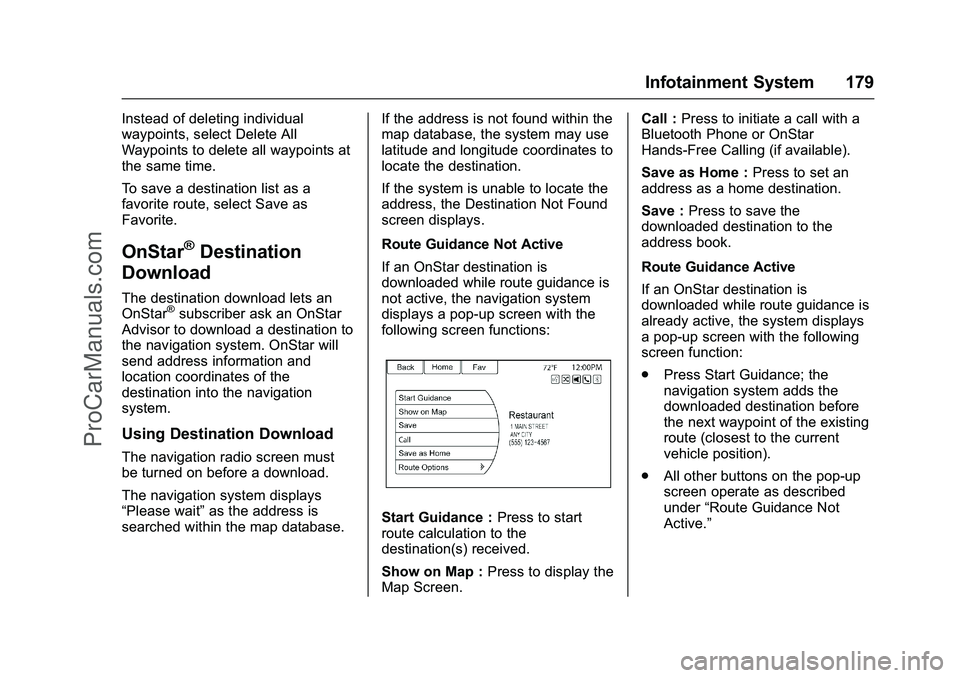
displays a pop-up screen with the
following screen functions:
Start Guidance :
Press to start
route calculation to the
destination(s) received.
Show on Map : Press to display the
Map Screen. Call :
Press to initiate a call with a
Bluetooth Phone or OnStar
Hands-Free Calling (if available).
Save as Home : Press to set an
address as a home destination.
Save : Press to save the
downloaded destination to the
address book.
Route Guidance Active
If an OnStar destination is
downloaded while route guidance is
already active, the system displays
a pop-up screen with the following
screen function:
. Press Start Guidance; the
navigation system adds the
downloaded destination before
the next waypoint of the existing
route (closest to the current
vehicle position).
. All other buttons on the pop-up
screen operate as described
under “Route Guidance Not
Active.”
⁐⁃⁍⁵
Page 185 of 397
Chevrolet SS Sedan Owner Manual (GMNA-Localizing-U.S.-9234782) - 2016 -
CRC - 8/24/15
184 Infotainment System
AlertRoad Condition
Road VisibilityOther
Delete Saved Destinations
Press to delete all saved
destinations. A Delete Saved
Destinations submenu displays. Select the desired options for
deletion and press delete at the
bottom to continue. A confirmation
screen displays requesting to delete
or cancel.
Guidance Alerts
Press to enable the guidance alert
pop-up to be viewed on the map or
on the main screens such as audio,
weather, phone, etc. A checkmark
appears to indicate the guidance
alert mode is on.
Vehicle Settings
See
Vehicle Personalization 0117ii.
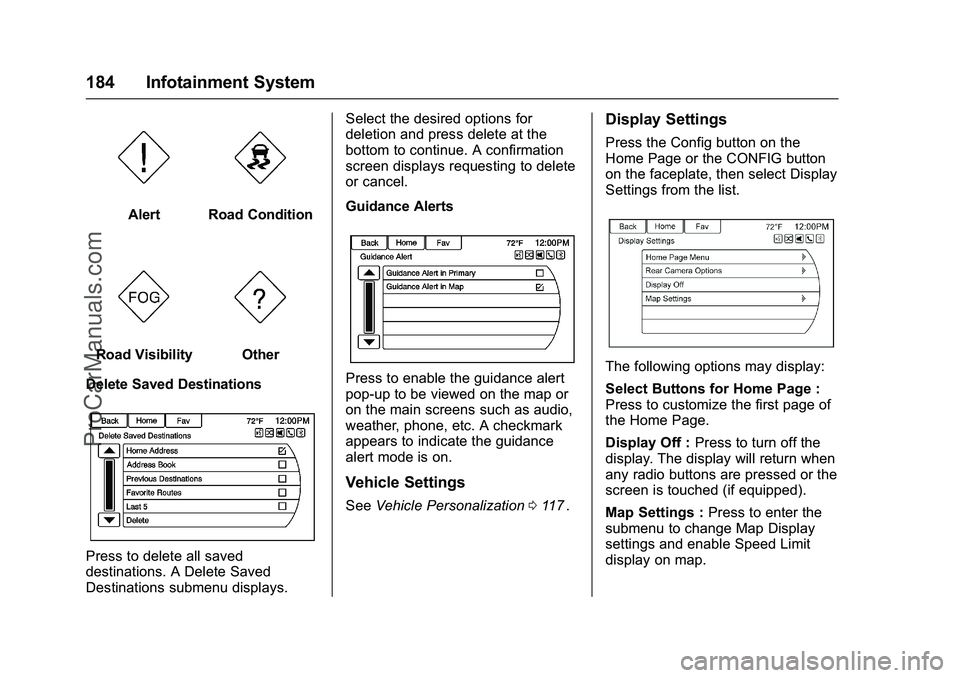
Display Settings
Press the Config button on the
Home Page or the CONFIG button
on the faceplate, then select Display
Settings from the list.
The following options may display:
Select Buttons for Home Page :
Press to customize the first page of
the Home Page.
Display Off : Press to turn off the
display. The display will return when
any radio buttons are pressed or the
screen is touched (if equipped).
Map Settings : Press to enter the
submenu to change Map Display
settings and enable Speed Limit
display on map.
ProCarManuals.com
Page 195 of 397
Chevrolet SS Sedan Owner Manual (GMNA-Localizing-U.S.-9234782) - 2016 -
CRC - 8/24/15
194 Infotainment System
Bluetooth-enabled phones.
Available features and functions
may be dependent on the device.
On a current phone call screen, an
image of the contact from your
phone's contact list can be
displayed. Not all phones are
compatible with this feature.
Bluetooth Controls
Use the buttons on the infotainment
system and the steering wheel to
operate the Bluetooth system.
Steering Wheel Controls
b/g(Push to Talk) :Press to
answer incoming calls and start
voice recognition.
$/i(Mute/End Call) : Press to
end a call, decline an incoming call,
or cancel voice recognition.
+
x− (Volume) : Press + or−to
increase or decrease the volume.
Infotainment System Controls
For information about how to
navigate the menu system using the
infotainment controls, see Overview
0 129
ii.
5/>(Phone/Mute) : Press to enter
the Phone main menu. Press and
hold to mute or unmute.
Voice Recognition
The voice recognition system uses
commands to control the system
and dial phone numbers.
When using voice recognition:
. The system may not recognize
voice commands if there is too
much background noise.
. A tone sounds to indicate that
the system is ready for a voice
command. Wait for the tone and
then speak.
. Speak clearly in a calm and
natural voice.
See Voice Recognition 0187
ii.
Audio System
Sound comes through the vehicle's
front audio system speakers and
overrides the audio system. Use the
VOL/
Oknob during a call to change
the volume level. The adjusted volume level remains in memory for
later calls. The system maintains a
minimum volume level.
See
Voice Recognition 0187
ii.
Bluetooth Audio
See Bluetooth Audio 0161
ii.
Pairing with Infotainment
Controls
A Bluetooth-enabled cell phone
must be paired and then connected
to the vehicle before it can be used.
See your cell phone manufacturer's
user guide for Bluetooth functions
before pairing the cell phone. If a
Bluetooth phone is not connected,
calls will be made using OnStar
Hands-Free Calling, if available.
See OnStar Overview 0375
ii.
Pairing Information
. A Bluetooth-enabled phone and
an audio playback device can be
paired to the system at the
same time.
. Up to five devices can be paired
to the Bluetooth system.
ProCarManuals.com
Page 252 of 397
Chevrolet SS Sedan Owner Manual (GMNA-Localizing-U.S.-9234782) - 2016 -
CRC - 8/24/15
Driving and Operating 251
Warning (Continued)
Under many conditions, these
systems will not:. Detect children,
pedestrians, bicyclists,
or animals.
. Detect vehicles or objects
outside the area monitored
by the system.
. Work at all driving speeds.
. Warn you or provide you
with enough time to avoid a
crash.
. Work under poor visibility or
bad weather conditions.
. Work if the detection sensor
is not cleaned or is covered
by ice, snow, mud, or dirt.
Complete attention is always
required while driving, and you
should be ready to take action
and apply the brakes and/or steer
the vehicle to avoid crashes. Audible Alert
Some driver assistance features
alert the driver of obstacles by
beeping. To change the volume of
the warning chime, see
“Comfort
and Convenience” underVehicle
Personalization 0117
ii.
Assistance Systems for
Parking or Backing
If equipped, the Rear Vision Camera
(RVC), Rear Parking Assist (RPA),
Front Parking Assist (FPA), Rear
Cross Traffic Alert (RCTA), and
Automatic Parking Assist (APA) may
help the driver park or avoid objects.
Always check around the vehicle
when parking or backing.
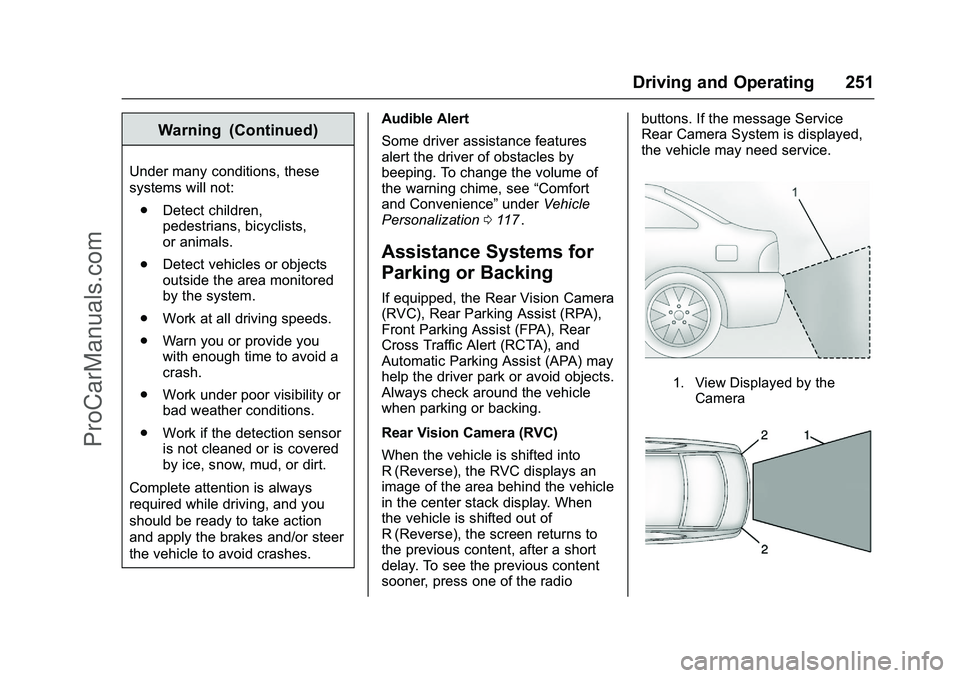
Rear Vision Camera (RVC)
When the vehicle is shifted into
R (Reverse), the RVC displays an
image of the area behind the vehicle
in the center stack display. When
the vehicle is shifted out of
R (Reverse), the screen returns to
the previous content, after a short
delay. To see the previous content
sooner, press one of the radio buttons. If the message Service
Rear Camera System is displayed,
the vehicle may need service.
1. View Displayed by the
Camera
ProCarManuals.com
Page 376 of 397
Chevrolet SS Sedan Owner Manual (GMNA-Localizing-U.S.-9234782) - 2016 -
CRC - 8/24/15
OnStar 375
OnStar
OnStar Overview
OnStar Overview . . . . . . . . . . . . . 375
OnStar Services
Emergency . . . . . . . . . . . . . . . . . . . 376
Security . . . . . . . . . . . . . . . . . . . . . . 376
Navigation . . . . . . . . . . . . . . . . . . . . 376
Connections . . . . . . . . . . . . . . . . . . 377
Diagnostics . . . . . . . . . . . . . . . . . . . 379
OnStar Additional Information
OnStar AdditionalInformation . . . . . . . . . . . . . . . . . . 379
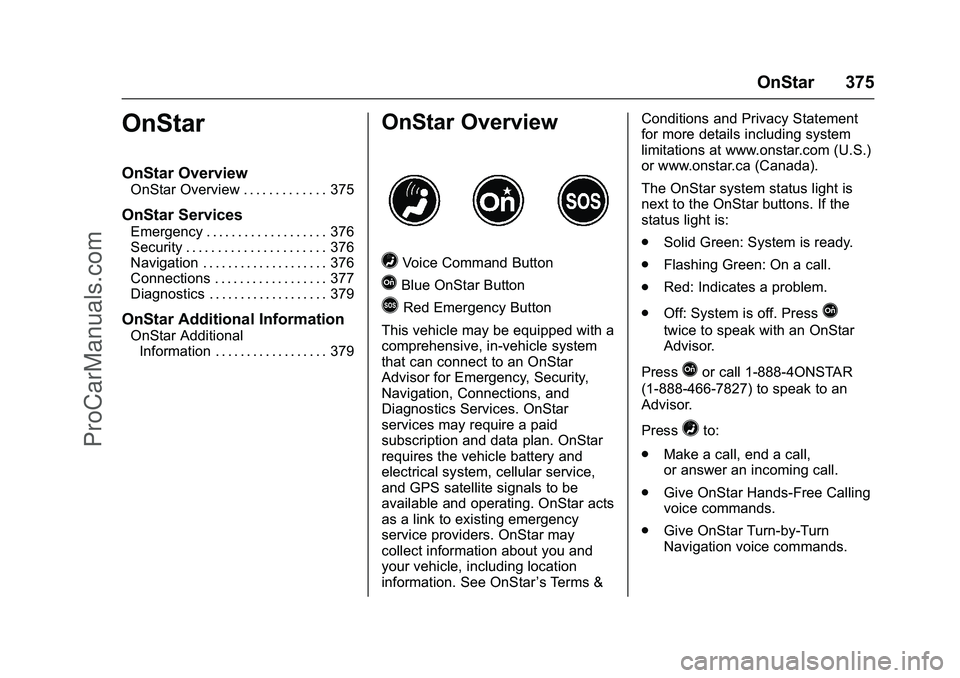
OnStar Overview
=Voice Command Button
QBlue OnStar Button
>Red Emergency Button
This vehicle may be equipped with a
comprehensive, in-vehicle system
that can connect to an OnStar
Advisor for Emergency, Security,
Navigation, Connections, and
Diagnostics Services. OnStar
services may require a paid
subscription and data plan. OnStar
requires the vehicle battery and
electrical system, cellular service,
and GPS satellite signals to be
available and operating. OnStar acts
as a link to existing emergency
service providers. OnStar may
collect information about you and
your vehicle, including location
information. See OnStar ’s Terms &Conditions and Privacy Statement
for more details including system
limitations at www.onstar.com (U.S.)
or www.onstar.ca (Canada).
The OnStar system status light is
next to the OnStar buttons. If the
status light is:
.
Solid Green: System is ready.
. Flashing Green: On a call.
. Red: Indicates a problem.
. Off: System is off. PressQ
twice to speak with an OnStar
Advisor.
Press
Qor call 1-888-4ONSTAR
(1-888-466-7827) to speak to an
Advisor.
Press
=to:
. Make a call, end a call,
or answer an incoming call.
. Give OnStar Hands-Free Calling
voice commands.
. Give OnStar Turn-by-Turn
Navigation voice commands.
ProCarManuals.com