change time CHEVROLET SS 2016 User Guide
[x] Cancel search | Manufacturer: CHEVROLET, Model Year: 2016, Model line: SS, Model: CHEVROLET SS 2016Pages: 397, PDF Size: 7.17 MB
Page 126 of 397
Chevrolet SS Sedan Owner Manual (GMNA-Localizing-U.S.-9234782) - 2016 -
CRC - 8/24/15
Lighting 125
Turn and Lane-Change
Signals
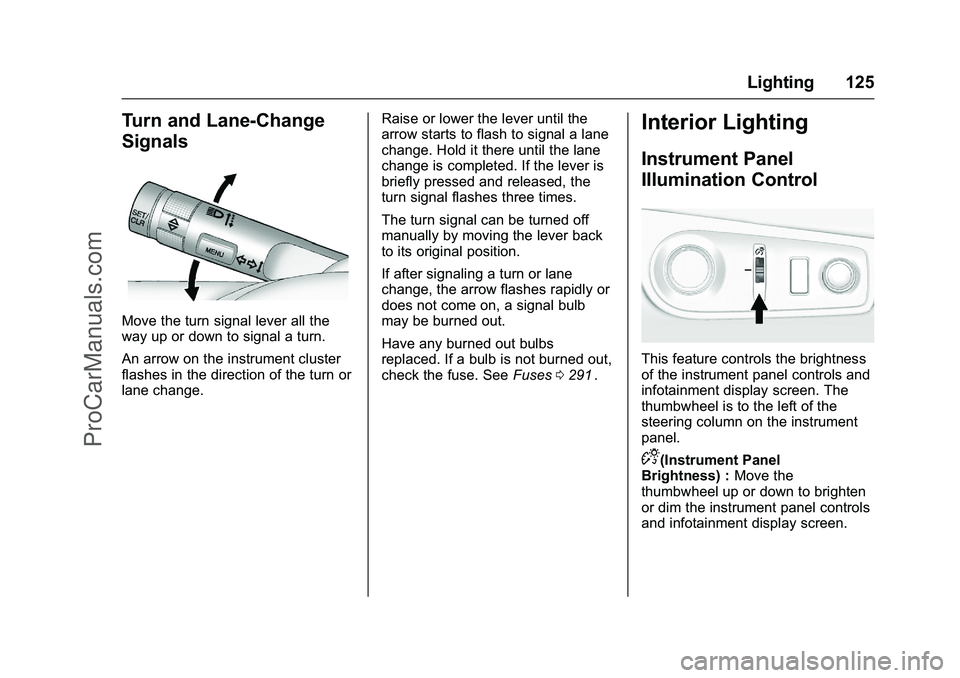
Move the turn signal lever all the
way up or down to signal a turn.
An arrow on the instrument cluster
flashes in the direction of the turn or
lane change.Raise or lower the lever until the
arrow starts to flash to signal a lane
change. Hold it there until the lane
change is completed. If the lever is
briefly pressed and released, the
turn signal flashes three times.
The turn signal can be turned off
manually by moving the lever back
to its original position.
If after signaling a turn or lane
change, the arrow flashes rapidly or
does not come on, a signal bulb
may be burned out.
Have any burned out bulbs
replaced. If a bulb is not burned out,
check the fuse. See
Fuses0291
ii.
Interior Lighting
Instrument Panel
Illumination Control
This feature controls the brightness
of the instrument panel controls and
infotainment display screen. The
thumbwheel is to the left of the
steering column on the instrument
panel.
D(Instrument Panel
Brightness) : Move the
thumbwheel up or down to brighten
or dim the instrument panel controls
and infotainment display screen.
ProCarManuals.com
Page 128 of 397
Chevrolet SS Sedan Owner Manual (GMNA-Localizing-U.S.-9234782) - 2016 -
CRC - 8/24/15
Lighting 127
Lighting Features
Entry Lighting
Some exterior lamps and most of
the interior lamps turn on briefly
when
Kis pressed on the Remote
Keyless Entry (RKE) transmitter.
After about 30 seconds the exterior
lamps turn off, and then the dome
and remaining interior lamps will dim
to off.
This feature can be changed. See
“Vehicle Locator Lights” under
Vehicle Personalization 0117
ii.
Exit Lighting
The exterior lamps will illuminate an
area with limited lighting for a set
amount of time when the ignition is
turned to LOCK/OFF.
This feature can be changed. See
Vehicle Personalization 0117
ii.
Battery Power Protection
To prevent the battery from being
drained, the glove box, trunk, and
reading lamps automatically turn off
10 minutes after the ignition is
turned off.
The lamps are reactivated if any of
the following occur:
.
The ignition is turned on.
. The vehicle is unlocked.
. The trunk is opened.
ProCarManuals.com
Page 134 of 397
Chevrolet SS Sedan Owner Manual (GMNA-Localizing-U.S.-9234782) - 2016 -
CRC - 8/24/15
Infotainment System 133
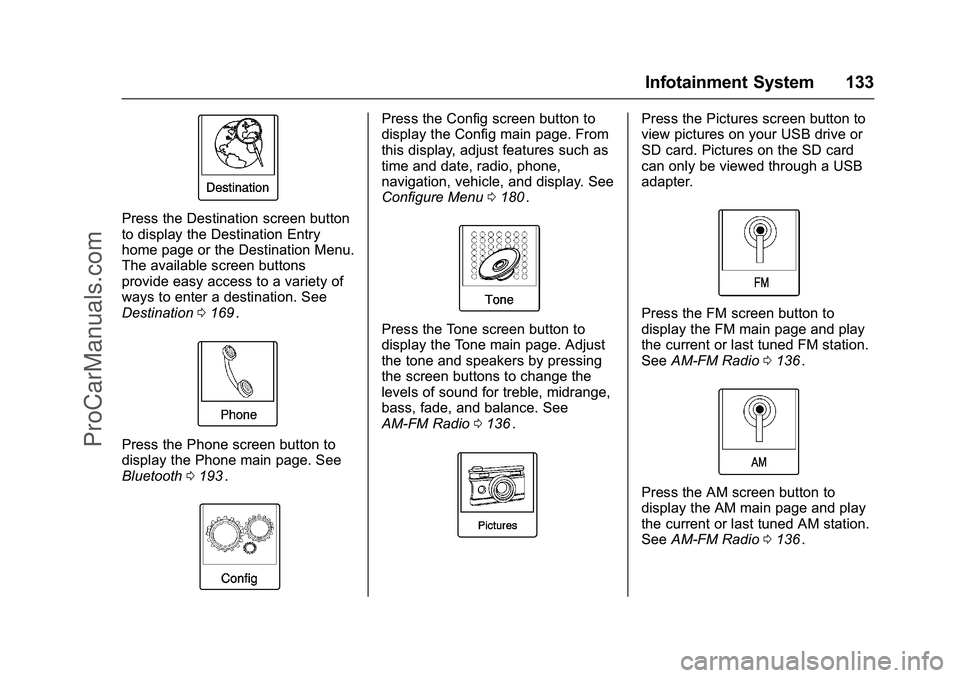
Press the Destination screen button
to display the Destination Entry
home page or the Destination Menu.
The available screen buttons
provide easy access to a variety of
ways to enter a destination. See
Destination0169
ii.
Press the Phone screen button to
display the Phone main page. See
Bluetooth 0193
ii.
Press the Config screen button to
display the Config main page. From
this display, adjust features such as
time and date, radio, phone,
navigation, vehicle, and display. See
Configure Menu 0180
ii.
Press the Tone screen button to
display the Tone main page. Adjust
the tone and speakers by pressing
the screen buttons to change the
levels of sound for treble, midrange,
bass, fade, and balance. See
AM-FM Radio 0136
ii.
Press the Pictures screen button to
view pictures on your USB drive or
SD card. Pictures on the SD card
can only be viewed through a USB
adapter.
Press the FM screen button to
display the FM main page and play
the current or last tuned FM station.
See AM-FM Radio 0136
ii.
Press the AM screen button to
display the AM main page and play
the current or last tuned AM station.
See AM-FM Radio 0136
ii.
ProCarManuals.com
Page 137 of 397
Chevrolet SS Sedan Owner Manual (GMNA-Localizing-U.S.-9234782) - 2016 -
CRC - 8/24/15
136 Infotainment System
Caution
Do not attach a device with a
suction cup to the display. This
may cause damage and would
not be covered by the warranty.
Software Updates
See the websites for more
information.
Website Information
In the U.S., see www.chevrolet.com
Radio
AM-FM Radio
Playing the Radio
VOL/O(Volume/Power) :
. Press to turn the radio on or off.
. Turn to increase or decrease the
volume of the active source.
The steering wheel controls can
also be used to adjust the volume.
See Steering Wheel Controls 0131
ii.
Radio Operation
The radio will work when the key is
in ON/RUN or ACC/ACCESSORY.
When the key is turned from ON/
RUN to LOCK/OFF, the radio will
continue to work for 10 minutes or
until the driver door is opened.
The radio can be turned on by
pressing the power button on the
radio and will stay on for
10 minutes. Opening the driver door
will not turn the radio off when
pressing the power button. Some radios may stay on longer
and reset the time for 10 minutes if
there are any additional presses of
any radio button.
The radio can be turned off at any
time by pressing the power button.
Audio Source
Press SRCE or SRC on the steering
wheel controls to display and scroll
through the available sources AM,
FM, XM (if equipped), Pandora (if
equipped), Stitcher, USB, and
Bluetooth Audio.
Infotainment System Settings
Tone Settings
To access the tone settings, press
the Tone Settings button on the
Home Page. Tone settings are
specific to each source.
To adjust the settings:
.
Bass: Press + or −to change
the level.
. Mid (Midrange): Press + or −to
change the level.
. Treble: Press + or −to change
the level.
ProCarManuals.com
Page 143 of 397
Chevrolet SS Sedan Owner Manual (GMNA-Localizing-U.S.-9234782) - 2016 -
CRC - 8/24/15
142 Infotainment System
distance represents the straight line
distance between the vehicle
location and the fuel station.
From the Home Page, press the
SiriusXM
®Fuel button. The system
displays the current weather page.
To change the fuel information on
screen press the Fuel Menu
Button to:
. Sort Fuel Stations By Price or By
Distance: The default sort
method is by distance.
. Choose Fuel Type: The fuel
available fuel types are Regular
(unleaded), Mid-Range,
Premium, and Diesel.
For more information on the fuel
station, select the fuel station name.
The screen will show the fuel station
name, address, phone number,
distance, amenities and the last
time the fuel price was updated. If a
fuel station does not appear in the
list it may be new or the price may
not have been updated in the past
24 hours. If equipped with Navigation when
the fuel station is selected, see
Destination
0169
iifor more
information of navigation routing
features.
Allow up to five minutes after turning
on the vehicle for the fuel
information to appear.
SiriusXM Travel Link Movie
Listings
When SiriusXM Travel Link
information is available the movie
feature provides movie showtimes
and theater information for movies
close to the vehicle location. The
Movie feature provides detailed
theater and movie information
including showtimes.
From the Home Page, press the
SiriusXM
®Movies button. The
system displays the Movie and
Theater search page.
To search movies:
. Select the Movie field to choose
a movie name.
. Select the Theater field to
choose a specific theater. .
Select the Date field to choose
which date to search movie and/
or theaters.
. Press the Search button to view
a list of movies or theaters.
When searching by movie, a list will
display movies to select. When a
movie is selected a theater list will
appear with a direction arrow and
distance from the current vehicle
location. The direction and distance
will update every 10 seconds as the
vehicle is moving. The direction
arrow represents the location of the
theater from the current vehicle
location. The distance represents
the straight line distance between
the vehicle location and the theater.
Movie details are available when a
movie is selected. The details
include Cast, Synopsis, and Theater
Information. Select the appropriate
button to display more information.
Cast and Synopsis:
. Playtime
. Rating (G, PG-13, R, etc.)
. Theater Name
ProCarManuals.com
Page 158 of 397
Chevrolet SS Sedan Owner Manual (GMNA-Localizing-U.S.-9234782) - 2016 -
CRC - 8/24/15
Infotainment System 157
Use the touch screen or voice
recognition to create a More Like
This Playlist. See“Voice
Recognition Commands” inVoice
Recognition 0187
ii.
Gracenote Indexing
While Gracenote is indexing,
infotainment features are available
including selecting music from the
menu. Voice recognition music will
not be available until the radio has
completed indexing the device.
Devices with more music may take
longer to index. The device will
index when plugged into the radio
for the first time. When Indexing is
removed from the screen, the radio
is ready to support music search.
On the next connection or ignition
cycle, Indexing will show briefly on
the screen. The radio is searching
for changes to the device and
preparing the music list. If there are
no changes, the voice recognition
music search will be available. The
radio will index and store two
devices with up to 10,000 songs on
each device. USB MP3 Player and USB Drives
.
The USB MP3 players and USB
drives connected must comply
with the USB Mass Storage
Class specification (USB MSC).
. Hard disk drives are not
supported.
. The radio will not be able to play
back write-protected music.
. File systems supported: FAT32,
NTFS, Linux, and HFS+.
. The following restrictions apply
for the data stored on a USB
MP3 player or USB device:
‐Maximum folder structure
depth: eight levels.
‐ Maximum number of MP3/
WMA files that can be
displayed: 10,000.
‐ Playlist entries must be in the
form of relative paths.
‐ The system attribute for
folders/files that contain audio
data must not be set. To play a USB device, do one of the
following:
.
Connect the USB and it begins
to play.
. Press the Now Playing screen
button on the Home Page.
. Press SRCE to scroll until the
USB source screen is available.
. Press
b/gon the steering
wheel controls to select songs
by Artist, Album, Song Title,
or Song Genre. See Voice
Recognition 0187
ii.
The following playlist formats are
supported:
. M3U (Standard and Extended)
. iTunes
. PLS (Standard)
. WAX
. ASX
. RMP
ProCarManuals.com
Page 167 of 397
Chevrolet SS Sedan Owner Manual (GMNA-Localizing-U.S.-9234782) - 2016 -
CRC - 8/24/15
166 Infotainment System
There are two methods to change
the map scale:
.Turn the TUNE/MENU knob
clockwise or counterclockwise to
zoom out or in.
. Press the Map Scale + or −
button on the lower corners of
the map screen or the different
zoom indications to change the
zoom level.
The map scale bar times out if
the zoom level is not changed
within a few seconds.
The scale can be configured for
English or metric units. To change
from English to metric, see Driver
Information Center (DIC) 0105
ii.
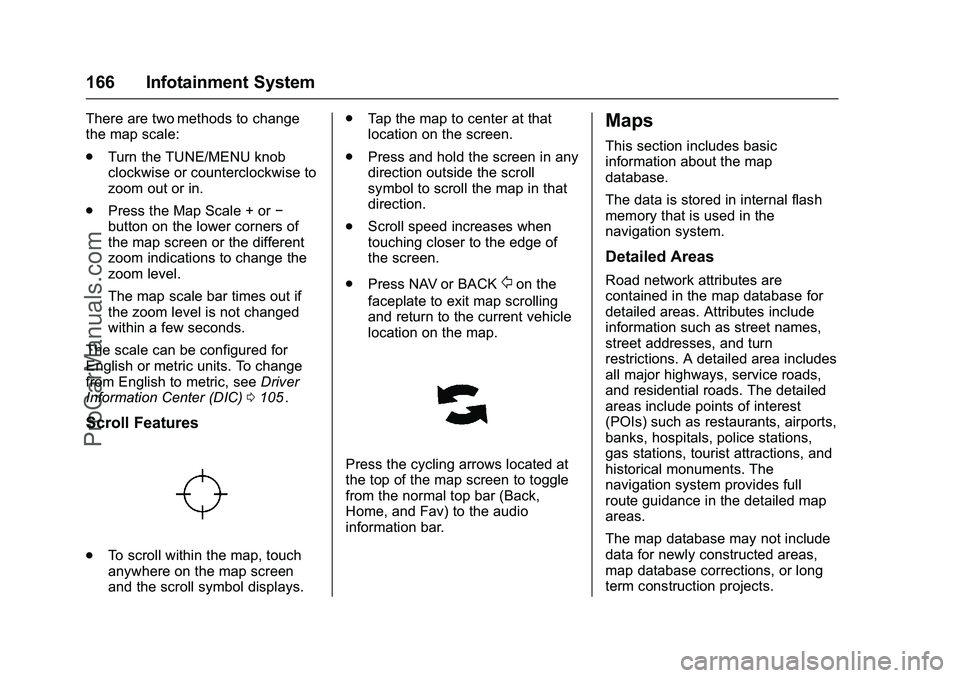
Scroll Features
.
To scroll within the map, touch
anywhere on the map screen
and the scroll symbol displays. .
Tap the map to center at that
location on the screen.
. Press and hold the screen in any
direction outside the scroll
symbol to scroll the map in that
direction.
. Scroll speed increases when
touching closer to the edge of
the screen.
. Press NAV or BACK
/on the
faceplate to exit map scrolling
and return to the current vehicle
location on the map.
Press the cycling arrows located at
the top of the map screen to toggle
from the normal top bar (Back,
Home, and Fav) to the audio
information bar.
Maps
This section includes basic
information about the map
database.
The data is stored in internal flash
memory that is used in the
navigation system.
Detailed Areas
Road network attributes are
contained in the map database for
detailed areas. Attributes include
information such as street names,
street addresses, and turn
restrictions. A detailed area includes
all major highways, service roads,
and residential roads. The detailed
areas include points of interest
(POIs) such as restaurants, airports,
banks, hospitals, police stations,
gas stations, tourist attractions, and
historical monuments. The
navigation system provides full
route guidance in the detailed map
areas.
The map database may not include
data for newly constructed areas,
map database corrections, or long
term construction projects.
ProCarManuals.com
Page 168 of 397
Chevrolet SS Sedan Owner Manual (GMNA-Localizing-U.S.-9234782) - 2016 -
CRC - 8/24/15
Infotainment System 167
Navigation Symbols
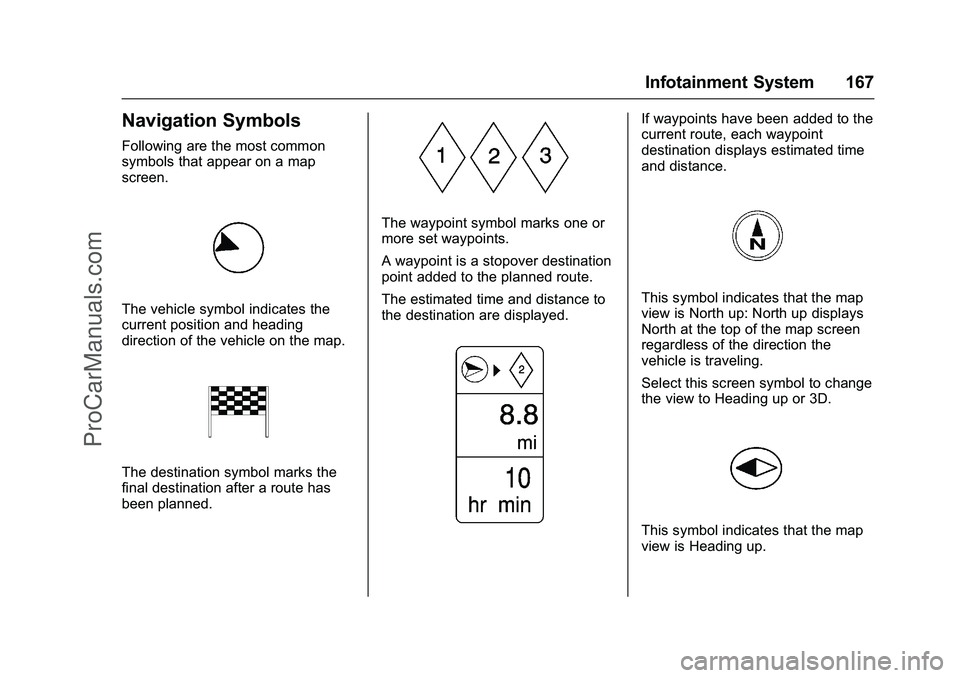
Following are the most common
symbols that appear on a map
screen.
The vehicle symbol indicates the
current position and heading
direction of the vehicle on the map.
The destination symbol marks the
final destination after a route has
been planned.
The waypoint symbol marks one or
more set waypoints.
A waypoint is a stopover destination
point added to the planned route.
The estimated time and distance to
the destination are displayed.
If waypoints have been added to the
current route, each waypoint
destination displays estimated time
and distance.
This symbol indicates that the map
view is North up: North up displays
North at the top of the map screen
regardless of the direction the
vehicle is traveling.
Select this screen symbol to change
the view to Heading up or 3D.
This symbol indicates that the map
view is Heading up.
ProCarManuals.com
Page 171 of 397
Chevrolet SS Sedan Owner Manual (GMNA-Localizing-U.S.-9234782) - 2016 -
CRC - 8/24/15
170 Infotainment System
House No. :Enter a valid address
number.
Junction : Enter a street name that
intersects with the selected street.
Entering the city name first:
1. Enter the city name.
2. Enter the street name. Use the Delete screen button to delete
an incorrectly entered
character.
A list displays if six or fewer
names are available. If there
are more than six, there is a
match counter with a number
of available streets. Press the
List screen button to view the
list and select the street.
3. Enter the house number.
4. Press the Done screen button at any time and the system
tries to resolve a destination
based on the entered
information, then displays it on
the screen.
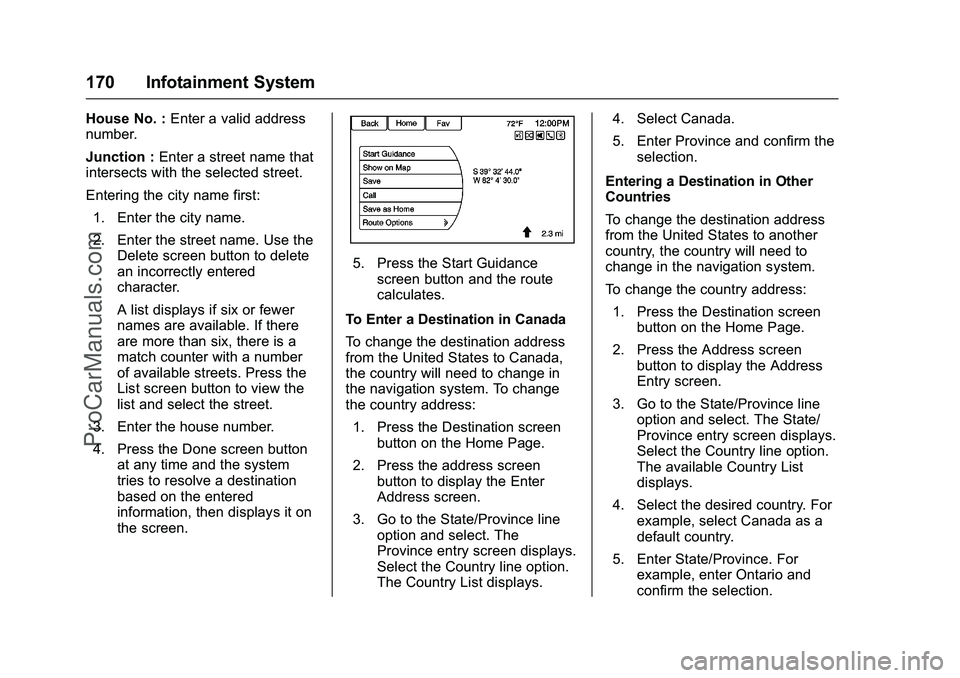
5. Press the Start Guidance
screen button and the route
calculates.
To Enter a Destination in Canada
To change the destination address
from the United States to Canada,
the country will need to change in
the navigation system. To change
the country address: 1. Press the Destination screen button on the Home Page.
2. Press the address screen button to display the Enter
Address screen.
3. Go to the State/Province line option and select. The
Province entry screen displays.
Select the Country line option.
The Country List displays. 4. Select Canada.
5. Enter Province and confirm the
selection.
Entering a Destination in Other
Countries
To change the destination address
from the United States to another
country, the country will need to
change in the navigation system.
To change the country address: 1. Press the Destination screen button on the Home Page.
2. Press the Address screen button to display the Address
Entry screen.
3. Go to the State/Province line option and select. The State/
Province entry screen displays.
Select the Country line option.
The available Country List
displays.
4. Select the desired country. For example, select Canada as a
default country.
5. Enter State/Province. For example, enter Ontario and
confirm the selection.
ProCarManuals.com
Page 181 of 397
Chevrolet SS Sedan Owner Manual (GMNA-Localizing-U.S.-9234782) - 2016 -
CRC - 8/24/15
180 Infotainment System
Previous Destinations
Previously downloaded OnStar
destinations are saved under
Previous Destinations in the
navigation system, where they can
be accessed or saved to the
Address Book.
Configure Menu
The Configuration Menu is used to
adjust features and preferences,
such as Sound, Radio, Nav
(Navigation), Display, or Time
Settings.
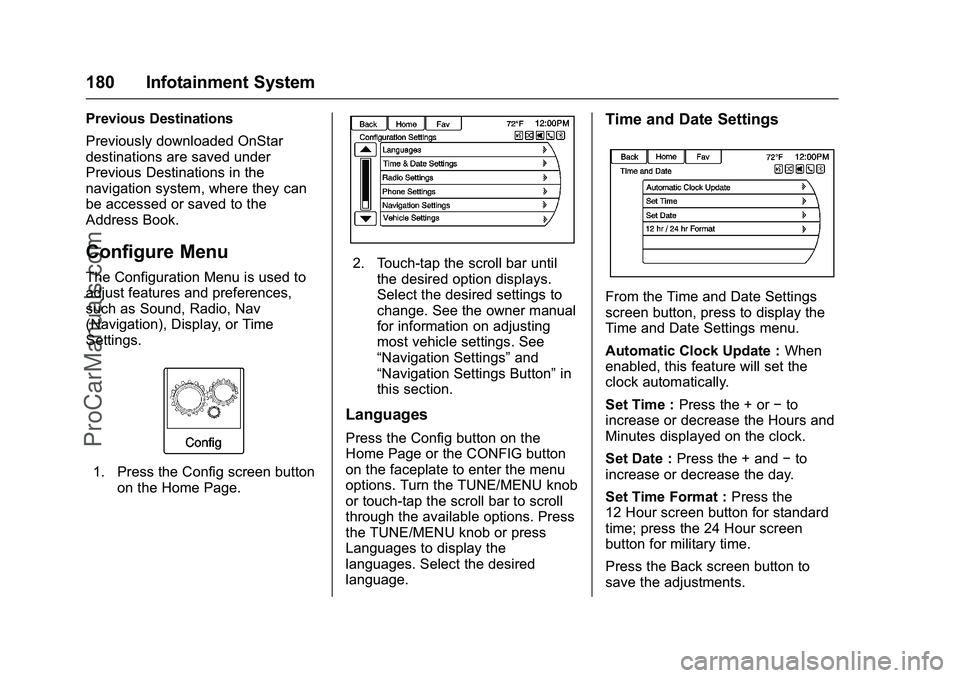
1. Press the Config screen buttonon the Home Page.
2. Touch-tap the scroll bar untilthe desired option displays.
Select the desired settings to
change. See the owner manual
for information on adjusting
most vehicle settings. See
“Navigation Settings” and
“Navigation Settings Button” in
this section.
Languages
Press the Config button on the
Home Page or the CONFIG button
on the faceplate to enter the menu
options. Turn the TUNE/MENU knob
or touch-tap the scroll bar to scroll
through the available options. Press
the TUNE/MENU knob or press
Languages to display the
languages. Select the desired
language.
Time and Date Settings
From the Time and Date Settings
screen button, press to display the
Time and Date Settings menu.
Automatic Clock Update : When
enabled, this feature will set the
clock automatically.
Set Time : Press the + or −to
increase or decrease the Hours and
Minutes displayed on the clock.
Set Date : Press the + and −to
increase or decrease the day.
Set Time Format : Press the
12 Hour screen button for standard
time; press the 24 Hour screen
button for military time.
Press the Back screen button to
save the adjustments.
ProCarManuals.com