reset CHEVROLET SS 2016 User Guide
[x] Cancel search | Manufacturer: CHEVROLET, Model Year: 2016, Model line: SS, Model: CHEVROLET SS 2016Pages: 397, PDF Size: 7.17 MB
Page 130 of 397
Chevrolet SS Sedan Owner Manual (GMNA-Localizing-U.S.-9234782) - 2016 -
CRC - 8/24/15
Infotainment System 129
features are also available through
the instrument cluster and steering
wheel controls.
Before driving:
.Become familiar with the
operation, faceplate buttons, and
screen buttons.
. Set up the audio by presetting
favorite stations, setting the
tone, and adjusting the
speakers.
. Set up phone numbers in
advance so they can be called
easily by pressing a single
button or by using a single voice
command if equipped with
Bluetooth phone capability.
See Defensive Driving 0215
ii.
To play the infotainment system with
the ignition off, see Retained
Accessory Power (RAP) 0230
ii.
Overview
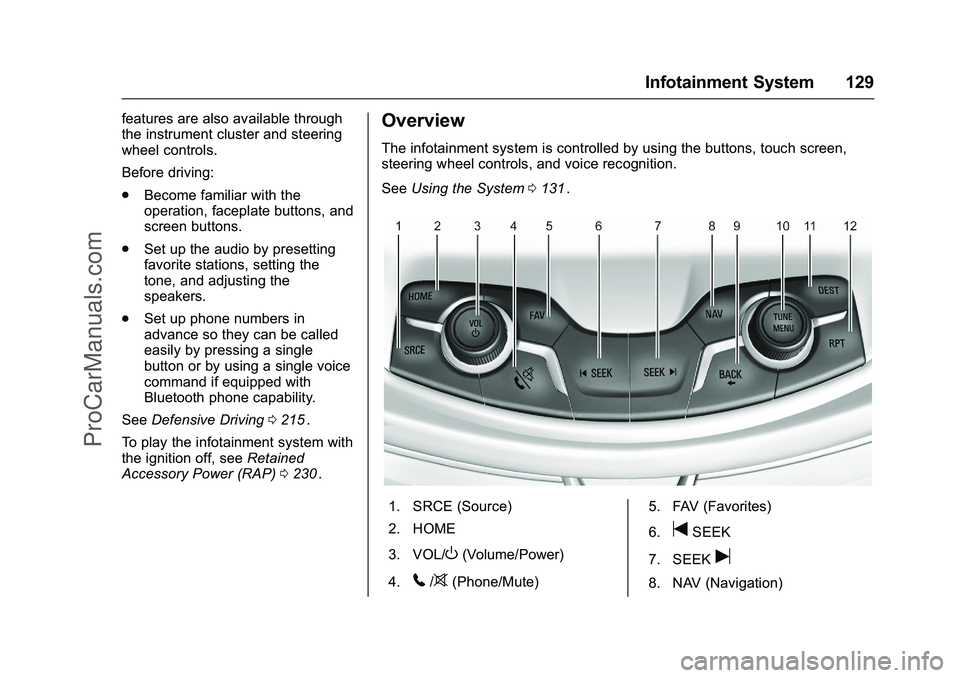
The infotainment system is controlled by using the buttons, touch screen,
steering wheel controls, and voice recognition.
See Using the System 0131
ii.
1. SRCE (Source)
2. HOME
3. VOL/
O(Volume/Power)
4.
5/>(Phone/Mute) 5. FAV (Favorites)
6.
tSEEK
7. SEEK
u
8. NAV (Navigation)
ProCarManuals.com
Page 131 of 397
Chevrolet SS Sedan Owner Manual (GMNA-Localizing-U.S.-9234782) - 2016 -
CRC - 8/24/15
130 Infotainment System
9. BACK}
10. TUNE/MENU
11. DEST (Destination)
12. RPT (Repeat)
Infotainment Control Buttons
The buttons on the faceplate are
used to start primary functions while
using the infotainment system.
SRCE (Source) :Press to change
the audio sources such as AM-FM
Radio, SiriusXM
®(if equipped), and
USB/iPod.
HOME : Press to go to the Home
Page. See “Home Page” in this
section.
VOL/
O(Volume/Power) :
. Turn to adjust the volume.
. Press to turn the system on
and off.
5/>(Phone/Mute) :
. Press to enter the phone main
screen. .
Press and hold to mute or
unmute the infotainment system.
See Bluetooth 0193
ii.
FAV (Favorites) : Press to display
the current favorite page number
above the preset buttons. Keep
pressing to scroll through the
favorites pages. The stored stations
for each list display on the bottom of
the screen. The number of preset
Favorite Pages can be changed by
pressing the Config button on the
Home Page, then pressing Radio
Settings, and then pressing Number
of Favorite Pages.
tSEEK :
. USB or Bluetooth Audio: Press
to seek to the beginning of the
current or previous track. If the
track has been playing for less
than five seconds, it seeks the
previous track. If longer than
five seconds, the current track
starts from the beginning.
. USB or Bluetooth Audio: Press
and hold to quickly reverse
through a track. Release the
button to return to playing
speed. See USB0155
ii. .
AM, FM, or SiriusXM (if
equipped): Press to seek to the
previous strong station.
uSEEK :
. USB or Bluetooth Audio: Press
to seek the next track.
. USB or Bluetooth Audio: Press
and hold to fast forward through
a track.
. AM, FM, or SiriusXM (if
equipped): Press to seek to the
next strong station.
NAV (Navigation) :
. Press to view the vehicle's
current position on the map
screen.
. Continue pressing to cycle
through the full map and split
screens.
BACK
}: Press to return to the
previous screen in a menu.
TUNE/MENU : Turn to manually
tune to a radio station
DEST (Destination) :
. Press to enter a destination.
ProCarManuals.com
Page 137 of 397
Chevrolet SS Sedan Owner Manual (GMNA-Localizing-U.S.-9234782) - 2016 -
CRC - 8/24/15
136 Infotainment System
Caution
Do not attach a device with a
suction cup to the display. This
may cause damage and would
not be covered by the warranty.
Software Updates
See the websites for more
information.
Website Information
In the U.S., see www.chevrolet.com
Radio
AM-FM Radio
Playing the Radio
VOL/O(Volume/Power) :
. Press to turn the radio on or off.
. Turn to increase or decrease the
volume of the active source.
The steering wheel controls can
also be used to adjust the volume.
See Steering Wheel Controls 0131
ii.
Radio Operation
The radio will work when the key is
in ON/RUN or ACC/ACCESSORY.
When the key is turned from ON/
RUN to LOCK/OFF, the radio will
continue to work for 10 minutes or
until the driver door is opened.
The radio can be turned on by
pressing the power button on the
radio and will stay on for
10 minutes. Opening the driver door
will not turn the radio off when
pressing the power button. Some radios may stay on longer
and reset the time for 10 minutes if
there are any additional presses of
any radio button.
The radio can be turned off at any
time by pressing the power button.
Audio Source
Press SRCE or SRC on the steering
wheel controls to display and scroll
through the available sources AM,
FM, XM (if equipped), Pandora (if
equipped), Stitcher, USB, and
Bluetooth Audio.
Infotainment System Settings
Tone Settings
To access the tone settings, press
the Tone Settings button on the
Home Page. Tone settings are
specific to each source.
To adjust the settings:
.
Bass: Press + or −to change
the level.
. Mid (Midrange): Press + or −to
change the level.
. Treble: Press + or −to change
the level.
ProCarManuals.com
Page 138 of 397
Chevrolet SS Sedan Owner Manual (GMNA-Localizing-U.S.-9234782) - 2016 -
CRC - 8/24/15
Infotainment System 137
.EQ: Press or turn the TUNE/
MENU knob to cycle through the
preset EQ options.
. Fade: Press the F or R button
for more sound from the front or
rear speakers. The middle
position balances the sound
between the front and rear
speakers.
. Balance: Press the L or R button
for more sound from the left or
right speakers. The middle
position balances the sound
between the left and right
speakers.
Finding a Station
Press SRCE or SRC on the steering
wheel controls to select AM, FM,
XM, Pandora (if equipped), Stitcher,
USB, and Bluetooth Audio.
Turn the TUNE/MENU knob to find
a radio station. To select a preset
station, press FAV to scroll through
the favorite pages and then press a
preset button on the radio or the
screen button. Seeking a Station
Press
tSEEK or SEEKuto
search for a station.
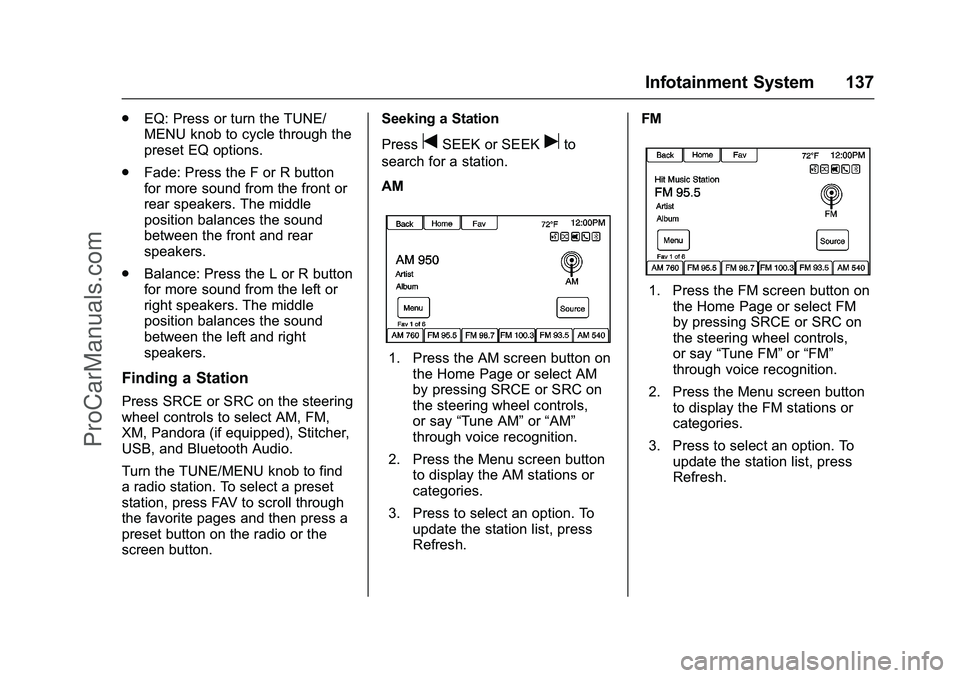
AM
1. Press the AM screen button on the Home Page or select AM
by pressing SRCE or SRC on
the steering wheel controls,
or say “Tune AM” or“AM”
through voice recognition.
2. Press the Menu screen button to display the AM stations or
categories.
3. Press to select an option. To update the station list, press
Refresh. FM
1. Press the FM screen button on
the Home Page or select FM
by pressing SRCE or SRC on
the steering wheel controls,
or say “Tune FM” or“FM”
through voice recognition.
2. Press the Menu screen button to display the FM stations or
categories.
3. Press to select an option. To update the station list, press
Refresh.
ProCarManuals.com
Page 139 of 397
Chevrolet SS Sedan Owner Manual (GMNA-Localizing-U.S.-9234782) - 2016 -
CRC - 8/24/15
138 Infotainment System
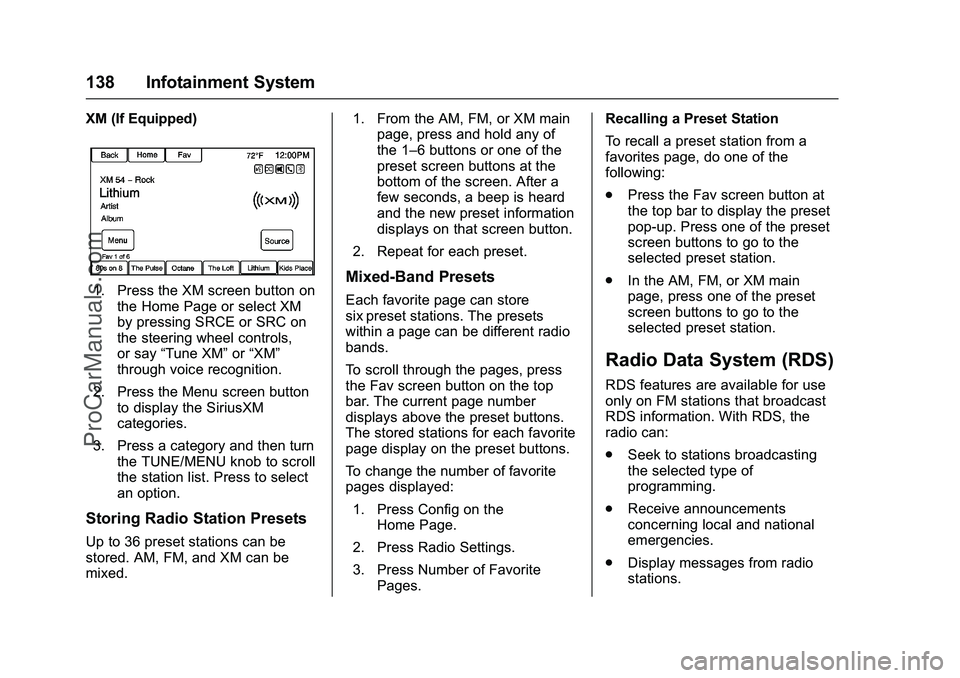
XM (If Equipped)
1. Press the XM screen button onthe Home Page or select XM
by pressing SRCE or SRC on
the steering wheel controls,
or say “Tune XM” or“XM”
through voice recognition.
2. Press the Menu screen button to display the SiriusXM
categories.
3. Press a category and then turn the TUNE/MENU knob to scroll
the station list. Press to select
an option.
Storing Radio Station Presets
Up to 36 preset stations can be
stored. AM, FM, and XM can be
mixed. 1. From the AM, FM, or XM main
page, press and hold any of
the 1–6 buttons or one of the
preset screen buttons at the
bottom of the screen. After a
few seconds, a beep is heard
and the new preset information
displays on that screen button.
2. Repeat for each preset.
Mixed-Band Presets
Each favorite page can store
six preset stations. The presets
within a page can be different radio
bands.
To scroll through the pages, press
the Fav screen button on the top
bar. The current page number
displays above the preset buttons.
The stored stations for each favorite
page display on the preset buttons.
To change the number of favorite
pages displayed: 1. Press Config on the Home Page.
2. Press Radio Settings.
3. Press Number of Favorite Pages. Recalling a Preset Station
To recall a preset station from a
favorites page, do one of the
following:
.
Press the Fav screen button at
the top bar to display the preset
pop-up. Press one of the preset
screen buttons to go to the
selected preset station.
. In the AM, FM, or XM main
page, press one of the preset
screen buttons to go to the
selected preset station.
Radio Data System (RDS)
RDS features are available for use
only on FM stations that broadcast
RDS information. With RDS, the
radio can:
.Seek to stations broadcasting
the selected type of
programming.
. Receive announcements
concerning local and national
emergencies.
. Display messages from radio
stations.
ProCarManuals.com
Page 151 of 397
Chevrolet SS Sedan Owner Manual (GMNA-Localizing-U.S.-9234782) - 2016 -
CRC - 8/24/15
150 Infotainment System
.If any iPhone, iPod touch,
or iPad is connected to
Bluetooth and the dock
connector, go to the Airplay icon
on the device and select dock
connector or disconnect and
reconnect the dock connector on
the device.
. The volume is too low. Turn up
the volume on the device.
. The battery saver and task
manager applications on the
phone can cause Pandora to
function incorrectly. Remove
those apps from the phone or
remove Pandora and Bluetooth
from the task lists.
If the connection is lost between the
application and device, a message
“Please unlock your phone or restart
the phone app and try again” will
display. Press OK to retry.
If pressing OK does not clear the
issue on the phone, see “Please
Unlock Your Phone or Restart
Phone App and Try Again” under
"Common Pandora Messages"
following. Common Pandora Messages
Please See Device :
When not
logged in or when authentication
failed, see the device. Press OK to
continue.
Paused or Audio Paused :
Playback is paused on the radio or
the device. Press
Jor play on the
device.
No Stations Found : Logged in but
no stations have been created.
Press OK to continue.
Please Unlock Your Phone or
Restart Phone App and Try
Again : Communication failure
between the radio and the phone
application, or the device is locked.
Devices that allow multitasking may
require an extra step to quit the
Pandora application. Close Pandora
on the device and launch again.
Unlock the phone and check that
Home Page is displayed on the
phone/device.
See the cell phone manufacturer's
user guide. See www.pandora.com/help for
more information. If the service will
not work, see your dealer for
assistance.
Stitcher Internet Radio
Stitcher SmartRadio®is an Internet
radio service that streams news,
sports, and entertainment shows
through the audio system. Create
personalized, on-demand stations or
discover new shows through
Stitcher's preset stations. To set up
an account, download the
application from the Android Market
or iTunes Store, or go to
www.stitcher.com.
A phone or tablet with Internet
connection is required for this
application. Personal cell phone
data plans are used. Make sure the
latest version is installed on the
device and the volume on the
device is turned up.
BlackBerry phones are not
supported for this application.
ProCarManuals.com
Page 162 of 397
Chevrolet SS Sedan Owner Manual (GMNA-Localizing-U.S.-9234782) - 2016 -
CRC - 8/24/15
Infotainment System 161
Album,” “Play Song,”or“Play
Genre.” SeeVoice Recognition
0 187
ii.
iPhone, iPod touch and iPad
Troubleshooting
When an iPhone, iPod touch,
or iPad are connected through USB
and Bluetooth, the audio may not be
heard when the iPod source on the
radio is selected. If a phone call is
received while listening to the iPod
source and there is no audio for the
iPod after the source, then go to the
Airplay icon on the device and
select dock connector or disconnect
and reconnect the dock connector
on the device.
Some functionality may differ based
on operating system version on
device.
USB Troubleshooting
If the device is not being recognized
or the music is missing screen
information, restore the radio
defaults: 1. Press Config.
2. Press Radio Settings. 3. Press Software Versions Menu.
4. Press Clear and Reset Radio.
5. Press Yes.
Pair the phone again and the device
will have to index again.
Bluetooth Audio and Voice
Recognition
See Bluetooth Audio 0161
iiand
Voice Recognition 0187iifor
information using voice recognition
with Bluetooth audio.
Make sure all devices have the
latest software downloaded.
Bluetooth Audio
If equipped, music may be played
from a paired Bluetooth device. See
“Pairing a Phone/Device” under
Bluetooth 0193
ii.
To play music through a Bluetooth
device: 1. Power on the device, pair, and connect the device. 2. Music can be launched by
doing one of the following:
.Press the Bluetooth Audio
screen button on the
Home Page.
. Press SRCE until Bluetooth
Audio is selected.
. Press the SRC button on
the steering wheel controls
until Bluetooth Audio is
selected. See Steering
Wheel Controls 0131
ii.
. Use voice recognition. See
Voice Recognition 0187
ii.
The music can be controlled by
either the infotainment controls or
the controls on the device.
When a phone is connected to the
system through Bluetooth Audio the
phone notifications and sounds may
not be heard on the phone until
Bluetooth is disconnected.
Notification features may vary based
on the phone. Check the phone’s
manufacture information for
notification support.
ProCarManuals.com
Page 182 of 397
Chevrolet SS Sedan Owner Manual (GMNA-Localizing-U.S.-9234782) - 2016 -
CRC - 8/24/15
Infotainment System 181
Radio Settings
Press the Config button on the
Home Page or the CONFIG button
on the faceplate to enter the menu
options. Turn the TUNE/MENU knob
or touch-tap the scroll bar to scroll
through the available options. Press
the TUNE/MENU knob or press
Radio Settings to display the radio
settings menu. Press this feature to
make changes for radio information
displayed, preset pages, Auto
Volume Control, and XM Categories
Restore. SeeSatellite Radio 0139
ii,
for more information about XM
Categories.
The Radio Settings are:
Auto Volume : Select OFF, Low,
Medium, or High sensitivity to
automatically adjust the volume to
minimize the effects of unwanted
background noise that can result
from changing road surfaces, driving
speeds, or open windows. This
feature works best at lower volume
settings where background noise is
typically louder than the sound
system volume. Gracenote Options :
Press to
enable/disable Normalization used
to improve voice recognition and
media groupings. See USB0155
iiand Bluetooth Audio 0161ii.
XM Channel Graphics : Press to
enable/disable the XM Audio page
background on the XM Channel
display.
Startup Volume : Press to set the
maximum volume level for startup
that will be used even if a higher
volume had been set when the radio
was turned off.
Number of Favorite Pages : Press
to select the number of FAV pages
to be displayed.
XM Categories : Press to
customize which available XM
Categories are used and displayed.
Software Version Information :
Press to display information about
the system and update software if
available.
Phone Settings
See Bluetooth 0193iiin the “Phone”
section for more information on
phone settings.
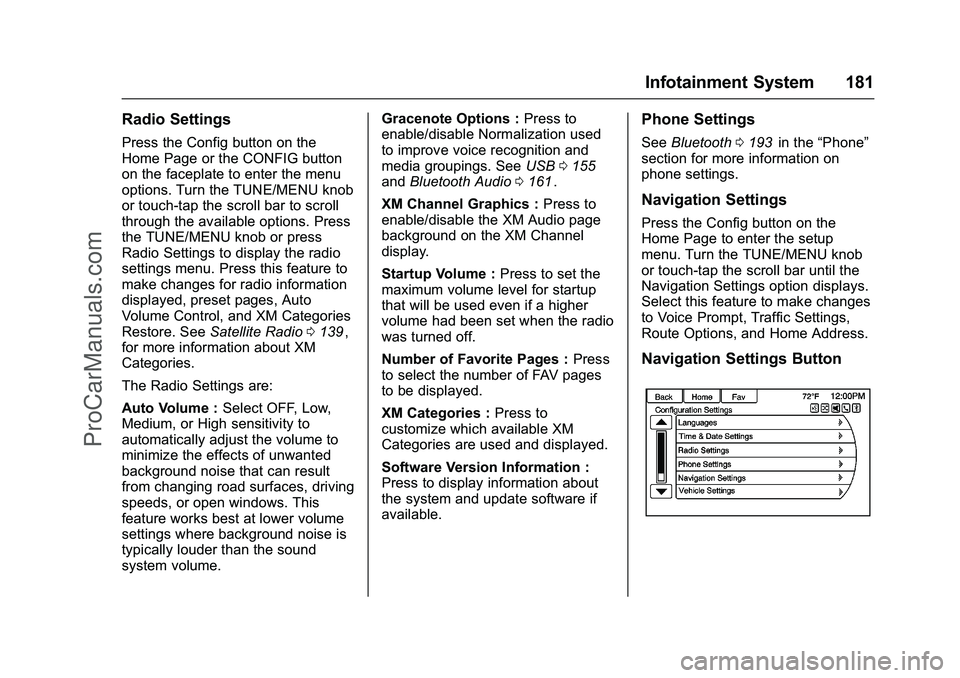
Navigation Settings
Press the Config button on the
Home Page to enter the setup
menu. Turn the TUNE/MENU knob
or touch-tap the scroll bar until the
Navigation Settings option displays.
Select this feature to make changes
to Voice Prompt, Traffic Settings,
Route Options, and Home Address.
Navigation Settings Button
ProCarManuals.com
Page 274 of 397
Chevrolet SS Sedan Owner Manual (GMNA-Localizing-U.S.-9234782) - 2016 -
CRC - 8/24/15
Vehicle Care 273
(−20 °F), an SAE 0W-30 oil may be
used. An oil of this viscosity grade
will provide easier cold starting for
the engine at extremely low
temperatures. When selecting an oil
of the appropriate viscosity grade, it
is recommended to select an oil of
the correct specification. See
“Specification”earlier in this section.
Engine Oil Additives/Engine
Oil Flushes
Do not add anything to the oil. The
recommended oils meeting the
dexos1 specification are all that is
needed for good performance and
engine protection.
Engine oil system flushes are not
recommended and could cause
engine damage not covered by the
vehicle warranty.
What to Do with Used Oil
Used engine oil contains certain
elements that can be unhealthy for
your skin and could even cause
cancer. Do not let used oil stay on
your skin for very long. Clean your
skin and nails with soap and water,
or a good hand cleaner. Wash or properly dispose of clothing or rags
containing used engine oil. See the
manufacturer's warnings about the
use and disposal of oil products.
Used oil can be a threat to the
environment. If you change your
own oil, be sure to drain all the oil
from the filter before disposal. Never
dispose of oil by putting it in the
trash or pouring it on the ground,
into sewers, or into streams or
bodies of water. Recycle it by taking
it to a place that collects used oil.
Engine Oil Life System
When to Change Engine Oil
This vehicle has a computer system
that indicates when to change the
engine oil and filter. This is based
on a combination of factors which
include engine revolutions, engine
temperature, and miles driven.
Based on driving conditions, the
mileage at which an oil change is
indicated can vary considerably. For
the oil life system to work properly,
the system must be reset every time
the oil is changed.
When the system has calculated
that oil life has been diminished, it
indicates that an oil change is
necessary. A CHANGE ENGINE
OIL SOON message comes on. See
Engine Oil Messages
0112
ii.
Change the oil as soon as possible
within the next 1 000 km (600 mi).
It is possible that, if driving under
the best conditions, the oil life
system might indicate that an oil
change is not necessary for up to a
year. The engine oil and filter must
be changed at least once a year
and, at this time, the system must
be reset. Your dealer has trained
service people who will perform this
work and reset the system. It is also
important to check the oil regularly
over the course of an oil drain
interval and keep it at the proper
level.
If the system is ever reset
accidentally, the oil must be
changed at 5 000 km (3,000 mi)
since the last oil change.
Remember to reset the oil life
system whenever the oil is changed.
ProCarManuals.com
Page 275 of 397
Chevrolet SS Sedan Owner Manual (GMNA-Localizing-U.S.-9234782) - 2016 -
CRC - 8/24/15
274 Vehicle Care
How to Reset the Engine Oil
Life System
Reset the system whenever the
engine oil is changed so that the
system can calculate the next
engine oil change. To reset the
system:1. Display the REMAINING OIL LIFE on the DIC. See Driver
Information Center (DIC)
0 105
ii.
2. Press and hold the SET/CLR button on the DIC while the Oil
Life display is active. The oil
life will change to 100%.
The oil life system can also be reset
as follows: 1. Turn the ignition to ON/RUN with the engine off.
2. Fully press and release the accelerator pedal three times
within five seconds.
The system is reset when the
CHANGE ENGINE OIL SOON
message goes off. If the CHANGE ENGINE OIL SOON
message comes back on when the
vehicle is started, the engine oil life
system has not been reset. Repeat
the procedure.
Automatic Transmission
Fluid
How to Check Automatic
Transmission Fluid
It is not necessary to check the
transmission fluid level.
A transmission fluid leak is the only
reason for fluid loss. If a leak
occurs, take the vehicle to your
dealer service department and have
it repaired as soon as possible.
There is a special procedure for
checking and changing the
transmission fluid. Because this
procedure is difficult, you should
have this done at your dealer
service department. Contact your
dealer for additional information or
the procedure can be found in the
service manual. To purchase a
service manual, see
Service
Publications Ordering Information
0 370
ii.
Change the fluid and filter at the
intervals listed in Maintenance
Schedule 0346
ii, and be sure to use
the fluid listed in Recommended
Fluids and Lubricants 0354
ii.
Manual Transmission
Fluid
It is not necessary to check the
manual transmission fluid level.
A transmission fluid leak is the only
reason for fluid loss. If a leak
occurs, take the vehicle to the
dealer and have it repaired as soon
as possible. See Recommended
Fluids and Lubricants 0354
iifor the
proper fluid to use.
Hydraulic Clutch
For vehicles with a manual
transmission, it is not necessary to
regularly check brake/clutch fluid
unless there is a leak suspected.
Adding fluid will not correct a leak.
ProCarManuals.com