buttons CHEVROLET SSR 2005 1.G User Guide
[x] Cancel search | Manufacturer: CHEVROLET, Model Year: 2005, Model line: SSR, Model: CHEVROLET SSR 2005 1.GPages: 388, PDF Size: 2.5 MB
Page 177 of 388
Setting the Time
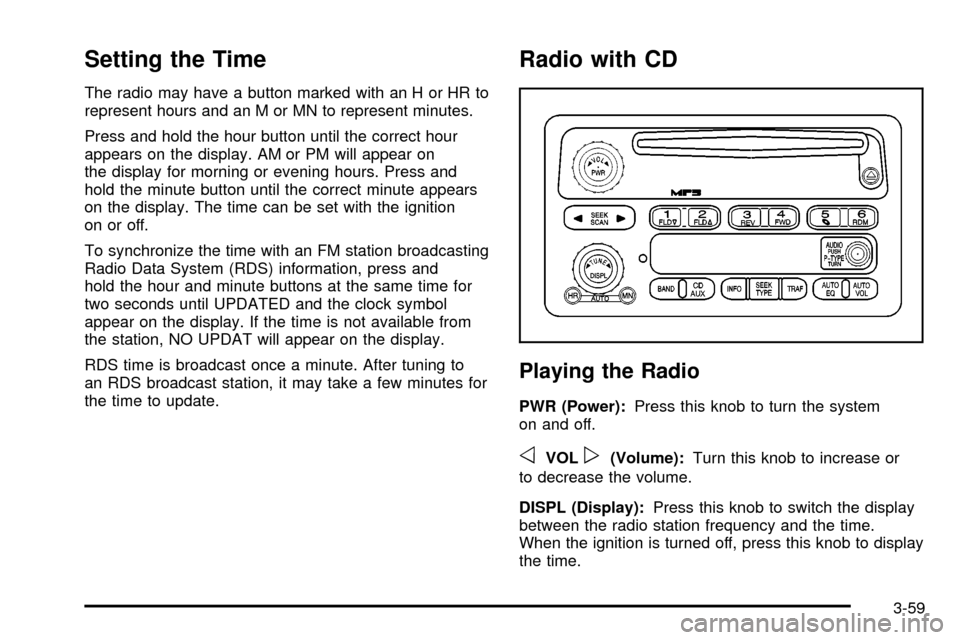
The radio may have a button marked with an H or HR to
represent hours and an M or MN to represent minutes.
Press and hold the hour button until the correct hour
appears on the display. AM or PM will appear on
the display for morning or evening hours. Press and
hold the minute button until the correct minute appears
on the display. The time can be set with the ignition
on or off.
To synchronize the time with an FM station broadcasting
Radio Data System (RDS) information, press and
hold the hour and minute buttons at the same time for
two seconds until UPDATED and the clock symbol
appear on the display. If the time is not available from
the station, NO UPDAT will appear on the display.
RDS time is broadcast once a minute. After tuning to
an RDS broadcast station, it may take a few minutes for
the time to update.
Radio with CD
Playing the Radio
PWR (Power):Press this knob to turn the system
on and off.
oVOLp(Volume): Turn this knob to increase or
to decrease the volume.
DISPL (Display): Press this knob to switch the display
between the radio station frequency and the time.
When the ignition is turned off, press this knob to display
the time.
3-59
Page 178 of 388
For RDS, press the DISPL knob to change what
appears on the display while using RDS. The display
options are station name, RDS station frequency, PTY,
and the name of the program (if available).
To change the default on the display, press the DISPL
knob until you see the display you want, then hold
this knob for two seconds. The radio will produce one
beep and the selected display will now be the default.
AUTO VOL (Automatic Volume):With automatic
volume, the audio system adjusts automatically to make
up for road and wind noise as you drive.
Set the volume at the desired level. Press this button
to select LOW, MEDIUM, or HIGH. AVOL will appear
on the display. Each higher setting will allow for
more volume compensation at faster vehicle speeds.
Then as you drive, automatic volume increases
the volume, as necessary, to overcome noise at any
speed. The volume level should always sound the same
to you as you drive. NONE will appear on the display
if the radio cannot determine the vehicle speed. To turn
automatic volume off, press this button until OFF
appears on the display.Finding a Station
BAND: Press this button to switch between FM1, FM2,
or AM. The display will show the selection.
oTUNEp: Turn this knob to select radio stations.
oSEEKp:Press the right or the left arrow to
go to the next or to the previous station and stay there.
The radio will only seek stations with a strong signal
that are in the selected band.
oSCANp: Press and hold either arrow for more
than two seconds. SCAN will appear on the display and
the radio will produce one beep. The radio will go to
a station, play for a few seconds, then go on to the next
station. Press either arrow again or one of the
pushbuttons to stop scanning presets.
To scan preset stations, press and hold either arrow
for more than four seconds. PSCN will appear on
the display and the radio will produce one beep. The
radio will go to a preset station, play for a few seconds,
then go on to the next preset station. Press either
arrow again or one of the pushbuttons to stop scanning
presets.
The radio will only scan stations with a strong signal
that are in the selected band.
3-60
Page 179 of 388
Setting Preset Stations
Up to 18 stations (six FM1, six FM2, and six AM), can
be programmed on the six numbered pushbuttons,
by performing the following steps:1. Turn the radio on.
2. Press BAND to select FM1, FM2, or AM.
3. Tune in the desired station.
4. Press AUTO EQ to select the equalization.
5. Press and hold one of the six numbered pushbuttons until you hear a beep. Whenever
that numbered pushbutton is pressed, the station
that was set will return and the equalization that was
selected will be stored for that pushbutton.
6. Repeat the steps for each pushbutton.
Setting the Tone (Bass/Treble)
AUDIO: Push and release the AUDIO knob until BASS
or TREB appears on the display. Turn the knob to
increase or to decrease. The display will show the bass
or the treble level. If a station is weak or noisy,
decrease the treble.
To adjust the bass and the treble to the middle position,
push and hold the AUDIO knob. The radio will produce
one beep. To adjust all tone and speaker controls to the middle
position, push and hold the AUDIO knob when no tone
or speaker control is displayed. ALL will appear on
the display and you will hear a beep.
AUTO EQ (Automatic Equalization):
Press this button
to select customized equalization settings designed
for country/western, jazz, talk, pop, rock, and classical.
To return the bass and treble to the manual mode,
push and release the AUDIO knob until MANUAL
appears on the display.
Adjusting the Speakers (Balance/Fade)
AUDIO: To adjust the balance between the right
and the left speakers, push and release the AUDIO
knob until BAL appears on the display. Turn the knob to
move the sound toward the right or the left speakers.
To adjust the fade between the front and the rear
speakers, push and release the AUDIO knob until FADE
appears on the display. Turn the knob to move the
sound toward the front or the rear speakers.
To adjust the balance and the fade to the middle
position, push the AUDIO knob, then push it again and
hold it until you hear one beep.
To adjust all tone and speaker controls to the middle
position, push and hold the AUDIO knob when no tone
or speaker control is displayed. ALL will appear on
the display and you will hear a beep.
3-61
Page 185 of 388
When the CD contains only playlists and compressed
audio ®les, but no folders, all ®les will be located under
the root folder. The folder down and the folder up
buttons will search playlists (Px) ®rst and then go to the
root folder. When the radio displays the name of the
folder the radio will display ROOT.
Order of Play
Tracks will be played in the following order:
·Play will begin from the ®rst track in the ®rst playlist
and will continue sequentially through all tracks in
each playlist. When the last track of the last playlist
has been played, play will continue from the ®rst
track of the ®rst playlist.
·If the CD does not contain any playlists, then play
will begin from the ®rst track under the root
directory. When all tracks from the root directory
have been played, play will continue from ®les
according to their numerical listing. After playing
the last track from the last folder, play will
begin again at the ®rst track of the ®rst folder or
root directory.
When play enters a new folder, the display will not
automatically show the new folder name unless
you have chosen the folder mode as the default display.
See DISPL later in this section for more information.
The new track name will appear on the display.
File System and Naming
The song name that will be displayed will be the song
name that is contained in the ID3 tag. If the song name
is not present in the ID3 tag, then the radio will
display the ®le name without the extension (such as
.mp3) as the track name.
Track names longer than 32 characters or four pages
will be shortened. The display will not show parts
of words on the last page of text and the extension of
the ®lename will not be displayed.
Preprogrammed Playlists
You can access preprogrammed playlists which were
created by WinAmpŸ, MusicMatchŸ, or Real
JukeboxŸ software, however, you will not have editing
capability. These playlists will be treated as special
folders containing compressed audio song ®les.
Playing an MP3
Insert a CD partway into the slot, label side up. The
player will pull it in, and READING will appear on
the display. The CD should begin playing and the CD
symbol will appear on the display. If you want to insert a
CD with the ignition off, ®rst press the EJT button or
the DISPL knob.
3-67
Page 190 of 388
If your vehicle is equipped with Bosežthe system will
have AudioPilotžnoise compensation technology.
AudioPilotžmonitors the level of noise in the vehicle
and automatically increases or decreases the level
of the audio to keep the audio above the noise.
To use AudioPilot
žset the volume at the desired level.
Press the AUTO VOL button until AVOL appears on
the display. This feature works best at lower volume
settings where background noise may be louder than
the audio. At high volume settings, where the audio
is much louder than the background noise, there will
be no change in the audio level. To turn automatic
volume off, press the AUTO VOL button until AVOL OFF
appears on the display.
Finding a Station
BAND: Press this button to switch between FM1, FM2,
or AM. The display will show the selection.
oTUNEp: Turn this knob to select radio stations.
©SEEK¨:Press either the SEEK or the TYPE
arrows to go to the next or to the previous station and
stay there.
The radio will only seek stations with a strong signal
that are in the selected band.
©SCAN¨: Press and hold either the SCAN or the
TYPE arrows for two seconds until SC appears on
the display and you hear a beep. The radio will go to
a station, play for a few seconds, then go on to the next
station. Press either the SCAN or the TYPE arrows
again to stop scanning.
To scan preset stations, press and hold either the
SCAN or the TYPE arrows for more than four seconds.
PRESET SCAN will appear on the display and you
will hear a double beep. The radio will go to a preset
station, play for a few seconds, then go on to the
next preset station. Press either the SCAN or the TYPE
arrows again to stop scanning presets.
The radio will only scan stations with a strong signal
that are in the selected band.
Setting Preset Stations
Up to 18 stations (six FM1, six FM2, and six AM), can
be programmed on the six numbered pushbuttons,
by performing the following steps:
1. Turn the radio on.
2. Press BAND to select FM1, FM2, or AM.
3. Tune in the desired station.
3-72
Page 191 of 388
4. Press and hold one of the six numberedpushbuttons until you hear a beep. Whenever
that numbered pushbutton is pressed, the station
that was set will return for that pushbutton.
5. Repeat the steps for each pushbutton.
To store an equalization setting to a preset station
perform the following: 1. Tune to the preset station.
2. Press and release the AUTO EQ button to select the equalization setting.
Once the equalization no longer appears on the
display, the equalization will be set for that preset
station.
Setting the Tone (Bass/Treble)
AUDIO: Push and release the AUDIO knob until BASS,
MID, or TREB appears on the display. Turn the knob
to increase or to decrease. The display will show
the bass, midrange, or treble level. If a station is
weak or noisy, decrease the treble.
To adjust the bass, midrange, and treble to the
middle position, push and hold the AUDIO knob.
The radio will produce one beep and adjust the
display level to the middle position. To adjust all tone and speaker controls to the middle
position, push and hold the AUDIO knob when no tone
or speaker controls are displayed. CENTERED will
appear on the display and you will hear a beep.
AUTO EQ (Automatic Equalization):
Press this button
to select customized equalization settings designed
for country/western, jazz, talk, pop, rock, and classical.
To return to the manual mode, press the AUTO EQ
button until CUSTOM appears on the display. Then
manually adjust the bass, midrange, and treble using the
AUDIO knob.
If your vehicle is equipped with Bose
ž, the audio
system allows you to choose from three different
equalization settings: normal, driver, and spacious.
These settings can be used while listening to the radio
or the CD player.
NORMAL: This setting provides the best overall vehicle
sound quality for all seating locations.
DRIVER: This setting gives the driver the best sound
quality.
SPACIOUS: This setting makes the listening space
seem larger.
The radio can save separate AUTO EQ settings for
each preset and source.
3-73
Page 194 of 388
Setting Preset PTYs (RDS Only)
These pushbuttons have factory PTY presets. Up to
12 PTYs (six FM1 and six FM2), can be programmed
on the six numbered pushbuttons, by performing
the following steps:1. Press BAND to select FM1 or FM2.
2. Press the TYPE button to activate program type select mode. P-TYPE and the last selected PTY
will appear on the display.
3. Turn the TYPE knob or press and release the TYPE button to select a PTY.
4. Press and hold one of the six numbered pushbuttons until you hear a beep. Whenever that
numbered pushbutton is pressed, the PTY that
was set will return.
5. Repeat the steps for each pushbutton.
RDS Messages
INFO (Information): If the current station has a
message, INFO will appear on the display. Press this
button to see the message. The message may display
the artist, song title, call in phone numbers, etc. If the entire message is not displayed, parts of the
message will appear every three seconds. To scroll
through the message, press and release the INFO
button. A new group of words will appear on the display
after every press of this button. Once the complete
message has been displayed, INFO will disappear from
the display until another new message is received.
The last message can be displayed by pressing
the INFO button. You can view the last message until
a new message is received or a different station is
tuned to.
Radio Messages
CAL ERR (Calibration Error):
The audio system has
been calibrated for your vehicle from the factory. If
CAL ERR appears on the display, it means that the radio
has not been con®gured properly for the vehicle and
must be returned to your GM dealer for service.
LOCKED: This message is displayed when the
THEFTLOCK
žsystem has locked up. Take the vehicle
to your GM dealer for service.
If any error occurs repeatedly, or if an error cannot be
corrected, contact your GM dealer.
3-76