change time CHEVROLET SSR 2006 1.G User Guide
[x] Cancel search | Manufacturer: CHEVROLET, Model Year: 2006, Model line: SSR, Model: CHEVROLET SSR 2006 1.GPages: 390, PDF Size: 2.44 MB
Page 175 of 390
DISPL (Display):Press this knob to switch the display
between the radio station frequency and the time.
When the ignition is turned off, press this knob to display
the time.
For RDS, press the DISPL knob to change what
appears on the display while using RDS. The display
options are station name, RDS station frequency, PTY,
and the name of the program (if available).
To change the default on the display, press the DISPL
knob until you see the display you want, then hold this
knob for two seconds. The radio will produce one beep
and the selected display will now be the default.
AUTO VOL (Automatic Volume):With automatic
volume, the audio system adjusts automatically to make
up for road and wind noise as you drive.
Set the volume at the desired level. Press this button to
select LOW, MEDIUM, or HIGH. AVOL will appear
on the display. Each higher setting will allow for more
volume compensation at faster vehicle speeds. Then as
you drive, automatic volume increases the volume,
as necessary, to overcome noise at any speed.
The volume level should always sound the same to you
as you drive. NONE will appear on the display if the
radio cannot determine the vehicle speed. To turn
automatic volume off, press this button until OFF
appears on the display.Finding a Station
BAND:Press this button to switch between FM1, FM2,
or AM. The display will show the selection.
oTUNEp:Turn this knob to select radio stations.
oSEEKp:Press the right or the left arrow to
go to the next or to the previous station and stay there.
The radio will only seek stations with a strong signal
that are in the selected band.
oSCANp:Press and hold either arrow for more
than two seconds. SCAN will appear on the display and
the radio will produce one beep. The radio will go to
a station, play for a few seconds, then go on to the next
station. Press either arrow again or one of the
pushbuttons to stop scanning presets.
To scan preset stations, press and hold either arrow for
more than four seconds. PSCN will appear on the display
and the radio will produce one beep. The radio will go to a
preset station, play for a few seconds, then go on to the
next preset station. Press either arrow again or one of the
pushbuttons to stop scanning presets.
The radio will only scan stations with a strong signal that
are in the selected band.
3-61
Page 180 of 390
1 FLDx(Previous):Press this pushbutton to go to
the start of the current track if more than eight seconds
have played. TRACK and the track number will
appear on the display. If this pushbutton is held or
pressed more than once, the player will continue moving
backward through the CD.
2 FLD
w(Next):Press this pushbutton to go to the
next track. TRACK and the track number will appear on
the display. If this pushbutton is held or pressed
more than once, the player will continue moving forward
through the CD.
3 REV (Reverse):Press and hold this pushbutton to
reverse quickly within a track. Press and hold this
pushbutton for less than two seconds to reverse at
10 times the normal playing speed. Press and hold it for
more than two seconds to reverse at 20 times the
normal playing speed. Release this pushbutton to play
the passage. REV and the elapsed time of the track
will appear on the display.
4 FWD (Forward):Press and hold this pushbutton to
advance quickly within a track. Press and hold this
pushbutton for less than two seconds to advance at
six times the normal playing speed. Press and hold it for
more than two seconds to advance at 17 times the
normal playing speed. Release this pushbutton to play
the passage. ET and the elapsed time of the track
will appear on the display.6 RDM (Random):Press this pushbutton to hear the
tracks in random, rather than sequential, order. RDM ON
will appear on the display. RDM T and the track
number will appear on the display when each track
starts to play. Press RDM again to turn off random play.
RDM OFF will appear on the display.oSEEKp:Press the left arrow to go to the start of
the current or the previous track. Press the right arrow to
go to the start of the next track. Pressing either arrow for
more than two seconds will search the previous or next
tracks at two tracks per second. Release the button to
stop searching and to play the track.
oTUNEp:Turning the TUNE knob will fast track
reverse or advance through tracks. The track number
will appear on the display for each track.
DISPL (Display):Press this knob to see how long the
current track has been playing. ET and the elapsed time
of the track will appear on the display. To change the
default on the display, track or elapsed time, press this
knob until you see the display you want, then hold the
knob for two seconds. The radio will produce one beep
and the selected display will now be the default.
BAND:Press this button to listen to the radio when a
CD is playing. The inactive CD will remain safely
inside the radio for future listening.
3-66
Page 185 of 390
DISPL (Display):Press this knob to switch between
track mode, folder/playlist mode, and time of day mode.
The display will show only eight characters, but there
can be up to four pages of text. If there are more
than eight characters in the song, folder, or playlist
name, pressing this knob within two seconds will take
you to the next page of text. If there are no other pages
to be shown, pressing this knob within two seconds
will take you to the next display mode.
•Track mode will display the current track number
and the ID3 tag song name.
•Folder/playlist mode will display the current folder or
playlist number and the folder/playlist name.
•Time of day mode will display the time of day and
the ID3 tag song name.
To change the default on the display, press the DISPL
knob until you see the display you want, then hold
this knob for two seconds. The radio will produce
one beep and the selected display will now be
the default.INFO (Information):INFO will appear on the display
whenever a current track has ID3 tag information. Press
this button to display the artist name and album
contained in the tag. INFO will disappear from the
display when the information in the ID3 tag has finished.
BAND:Press this button to listen to the radio when a
CD is playing. The inactive CD will remain safely
inside the radio for future listening.
CD AUX (Auxiliary):Press this button to play a CD
when listening to the radio. The CD symbol will appear
on the display when a CD is loaded.
Z(Eject):Press this button to eject a CD. Eject may
be activated with either the ignition or radio off. CDs
may be loaded with the ignition and radio off if this
button is pressed first.
3-71
Page 187 of 390
INFO (Information):Press this knob to switch the
display between the radio station frequency and
the time. When the ignition is off, press this knob to
display the time.
For RDS, press the INFO knob to change what appears
on the display while using RDS. The display options
are station name, RDS station frequency, PTY, and the
name of the program (if available).
To change the default on the display, press the INFO
knob until you see the display you want, then hold
the knob until you hear a beep. The selected display will
now be the default.
AUTO VOL (Automatic Volume):Your vehicle has a
Bose
®audio system, it includes Bose AudioPilot®
noise compensation technology. When turned on,
AudioPilot®continuously adjusts the audio system
equalization, to compensate for background noise, so
that your music always sounds the same at the set
volume level.
This feature is most effective at lower radio volume
settings where background noise can affect how well
you hear the music being played through your vehicle’s
audio system. At higher volume settings, where the
music is much louder than the background noise, there
may be little or no adjustments by AudioPilot
®.To use AudioPilot
®, set the radio volume at a low to
moderate listening level. Begin listening while the vehicle
is stopped with the motor running; turn the AudioPilot
®
on by pressing the AUTO VOL button until AVOL
ON appears on the display. Then, resume driving,
gradually increasing the vehicle speed. You will notice
that your music sounds the same regardless of
background noises; such as road noise, tire hum, or
wind. With the AudioPilot
®turned off, repeat this process
again without adjusting the volume or tone controls.
You will notice that background noise is now audible,
and will prevent you from hearing softer passages of the
music. To turn AudioPilot
®off, press AUTO VOL until
AVOL OFF appears on the display. For additional
information on AudioPilot
®, please visit www.bose.com.
Finding a Station
BAND:Press this button to switch between FM1, FM2,
or AM. The display will show the selection.
oTUNEp:Turn this knob to select radio stations.
©SEEK¨:Press either the SEEK or the TYPE
arrows to go to the next or to the previous station and
stay there.
The radio will only seek stations with a strong signal
that are in the selected band.
3-73
Page 196 of 390

INFO (Information):Press this knob to see how long
the current track has been playing. To change the
default on the display, track or elapsed time, press the
knob until you see the display you want, then hold
the knob until the display flashes. The selected display
will now be the default.
BAND:Press this button to listen to the radio when a
CD is playing. The inactive CD(s) will remain safely
inside the radio for future listening.
Using Song List Mode
The six-disc CD changer has a feature called song list.
This feature is capable of saving 20 track selections.
To save tracks into the song list feature, perform
the following steps:
1. Turn the CD player on and load it with at least
one CD. See “LOAD CD” listed previously in this
section for more information.
2. Check to see that the CD changer is not in song list
mode. S-LIST should not appear on the display. If
S-LIST is present, press the SONG LIST button
to turn it off.3. Select the desired CD by pressing the numbered
pushbutton and then use the SEEK or TYPE right
arrow to locate the track to be saved. The track will
begin to play.
4. Press and hold the SONG LIST button to save
the track into memory. When SONG LIST is
pressed, one beep will be heard immediately. After
two seconds of continuously pressing the SONG
LIST button, two beeps will sound to confirm
the track has been saved.
5. Repeat Steps 3 and 4 for saving other selections.
S-LIST FULL will appear on the display if you try to save
more than 20 selections.
To play the song list, press the SONG LIST button.
One beep will be heard and S-LIST will appear on the
display. The recorded tracks will begin to play in
the order they were saved.
Seek through the song list by using the SEEK or TYPE
arrows. Seeking past the last saved track will return
to the first saved track.
3-82
Page 208 of 390
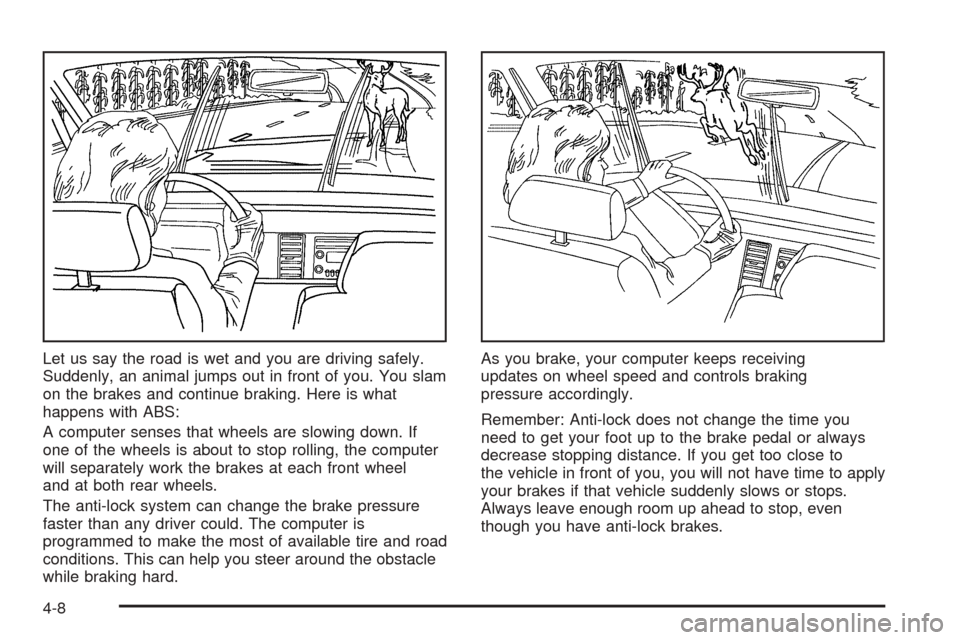
Let us say the road is wet and you are driving safely.
Suddenly, an animal jumps out in front of you. You slam
on the brakes and continue braking. Here is what
happens with ABS:
A computer senses that wheels are slowing down. If
one of the wheels is about to stop rolling, the computer
will separately work the brakes at each front wheel
and at both rear wheels.
The anti-lock system can change the brake pressure
faster than any driver could. The computer is
programmed to make the most of available tire and road
conditions. This can help you steer around the obstacle
while braking hard.As you brake, your computer keeps receiving
updates on wheel speed and controls braking
pressure accordingly.
Remember: Anti-lock does not change the time you
need to get your foot up to the brake pedal or always
decrease stopping distance. If you get too close to
the vehicle in front of you, you will not have time to apply
your brakes if that vehicle suddenly slows or stops.
Always leave enough room up ahead to stop, even
though you have anti-lock brakes.
4-8
Page 214 of 390

•Do not get too close to the vehicle you want to
pass while you are awaiting an opportunity. For
one thing, following too closely reduces your area
of vision, especially if you are following a larger
vehicle. Also, you will not have adequate space if
the vehicle ahead suddenly slows or stops.
Keep back a reasonable distance.
•When it looks like a chance to pass is coming up,
start to accelerate but stay in the right lane and do
not get too close. Time your move so you will be
increasing speed as the time comes to move into the
other lane. If the way is clear to pass, you will have a
running start that more than makes up for the
distance you would lose by dropping back. And if
something happens to cause you to cancel your
pass, you need only slow down and drop back again
and wait for another opportunity.
•If other vehicles are lined up to pass a slow vehicle,
wait your turn. But take care that someone is not
trying to pass you as you pull out to pass the slow
vehicle. Remember to glance over your shoulder and
check the blind spot.
•Check your mirrors, glance over your shoulder, and
start your left lane change signal before moving out
of the right lane to pass. When you are far enough
ahead of the passed vehicle to see its front in your
inside mirror, activate your right lane change signal
and move back into the right lane. Remember that
your passenger side outside mirror is convex. The
vehicle you just passed may seem to be farther away
from you than it really is.
•Try not to pass more than one vehicle at a time
on two-lane roads. Reconsider before passing the
next vehicle.
•Do not overtake a slowly moving vehicle too rapidly.
Even though the brake lamps are not flashing, it may
be slowing down or starting to turn.
•If you are being passed, make it easy for the
following driver to get ahead of you. Perhaps you can
ease a little to the right.
4-14
Page 236 of 390

Trailering is different than just driving your vehicle by
itself. Trailering means changes in handling,
acceleration, braking, durability and fuel economy.
Successful, safe trailering takes correct equipment, and
it has to be used properly.
That’s the reason for this part. In it are many time-tested,
important trailering tips and safety rules. Many of
these are important for your safety and that of your
passengers. So please read this section carefully before
you pull a trailer.
If You Decide To Pull A Trailer
If you do, here are some important points:
•There are many different laws, including speed limit
restrictions, having to do with trailering. Make sure
your rig will be legal, not only where you live
but also where you’ll be driving. A good source for
this information can be state or provincial police.
•Don’t tow a trailer at all during the first 500 miles
(800 km) your new vehicle is driven. Your engine,
axle or other parts could be damaged.
•Then, during the first 500 miles (800 km) that you
tow a trailer, don’t drive over 50 mph (80 km/h)
and don’t make starts at full throttle. This helps your
engine and other parts of your vehicle wear in at
the heavier loads.
•If you have an automatic transmission, you can tow
in DRIVE (D). You may want to shift the
transmission to THIRD (3) or, if necessary, a lower
gear if the transmission shifts too often under
heavy loads and/or hilly conditions. If you have a
manual transmission and you are towing a trailer, it
is better not to use the highest gear.
Three important considerations have to do with weight:
•Weight of the trailer
•Weight of the trailer tongue
•Weight on your vehicle’s tires
4-36
Page 264 of 390

Your vehicle’s engine is filled at the factory with a
Mobil 1®synthetic oil, which meets all requirements for
your vehicle.
Substitute Engine Oil: When adding oil to maintain
engine oil level, oil meeting GM Standard GM4718M
may not be available. You can add substitute oil
designated SAE 5W-30 with the starburst symbol at all
temperatures. Substitute oil not meeting GM Standard
GM4718M should not be used for an oil change.
Engine Oil Additives
Do not add anything to your oil. The recommended oils
with the starburst symbol that meet GM Standard
GM4718M are all you will need for good performance
and engine protection.
Engine Oil Life System
When to Change Engine Oil
Your vehicle has a computer system that lets you know
when to change the engine oil and filter. This is based on
engine revolutions and engine temperature, and not onmileage. Based on driving conditions, the mileage at
which an oil change will be indicated can vary
considerably. For the oil life system to work properly, you
must reset the system every time the oil is changed.
When the system has calculated that oil life has been
diminished, it will indicate that an oil change is
necessary. A change engine oil light will come on. See
Change Engine Oil Light on page 3-37. Change your
oil as soon as possible within the next 600 miles
(1 000 km). It is possible that, if you are driving under
the best conditions, the oil life system may not indicate
that an oil change is necessary for over a year.
However, your engine oil and filter must be changed at
least once a year and at this time the system must
be reset. Your dealer has GM-trained service people
who will perform this work using genuine GM parts and
reset the system. It is also important to check your
oil regularly and keep it at the proper level.
If the system is ever reset accidentally, you must
change your oil at 3,000 miles (5 000 km) since your
last oil change. Remember to reset the oil life system
whenever the oil is changed.
5-16
Page 265 of 390

How to Reset the Engine Oil
Life System
The Engine Oil Life System calculates when to change
your engine oil and filter based on vehicle use. Anytime
your oil is changed, reset the system so it can calculate
when the next oil change is required. If a situation occurs
where you change your oil prior to a change engine oil
light being turned on, reset the system.
Always reset the engine oil life system to 100% after
every oil change. It will not reset itself. To reset
the change engine oil light, do the following:
1. Press the fuel information button until ENGINE OIL
LIFE appears on the Driver Information Center (DIC).
SeeDIC Controls and Displays on page 3-42for
more information.
2. Press and hold the select button. The engine oil life
percentage will change to 100.
3. Turn the key to OFF.
If the change engine oil light comes back on when you
start your vehicle, the engine oil life system has not
reset. Repeat the procedure.
What to Do with Used Oil
Used engine oil contains certain elements that may be
unhealthy for your skin and could even cause cancer.
Do not let used oil stay on your skin for very long. Clean
your skin and nails with soap and water, or a good
hand cleaner. Wash or properly dispose of clothing or
rags containing used engine oil. See the manufacturer’s
warnings about the use and disposal of oil products.
Used oil can be a threat to the environment. If you
change your own oil, be sure to drain all the oil from the
filter before disposal. Never dispose of oil by putting it
in the trash, pouring it on the ground, into sewers, or into
streams or bodies of water. Instead, recycle it by
taking it to a place that collects used oil. If you have a
problem properly disposing of your used oil, ask
your dealer, a service station, or a local recycling
center for help.
5-17