display CHEVROLET SUBURBAN 2016 11.G Workshop Manual
[x] Cancel search | Manufacturer: CHEVROLET, Model Year: 2016, Model line: SUBURBAN, Model: CHEVROLET SUBURBAN 2016 11.GPages: 453, PDF Size: 6.23 MB
Page 193 of 453
Chevrolet Tahoe/Suburban Owner Manual (GMNA-Localizing-U.S./Canada/
Mexico-9159366) - 2016 - crc - 5/19/15
192 Infotainment System
Infotainment
System
Introduction
Infotainment . . . . . . . . . . . . . . . . . . 192
Theft-Deterrent Feature . . . . . . 193
Overview . . . . . . . . . . . . . . . . . . . . . 193
Home Page . . . . . . . . . . . . . . . . . . 196
Software Updates . . . . . . . . . . . . 198
Radio
AM-FM Radio . . . . . . . . . . . . . . . . 198
Satellite Radio . . . . . . . . . . . . . . . . 200
Radio Reception . . . . . . . . . . . . . . 200
Rear Side WindowAntenna . . . . . . . . . . . . . . . . . . . . . 201
Multi-Band Antenna . . . . . . . . . . 201
Audio Players
CD Player . . . . . . . . . . . . . . . . . . . . 202
USB Port . . . . . . . . . . . . . . . . . . . . . 204
Auxiliary Jack . . . . . . . . . . . . . . . . 207
Phone
Bluetooth (Overview) . . . . . . . . . 208
Bluetooth (Infotainment Controls - Base Radio) . . . . . . 209
Bluetooth (Voice Recognition - Base Radio) . . . . . . . . . . . . . . . . 213
Trademarks and License
Agreements
Trademarks and License
Agreements . . . . . . . . . . . . . . . . . 218
Introduction
Infotainment
Base radio information is included in
this manual. See the infotainment
manual for information on other
available infotainment systems.
Read the following pages to
become familiar with these features.
{Warning
Taking your eyes off the road for
too long or too often while using
any infotainment feature can
cause a crash. You or others
could be injured or killed. Do not
give extended attention to
infotainment tasks while driving.
Limit your glances at the vehicle
displays and focus your attention
on driving. Use voice commands
whenever possible.
The infotainment system has built-in
features intended to help avoid
distraction by disabling some
functions when driving. These
Page 196 of 453
Chevrolet Tahoe/Suburban Owner Manual (GMNA-Localizing-U.S./Canada/
Mexico-9159366) - 2016 - crc - 5/19/15
Infotainment System 195
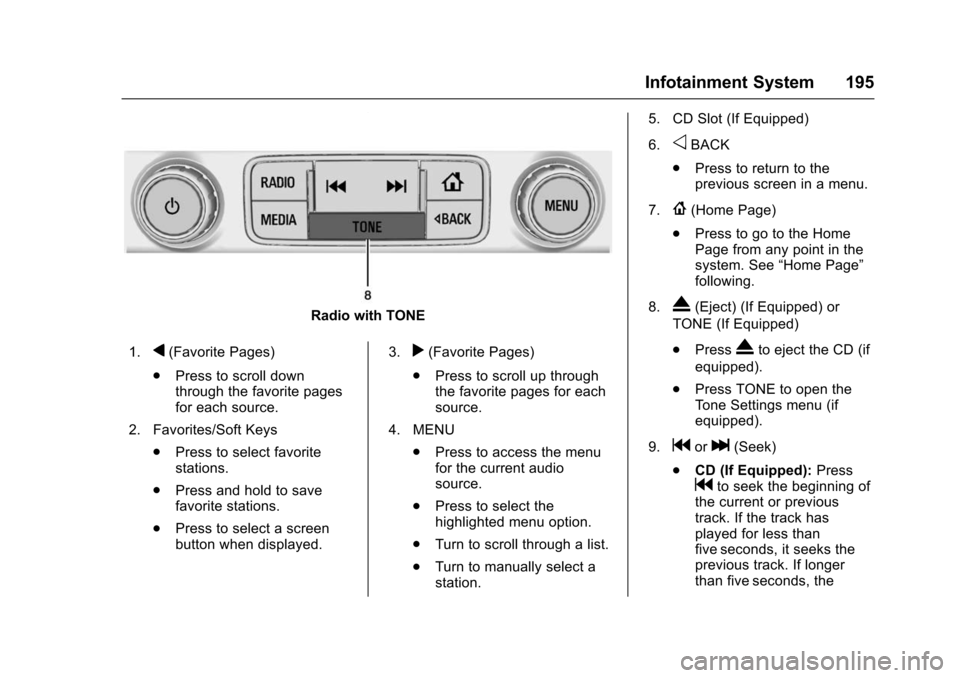
Radio with TONE
1.
q(Favorite Pages)
. Press to scroll down
through the favorite pages
for each source.
2. Favorites/Soft Keys .Press to select favorite
stations.
. Press and hold to save
favorite stations.
. Press to select a screen
button when displayed. 3.r(Favorite Pages)
. Press to scroll up through
the favorite pages for each
source.
4. MENU .Press to access the menu
for the current audio
source.
. Press to select the
highlighted menu option.
. Turn to scroll through a list.
. Turn to manually select a
station. 5. CD Slot (If Equipped)
6.
oBACK
. Press to return to the
previous screen in a menu.
7.
{(Home Page)
. Press to go to the Home
Page from any point in the
system. See “Home Page”
following.
8.
X(Eject) (If Equipped) or
TONE (If Equipped)
. Press
Xto eject the CD (if
equipped).
. Press TONE to open the
Tone Settings menu (if
equipped).
9.
gorl(Seek)
. CD (If Equipped): Press
gto seek the beginning of
the current or previous
track. If the track has
played for less than
five seconds, it seeks the
previous track. If longer
than five seconds, the
Page 197 of 453
Chevrolet Tahoe/Suburban Owner Manual (GMNA-Localizing-U.S./Canada/
Mexico-9159366) - 2016 - crc - 5/19/15
196 Infotainment System
current track will start from
the beginning. Press
lto
seek the next track.
. AM, FM, or SiriusXM (If
Equipped): Press
gorl
to seek to the previous or
next strong station.
. CD (If Equipped): Press
and hold
gto quickly
reverse through a track.
Release the button to return
to playing speed. Press and
hold
lto fast forward
through a track. Release
the button to return to
playing speed.
10. RADIO .Press to change the audio
source between AM, FM,
or SiriusXM, if equipped.
11. MEDIA .Press to change the audio
source between CD, USB,
and AUX.
12.
O(Power/Volume)
. Press to turn the audio on. .
Press and hold to turn it off.
. When on, press to mute the
system. Press again to
unmute.
. Turn to increase or
decrease the volume.
Home Page
Home Page Features
The infotainment system displays a
Home Page that makes it easy to
access all of the applications. Turn
the MENU knob to highlight feature
icons. Press the MENU knob to
access the feature’s options.
Various functions are disabled when
the vehicle is moving.
AUDIO : Select the AUDIO screen
icon to display the active source
page. The sources available are
AM, FM, SiriusXM
®(if equipped),
CD, USB/iPod, and AUX. See
AM-FM Radio 0198, Satellite Radio
0 200, CD Player 0202, and
Auxiliary Jack 0207. PHONE :
Select the PHONE screen
icon to display the Phone main
page. See “Bluetooth Overview” in
Bluetooth (Overview) 0208 or
Bluetooth (Infotainment Controls -
Base Radio) 0209 orBluetooth
(Voice Recognition - Base Radio)
0 213.
NAV (Navigation, If Equipped) :
Select the NAV screen icon to
display the OnStar Turn-by-Turn
Navigation. See “OnStar Overview”
in OnStar, if equipped.
SETTINGS : Select the SETTINGS
screen icon to display the Settings
main page. See “Setting Radio
Preferences” following.
Setting Radio Preferences
Select the SETTINGS screen icon
to display the Settings menu and
the following may display:
Time :SeeClock 0132.
Language (Current Language) :
This will set the display language in
the radio and instrument cluster.
Select to display a list of languages.
Select BACK to go back to the
previous menu.
Page 198 of 453
Chevrolet Tahoe/Suburban Owner Manual (GMNA-Localizing-U.S./Canada/
Mexico-9159366) - 2016 - crc - 5/19/15
Infotainment System 197
Valet Mode:
Using the circular numeric keypad,
enter a four-digit code:1. Turn the MENU knob to highlight a number.
2. Press the MENU knob to select it. Do this for each one of the
four digits. Select Enter to go to
the confirmation screen.
3. Re-enter the four-digit code. Select LOCK to lock the
system. This will also lock
access to the storage behind
the radio, if equipped. See
Instrument Panel Storage
0122.
4. Enter the four-digit code to unlock the system.
Radio : See“Radio Setup” later in
this section.
Vehicle : SeeVehicle
Personalization 0173.
Display : Press the MENU knob to
turn the display on or off.
Return to Factory Settings : See
“Return to Factory Settings” later in
this section. Software Information :
Press the
MENU knob to select Save Vehicle
Info to USB. Press the MENU knob
again to start downloading the
vehicle information to the USB.
Radio Setup
From the RADIO/BAND screen icon,
the following may be displayed:
Manage Favorites:
. Turn the MENU knob and press
to select a favorite.
.
To delete a favorite, press
the button just below the
DELETE screen button.
. To move a favorite, press the
MOVE screen button. Turn
the MENU knob to select a
new location, then press the
DROP screen button to
select the new location.
. Select
oBACK to go back to
the previous menu.
Number of Favorites Shown : To
set the number of favorites for
display, select Auto to automatically
adjust the number of Favorites
pages shown as Favorites are added and removed. Another way to
adjust is to select a number from 5–
25 to show that selection of
favorites.
Audible Touch Feedback :
Select
to turn feedback off or on.
Auto Volume (If Equipped) : This
feature adjusts the volume based on
vehicle speed. The options are Off,
Low, Medium-Low, Medium,
Medium-High, or High. Select the
desired volume.
Maximum Startup Volume : This
feature sets the maximum startup
volume. If the vehicle is started and
the volume is greater than this level,
the volume is adjusted to this level.
To set the maximum startup volume,
Turn the MENU knob to increase or
decrease startup volume.
Rear Camera
From the Rear Camera screen
button, the following may display:
Guidance Lines (If Equipped) :
This feature will display guidance
lines on the screen when in
R (Reverse). Select Off or On.
Page 199 of 453
Chevrolet Tahoe/Suburban Owner Manual (GMNA-Localizing-U.S./Canada/
Mexico-9159366) - 2016 - crc - 5/19/15
198 Infotainment System
SeeAssistance Systems for Parking
or Backing 0281.
Rear Cross Traffic Alert (If
Equipped) : This feature will display
an alert icon when cross traffic is
detected.
Select Off or On.
See Assistance Systems for Parking
or Backing 0281.
Return to Factory Settings
Select and the following may
display:
Restore Vehicle Settings : This
option will restore factory vehicle
personalization settings. Select
Cancel or Confirm.
Clear All Private Data : This option
clears all private information from
the vehicle. Select Cancel or
Confirm.
Restore Radio Settings : This
option will restore factory radio
settings. Select Cancel or Continue.English and Metric Unit
Conversion
To change the display units between
English and metric units, see Driver
Information Center (DIC) (Base
Level) 0153 orDriver Information
Center (DIC) (Uplevel) 0155.
Software Updates
See the website for more
information.
Website Information
In the U.S., see www.chevrolet.com
In Canada, see
www.chevrolet.gm.ca
In Mexico, see
www.chevrolet.com.mx
Radio
AM-FM Radio
Playing the Radio
While on the audio main page,
press the RADIO or MEDIA button
repeatedly through the available
sources (AM, FM, and SiriusXM
®(if
equipped), CD, USB, and AUX).
The steering wheel controls can
also be used to adjust the volume.
See Steering Wheel Controls 0128.
AM, FM, SiriusXM (If Equipped)
To select AM, FM, or SiriusXM (if
equipped), press the RADIO button
to toggle to the desired broadcast
source.
Press the RADIO faceplate button
to display the active radio source.
Press the MENU knob and the
following radio settings may display:
Page 200 of 453
Chevrolet Tahoe/Suburban Owner Manual (GMNA-Localizing-U.S./Canada/
Mexico-9159366) - 2016 - crc - 5/19/15
Infotainment System 199
Tone Settings:
.Bass, Midrange, and Treble:
Turn the MENU knob and
highlight. Press the MENU knob
to select. Turn the MENU knob
to adjust.
. Balance: Turn the MENU knob
to highlight. Press the MENU
knob to select. Turn the MENU
knob left for more sound from
the left speakers or right for
more sound from the right
speakers. The middle position
balances the sound between the
left and right speakers.
. Fade: Turn the MENU knob to
highlight. Press the MENU knob
to select. Turn the MENU knob
to the left for more sound from
the front speakers and to the
right for more sound from the
rear speakers. The middle
position balances the sound
between the front and rear
speakers.
. EQ (Equalizer): Turn the MENU
knob to highlight. Turn the
MENU knob to scroll through the
options. Press the MENU knob to select. Press theoBACK
button to go to the
previous menu.
Station List : Select to display a list
of AM or FM stations. Press
o
BACK to go to the previous menu.
Auto Volume : If equipped, this
feature adjusts the volume based on
the vehicle speed. Select the level
between off, low, medium-low,
medium, medium-high, and high.
Press
oBACK to go to the
previous menu.
EQ (Equalizer) Settings : In certain
configurations the available choices
are Manual and Talk.
Options for SiriusXM Only (If
Equipped)
XM View : XM view allows the
channel list to be viewed by channel
name, artist playing on channel,
or song playing on channel. Turn
the MENU knob to highlight and
press the MENU knob to select.
Press
oBACK to go to the
previous menu. Channel List :
Select to display a
list of SiriusXM stations. Turn the
MENU knob to highlight and press
the MENU knob to select. Press
o
BACK to go to the previous menu.
Also see the radio settings common
for all sources earlier in this section.
Finding a Station
Seeking a Station
Press
gorlto search for the
previous or next strongest station.
Tuning a Station
Turn the MENU knob to manually
find a station.
Storing Radio Station Presets
Up to 25 preset stations from all
bands can be stored in the favorite
lists in any order. Up to five stations
can be stored in each favorite page
and the number of favorites can
be set.
AM, FM, or SiriusXM (If
Equipped) : While on the active
source main page, such as AM, FM,
Page 201 of 453
Chevrolet Tahoe/Suburban Owner Manual (GMNA-Localizing-U.S./Canada/
Mexico-9159366) - 2016 - crc - 5/19/15
200 Infotainment System
or SiriusXM (if equipped), press and
hold a favorites/soft-key button on
the faceplate.
Mixed-Audio Favorites
Media and Broadcast favorites can
be stored.
To display the favorites page, press
qorrbutton on the radio
faceplate.
From the Settings menu press the
MENU knob to select Manage
Favorites. The Manage Favorites
feature has the option of moving or
deleting a favorite. See “Manage
Favorites” underOverview 0193.
Satellite Radio
SiriusXM®Satellite Radio
Service
Vehicles with a SiriusXM satellite
radio tuner and a valid SiriusXM
satellite radio subscription can
receive SiriusXM programming.
SiriusXM is a satellite radio service
based in the 48 contiguous United
States and 10 Canadian provinces.
SiriusXM satellite radio has a wide variety of programming and
commercial-free music, coast to
coast, and in digital-quality sound.
A service fee is required to receive
the SiriusXM service. See
www.siriusxmradio.com or call
1-866-635-2349 (U.S.); or see
www.xmradio.ca or call
1-877-209-0079 (Canada).
When SiriusXM is active, the
channel name and number,
category name, song title, and artist
display on the screen.
Browsing SiriusXM Channels
To browse the SiriusXM channels:
1. Press the MENU knob.
2. Turn the MENU knob to highlight XM Channel List.
3. Turn the MENU knob to highlight the desired XM
Channels.
Radio Reception
Frequency interference and static
can occur during normal radio
reception if items such as phone
chargers, vehicle convenience accessories, and external electronic
devices are plugged into the
accessory power outlet. If there is
interference or static, unplug the
item from the accessory power
outlet.
FM
FM signals only reach about 16 to
65 km (10 to 40 mi). Although the
radio has a built-in electronic circuit
that automatically works to reduce
interference, some static can occur,
especially around tall buildings or
hills, causing the sound to fade in
and out.
AM
The range for most AM stations is
greater than for FM, especially at
night. The longer range can cause
station frequencies to interfere with
each other. Static can also occur
when things like storms and power
lines interfere with radio reception.
When this happens, try reducing the
treble on the radio.
Page 204 of 453
Chevrolet Tahoe/Suburban Owner Manual (GMNA-Localizing-U.S./Canada/
Mexico-9159366) - 2016 - crc - 5/19/15
Infotainment System 203
Playing an Audio CD
Press the MEDIA button on the
faceplate until CD is selected.
On the CD main page, either a track
number displays at the beginning of
each track, or Song, Artist, and
Album information displays when
available.
Use the following screen controls to
play the disc:
t(Seek Previous/Fast Reverse):
While on the CD main page:
. Press to seek to the beginning of
the current or previous track.
If the track has been playing for
less than five seconds, it seeks
to the previous track. If longer
than five seconds, the current
track starts from the beginning.
. Press and hold to fast reverse
through a track. Release the
button to return to playing
speed. Elapsed time displays.
u(Seek Next/Fast Forward):
While on the CD main page:
. Press to seek to the next track. .
Press and hold to fast forward
through a track. Release the
button to return to playing
speed. Elapsed time displays.
j/r(Pause/Play): While on the CD
main page, press to pause. Press
again to resume.
Z(Shuffle): PressZto play the
songs in random order. Press again
to turn off.
If a Blu-ray Disc
®or DVD disc is
loaded into the disc player and the
CD screen button is selected, a
message comes on the screen to
use the Video application. The
Video application is only available
on vehicles with Rear Seat
Entertainment (RSE).
CD Menu
While on the CD main page, press
the MENU knob to display the CD
menu and the following may display:
Browse : Select to display the files
or songs on the CD. Tone Settings :
Select to adjust
Bass, Midrange, Treble, Balance,
Fade, and EQ (Equalizer). See
“Tone Settings” underAM-FM Radio
0 198.
Auto Volume : If equipped, this
feature adjusts the volume based on
the vehicle speed. Select the level
between Off, Low, Medium-Low,
Medium, Medium-High, and High.
Press BACK to go to the
previous menu.
EQ (Equalizer) : If equipped, this
feature adjusts the equalizer
settings. See “EQ (Equalizer)” in
AM-FM Radio 0198.
Error Messages
If Disc Error displays and/or the disc
comes out, it could be for one of the
following reasons:
.
The disc has an invalid or
unknown format.
. The disc is very hot. Try the disc
again when the temperature
returns to normal.
Page 205 of 453
Chevrolet Tahoe/Suburban Owner Manual (GMNA-Localizing-U.S./Canada/
Mexico-9159366) - 2016 - crc - 5/19/15
204 Infotainment System
.The road is very rough. Try the
disc again when the road is
smoother.
. The disc is dirty, scratched, wet,
or upside down.
. The air is very humid. Try the
disc again later.
. There was a problem while
burning the disc.
. The label is caught in the CD
player.
If Disc Player Error displays, it could
be for one of the following reasons:
. The player temperature is
too high.
. There are load or eject errors.
If the CD is not playing correctly for
any other reason, try a known
good CD.
If any error continues, contact your
dealer.
Playing an MP3 CD
To play an MP3 CD, follow the same
instructions as “Playing an Audio
CD” previously in this section. The following guidelines must be
met when creating an MP3 disc,
otherwise the CD might not play:
.
Sampling rate: 16 kHz,
22.05 kHz, 24 kHz, 32 kHz,
44.1 kHz, and 48 kHz.
. Bit rates supported: 8, 16, 24,
32, 40, 48, 56, 64, 80, 96, 112,
128, 144, 160, 192, 224, 256,
and 320 kbps.
. Maximum number of folders:
eight folders with 255 files per
folder.
. Maximum of 1,000 files on
a disc.
. Recorded on a CD-R or CD-RW.
Root Directory
The root directory is treated as a
folder. All files contained directly
under the root directory are
accessed prior to any root directory
folders.
Empty Folders
If a root directory or folder is empty
or contains only folders, the player
advances to the next folder in the file structure that contains a
compressed audio file. The empty
folder(s) are not displayed or
numbered.
No Folder
When the CD only contains
compressed audio files without any
folders, all files are under the root
folder.
USB Port
Playing from a USB
A USB mass storage device or
Media Transfer Protocol (MTP)
device can be connected to the
USB port.
The USB ports are in the center
stack or inside the front seat
armrest.
USB MP3 Player and USB Drives
.
The USB MP3 players and USB
drives connected must comply
with the USB Mass Storage
Class specification (USB MSC).
. Hard disk drives are not
supported.
Page 206 of 453
Chevrolet Tahoe/Suburban Owner Manual (GMNA-Localizing-U.S./Canada/
Mexico-9159366) - 2016 - crc - 5/19/15
Infotainment System 205
To play a USB device:
.Connect the USB.
. Press the MEDIA button on the
faceplate until the connected
device is shown.
While the USB source is active, use
the corresponding faceplate buttons
to operate USB function:
.
t(Seek Previous/Fast
Reverse)
.
u(Seek Next/Fast Forward)
.
j/r(Play/Pause)
.
Z(Shuffle)
For information on how to use the
screen icons, see “Playing an Audio
CD” previously in this section.
USB Menu
Press the MENU knob to display the
USB menu and the following may
display:
Browse : Select to display the files
and folders on the USB device. Tone Settings :
Select to adjust
Bass, Midrange, Treble, Balance,
Fade, and EQ (Equalizer). See
“Tone Settings” underAM-FM Radio
0 198.
Auto Volume : If equipped, see
“Playing an Audio CD” previously in
this section.
EQ (Equalizer) Settings :
If equipped, this feature adjusts the
equalizer settings. See “EQ
(Equalizer) Settings” inAM-FM
Radio 0198.
Playing from an iPod®/iPad®/
iPhone®
This feature supports the following
devices:
. iPod nano
®(1st, 2nd, 3rd, and
4th generation)
. iPod with video (5.0 and 5.5
generation).
. iPod classic
®(6th generation)
. iPod touch
®(1st and 2nd
generation)
. iPad .
iPhone 3G, iPhone 3GS,
iPhone 4
There may be problems with
operation and function in the
following situations:
. When connecting a device with
a more recent version of the
firmware installed than is
supported by the infotainment
system.
. When connecting a device on
which firmware from other
providers is installed.
To connect and control a device: 1. Connect one end of the standard USB cable to the
device's dock connector.
2. Connect the other end to a USB port in the center console.
See Center Console Storage
0 123.
3. Press the MEDIA button to select the source.
The music information displays on
the radio’s display and begins
playing through the vehicle’s audio
system.